How to Change the Language on the TP-Link Router Web Management Page
If your TP-Link router web management page is displaying in the wrong language — for example, in French when you need tplinkwifi.net in English — the display language can be changed at any time using a drop-down menu in the upper right corner of the interface. This page covers how to access and change that setting.
Key Takeaways
- The display language of the TP-Link router web management page can be changed at any time using the language drop-down menu in the upper-right corner.
- To access the web management page, connect to the router and visit http://tplinkwifi.net or http://192.168.0.1 in a browser.
- The language setting only affects the web management interface — it does not change the router's Wi-Fi network name or password.
How to Change the Language
Changing the language is straightforward and only affects the web management page, not your Wi-Fi network. A variety of languages are available, and you can switch between them at any time.
Step 1: Log in to the web interface of the TP-Link router by referring to How do I log into the web-based Utility (Management Page) of TP-Link wireless router?
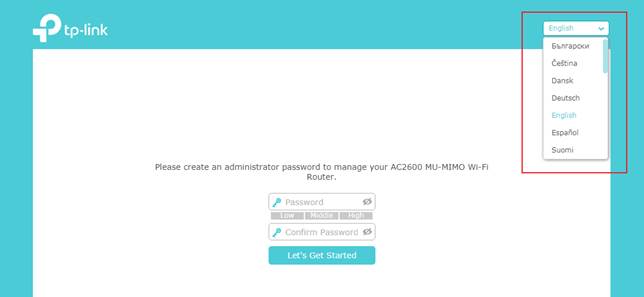
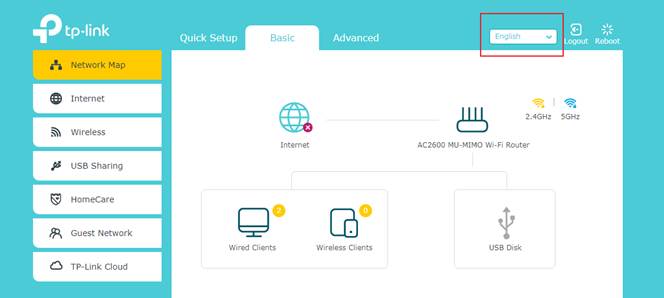
Step 2: Find the drop-down list in the upper right corner to choose a language. You can find the drop-down list to change the language at any time.
For more details, download the manual for your product from the Download Center.
Buscando mas
¿Es útil esta pregunta frecuente?
Sus comentarios nos ayudan a mejorar este sitio.
_normal_1591166141751p.png)
&Archer-A9(US)_normal_1584493037690i.png)
-1.0_A_normal_1584492784864d.png)

TP-Link Community
Still need help? Search for answers, ask questions, and get help from TP-Link experts and other users around the world.