TD-W9970 Setup Guide
Welcome! Let’s get your router up and running together.
This guide makes setup simple for everyone, covering helpful accessibility resources, what’s in the box, how it looks, and where to begin.
Our Tether app and web management page also offer accessibility features, such as increasing page contrast, switching to landscape mode and increasing font size. You can enable them during setup to make it much easier to set up your device and adjust settings! For more accessibility guidance, refer to Accessibility Support.
Note: For some models, Accessibility features will be supported by subsequent firmware upgrades.
Now, ready to explore your router and get connected?
Step 1. Learn About Your Router
This section introduces the router's package contents and appearance, including its ports, buttons, and product label.
1. Unpack Your Router
Your package includes: a router, a power adapter, an Ethernet cable, and installation guides.
Power Adapter: A block-shaped charger with a cord. Plug it into the router’s power port to turn it on.
Ethernet Cable: A thick cable with plastic connectors at both ends. Each connector has a small clip to hold it in place. To use the cable, insert one end to the WAN port on your router until you hear or feel a click and the other end to an Ethernet outlet or a modem. To unplug it, you can press the click and pull it out.
2. Appearance
The router has a rectangular shape and is designed to sit flat on a surface, such as a table or shelf. It comes with two thin, adjustable antennas attached to the back.
First, locate four small protruding footpads on the flat bottom of the router. With the footpads facing down, place the router on a flat surface. Rotate all antennas to point straight up for the best signal.
Next, face directly to the back panel. You’ll find five ports and a few buttons lined up in a row. Here’s what they are, from right to left:
-
Power Slot: A round port. Plug in the provided power adapter to connect the router to the power socket.
-
Power On/Off Button: A larger round protruding button on the far right. To turn on your router, press it and wait about 2 minutes for the router to boot up. To turn off your router, press and immediately release it.
- WPS/Reset Button: A round protruding button. To connect via WPS, press and immediately release the button, then press the WPS button on your device to connect via WPS. To reset the router to factory default settings, press for 10 seconds and release. Then wait about 2 minutes for it to restart.
-
Wi-Fi Button: A round protruding button next to the left siede of the WPS/Reset button. Press and hold the button for about 2 seconds, then release the button to turn the router’s Wi-Fi on or off.
-
Three LAN Ports (1-3): Three square RJ-45 Ethernet ports, for connecting additional wired devices.
-
LAN/WAN Port: A square RJ-45 Ethernet port. It defaults to a WAN port and can connect the router to a modem or an Ethernet outlet, or other internet services.
-
DSL Port: A square RJ-11 port, for connecting the port to the splitter or directly connect the port to the phone jack via a phone cable.
On the bottom of the router, there is a recessed label. This label includes: the router’s default network name (SSID), wireless password, and the MAC address.
Step 2. Set Up Your Router
1. Position your router. Make sure that the router is within reach of an AC power outlet and near Ethernet cables for wired devices. If possible, try moving it closer to a window for better signal.
2. Scan the QR code below to download and install the Tether app. Then follow the app instructions to set up your router.
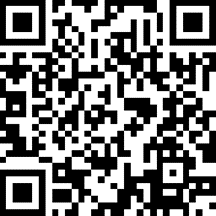
Alternatively, you can click the button below to download and install the Tether app for iOS or Android.
Note: Please remain online (Wi-Fi or mobile data) throughout the app download and login steps.


Tip: You can also cable and set up your router with a web browser by visiting http://tplinkmodem.net or http://192.168.1.1. For detailed information, please refer to the router’s quick installation guide or user guide.
Support
For technical support, replacement services, user guides, and other information about your product model, please visit https://www.tp-link.com/support/
*TP-Link hereby declares that the device is in compliance with the essential requirements and other relevant provisions of directive 2019/882/EU. The original EU Declaration of Conformity may be found at https://www.tp-link.com/en/support/ce/