Introduction of Deco App
 652578
The Deco app is the control center for your Deco Whole Home Mesh Wi-Fi System. Use it to set up your network, monitor connected devices, manage parental controls, and configure advanced settings, all from your Android or iOS smartphone or tablet.
Note: Features available in Deco may vary by model and software version. All steps and images described here are only examples and may not reflect your actual Deco experience.
Key Takeaways
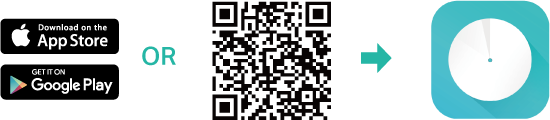
- The Deco app is free to download on Android and iOS. Get it from Google Play or the App Store, or scan the QR code on the download page to go directly to the app.
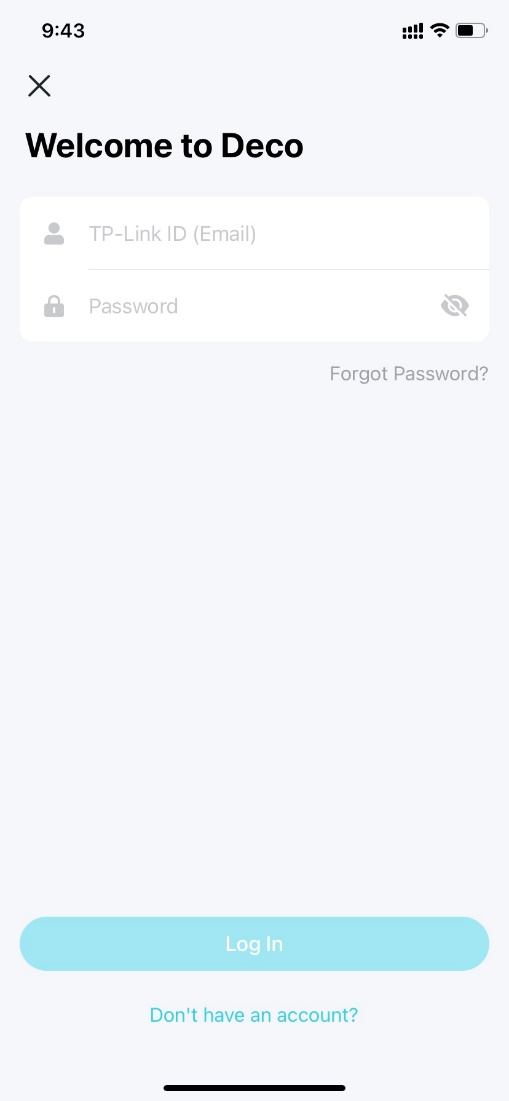
- Sign in with a TP-Link ID. If you already have a TP-Link Cloud account, those credentials also work. Use the "Forgot Password?" option in the app if you need to reset your password.
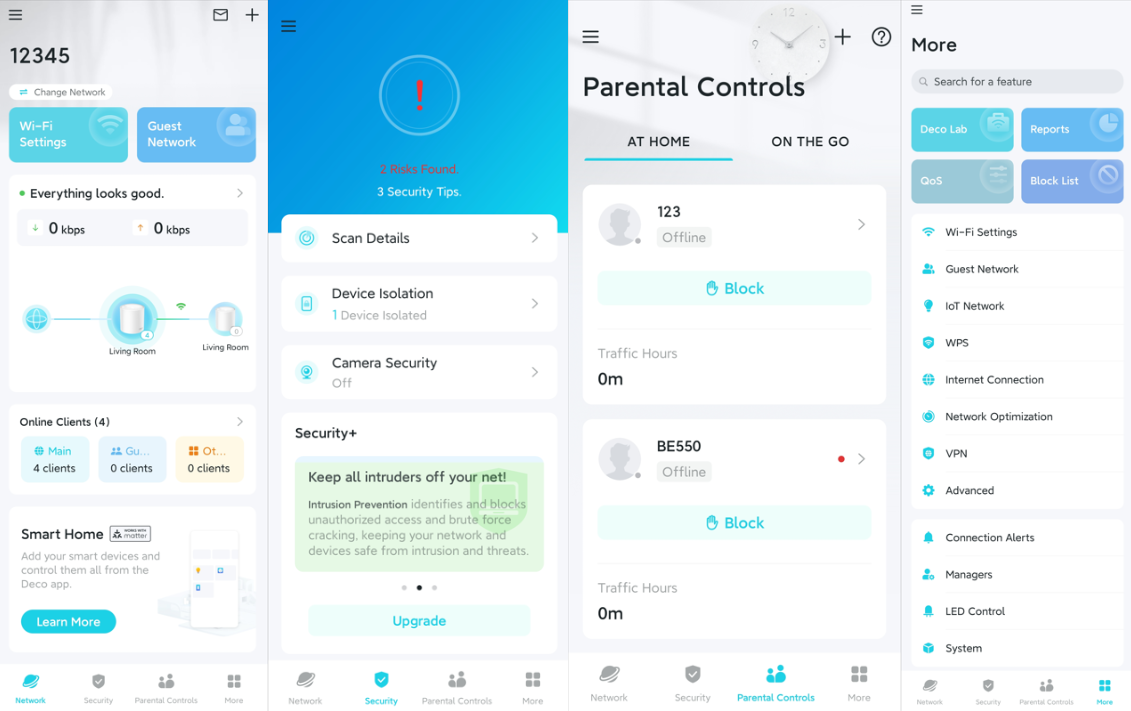
- The Deco app homepage has four tabs: Network, Security, Parental Controls, and More. The Network tab is for managing devices and checking status. The Parental Controls tab is for setting content filters and screen time rules. The Security tab is for scanning possible risks and protecting your network. The More tab is for advanced settings such as Quality of Service (QoS), Wi-Fi Protected Setup (WPS), and operation mode.
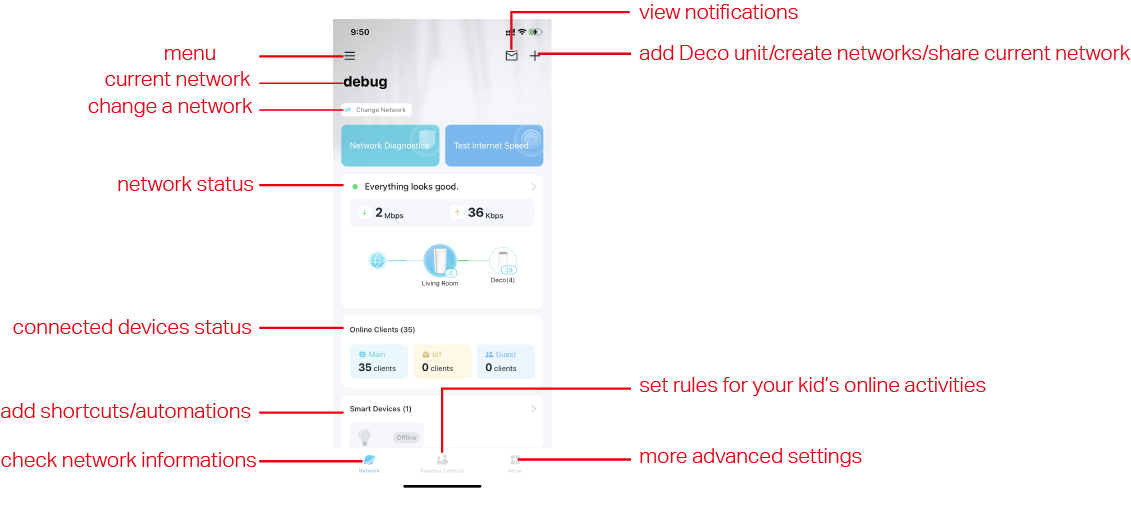
- From the Network tab, you can check the online or offline status of all Deco units and connected devices, run a speed test, and add smart devices, shortcuts, or automation routines.
- The Parental Controls tab lets you create profiles for family members, filter content by category, set daily time limits, and schedule offline periods. Some advanced scheduling options require a HomeShield Pro subscription.
- The More tab includes advanced network settings such as QoS, Operation Mode, MAC Clone, NAT Forwarding, and Internet Protocol Television/Virtual Local Area Network (IPTV/VLAN). Features available in the More tab vary by Deco model.
Download and Install the Deco App
Scan the QR code below or go to Google Play or the App Store to download the Deco app. Install the app on your Android or iOS smartphone or tablet. Scanning the QR code takes you directly to the app download page.
For a full walkthrough of setting up your Deco network, see How to set up your Deco network.
Log In to the Deco App
Open the app. Use your TP-Link ID to log in. If you don't have a TP-Link ID, sign up first.
Note:
- If you already have a TP-Link Cloud account, you can log in using that.
- If you forgot your login password, tap Forgot Password? The Deco app will guide you through the rest.
If you have trouble signing in, see What to do if you can't log in to the Deco app.
Homepage
After you log in to the Deco app and set up the Deco network, you will see the Homepage. There are three tabs: Network, Parental Controls, and More. The Network tab is where you configure all network and device settings. The Security tab is where you protect your network from possible risks. The Parental Controls tab is where you set rules to manage your kids' online activities. The More tab is where you configure advanced settings, including QoS, WPS, and other options.
Note: Features displayed may differ from those of different Deco models.
Network
In the Deco app's Network tab, you can check the working status (online/offline) of all the Decos and connected devices, change networks, add smart devices/shortcuts/automation, test speeds/network security, and more.
Note: Features displayed on this page may differ from those of different Deco models.
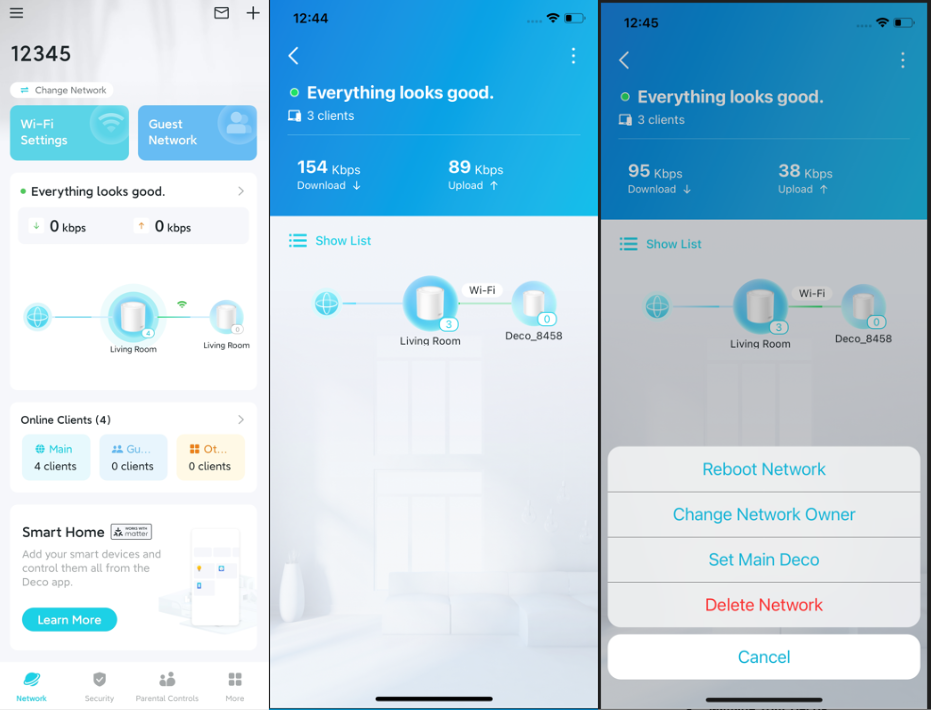
Monitor Deco Networks
After setting up your Deco network, you can monitor your whole-home network at a glance. Check network status and speeds, reboot or delete the network, and change the network owner or main Deco unit.
Manage Your Decos
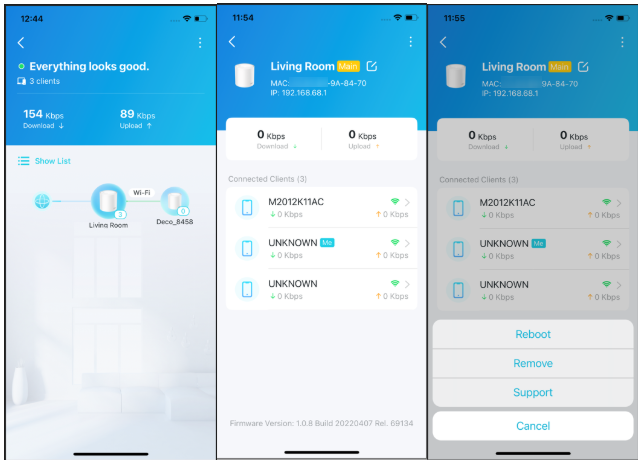
The Deco app makes it easy to manage every unit in your network. View Deco connections, check the clients connected to each Deco, edit a Deco's name, and reboot or remove a Deco unit.
For help adding a new unit, see How to add an additional unit to your Deco network.
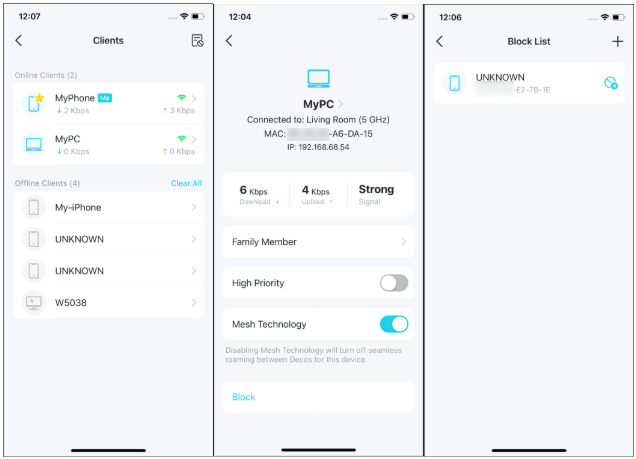
Manage Network Clients
From the client detail view, you can change a client's name and type, enable high priority, and toggle Mesh Technology for that device. You can also set a profile to manage its online activities.
Manage Your Smart Home
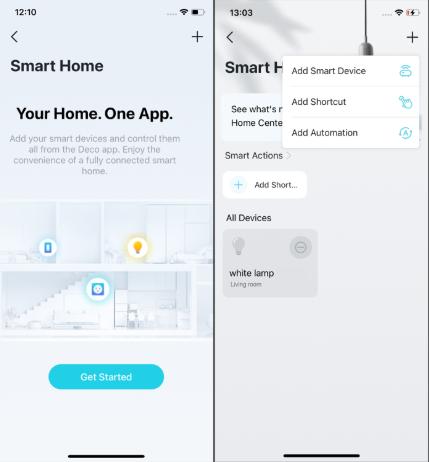
After creating a Deco network, you can add your smart home devices and manage them directly in the Deco app. Add shortcuts to execute an action with a simple tap. Add automation to set interactions between your devices by adding triggers and actions.
For answers to common questions, see General questions about the Smart Home feature in the Deco app.
Security
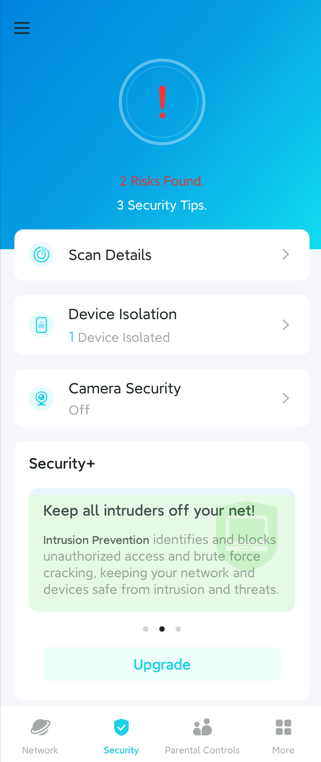
Security strengthens your network's defenses against intrusions and attacks. It provides detailed security recommendations to help keep your home network secure.
Parental Controls
The Deco app's Parental Controls tab lets you create profiles for family members and manage their online activity. You can filter content by category, block specific websites, set daily time limits, and schedule offline periods using the Bedtime and Offtime controls.
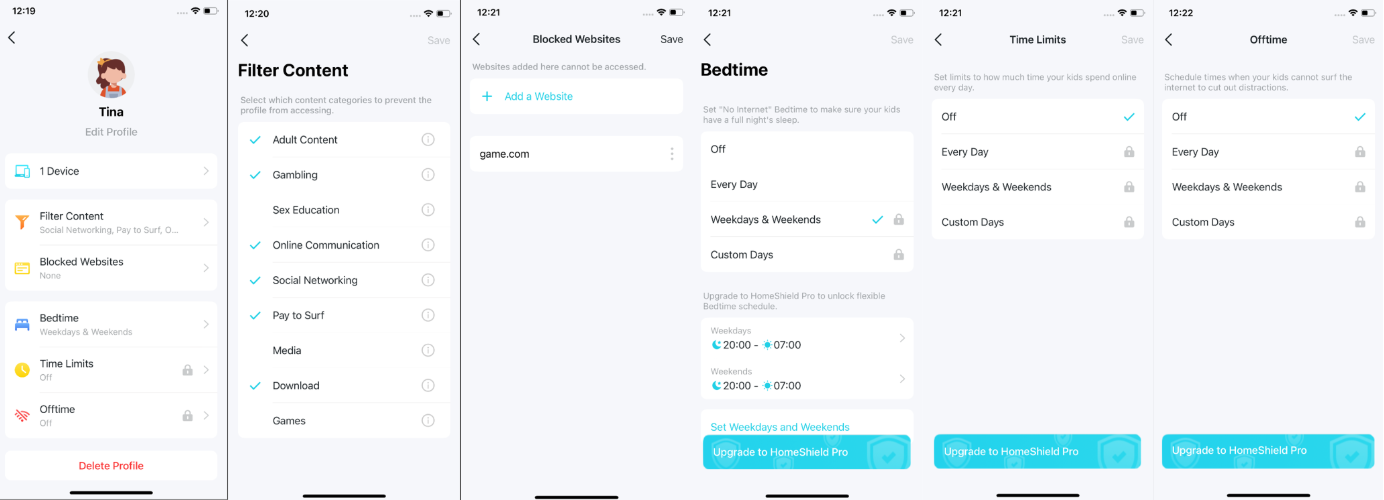
For step-by-step setup instructions, see How to set up HomeShield Parental Controls on Deco.
More
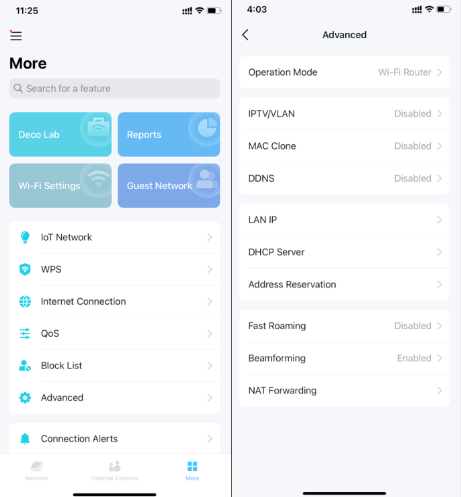
The More tab gives you access to advanced network settings, including QoS, Operation Mode, MAC Clone, NAT Forwarding, and IPTV/VLAN. Available options vary by Deco model.
Note: Features displayed on this page may differ from those of different Deco models.
For help adjusting your Wi-Fi settings, see How to change the Wireless Settings in the Deco app.
Menu
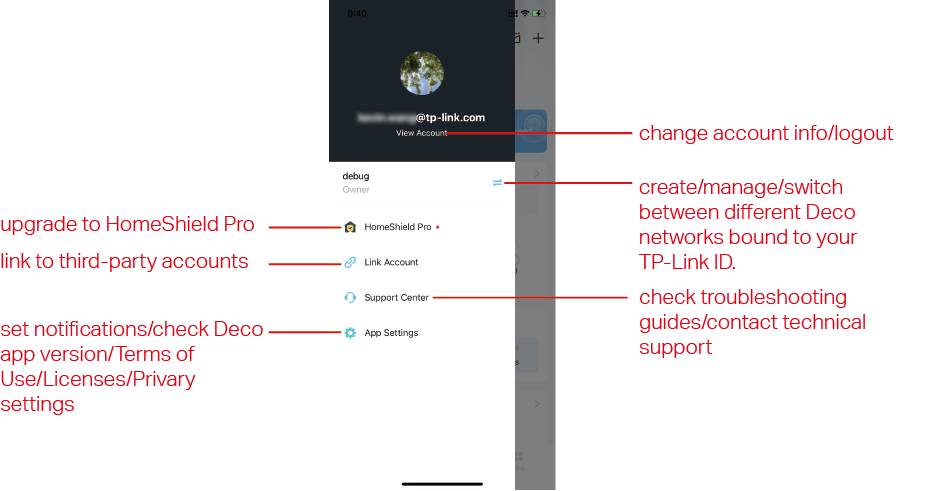
Swipe right in the Deco app to access the Menu. From here, you can manage your account information, switch between different Deco networks, adjust app settings, and reach the Support Center for troubleshooting help.
Полезен ли беше този ЧЗВ?
Вашите отзиви помагат за подобряване на този сайт.

_EU_V1.0_01_normal_20220817025337r.jpg)
