Troubleshooting a Single Device Not Connecting to Your TP-Link Wireless Network
If Wi-Fi is not working on one device — such as a TV or printer — but other devices on your TP-Link wireless network are connecting fine, the issue is likely specific to that device or its settings. This page walks through five troubleshooting steps to help you identify and fix the problem.
Key Takeaways
- If the device cannot connect to any network at all (not just your TP-Link network), the issue is likely with the device itself rather than the router.
- Ensuring the device is set to obtain an IP address automatically via Dynamic Host Configuration Protocol (DHCP) is one of the first things to check when a single device cannot connect.
- Access Control or MAC filtering settings on the router may be blocking a specific device from connecting to the network.
- Changing the wireless channel or channel width on the TP-Link router can resolve connectivity issues affecting a single device.
- Power cycling the device, modem, and router with everything fully unplugged for at least 60 seconds is a recommended final troubleshooting step.
Troubleshooting Steps
Step 1: Test the Device on Another Network
If it cannot work with any networks at all, this issue is more related to the device itself; contact the manufacturer's support for that device.
Step 2: Check IP Settings on the Device
If the device is configured with a static IP address, you will need to manually enter the IP address, subnet mask, default gateway, and DNS server.
DHCP (Dynamic Host Configuration Protocol) is a setting that ensures the clients can get the information they need from your wireless router to connect to the internet.
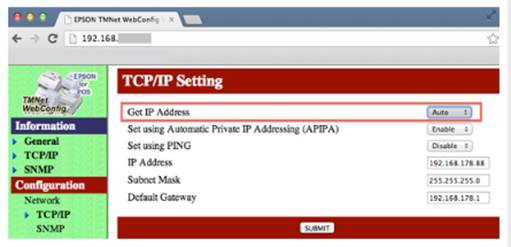
For example, on an Epson Printer, customers can log in to the printer set-up screen, then change the “Get IP Address” setting to “Auto”, then submit.
Step 3: Resolve Connection Errors
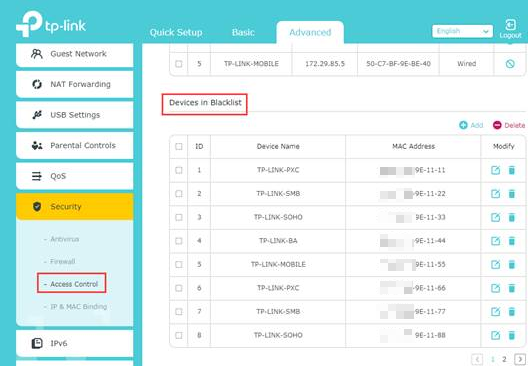
A. Unable to connect/ unable to join, please try to re-enable the wireless adapter on your device and retry. You can also try to remove the existing wireless network profile. If the same thing, please check whether there are any special settings on the wireless routers, such as Access Control or MAC filtering. If yes, please make sure the device that cannot connect wirelessly is not on the blacklist.
B. Incorrect password, please double-check your wireless password on the router.
Step 4: Adjust Wireless Settings on the Router
Some devices struggle to connect when the router is set to a specific wireless channel or channel width. Adjusting these settings on your TP-Link router may resolve the issue
Changing Channel and Channel Width on a TP-Link Router
Step 5: Power Cycle All Devices
This is pretty simple. All you need to do is unplug your client, modem, and wireless router from power. It’s not enough to just turn them off. Disconnect everything from the power outlet and leave it unplugged for at least 60 seconds. Then reconnect your modem and router to power. Give these a few moments to power up. When all the lights on the modem and router are normal, plug in the client and power it on.
Learn more details about each function and configuration. Please go to the Download Center to download the manual for your product.
Looking For More
Полезен ли беше този ЧЗВ?
Вашите отзиви помагат за подобряване на този сайт.
_Overview_normal_20230724014922u.png)



TP-Link Community
Still need help? Search for answers, ask questions, and get help from TP-Link experts and other users around the world.