What if the internet connection is slow when the device is connected to the TP-Link ISP-customized devices?
 10528
10528Introduction
Internet speed may be affected by many factors. This FAQ will help you identify the cause of the problem and offer tips to improve performance.
Troubleshooting
Scenario 1: Wired and wireless speeds are both slow
Step 1. Log in to the ISP-customized device via its LAN gateway IP address in a web browser (e.g., Chrome or Firefox).
Note: You can check the LAN gateway IP in the client's network adapter settings. Here we use 192.168.1.1 as an example.

Step 2. Disable Parental Controls and QoS.
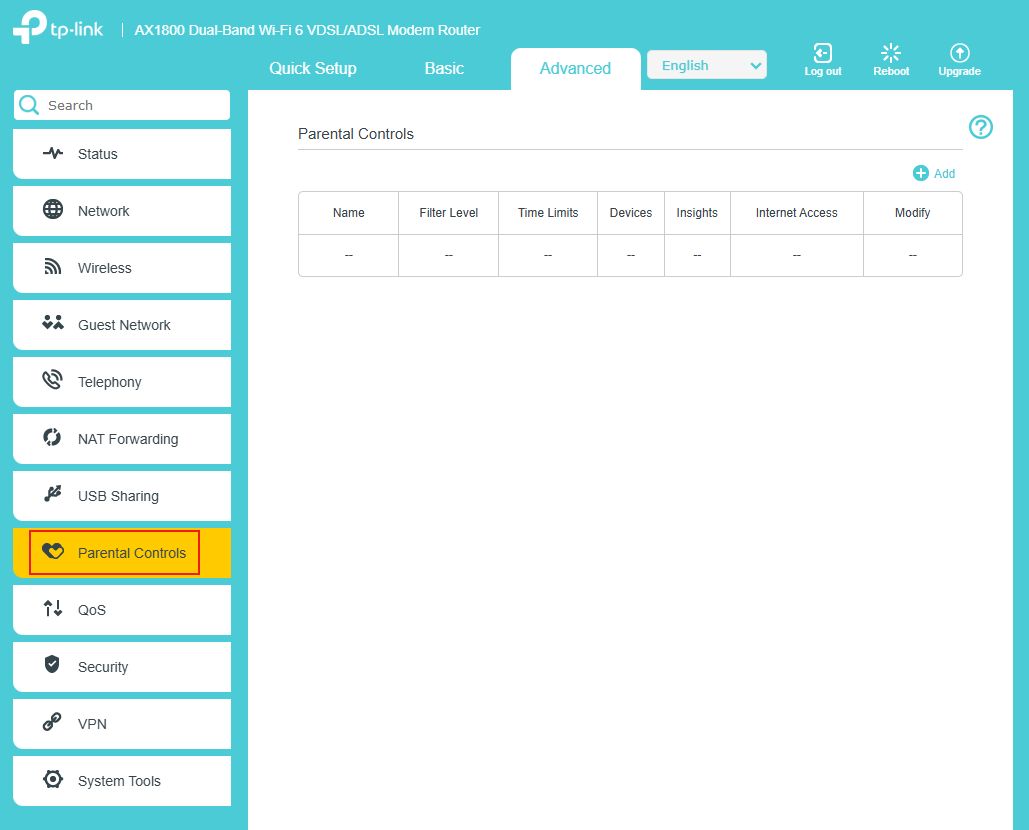
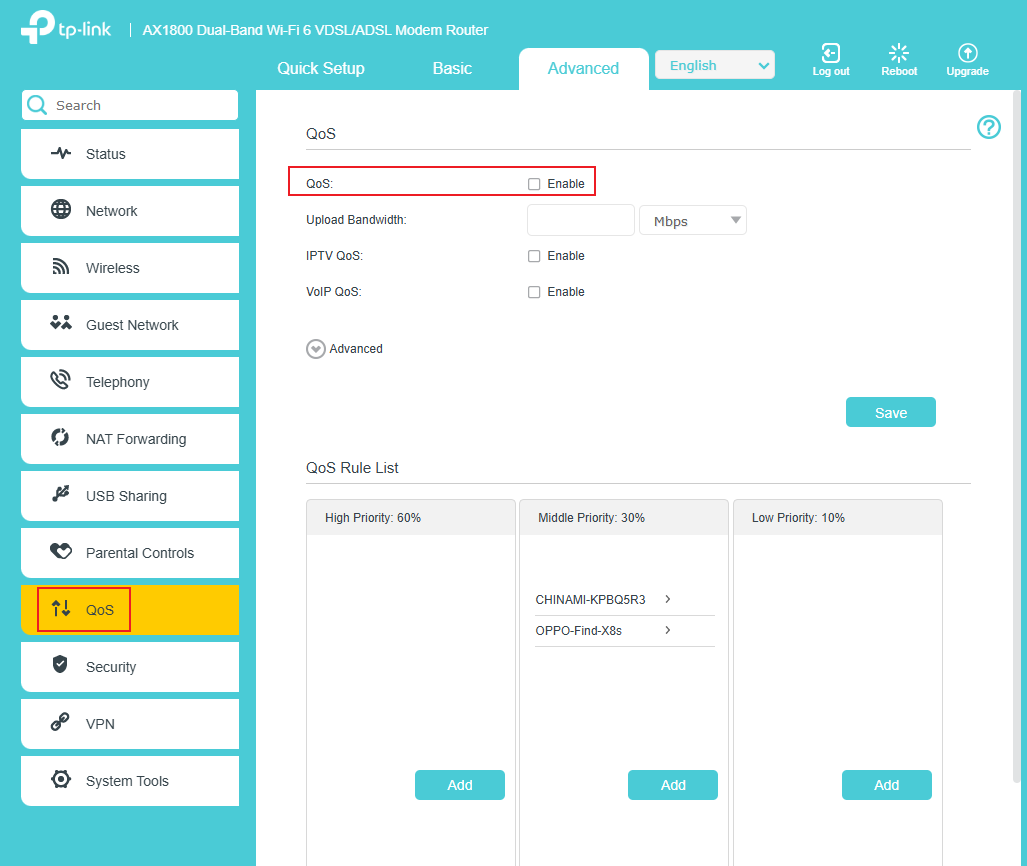
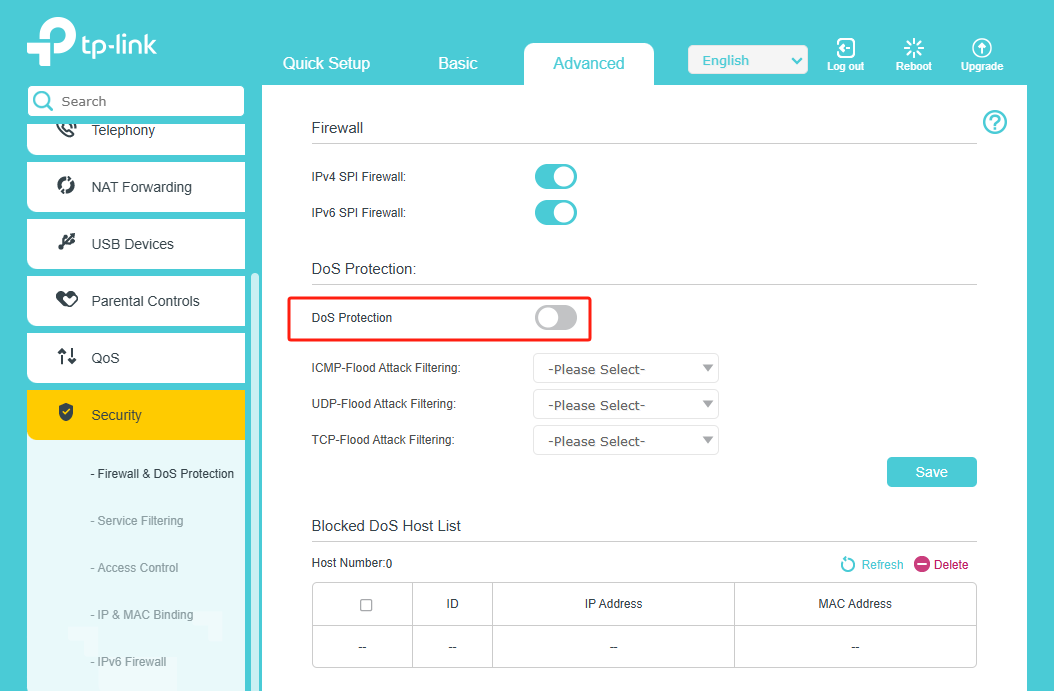
Step 3. Disable DoS Protection.
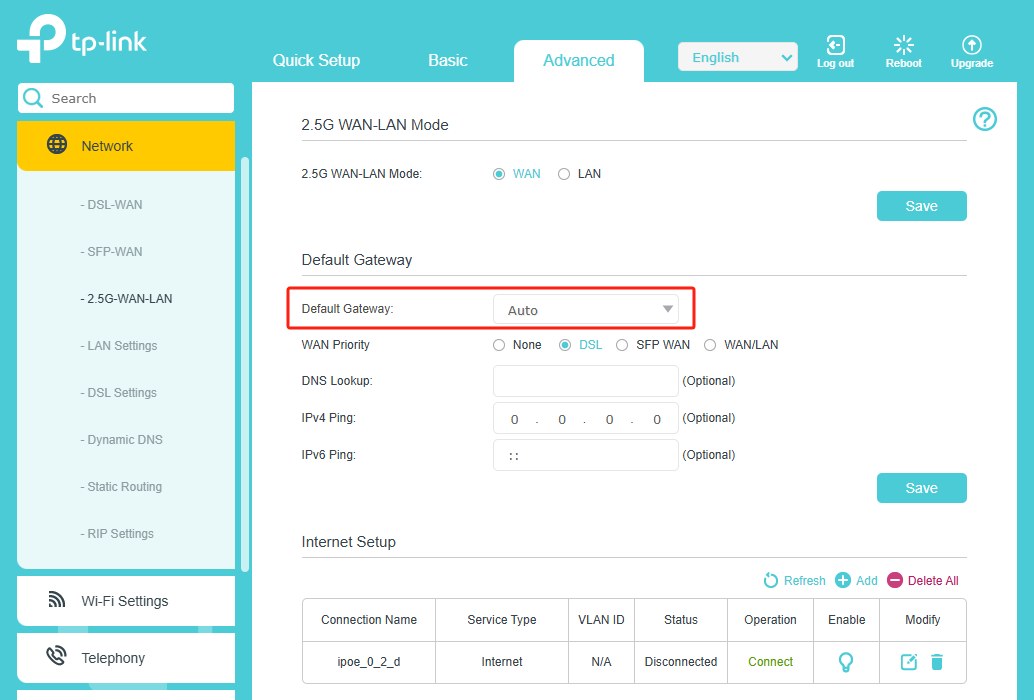
Step 4. Check the router's Default Gateway setting. ISP models can be configured with multiple WAN connections, and end customers must set the WAN Connection used for Internet access as the Default Gateway to access the Internet normally.
Scenario 2: Wireless is slow, while wired speed is normal
Step 1. Log in to the ISP-customized device via its LAN gateway IP address in a web browser (e.g., Chrome or Firefox).
Note: You can check the LAN gateway IP in the client's network adapter settings. Here we use 192.168.1.1 as an example.

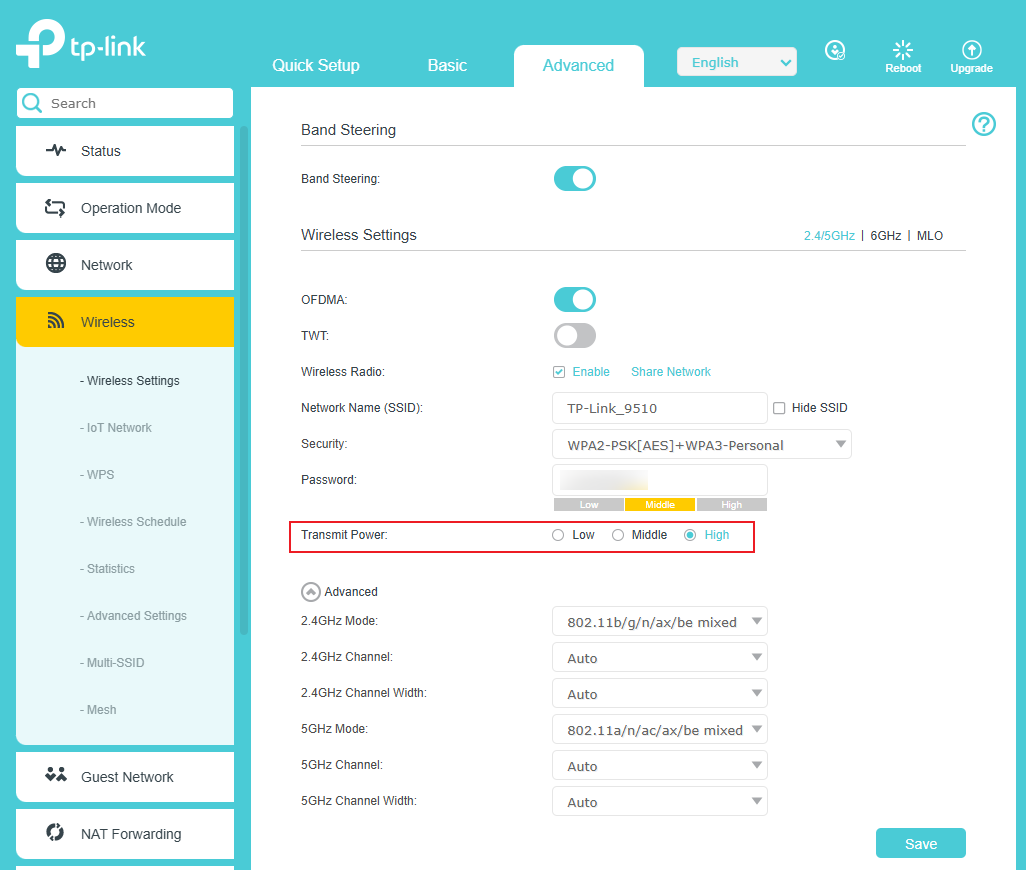
Step 2. Check the Transmit Power and set it to High.
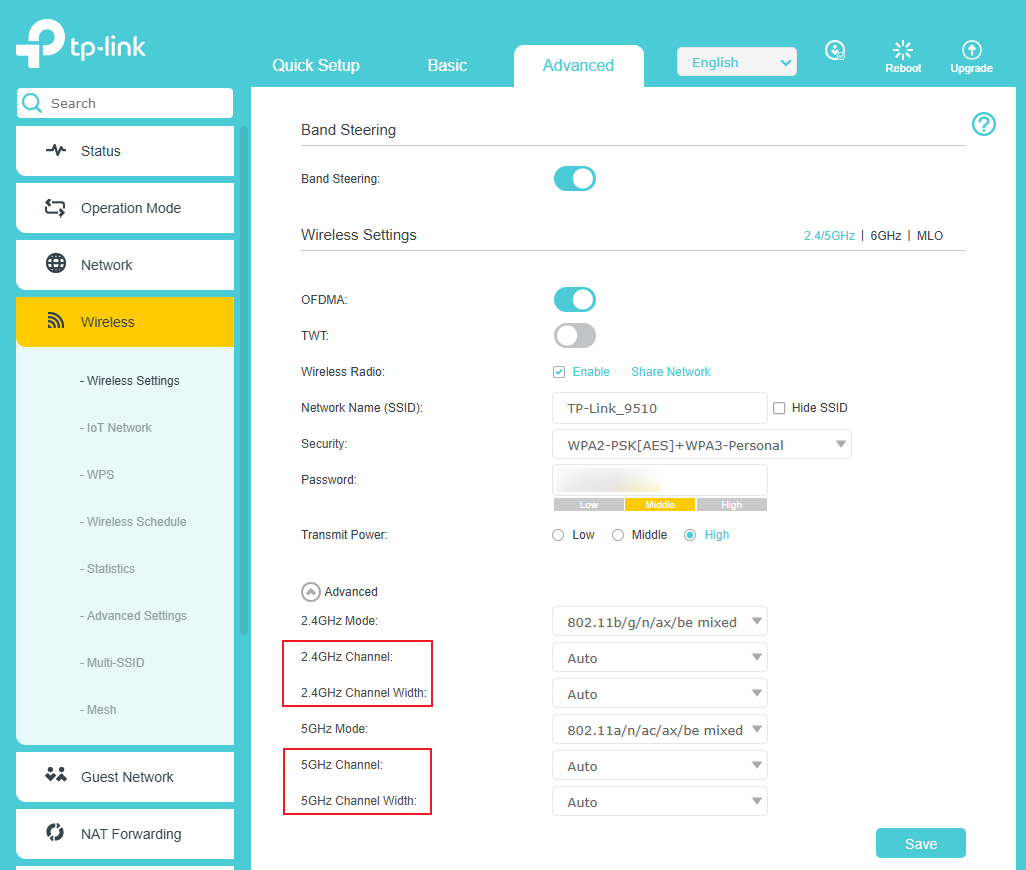
Step 3. Change the wireless Channel and Channel Width.
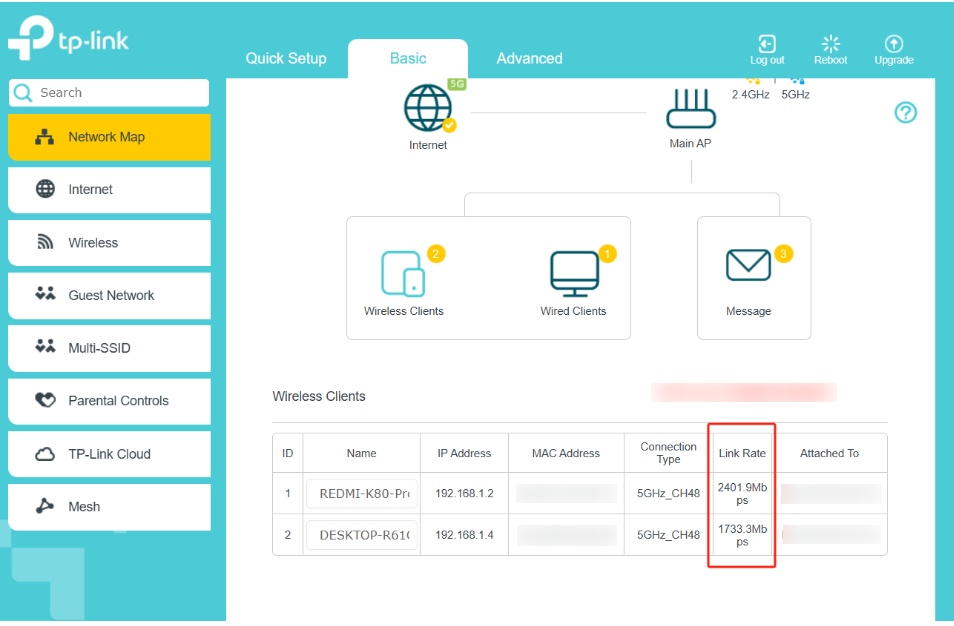
Step 4. Check the Link Rate. If the Link Rate is very low, network speed will also be affected. You can improve the Link Rate by reducing obstacles between the router and the client or by relocating the client.
Полезен ли беше този ЧЗВ?
Вашите отзиви помагат за подобряване на този сайт.


