How to Recover or Reset a Forgotten VIGI Camera Password
Contents
Before Starting Password Recovery
Method 1: Recover the Password Using E-mail Verification
Scenario 1: The Camera has Internet Access
Scenario 2: The Camera does not have Internet Access
Method 2: Recover the Password Using Security Questions
Method 3: Recover the Password Using QR Code Verification
Method 4: Recover the Password Through Technical Support
Method 5: Reset the Camera to Factory Defaults
Configure Password Recovery Options for Future Use
Introduction
Forgetting the administrator password does not necessarily require a factory reset. VIGI Cameras provide multiple password recovery methods, including E-mail Verification, Security Question Verification, QR Code Verification, and Technical Support assistance. The available recovery options depend on the password recovery settings configured before the password was lost.
This article explains how to recover or reset a forgotten VIGI Camera password through the Camera Web Interface, VIGI App, VIGI PC Client, VIGI VMS, or VIGI NVR.
Requirements
Devices
- VIGI Camera
Supported management platforms
- Camera Web Interface
- VIGI App
- VIGI PC Client
- VIGI VMS
- VIGI NVR
Before Starting Password Recovery
E-mail Verification and Security Question Verification are available only if these recovery options were configured before the password was forgotten.
If neither option was configured, use QR Code Verification or contact Technical Support for assistance.
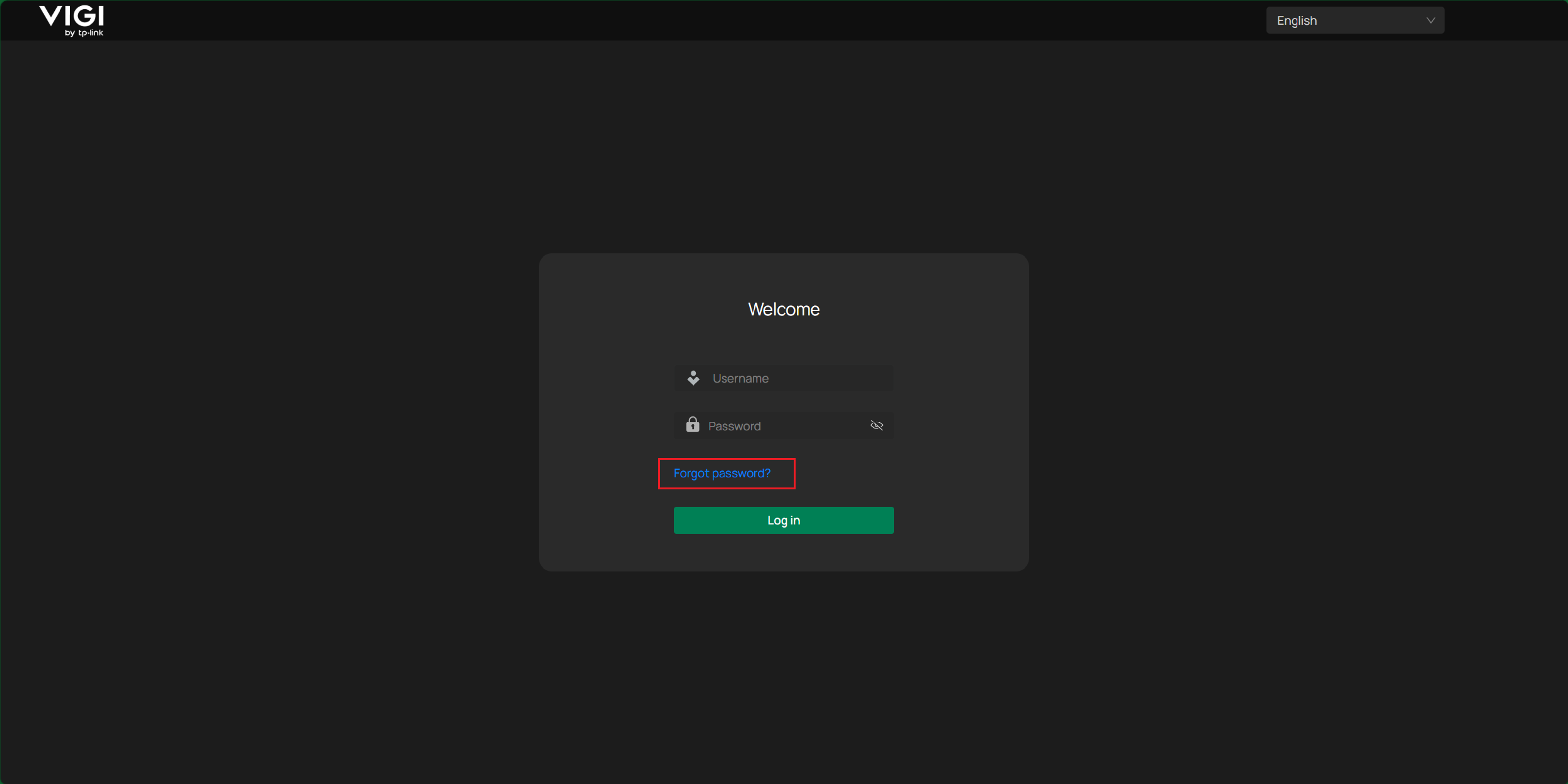
Password recovery follows a similar workflow across all supported management platforms. The examples in this article use the Camera Web Interface.
To begin password recovery:
- Access the camera login page.
- Click Forgot Password.
- Select an available verification method
Method 1: Recover the Password Using E-mail Verification
E-mail Verification allows the camera administrator password to be reset through a recovery e-mail address configured previously for the device.
Scenario 1: The Camera has Internet Access
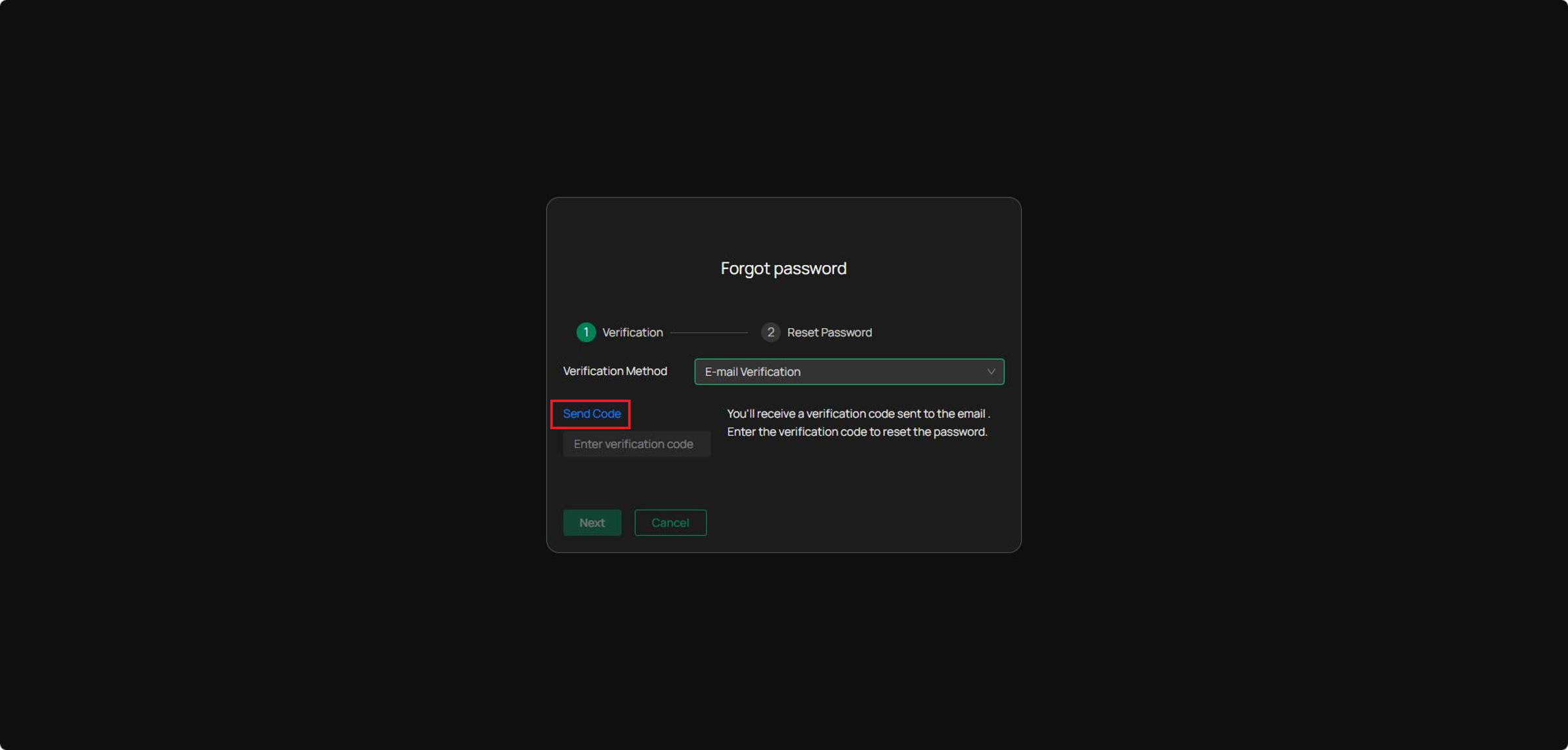
Step 1. Select E-mail Verification.
Step 2. Click Send Code to send a verification code to the configured recovery e-mail address.
Step 3. Enter the verification code and click Next.
Step 4. Create a new administrator password.
Scenario 2: The Camera does not have Internet Access
Step 1. Select E-mail Verification. A QR Code will be displayed.
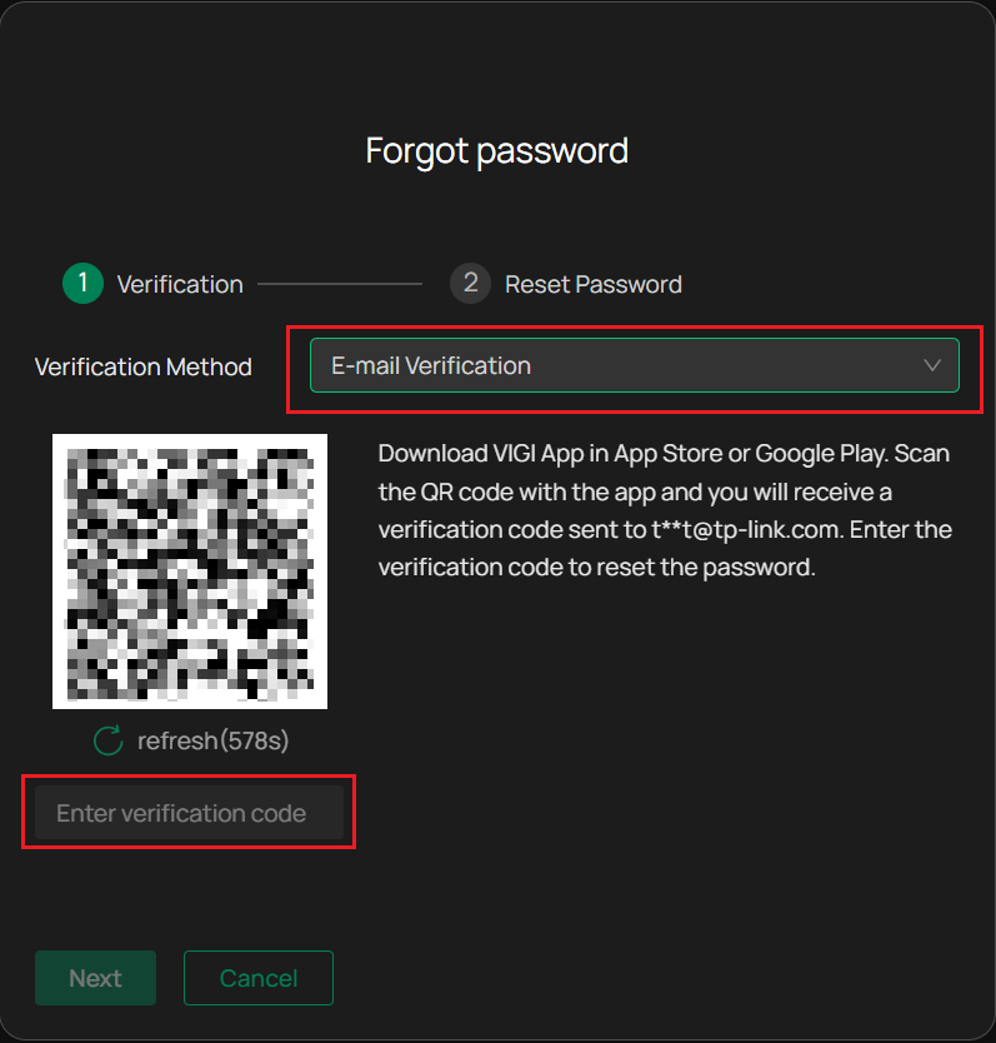
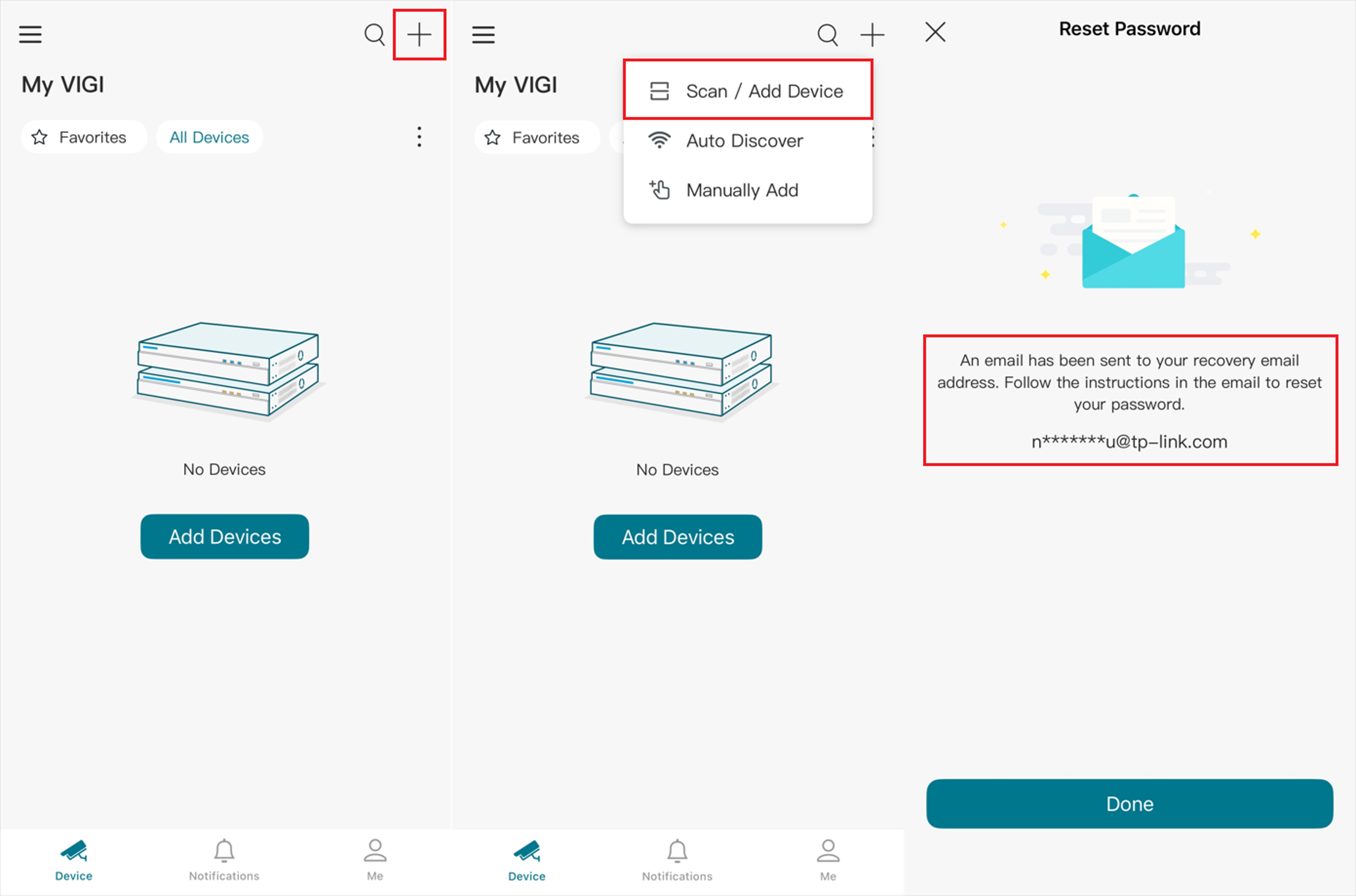
Step 2. Install and open the VIGI App. Sign in to the account and tap + > Scan/Add Device. Scan the QR code displayed on the camera recovery page.
Step 3. A verification code will be sent to the configured recovery e-mail address.
Step 4. Enter the verification code and create a new password.
Method 2: Recover the Password Using Security Questions
Security Question Verification allows password recovery using security questions configured during device setup.
Step 1. Select Security Question Verification.
Step 2. Answer all three security questions correctly.
Step 3. Click Next.
Step 4. Create a new administrator password.
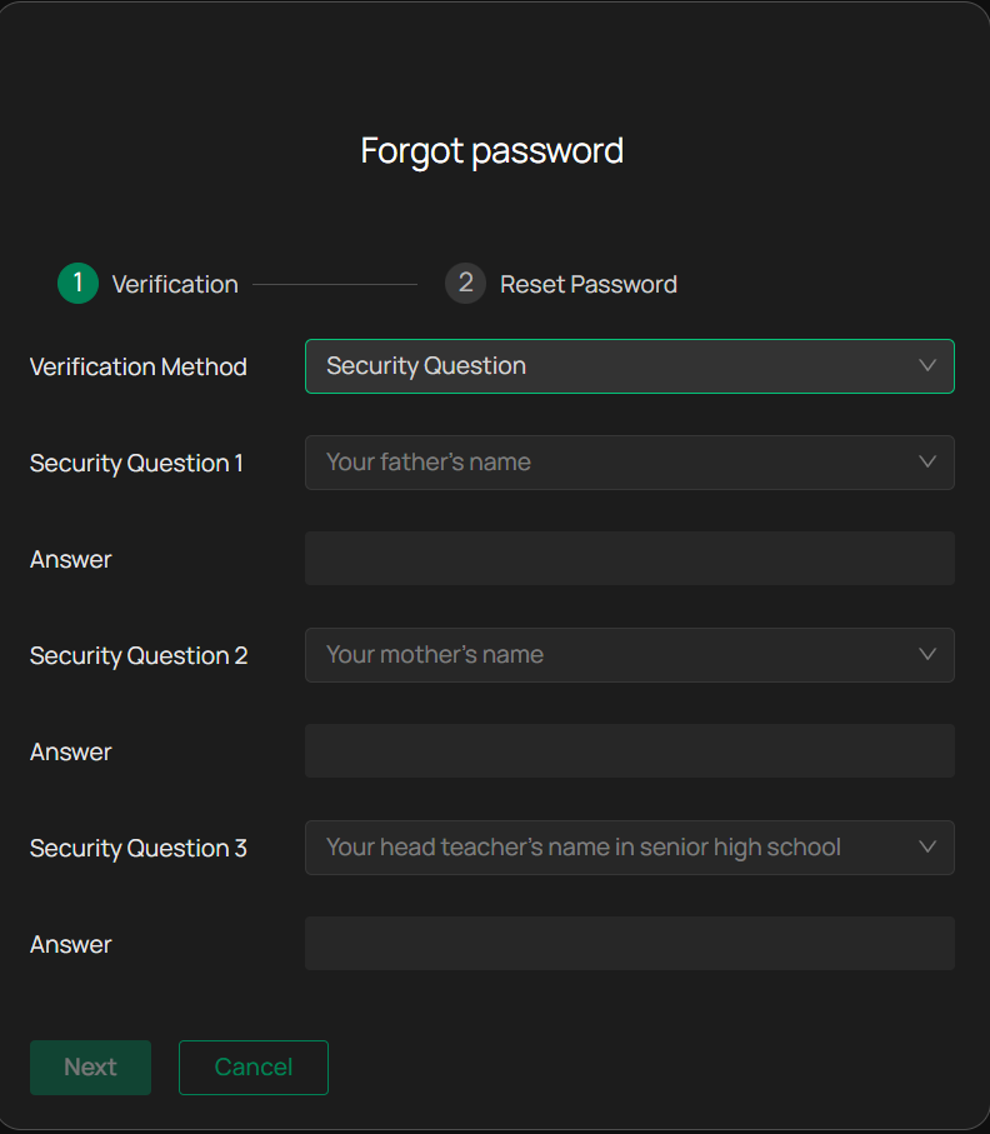
Note: This method is available only if security questions were configured before the password was forgotten.
Method 3: Recover the Password Using QR Code Verification
Step 1. Select QR Code Verification.
Step 2. Sign in to the VIGI App using the same TP-Link ID that is bound to the camera.
Step 3. Scan the QR code displayed on the recovery page.
Step 4. Obtain the verification code and complete the password reset process.
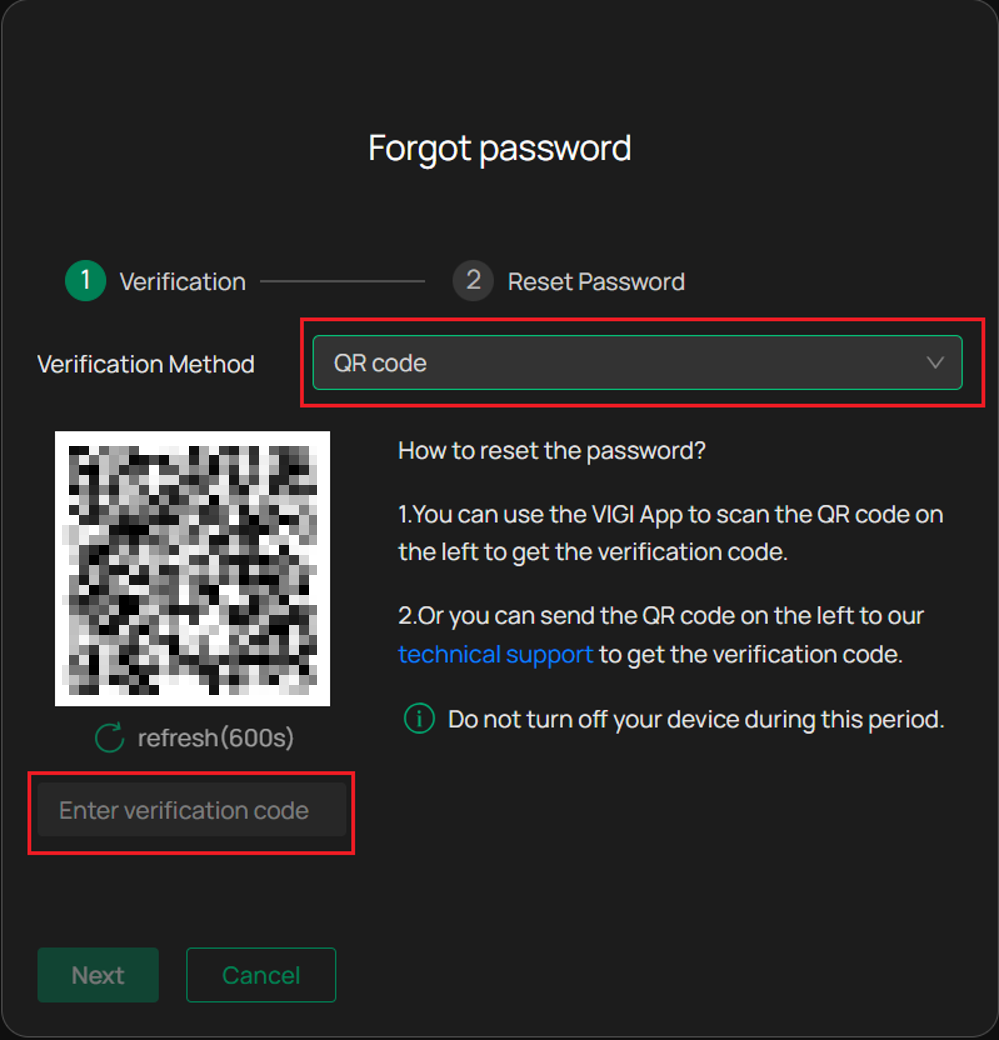
Note: The QR code is valid for five minutes only.
Note: If the camera is not bound to a TP-Link ID or the account used in the VIGI App differs from the bound account, this recovery method cannot be used.
Method 4: Recover the Password Through Technical Support
If none of the self-service recovery methods are available, contact Technical Support.
Step 1. Select Technical Support from the recovery options.
Step 2. Generate the support QR code.
Step 3. Contact VIGI Technical Support, preferably through VIGI Live Chat Support for faster assistance.
Step 4. Provide the QR code to the support engineer for assistance
Note: The support QR code expires after five minutes.
Method 5: Reset the Camera to Factory Defaults
Factory reset should be used only as a last resort when all recovery methods are unavailable.
Before resetting
- All settings and configurations will be erased.
- The camera must be configured again after the reset.
- Some camera models may not include a physical reset button.
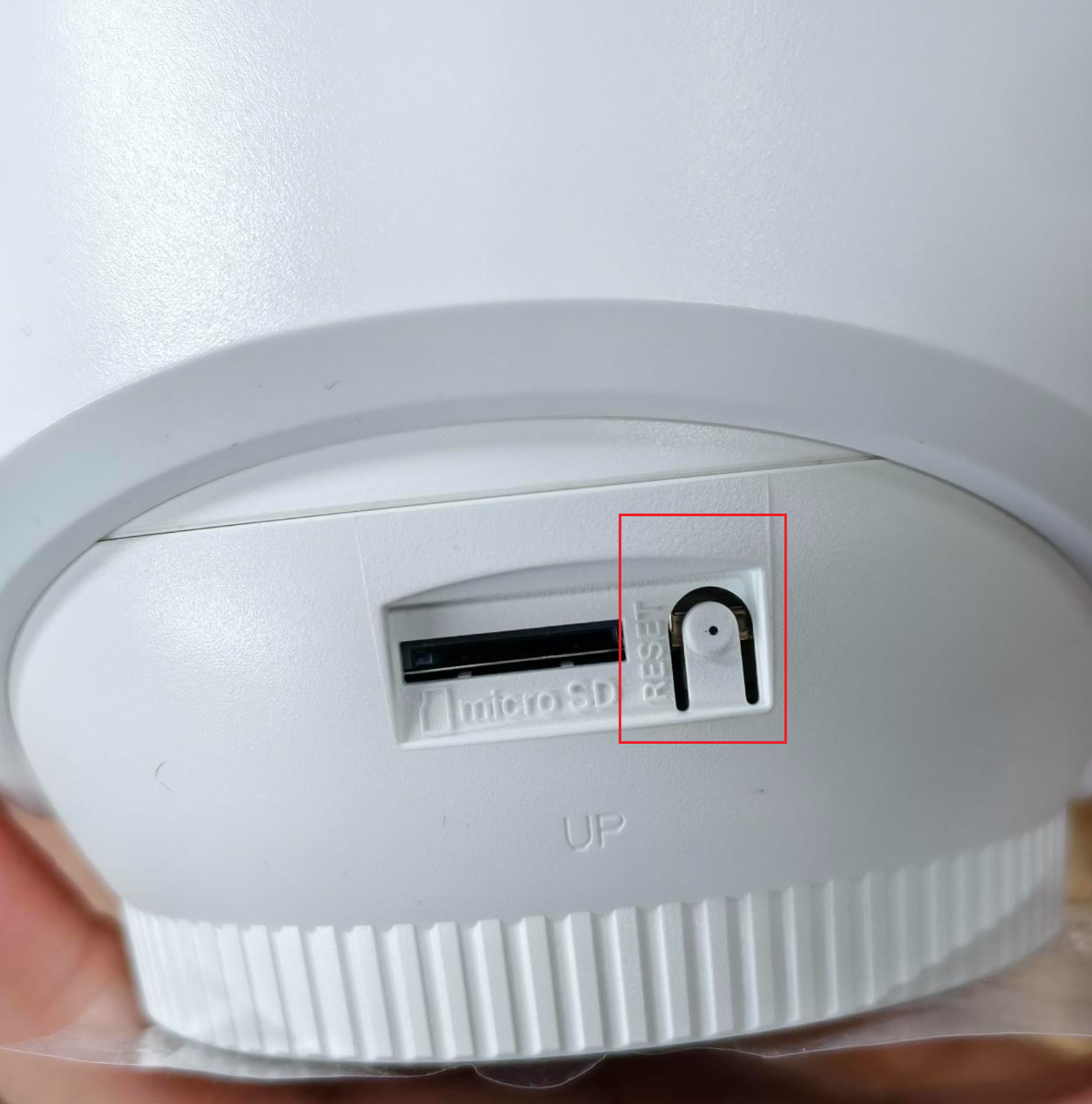
Step 1. Locate the reset button on the camera. The button is typically located near the microSD card slot.
Step 2. Press and hold the reset button until the camera reboots.
Step 3. Wait for the factory reset process to complete.
Step 4. Perform the initial device setup and create a new administrator password.
Configure Password Recovery Options for Future Use
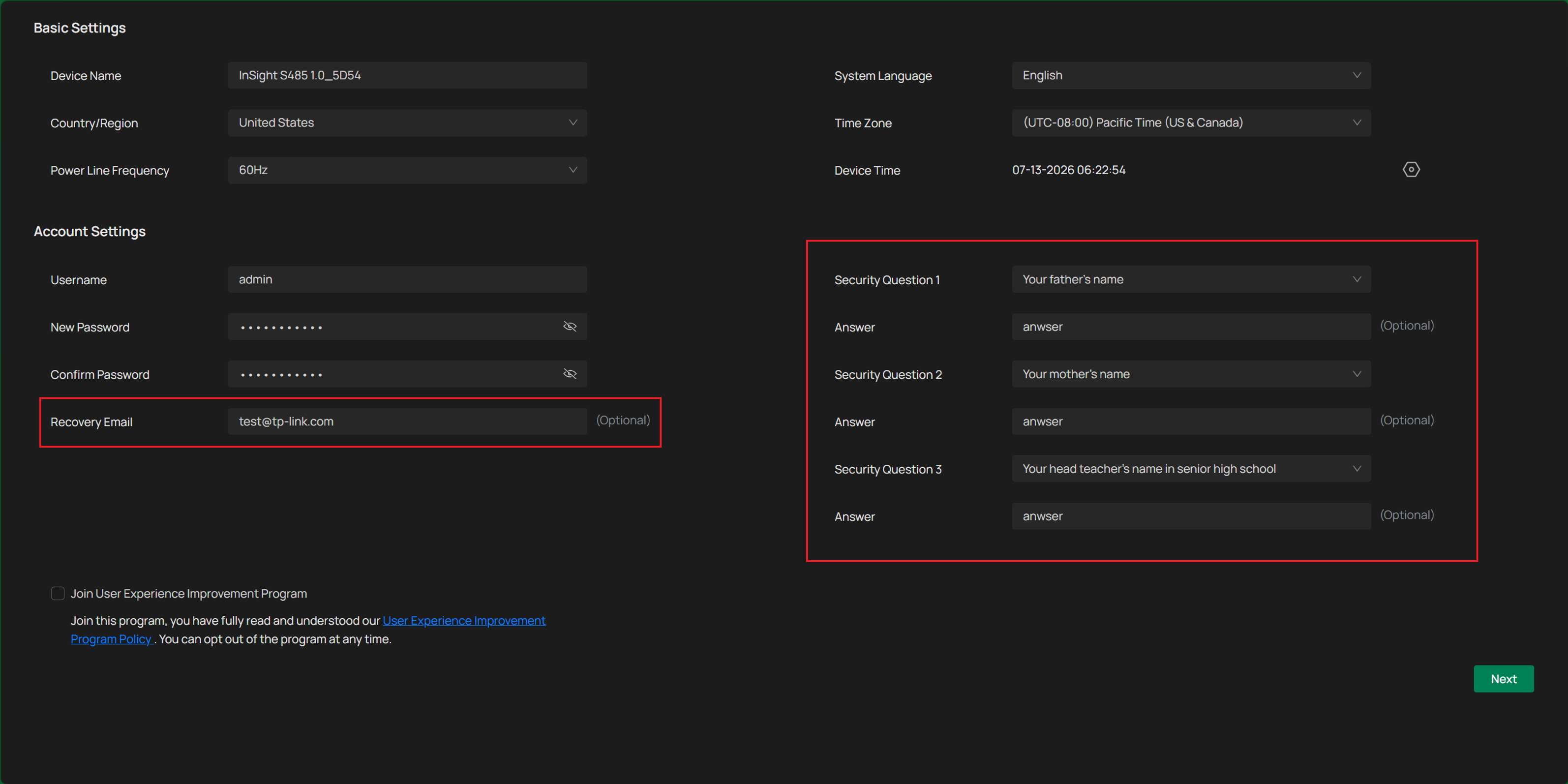
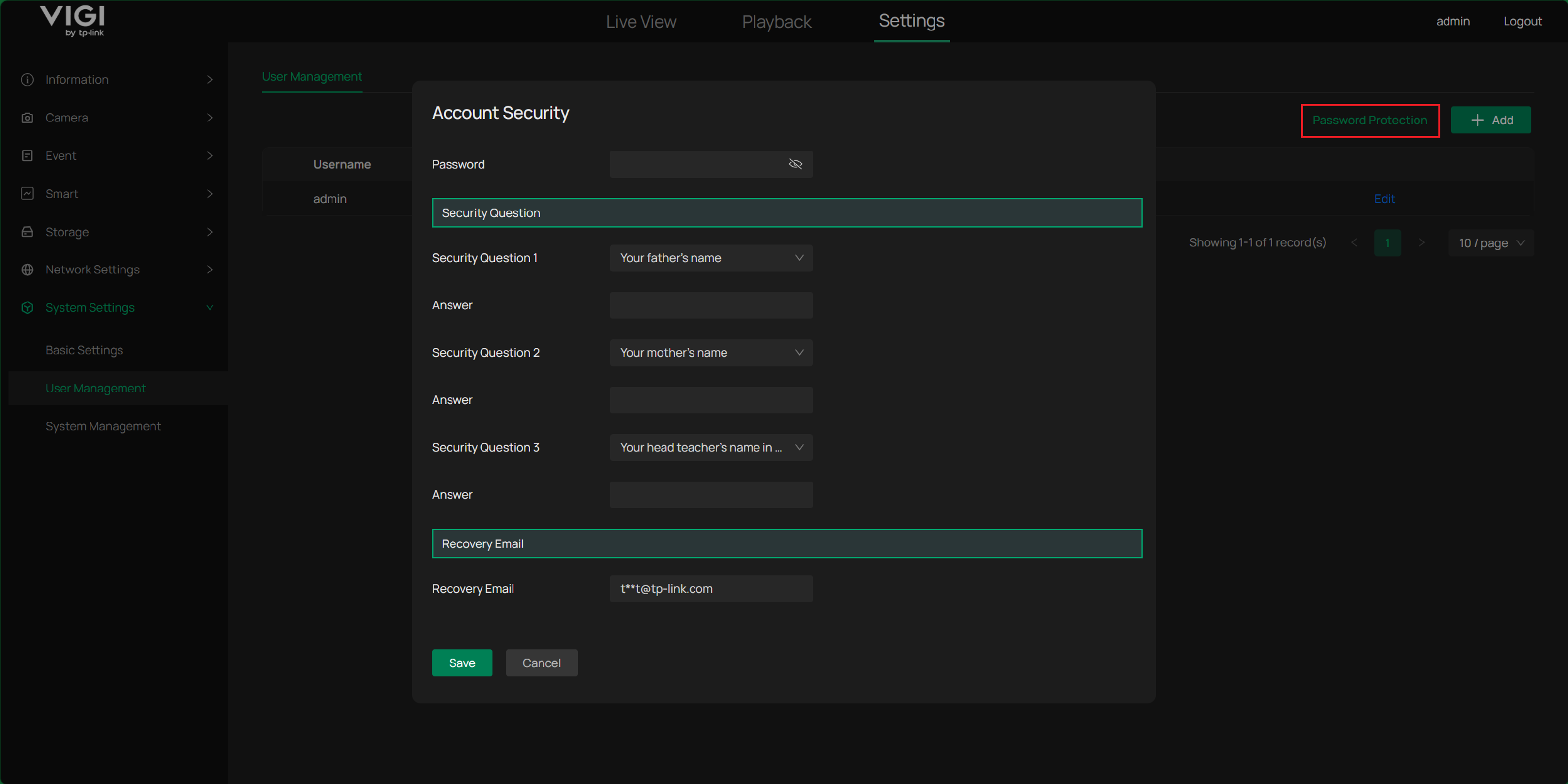
To simplify future password recovery, configure both recovery methods after regaining access to the device.
During initial setup
Configure:
- Recovery E-mail
- Security Questions
After device activation
Navigate to:
Settings > System Settings > User Management > Password Protection
Configure:
- Recovery E-mail
- Security Questions
Conclusion
A forgotten VIGI Camera password can be recovered through E-mail Verification, Security Question Verification, QR Code Verification, or Technical Support assistance. Factory reset should be considered only when no recovery options are available. To ensure quick password recovery in the future, keep the Recovery E-mail and Security Questions configured and up to date.
To learn more about each function and configuration, please visit Support Home to download or check the manual for your product.
QA
Q1: Which password recovery method should be used first?
A1: Use an available recovery method in the following order:
- E-mail Verification
- Security Question Verification
- QR Code Verification
- Technical Support
- Factory Reset
Q2: What is the Recovery E-mail?
A2: The Recovery E-mail is the e-mail address configured for password recovery during device setup. It is used to receive password reset verification codes.
Q3: What if a Recovery E-mail was never configured?
A3: E-mail Verification cannot be used. Use Security Question Verification, QR Code Verification, or Technical Support instead.
Q4: What if security questions were never configured?
A4: Security Question Verification is unavailable. Use another password recovery method.
Q5: What should be done if the verification code is not received?
A5:
- Check the Spam or Junk folder.
- Add noreply@tp-link.com to the safe sender list.
- Verify that no mail filtering rules are blocking TP-Link messages.
- Request a new verification code.
Q6: Can the password be recovered if the camera is offline?
A6: Yes. If a recovery e-mail address was configured previously, E-mail Verification can still be completed by scanning the recovery QR code with the VIGI App.
Q7: Will a factory reset delete camera settings?
A7: Yes. A factory reset removes all existing configurations and restores the camera to its factory default state.
Looking For More
¿Es útil esta pregunta frecuente?
Sus comentarios nos ayudan a mejorar este sitio.



TP-Link Community
Still need help? Search for answers, ask questions, and get help from TP-Link experts and other users around the world.