TP-Link Port Forwarding Not Working on Router or Deco? Here's How to Fix It
TP-Link port forwarding not working is most commonly caused by one of two things: the router has a private or CGNAT WAN IP address assigned by your Internet service provider (ISP), or Windows Firewall is blocking the incoming connection. This page walks you through five troubleshooting steps to help you identify and resolve the issue, covering server accessibility, port-forwarding rule verification, firewall settings, WAN IP address type, and client IP configuration.
Key Takeaways
- Port forwarding on a TP-Link router or Deco requires a public WAN IP address. If the WAN IP is private or a CGNAT address (100.64.0.0–100.127.255.255), port forwarding will not work, and you must contact your ISP to request a public IP.
- Always verify the server is accessible from the local network before troubleshooting port forwarding rules. If the server cannot be reached internally, the issue is with the server settings, not the router.
- Windows Firewall can block port forwarding connections. Setting the network profile to Private or temporarily disabling the firewall is a recommended troubleshooting step.
- Most 4G/LTE and 5G ISPs assign private IP addresses by default, so port forwarding is unavailable unless you request a public IP address from the ISP.
- If the client device uses a static IP address, make sure it is on the same subnet as the router and that the gateway is set to the router's LAN IP address.
How to Fix TP-Link Port Forwarding Not Working
Please follow the steps below for troubleshooting port forwarding failures on a TP-Link router.
Step 1: Verify the Server Is Accessible on the Local Network
You will want to double-check the server's IP address and port number. Check if you can access that server in the local network. If you are unable to access the server on your local network, please check the server's settings.
Step 2: Check Port Forwarding Settings on the Router
Verify that the port forwarding rule is correctly entered in the router, including the correct internal IP address, port number, and protocol.
Step 3: Check Windows Firewall Settings
Windows firewall will block connections from a different subnet, and it will divide the difference according to the network location you have chosen. You may refer to Tip 2.
Step 4: Check the WAN IP Address
If you are still having trouble, check the WAN IP address on your router or Deco. Deco port forwarding, like router port forwarding, requires a public WAN IP address to function. If it is a private IP address, you will need to open the same port on the upstream modem router as well. You may refer to Tip 1 to check the WAN IP.
But for the CG-NAT ISP: Comporium and Direct link - radio service, and most 3G/4G/5G ISPs, they usually provide the customer a private IP address or CGNAT address. CGNAT address ranges from 100.64.0.0 to 100.127.255.255, which looks like a public IP address but is actually not; therefore, it will also prevent you from using OpenVPN or port forwarding and affect the NAT Type. You could contact the ISP and ask them to offer a Public IP address.
Step 5: Check the IP Settings on the Client Device
Some devices require a static IP address in their Internet settings. So the correct IP setting is necessary. The IP should be the same subnet as the router, and the gateway on the client’s settings should be the router’s LAN IP address.
If it is possible, we suggest you use DHCP to get an IP address from the router directly.
Tip 1: How to Check Your WAN IP Address
For Deco
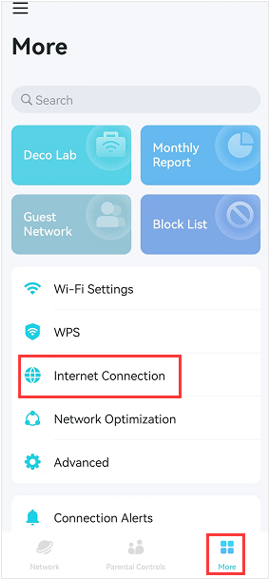
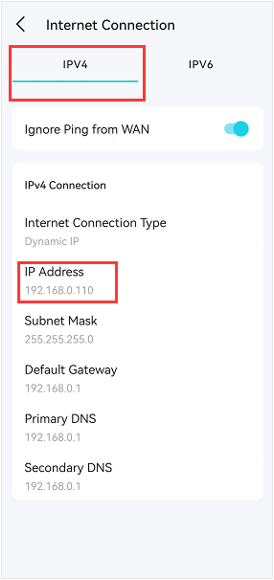
Launch the Deco app, and go to More>Internet Connection>IPv4 to check the WAN IP address of the Deco network.
For DSL Modem Router / Wireless Router / 4G/5G Router
1. Connect your device to the router via Wi-Fi or an Ethernet cable, open a browser, enter one of the following addresses based on your router type, and log in with your credentials:
For Wireless Routers: https://tplinkwifi.net/
For DSL Modem / 4G/5G Routers: http://tpllinkmodem.net/
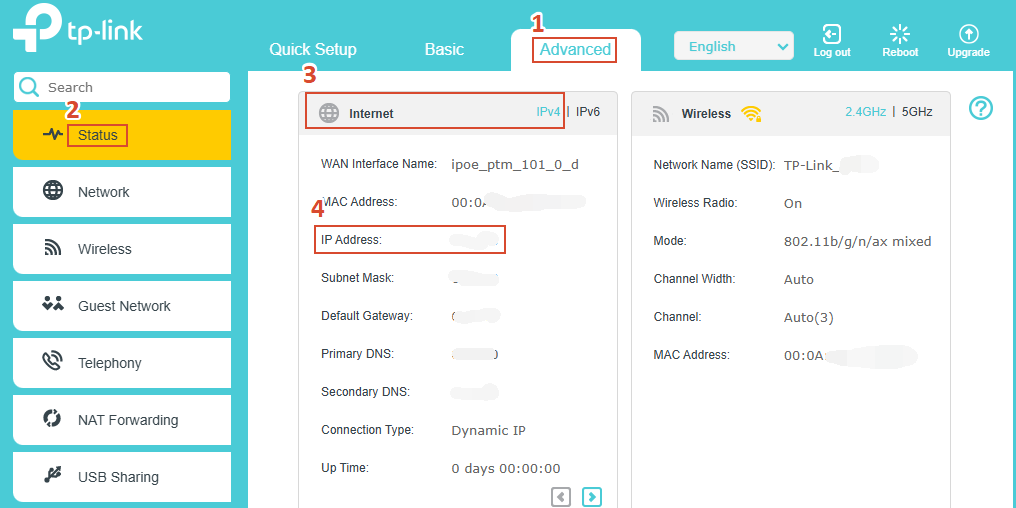
2. Go to Advanced > Status > Internet, locate the IPv4 IP address.
Note: The actual interface may vary by model.
Tip 2: How to Change Your Windows Network Location
Method 1: Disable the Windows firewall.
For Windows 7: go to Control Panel > System and Security > Windows Firewall, and click “Turn Windows Firewall on or off” to modify it.
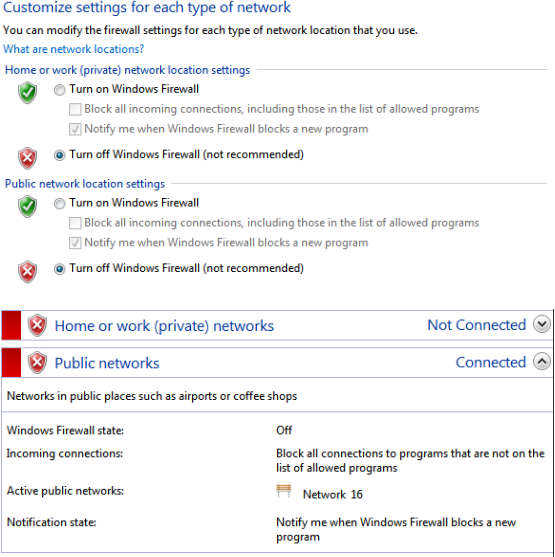
For Windows 10/11: open Settings > Update/Privacy & Security > Firewall & network protection, select your active network: Private Network or Public Network, and click the Microsoft Defender Firewall button to turn it off.
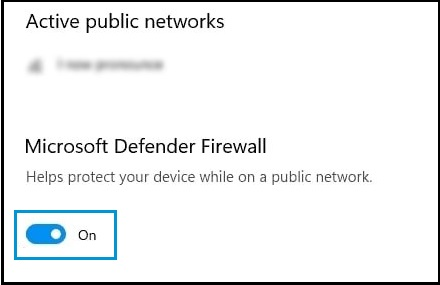
If you have used some other firewalls, such as Bitdefender or Norton, please uninstall them or set them in silent mode.
Method 2: Change the network type to Home network/Private network.
For Win7: Please go to Control Panel -> Network and Internet -> Network and Sharing Center.

Click it and choose “Home Network”.
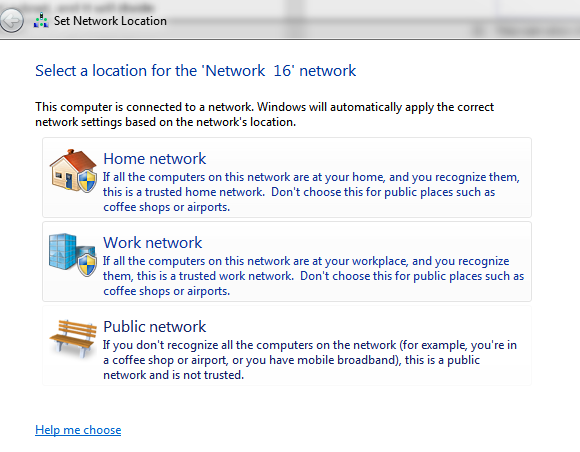
For Win 10: Please go to Settings -> Network and Internet.
Click the connection that has been set up, then you can see the Network profile setting, save it as “Private”.
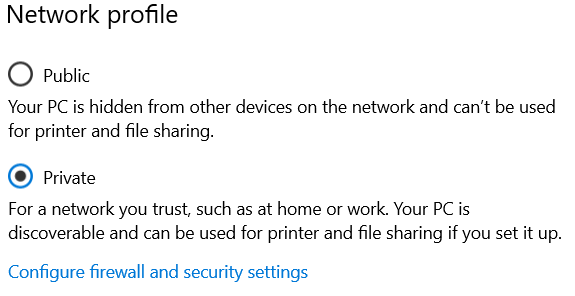
Note:
- WAN IP should be a public IP address. The WAN IP is assigned dynamically by the ISP. If the WAN IP address of the router is not a public IP address, but a private IP address, that means there is another NAT device connected to the WAN port of the router. You need to open the service ports on that device as well.
- For most of the 4G LTE routers, the internet service provider usually gives the private IP Address. So, if you want to do the port forwarding, please contact your internet service provider to assign you a public IP address or have them do the port forwarding on their side.
- A public IP address is a unique address assigned directly by your ISP and is accessible from the Internet. A private IP address falls within reserved ranges such as 192.168.x.x, 10.x.x.x, or 172.16.x.x–172.31.x.x, and is not routable on the public Internet. CGNAT addresses range from 100.64.0.0 to 100.127.255.255 and are also not publicly routable.
If the issue persists after completing all steps, contact TP-Link technical support.
Looking For More
Is this faq useful?
Your feedback helps improve this site.
_Overview_normal_20211130005649t.png)



TP-Link Community
Still need help? Search for answers, ask questions, and get help from TP-Link experts and other users around the world.