How to Share Tapo and Kasa Smart Devices with Family or Multiple Users
 1460607
The Tapo app's Device Sharing feature lets you give family members or other users access to your Tapo cameras, doorbells, robot vacuums, and other smart home devices. Shared users can view and control supported features, and you can remove their access at any time. Sharing works by sending an invitation to another TP-Link account, and sharing can be stopped whenever you choose.
Key Takeaways
- You can share Tapo and Kasa smart devices with other TP-Link accounts using the Device Sharing feature in the Tapo app. You can also stop sharing at any time.
- Tapo cameras, doorbells, and robot vacuums may be shared with up to five (5) TP-Link accounts. Other smart home devices may be shared with up to eight (8) accounts.
- Shared users can access the Live View, Talk, Voice Call, Pan/Tilt Control, and the SD Card Video features of the camera, but they cannot access the Tapo Care cloud storage or change other settings on the camera.
- The device owner can manage or remove shared access at any time through the app.
- Kasa Smart device owners can also use the Device Sharing feature by syncing their Kasa devices to the Tapo app.
Step 1: Create a TP-Link Account for the Invitee
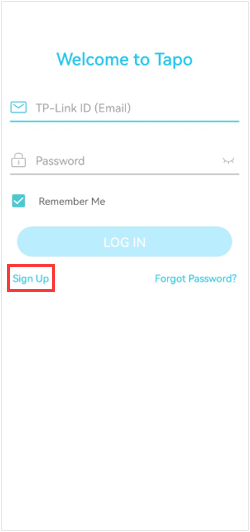
The person you want to share with must have their own TP-Link ID. Have them open the Tapo app and tap Sign Up to create an account before you send the invitation. For more on what a TP-Link ID is and how to create one, see What is TP-Link ID and how to create a TP-Link ID?
Step 2: Select the Device You Want to Share
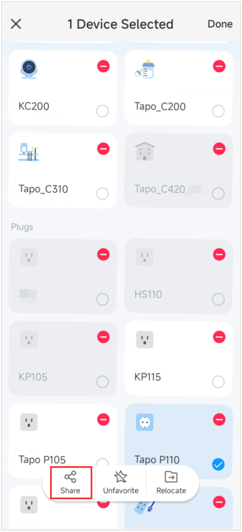
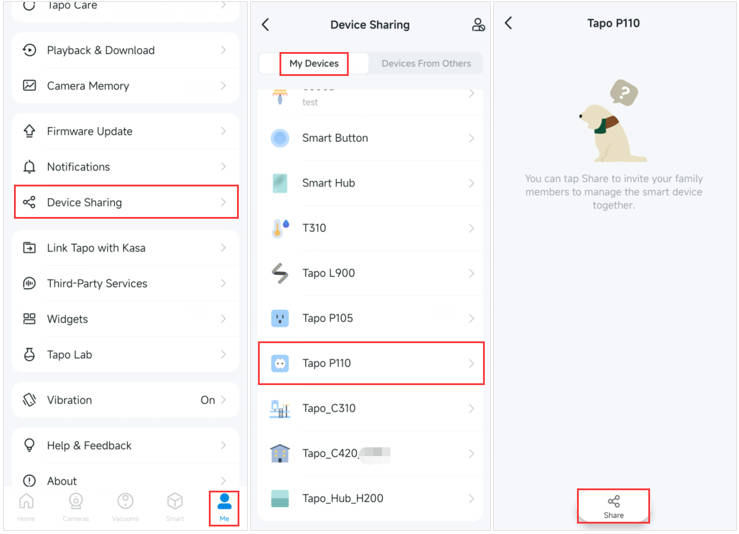
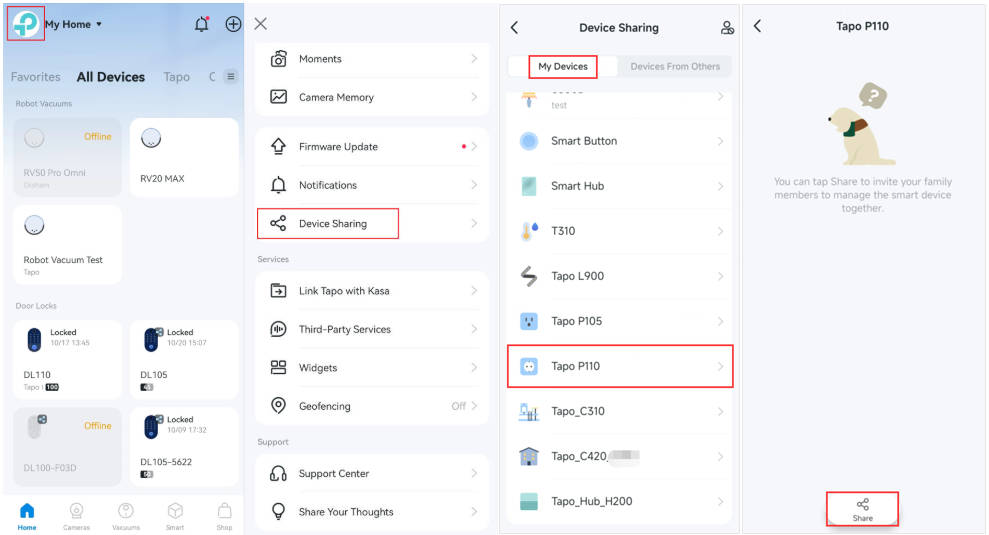
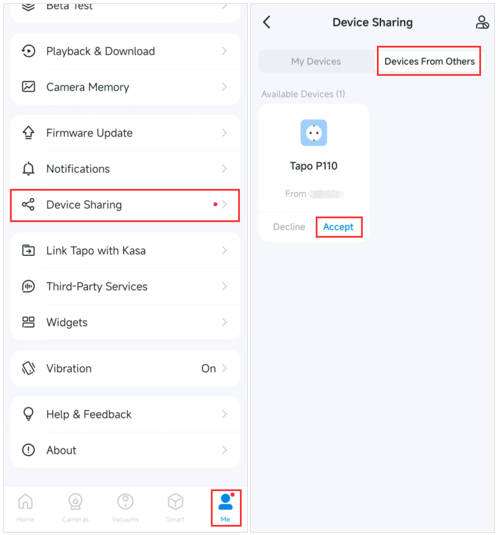
In this example, we use the Tapo P110. From your home page, long-press the device you want to share, then tap Share. Alternatively, go to the Me page, tap Device Sharing, and select the device you want to share. The location of the Me button varies by app version. It may appear in the bottom right or top left corner of the app.
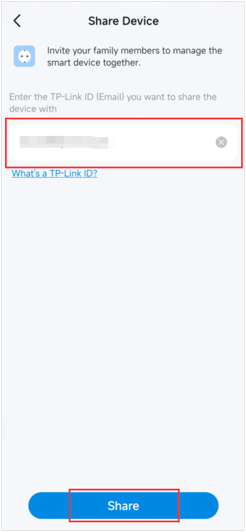
Step 3: Enter the Invitee's TP-Link ID and Send the Invitation
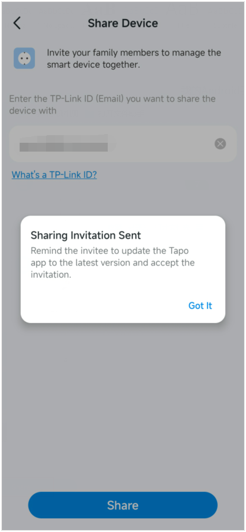
Enter the invitee's TP-Link ID (email address), then tap SHARE. A confirmation message will appear once the invitation has been sent.
Note: For Tapo cameras, invitees have limited permissions to control the device.
Step 4: Accept the Invitation in the Tapo App
The invitee should log in to the Tapo app, go to Me > Device Sharing, and tap the Devices From Others tab. The pending invitation will appear there. Tap ACCEPT to complete the process. Once accepted, the invitee can manage the shared device.
Note: The location of the Me button varies by app version. It may appear in the bottom right or top left corner of the app.
If you are unable to share a Tapo device, please contact TP-Link technical support with the following information:
- Your TP-Link ID and the invitee's TP-Link ID
- The model number of your Tapo device and its firmware version
- Your Tapo app version
How to Stop Device Sharing
If you want to stop this device sharing:
- Click on the Tapo device on the home page and go to its control panel.
- Tap Device Sharing, and click on the account you want to stop sharing.
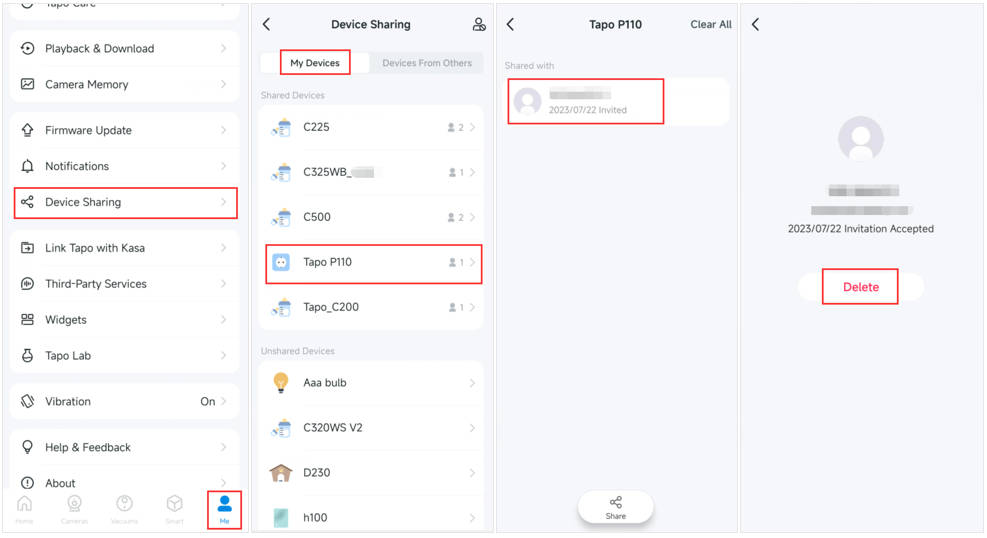
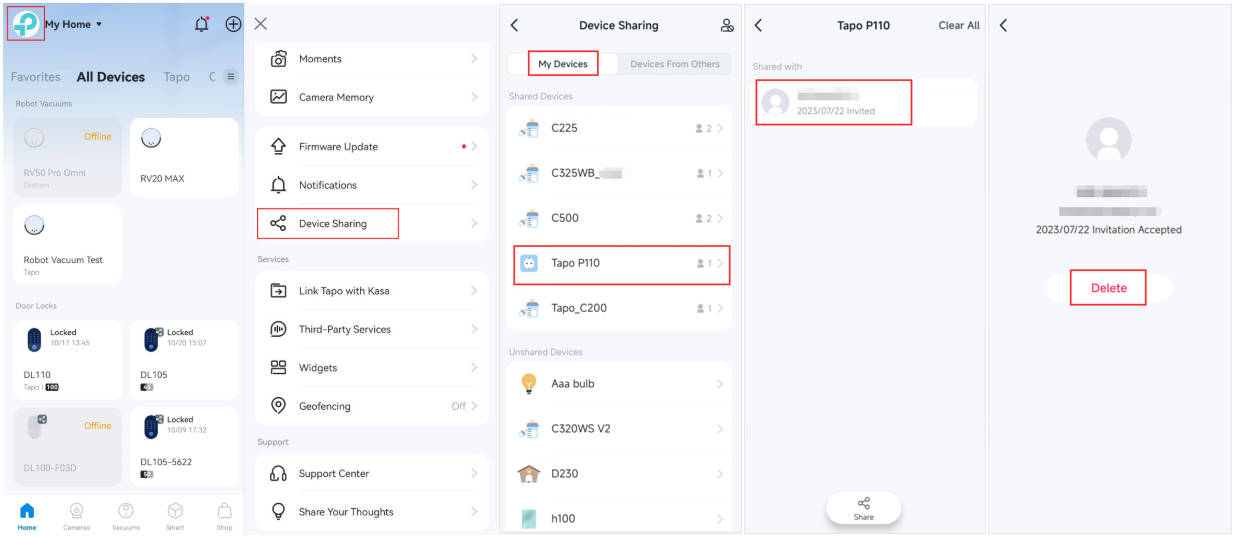
- Tap Delete to stop sharing the device with this account.
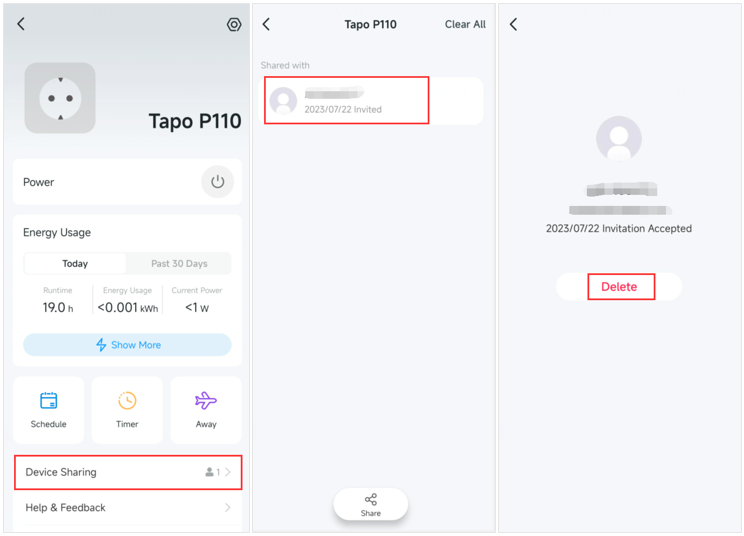
You can also navigate to Me > Device Sharing > My Devices, select the device, tap the account you want to remove, and then tap Delete.
Note: The location of the Me button varies by app version. It may appear in the bottom right or top left corner of the app.
Can I Share My Kasa Smart Devices?
Yes. By syncing your Kasa Smart devices to the Tapo app, you can use the Device Sharing feature for those devices as well. For step-by-step instructions and a list of supported Kasa devices, see Share Kasa Devices through Tapo App.
Is this faq useful?
Your feedback helps improve this site.



TP-Link Community
Still need help? Search for answers, ask questions, and get help from TP-Link experts and other users around the world.