The lighting rules of Wi-Fi Router products
This article explains the router status indicated by the LED lights on TP-Link routers and applies to most models. There may be slight differences between models, and you can refer to the user manual for your specific model for more accurate information.
Part 1: This Article Applies to
- Wi-Fi 7 routers
- Wi-Fi 6 routers
- Wi-Fi 5 routers
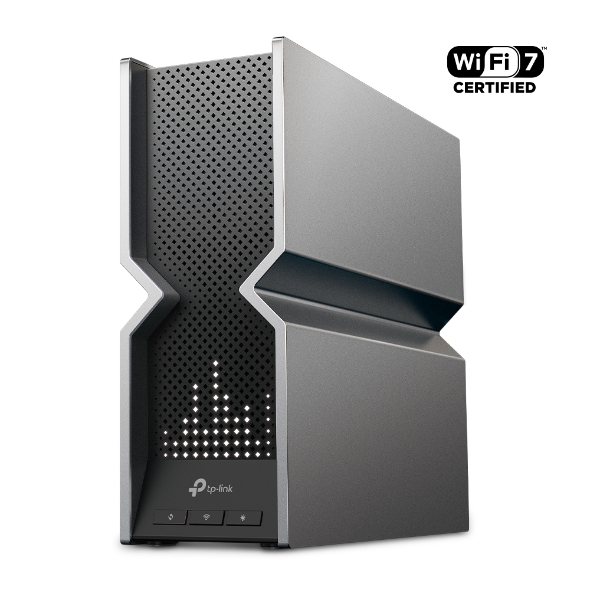
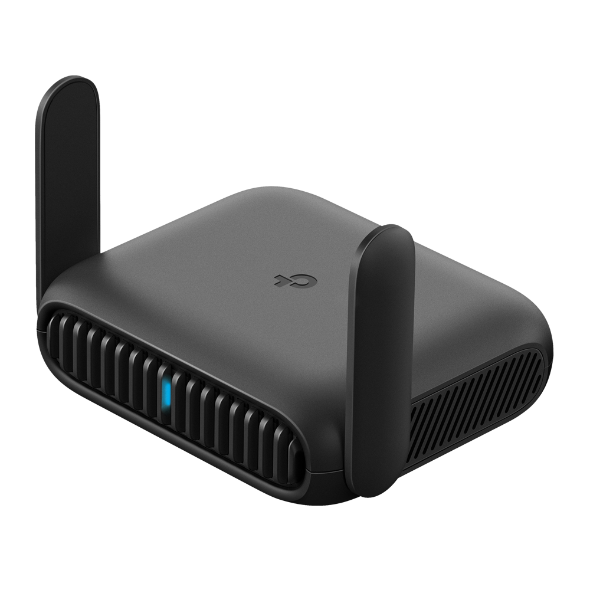
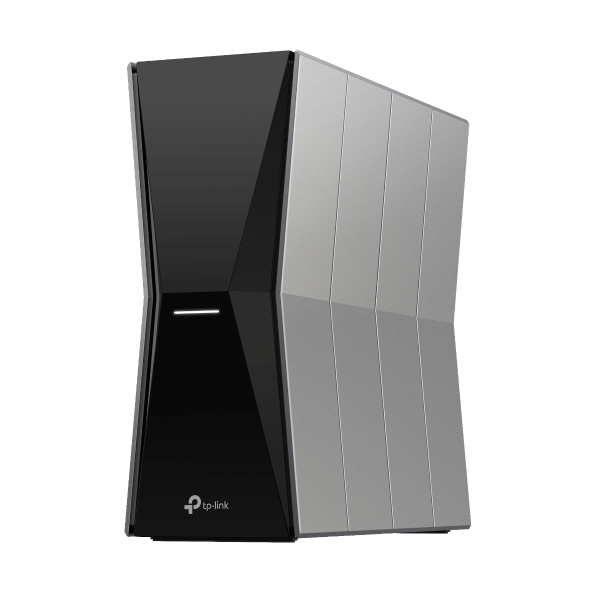
Example: Sample picture of Wi-Fi 7 router: Archer BE800:
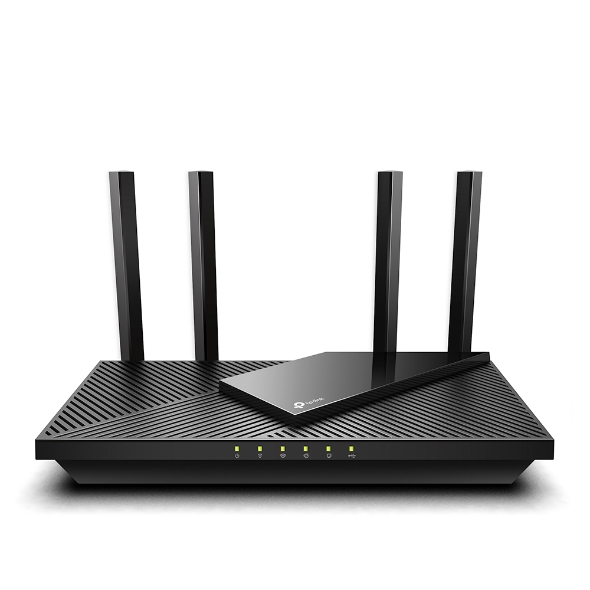
Example: Sample picture of Wi-Fi 6 router: Archer AX55
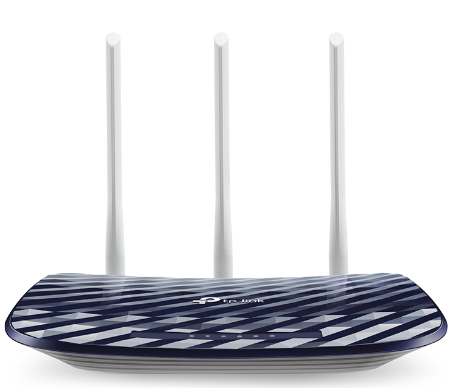
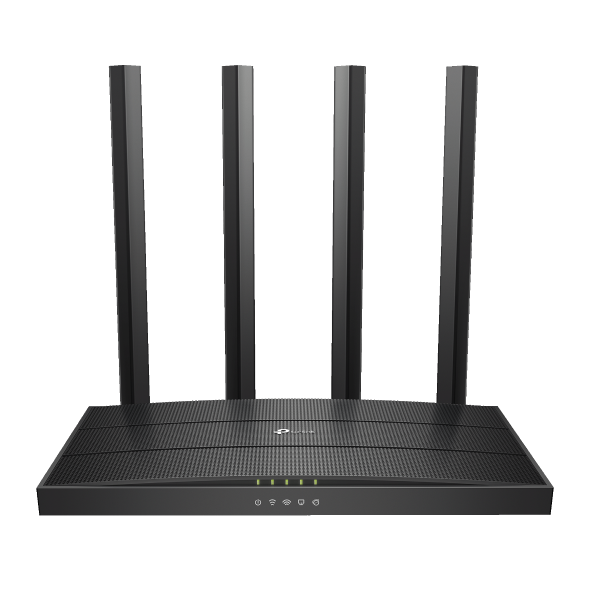
Example: Sample picture of Wi-Fi 5 router: Archer C20
Part 2: LED Indicator Status
For Wi-Fi 7 routers
Most Wi-Fi 7 routers use an LED display to indicate their status, with different symbols representing different statuses:
|
Status |
Indication |
|
|
Pulsing LEDs. The router is starting up or being reset. |
|
|
Cycling graphics. The router is ready for setup. |
|
|
Display the information set in Tether, and cycle through the emoji by default. The router works fine and can access the internet. |
|
|
Establishing a WPS connection. If successful, a √ will appear; if failed, an × will appear |
|
|
The router is being upgraded. |
|
|
The router is disconnected from the internet. |
|
|
LEDs in the top are pulsing in a line, indicating Wi-Fi is off. |


For Wi-Fi 6 & Wi-Fi 5 Routers
1. LED lighting rules during the power-on start process
- All LED lights are bright green at the moment of power on, lasting for 0.5s. The Internet lights turned red, while the rest remained green for 0.5s. Then the Power light remains green, and all the other lights go out.
- In the start-up process, the Power light starts flashing green (bright 0.5s/ off 0.5s)
- The whole system is started, and all LED lights are working normally
2. LED lighting rules after start-up
Note: The number of LEDs varies by model.
- Power LED:

• Single color(GREEN)
|
Status |
Description |
|
Green On |
Power on |
|
Off |
Power off |
- WLAN(2.4GHz/5GHz) LED:
• Single color(GREEN)
|
Status |
Description |
|
Green On |
Wireless radio is enabled |
|
Off |
Wireless radio is disabled |
|
Green Flashing |
Wireless activity present (traffic in either direction) |
- Internet LED:

• Dual color(GREEN/RED)
|
Status |
Description |
|
Green On |
Internet connection on but no traffic |
|
Off |
No Internet connection or device is in Bridge mode |
|
Green Flashing |
Internet activity present (traffic in either direction) |
- WPS LED:

• Single color(GREEN)
|
Status |
Description |
|
Green On |
This may remain on for 5 minutes when a WPS connection is established, then turn off |
|
Off |
No WPS connection |
|
Green Flashing |
WPS connection is in progress. This may take up to 2 minutes |
- Ethernet LED:

• Single color(GREEN)
|
Status |
Description |
|
Green On |
Powered device is connected to the associated port but no traffic |
|
Off |
No powered device is connected |
|
Green Flashing |
LAN activity present (traffic in either direction) |
- USB LED:

• Single color(GREEN)
|
Status |
Description |
|
Green On |
At least one USB external device has been connected and identified |
|
Off |
Both USB ports are not connected to external devices or cannot be recognized by external devices |
|
Green Flashing |
Identifying USB external devices |
Czy ten poradnik FAQ był pomocny?
Twoja opinia pozwoli nam udoskonalić tę stronę.

TP-Link Community
Still need help? Search for answers, ask questions, and get help from TP-Link experts and other users around the world.
z United States?
Uzyskaj produkty, wydarzenia i usługi przeznaczone dla Twojego regionu.