How to find Pre-encryption wireless password for TL-MR3020 without Password stick
After TL-MR3020 is upgraded to new firmware 120817 from older version, the wireless network would be secured by the default pre-encryption password. Below are the steps about how to find and change the default password.
Step 1
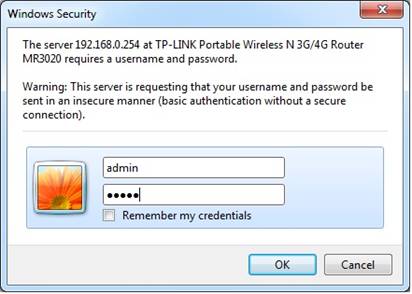
Connect your computer to TL-MR3020’s Ethernet Port with an Ethernet cable. Then open your web browser and type in http://192.168.0.254. A window will pop up and ask for username and password. By default, they are both admin.

Step 2
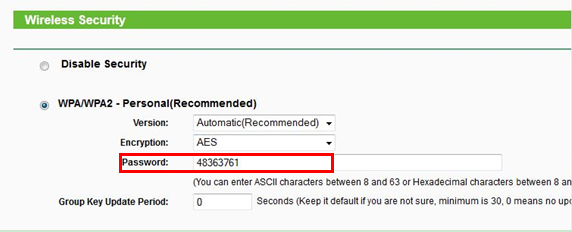
After Login, you will see TP-Link Management Page. Please go to Wireless->Wireless Security. On this page, the pre-encryption will be found. See below:
Step 3
Change this wireless password to your favorite one then Click Save. Reboot is needed to take effect.
Note: if you reset the device to factory default, you will have to do all the above steps again to change the wireless password to your own one.
Este guia foi útil?
A sua resposta ajuda-nos a melhorar o nosso site.



TP-Link Community
Still need help? Search for answers, ask questions, and get help from TP-Link experts and other users around the world.