How to Find the Firmware and Hardware Version on TP-Link Device
Knowing your TP-Link firmware version and hardware version is essential for troubleshooting, downloading the correct firmware update, and verifying compatibility. The hardware version refers to the physical revision of the device (such as V1 or V2), while the firmware is the software running on it. Using the correct firmware file requires knowing both. This page covers a wide range of TP-Link devices, including routers, switches, access points, smart home devices, and more. The method for checking the firmware version varies by device type: networking devices use the web-based management interface, while Kasa, Tapo, and Tether app users check from within their respective apps. If you need to perform a TP-Link Wi-Fi Router firmware update after finding your version, see our dedicated firmware update guide.
Key Takeaways
- For most TP-Link networking devices (routers, modems, extenders), the firmware version can be found by logging in to the web-based management interface. The location varies slightly by device category.
- The hardware version is printed on the label on the bottom of the device.
- For Kasa devices, the hardware and firmware version can be found in the Kasa app under Device Settings > Device Info.
- For Tapo devices, the hardware and firmware version can be found in the Tapo app by tapping the gear icon and selecting the device model.
- For devices compatible with the Tether app, the hardware and firmware versions appear on the device details page.
How to Find the Firmware and Hardware Version on TP-Link Networking Devices
For the hardware version, please refer to How to find the hardware version on a TP-Link device?
Step 1. Turn the device over; you can see a TP-Link label on the back. Note down the LAN IP address, Username, and Password. Here, we take TD-W8961ND as an example; its LAN IP is 192.168.1.1.
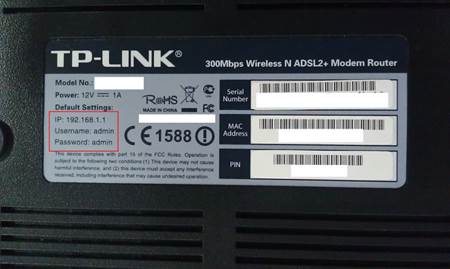
Step 2. Connect your computer or phone to your TP-Link device. Open your web browser and enter the LAN IP address in the address bar, then press "Enter". Or refer to the link to log in your modem How to log in to web management page of TP-Link DSL Modem Router
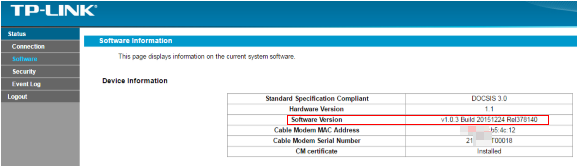
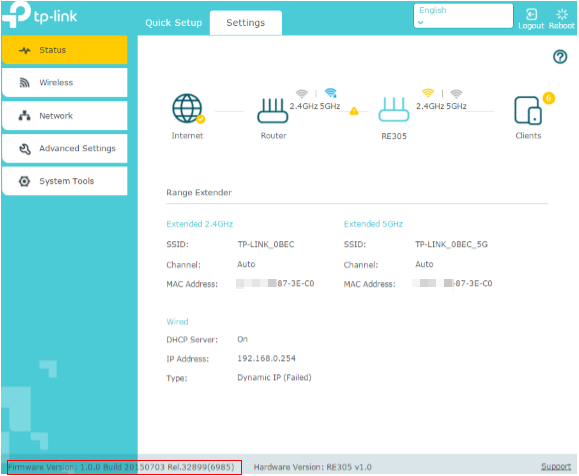
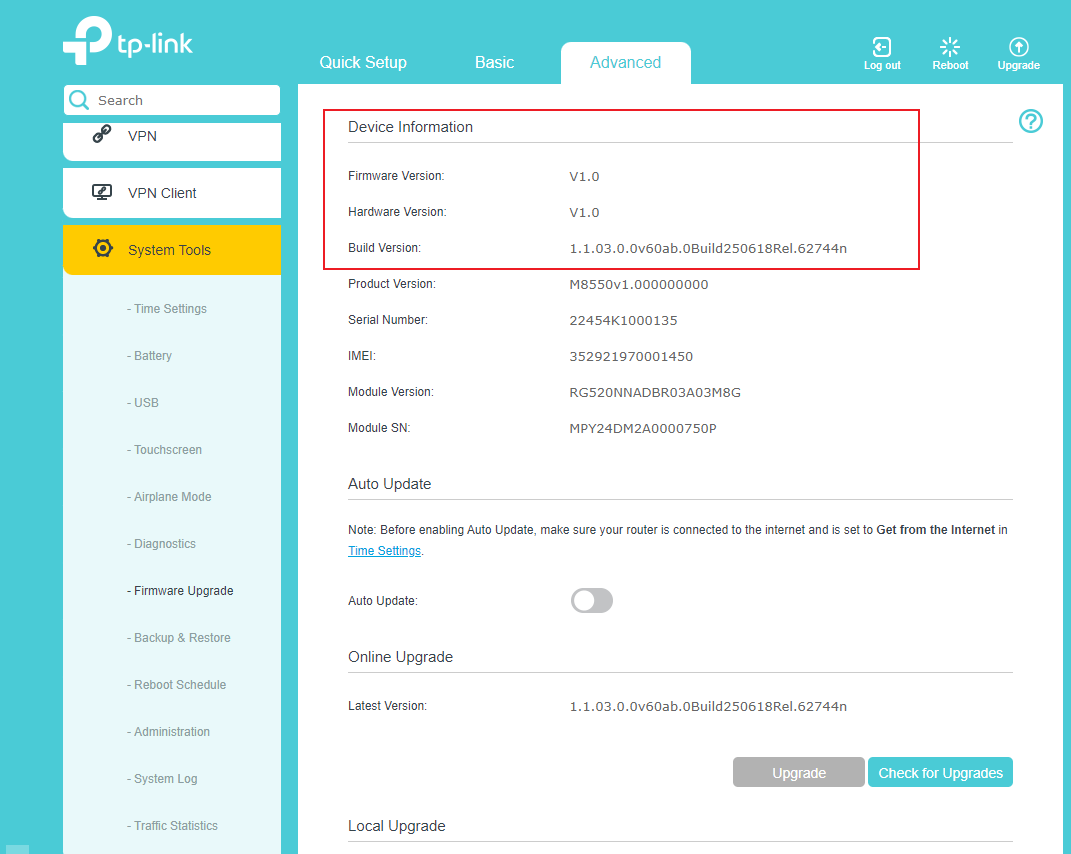
Step 3. The firmware version is displayed on the web-based management page. The build number indicates the release date — the first two or four digits represent the year, the next two the month, and the last two the day. For example, 120315 = March 15, 2012; 20140924 = September 24, 2014.
For Wi-Fi Routers:
Example A:
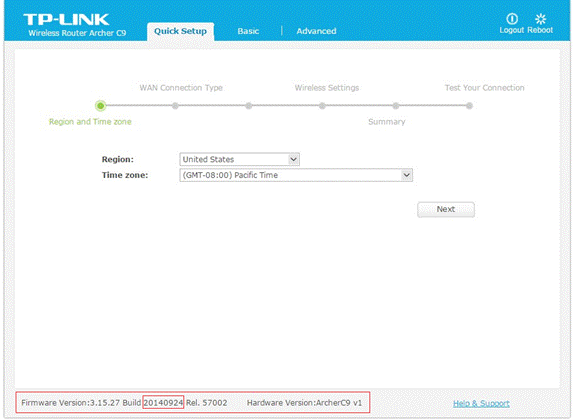
Example B:
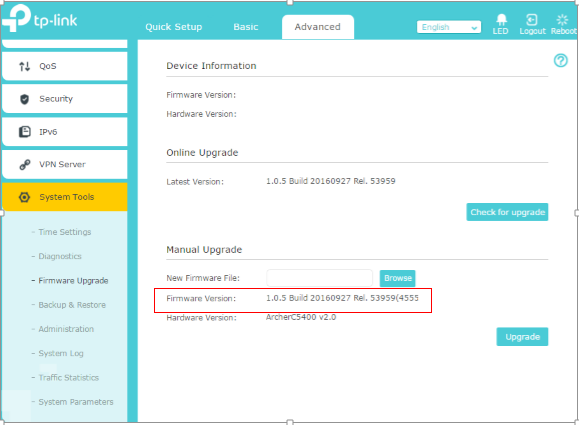
For DSL Modem Routers
Example A:
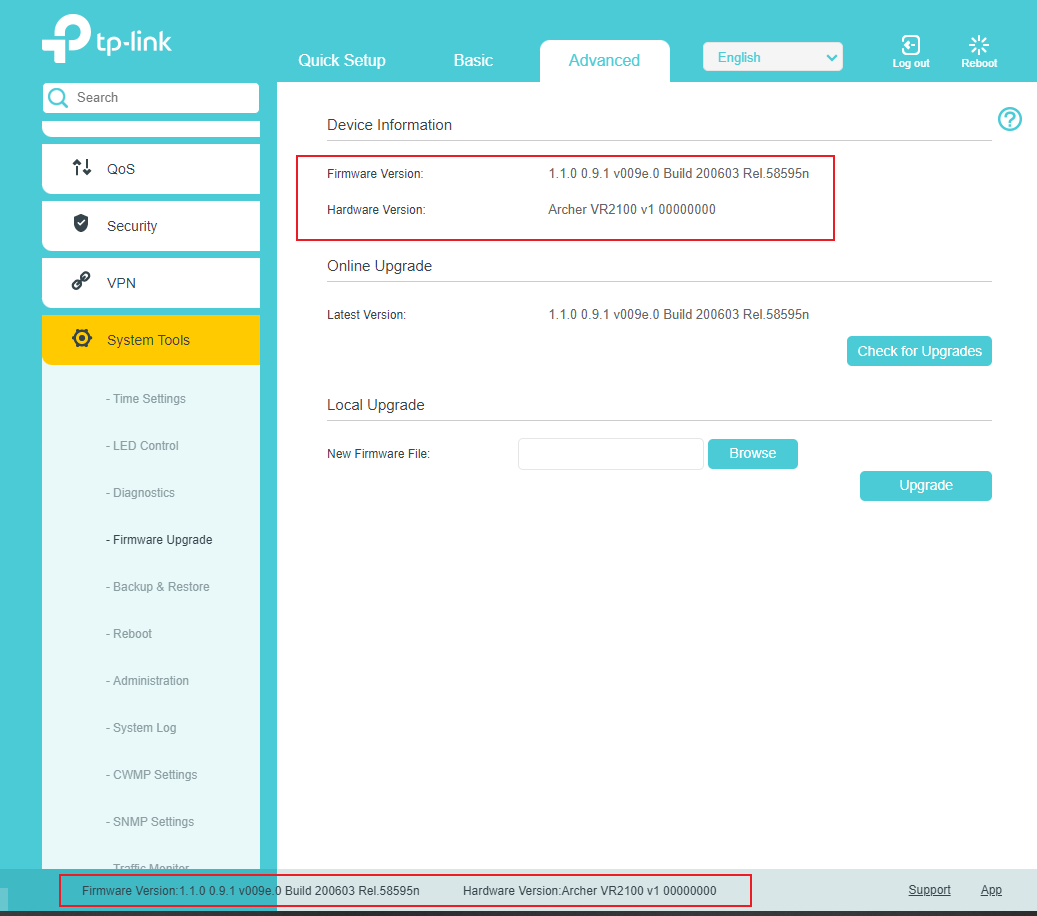
Example B:
For Range Extenders
Example A:
Powerline Adapters
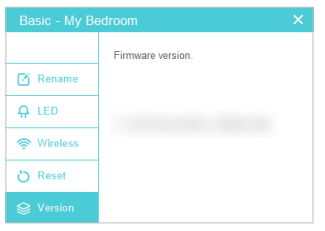
Example A
Open the utility  ,move your mouse over a device, and click the
  (Basic) icon. Go to the Version page. Here you see the current firmware version of this device.
For Mobile Wi-Fi
Example A:
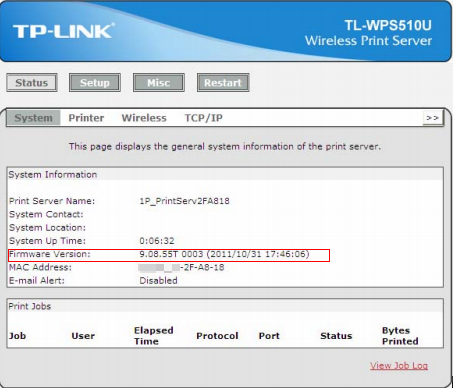
For Accessories
How To Find The Hardware And Firmware Version Of The Kasa Devices
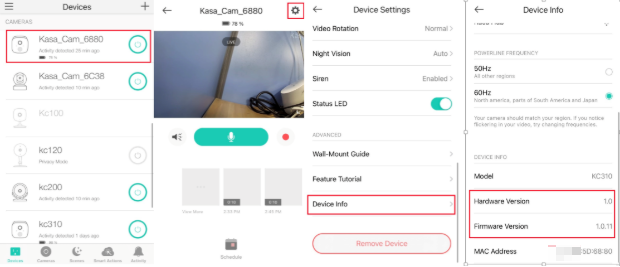
To check the hardware and firmware version of a Kasa device, open the Kasa app. The steps below use a Kasa camera as an example.
Step 1. On the Devices list, select the device you’d like to check the hardware and firmware version.
Step 2. Click on the gear icon at the top right corner.
Step 3. On the Device Settings page, please scroll down the page until you find Device Info. Click on Device Info.
Step 4. On the Device Info page, you will see the Hardware Version and Firmware Version of the Kasa device.
How To Find The Hardware And Firmware Version Of The Tapo Devices
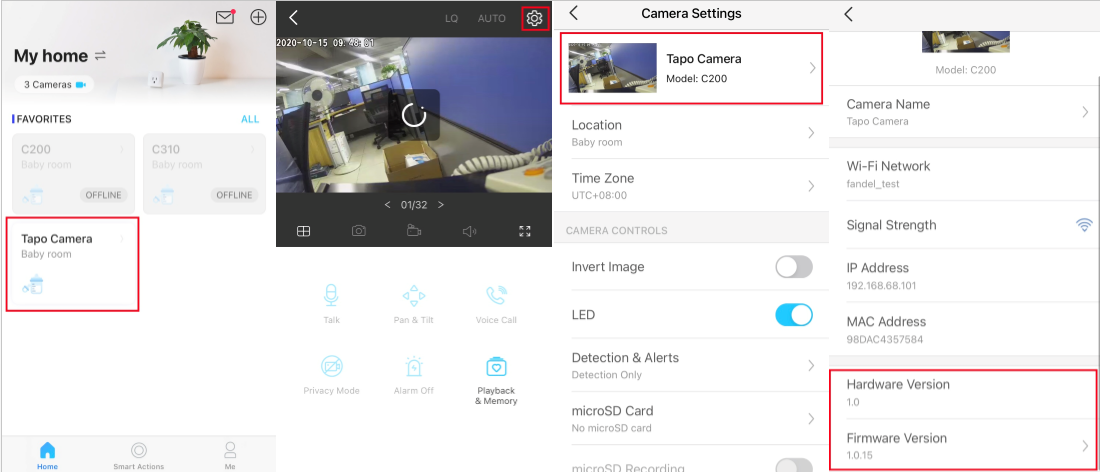
For Tapo Camera
Step 1. On the home page, tap on your camera model card or tap Camera Preview > Manage to go to the Live View page.
Step 2. On the Live View page, tap the gear icon to enter the Camera Settings page.
Step 3. Tap your camera model to find the Hardware Version and Firmware Version.
For Tapo Plug
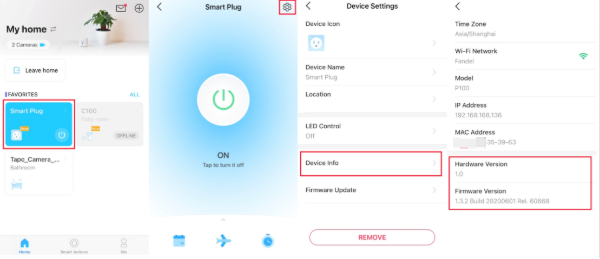
Step 1. On the home page, tap on your plug model card.
Step 2. Tap the gear icon to enter the Device Settings page.
Step 3. Click Device Info to see the Hardware Version and Firmware Version.
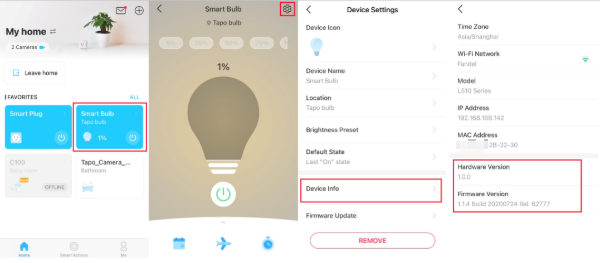
For Tapo Bulb
Step 1. On the home page, tap on your plug model card.
Step 2. Tap the gear icon to enter the Device Settings page.
Step 3. Click Device Info to see the Hardware Version and Firmware Version.
How To Find The Hardware And Firmware Version Of Your Devices On The Tether App
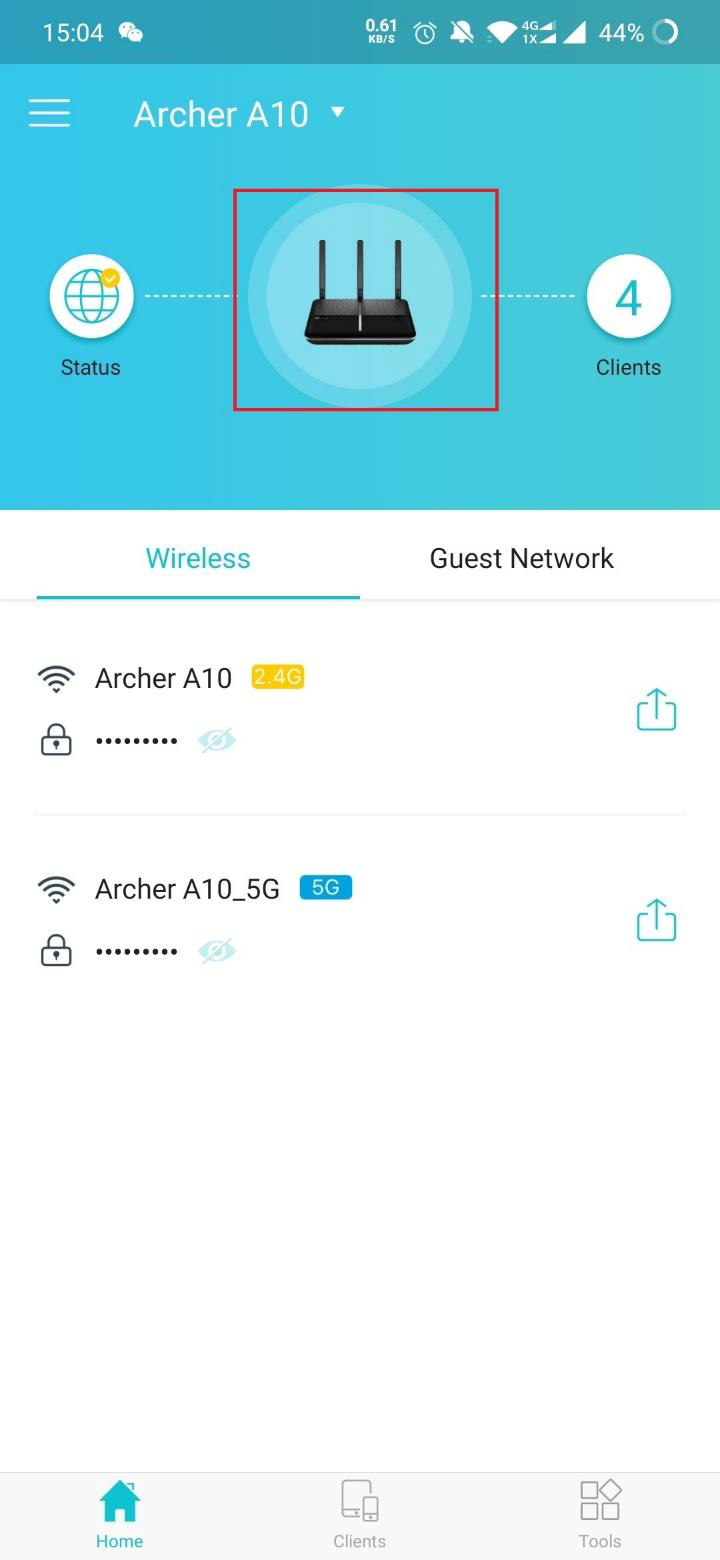
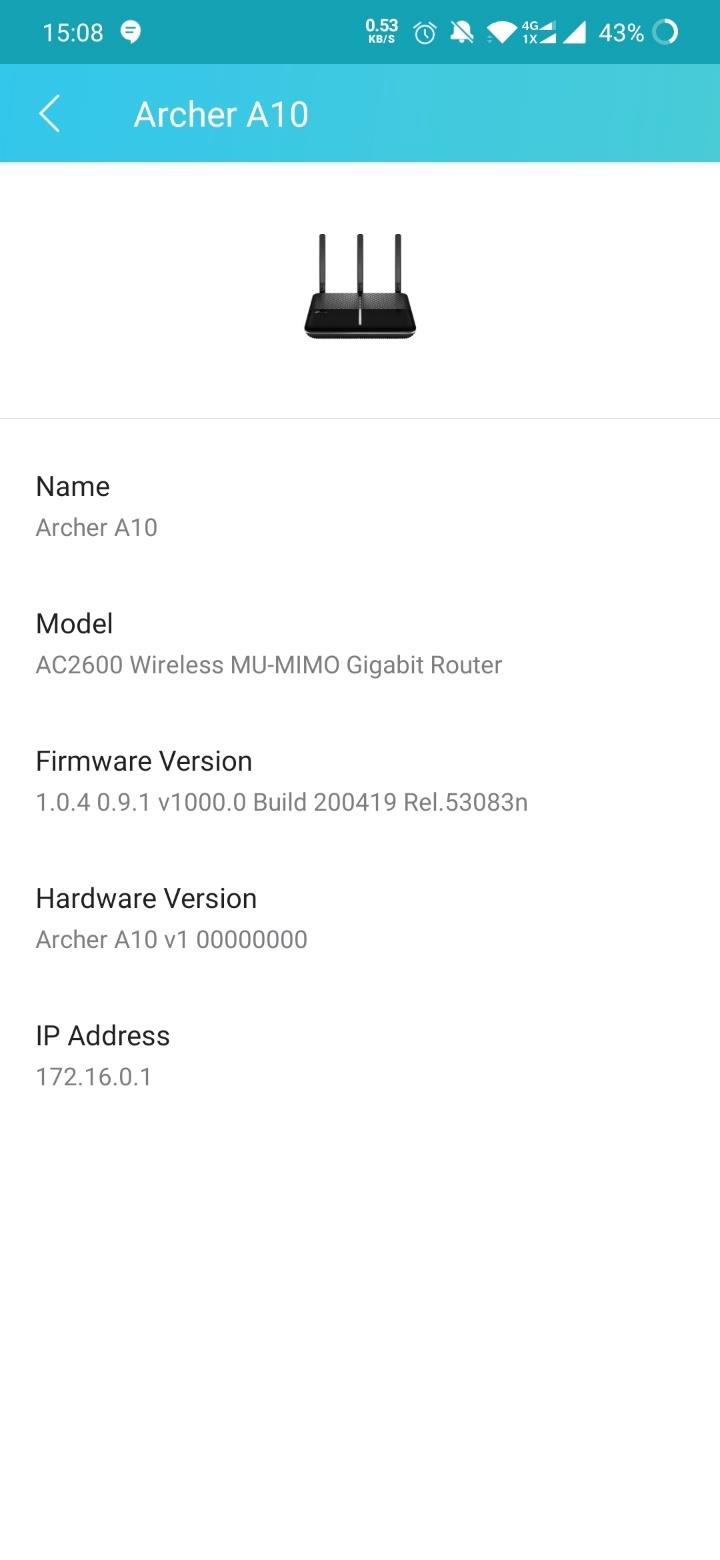
Please click the device icon in the middle; you will then see the device's details page, including the hardware and firmware versions, as shown below.
Note: Ensure the device is compatible with the Tether app before proceeding — check the compatible device list.
To learn more about each function and configuration, please visit the Download Center to download the manual for your product.
Daha Fazlasını Arıyorum
Bu SSS faydalı mı?
Your feedback helps improve this site.



TP-Link Community
Still need help? Search for answers, ask questions, and get help from TP-Link experts and other users around the world.