How Can I Connect My VIGI Camera to a NAS
Note: Your Username and Password may be changed when you first set up the camera. Default Username and Password are admin/admin.
The VIGI camera supports the standard ONVIF protocol (Profile S) as well as RTSP protocol, so it can work with third-party NVR or NAS devices that also support the standard ONVIF protocol.
If you want to manage and view the camera on a third-party NVR or NAS device, you are suggested to contact the NVR or NAS support or visit their official website to find the instructions to add the camera on your NVR or NAS devices (different NVR or NAS devices may have different configuration methods). This article will show you some basic parameters that it may require to connect the VIGI camera to your NVR or NAS device.
Step 1. The IP address of the camera.
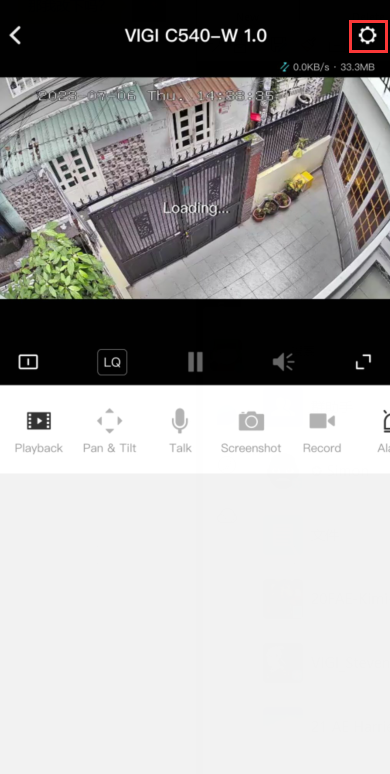
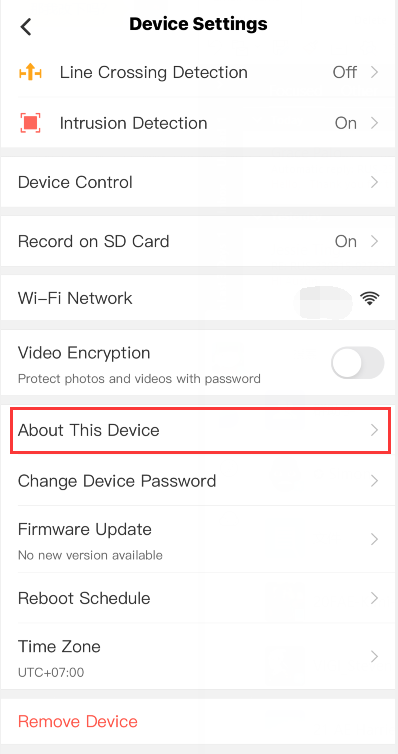
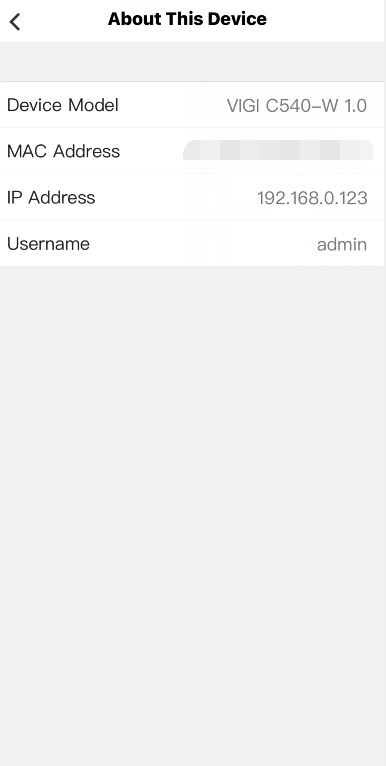
The IP address of the camera is assigned by your host router and you can find it on your host router’s DHCP list or on the VIGI app (Tap your camera to go to Live View > More Settings (top right corner) > About This Device > IP Address). For detailed instructions, please refer to: How Can I Find the IP Address of My VIGI Camera?
Step 2. The ports for standard ONVIF and RTSP protocols.
ONVIF Service Port: 2020
RTSP Service Port: 554
To learn more about each function and configuration, please visit Support Home to download or check the manual for your product.
Looking For More
¿Es útil esta pregunta frecuente?
Sus comentarios nos ayudan a mejorar este sitio.

_UN_1.20_normal_20240513065341k.png)
_UN_1.20_normal_20240513063212e.png)

TP-Link Community
Still need help? Search for answers, ask questions, and get help from TP-Link experts and other users around the world.