TP-Link Matter Devices: Setup Guide, Hub Compatibility, and Tips
 456916
Matter is a unified smart home protocol that lets devices from different brands work together in a single ecosystem. TP-Link offers a range of Matter-enabled smart home products, including plugs, bulbs, and switches, that are compatible with all major Matter smart home platforms. Whether you are new to Matter or expanding your setup, this guide covers everything you need to know about TP-Link Matter-compatible devices.
Key Takeaways
- TP-Link Matter devices work with Alexa, Google Home, Apple Home, and SmartThings.
- You can set up TP-Link Matter devices through the Tapo or Kasa app (recommended), or directly through a third-party Matter-enabled app.
- A Matter hub (such as an Echo, HomePod, or Nest Hub) is required for most third-party app setups.
- Matter supports multi-admin control, meaning a single device can be added to and controlled by multiple smart home platforms simultaneously.
- Your Matter setup code is printed on the device casing and can also be found in the Tapo or Kasa app.
What Is Matter and Why Does It Matter for TP-Link Users
Matter is an open connectivity standard designed to make smart home devices work seamlessly across different platforms and brands. For TP-Link users, this means your Tapo or Kasa Matter-enabled devices can connect to whichever ecosystem you already use, without compatibility workarounds. For a deeper look at how the protocol works and its advantages, see the blog post What Exactly is Matter?
How to Set Up TP-Link Matter Devices
There are two ways to set up your TP-Link Matter device: through the official TP-Link app or through a third-party app.
Option 1: Set up via Tapo or Kasa app (recommended)
TP-Link strongly recommends setting up your Matter-enabled device through the Tapo or Kasa app first. This ensures full access to all device features and avoids potential compatibility issues. Once set up in the Tapo or Kasa app, your device can then be added to a third-party Matter-enabled platform.
Note: If you set up your Matter device through the Tapo app first, you have a 15-minute window from power-on to also add it to a third-party Matter-enabled app.
Option 2: Set up directly via a third-party Matter-enabled app
You can also set up your TP-Link Matter device directly in Alexa, Google Home, Apple Home, or SmartThings without using the Tapo or Kasa app. For step-by-step instructions for each platform, see How to set up a Matter device with Alexa, Google, Apple, or SmartThings.
Multi-admin: Adding your device to multiple platforms
Matter supports multi-admin, meaning you can share a single device across multiple Matter-enabled apps. For example, after setting up a device in Apple Home, you can also add it to Google Home or SmartThings. For guidance on this process, see How to add your Matter-certified device into multiple controllers.
Matter Hub Compatibility
A Matter hub (also called a Matter controller) is required to use a Matter-enabled device with most third-party smart home apps. The hub can be a standalone device or built into another product, such as a smart speaker, display, or router.
The tables below list devices confirmed as Matter hubs for each major platform. This information was collected in March 2026. Please consult the relevant manufacturer for the most current device list, and always update your hub's software or firmware to the latest version to ensure Matter support.
Minimum Google Home App version: 2.62.1.15 or later.
|
Device Type |
Model |
|
Wi-Fi Routers |
Nest Wifi Pro (Wi-Fi 6E) |
|
Speakers |
Nest Audio, Nest Mini, Google Home Mini, Google Home (original) |
|
Displays |
Nest Hub (first-gen), Nest Hub (second-gen), Nest Hub Max, Google TV Streamer 4K |
Alexa
Minimum Alexa App version: 2.2.491118.0 or later.
|
Device Type |
Model |
|
Echo / Echo Dot |
Echo (2nd Gen and newer), Echo Dot (2nd Gen and newer), Echo Dot with Clock (3rd Gen and newer) |
|
Echo Show |
Echo Show 21, Echo Show 15 (1st and 2nd Gen), Echo Show 10 (3rd Gen), Echo Show 8 (1st, 2nd, and 3rd Gen), Echo Show 5 (1st, 2nd, and 3rd Gen) |
|
Eero |
eero 6 and eero 6+, eero Beacon, eero Max 7, eero PoE 6, eero PoE gateway, eero Pro, eero Pro 6E and eero Pro 6 |
|
Other |
Echo Input, Flex, Plus (v2), Echo Pop, Echo Spot, Echo Studio |
Apple
Minimum iOS version: iOS 16.2 or later.
|
Device Type |
Model |
|
HomePod |
Apple HomePod (second-gen), Apple HomePod Mini, Apple HomePod (first-gen, Wi-Fi only) |
|
Apple TV |
Apple TV 4K (3rd generation) |
Note: With iOS 18 or later, you can add Matter-enabled devices directly to the Apple Home app without a Matter hub. However, without a hub, you will not be able to control your accessories remotely, share control with others, or use automations in the Apple Home app.
Samsung SmartThings
Requirements: Android device running SmartThings App version 1.7.91 or higher, or iOS device running iOS 16.2 or higher and SmartThings App version 1.6.94 or higher.
|
Device Type |
Model |
|
Smart Hub |
Aeotec Smart Home Hub Aeotec Smart Home Hub 2 SmartThings Hub V3 |
|
Other |
SmartThings Station Select Samsung QLED / Neo QLED / OLED TV (2023 and later) Select Samsung The Frame / The Serif TV (2024 and later), Select Samsung Bespoke AI Laundry Combos, Family Hub Fridges, Projectors, Smart Monitors and Soundbars |
For questions specific to Tapo or Kasa hubs and Matter compatibility, see Matter questions and answers for Tapo and Kasa hubs.
Finding Your Matter Setup Code
Your Matter setup code is printed on the casing of the device. An additional setup code sticker is also included in the product packaging. The exact location varies by device type:
- Smart plug: The code is on the side of the device casing.
- Smart bulb: The code is in the middle of the casing, between the light sphere and the bulb base.
- Smart switch: The code is on the side of the casing near the button.
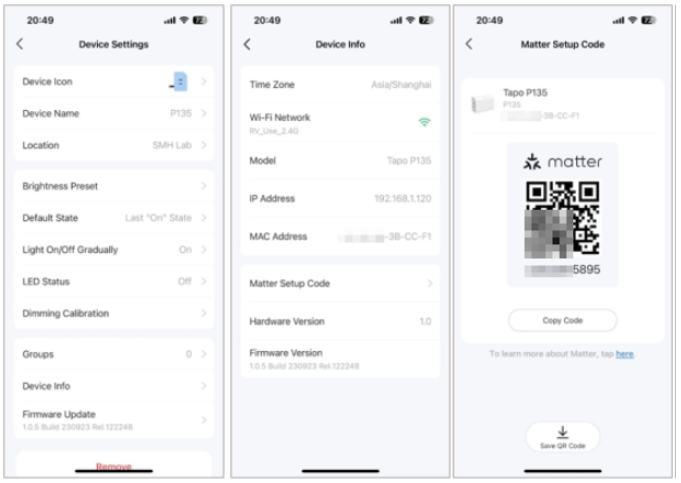
If your printed code is unreadable or the sticker has been lost, you can retrieve it digitally through the Tapo app. First, set up your device in the Tapo or Kasa app. Then follow these steps in the Tapo app: tap your Matter device, then tap the gear icon in the top right corner to open Device Settings, then tap Device Info, then tap Matter Setup Code. Save the code to your phone's photo album for future reference.
Troubleshooting Tips
Setup fails with a third-party app
If your device fails to set up in a third-party Matter-enabled app, check the following before trying again:
- Confirm that the smart home app and hub you are using are Matter-enabled.
- Make sure your phone and the hub are connected to the same Wi-Fi network.
- Confirm that Bluetooth is enabled on your phone.
For additional help, see Troubleshooting for Tapo and Kasa Matter configuration on a third-party platform.
What happens if the Matter hub disconnects or is removed
If your Matter hub loses its connection to the router or is removed from the app, the Matter-enabled device will become unresponsive. Control will be restored once the hub reconnects to the router.
Removing a device from one app vs. all apps
If a Matter device is removed from one connected app, it can still be controlled through any other connected apps. If it is removed from all Matter apps, you may need to restart or reset the device to put it back into Matter pairing mode.
Removing a device from the Tapo or Kasa app
Removing a Matter-enabled device from the Tapo or Kasa app triggers a factory reset. It will then appear as unresponsive in all other connected apps.
Factory resetting a TP-Link Matter device
To reset a TP-Link Matter device to factory default settings and re-enable pairing mode, press and hold the Reset button for at least 10 seconds. Device-specific notes:
- Smart plug: The power button also functions as the Reset button.
- Smart switch: The Reset button is located below the on/off button.
- Smart bulb: Repeat the power cycle (switching the bulb off and on) three times for Tapo bulbs or five times for Kasa bulbs, pausing one second between each cycle. Wait for the bulb to blink three times to confirm the reset.
For guidance on adding a Matter device through your Deco system, see How to add a Matter device on your Deco.
¿Es útil esta pregunta frecuente?
Sus comentarios nos ayudan a mejorar este sitio.


