Introduction of Tether App
The Tether app provides centralized management for supported TP-Link network devices from a smartphone. Users can monitor network status, manage connected devices, and configure network settings through a unified interface.
This guide introduces the main sections of the app, including the Network, Security, Parental Controls, More tabs, and the Side Menu, and explains the purpose of commonly used features and settings.
Notes:
1. Features available and interfaces in the Tether app may vary by model and software version. All steps and images described here are only examples and may not reflect your actual Tether experience.
2. For detailed instructions on a specific feature, please refer to the relevant FAQ on the TP-Link official website.
Key Takeaways
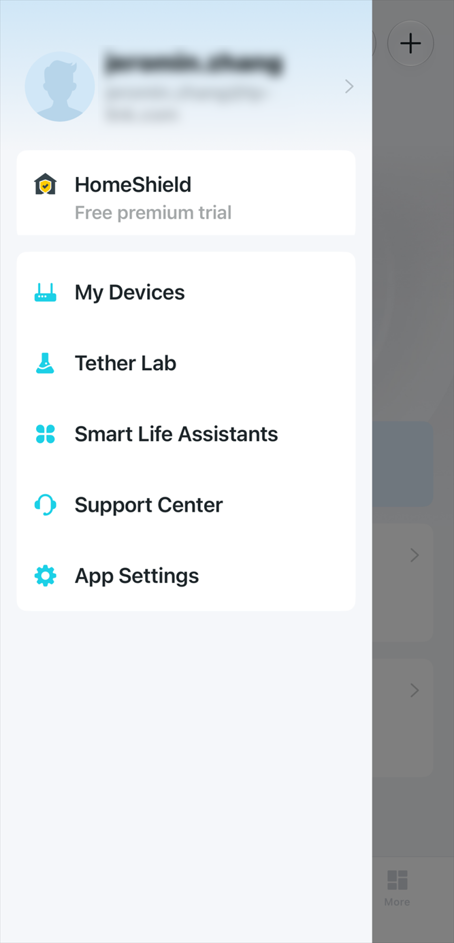
- The Tether app provides centralized management for supported TP-Link network devices and includes a Side Menu for access to account settings, HomeShield services, device management, support resources, and app settings.
- The Network tab provides access to device status, connected clients, and network management features.
- The Security tab helps identify potential security risks and protect your network.
- The Parental Controls tab helps manage internet access and online activities for family members.
- The More tab provides access to additional network settings and advanced management features.
Before You Start
Scan the QR code below or go to Google Play or the App Store to download the Tether app.
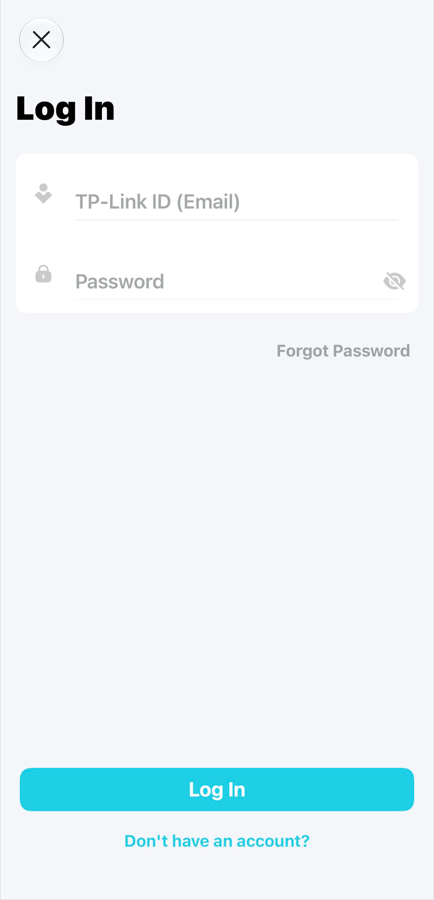
Open the Tether app. Use your TP-Link ID to log in. If you don't have a TP-Link ID, sign up first by tapping on Don’t have an account?
Notes:
1. If you already have a TP-Link Cloud ID, you can log in using that.
2. If you forgot your login password, tap Forgot Password, and then the Tether app will guide you through the rest.
Network
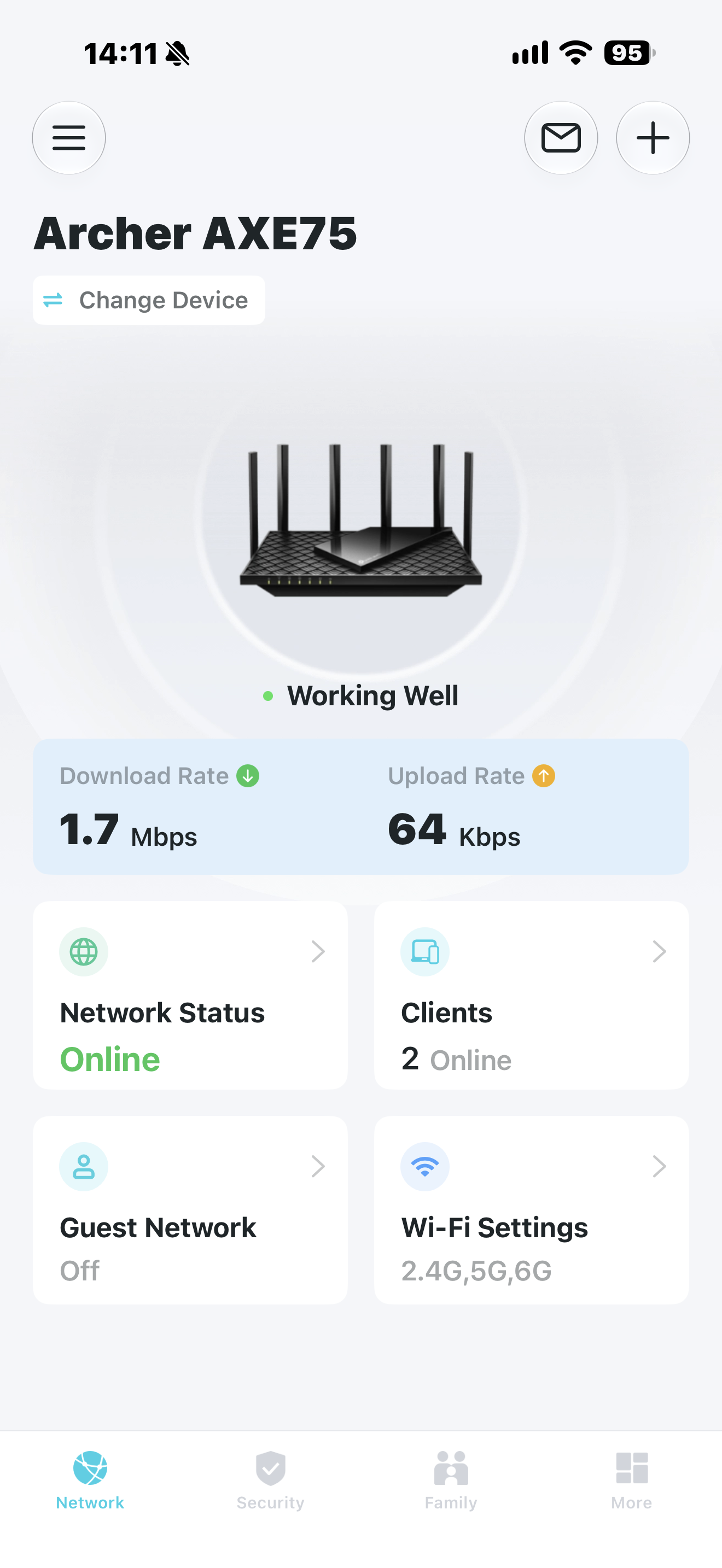
Provides a centralized view of your network. Here, you can:
- Check the status of your network device (see Network Status below).
- Manage connected clients (see Clients below).
- Create Guest Network.
- Configure Wi-Fi Settings.
Network Status
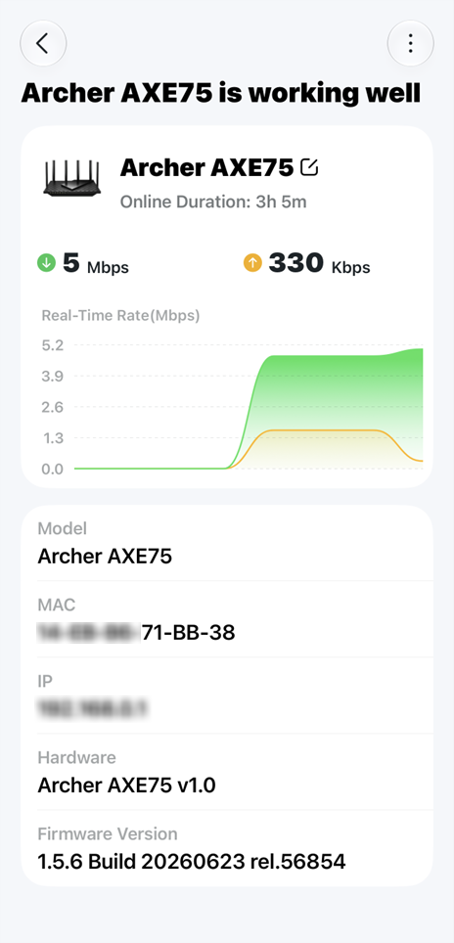
Displays the current status of the network device, the device uptime, network traffic trends over time, and device information.
Clients
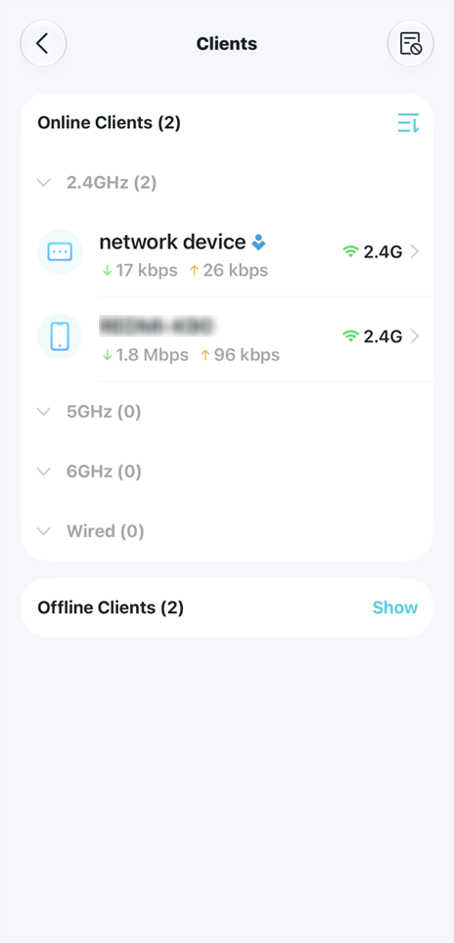
Displays the devices connected to the network. Online clients are organized by the network they are connected to, such as 2.4 GHz Wi-Fi, 5 GHz Wi-Fi, or Ethernet, and you can also view offline clients.
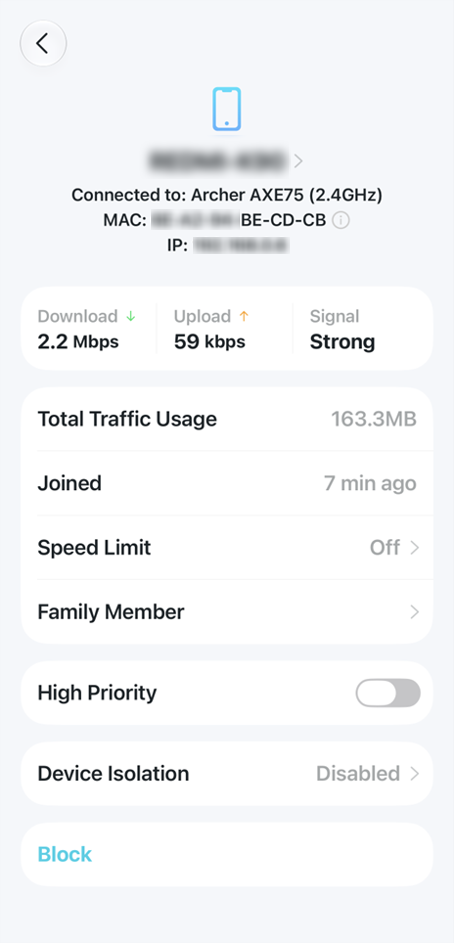
Tap a client device to view its information, monitor network usage, and configure network-related settings.
Security
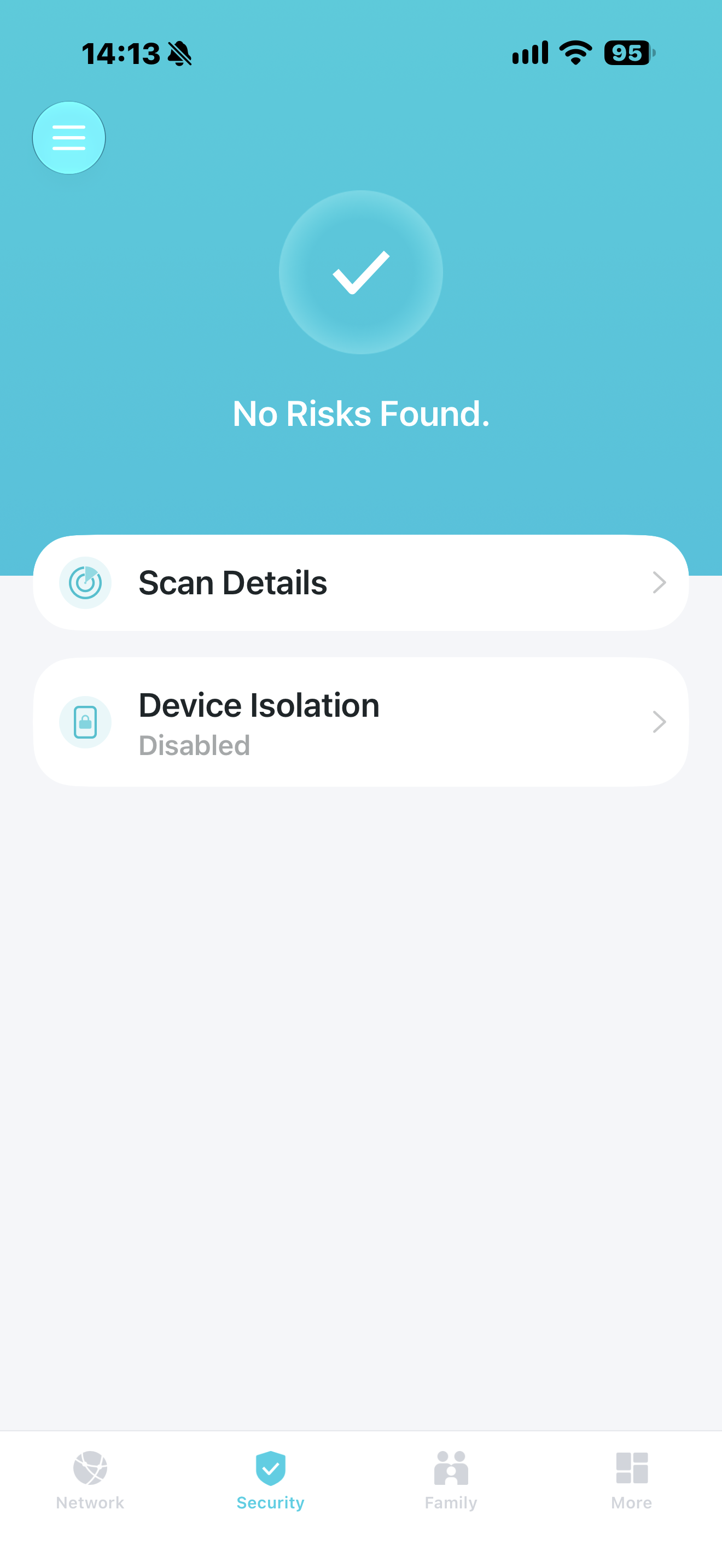
Provides security scanning and protection features for your network.
In this section, you can:
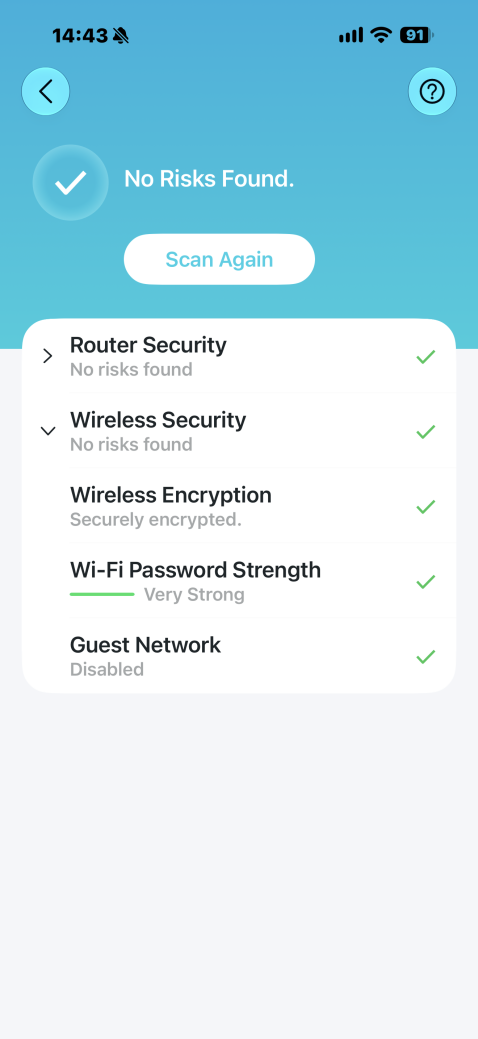
- Tap Scan Details to review the results of Router Security and Wireless Security scans.
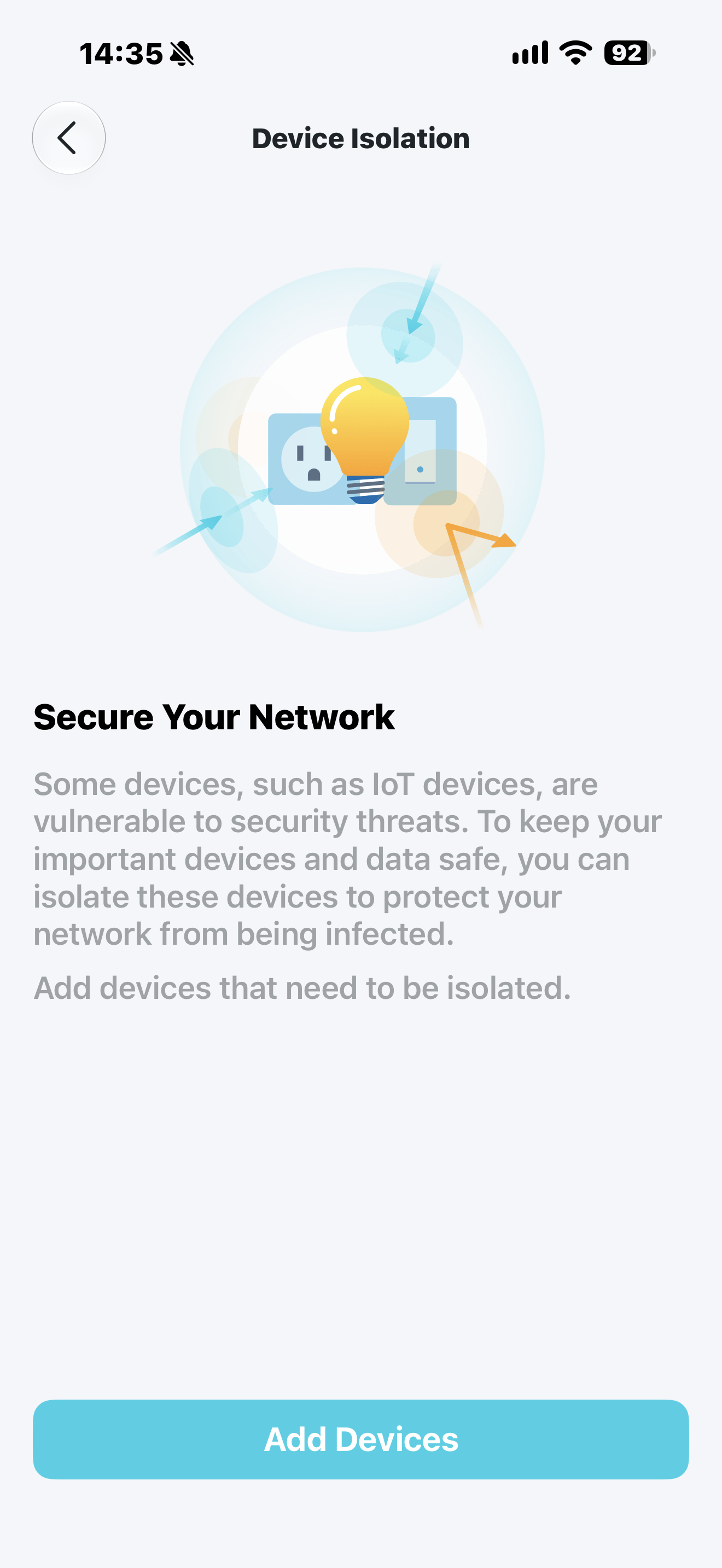
- Configure Device Isolation and manage the associated client devices.
Parental Controls
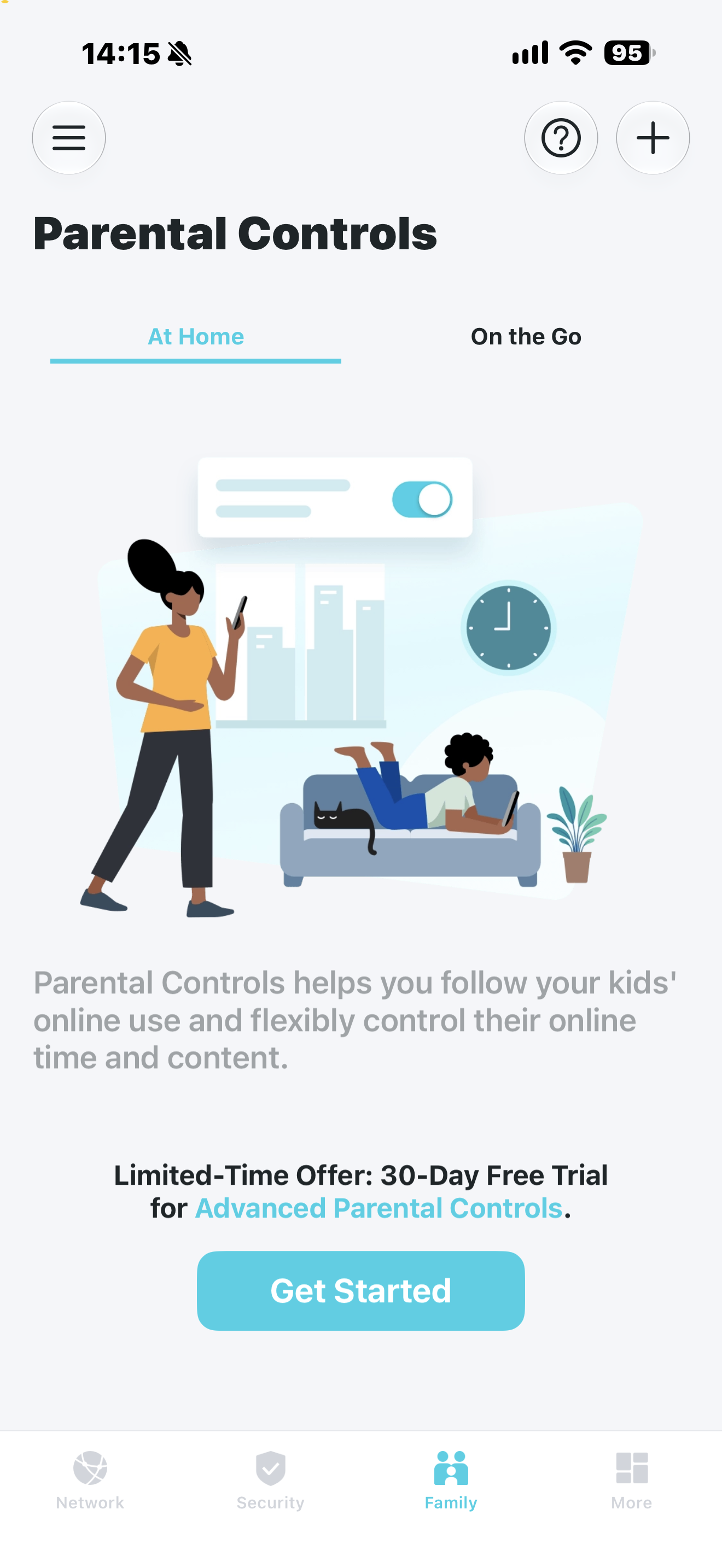
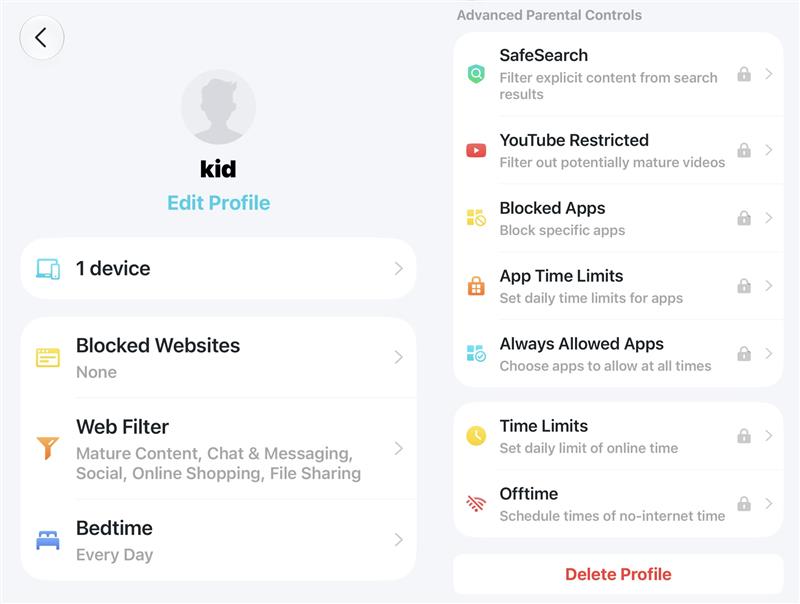
Helps manage internet access, online time, and content access for family members.
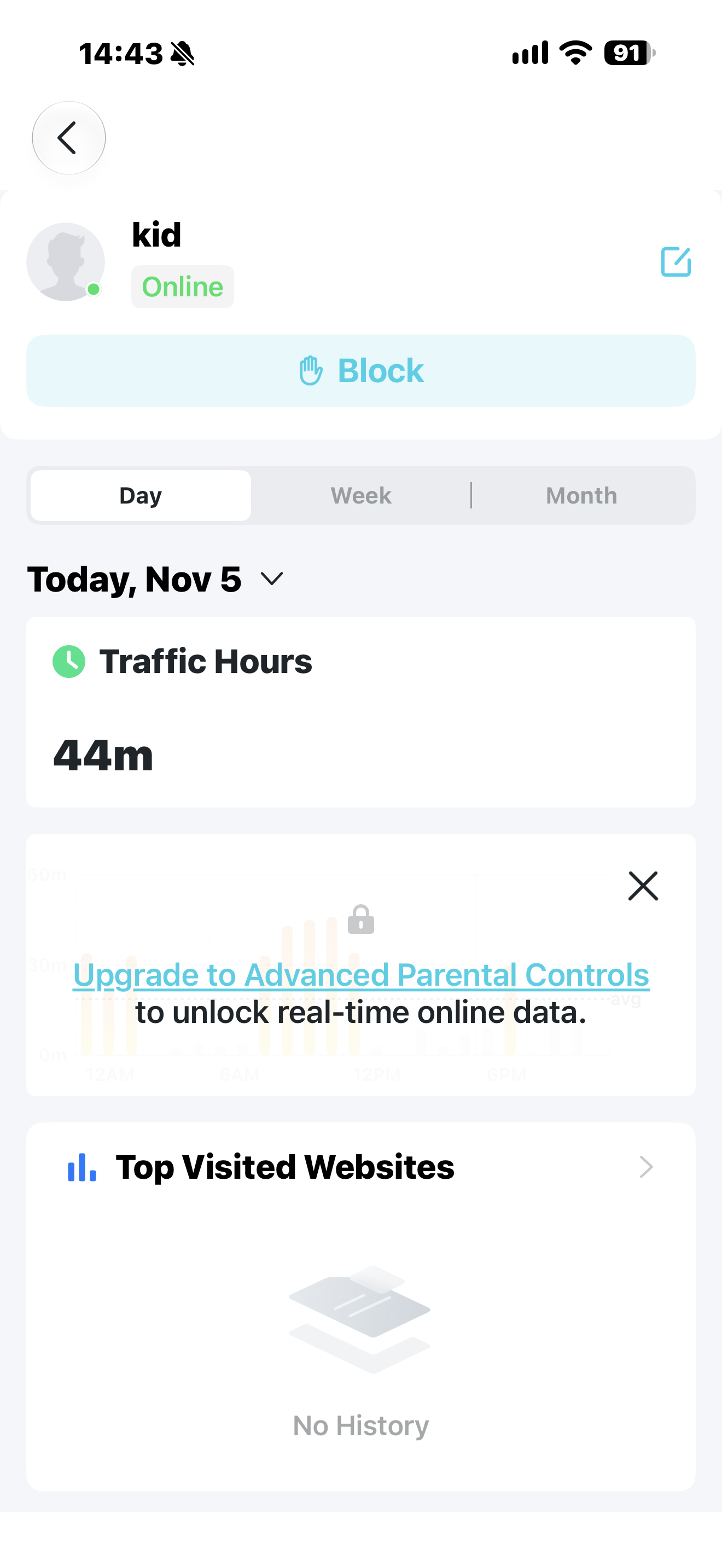
In the member's activity overview, you can see a family member’s online status, activity statistics, and internet usage information. Internet access can also be managed from this page.
For detailed information about Parental Controls features and configuration, refer to: How to set Parental Control on TP-Link Wi-Fi Router via Tether app
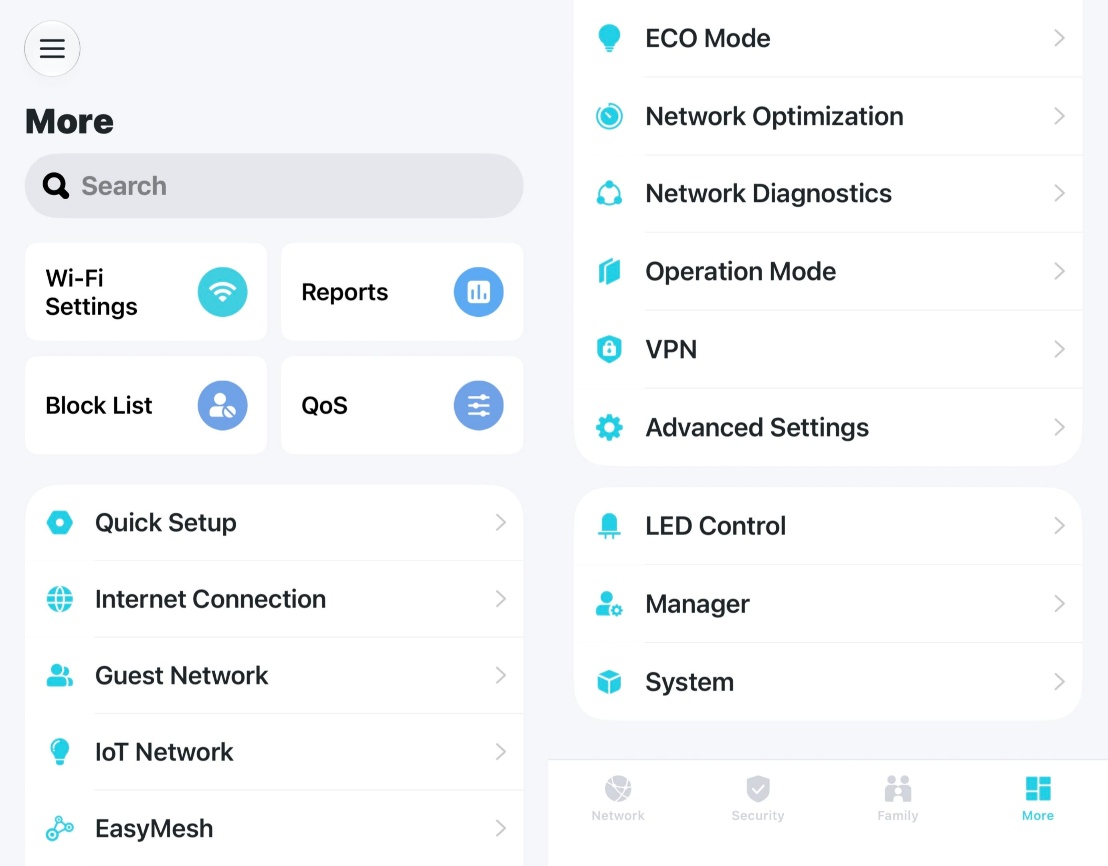
More
Provides access to additional features, tools, and advanced settings.
Note: Features displayed may differ from those of different device models.
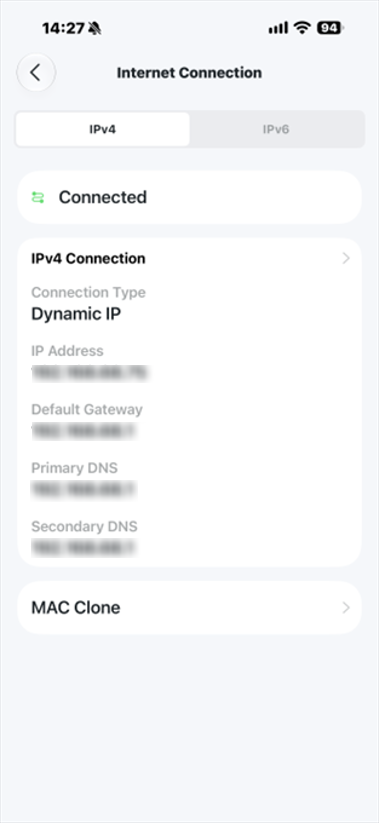
Internet Connection
Helps monitor internet connectivity and access network configuration details.
Note: If the IP address is displayed as 0.0.0.0, the router has not obtained a valid IP address from the ISP. Verify your internet connection settings or contact your ISP if necessary.
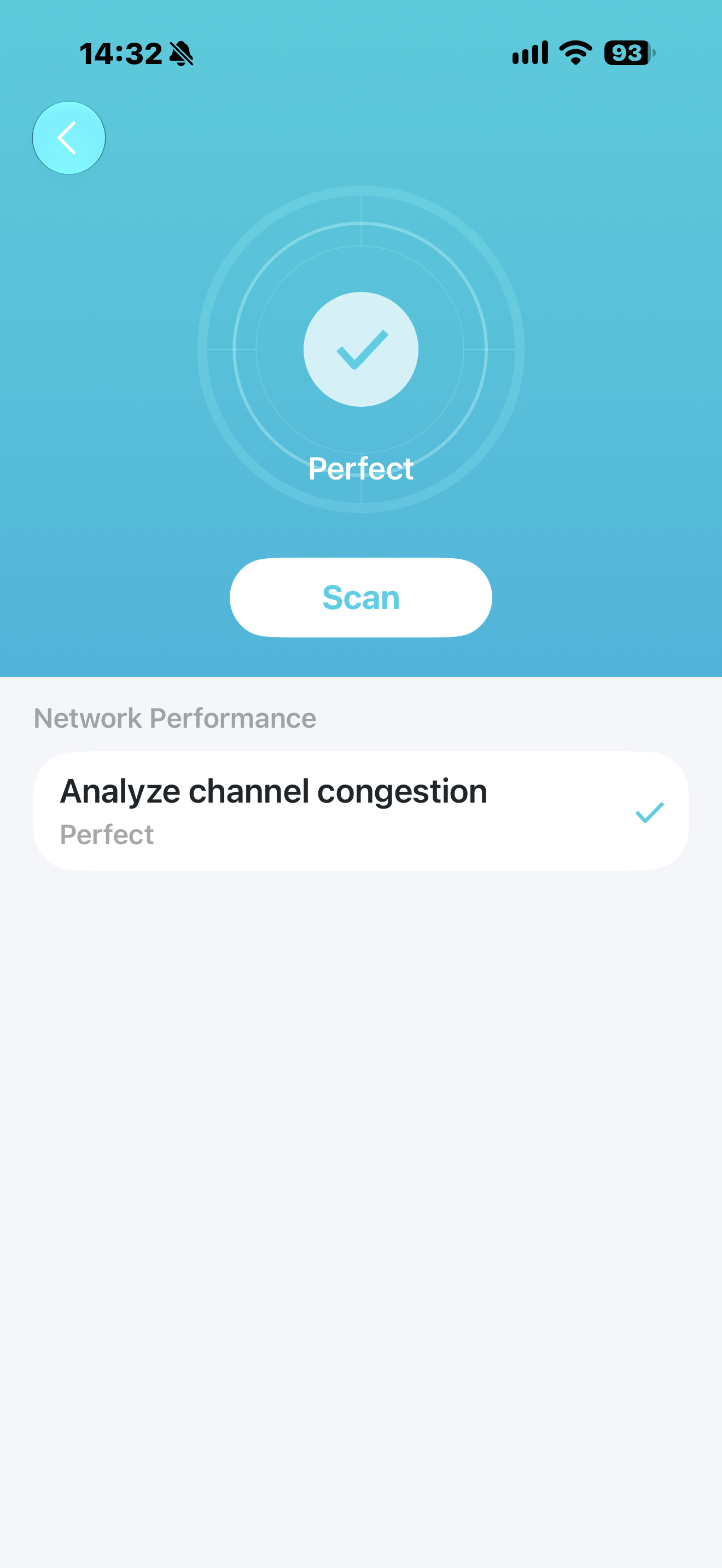
Network Optimization
Scans for channel congestion and helps assess wireless network conditions.
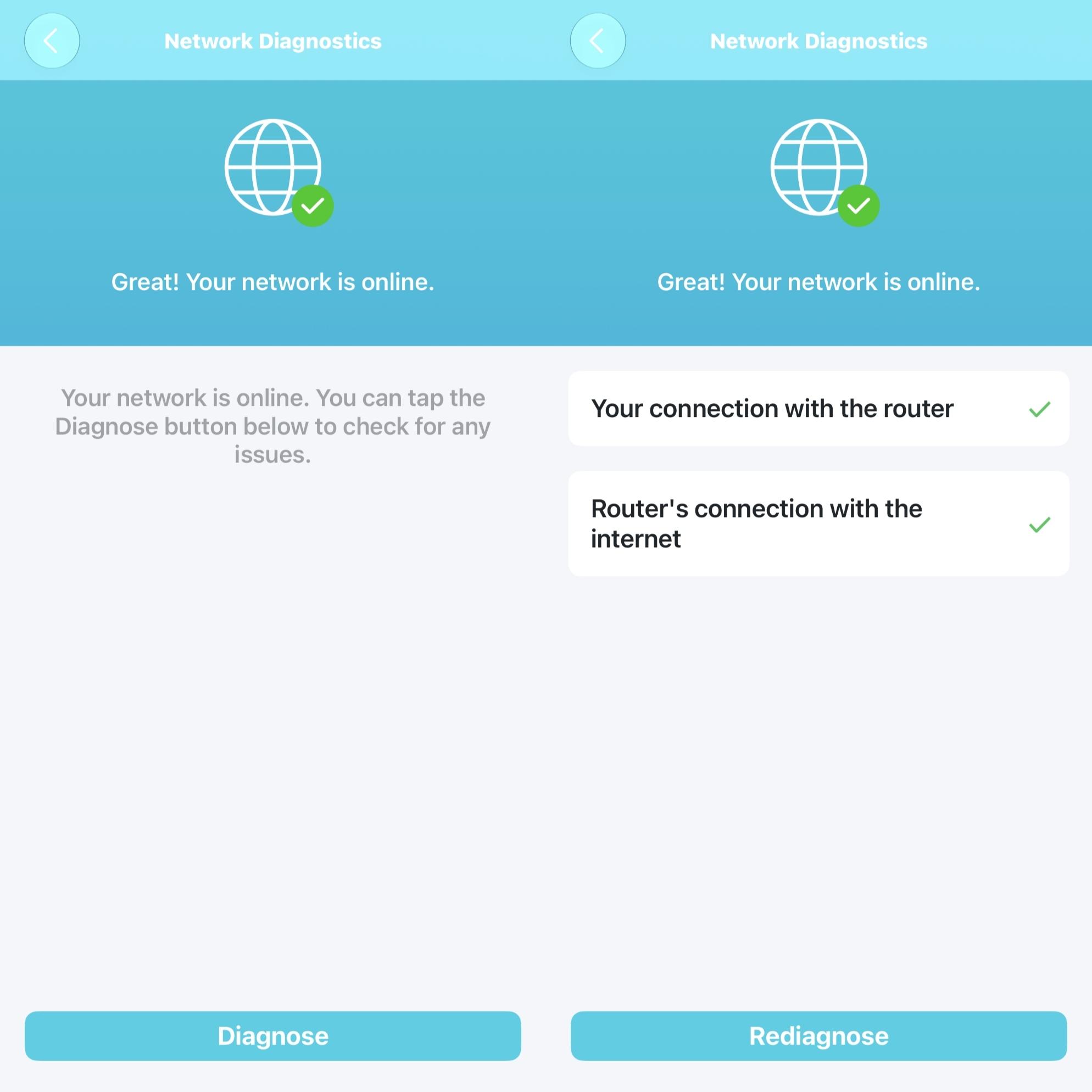
Network Diagnostics
Tests connectivity between your device, router, and the internet to help identify network issues.
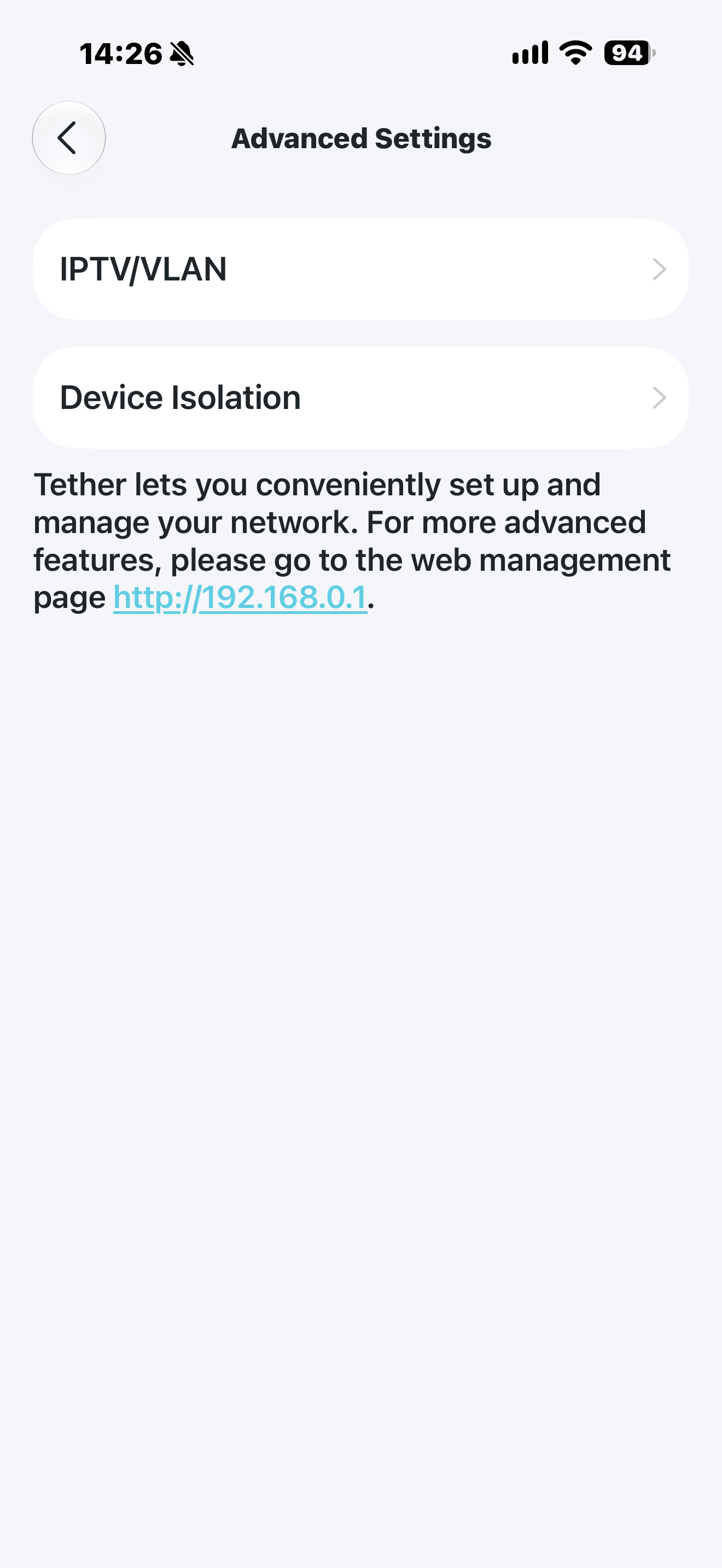
Advanced Settings
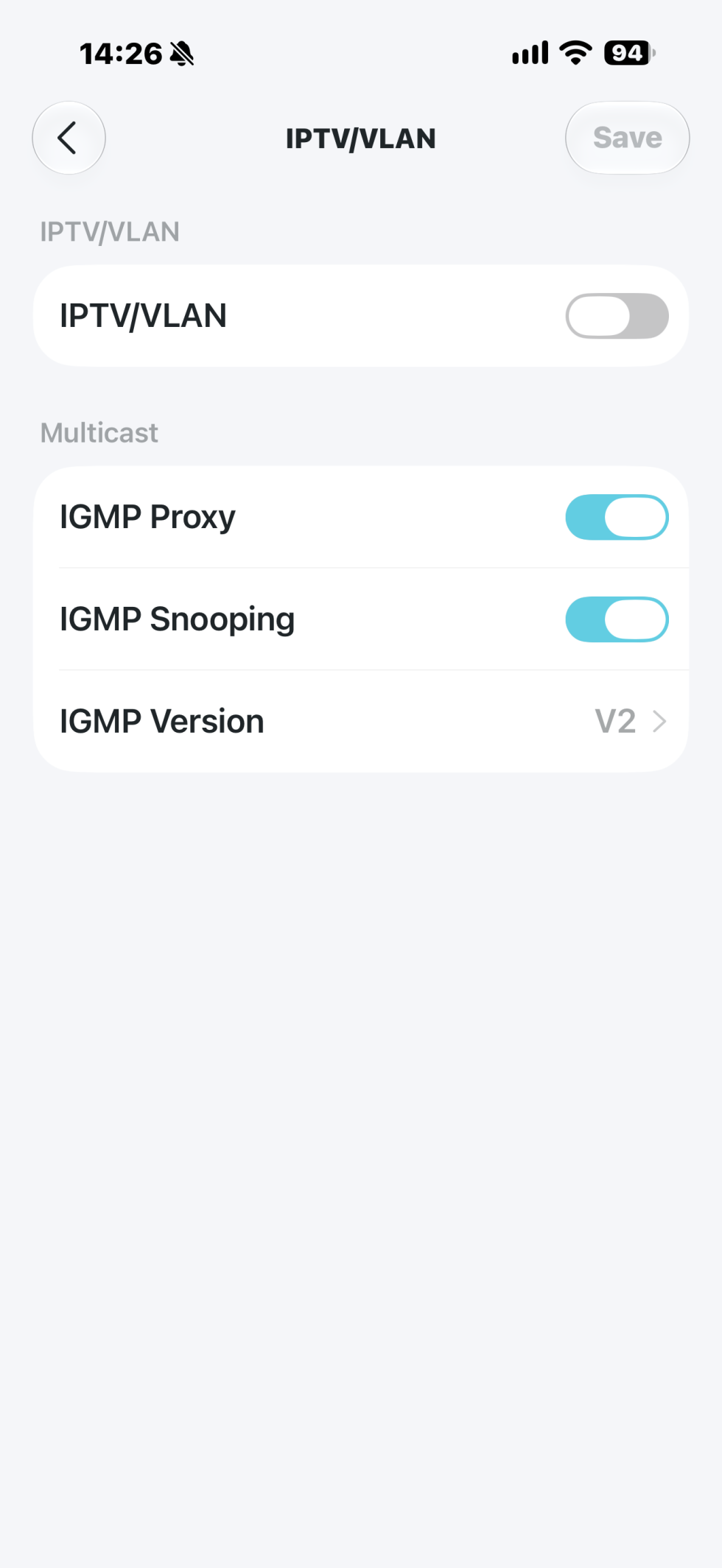
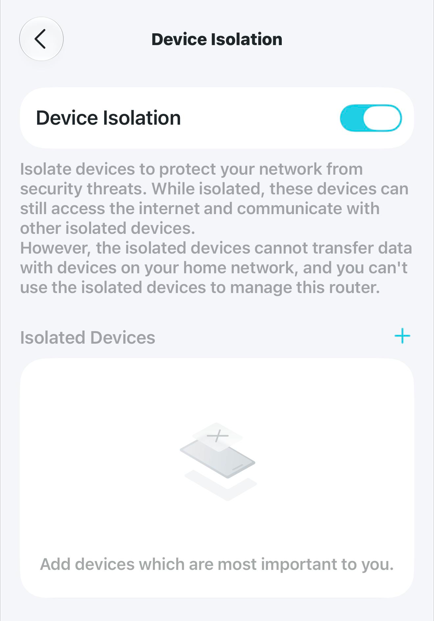
Provides access to advanced network configuration options, including IPTV/VLAN and Device Isolation settings:
- IPTV/VLAN Enables IPTV and VLAN configurations required by certain Internet Service Providers (ISPs) for internet, IPTV, or VoIP services.
Note: Leave this feature disabled unless your ISP has provided specific VLAN settings. - Device Isolation helps improve network security by preventing connected devices from communicating with each other.
System
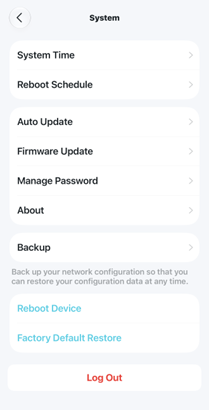
Provides tools for managing device settings, firmware, system maintenance, and configuration backups.
Side Menu
Provides access to account settings, HomeShield services, device management, support resources, and app settings.
Looking For More
Finden Sie diese FAQ hilfreich?
Mit Ihrer Rückmeldung tragen Sie dazu bei, dass wir unsere Webpräsenz verbessern.


TP-Link Community
Still need help? Search for answers, ask questions, and get help from TP-Link experts and other users around the world.
Von United States?
Erhalten Sie Produkte, Events und Leistungen speziell für Ihre Region