Tapo Cameras: Your Complete Guide to Setup, Features, and Settings
 2380561
This page answers the most common questions about TP-Link Tapo cameras, organized by topic. Whether you're getting started, configuring motion detection, managing storage, or reviewing account security, you'll find answers here. Topics covered include setup, Wi-Fi connectivity, motion detection, live view, recording and storage, and account management.
Key Takeaways
- The Tapo app is available for iOS and Android only. It is not available for computers, Windows Phone, Kindle, or Kindle Fire devices.
- Most Tapo cameras connect via 2.4GHz Wi-Fi. Select models including the Tapo C260, Tapo C460, and Tapo C840 also support 5GHz.
- All Tapo cameras support Wi-Fi Protected Access (WPA) and WPA2 encryption. Select models including the Tapo C500, Tapo C225, Tapo C125, and Tapo D130 V1 also support WPA3.
- Tapo cameras can record to a microSD card (sold separately) or via a Tapo Care cloud subscription. Only two of the three storage options (microSD, Tapo Care, NVR/NAS/Onvif) can be used simultaneously.
- Video streams and recordings are private and accessible only to users signed in to the associated TP-Link account. Enabling Two-Factor Authentication (2FA) is strongly recommended. See how to set up 2FA for the Tapo App.
- During initial setup, Tapo cameras require an internet connection. Once configured, SD card recording continues even if a camera loses its router connection.
Part 1: Installation
Q1: Which devices and operating systems are compatible with the Tapo App?
A1: The Tapo app is available for iOS and Android devices only. There are no plans to support Windows Phone, Kindle, or Kindle Fire. The app is not available for computers. To check the minimum required operating system version, visit the Google Play Store or the App Store, as these requirements may be updated with future app releases.
Q2: Can I use a SIM card for the Tapo camera?
A2: Only Tapo 4G LTE cameras, such as the Tapo C501GW/TC40GW/Tapo C615G KIT/Tapo C665G KIT, support using a SIM card as a network source. Visit the Tapo website and use the filter to select "4G" under Network to find supported models. You can also check the specification page for your specific camera on the official TP-Link website.
For information on supported carriers and frequency bands, please refer to the Recommended Carriers with Tapo 4G Camera page.
Q3: Which Wi-Fi encryption methods do Tapo cameras support?
A3: All Tapo cameras support two Wi-Fi encryption methods: Wi-Fi Protected Access (WPA) and WPA2. Encryption methods such as WEP, Portal, and WPA/WPA2-Enterprise are not supported.
Certain camera models, including the Tapo C500/TC40 V1/V2, Tapo C225 V1/V2, Tapo C125, and Tapo D130 V1, also support WPA3 encryption.
Note: Tapo cameras can connect to hidden SSIDs, but you must enter the network name and password manually.
Q4: Which Wi-Fi frequency bands do Tapo cameras support?
A4: Most Tapo cameras are designed to connect via 2.4GHz Wi-Fi only. However, select models, including the Tapo C260, Tapo C460, Tapo C840, and others, support 5GHz Wi-Fi connectivity. Check your camera's specification page on the official TP-Link website for details on your specific model.
Q5: What do the LED status indicator colors mean on Tapo cameras?
A5: The meaning of the LED colors varies by model. For details, please visit the Tapo official website, search for your camera model, and refer to the User Guide on the device’s Download page.
Q6: How do I turn the status LED on or off?
A6: Open the Tapo app, go to your camera's Device Settings page, and look for the Status LED option to turn it on or off.
Q7: Does the Tapo camera work with SmartThings?
A7: Compatibility with SmartThings varies by model. Check your camera's Specifications page on the official TP-Link website to confirm whether your model supports SmartThings.
Q8: Does the Tapo camera support IPv6?
A8: No. Tapo cameras support IPv4 only.
Q9: Can I use a Tapo camera without the Tapo App or a TP-Link account?
A9: This depends on the camera type. Most Tapo cameras require the Tapo app and a TP-Link account for setup and everyday use. However, if your camera supports Apple HomeKit, you can set it up using the Home app instead. For step-by-step setup guidance, see how to set up HomeKit-supported Tapo devices.
Q10: Can the Tapo camera be used without a Wi-Fi network?
A10: During initial configuration, Tapo cameras must be connected to a network, either by cable or wirelessly. Once set up, the camera can continue to function even if it loses its router connection. SD card recording, including detection recording and 24/7 recording, will keep running. However, without a Wi-Fi network connection, you will not be able to view the live feed, play back videos, or receive detection notifications through the Tapo app.
Q11: Can the camera rotate 360 degrees?
A11: Stick cameras like the Tapo C100 have a ball-and-socket joint on the base that allows manual 360-degree rotation. Pan/Tilt cameras like the Tapo C210 can be rotated 360 degrees using the pan/tilt control in the Tapo app.
Q12: How do I change the wireless network my camera is connected to?
A12: At this time, the only way to change wireless networks is to reset and reconfigure the camera.
Q13: Why does my Tapo C310 still show a Tapo_Cam_XXX Wi-Fi network even when connected via Ethernet?
A13: First, check that the Ethernet cable is still properly connected to the camera. After setting up via Ethernet in the app, the camera's default Wi-Fi name should disappear. If the Ethernet cable is disconnected, the camera will re-enter setup mode, and the Tapo_Cam_XXX Wi-Fi network will broadcast again with the status LED flashing amber and green.
Part 2: Motion Detection
Q1: Do I need an SD card to record when motion is detected?
A1: No. Tapo cameras can record motion-triggered activity either through a Tapo Care cloud subscription or by saving to an installed and formatted microSD card (sold separately). The choice is yours.
Q2: Does the Tapo camera capture photos when a person is detected?
A2: Yes, with a Tapo Care subscription, you can use the Rich Notifications with Snapshots feature, which takes a snapshot whenever a person is detected.
Q3: How do I adjust motion detection sensitivity?
A3: To adjust sensitivity, follow this path in the Tapo app: camera Device Settings > Detection > Detection Types. Tap the detection type you want to adjust (such as Motion Detection or Person Detection), then change the sensitivity to a higher or lower level. For more details on enabling detection features, see how to enable detection on Tapo and Kasa cameras.
Q4: What is the motion detection distance for Tapo cameras?
A4: Motion detection distance cannot be specified with precision, as it depends on factors such as the size of the object, its range of movement, and the camera's sensitivity setting. Refer to your camera's specifications page for the maximum detection distance.
Part 3: Live View
Q1: Who can access my Tapo camera and video recordings?
A1: All video streams and activity recorded by your Tapo camera are private. Only individuals signed in to your TP-Link account, or those you have authorized to access your SD card, can view them. You can also share access to a specific camera with another Tapo account using the share feature.
Important: It is strongly recommended that you enable Two-Factor Authentication (2FA) on your account and never share your login credentials with anyone.
Q2: Why can't I use Tapo Care, SD card, and NVR/NAS/Onvif recording at the same time?
A2: Due to the camera's hardware limitations, only two of the three recording options (Tapo Care, microSD card, and NVR/NAS/Onvif) can be active at the same time. For example, if you are using both a microSD card and Tapo Care simultaneously, NVR/NAS/Onvif recording will be disabled automatically. To resume NVR/NAS/Onvif recording, you must remove the microSD card from the camera.
Q3: What can I do if the image is unclear during remote Live View?
A3: For most Tapo cameras, you can set the video quality when streaming remotely. Go to the Device Settings page for your camera, select Video and Display, and adjust the Video Quality setting. For the Tapo C100 V1, the default quality is LQ (360P). You can switch to HQ from the Live View page.
Q4: Does the Tapo camera support manual recording?
A4: Yes. From your camera's live view, tap the record button once to begin recording and tap again to stop.
Part 4: ONVIF and RTSP
Q1: How do I use Tapo cameras with Google Assistant and Chromecast?
A1: To use a Tapo camera with Google Assistant, you need a Google Chromecast or a Nest display device that supports Chromecast. Once configured, you can ask Google Assistant to show the live feed from your Tapo camera. Note that streaming via Google is limited to display on Chromecast and Nest devices.
The Tapo camera does not support the "camera on/off" voice command due to potential security risks. Live feed streaming through Google Assistant uses your Internet traffic as a cloud-to-cloud service, and the live feed will stop automatically after five minutes. You can ask Google to resume the stream at any time.
Q2: Can I view a Tapo camera on a computer or web browser?
A2: Yes, for Tapo cameras that support ONVIF or RTSP protocols, you can use third-party client software (such as VLC Media Player, iSpy, or Blue Iris) to stream live video on your PC. Some web-based platforms with ONVIF/RTSP support, such as Agent DVR, can also display the live stream in a browser.
For models that support ONVIF/RTSP and setup instructions, see how to view Tapo cameras via RTSP/ONVIF on PC, NAS, or NVR.
Q3: Will the Tapo camera work with a NAS or NVR/DVR?
A3: Battery-powered camera models do not currently support ONVIF. All other Tapo cameras support the standard ONVIF protocol (Profile S) and are compatible with NVR/DVR or NAS devices that support that standard.
Part 5: Audio and Video
Q1: Can I change the video quality when viewing a Tapo camera on Echo Show or Fire TV?
A1: No. It is not possible to change the video quality of a Tapo camera while viewing through Echo Show or Fire TV.
Q2: What can I do if audio from the Tapo camera sounds muffled?
A2: If the audio is muffled or there is noise or echo during live view or playback, try the following:
- Relocate the camera in case another nearby device is causing interference.
- Move your phone away from the camera, or place them in different rooms, and test the two-way audio again.
Q3: Why can't I play SD card recordings on a computer?
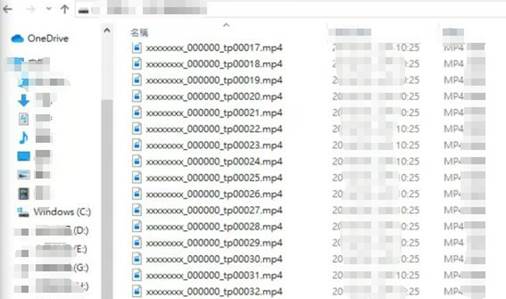
A3: When an SD card is formatted using the Tapo app, it is automatically divided into multiple folders. These folders are named using a pattern such as xxxxxxxx_000000_tp00001.mp4, xxxxxxxx_000000_tp00002.mp4, and so on. Empty folders cannot be opened or played because they contain no recording yet. Recorded video clips will fill these folders one by one as recordings are made.
Part 6: Storage and Recording
Q1: Does recording overwrite the oldest footage?
A1: Yes. When you enable the loop feature, the oldest recordings are automatically overwritten once the microSD card runs out of storage space.
Q2: How can I view 24-hour recordings in the Tapo app?
Note:
- A microSD card (sold separately) must be inserted and formatted before using this feature.
- 24/7 recording must be enabled.
A2: From the main page in the Tapo app, tap on the camera you want to review. Tap Playback and Download. A timeline will appear. If activity was detected, you will see callouts below the timeline. Tap a callout to jump to that moment and review the clip.
Q3: How do I delete recordings from an SD card using the Tapo App?
A3: In the Tapo app, go to your camera's Device Settings page, then navigate to Storage and Recording > microSD Card, and tap Format to delete all recordings. To delete specific recordings only, you can insert the SD card into a computer (using an SD card reader) or phone and delete the files directly.
Q4: Where can I store recordings from my Tapo camera?
A4: Tapo offers two recording options for the Tapo C200 and similar models: local storage via an inserted and formatted microSD card (sold separately), and cloud storage via a Tapo Care subscription stored on secure cloud servers. For information on Tapo Care plans, see General Questions about Tapo Care.
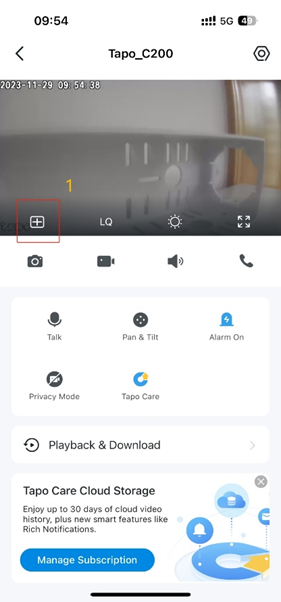
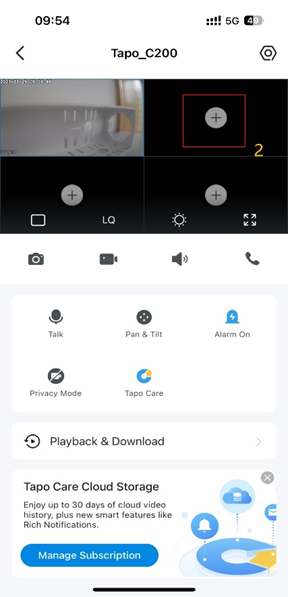
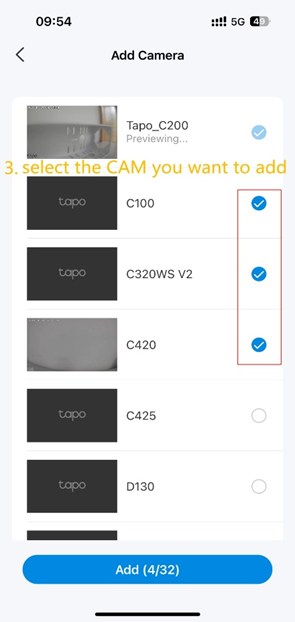
Q5: Can I view multiple Tapo cameras at the same time?
A5: Yes. You can add up to 32 Tapo cameras in the Live View window and view four of them in the same window at one time.
Q6: Can multiple accounts or devices view a Tapo camera at the same time?
A6: For remote viewing, there is generally no limit on the number of accounts or devices. For local viewing, no more than three devices can view the live stream at the same time. Each ONVIF or RTSP connection also counts toward the local viewing limit.
For viewing videos recorded on an SD card through the Tapo app, only one account or device can access the clips at a given time.
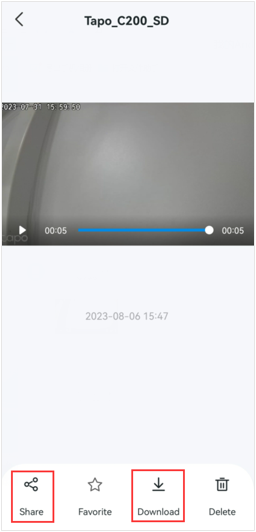
Q7: How do I export or share videos from the Tapo App?
A7: To export or share videos, follow these steps:
- Open the Tapo app and tap on your camera to enter its home page.
- Go to Playback and Download, select the videos you want to share, and tap the three-dot icon beside a video to download it. Before downloading videos stored on the microSD card, make sure your phone and camera are on the same Wi-Fi network.
- Go to the Download section. From there, you can select Share to send the video or Download to save it to your phone's photo library.

Q8: Does Tapo Cam support 24/7 monitoring?
A8: Most Tapo cameras support 24/7 monitoring. The exception is battery-powered models such as the Tapo C420, C400, and D230, which do not. For supported cameras, you can configure Continuous Recording or Detection Recording schedules under camera Device Settings > Storage & Recording > Recording Schedule.
Note:
- A microSD card (sold separately) is required to enable the Continuous Recording feature.
- Your camera must be powered on and must not be in Privacy Mode for monitoring to take place.
Q9: Does the Tapo camera support cloud storage?
A9: Yes. Tapo cameras support cloud storage through Tapo Care. For details on plans, visit the Tapo Care page.
Q10: How do I encrypt an SD card?
A10: To enable SD card encryption, open the Tapo app and go to camera Device Settings > Storage and Recording > Local Storage > Encrypt microSD Card. Note that support for this feature varies by model. For more details, see Frequently asked questions about the SD Card Encryption feature.
Part 7: Other Questions
Q1: How many Tapo cameras can one account manage?
A1: There is no limit on the number of cameras you can set up or control under one account in the Tapo app.
Q2: How secure is the Tapo camera?
A2: TP-Link takes data security seriously. Tapo cameras use industry-standard Advanced Encryption Standard 128-bit (AES 128-bit) encryption with Secure Sockets Layer/Transport Layer Security (SSL/TLS) to protect camera data. For more detail, see how secure Tapo devices are.
Q3: What bandwidth does the Tapo camera require?
A3: Recommended bandwidth varies by camera type and resolution. Each camera requires approximately 5Mbps of upload bandwidth to stream a live feed or upload videos. Keep in mind that actual streaming performance is also affected by wireless interference and signal strength. To improve performance, reduce nearby interference sources such as Bluetooth devices, USB 3.0 devices, cordless phones, and microwave ovens, or move the camera closer to your router.
Q4: Can I use the Tapo camera with my existing Kasa Cam or NC Cam account?
A4: Yes. You can sign in to the Tapo app using your existing Kasa Cam or NC Cam account credentials to manage your Tapo camera.
Q5: How do I change my login email address in the Tapo App?
A5: To update your login email address, follow these steps:
- Open the Tapo app and tap the "Me" option in the bottom menu.
- Tap Log Out to sign out of your current account.
- Log in again using your new email address and password.
- Reset and reconfigure your Tapo camera in the Tapo app using your new account.
Q6: Can I use my Tapo camera without an Internet connection?
A6: You can view the live feed and use the camera without an Internet connection, as long as both your phone and the camera are connected to the same wireless network. Local storage via SD card will continue to work, and you can access saved recordings through Playback. Note that notifications and any TP-Link cloud-based services will not work without an active Internet connection.
Q7: What is Privacy Mode?
A7: Privacy Mode lets you disable all video and audio streaming and recording on your Tapo camera. When Privacy Mode is active, the camera will not record audio or video, and you will not receive any event notifications.
Q8: Can I turn my Tapo camera on or off from my phone?
A8: The Tapo app does not currently support remotely turning the camera on or off. To power the camera off, you must do so manually. Alternatively, you can plug the camera into a smart plug like the Tapo P100 and set a schedule to turn it on or off automatically. You can also use Privacy Mode to stop the camera from recording audio and video, though you will not receive event notifications while this mode is active.
Q9: Can I manage a Tapo camera using the Kasa Smart app?
A9: No. Tapo cameras require the dedicated Tapo app for management and monitoring. They are separate from Kasa Cams in terms of functionality.
Q10: Do I need to keep the Tapo App open to receive notifications?
A10: Notification behavior depends on your device and operating system. On iOS devices, you can receive notifications even when the Tapo app is closed. On some Android devices, background data restrictions or battery optimization settings may prevent notifications from arriving. Check your device's background data, data saver, and notification settings if you are not receiving alerts.
Q11: Is it safe to save wireless credentials in the Tapo App?
A11: Yes. The Tapo app stores your wireless network name and password in the app's private libraries, which are not exposed to other apps or users. This allows the app to help reconnect cameras if a password is forgotten. If you prefer not to save your password, you can uncheck the "save password" option when adding the camera.
Q12: What should I do if my camera stops working after I change my Wi-Fi name or password?
A12: When you change your Wi-Fi name or password, the camera loses its connection because it cannot automatically detect the new credentials. You will need to reset and reconfigure the camera. If you switch to a new router that uses the same 2.4GHz network name, password, and security settings as your old one, the camera should reconnect automatically. If it does not, reset and reconfigure the camera.
Q13: Can I turn off the IR LED in Night Mode?
A13: No. The IR LED cannot be turned off while the camera is in Night Mode. Pointing the camera directly at a glass window at night is not recommended, as the IR light may reflect and produce a blurry or overexposed image. To turn off the IR LED at night, switch the camera view to Day Mode.
Some newer Tapo cameras support a second IR mode that is less visible to the naked eye. Check your camera's specifications to see if it supports both 580nm and 940nm IR wavelengths.
Q14: Can a Tapo camera be powered by Power over Ethernet (PoE)?
A14: Some Tapo camera models, including the Tapo C501GW/TC40GW and Tapo C325WB V2, support Power over Ethernet (PoE). Visit the Tapo website and filter by "PoE" under Power to view supported models. You can also check your camera's specification page on the official TP-Link website.
Q15: How can I zoom in on live view or recorded footage?
A15: There are two ways to zoom in:
- Method 1: Double-tap the area of the screen you want to zoom in on.
- Method 2: Place two fingers on the screen and spread them apart to zoom in. Adjust the distance between your fingers to control the magnification level.
Note: Zooming is supported for live view and SD card recordings. Cloud recordings cannot be zoomed in.
Q16: Can I rotate the camera image 90 degrees?
A16: The Tapo app currently supports 180-degree image rotation for most cameras. A 90-degree rotation option is not available due to hardware limitations. If you need to mount the camera sideways on a wall, consider using a third-party wall-mounting accessory designed for that purpose.
Q17: Can I power the Tapo camera using a power extension cable?
A17: Using an extension cable is generally not recommended, as it may affect performance. Please consider the following:
- The material and length of the extension cable may reduce the voltage reaching the camera below what it requires, causing unusual behavior such as automatic restarts at night or pan/tilt issues.
- Using extension cords outdoors may increase the risk of lightning damage, which could void your warranty.
- If an extension cord is necessary, use a cable with 22 AWG or thicker wire to minimize voltage drops. Make sure the cable is properly waterproofed and lightning-protected outdoors.
For the most reliable performance, use the original power adapter and cord that came with your Tapo camera.
¿Es útil esta pregunta frecuente?
Sus comentarios nos ayudan a mejorar este sitio.


(1)_normal_20240513182614f.png)