How to rotate the image of my VIGI camera
 100566
Contents
Method 1: Via VIGI APP
Method 2: Via VIGI PC Client
Method 3: Via VIGI NVR
Method 4: Via Web Interface
Introduction
This article will introduce how to rotate the view from a VIGI camera using the VIGI APP, VIGI PC Client, VIGI NVR or Web Interface. VIGI APP has more rotation options than VIGI PC Client, VIGI NVR and Web Interface.
Requirements
- VIGI Camera
- Mobile Phone/Laptop/VIGI NVR/Network Cable/Screen
Configuration
Here we take C340W as an example.
Method 1: Via VIGI APP
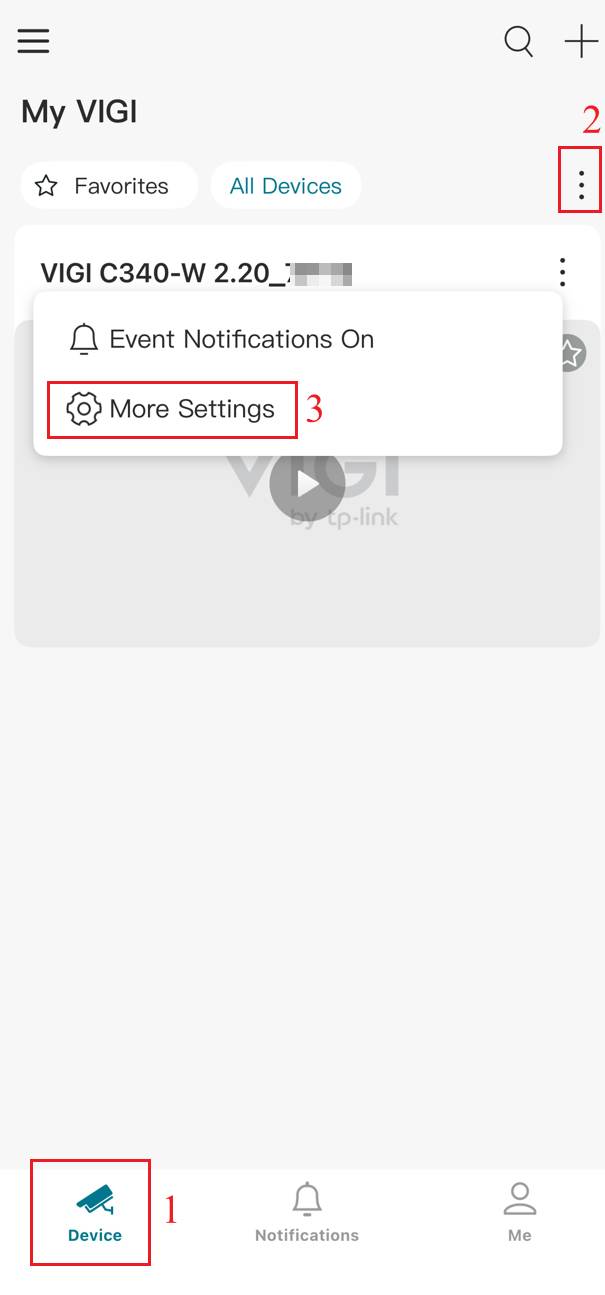
Step 1. Launch the VIGI APP. On the Device page, tap the three-dot icon in the upper-right corner of the device. In the pop-up window, tap More Settings.
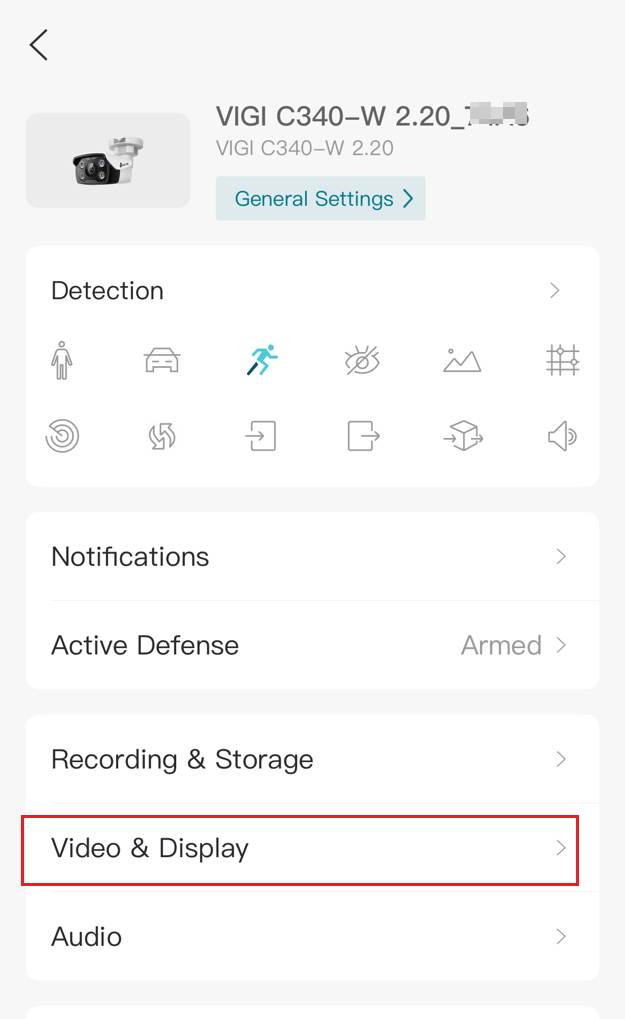
Step 2. On Settings page, tap Video & Display.
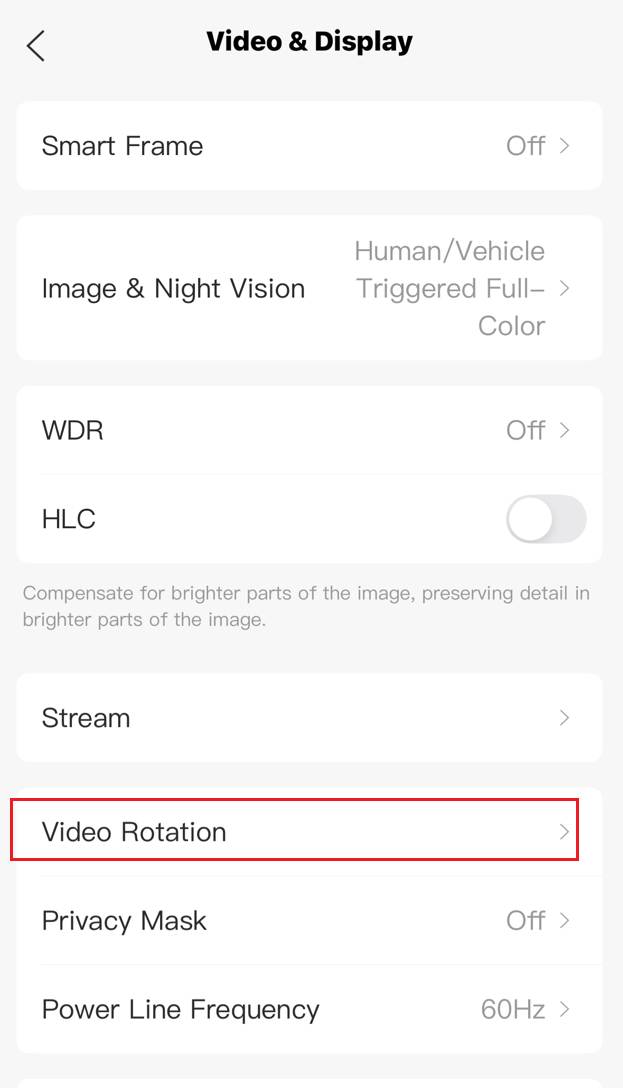
Step 3. On Video & Display page, tap Video Rotation.
Step 4. You can tap Rotation to rotate the surveillance image clockwise. Each tap will rotate the image 90° clockwise. You can also tap Flip to flip the surveillance image left–right or up–down. You can tap Reset to restore the image to its original view.
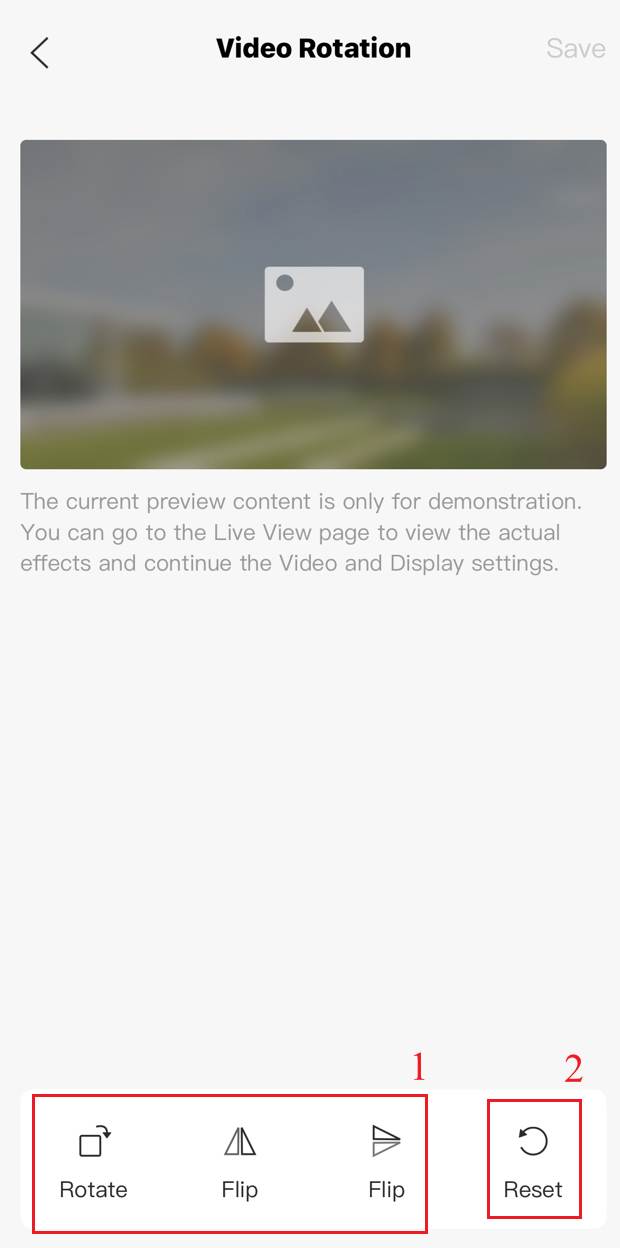
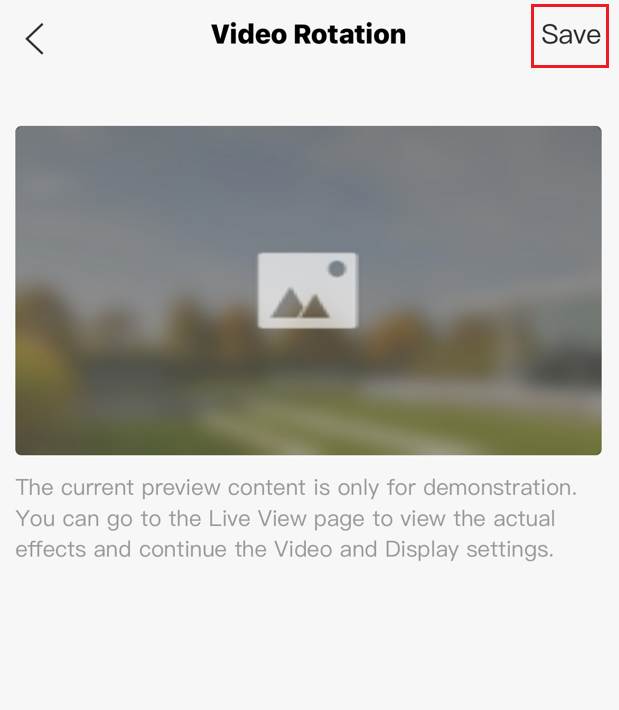
Step 5. After rotating the image to the desired angle (For example, left-right flip), click Save in the upper-right corner to save the configuration.
Method 2: Via VIGI PC Client
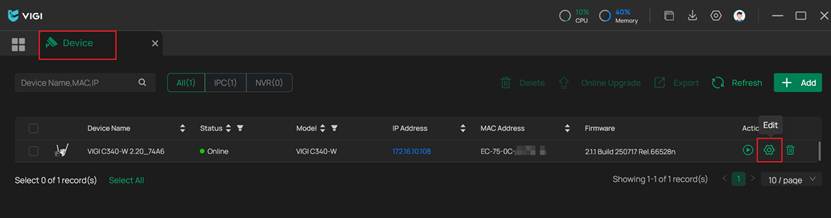
Step 1. On the Device feature page, locate the VIGI camera in the device list and click the Edit button on the right side.
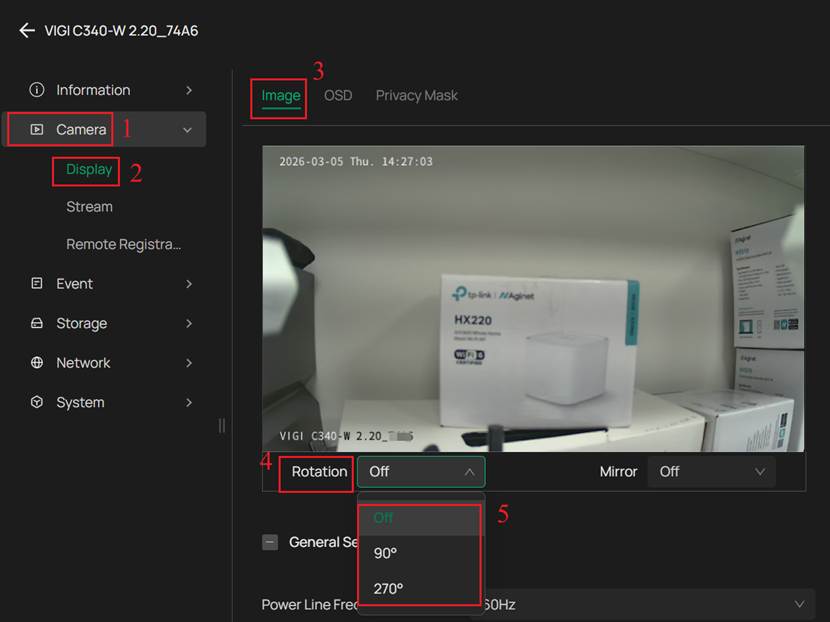
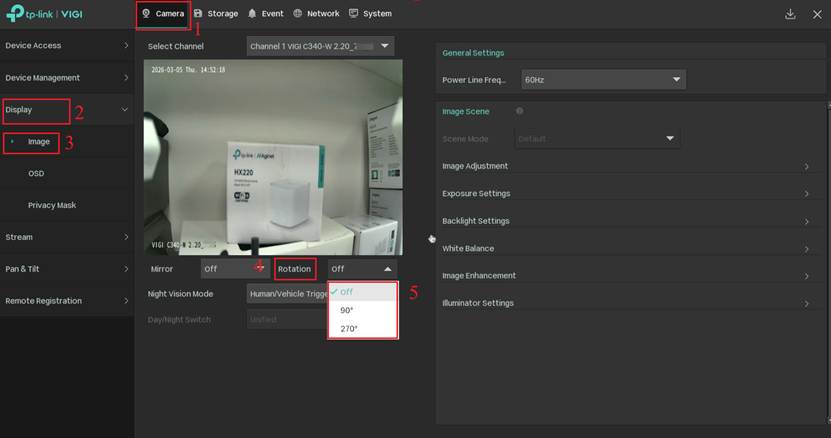
Step 2. Navigate to Camera > Display > Image > Rotation. You can select 90° to rotate the surveillance image 90 degrees clockwise or select 270° to rotate the surveillance image 270 degrees clockwise.
Method 3: Via VIGI NVR
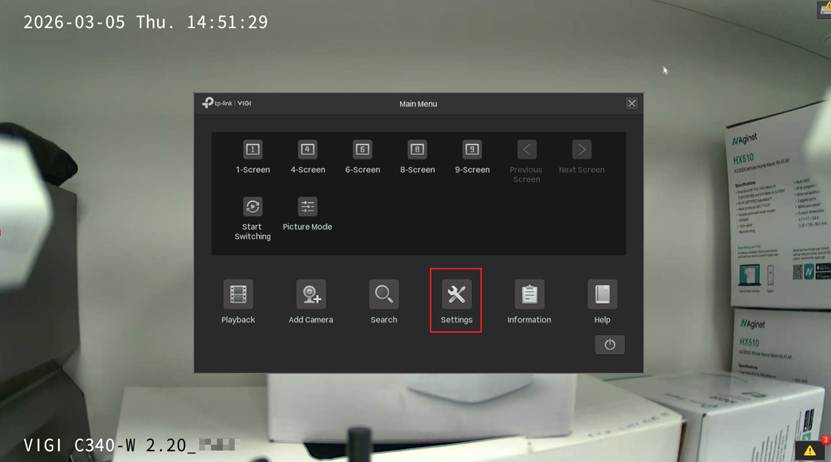
Step 1. On the NVR GUI page, right-click on the screen, in the pop-up window, click the Settings button.
Step 2. Navigate to Camera > Display > Image > Rotation. You can select 90° to rotate the surveillance image 90 degrees clockwise or select 270° to rotate the surveillance image 270 degrees clockwise.
Method 4: Via Web Interface
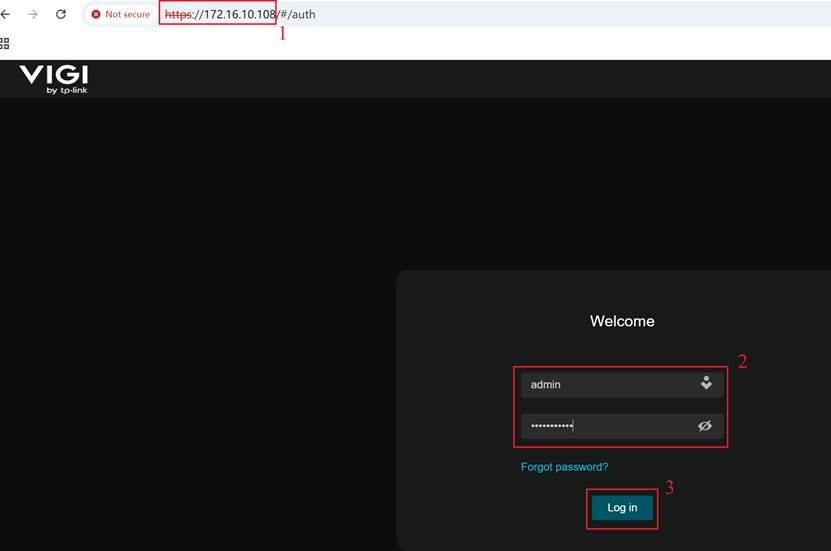
Step 1. Enter the IP address of the VIGI camera in the browser’s address bar, then enter the username and password and click Log in to access the camera’s Web Interface.
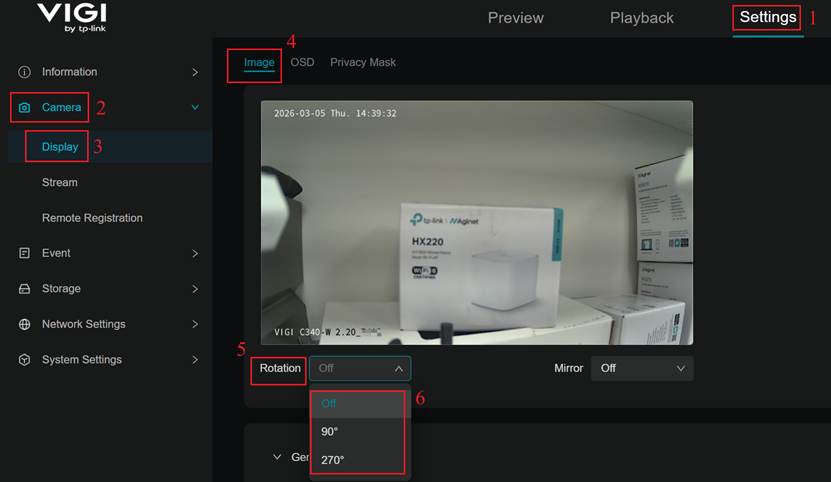
Step 2. Navigate to Settings > Camera > Display > Image > Rotation. You can select 90° to rotate the surveillance image 90 degrees clockwise or select 270° to rotate the surveillance image 270 degrees clockwise.
Conclusion
You have successfully rotated the VIGI camera’s surveillance image to the selected angle.
Get to know more details of each function and configuration please go to Download Center to download the manual of your product.
¿Es útil esta pregunta frecuente?
Sus comentarios nos ayudan a mejorar este sitio.
(UN)_1.0-package_normal_20231211020330s.png)
1.0-package_normal_20231211020720l.png)
1.0-R-package_normal_20231211020022b.png)