Does my device support the Omada app?
Follow the steps below to make sure the Omada app is supported on your Omada device.
1. Find out firmware version of your Omada device.
Follow the steps below to find the firmware version of your device ( Click here to know how to find the hardware versions) :
-
STEP1
Power on the EAP and connect to the SSID of the EAP wirelessly.
Tips: If your EAP is a brand new EAP, use the default SSID (format: Omada_2.4GHz/5GHz_XXXXXX) printed on the product label.

-
STEP2
Launch a web browser and enter http://omadaeap.net in the address bar.

-
STEP3
Enter the username and password of your EAP to log in.
Note: If your EAP is a brand new EAP, use the default username and password that are both admin.

-
STEP4
Go to the Monitoring > AP > Device Information page. You can view the Firmware Version as the following figure shows. The Build number indicates the released date, for example, 20180411 means the released date is April 11th, 2018.

2. Check compatibility
View the compatible devices list below to check if your device is compatible with Omada app. Please click the device image and check if you have the latest firmware. If not, download the latest firmware and follow the instructions in Step 3 to upgrade it.
Note 1: Both listed and higher hardware versions of these models are compatible with Omada APP.
Note 2: All the access points listed below are compatible with Omada App in both controller and standalone modes. While all the switches and routers listed below are compatible with Omada App only in controller mode.
*EAP245 V1, EAP225 V2/ V1, EAP115 V2/ V1, EAP110 V2/ V1, and EAP110-Outdoor V1 are also compatible with Omada App in standalone mode.
Access Points (Compatible in Controller and Standalone Modes)
-

EAP225-Wall
Point d'accès mural WiFi AC 1200 Mbps MU-MIMO PoE
-

EAP783
Point d'accès WiFi 7 BE22000 Tri-Bande plafonnier
-

EAP772 V2
Point d'accès WiFi 7 tri-bande BE11000 plafonnier
-

EAP683 UR
Point d'accès WiFi 6 AX6000 plafonnier
-

EAP673
Point d'accès WiFi 6 AX5400 plafonnier
-

EAP670 (US) V2
Point d'accès WiFi 6 AX5400 bi-bande plafonnier
-

EAP660 HD
Point d'accès WiFi 6 - AX3600 bi-bande Multi-Gigabit plafonnier
-

EAP653 UR V2
Point d'accès WiFi 6 AX3000 plafonnier
-

EAP653
Point d'accès WiFi 6 AX3000 plafonnier
-

EAP650 V1.20
Point d'accès WiFi 6 AX3000 plafonnier
-

EAP620 HD V3
Point d'accès WiFi 6 AX1800 plafonnier
-

EAP613
Point d'accès WiFi 6 AX1800 plafonnier
-

EAP610 V2
Point d'accès plafonnier WiFi 6 AX1800 bi-bande
-
4.0-F_normal_1593323206680k.png)
EAP245 V3*
Point d'accès WiFi bi-bande AC1750 PoE Gigabit - Plafonnier
-
4.0-F_normal_1593323197059j.png)
EAP225 V3*
AC1350 Wireless MU-MIMO Gigabit Ceiling Mount Access Point
-

EAP615-Wall
Point d'accès WiFi 6 AX1800 mural
-

EAP211-Bridge KIT
Pont WiFi 5 GHz 867 Mbps
-

EAP650-Outdoor
Point d'accès WiFi 6 AX3000 Indoor/Outdoor
-

EAP625-Outdoor HD
Point d'accès WiFi 6 AX1800 Indoor/Outdoor
-

EAP225-Outdoor
Point d'accès WiFi Mesh AC1200 MU-MIMO Gigabit Extérieur (IP65)
Tout Montrer 20 Access Points (Compatible in Controller and Standalone Modes)
Switches (Compatible in Controller Mode)
-

TL-SG3452XP V2
Switch administrable JetStream 48 ports Gigabit et 4 ports 10GE SFP+ L2+ avec PoE+ 48 ports
-

SG2218P V1.20
Omada 18-Port Gigabit Smart Switch with 16-Port PoE+
Routers (Compatible in Controller Mode)
-

ER8411
Routeur VPN Multi-WAN Omada avec ports 10G
-

ER7212PC
Contrôleur / Routeur VPN Gigabit 3 en 1
-

ER7412-M2 V1.20
Routeur VPN Omada Multi-Gigabit
-
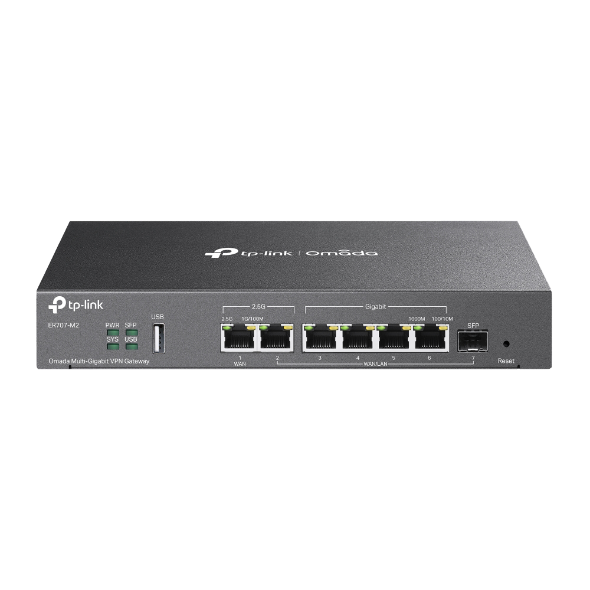
ER707-M2 V1.20
Routeur VPN Omada Multi-Gigabit
-

ER7406
Routeur VPN de bureau/rackable Gigabit Omada
-

ER7206 V2
Routeur VPN Omada Gigabit avec 1 port SFP
-

ER605 V2
Routeur VPN Omada Gigabit
Tout Montrer 7 Routers (Compatible in Controller Mode)
Routers (Compatible in Controller and Standalone Modes)
-
1.0_01_normal_20231207030929b.png)
ER706W V1.20
Routeur VPN Omada AX3000 Gigabit
-

ER706W-4G
Routeur VPN Omada 4G+ Cat6 WiFi AX3000 Gigabit
3. Upgrade the firmware of your Omada device.
Follow the steps below to upgrade the firmware of your device:
-
STEP1
Power on the EAP and connect to the SSID of the EAP wirelessly.
Tips: If your EAP is a brand new EAP, use the default SSID (format: Omada_2.4GHz/5GHz_XXXXXX) printed on the product label.

-
STEP2
Launch a web browser and enter http://omadaeap.net in the address bar.

-
STEP3
Enter the username and password of your EAP to log in.
Note: If your EAP is a brand new EAP, use the default username and password that are both admin.

-
STEP4
Go to the System > Firmware Update page. Click the button, locate and choose the correct firmware file from your host. Then click the button to update the firmware of the EAP. After upgraded, the EAP will be rebooted automatically.
