How to Troubleshoot Camera Addition Failures in the VIGI App
Contents
For all VIGI cameras (Wired, Wi-Fi, Cellular)
Introduction
VIGI cameras can be set up and bound to your TP-Link account through the VIGI app. This article explains what to do when the VIGI app fails to add a camera and provides troubleshooting suggestions for different error messages.
Requirements
- VIGI camera
- VIGI App
Configuration
For all VIGI cameras (Wired, Wi-Fi, Cellular)
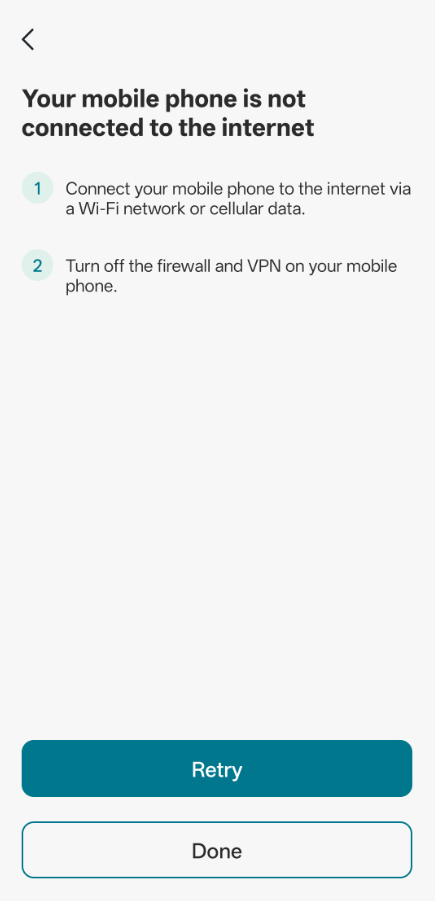
1. Error message: Your mobile phone is not connected to the internet
If your mobile phone has no Internet connection or is connected to a Wi-Fi network without Internet access, the error message "Your mobile phone is not connected to the internet" will appear when trying to add the camera.
Before configuring the camera, please enable mobile data or connect your phone to a Wi-Fi network with Internet access.
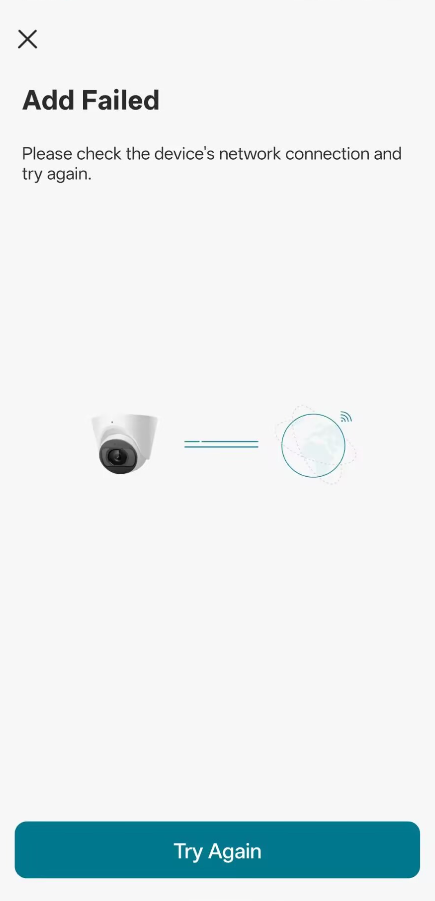
2. Error message: Add Failed
During camera setup, please ensure that the camera is always powered on and connected to the network. If you see this error message, please check the camera's network connection.
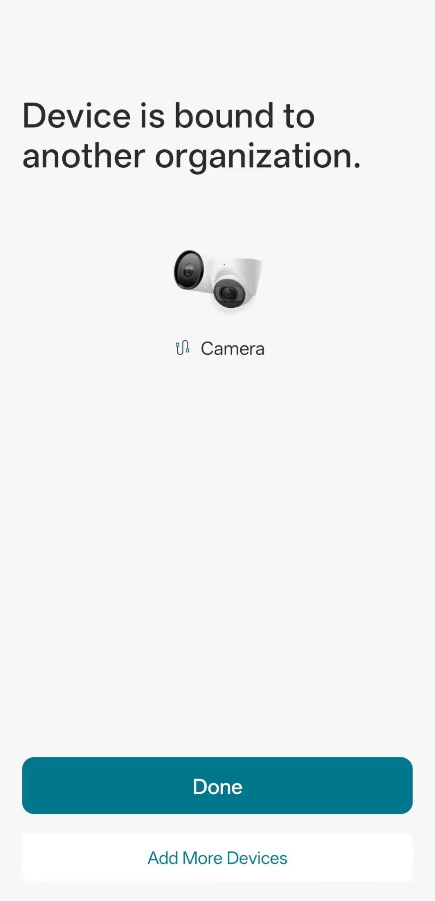
3. Error message: Device is bound to another organization
When you find the device and try to add it, this error message may appear if the device is already bound to another TP-Link account or another organization under your account.
Go to the Device page and tap the "☰" icon to check whether you have created another organization and added the device to it.
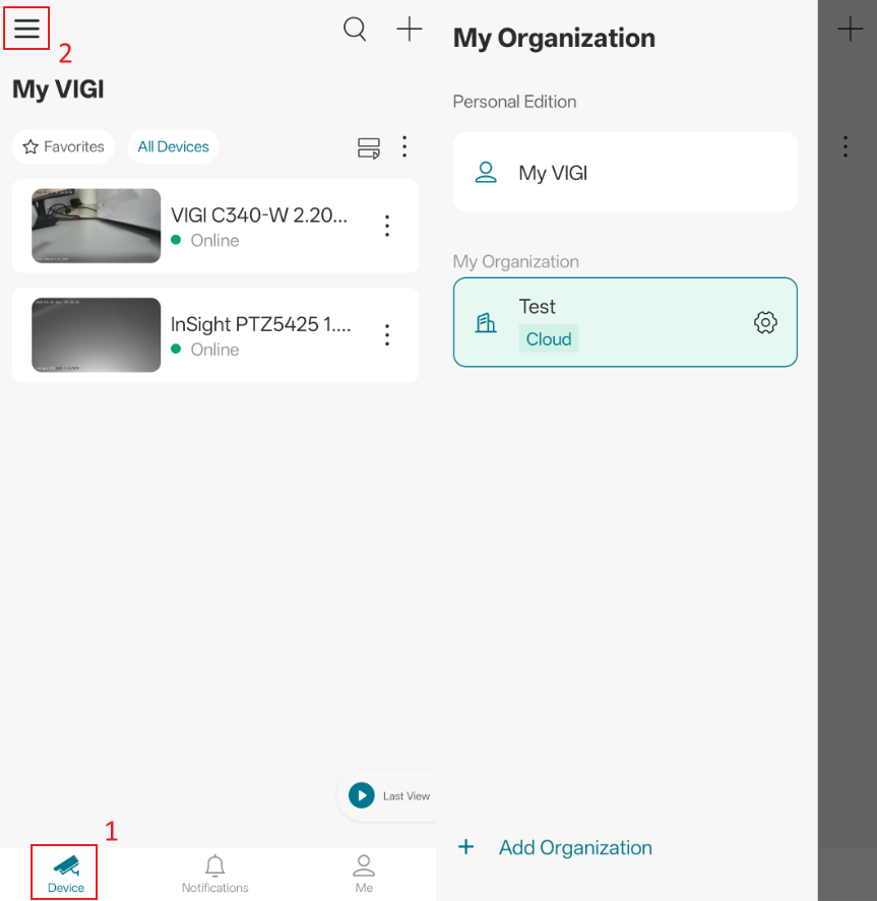
If the device is currently bound to another organization, go to the device settings page and tap Remove Device to remove it from that organization.
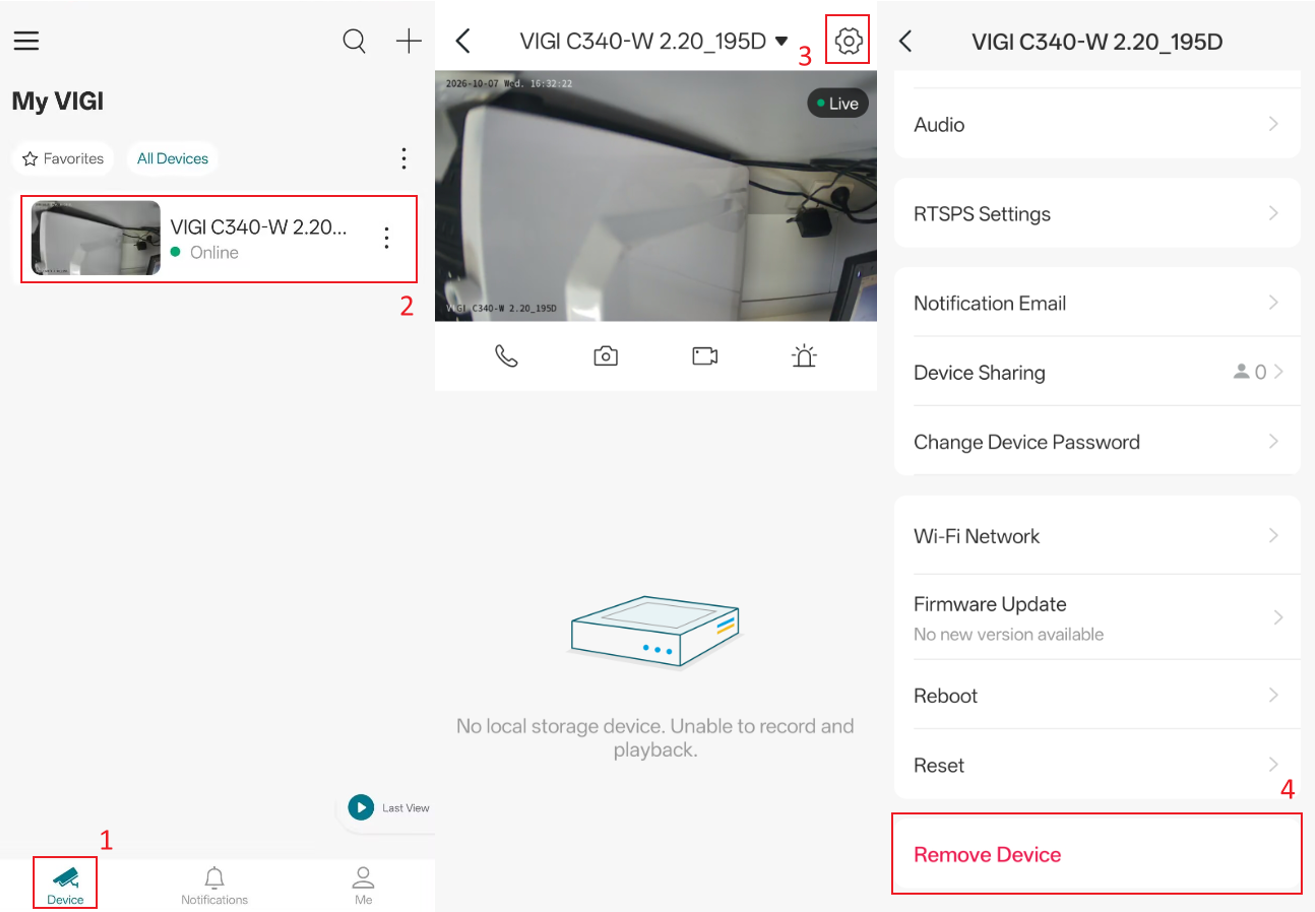
Note: If the device has not been reset, you will need to enter the device password when adding it again. Before removing the device, please ensure that you know the device password.
If the device has already been bound to another TP-Link account, please contact the account owner and ask them to remove the camera from their account.
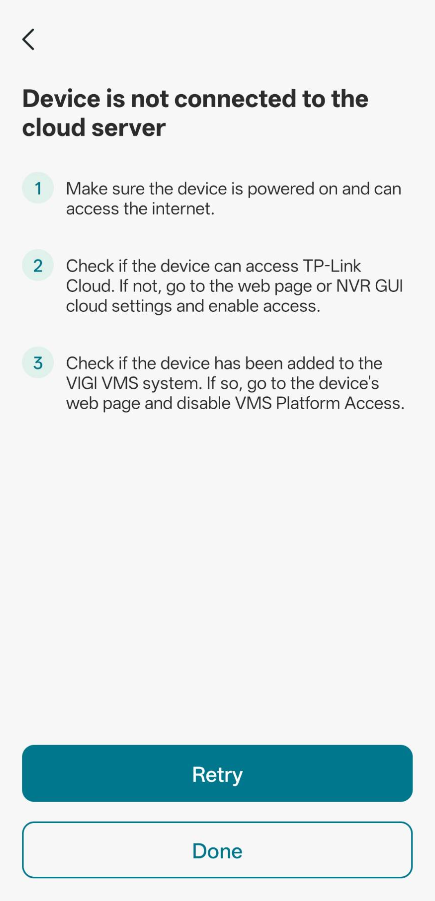
4. Error message: Device is not connected to the cloud server
If this error message appears, run a connectivity test using the Ping Tool and follow the appropriate troubleshooting steps based on the results.
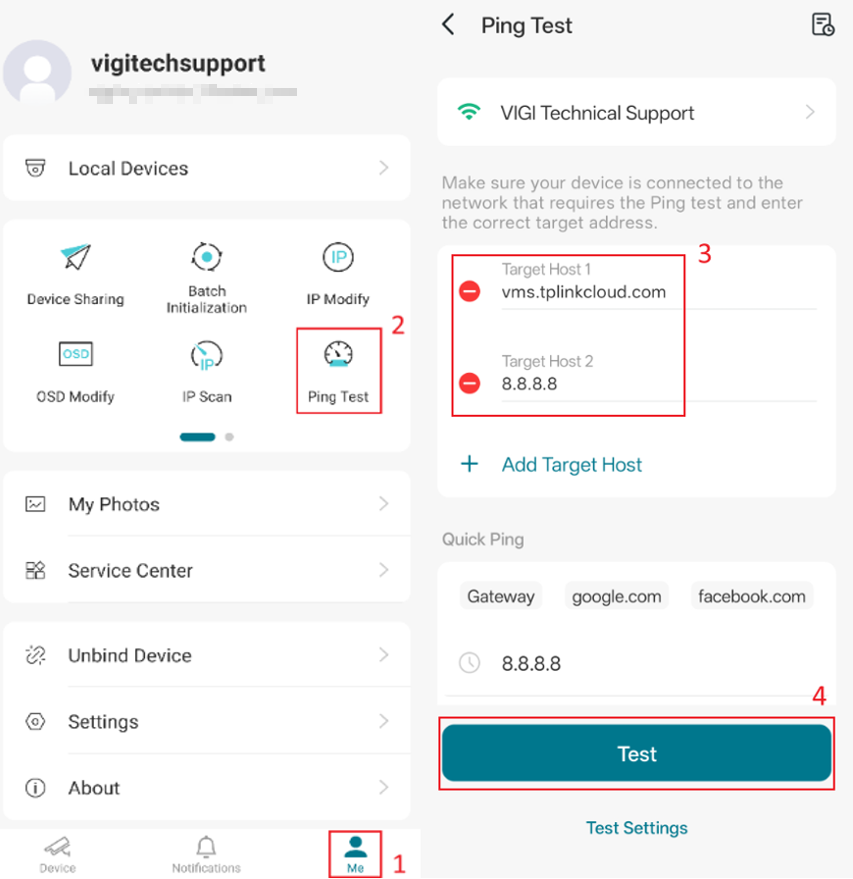
Check whether the network your camera is currently connected to has Internet access and can reach the VIGI Cloud. Connect your phone to the same network as the camera, and go to VIGI App > More page > Ping Tool. Then, ping vms.tplinkcloud.com and 8.8.8.8, and check the results.
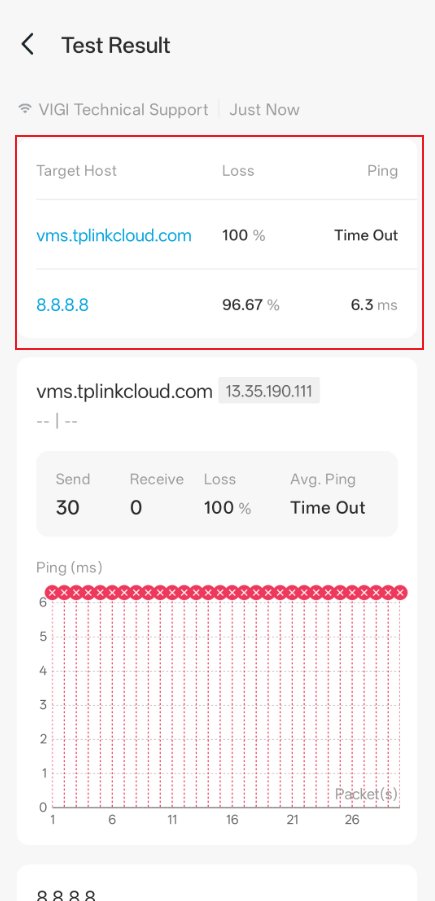
Case 1: Both ping tests fail or show a high packet loss rate
The network may have no Internet access or may be unstable. Please check your network connection.
Case 2: Can ping 8.8.8.8 successfully with a stable connection but cannot reach vms.tplinkcloud.com
Check whether a firewall or antivirus software is enabled on the network. Try temporarily disabling it, then add the device again.
Case 3: Can ping both addresses successfully
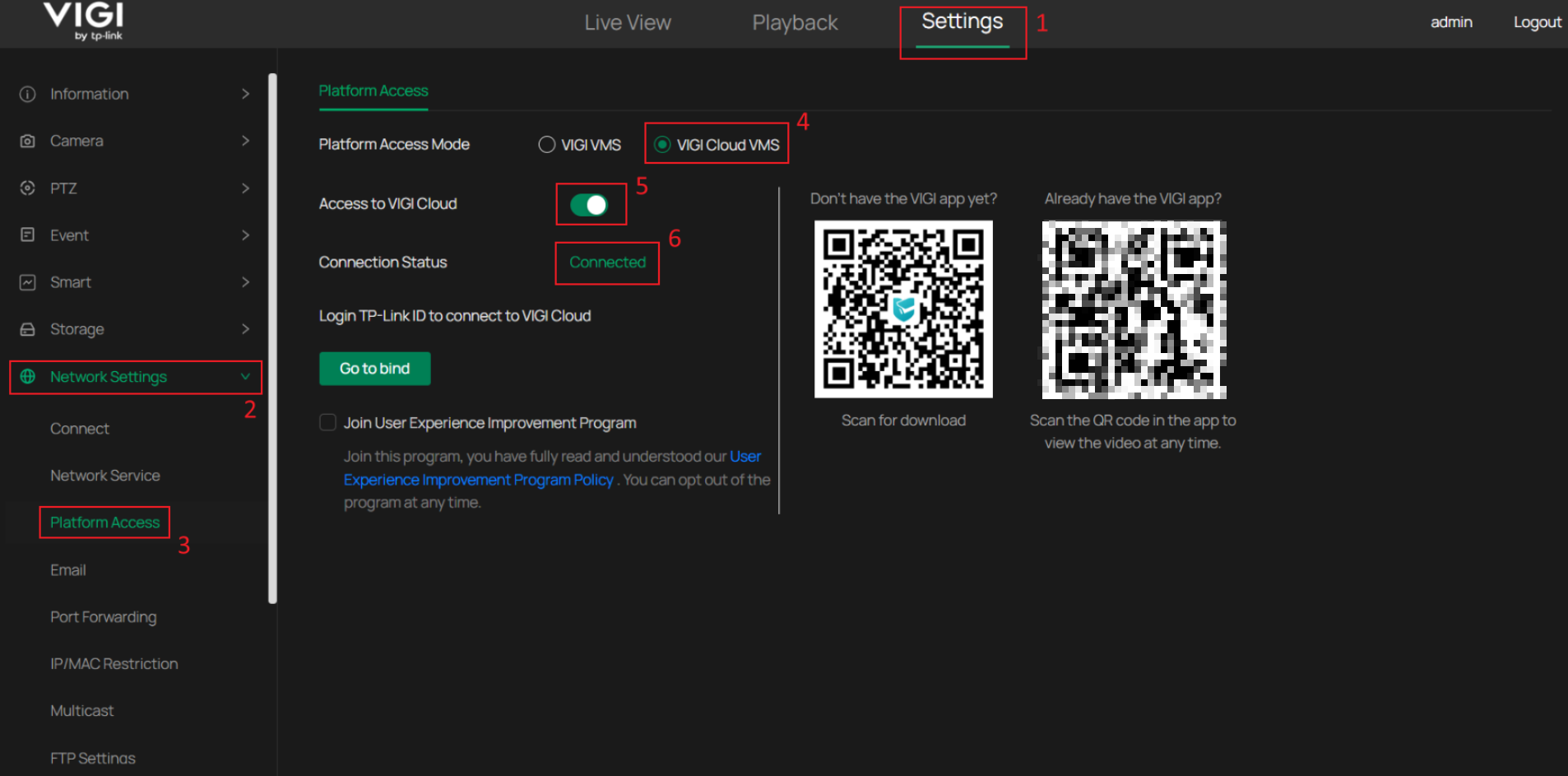
Check whether the camera has been added to VIGI Local VMS. If so, log in to the camera's Web UI, go to Settings > Platform Access, enable Access to VIGI Cloud, and ensure that the Connection Status is displayed as Connected before attempting to add the camera again.
For VIGI Wi-Fi cameras only
1. Error message: Can't find your Wi-Fi
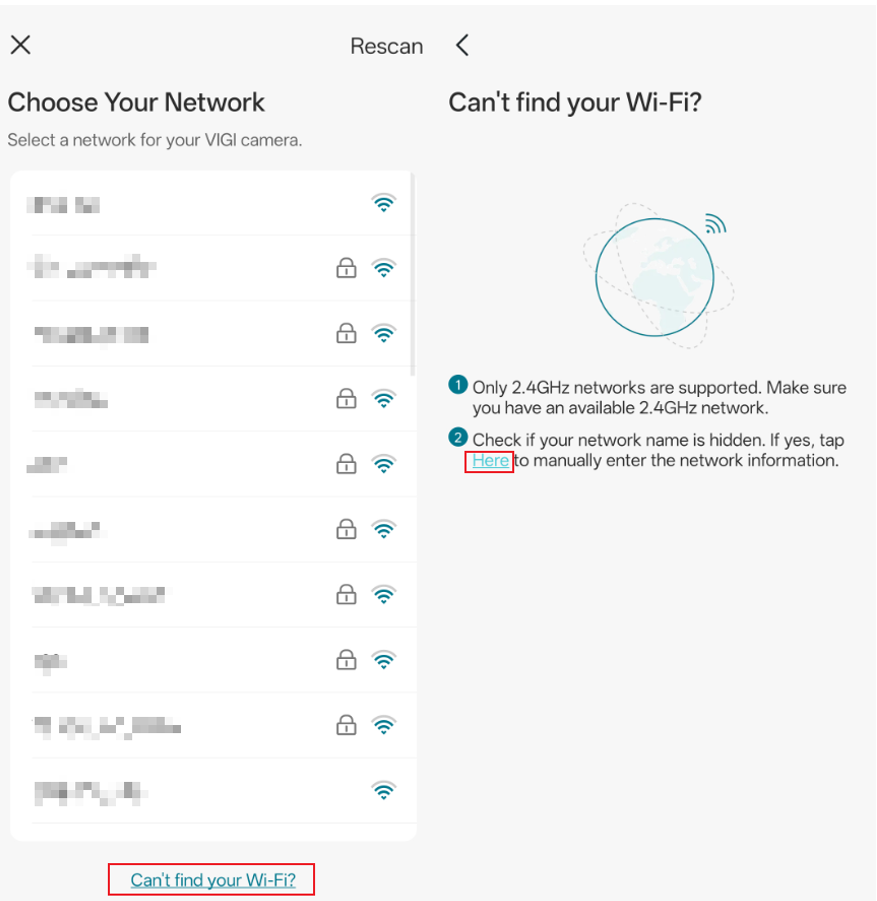
When selecting a network for your Wi-Fi camera, if you cannot find your Wi-Fi network in the Wi-Fi list, please ensure the camera is placed close to your Wi-Fi router/AP and that your network supports 2.4 GHz Wi-Fi. We recommend connecting the camera to a 2.4 GHz-only Wi-Fi network to minimize wireless interference.
If your network name (SSID) is hidden, tap "Can't find your Wi-Fi?" and then tap "Here" on the page to manually enter your network information.
2. Error message: Please double-check your Wi-Fi password
After selecting your Wi-Fi network and entering the password, the camera will attempt to connect to the Wi-Fi network. During this process, the camera will announce "Connecting to Wi-Fi" and the LED will blink green.
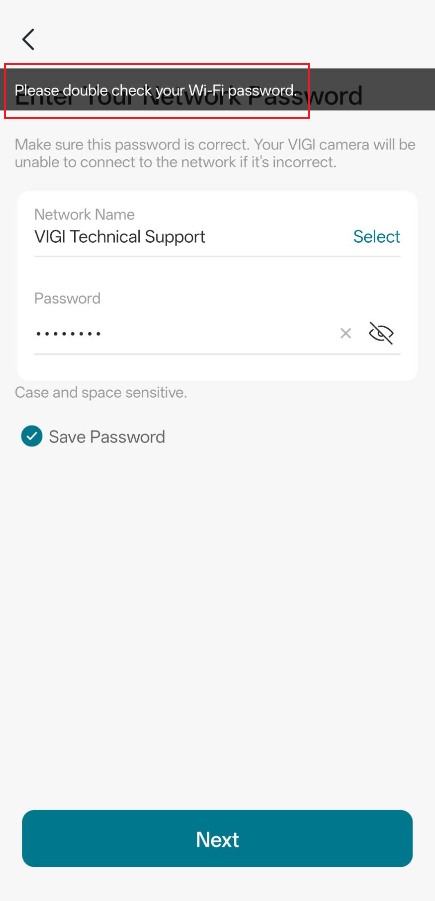
If the Wi-Fi password you entered is incorrect, the camera will announce "Incorrect Wi-Fi password," then the LED will blink red, and the error message shown below will appear. Please verify that you have entered the correct Wi-Fi password. You can verify the password by using the same password to connect another wireless device to the Wi-Fi network.
3. Error message: The network is unstable
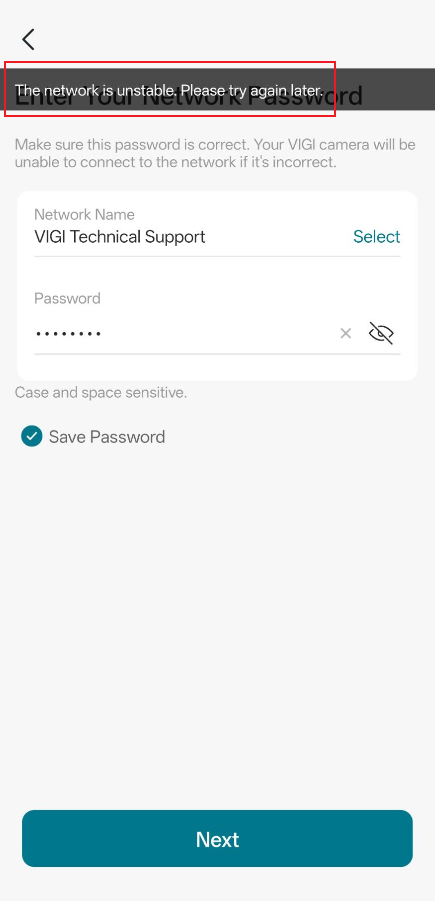
If this error message appears while the camera is connecting to Wi-Fi, your phone may have disconnected from the camera's default Wi-Fi network. Please check your phone's Wi-Fi settings and ensure that it remains connected to the camera's default Wi-Fi network.
Conclusion
You should now be able to troubleshoot common issues when adding a camera in the VIGI app and complete the setup successfully. If the issue persists, please contact the VIGI Technical Support team for further assistance.
To learn more about each function and configuration, please visit Support Home to download or check the manual for your product.
Looking For More
Είναι χρήσιμο αυτό το FAQ;
Τα σχόλιά σας συμβάλλουν στη βελτίωση αυτού του ιστότοπου.



TP-Link Community
Still need help? Search for answers, ask questions, and get help from TP-Link experts and other users around the world.