How to Install VIGI Web Player Plugin for VIGI VMS on Windows N Editions
Contents
Introduction
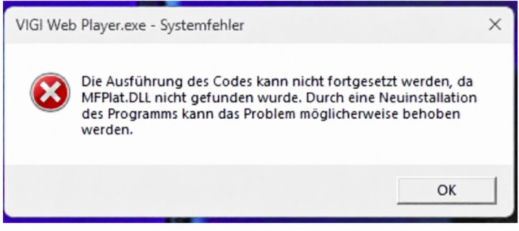
The VIGI Web Player plugin is essential for VMS video playback, which relies on built-in Windows media library files, including MFPlat.DLL. Windows N editions are special versions of Windows that exclude Windows Media Player and related media features. As a result, the MFPlat.DLL file may not be available by default, which can lead to VIGI Web Player Plugin installation failures, as shown in the figure below. This article provides instructions on how to install the MFPlat.DLL file on computers running Windows N editions.
Requirements
- VIGI Web Player
- Windows N Edition computer
- VIGI VMS
Configuration
Microsoft provides a solution for the missing MFPlat.DLL file on Windows N editions. Refer to the following link for more details:
You may also follow the steps below:
Step 1. Install the media library files on your Windows computer.
1. On Windows 10 N: Select the Start button, then go to Settings > Apps > Apps and Features > Optional features > Add a feature. Find the Media Feature Pack in the list of available optional features.
2. On Windows 11 N: Select the Start button, then go to Settings > Apps > Optional features. Select View features next to Add an optional feature, and select the Media Feature Pack in the list of available optional features.
Step 2. Install the plugin. Obtain the plugin installation package and double-click the VIGIWebPlayer.exe file to launch the installation wizard.
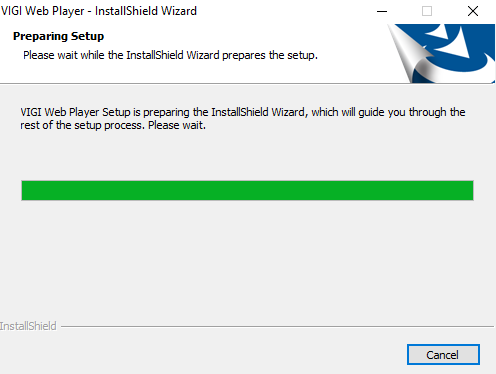
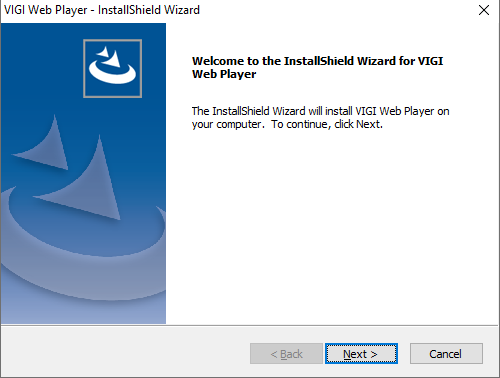
Step 3. Click Next.
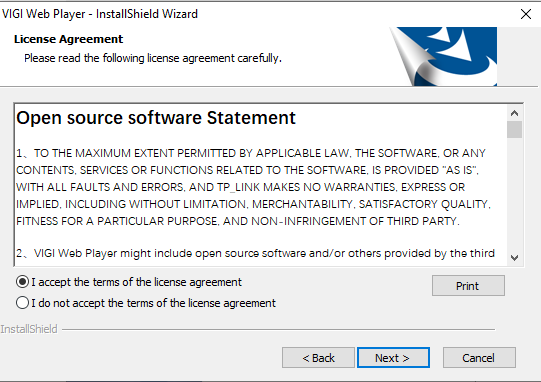
Step 4. Accept the license agreement by checking the box next to “I accept the terms of the license agreement”, then click Next.
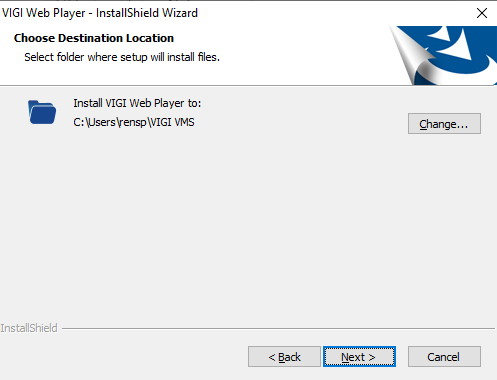
Step 5. Choose the installation path for the plugin. You can use the default installation path or customize it as needed. Then, click Next.
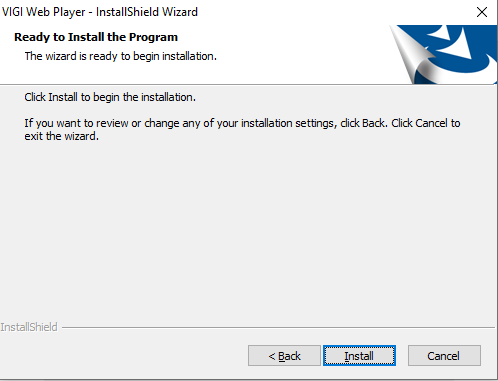
Step 6. Click Install.
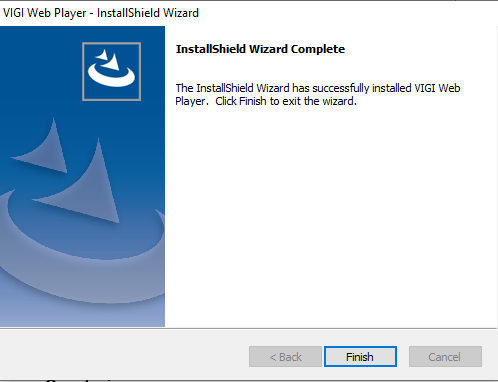
Step 7. Click Finish once the installation is complete.
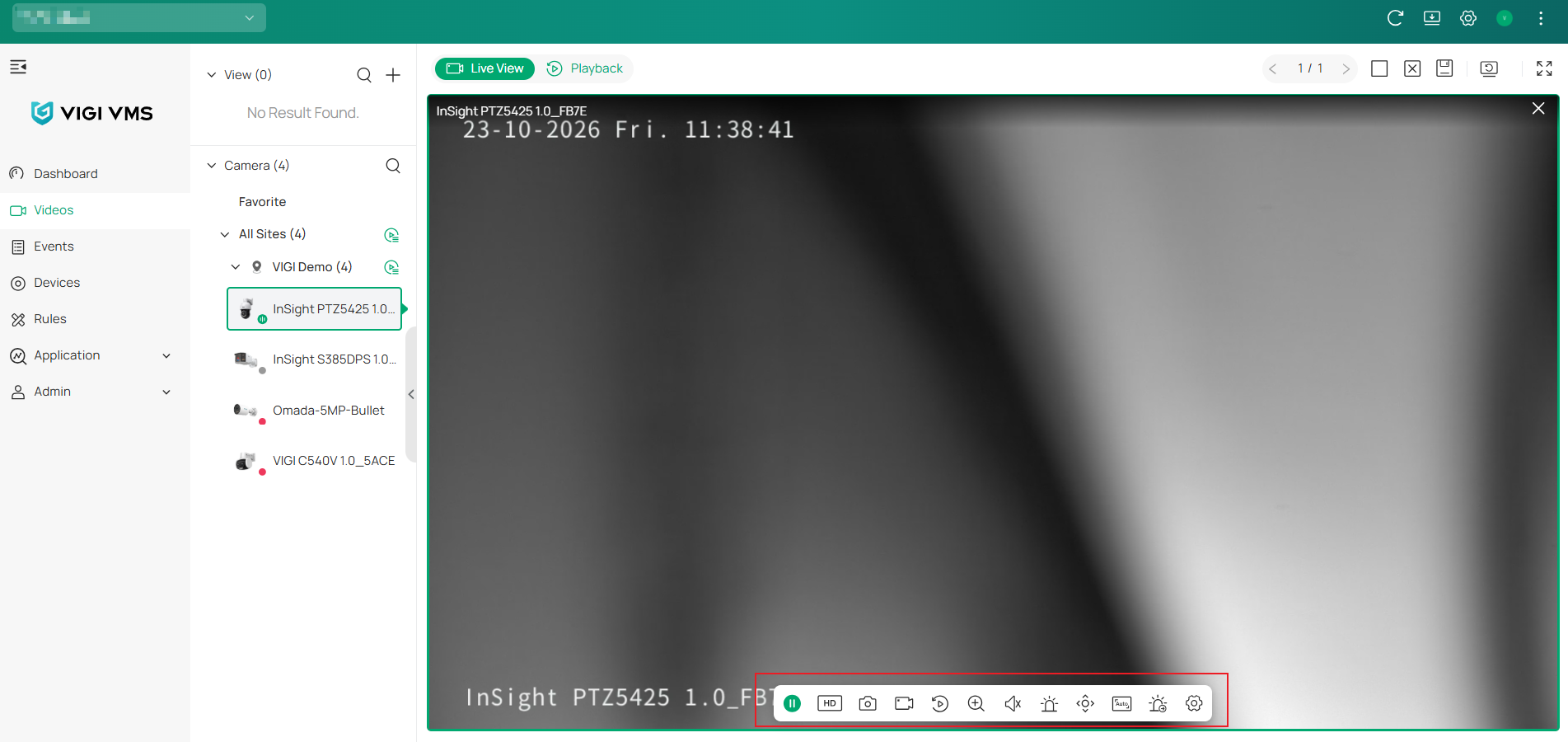
Step 8. Enable the plugin in the VMS and proceed with stream operations.
Conclusion
You have now learned how to successfully install the VIGI Web Player Plugin on Windows N edition computers and enjoy the full functionality of VIGI VMS.
To learn more about each function and configuration, please visit Support Home to download or check the manual for your product.
Looking For More
Ez a GY.I.K. hasznos volt?
Véleménye segíti az oldal fejlesztését



TP-Link Community
Still need help? Search for answers, ask questions, and get help from TP-Link experts and other users around the world.