How to check the MAC address of your computer
 793802
Choose the operating system of your computer. Through Control Panel:

Step 1
Click Start->Control Panel->select and click Network and internet connections (If you cannot find it, please go next) ->select and double click Network Connections.
Step 2
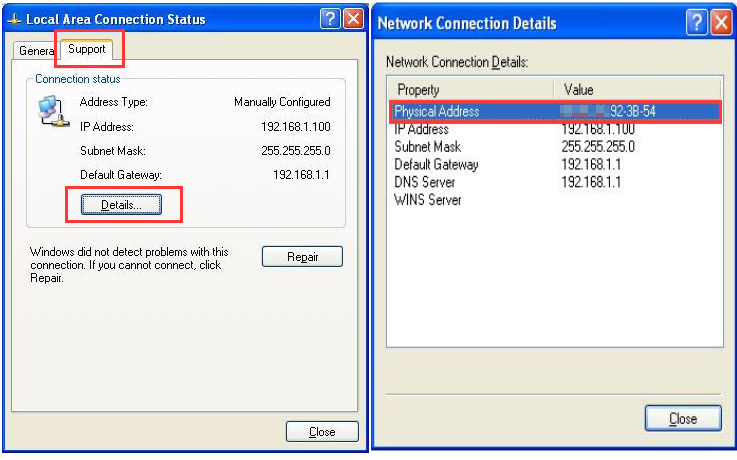
Highlight and right-click the Local Area Connection icon(If your computer is connected to a wireless network, please click Wireless network connection icon); click on Status and go to Support and Detail. The physical address is the MAC address of your computer will display.

Step 1
Click Start ->Control Panel -> Network and Internet -> Network and Sharing Center.
Step 2
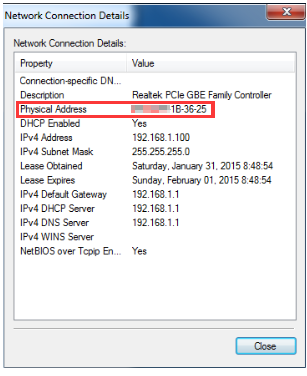
In the task list, please click Manage network connections( If your computer is connected to a wireless network please click Wireless network connection icon). Highlight and right-click the Local Area Connection icon; click on Status and go to Details. The physical address is the MAC address of your computer will display.
Step 1
Click Start ->Control Panel -> Network and Internet -> Network and Sharing Center.
Step 2
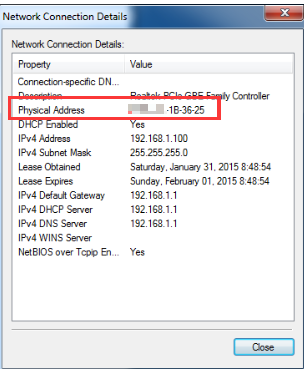
In the task list, please click Change adapter settings. Highlight and right click the Local Area Connection icon( If your computer is connected to a wireless network please click Wireless network connection icon); click on Status and go to Details. The physical address is the MAC address of your computer will display.
Step 1
Go to Control Panel.
Here we will illustrate different ways to find control panel on Windows 8.
1) Press “Windows key 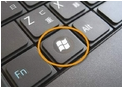 +F”, a search box will come out, please input control panel and press enter;
2)Press “Windows key+ R”, then there will be a “run” box, input control panel and press enter;
3) Press “Windows key +X”, and click on “control panel”;
4) You can also input “control panel” in the search bar on the right-hand side of the screen.
Step 2
Click on Network and Internet -> Network and Sharing Center, click on Change adapter settings on the left side.
Step 3
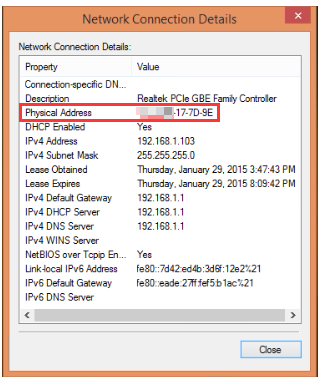
Highlight and right click on Ethernet(If your computer is connected to a wireless network please click Wi-Fi icon), go to Status -> Details. The physical address is the MAC address of your computer will display.
Method 1
Step 1
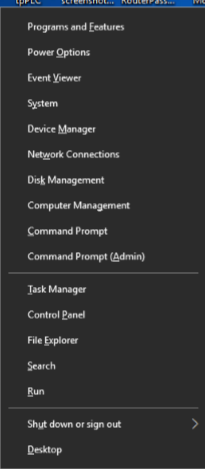
Go to Control Panel. Press Windows key+X at the same time and select Control Panel.
Step 2
Click on Network and Internet -> Network and Sharing Center, click on Change adapter settings on the left side.
Step 3
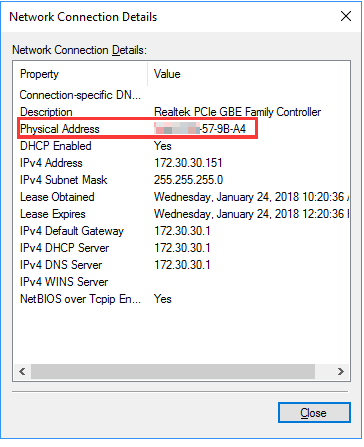
Highlight and right click on Ethernet, go to Status -> Details. The physical address is the MAC address of your computer will display.
Method 2
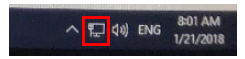
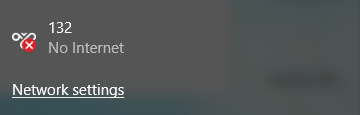
Click the network icon (may look like a computer or Wi-Fi signal) in the task tray. Go to Network settings.
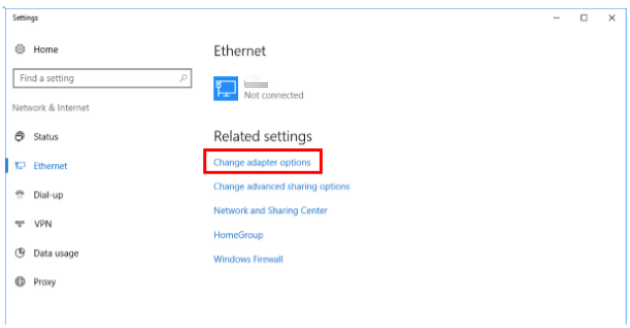
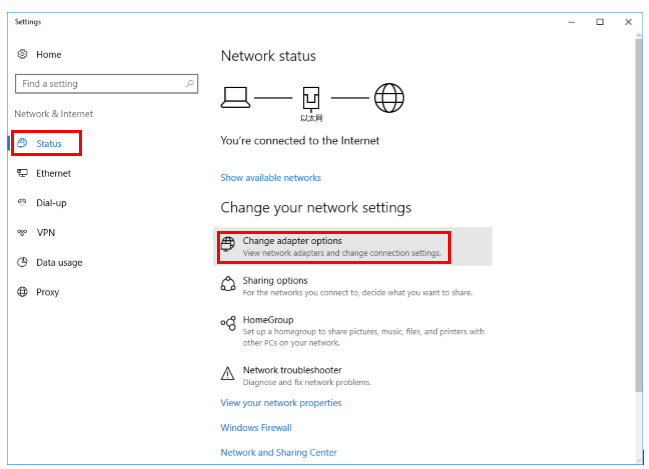
Click Ethernet > Change adapter options. Or click Status > Change adapter options.
Highlight and right click on Ethernet, go to Status -> Details. The physical address is the MAC address of your computer will display.
Step 1
Click the Apple icon, from the Apple drop-down list, select System Preferences.

Step 2
Click the Network icon.

Step 3
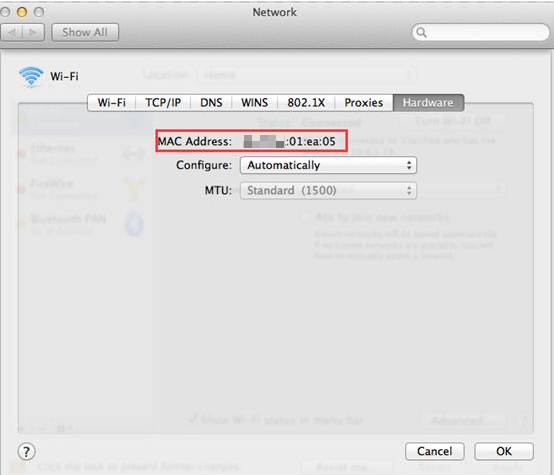
In the left column, select Ethernet (for wired connection) or Wi-Fi (for wireless connection).
Then click on Advanced in the lower right corner.

Step 4
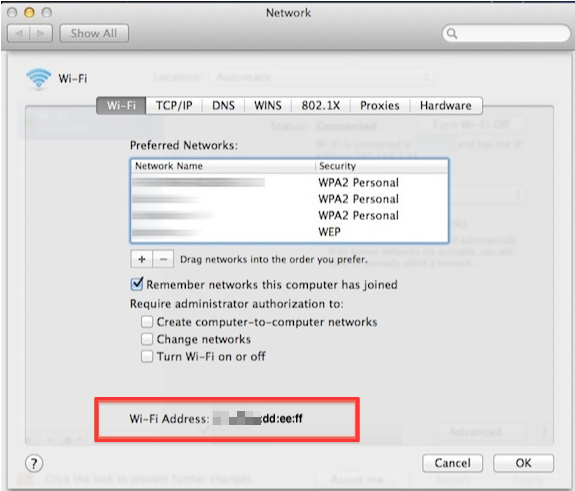
Click the "Wi-Fi" tab in the Wi-Fi window.
Your MacBook's Wi-Fi MAC address is listed at the bottom of the window as the "Wi-Fi Address."
Step 5
The Ethernet MAC address.
Click the "Hardware" tab in the Ethernet window.
The Ethernet MAC address is listed right below the tabs.
Ez a GY.I.K. hasznos volt?
Véleménye segíti az oldal fejlesztését