How to Configure MAC Clone on Deco to Fix No Internet
Some Internet Service Providers(ISPs) register the MAC address of the first device that connects to their modem. When you replace that device with a Deco, the modem may block the internet connection because the MAC address no longer matches. Deco MAC Clone solves this by copying the registered MAC address so the modem recognizes Deco. This page covers two situations and uses Deco M5 as the example throughout.
Key Takeaways
- Deco MAC Clone is needed when your ISP has registered the MAC address of your old router or computer, which prevents Deco from establishing an internet connection.
- If you have no old router and your PC connects to the modem directly, check your computer's MAC address, then enter it manually in the Deco app under More > Advanced > MAC Clone > Use Custom MAC Address.
- If you have an old router: either find its WAN MAC address via its web interface and enter it manually, or connect it as a client device and use Use Client MAC Address in the Deco app to select it automatically.
- You cannot use the Client MAC Address in Situation 1 because Deco will not assign a valid IP address to the client connection without Internet access.
Situation 1: Deco MAC Clone When You Have No Old Router
Step 1: Disconnect the main Deco from the modem, and connect your computer to the modem. Make certain the computer has internet access when connecting to the modem.
If the computer has no internet access, it’s recommended that you contact your ISP.
Step 2: Check the MAC address of your computer (also called the Physical Address) and note it down.
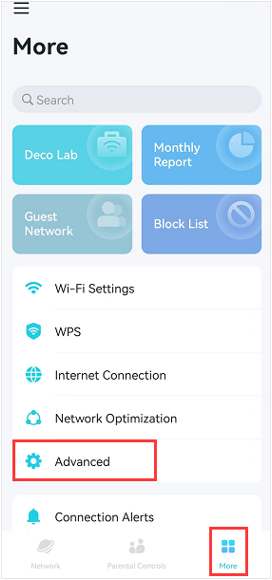
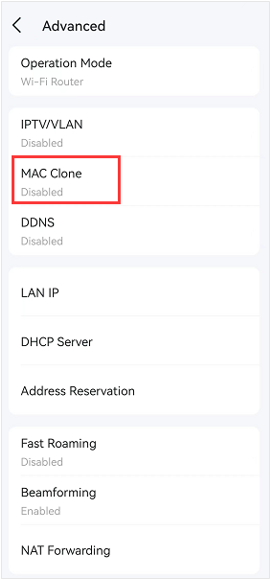
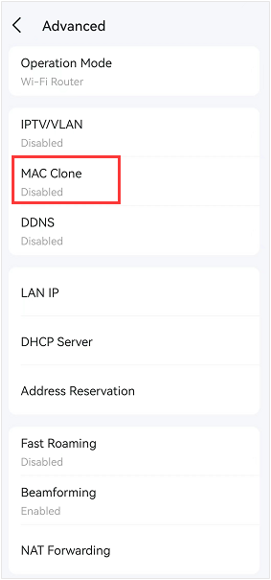
Step 3: Disconnect the computer from the modem and then connect the modem to the main Deco. Connect your phone to Deco’s Wi-Fi, and go to the More > Advanced >MAC Clone page on the Deco App.
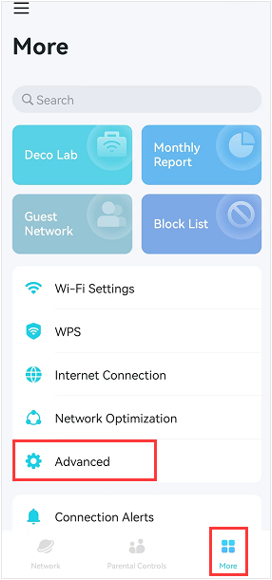
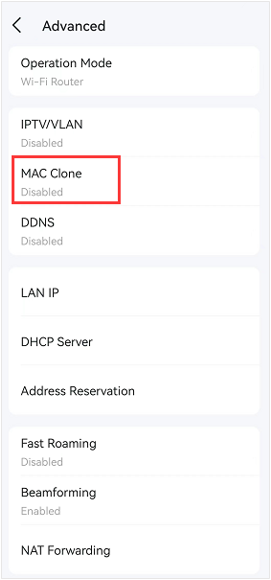
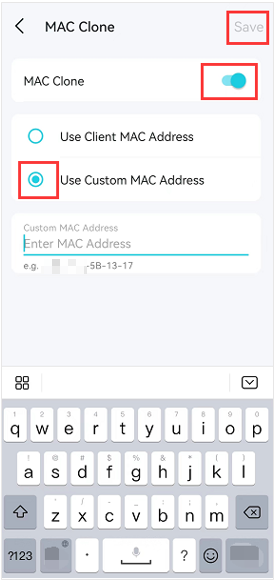
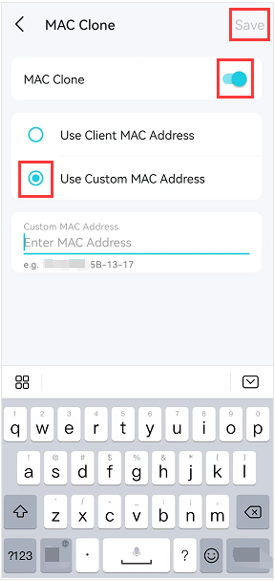
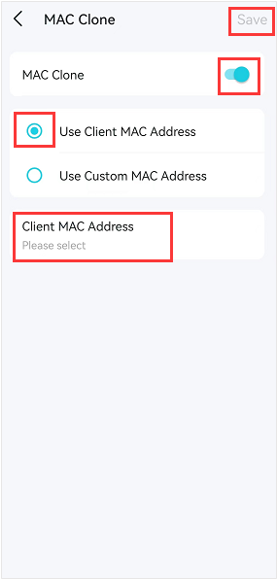
Step 4: Enable MAC Clone, then you will see two options: Use Client MAC Address and Use Custom MAC Address.
Select Use Custom MAC Address. Enter the computer's MAC address manually in the format XX-XX-XX-XX-XX-XX, then tap Save to save the settings.
Then you can test if the Deco is working or not.
Why can't I select Use Client MAC Address to do the MAC Clone?
Due to the WAN/LAN auto-sensing design, Deco will not assign a valid IP address to the client connection on the other Ethernet port if it has no internet access. Thus, we need to check the client's MAC address and enter it manually during the MAC Clone process.
Situation 2: Deco MAC Clone When You Have an Old Router
Here are two methods for your reference.
Method 1: Find the Old Router's MAC Address via Its Web Interface
Step 1. Disconnect the main Deco from the modem, connect the old wireless router to the modem, and then connect a PC to the old wireless router.

Step 2. Here we take Archer C7_V5 as a demonstration.
Connect your device to the Archer router via Wi-Fi or an Ethernet cable, open a browser, enter https://tplinkwifi.net/, and log in with your credentials.
Note: If your old router is not a TP-Link router, please contact your old router's support for assistance.
Step 3: Click Advanced > Status, then check the MAC Address on the Internet Part, take a picture of the MAC Address.
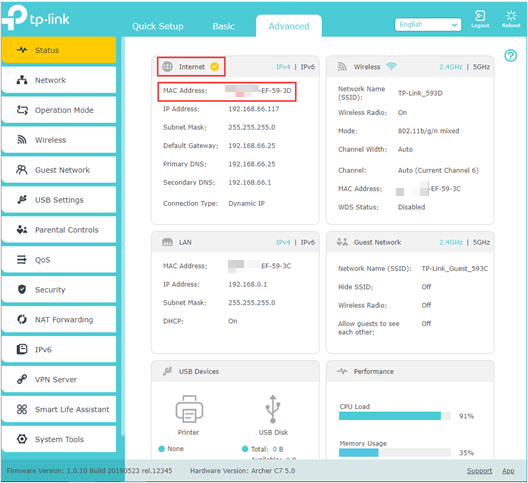
Step 4: Disconnect the old wireless router, and connect the main Deco back to the modem. Then connect your phone to Deco’s Wi-Fi, go to the More >Advanced >MAC Clone page on the Deco app.
Enable MAC Clone, Select Use Custom MAC Address. Enter the Internet MAC address of the old wireless router manually and then tap the Save button to save the settings.
Then you can test if the Deco is working or not.
Method 2: Select the Old Router's MAC Address via the Deco App
Step 1. Connect the main Deco to the modem, then set up the satellite Deco and connect it to the main Deco via Wi-Fi, and then connect the WAN/Internet port on the old wireless router to the satellite Deco.
Then connect a phone to the main Deco via Wi-Fi.

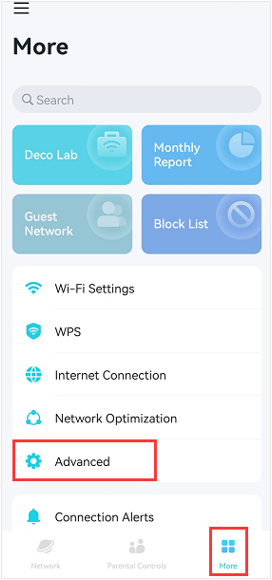
Step 2. Open the Deco app, go to More > Advanced > MAC Clone page on the phone. Enable MAC Clone, choose Use Client MAC Address, tap Client MAC Address to select the old wireless router’s MAC address, and then tap the Save button to save the settings.
Then you can test if the Deco is working or not.
For more details, visit the Download Center to download your product manual.
Looking For More
Questa faq è utile?
Your feedback helps improve this site.
_Overview_normal_20211225093612j.png)
-F_large_1560310831908g_normal_1577328413052u.jpg)


TP-Link Community
Still need help? Search for answers, ask questions, and get help from TP-Link experts and other users around the world.