How to Reset a Tapo or Kasa Smart Plug: Soft Reset and Factory Reset
If you need to reset your Tapo or Kasa smart plug — whether to fix a network connection failure, resolve abnormal behavior, or correct a configuration error — there are two options. A soft reset keeps your existing settings and can resolve minor issues without reconfiguring the plug. A factory reset erases all custom settings and restores the plug to factory defaults, which is useful for persistent issues or setting the plug up from scratch. Both resets can be done via the power button without the app, making them accessible even when the plug is offline.
Key Takeaways
- A soft reset (five-second press) keeps all current settings and can resolve minor connectivity issues without reconfiguring the plug.
- A factory reset (10-second press) erases all custom settings and restores the plug to factory defaults — useful for resolving persistent issues or preparing the plug for a new setup.
- A factory reset can also be performed via the Tapo or Kasa app by removing the plug from the home page or through the Device Settings page, but only if the plug is online.
- If the plug is offline, the power button method is the only way to perform a factory reset.
How to Reset Your Tapo or Kasa Smart Plug
There are two reset options: a soft reset, which keeps your current settings, and a factory reset, which erases all custom settings and restores the plug to factory defaults.
Soft Reset: Keep Your Current Settings
Power on the plug, then press and hold the power button for 5 seconds.
Factory Reset: Restore to Factory Defaults
Method 1. Via the power button
Power on the plug, then press and hold the power button for 10 seconds.
Method 2. Via Tapo/Kasa app
Note: The plug must be online to perform an app-based reset.
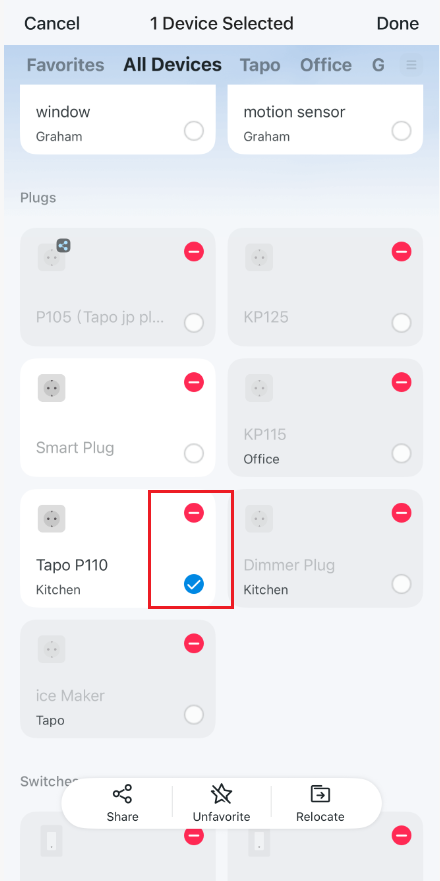
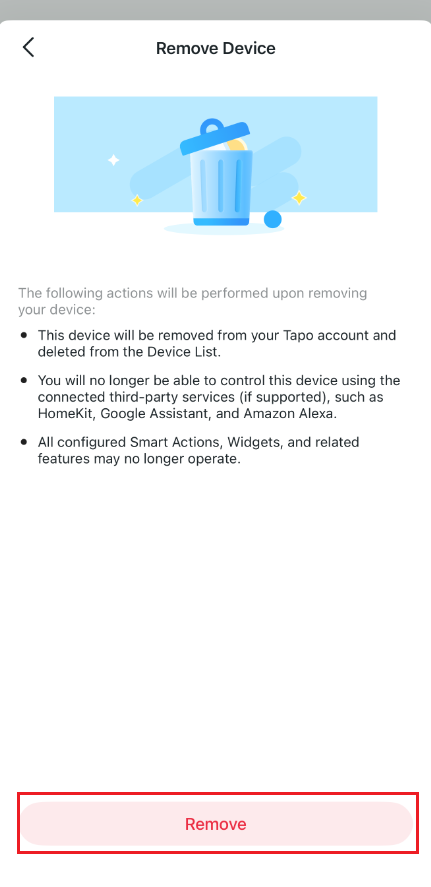
On the home page, long-tap on your plug model card. Then tap the minus icon on the card to remove it.
Option 2. On the Device Settings page
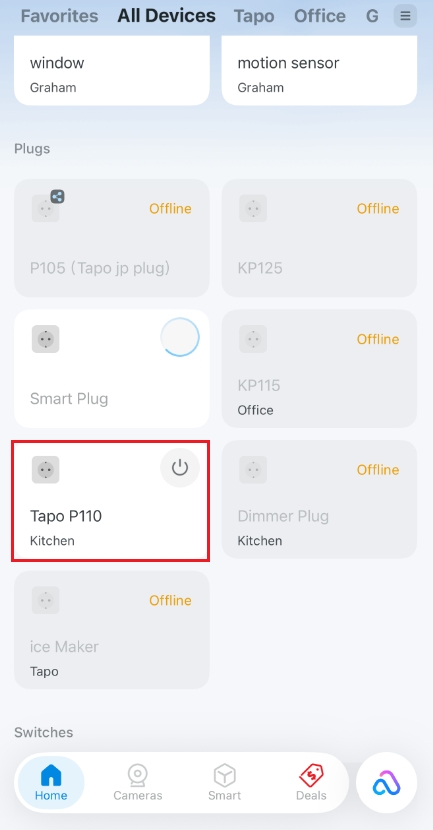
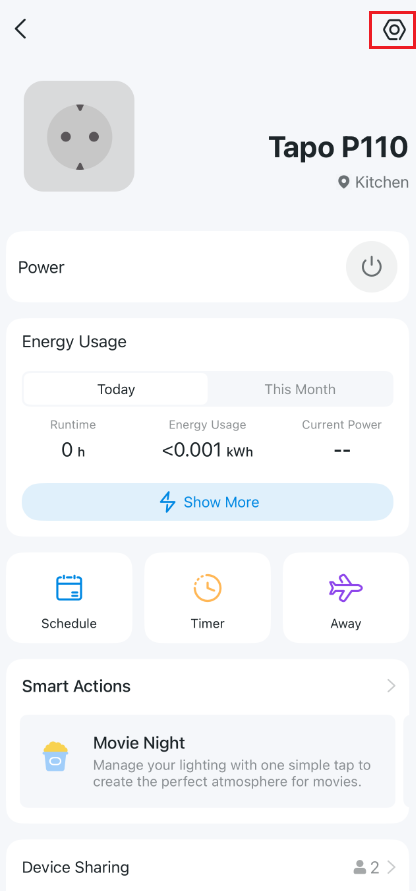
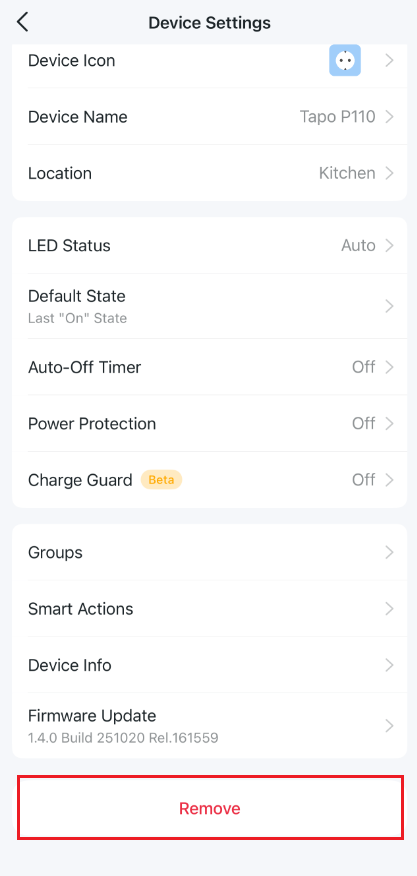
On the home page, tap on your plug model card, then tap the gear icon in the top right to enter the Device Settings page. Tap Remove at the bottom to reset the plug.
To get to know more details of each function and configuration, please go to the Download Center to download the manual for your product.
Looking For More
Is this faq useful?
Your feedback helps improve this site.



TP-Link Community
Still need help? Search for answers, ask questions, and get help from TP-Link experts and other users around the world.