TP-Link Extender Connected to Router But No Internet: Fix Guide
If your TP-Link range extender shows a solid blue Signal LED (meaning it’s connected to your router), but you cannot access the Internet when connected to the extender’s Wi-Fi, this guide is for you.
The most likely cause is an IP address or DHCP configuration conflict between the extender and your main router. Don't worry — the following steps will help you resolve it. Find the router’s IP settings
Note: The interface may vary by model. Please refer to your extender’s actual interface for accuracy.
Key Takeaways
- A solid blue Signal LED with no internet usually means an IP address or DHCP conflict between the extender and router.
- To fix this, you need to find your router’s IP settings (default gateway, subnet mask, IP address pool) first, then configure the extender accordingly.
- You can find the IP settings on your router’s web management page or by checking the IP information on a device connected to your router.
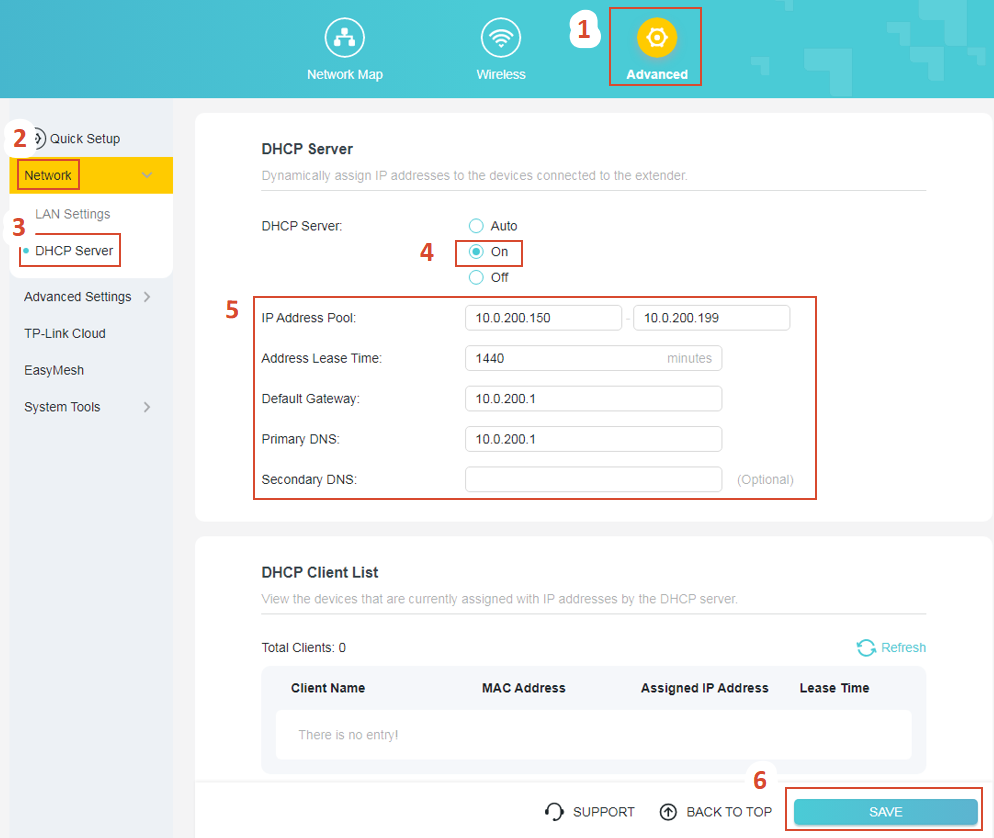
- You can configure the extender’s IP settings using either the Tether app (More > Advanced Settings > LAN Settings, then DHCP Settings) or the web management page (Advanced > Network > LAN Settings, then DHCP Settings).
- The extender's DHCP pool must be a smaller range than the router's pool and must not overlap with it. The Default Gateway and Primary DNS should be the same as the router's LAN IP address.
Step by Step Guide
Step 1: Find Your Router’s IP Settings
You need to know three things from your router:
- Default Gateway (the router's own LAN IP address)
- Subnet Mask (usually 255.255.255.0)
- IP Address Pool range (the range of IPs the router assigns to devices)
Choose the method that works for you:
Scenario 1: You Can Access Your Router’s Web Interface
1. Connect your phone or computer to the router via Wi-Fi or an Ethernet cable.
2. Open a web browser, and visit your router’s IP address or domain name. Below are common examples:
http://tplinkwifi.net/ (TP-Link routers only)
3. Log in with your router’s admin password.
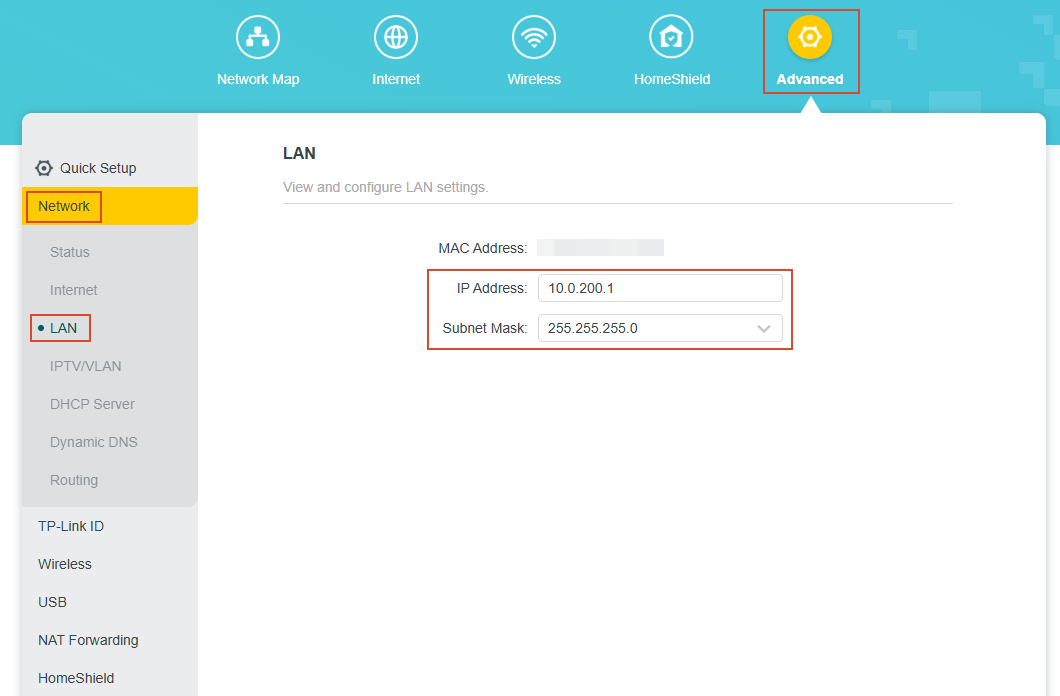
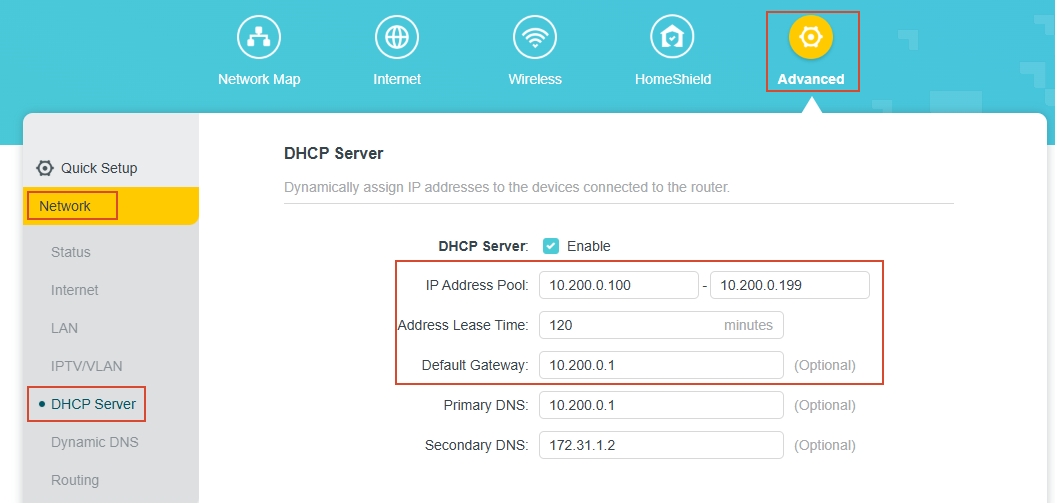
4. Locate your router’s LAN settings and DHCP Server settings on its web interface.
For TP-Link routers, go to Advanced > Network > LAN to find the Subnet Mask.
Then go to Advanced > Network > DHCP Server to find the IP Address Pool range and Default Gateway.
Note: If your router is not a TP-Link, and you’re having trouble logging in, go to Scenario 2 or contact your router support.
Scenario 2: You Cannot Access Your Router’s Web Interface
1. Connect your phone or computer to the router via Wi-Fi or an Ethernet cable.
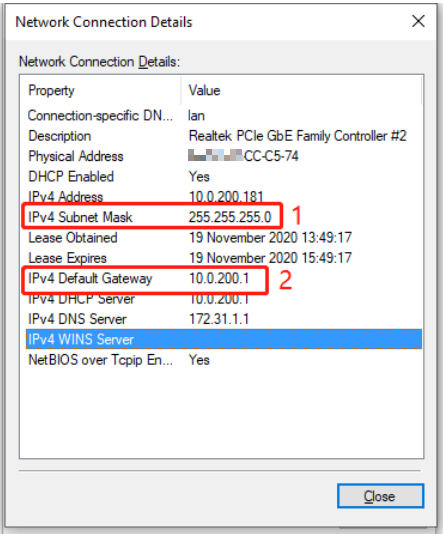
2. Check the IP information obtained by your device.
3. Record the Subnet Mask and Default Gateway.
4. Estimate the IP Address Pool range.
Common IP Address Pool range are x.x.x.2 – x.x.x.254 or x.x.x.100 – x.x.x.199. The number “x” should match your Default Gateway.
For example, if your device’s IP is 10.0.200.99, the your router’s IP address pool is likely 10.0.200.2 - 10.0.200.254
Step 2: Configure the extender’s IP & DHCP Settings
You can use either the Tether app or the web management page. Choose the method you prefer.
Method 1: Using the Tether App (For Tether-Compatible models)
1. Access the Extender
Connect your phone to the extender’s Wi-Fi.
Open the Tether app, and log in with your administration password.
2. Configure the Extender’s LAN Settings
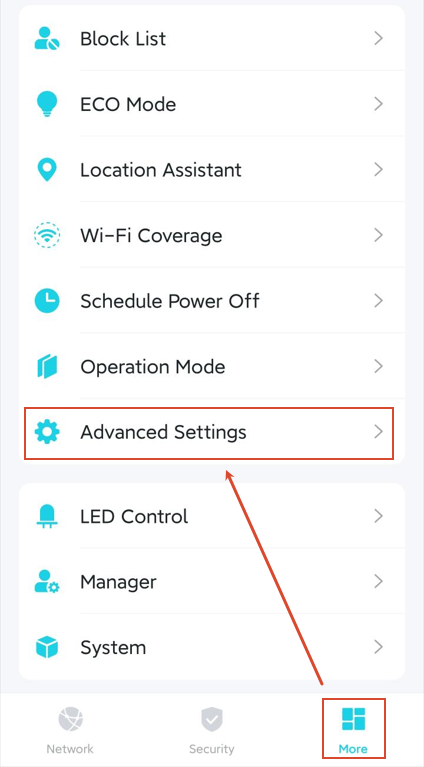
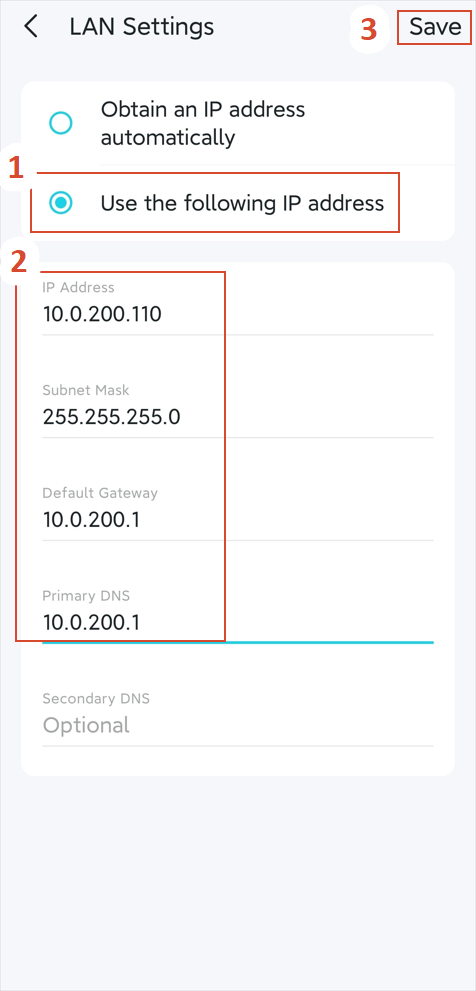
Go to More > Advanced Settings > LAN Settings, select Use the following IP address.
Fill in the following information:
IP Address: set one within your router’s IP pool (i.e., 10.0.200.110)
Subnet Mask: same as your router (i.e., 255.255.255.0)
Default Gateway: same as your router (i.e., 10.0.200.1)
Primary DNS: same as the default gateway (i.e., 10.0.200.1)
Tap Save, the extender may reboot to apply the settings.
3. Configure the Extender’s DHCP Server Settings
Reconnect to the extender’s Wi‑Fi, open the Tether app again, and log into the extender.
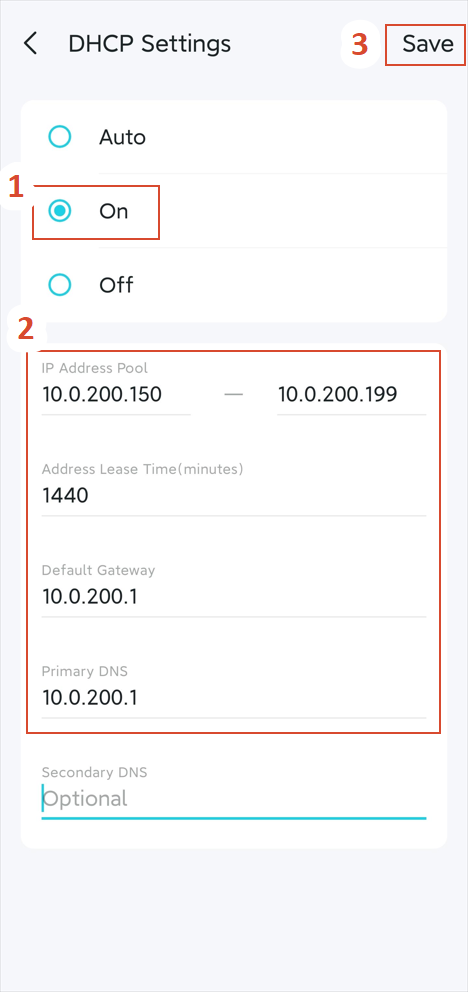
Go to More > Advanced Settings > DHCP Settings, select On.
Fill in the following information:
IP Address Pool: set a smaller range within your router’s IP pool (i.e., 10.0.200.150 - 10.0.200.199)
Address Lease Time: 1440
Default Gateway: same as your router (i.e., 10.0.200.1)
Primary DNS: same as the default gateway (i.e., 10.0.200.1)
Tap Save to apply the settings.
Method 2: Using the Web Management Page (For all models)
1. Access the Web Management page
Connect your phone or computer to the extender via Wi-Fi or an Ethernet cable.
Open a web browser, visit https://tplinkrepeater.net/.
Enter your admin password to log in.
2. Configure the Extender’s LAN Settings
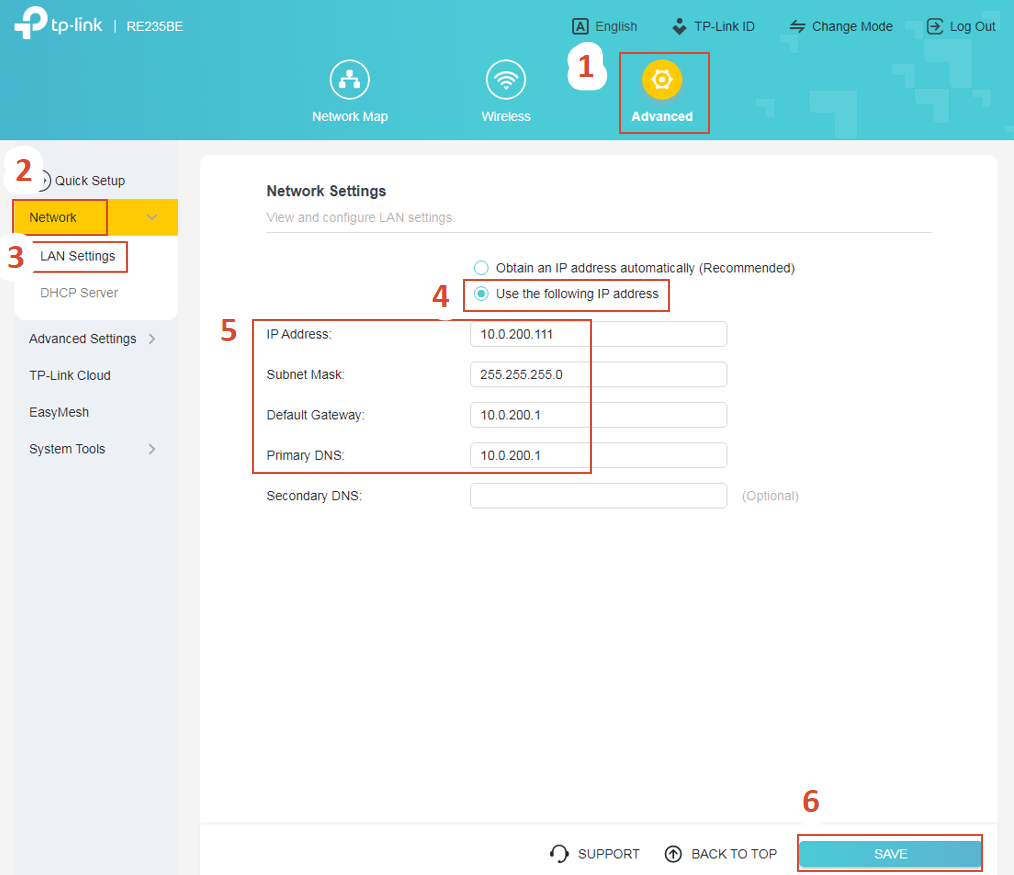
Go to Advanced > Network > LAN Settings, select Use the following IP address.
Fill in the following information:
IP Address: set one within your router’s IP pool (i.e., 10.0.200.110)
Subnet Mask: same as your router (i.e., 255.255.255.0)
Default Gateway: same as your router (i.e., 10.0.200.1)
Primary DNS: same as the default gateway (i.e., 10.0.200.1)
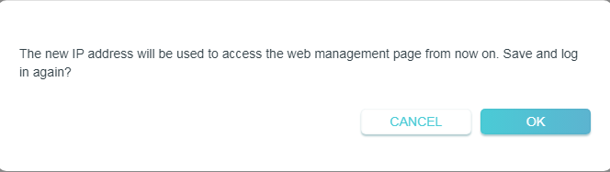
Tap Save, and then OK.
3. Configure the Extender’s DHCP Server Settings
If your device is connected via Wi‑Fi, reconnect to the extender’s Wi‑Fi network, then refresh the web management page, or go back to https://tplinkrepeater.net/.
Navigate to More > Advanced Settings > DHCP Settings, select On.
Fill in the following information:
IP Address Pool: set a smaller range within your router’s IP pool (i.e., 10.0.200.150 - 10.0.200.199)
Address Lease Time: 1440
Default Gateway: same as your router (i.e., 10.0.200.1)
Primary DNS: same as the default gateway (i.e., 10.0.200.1)
Tap Save to apply the settings.
To get to know more details of each function and configuration, please go to the Download Center to download the manual for your product.
Looking For More
Is this faq useful?
Your feedback helps improve this site.



TP-Link Community
Still need help? Search for answers, ask questions, and get help from TP-Link experts and other users around the world.