How to set up Deco/Router with Vodafone (UK)
 33077
33077Vodafone connections include FTTP and FTTC connections, configurations on the Deco/Router vary depending on the connections available at your home.
If you are a FTTP or full fiber customer, it’s likely you’ll have an Openreach modem (or ONT, fiber modem) installed inside your house and a Vodafone Wi-Fi hub (Wi-Fi router). You can either use Deco to replace your Wi-Fi hub or use both.

Please connect Deco to the Ethernet port of the Vodafone Wi-Fi hub with an Ethernet cable and follow the in-app instructions.
At the step where to enter your internet connection type and VLAN ID, Please select “Dynamic IP” and turn “IPTV/VLAN Settings” off.

You will have double NAT in the network this way. If you’d like to make Deco work without double NAT, you may set up the Deco into AP mode. While please note that you will lose some advanced features of Deco. To know the difference between Router mode and AP mode of Deco, please click this link for detais.
Once completed, it’s suggested to disable the Wi-Fi of the Vodafone Wi-Fi Hub to reduce interference to the Deco’s wireless network, you may refer to:
Note: The steps above refer to most Vodafone Hubs, but if you find yourself stuck while turning off the wireless signal, our advice is to reach out to the Vodafone support team.

Please connect the Deco to Ethernet Port of the Openreach modem and follow the in-app instruction.
At the step where to enter your internet connection type and VLAN ID, Please select “PPPoE”, then you need to reach out to the Vodafone to get your PPPoE username, password and VLAN ID to enter to the Deco.


If you are an FTTC or VDSL customer you will most likely be provided with a Vodafone Hub (DSL Modem Router). It is recommended to use Deco with Vodafone hub in preference, or you can use Deco X20-DSL, Deco X50-DSL or Deco X73-DSL to replace your Sky Hub.

Vodafone do not have the option to put their hubs in Bridge mode, you can simplify connect Deco to the Ethernet port of the Vodafone hub with an Ethernet cable and follow the in-app guide.
At the step where to enter your internet connection type and VLAN ID, Please select “Dynamic IP” and turn “IPTV/VLAN Settings” off.
You will have double NAT in the network this way. If you’d like to make Deco work without double NAT, you may set up the Deco in AP mode. While please note that you will lose some advanced features of Deco. To know the difference between Router mode and AP mode of Deco, please click for details.
Once completed, it’s suggested to disable the Wi-Fi of the Vodafone Wi-Fi Hub to reduce interference to the Deco’s wireless network, you may refer to:
Note: The steps above refer to most Vodafone Hubs, but if you find yourself stuck while turning off the wireless signal, our advice is to reach out to the Vodafone support team.

You firstly need to reach out Vodafone to get your PPPoE username, password and VLAN ID.
And then please connect the landline/telephone line to Deco’s DSL port, and then follow the in app instructions.
At the step where asks “how do you want to use your Product?” Please select “Use as a DSL modem router”.
At the step where to “Choose your current region and ISP”, select “Other”. And then select your DSL connection type as “VDSL”.
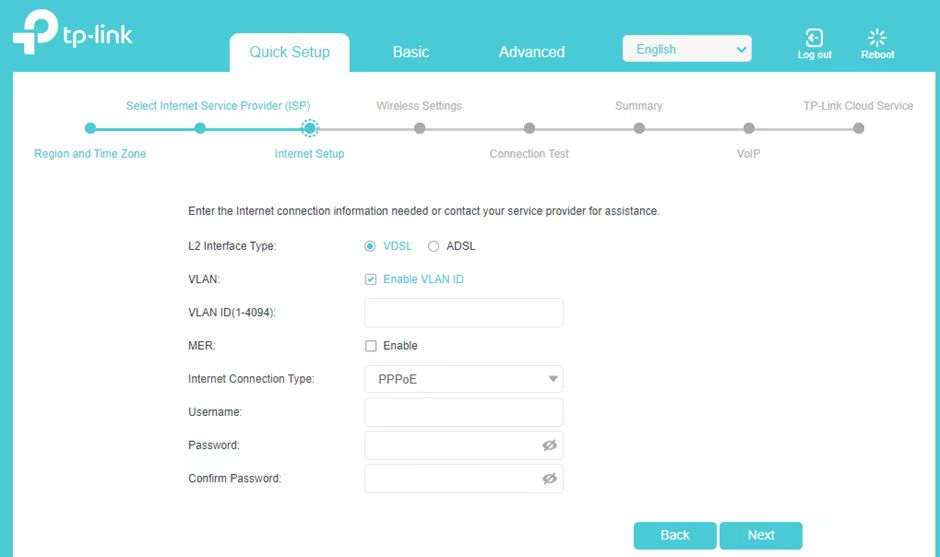
At the step where to enter your internet connection type and VLAN ID. Please enter the information you confirmed with Vodafone.


If you are a FTTP or full fiber customer, it’s likely you’ll have an Openreach modem (or ONT, fiber modem) installed inside your house and a Vodafone Wi-Fi hub (Wi-Fi router). You can either use TP-Link router to replace your Wi-Fi hub or use both.
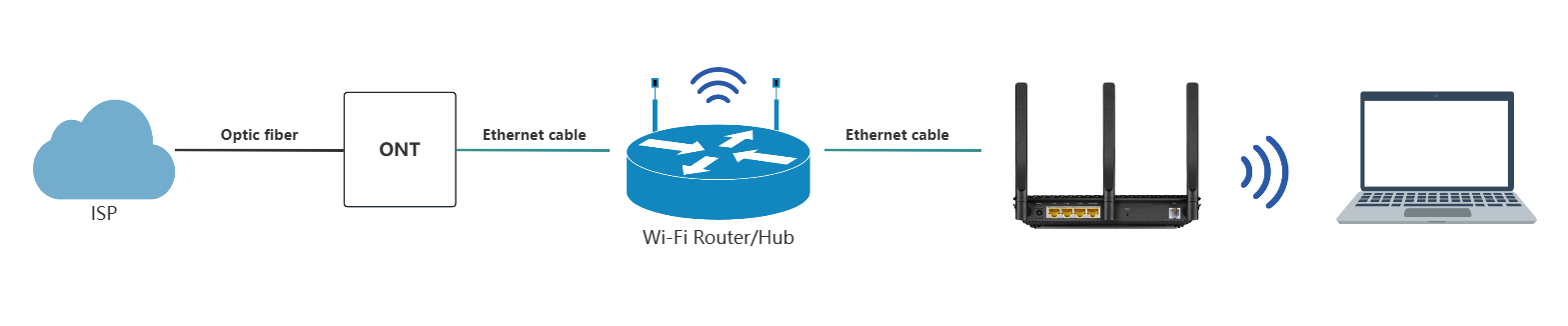
Please connect TP-Link router to the Ethernet port of the Vodafone Wi-Fi hub with an Ethernet cable and follow the instruction.
At the step where to select connection type, please select Dynamic IP.
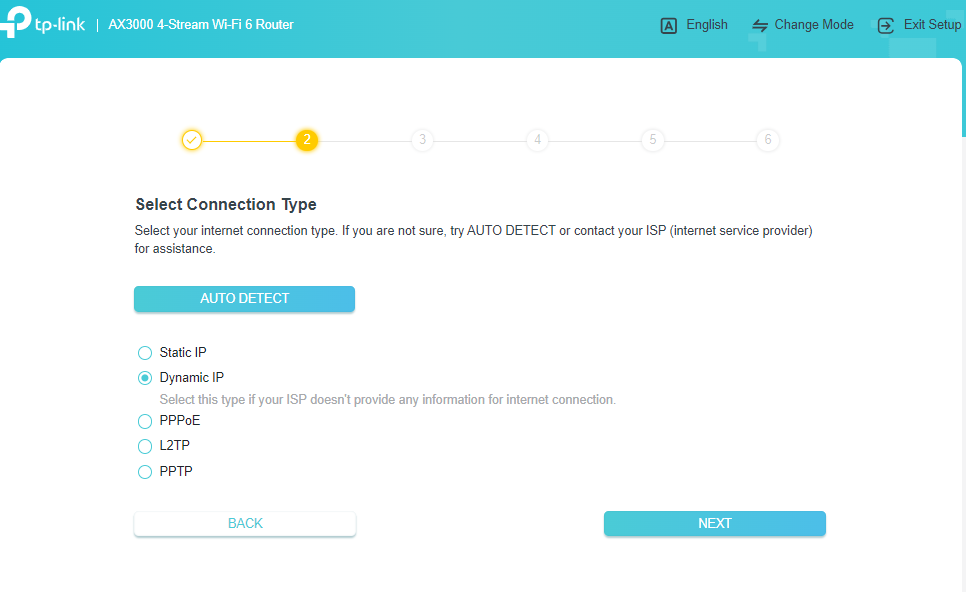
You will have double NAT in the network this way. If you’d like to make router work without double NAT, you may set up the Router into AP mode. While please note that you will lose some advanced features of TP-Link router. To know the difference between Router mode and AP mode of Router, please click this link.
Once completed, it’s suggested to disable the Wi-Fi of the Vodafone Wi-Fi Hub to reduce interference to the TP-Link router’s wireless network, you may refer to:
Note: The steps above refer to most Vodafone Hubs, but if you find yourself stuck while turning off the wireless signal, our advice is to reach out to the Vodafone support team.
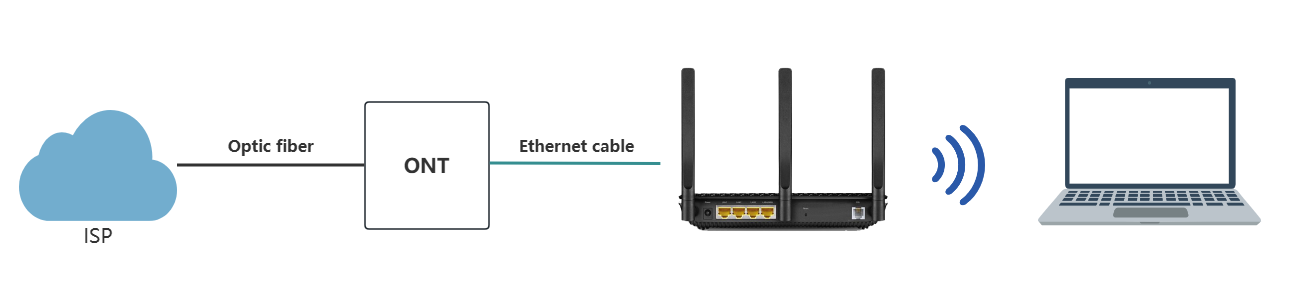
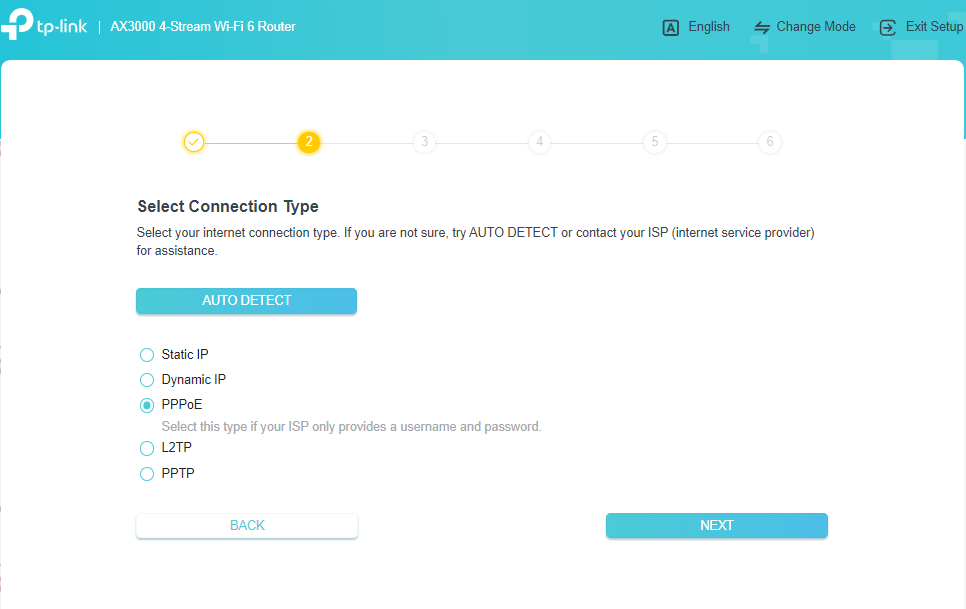
Please connect the TP-Link router to Ethernet Port of the Openreach modem and follow the instructions.
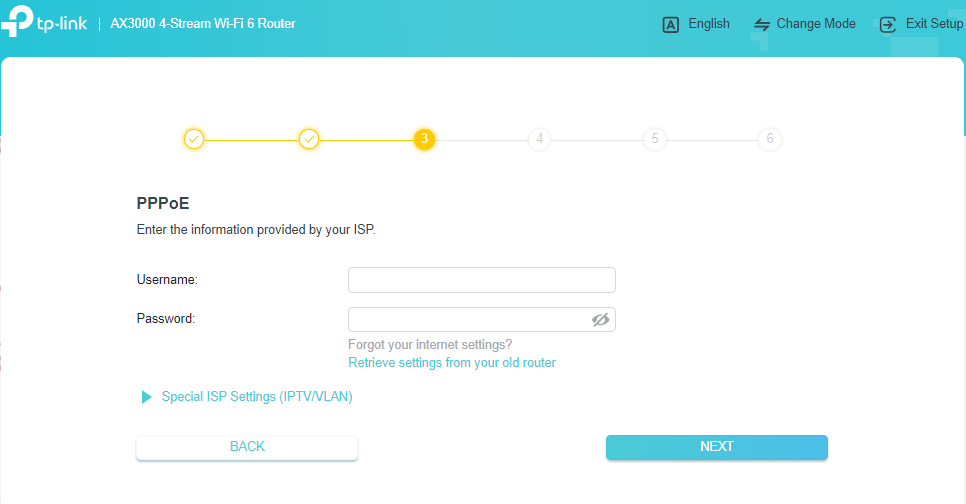
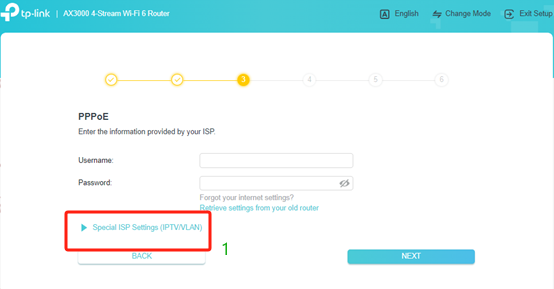
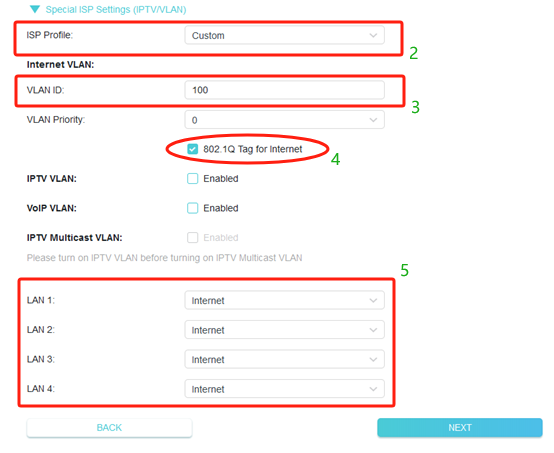
At the step where to select connection type and VLAN ID, Please select PPPoE, then you need to reach out to the Vodafone to get your PPPoE username, password and VLAN ID to enter to the Router.
If you are an FTTC or VDSL customer you will most likely be provided with a Vodafone Hub (DSL Modem Router). It is recommended to use TP-Link router with Vodafone hub in preference, or you can use Archer VX1800v, Archer VR400, Archer VR2100 or other TP-Link DSL modem router to replace your Vodafone Hub.

Vodafone do not have the option to put their hubs in Bridge mode, you can simplify connect TP-Link router to the Ethernet port of the Vodafone hub with an Ethernet cable and follow the instruction.
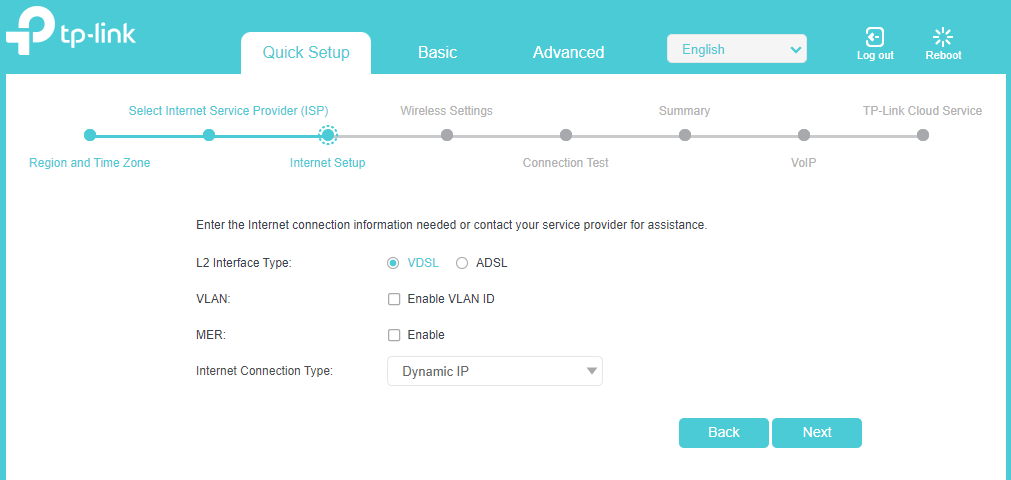
At the step where to enter the Internet connection type, please select Dynamic IP.
You will have double NAT in the network this way. If you’d like to make router work without double NAT, you may set up the Router in AP mode. While please note that you will lose some advanced features of TP-Link router. To know the difference between Router mode and AP mode of Router, please click here.
Once completed, it’s suggested to disable the Wi-Fi of the Vodafone Wi-Fi Hub to reduce interference to the TP-Link router’s wireless network, you may refer to:
Note: The steps above refer to most Vodafone Hubs, but if you find yourself stuck while turning off the wireless signal, our advice is to reach out to the Vodafone support team.
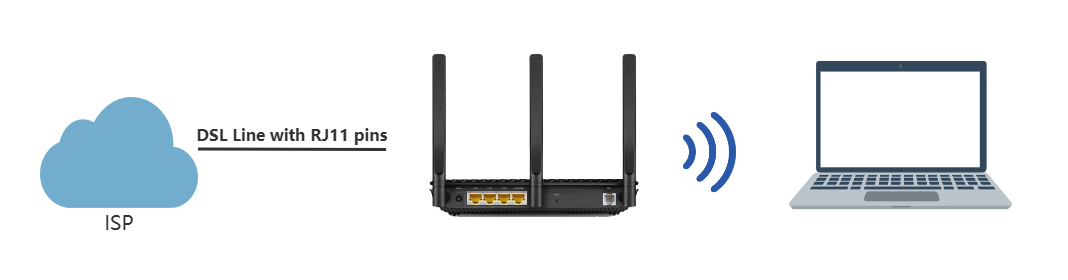
You firstly need to reach out Vodafone to get your PPPoE username, password and VLAN ID.
And then please connect the landline/telephone line to Router’s DSL port, and then follow the guide.
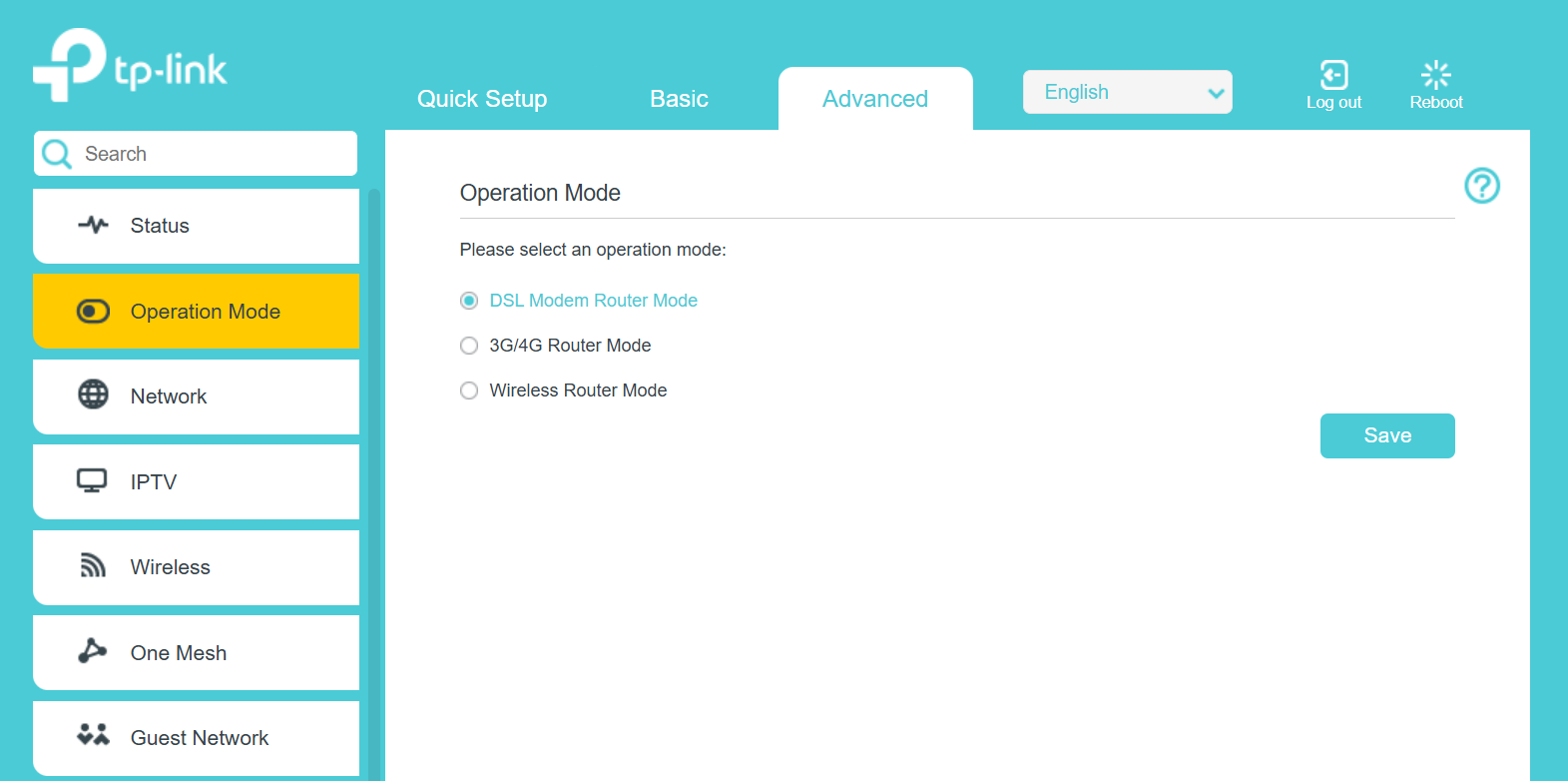
At the step where to select operation mode. Please select DSL Modem Router.
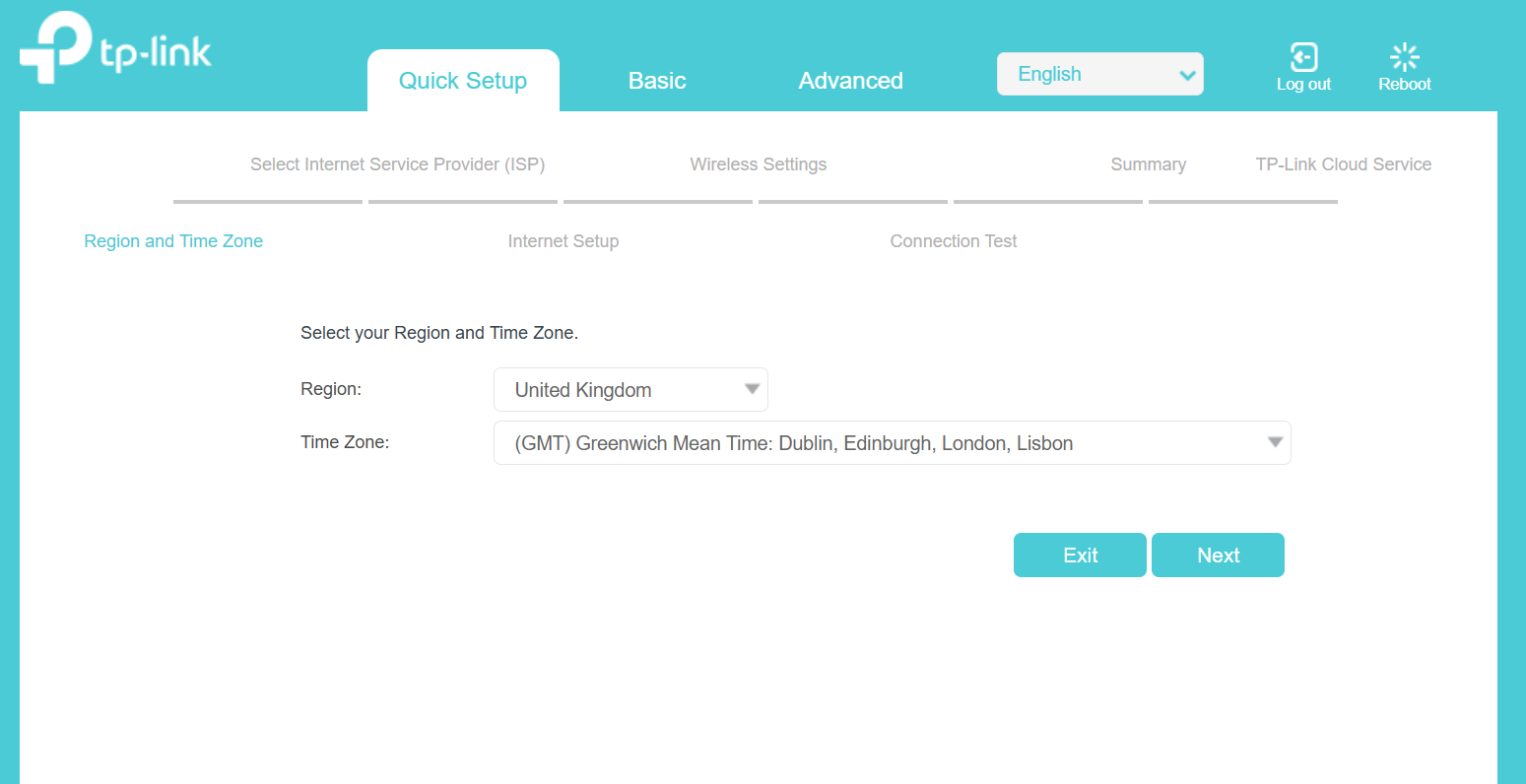
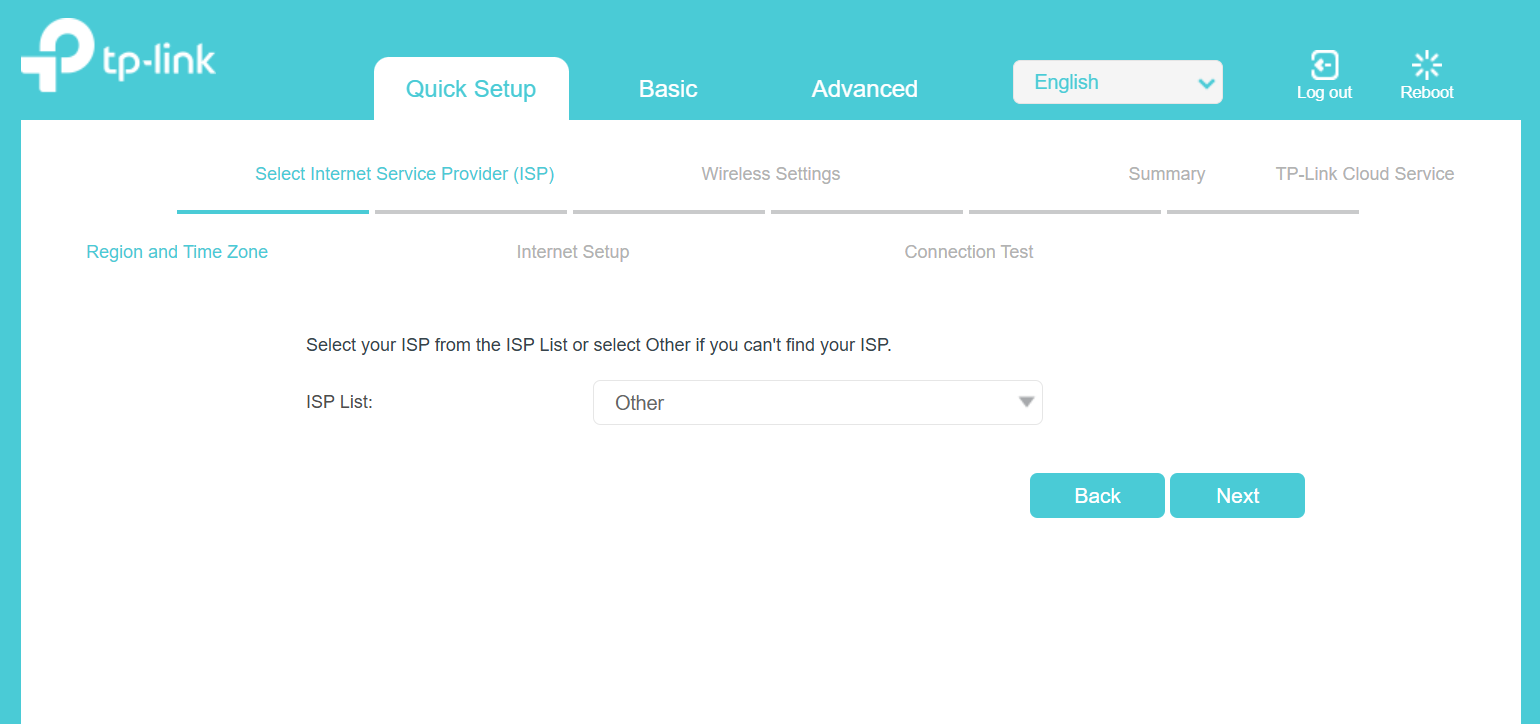
At the step where to choose your ISP, select Other. And then select your DSL connection type as VDSL.
At the step where to enter your internet connection type and VLAN ID. Please enter the information you confirmed with Vodafone.
Is this faq useful?
Your feedback helps improve this site.
1.0_normal_20210812031127k.png)



TP-Link Community
Still need help? Search for answers, ask questions, and get help from TP-Link experts and other users around the world.