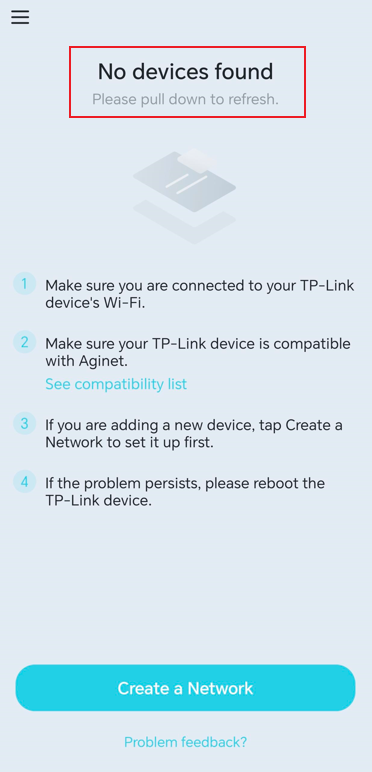
What if I get the error "No devices found " when setting up the ISP-customized mesh device on the Aginet app
 100
100Introduction
In an Easymesh network with two or more routers, the first router connected to the internet source serves as the controller, while the others act as agents.
This article provides troubleshooting instructions for the "No devices found" error when setting up an ISP-customized mesh device in the Aginet app.
Requirement
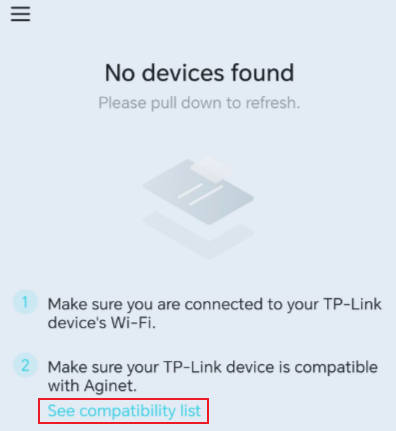
Click the compatibility list in the Aginet app to make sure your device is supported.
Troubleshooting
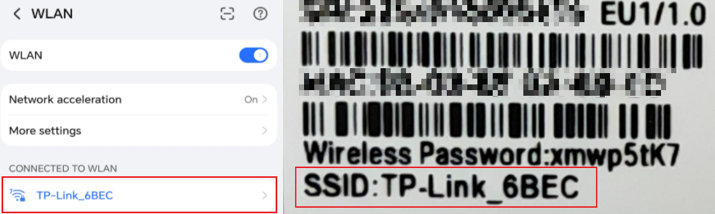
Step 1. Please unplug other mesh devices in the package and only power on the controller device first. Make sure your phone is connected to the correct Wi-Fi network. You could check the SSID on the label at the bottom of the Mesh device.
Step 2. Turn off the mobile cellular network and VPN connection on the phone.
Step 3. Move the phone closer to the mesh device.
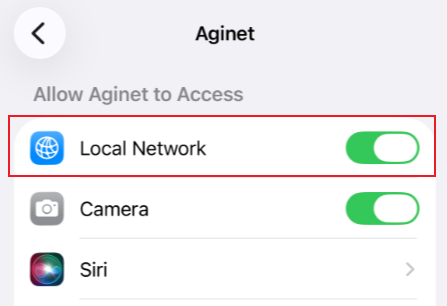
Step 4. If you use an iPhone, please enable local network permission for the Aginet app under Settings.
Step 5. If you are adding a new device, tap Create a Network to set it up.
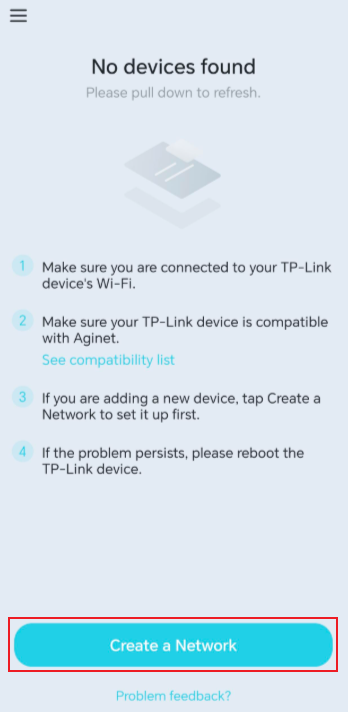
Step 6. If the problem persists, reboot the TP-Link device.
這篇faq是否有用?
您的反饋將幫助我們改善網站


