How to Create and Manage Evidence in VIGI PC Client PC Client
Contents
Log in to VIGI PC Client via Connect to Local VMS
Create evidence from live view recordings
Create evidence from playback recordings
Create evidence from a local video file
Introduction
VIGI PC Client provides an Evidence Collection feature that allows users to create evidence from live view recordings, playback recordings, and locally stored video files. Evidence can be categorized, tagged, searched, edited, exported, and deleted for management purposes. This article explains how to create and manage evidence in VIGI PC Client.
Requirements
- VIGI PC Client
- VIGI VMS (here we take version 1.8.96 as an example)
- VIGI Camera
Note:
1. VIGI PC Client must connect to a running VIGI VMS Software server.
2. TP-Link ID login is not supported in this scenario.
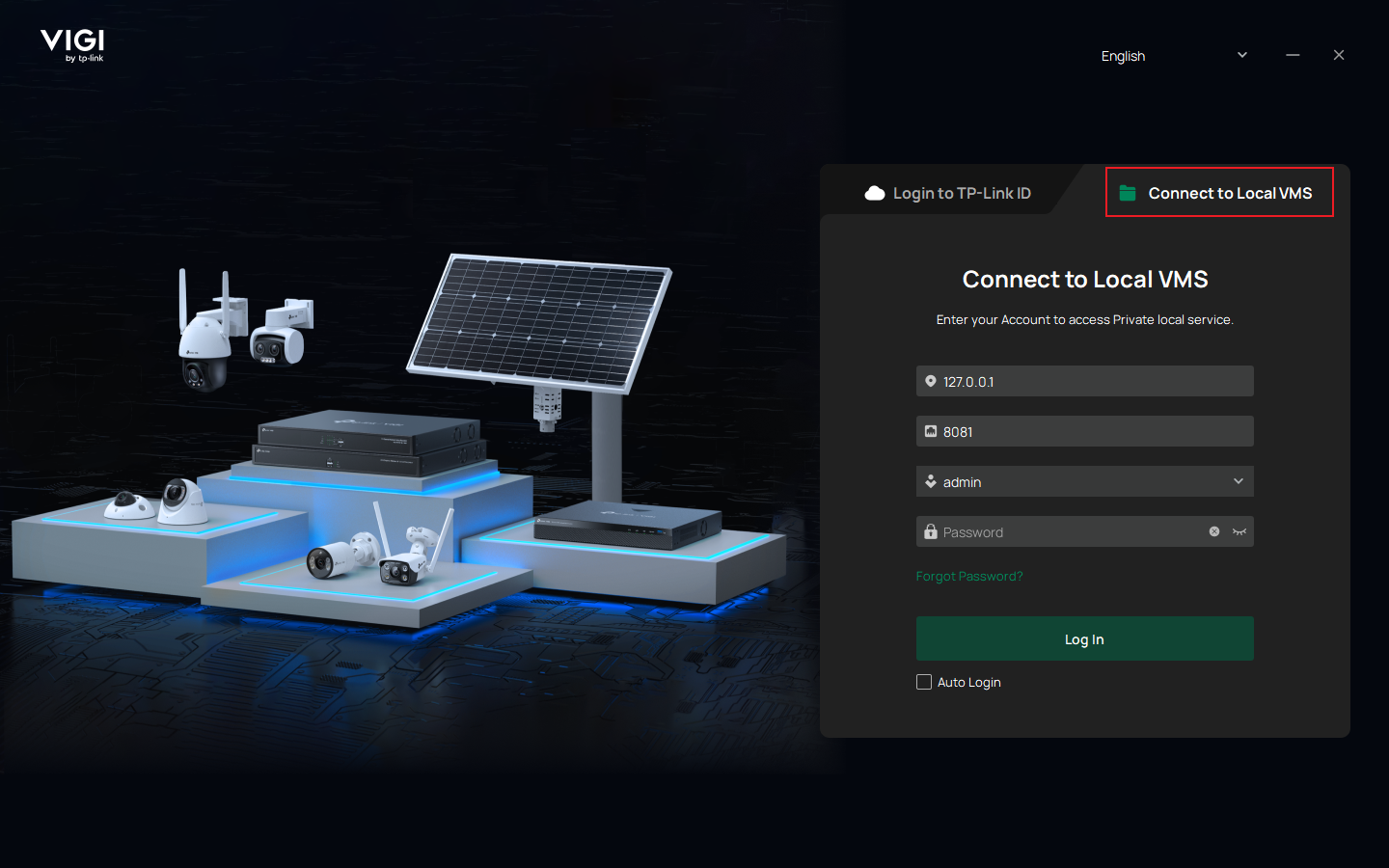
3. Select Connect to Local VMS and use a VIGI VMS account to sign in.
Configuration
Follow the steps below to create evidence in VIGI PC Client.
Log in to VIGI PC Client via Connect to Local VMS
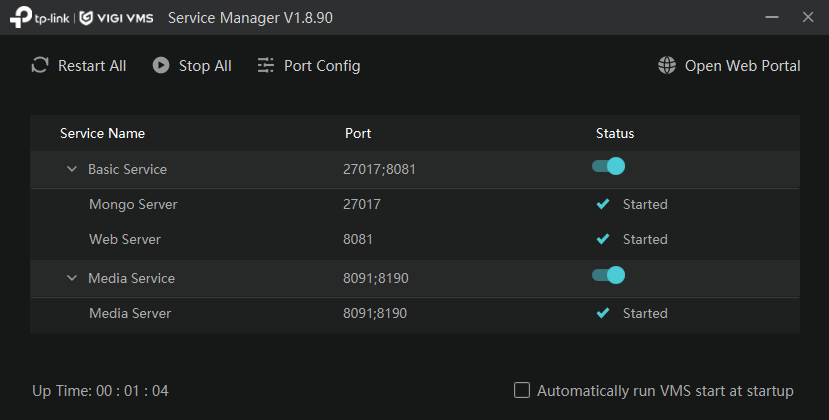
Step 1. Launch VIGI VMS and start VIGI VMS Service Manager.
Step 2. Connect VIGI devices to VIGI VMS. You can refer to the FAQ: How to Add VIGI Devices to VIGI VMS. 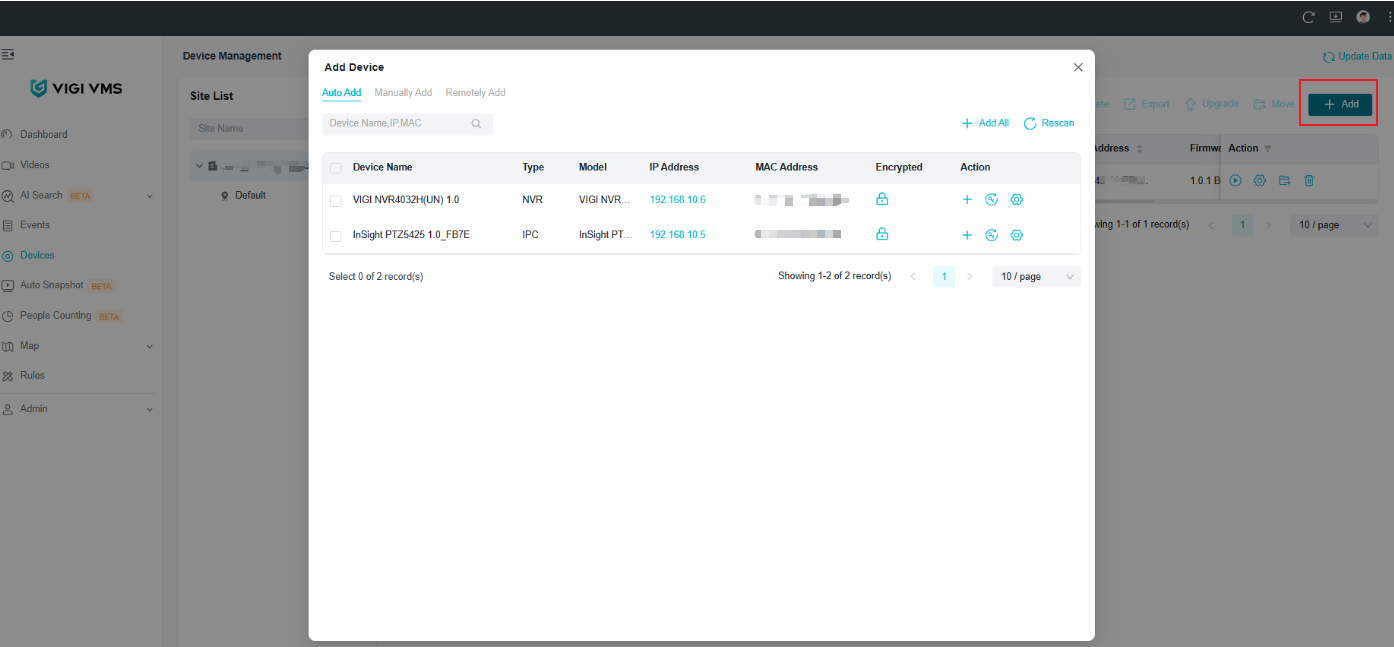
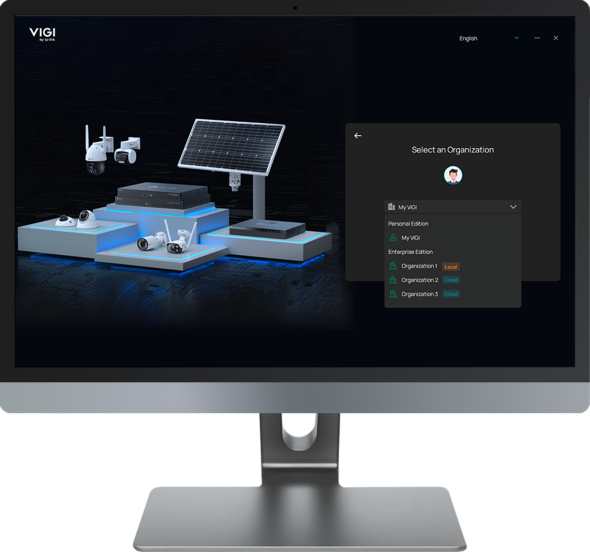
Step 3. Log in to VIGI PC Client, select Connect to Local VMS, and enter the VIGI VMS account credentials.
Create evidence from live view recordings
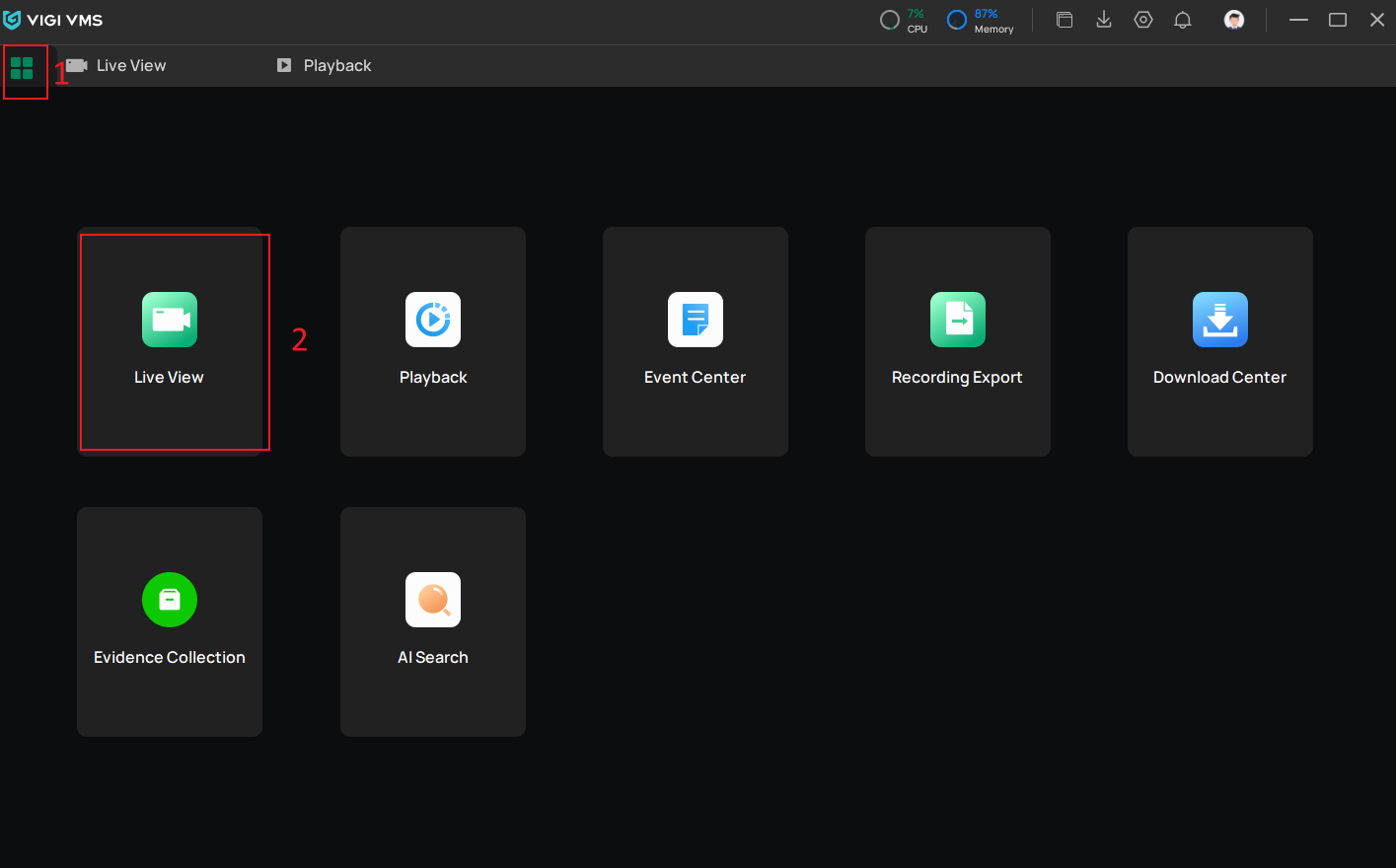
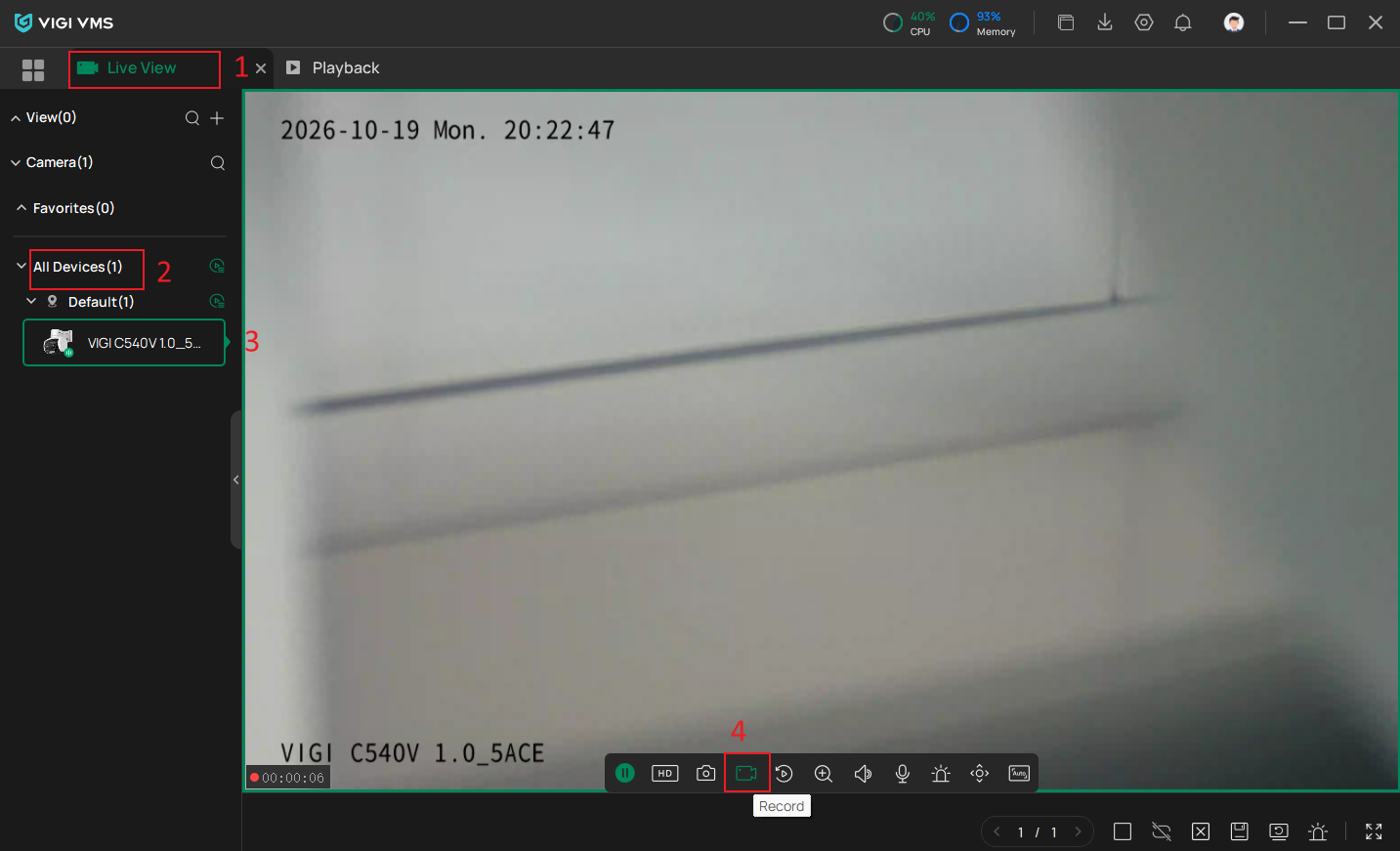
Step 1. Navigate to Live View.
Step 2. Select a camera and click Record to start recording.
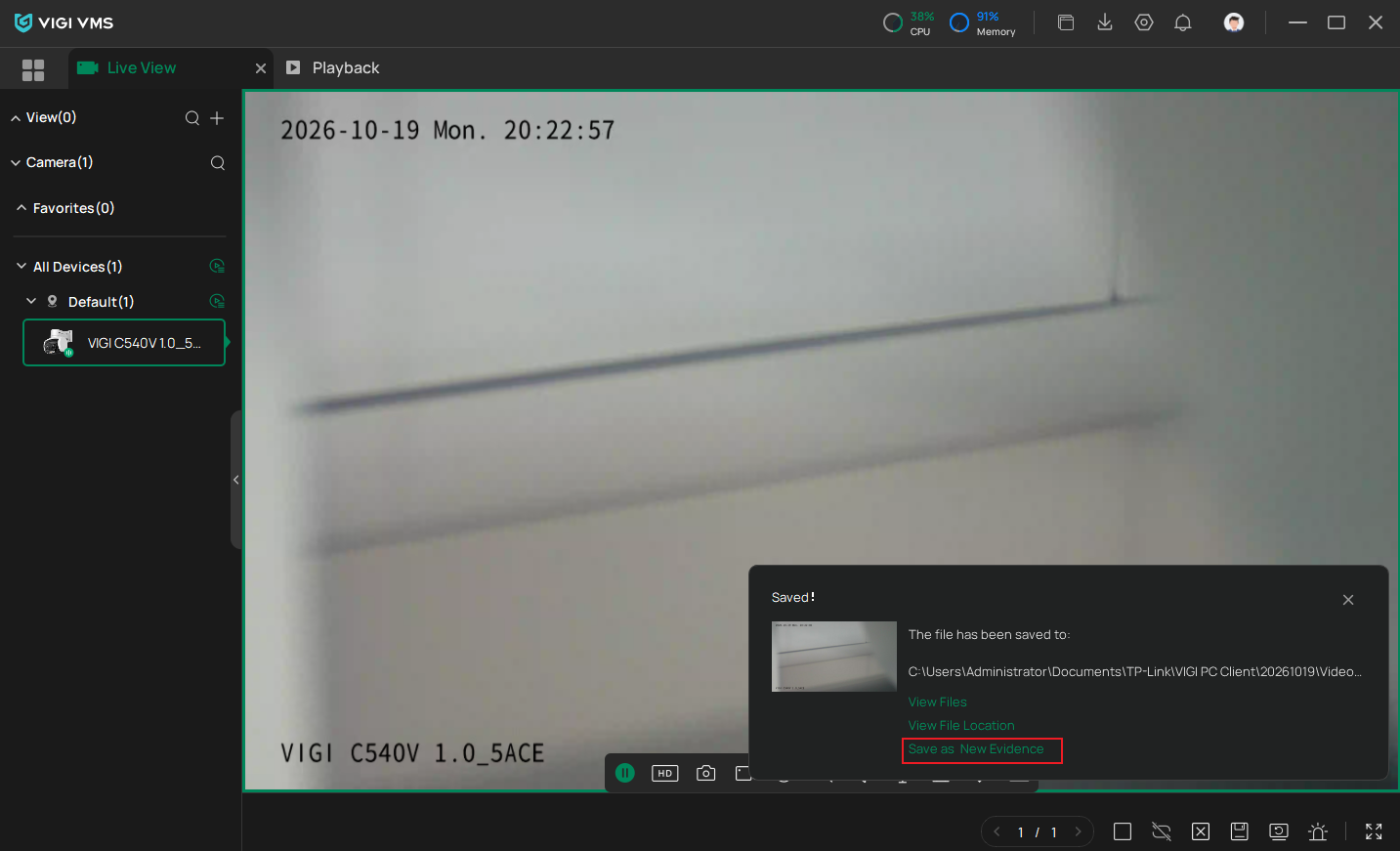
Step 3. Stop the recording when the required footage has been captured, then select Save as Evidence.
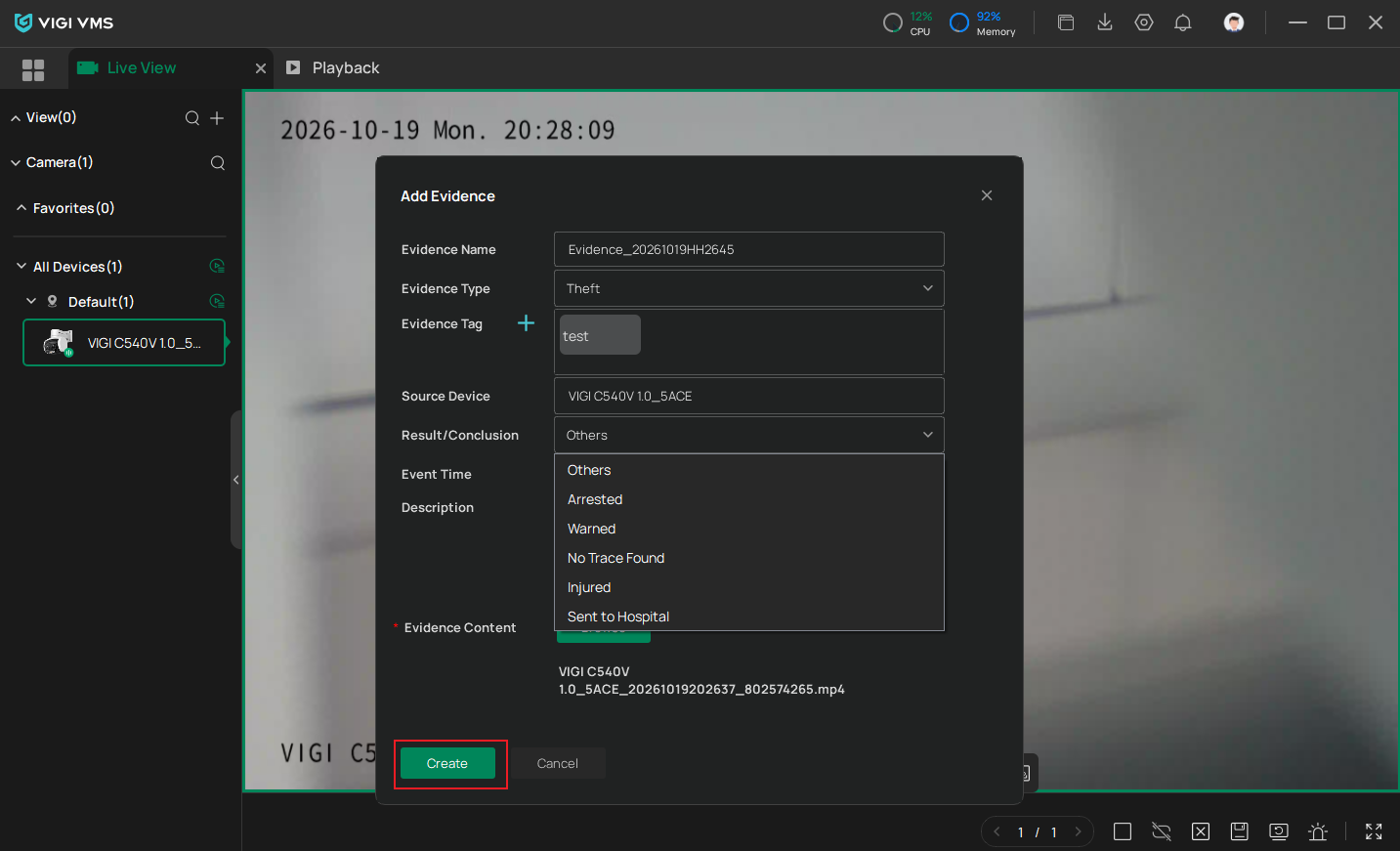
Step 4. Enter the evidence information and click Create.
Create evidence from playback recordings
Step 1. Navigate to Playback.
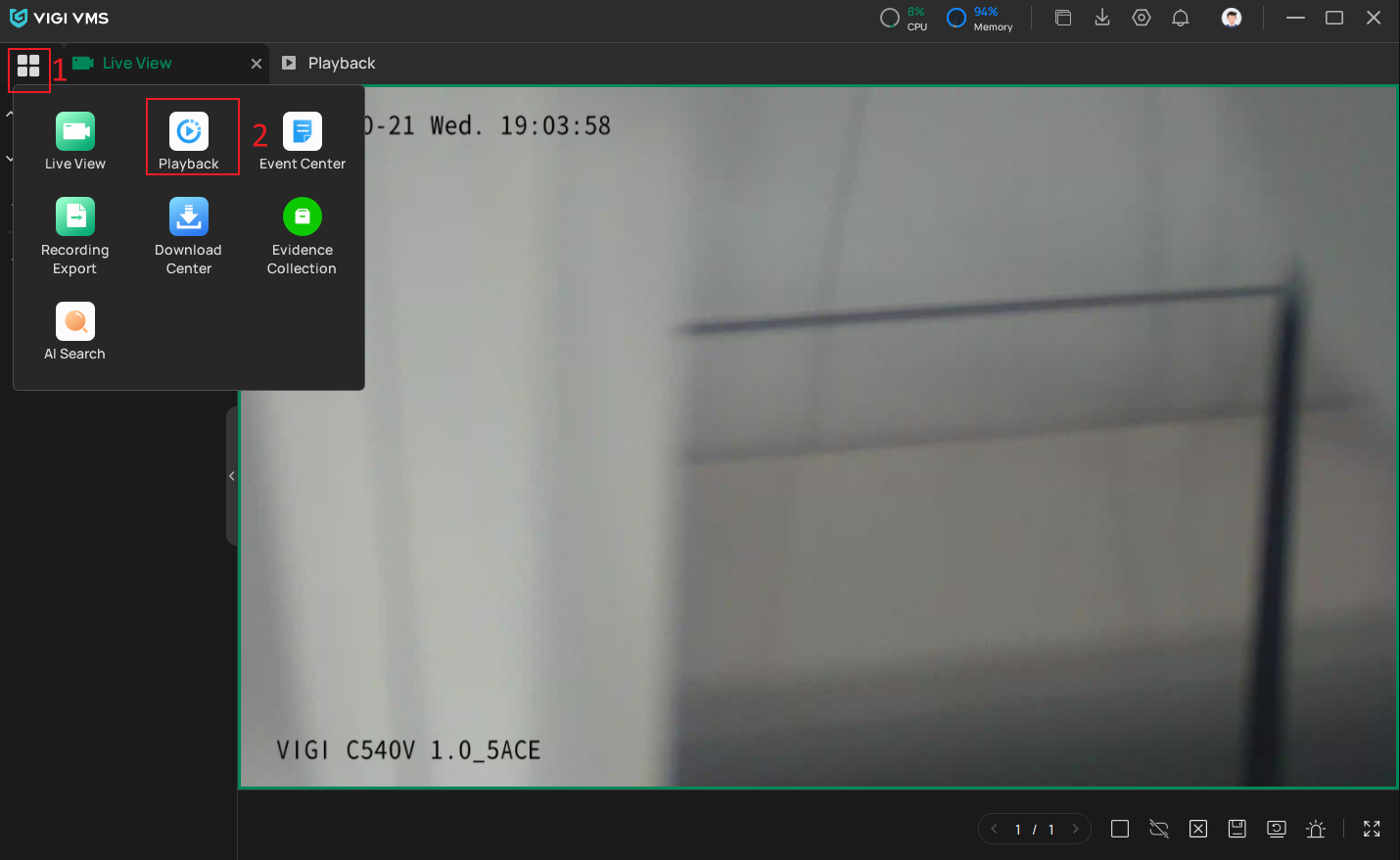
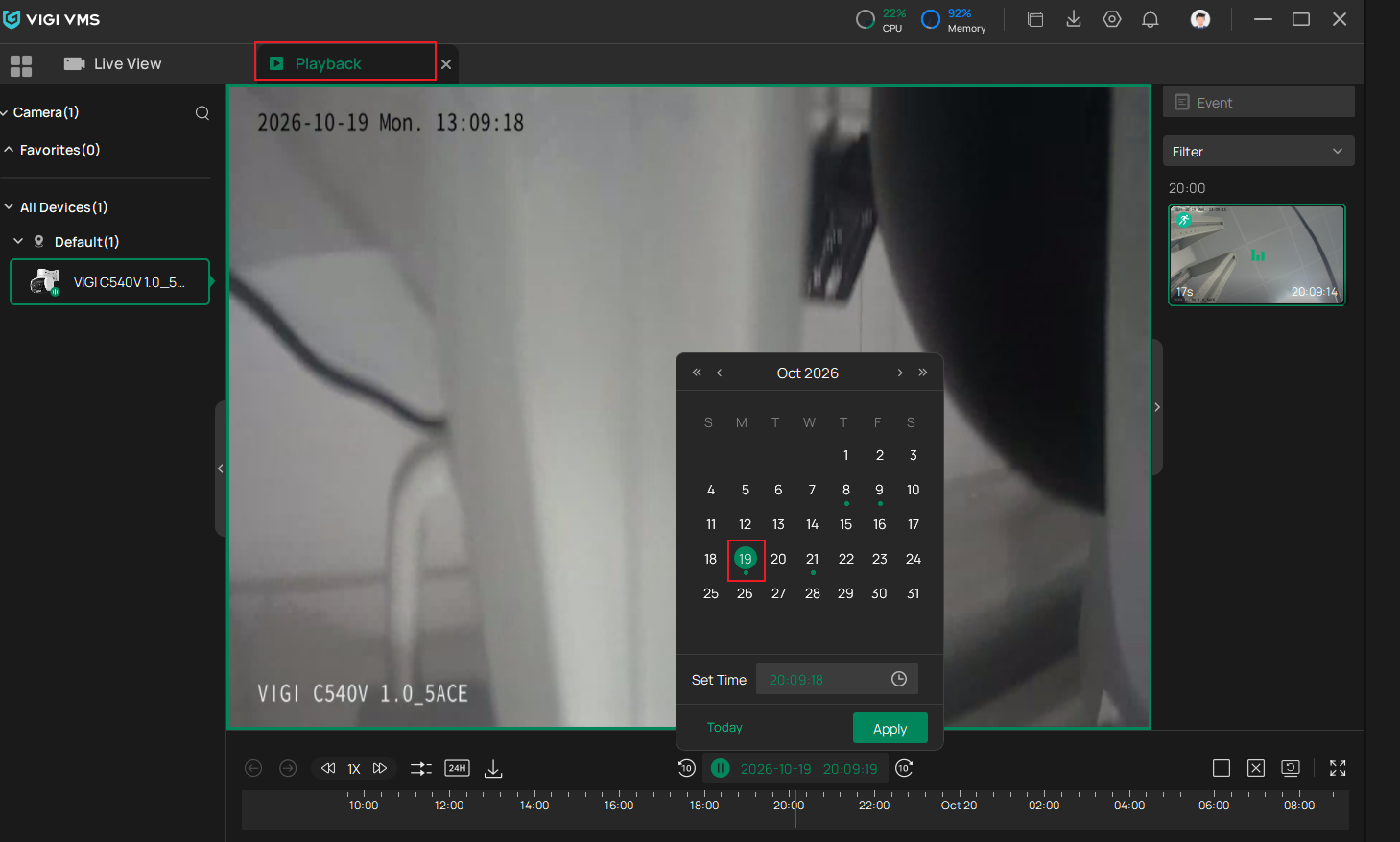
Step 2. Select the required camera, choose the recording date and time, and locate the video segment. Then click Record
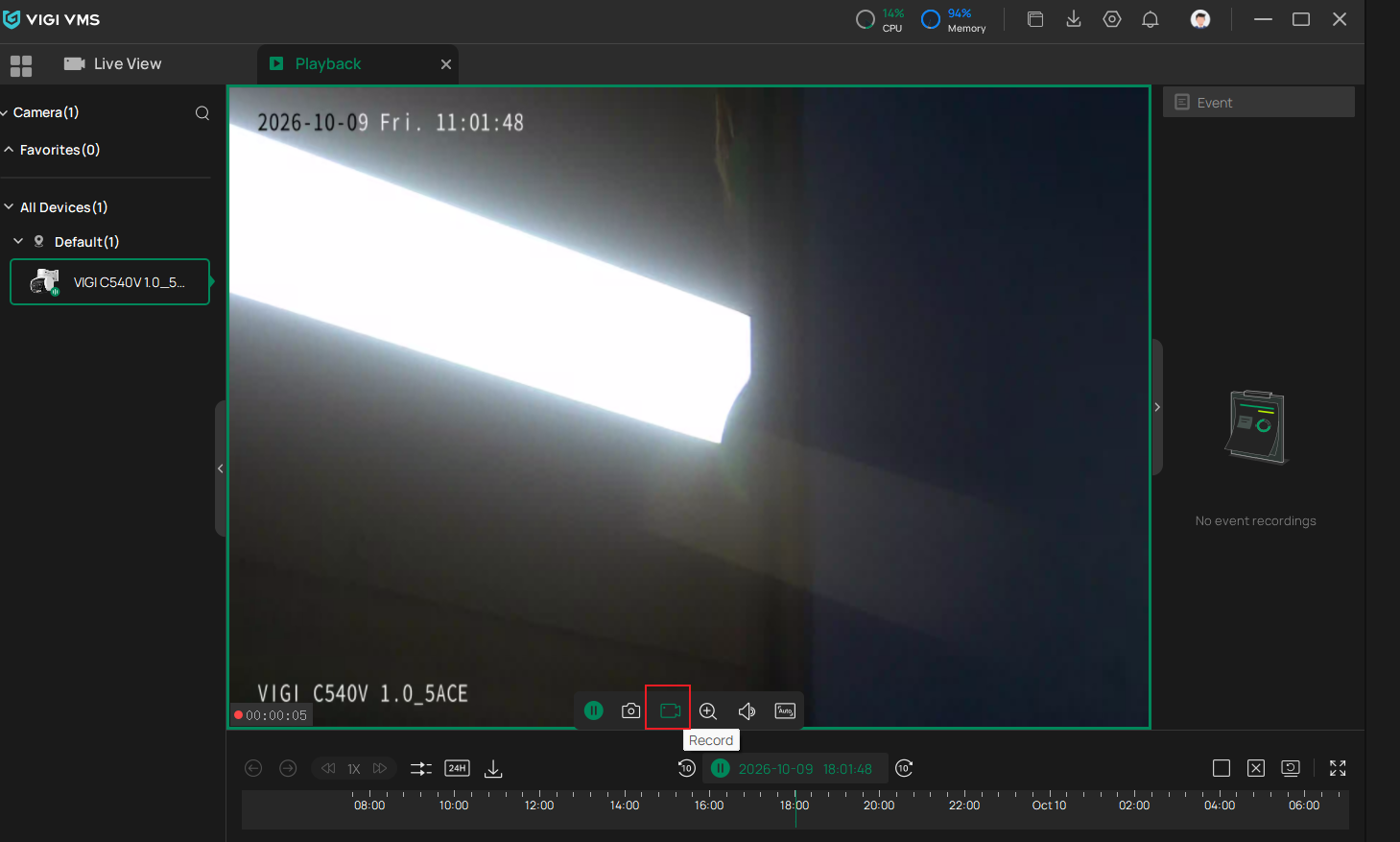
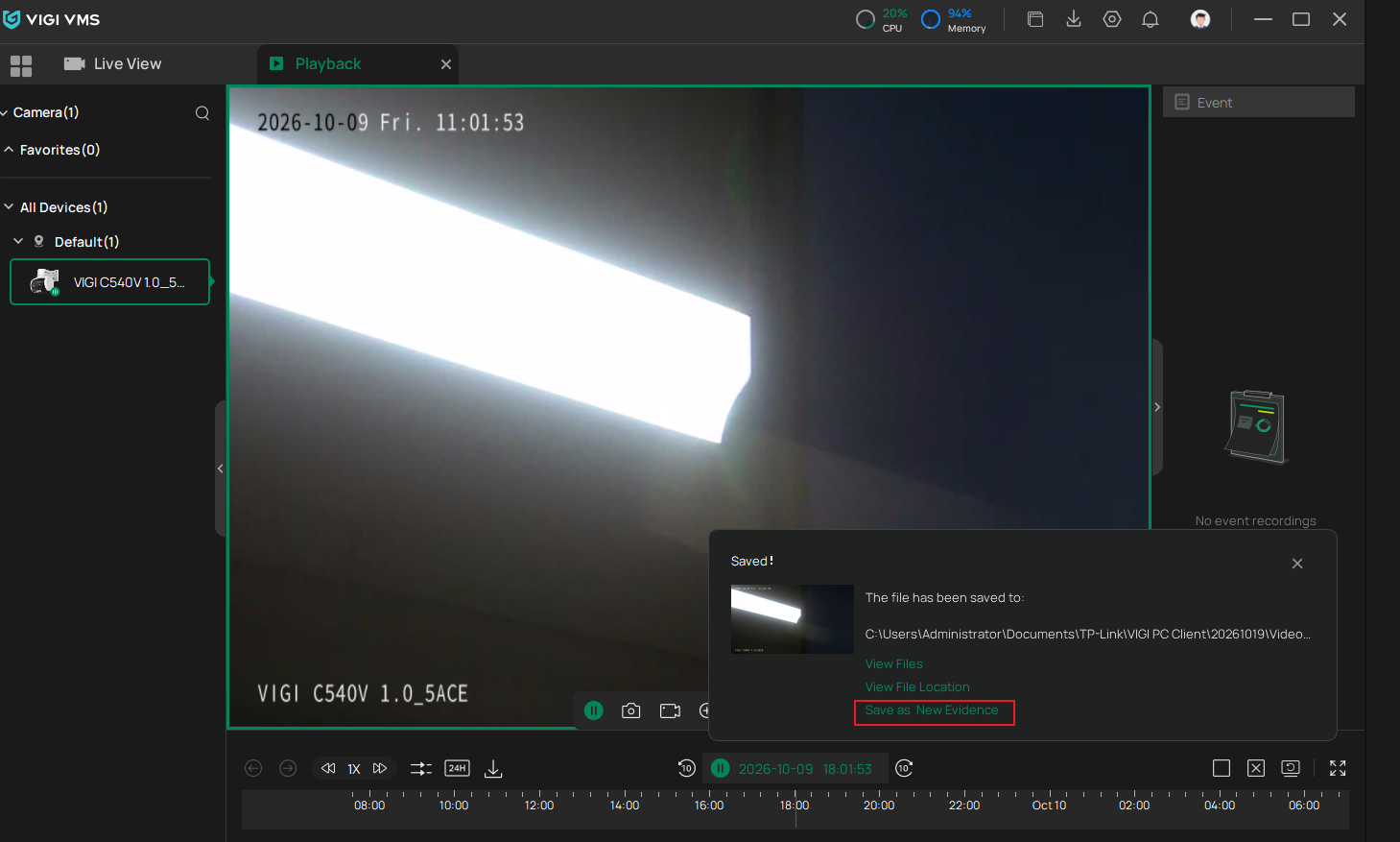
Step 3. Stop the recording after the required segment has been captured. Select Save as Evidence.
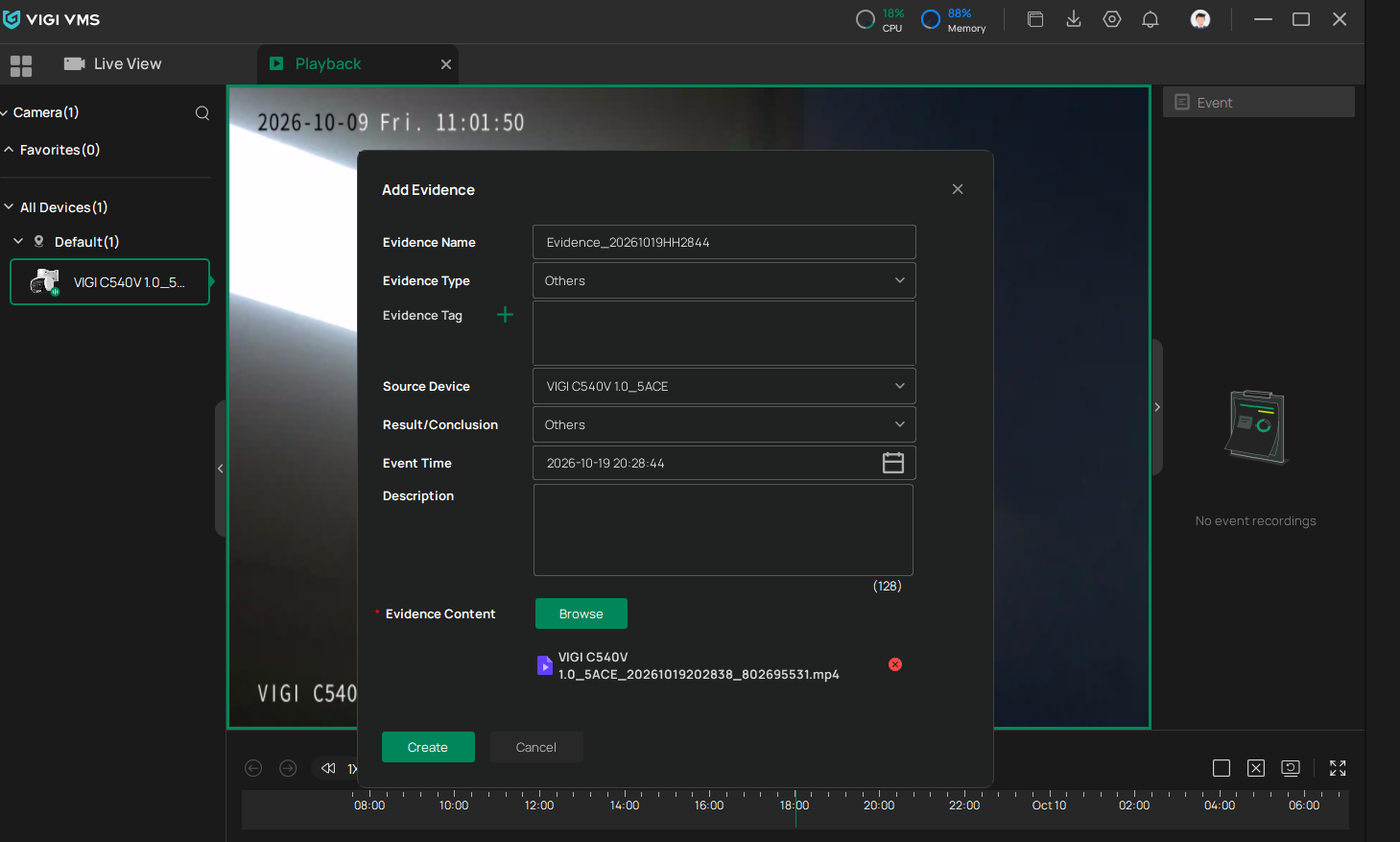
Step 4. Enter the evidence information and click Create.
Create evidence from a local video file
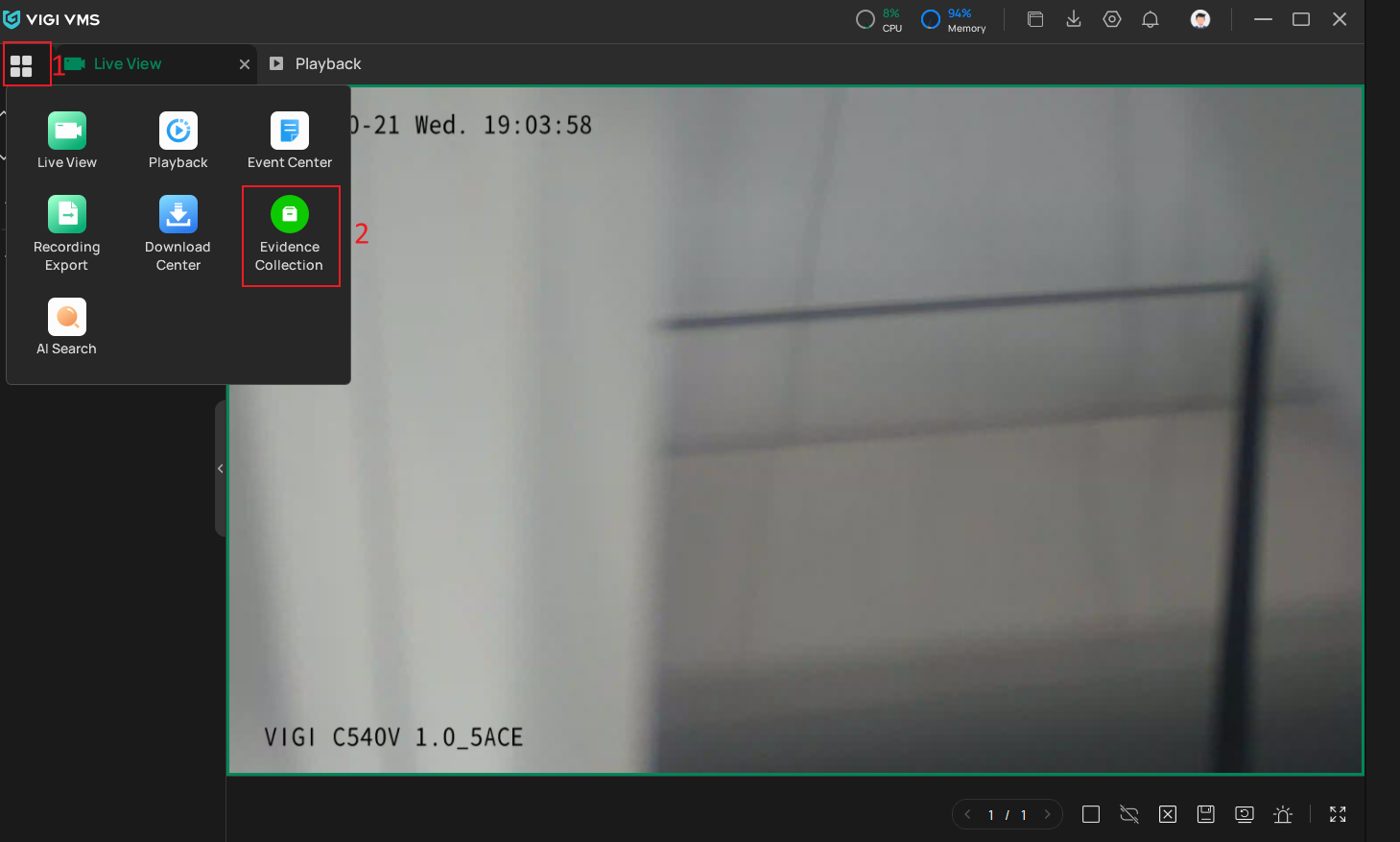
Step 1. Navigate to Evidence Collection.
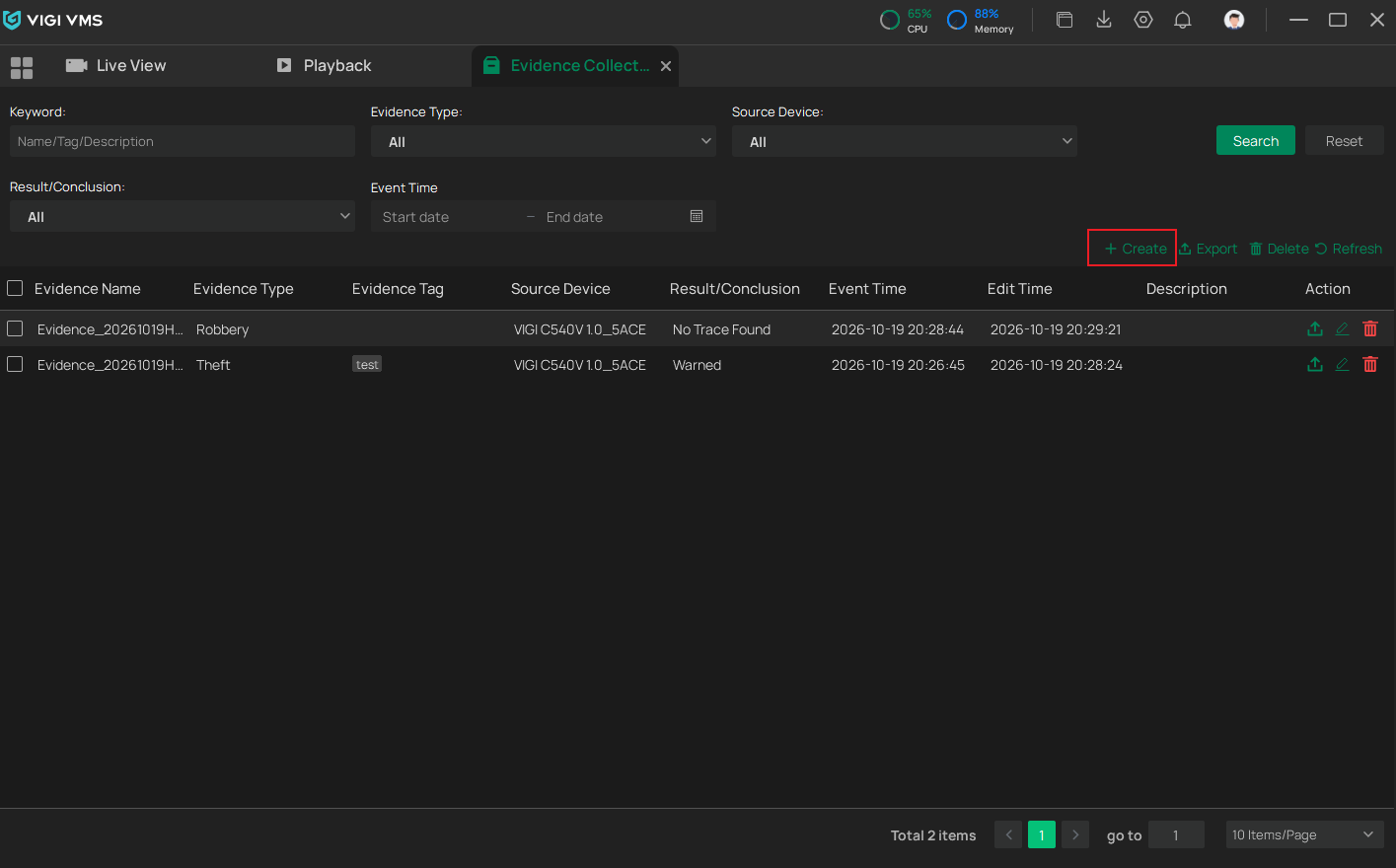
Step 2. Click Create.
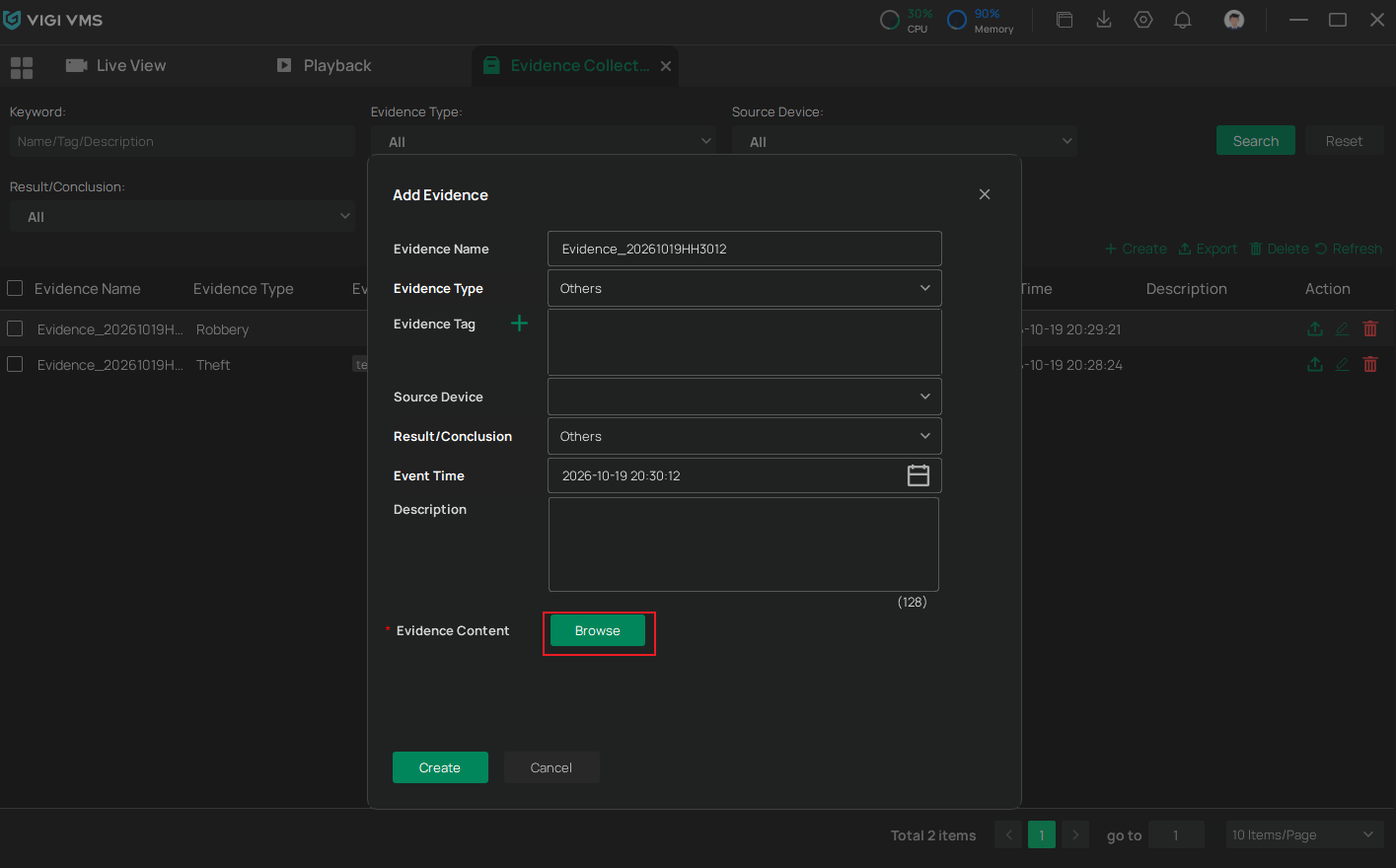
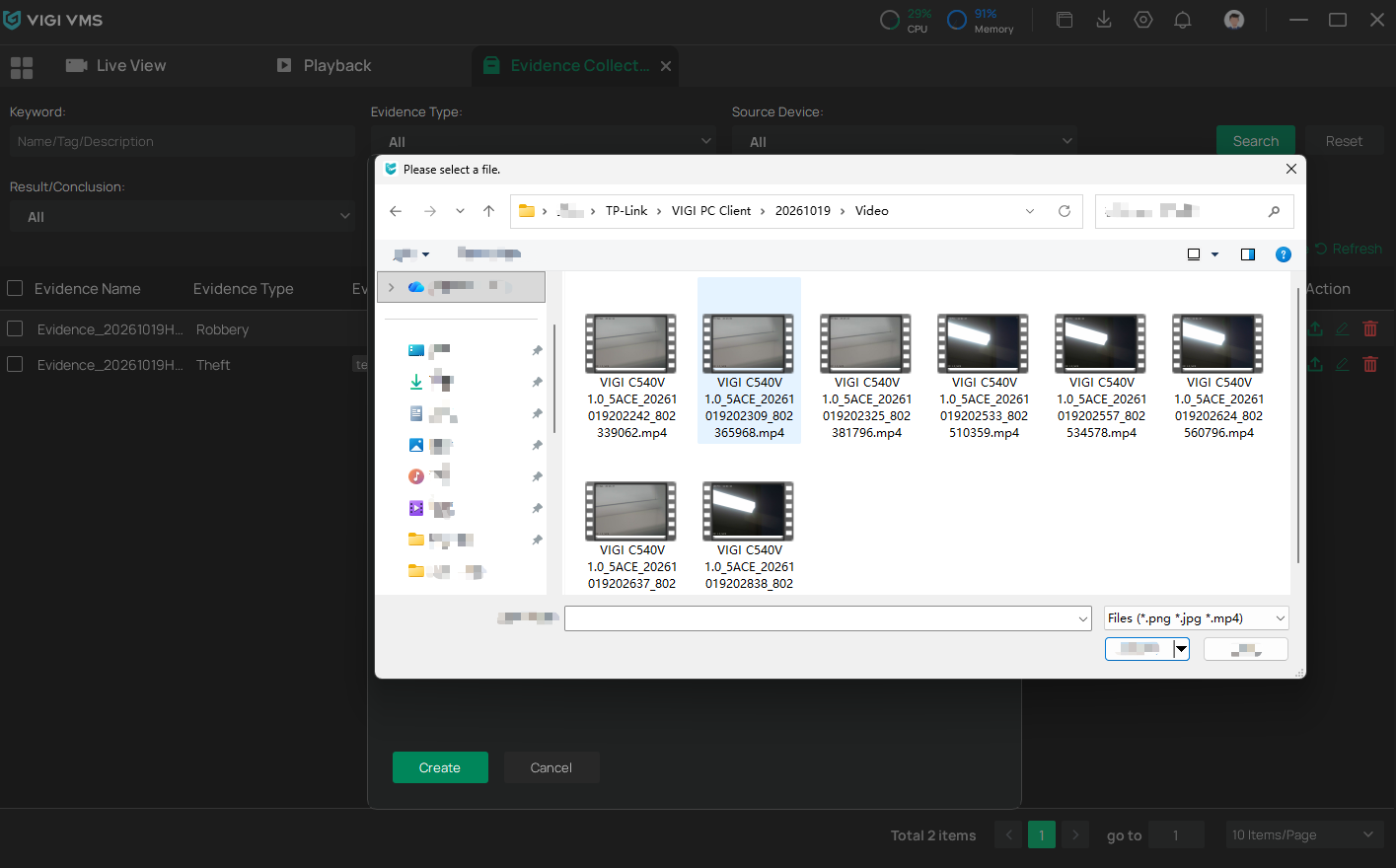
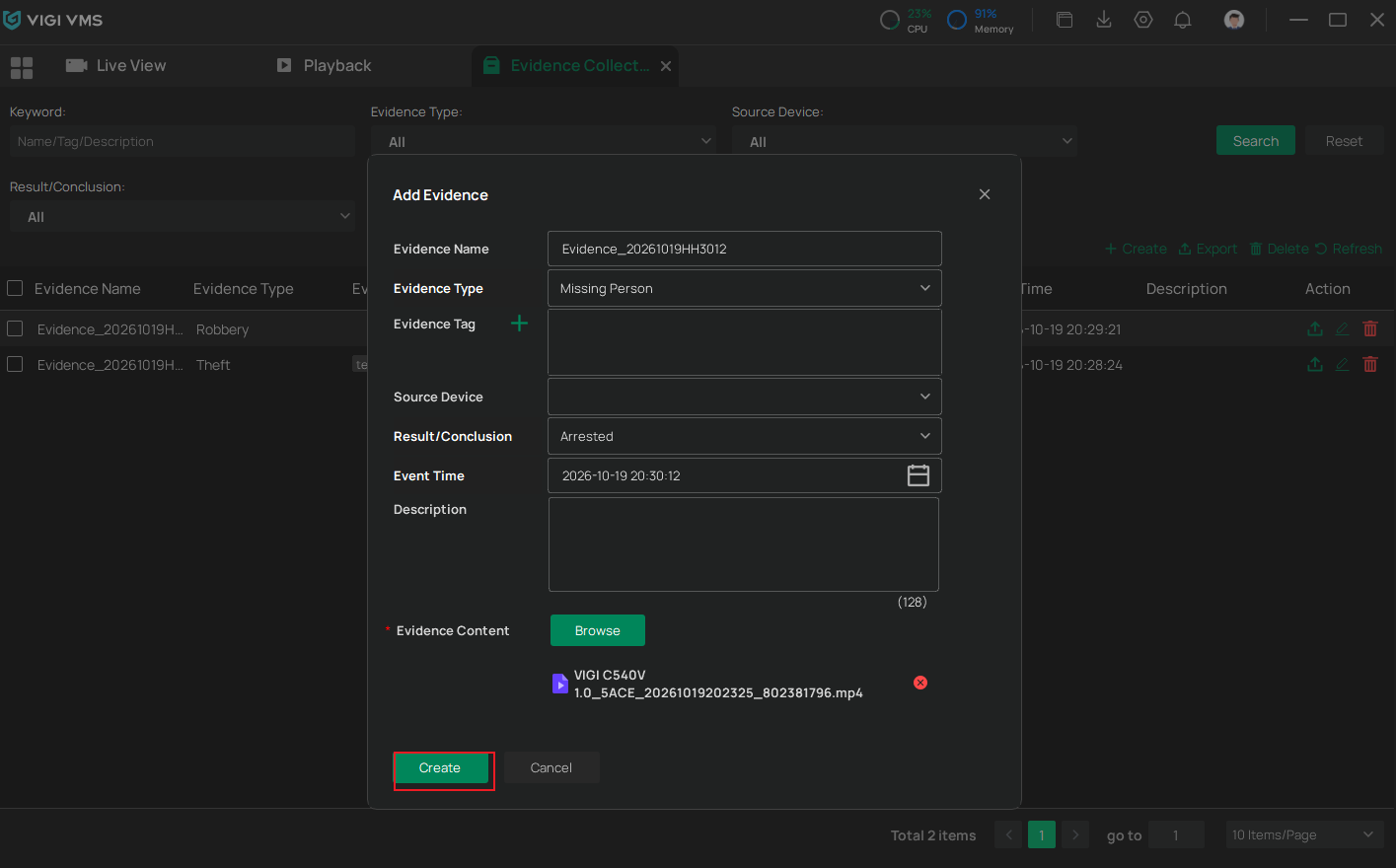
Step 3. Click Browse under Evidence Content and select a video file stored on the local computer. For example: exported playback recordings or previously recorded video clips.
Step 4. Configure the evidence information and click Create.
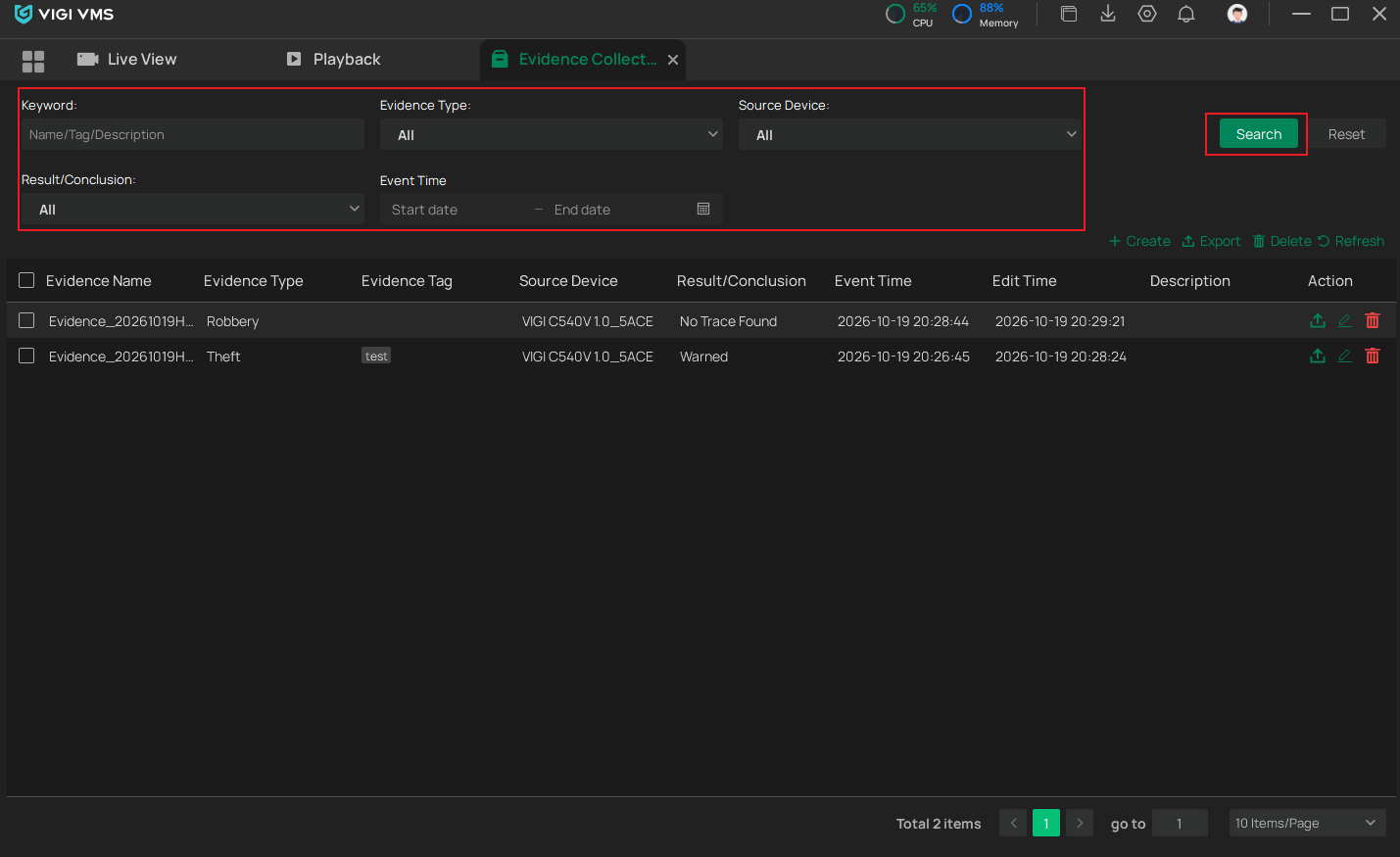
- Search evidence
Use the search filters to locate evidence records by Keyword, Evidence Type, Source Device, Result/Conclusion, and Event Time.
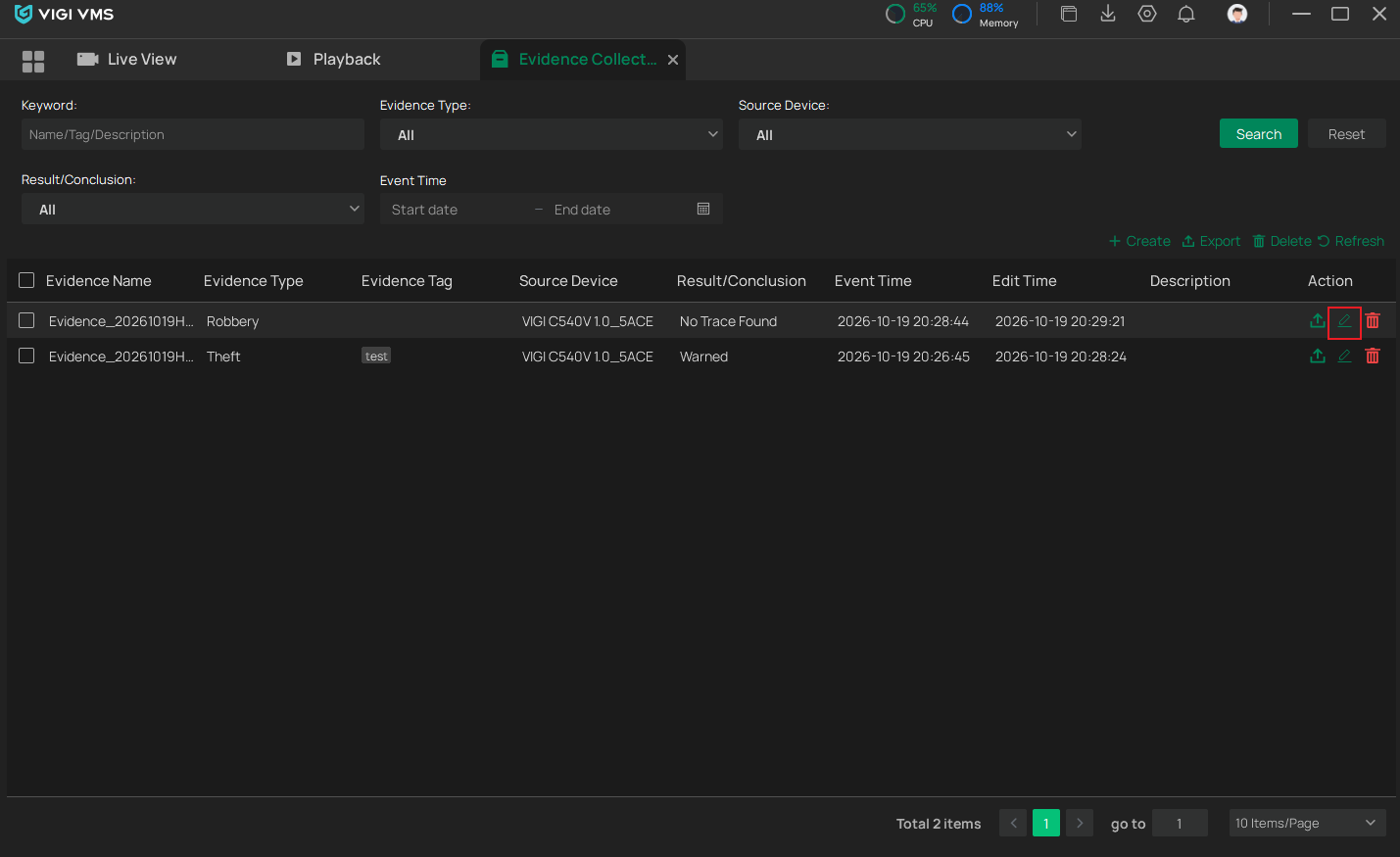
- Edit evidence
Select an evidence record and click Edit to modify evidence information.
- Export evidence
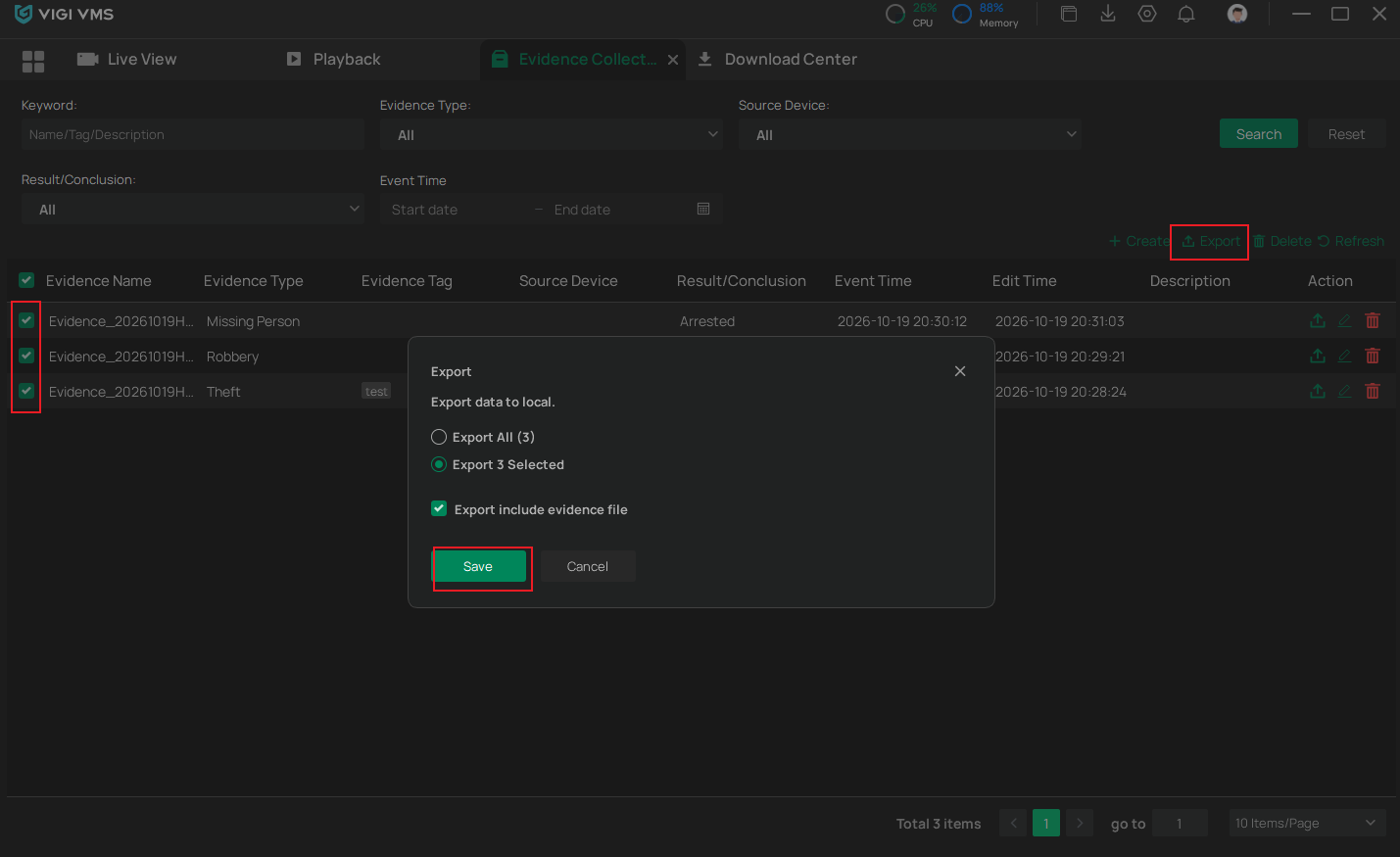
Select one or more evidence records, click Export, choose the export scope and export options, then click Save to export the evidence to the local computer.
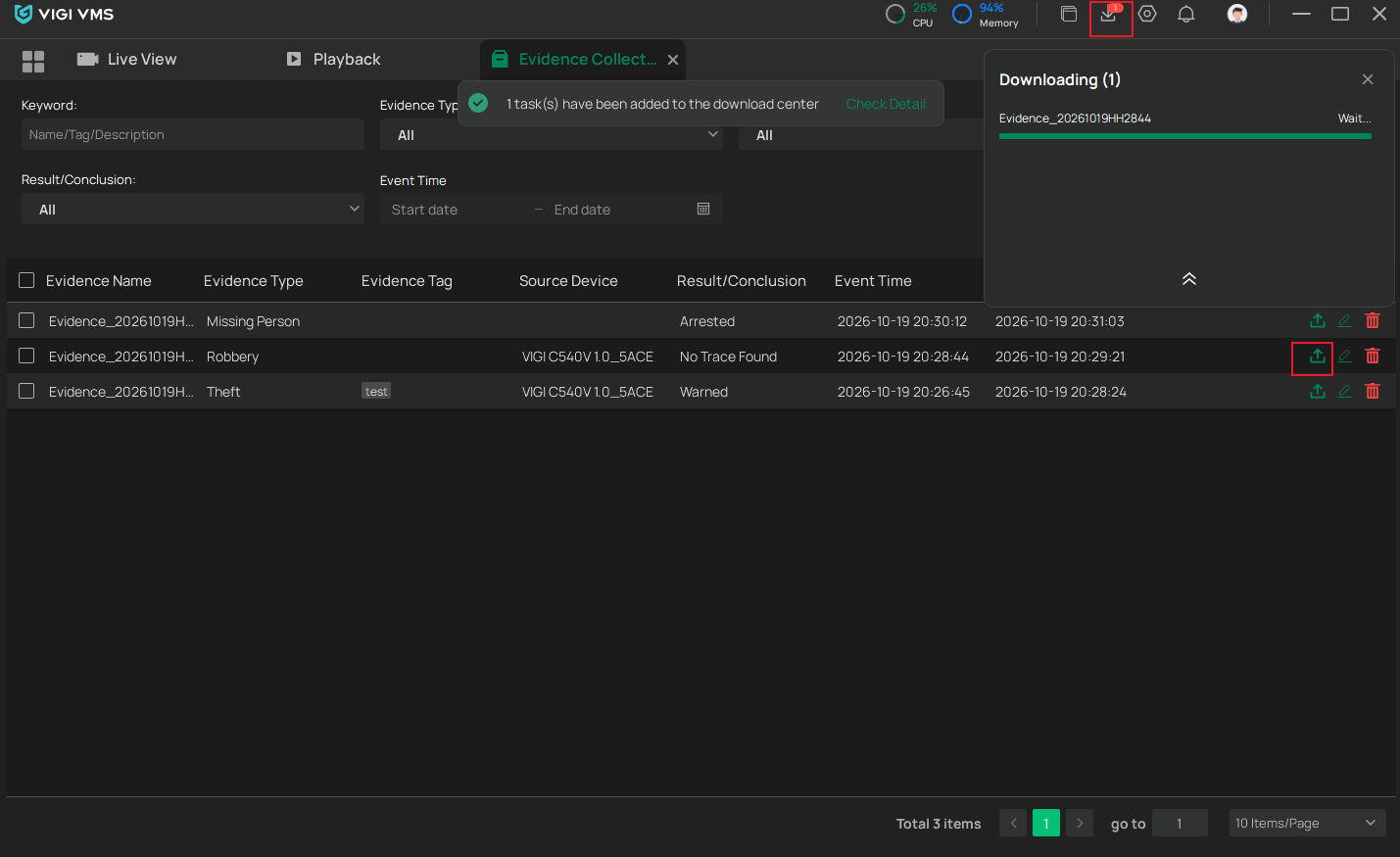
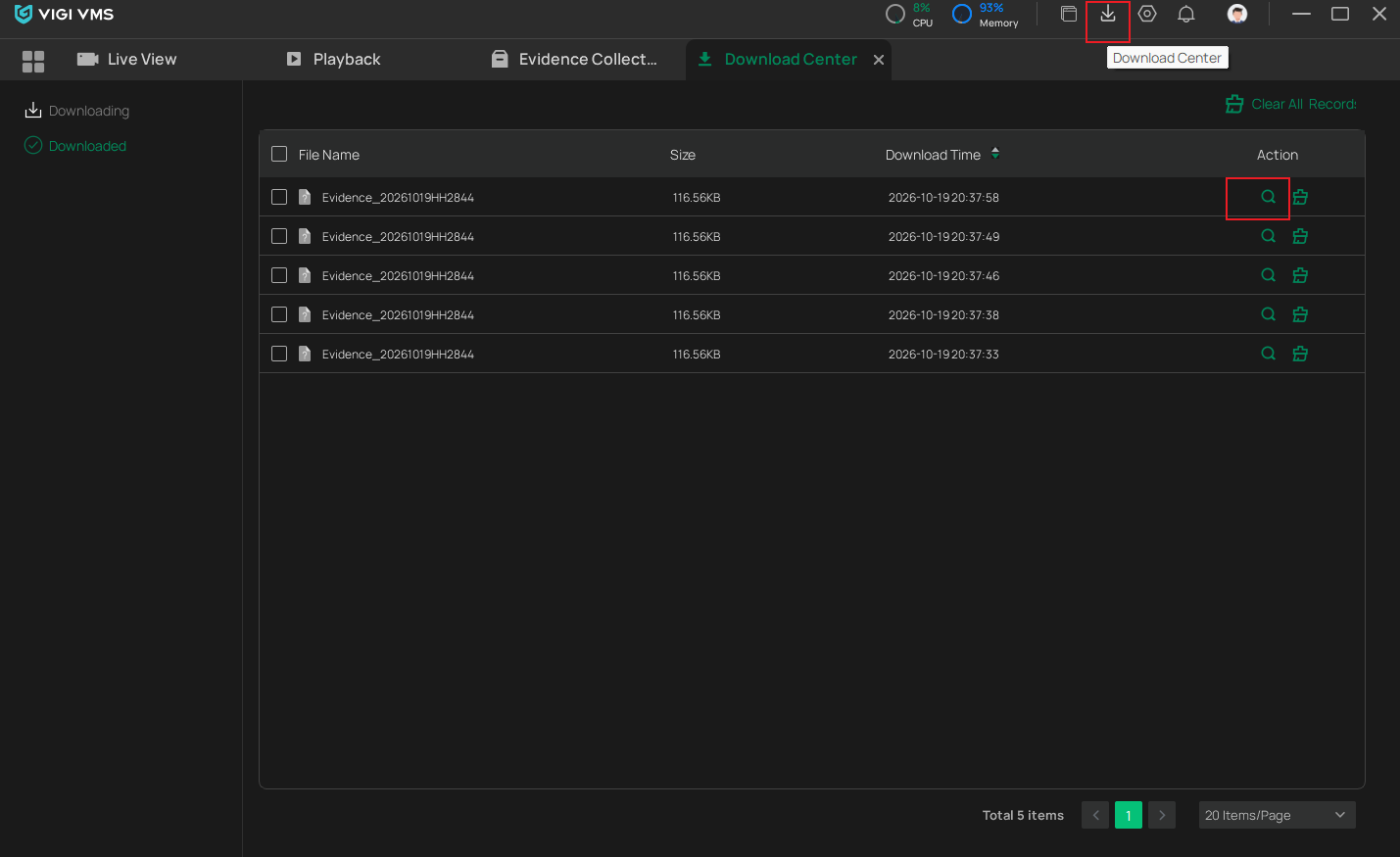
After exporting evidence, click Download Center to view the export records. You can open the evidence file directly or view its storage location on the local computer.
- Delete evidence
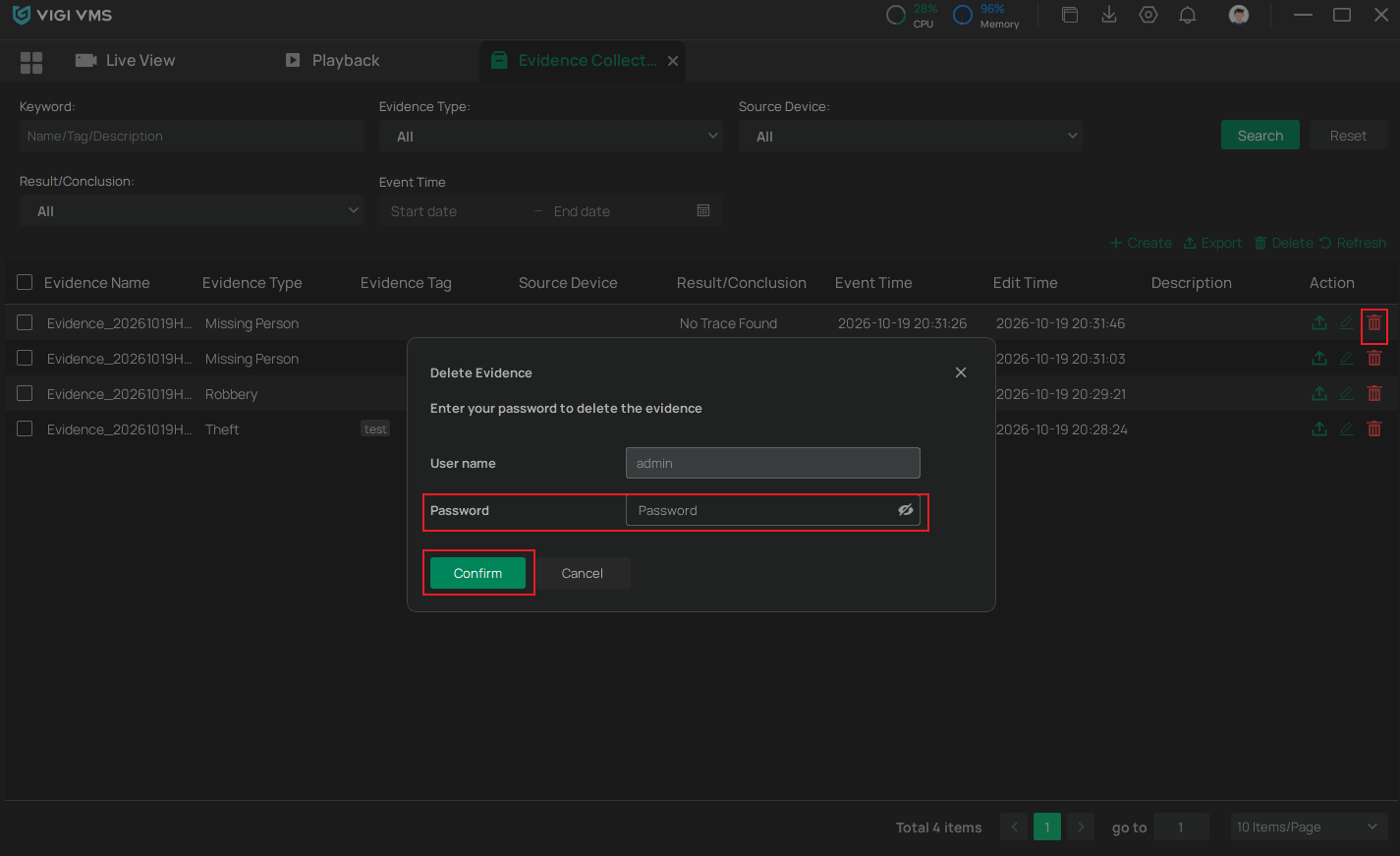
Select an evidence record or multiple evidence records, click Delete, enter the account password for verification, and then click Confirm.
Conclusion
You have now successfully created and managed evidence in VIGI PC Client. The Evidence Collection feature helps organize important video clips and simplifies evidence retrieval, review, and export.
To learn more about each function and configuration, please visit Support Home to download or check the manual for your product.
Looking For More
Is this faq useful?
Your feedback helps improve this site.

TP-Link Community
Still need help? Search for answers, ask questions, and get help from TP-Link experts and other users around the world.