tplinkwifi.net Not Working? How to Fix TP-Link Router Login Issues
 16128278
If tplinkwifi.net isn't loading, you're likely seeing an error message or a blank screen instead of your router's login page. The good news: this is usually a simple fix. Common solutions include making sure you're connected to the router, clearing your browser cache, rebooting the router, or temporarily disabling your firewall. More context and advanced troubleshooting steps for how to log in to your TP-Link router are explained below.
Key Takeaways
- tplinkwifi.net is your TP-Link router's built-in management system, accessible only from devices connected to the router's network.
- There are several reasons why tplinkwifi.net might not be working, including connection issues, cached data, conflicting network connections, and local software blocking access.
- Basic troubleshooting often fixes the problem before a factory reset is needed. Start with simple checks like your connection, browser cache, and alternate IP addresses, then try rebooting your devices. A factory reset should be a last resort, as it erases all your settings.
- Because tplinkwifi.net simply points to your router's gateway, you can usually reach the management page directly using IP addresses like 192.168.0.1.
- Local software such as firewalls, antivirus programs, VPNs, and multiple active network connections can all block access to tplinkwifi.net.
Troubleshooting Solutions for tplinkwifi.net Access Issues
Connect to Your Router's Network First
tplinkwifi.net is an internal management tool and can only be reached from a device that is connected to your TP-Link router's network. Connect via a wired Ethernet cable or wirelessly, then try loading tplinkwifi.net again. If you need a refresher on how to log in to your TP-Link router, see how to log in to the web management page of your TP-Link router.
Clear Your Browser Cache
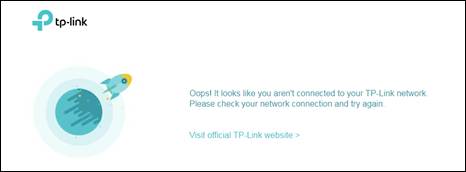
If you see the error message shown below, your browser has likely saved a public IP address for tplinkwifi.net. You will need to clear your browser cache (cookies) and history to resolve this. Instructions for clearing browser data are available for:
You can also try switching to a different browser or device. For example, if Chrome isn't working, try Mozilla Firefox to access tplinkwifi.net.
Use the Router's Gateway IP Address Instead
tplinkwifi.net resolves to your router's gateway IP address. If the URL isn't loading, you can try entering the IP address directly in your browser's address bar. The default gateway address is typically http://192.168.0.1.
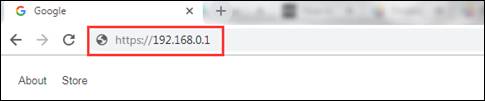
Note: These default addresses may not apply to every router. If neither works, see how to find your TP-Link router's IP address for step-by-step instructions by operating system.
Disconnect Other Network Connections
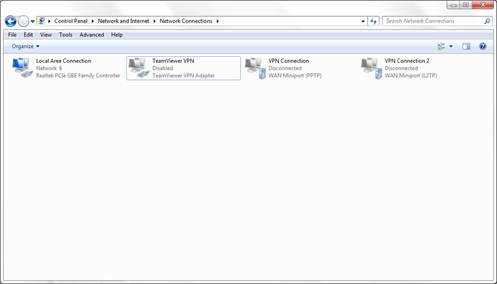
Having multiple network connections active at the same time, such as a wired connection, a wireless connection, and a virtual private network (VPN), can prevent access to the management utility. Disable or disconnect all Internet and VPN connections except the one you are using to connect to the router, then try accessing tplinkwifi.net again.
Reboot the Router
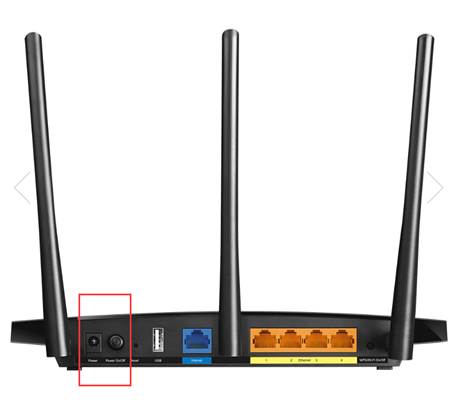
Rebooting your router and modem can resolve many access issues, including problems reaching the management page. To reboot your TP-Link router, unplug the power cable and plug it back in, or press the power button off and then on again.
Note: It is also a good idea to reboot your computer or other device at the same time.
Temporarily Disable Your Firewall or Antivirus Software
Firewall and antivirus software may block access to tplinkwifi.net because they do not recognize the address or flag it as unsecured. Try temporarily disabling your firewall or antivirus program, then reload the page.
You Receive a "Your Connection Is Not Private" Warning
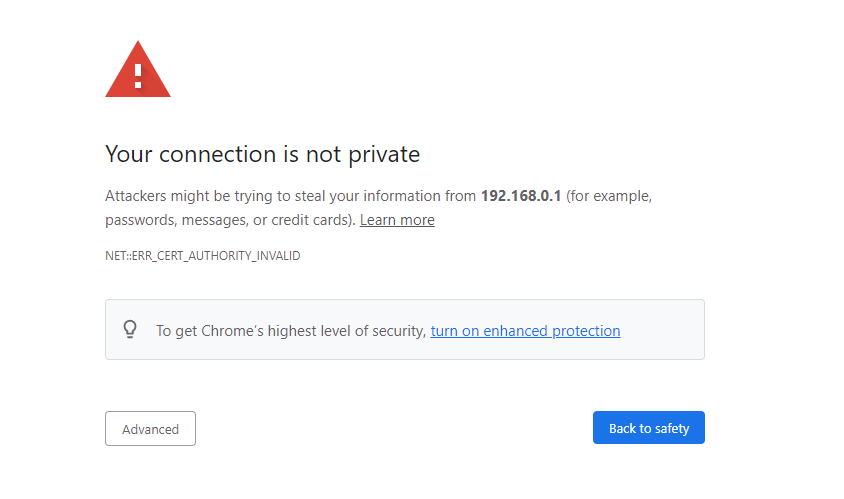
If your browser shows a "Your connection is not private" warning when accessing tplinkwifi.net, this is expected behavior. The TP-Link web interface uses a self-signed certificate rather than one issued by a trusted certificate authority. Your connection is still secure.
To proceed, click Advanced, then select Proceed to tplinkwifi.net (unsafe) or Proceed to 192.168.0.1 (unsafe). For more details on why this warning appears, see the FAQ on logging in to the TP-Link router's web management page when HTTPS is enabled.
When All Else Fails
If you have tried every solution above and still cannot reach the router's login page, a factory reset may be necessary. You can refer to the FAQ on how to reset your router to factory defaults for detailed instructions.
Note: A factory reset will erase all custom settings and restore the router to its original factory configuration. You will need to set up your router again after the reset.
If a factory reset does not resolve the issue, contact TP-Link Support for further assistance.
Is this faq useful?
Your feedback helps improve this site.



TP-Link Community
Still need help? Search for answers, ask questions, and get help from TP-Link experts and other users around the world.