How to Boost Your Wi-Fi Signal: Compare TP-Link Range Extender, Powerline, and Mesh Solutions
 1146193
If Wi-Fi dead zones are making it hard to extend Wi-Fi range in parts of your home, there are several ways to boost your Wi-Fi signal using TP-Link solutions. This page compares three options: Wi-Fi Range Extenders, Powerline Adapters, and Mesh systems (including Deco EasyMesh, and OneMesh), so you can choose the right TP-Link signal booster for your home setup.
Key Takeaways
- The right solution for boosting Wi-Fi depends on your home's layout, construction, and network needs.
- Wi-Fi range extenders receive your router's existing signal and repeat it using amplifiers and antennas, helping eliminate dead zones.
- Powerline adapters extend your network through existing electrical wiring, making them a strong option for multi-story homes or areas where walls and other obstacles limit wireless signal.
- Deco Mesh Wi-Fi creates a single, unified network across multiple nodes and is the recommended TP-Link solution for whole-home coverage.
- EasyMesh or OneMesh are cost-effective mesh options for users with a compatible TP-Link EasyMesh or OneMesh router.
TP-Link Wi-Fi Extender: Boost an Existing Signal Wirelessly
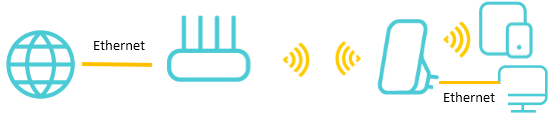
Wi-Fi range extenders work by picking up the wireless signal from your router and rebroadcasting it using powerful amplifiers and antennas. This can extend your coverage and help eliminate dead zones in your home. Place the range extender about halfway between your router and the area with a poor signal.
Your devices can then connect through either the router or the extender as you move around, reducing sudden drops or dead zones. For help getting the most out of your extender's placement, see How to place your wireless Range Extender for optimal reception and performance.
Note: Like wireless routers, range extenders can experience interference from obstacles such as concrete walls, metal objects, and microwaves. All TP-Link range extenders include a Signal LED that indicates the strength of the connection to the main router, helping you find the best placement. If you run into connection problems, see What's the solution if my TP-Link range extender can't connect to my router properly?
Powerline Adapter: Extend Wi-Fi Range Through Your Electrical Wiring
Powerline networking adapters transmit data across your home using the existing electrical wiring. This removes the need for long Ethernet cable runs and works well in areas where thick walls or other obstacles reduce wireless performance.
Note: Both powerline adapters must be on the same electrical circuit. If your home runs on multiple circuits, verify that the areas you want to connect share the same circuit before purchasing.

Mesh Wi-Fi: Whole-Home Coverage with a Unified Network
If you still have Wi-Fi dead zones throughout your home, a mesh Wi-Fi system may be the right solution. In a mesh network, multiple nodes work together to create one single, unified network with the same Wi-Fi settings throughout. TP-Link offers three mesh Wi-Fi solutions.
For a deeper look at how home mesh Wi-Fi works, see Frequently asked questions about TP-Link Home Mesh Wi-Fi.
Deco: Whole New Mesh Ecosystem
Deco is TP-Link's dedicated whole-home mesh Wi-Fi system. Setting up a completely new Deco system is a good option if you want a new, high-quality network built from the ground up. When Deco works alongside an existing router, there are two typical connection structures: a standard wireless setup (Topology 1) and an Ethernet backhaul setup (Topology 2). To add units to an existing Deco network, see How to add an additional unit to your Deco network.
When Deco works with the existing router, here are two typical connection structures.
Topology 1:

Topology 2 (Ethernet backhaul):

EasyMesh or OneMesh: Cost-Effective Mesh Networks with Existing TP-Link Devices
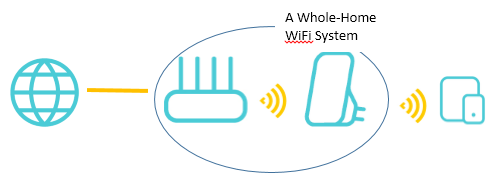
EasyMesh or OneMesh are cost-effective ways to build a whole-home Wi-Fi system if you already have a compatible TP-Link EasyMesh or OneMesh router. They can provide a stable, good-performance connection. By adding a compatible repeater to an existing EasyMesh or OneMesh router, you can build a whole-home Wi-Fi system without replacing your current equipment.
Their key differences are as follows:
- EasyMesh is a standardized Wi-Fi Mesh technology based on an open-source architecture, allowing devices from different brands to work together seamlessly. OneMesh, on the other hand, is a proprietary mesh technology developed exclusively by TP-Link and is only compatible with TP-Link devices.
- EasyMesh supports wireless networking between routers, enabling multiple routers to form a mesh network together. OneMesh, however, requires a combination of a OneMesh router and OneMesh-compatible Wi-Fi extenders or powerline adapters and does not support direct router-to-router wireless connections.
Refer to the following summary and your home situation to choose the best solution for your Wi-Fi dead zone.
|
Scheme Comparison |
||||
|
One- Story Home |
◊◊◊◊◊ |
◊◊◊◊◊ |
◊◊◊◊◊ |
◊◊◊◊◊ |
|
Multi-Story Home |
◊◊◊ |
◊◊◊◊◊ |
◊◊◊◊◊ |
◊◊◊◊◊ |
|
How to extend |
Wireless |
Power Line |
Wired or Wireless |
Wired, Wireless, or Powerline |
|
Implementation Conditions |
No |
Under the same power circuit |
No |
Under the same power circuit for |
|
Configuration Convenience |
App Easy deployment |
Plug and Play |
App Easy deployment |
App Easy deployment |
|
Reliability |
Fair |
Good |
Great |
Excellent |
|
Product Highlights |
\ |
AC Passthrough |
Ethernet Backhaul |
Ethernet and Powerline Backhaul |
Is this faq useful?
Your feedback helps improve this site.



TP-Link Community
Still need help? Search for answers, ask questions, and get help from TP-Link experts and other users around the world.


