How to Renew Your IP Address on Windows and Mac (ipconfig /renew)
If your computer is set to obtain an IP address automatically, you may need to renew IP address settings after making changes to your router, such as updating its IP address. Renewing forces the computer to request a fresh IP configuration from the Dynamic Host Configuration Protocol (DHCP) server. On Windows, this is done using the ipconfig /renew command in Command Prompt. On Mac OS, it is handled through System Preferences. Select your operating system below to follow the steps for your setup.
Key Takeaways
- Renewing an IP address is done using two Command Prompt commands: ipconfig /release releases the current IP configuration, and ipconfig /renew requests a new IP address from the DHCP server.
- On Windows XP, the Command Prompt is accessed via Start > Run > cmd. On Windows Vista, 7, 8, 8.1, 10, and 11, search for "cmd" in the Start menu or press the Windows key + X.
- On Mac OS, an IP address can be renewed without the Command Prompt. Go to System Preferences > Network, select your connection, click Advanced, and click Renew DHCP Lease under the TCP/IP tab.
- The DHCP server (typically your router) automatically assigns a new IP address after running ipconfig /renew. No manual entry of IP address details is required.
How to Renew Your IP Address: Step-by-Step Instructions
Choose your computer’s operating system


How to Renew Your IP Address on Windows 8, 8.1, and 10
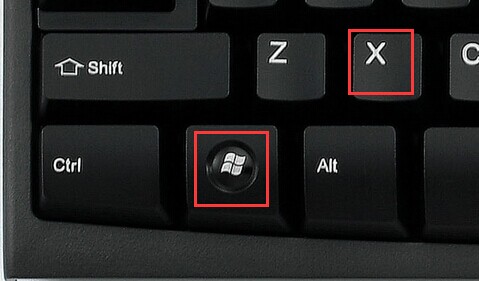
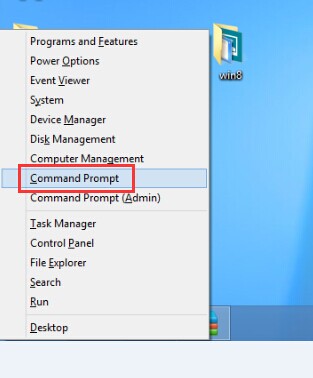
Step 1. Press the Windows key and X at the same time, then click Command Prompt.
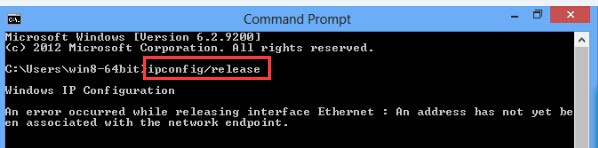
Step 2. Type ipconfig /release at the Command Prompt window, press Enter, and it will release the current IP configuration.
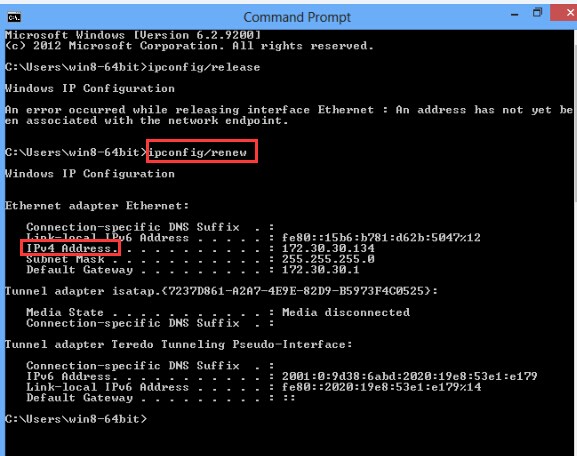
Step 3. Type ipconfig /renew at the Command Prompt window, wait for a while, and the DHCP server will assign a new IP address to your computer.
How to Renew Your IP Address on Windows XP
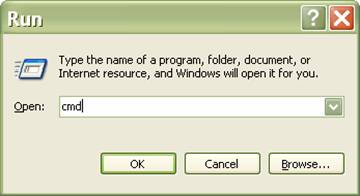
Step 1. Click Start > Run, type cmd, and press Enter.
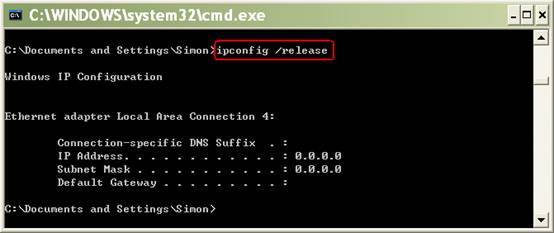
Step 2. Type ipconfig /release at the prompt window and press Enter. This releases the current IP configuration.
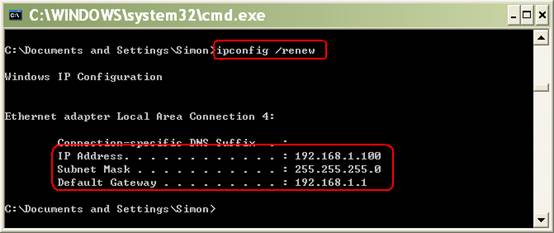
Step 3. Type ipconfig /renew at the prompt window and press Enter. Wait a moment — the DHCP server will assign a new IP address to your computer.
How to Renew Your IP Address on Windows Vista and Windows 7
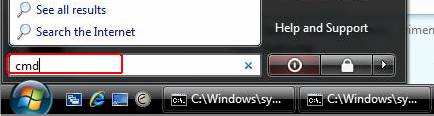
Step 1. Click Start on the taskbar, type cmd into the search box, and press Enter.
Step 2. Type ipconfig /release at the prompt window, press Enter, and it will release the current IP configuration.
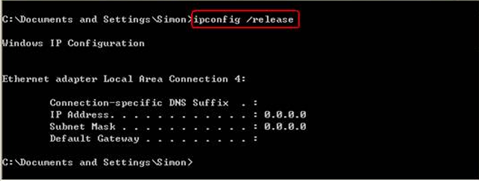
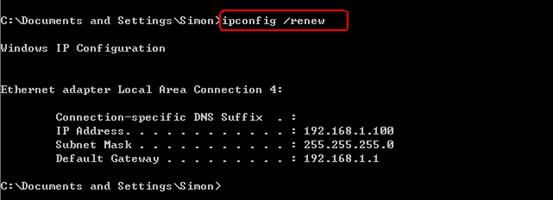
Step 3. Type ipconfig /renew at the prompt window and press Enter. Wait a moment — the DHCP server will assign a new IP address to your computer.
How to Renew Your IP Address on Mac
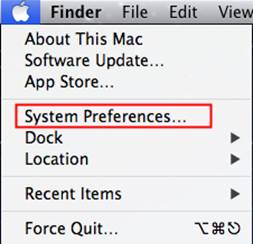
Step 1. Click the APPLE button and go to System Preferences….
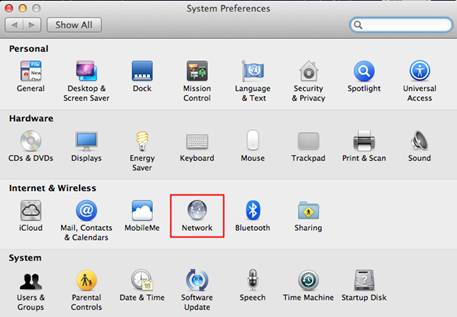
Step 2. Click Network.
Step 3. In the left panel, click Wi-Fi or Ethernet depending on your connection type, then click Advanced in the bottom-right corner.
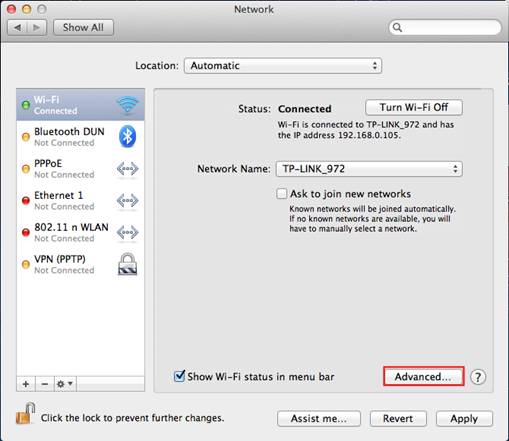
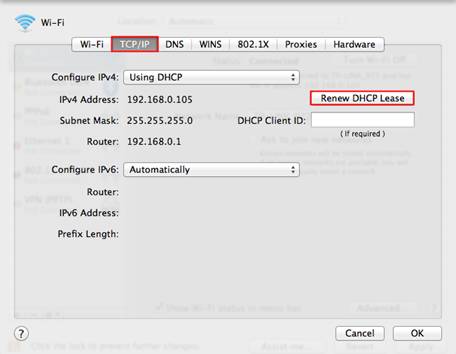
Step 4. Select the TCP/IP tab. If Configure IPv4 is set to Using DHCP, you will see the Renew DHCP Lease button. Click it to renew the IP address.
Looking For More
Is this faq useful?
Your feedback helps improve this site.

TP-Link Community
Still need help? Search for answers, ask questions, and get help from TP-Link experts and other users around the world.