Tapo Home Mode and Away Mode: What They Are and How to Set Them Up on Kasa and Tapo Cameras and Doorbells
Tapo camera Home Mode and Away Mode are two preset configurations that control detection, alarm, and notification settings across all your Tapo and Kasa cameras and doorbells at once. Instead of adjusting each device individually, you can switch between Tapo Camera Away Mode and Home Mode with a single tap in the Tapo app, instantly applying your preferred settings to every device added to that mode.
Key Takeaways
- Home Mode and Away Mode are two separate sets of Detection, Alarm, and Notification settings that can be applied to all Tapo and Kasa cameras and doorbells at once from the Tapo app.
- Switching to Home Mode or Away Mode overwrites the current detection, alarm, and notification settings on every device added to that mode.
- Each device in a mode can be configured individually. Users can adjust Privacy mode, Detection (including Detection Zones and Detection Types), Alarm, and Notification settings per device.
- Home Mode and Away Mode settings will not sync if different phones are used to log in to the Tapo app.
- Detection, Alarm, and Notification options may vary by camera or doorbell model. Refer to the in-app display for your specific device.
Tapo Home Mode vs. Away Mode
Home Mode is designed for when you are at home and typically uses less aggressive detection and alarm settings to avoid unnecessary alerts.
Away Mode is for when you leave, applying settings that prioritize active monitoring and notifications. You can switch between modes at any time from the Cameras tab in the Tapo app.
How to Set Up Home Mode and Away Mode in the Tapo App
Here we use Home Mode as an example.
Step 1: Access Home Mode or Away Mode
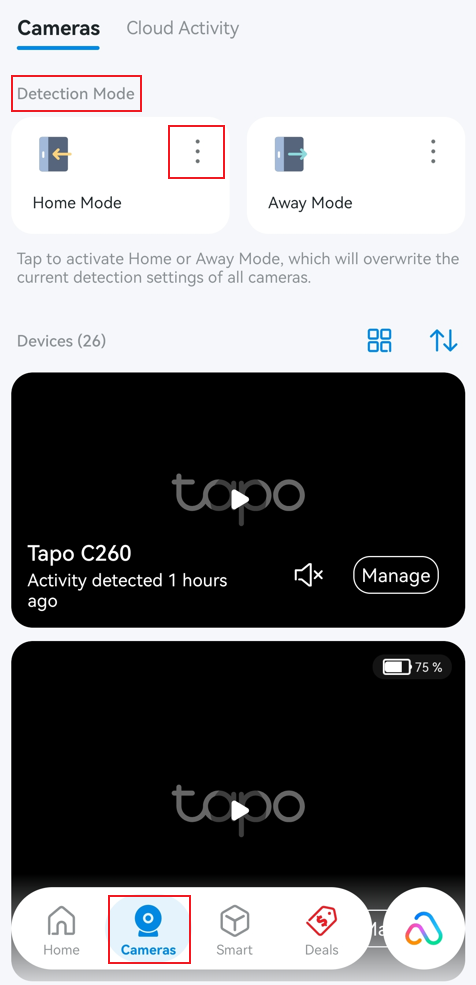
Go to the Tapo app > Cameras page. Tap the Home Mode or Away Mode card to activate the corresponding mode, which will overwrite the current settings of all devices added to the mode.
To edit the Home/Away mode settings, click the three-dot button.
Step 2: Add or Remove Devices
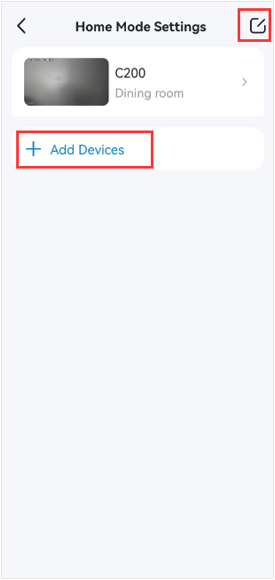
Tap Add Devices to add more cameras or doorbells to Home Mode.
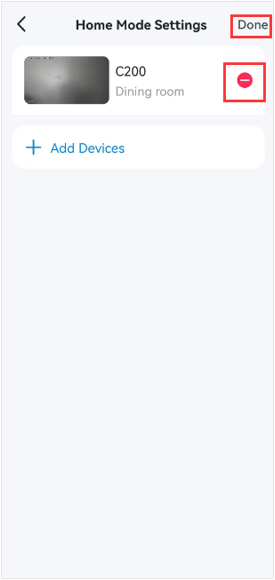
To remove a device, tap the Edit icon in the upper-right corner, select the minus icon next to the device, and tap Done.
Step 3: Edit Mode Settings for Each Device
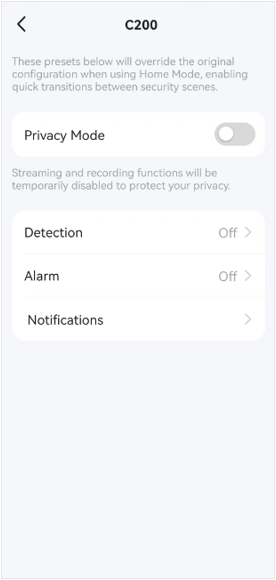
Select the device you want to edit the mode settings. Using the Tapo C200 as an example, you can change the camera's Privacy mode, Detection, Alarm, and Notification settings.
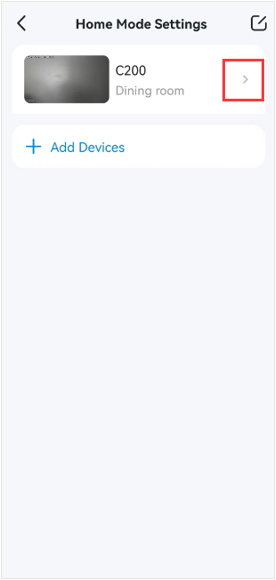
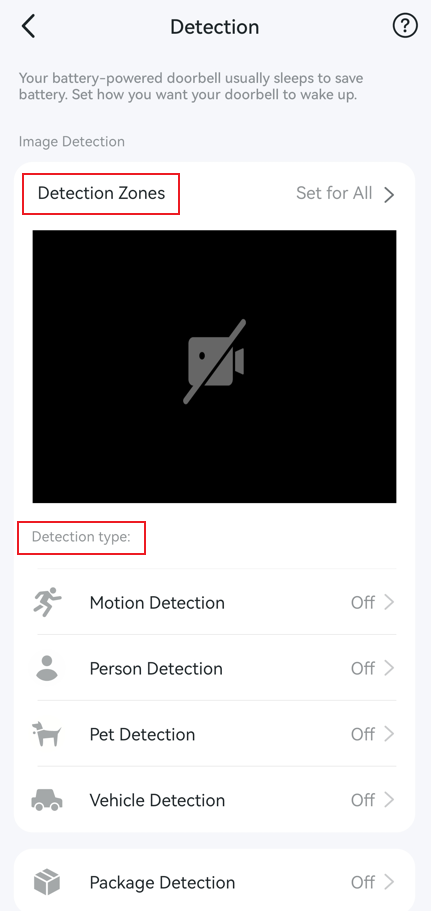
Take the Detection feature as an example, you can adjust Detection Zones and enable the specific Detection Types you need here.
Step 4: Save Your Settings
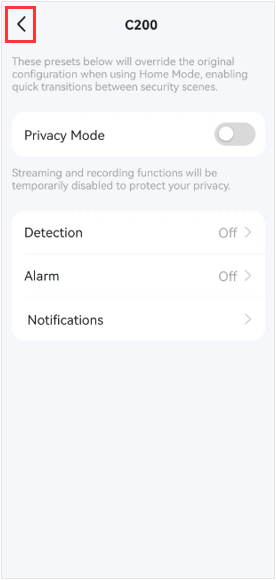
Tap the Back icon in the upper-left corner when you finish editing the mode settings for that device. To adjust settings for other devices, select the device you want to modify.
Step 5: Apply a Mode
After completely presetting the Home or Away Mode settings for all your cameras and doorbells, you can tap the Home or Away Mode card to quickly change your devices’ settings.
Get to know more details of each function and configuration please go to the Download Center to download the manual of your product.
ค้นหาเพิ่มเติม
คำถามที่พบบ่อยนี้มีประโยชน์หรือไม่?
ความคิดเห็นของคุณช่วยปรับปรุงเว็บไซต์นี้

TP-Link Community
Still need help? Search for answers, ask questions, and get help from TP-Link experts and other users around the world.