How to Set Up Virtual Servers on a TP-Link Wi-Fi Router
A virtual server lets you run a service on your local network, such as a personal website or an FTP server, accessible to users on the Internet. This page explains how to configure the TP-Link virtual server feature on a Wi-Fi router so that outside users can reach a service hosted on your local network.
Key Takeaways
- The Virtual Server feature maps an external port to a device's internal IP address, making that device reachable from the Internet.
- Virtual servers can host public services, including HTTP (port 80), FTP (port 21), SMTP (port 25), and POP3 (port 110).
- The feature is configured under Advanced > NAT Forwarding > Virtual Servers in the router's web interface.
- When you select a service from the "Scan" list, the external port, internal port, and protocol are automatically populated.
- Virtual server configuration requires NAT to be enabled on the router. If NAT is disabled, go to Advanced > System Tools > System Parameters to enable it.
- For reliable remote access, your WAN IP must be a public IP address. If your Internet service provider (ISP) assigns you a dynamic IP address, setting up a Dynamic DNS (DDNS) service is recommended. See the Troubleshooting Guide for DDNS on TP-Link Wi-Fi Routers for help.
What Is a Virtual Server?
When you set up a server on a local network and want to share it on the Internet, a Virtual Server can provide the service to Internet users. At the same time, a virtual server can keep the local network safe, as other services remain invisible to the Internet. Virtual servers can be used to set up public services on your local network, such as HTTP, FTP, DNS, POP3/SMTP, and Telnet. Different services use different service ports. Port 80 is used by the HTTP service, port 21 by the FTP service, port 25 by the SMTP service, and port 110 by the POP3 service. Please verify the service port number before the configuration.
How Virtual Servers Work in Practice
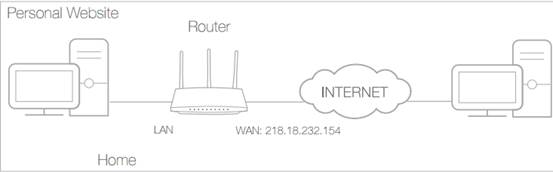
For example, the personal website has been built on my home PC (192.168.0.100). I hope that my friends on the Internet can visit my website in some way.
The PC is connected to the router with the WAN IP address 218.18.232.154.
Router LAN WAN: 218.18.232.154
Assign a static IP address to your PC, for example, 192.168.0.100
How to Configure Virtual Servers on a TP-Link Router
Step 1. Access the web interface of the TP-Link router. To access the web interface, see How to Log In to Your TP-Link Router.
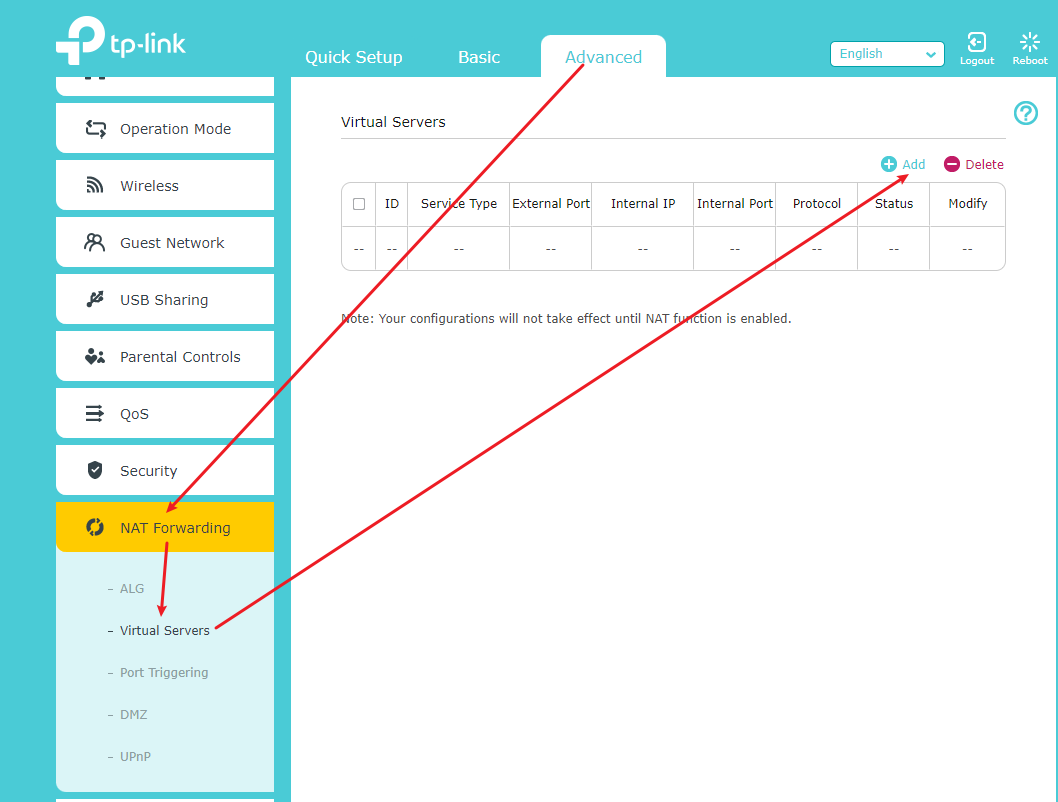
Step 2. Click Advanced at the top, then on the left side, click NAT Forwarding > Virtual Servers > Add.
Step 3 Click Scan, and select HTTP. The external port, internal port, and protocol will be automatically filled. Enter the PC’s IP address 192.168.0.100 in the Internal IP field.
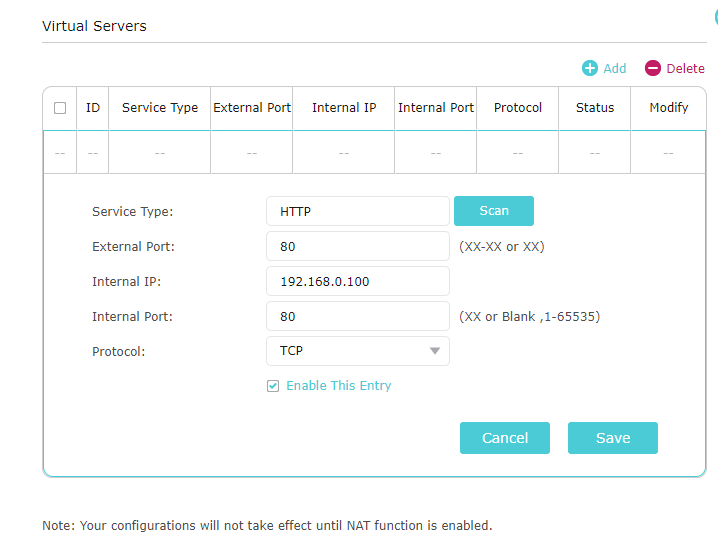
Click Save to save the settings.
Tips:
1. It is recommended to keep the default Internal Port and Protocol settings unless you have a specific configuration requirement.
2. If the service you want to use is not in the Service Type, you can enter the corresponding parameters manually. You should verify the port number that the service needs.
3. You can add multiple virtual server rules if you want to provide several services in a router. Please note that the External Port should not overlap.
Step 4. Internet users can enter http://[WAN IP] (for example, http://218.18.232.154) to visit your personal website.
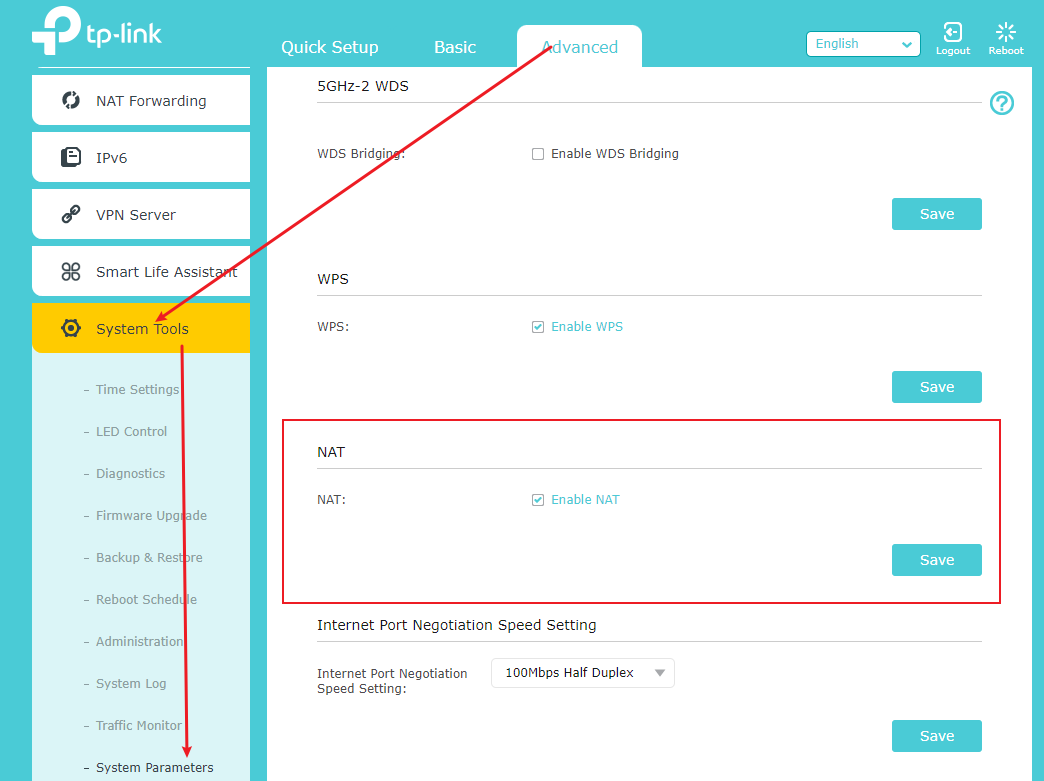
Note: Your configuration will not take effect if the NAT function is disabled. Then you should go to Advanced > System Tools > System Parameters page to enable NAT.
Tips:
1. The WAN IP must be a public IP address. If your ISP assigns the WAN IP address dynamically, it is recommended to register a domain name and set up a Dynamic DNS service account. Then you can use http:// domain name to visit the website.
For your reference:
How to set up DDNS (DynDNS) on Wi-Fi Routers (newly designed blue UI)
How to set up DDNS (NO-IP) of Wi-Fi Routers (newly designed blue UI)
If you are not sure how to configure a static IP on the device, you may create an Address Reservation. See "How to configure Address Reservation on the TP-Link Wi-Fi Routers (newly designed blue UI)" to ensure the IP is always assigned to the device.
2. If you have changed the default External Port, you should use http:// WAN IP: External Port or http:// domain name: External Port to visit the website.
3. Make sure the server is accessible from the internal network. You can check if you can access that server in the local network. If you are unable to access the server on the internal network, please check your server's settings.
Learn more details about each function and configuration. Please go to the Download Center to download the manual for your product.
Looking For More
Чи була ця стаття корисною?
Ваш відгук допомагає вдосконалити цей сайт.

TP-Link Community
Still need help? Search for answers, ask questions, and get help from TP-Link experts and other users around the world.