How to Use Point and Go Feature on Tapo Robot Vacuums
The Point and Go feature for Tapo Robot Vacuums lets you quickly and conveniently direct the robot vacuum to a specific location or room that needs cleaning. Rather than running a full cleaning cycle, you simply tap and hold on your already-established map in the Tapo app to target exactly where you need. This is one of several practical robot vacuum features that give you hands-on control without disrupting your regular schedule. Once you hold on the map, three actions become available: Go to this location, Clean this area, and Clean a specific room.
Key Takeaways
- Point and Go is accessed by touching and holding on the map in the Tapo app.
- There are three available actions: Go to this location, Clean this area, and Clean a specific room.
- "Go to this location" sends the vacuum to a designated spot on the map without cleaning.
- "Clean this area" sends the vacuum to a designated spot and starts Spot Cleaning.
- "Cleaning [room name]" sends the vacuum to clean a specific room.
How to Use Point and Go
Step 1. Touch and hold on the map for quick controls.
Step 2. Choose the actions you want.
- Go to this location: Go to the designated location.
- Clean this area: Go to the designated location and start Spot Cleaning.
- Cleaning "XXX": Clean the designated room.
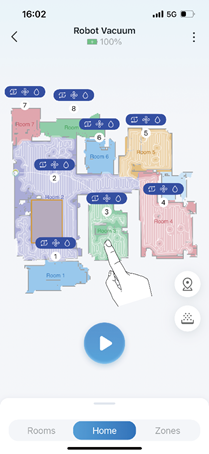
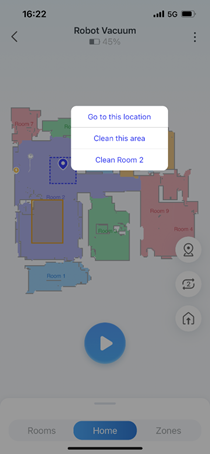
To learn more about each function and configuration, please visit the Download Center to download the manual for your product.
Looking For More
Чи була ця стаття корисною?
Ваш відгук допомагає вдосконалити цей сайт.



TP-Link Community
Still need help? Search for answers, ask questions, and get help from TP-Link experts and other users around the world.