How to turn on/off activity notifications for Kasa Cameras
 51443
51443Introduction
Kasa Cam utilizes your smartphone’s push notification feature to alert you of activity. When your camera detects any activity, it will send a notification to your mobile device. Notifications can be enabled during the initial setup process or configured at any time afterward. This article will guide you through setting up and managing notification settings in the Kasa app.
Configuration
Scenario 1: During the setup process
During setup, the Kasa app will prompt you to enable notifications. If you tap I don’t want to be notified, you will need to enable notifications manually after the setup process is complete.
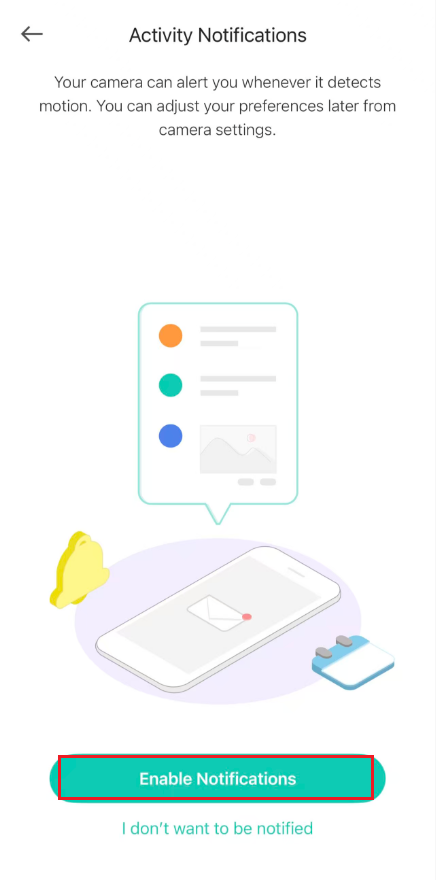
Scenario 2: After configuration
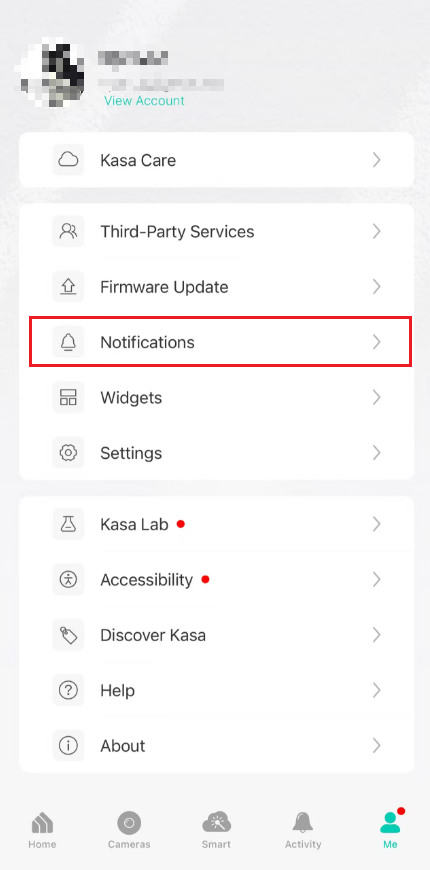
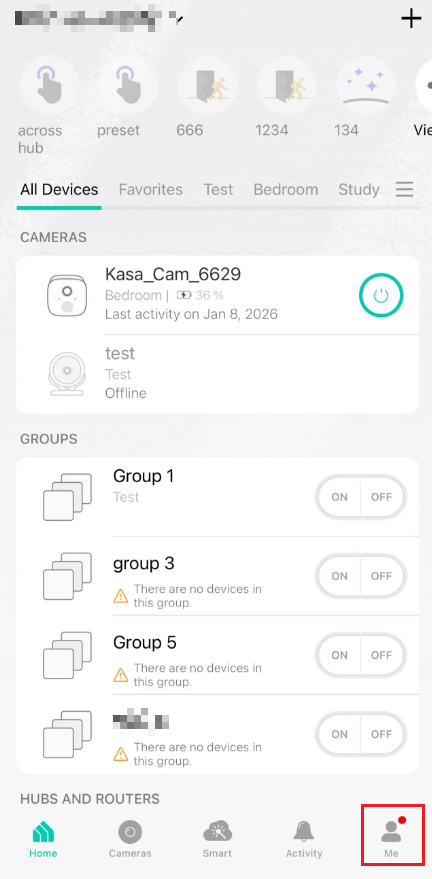
Step 1. Open the Kasa app, tap the Me tab, and select Notifications.
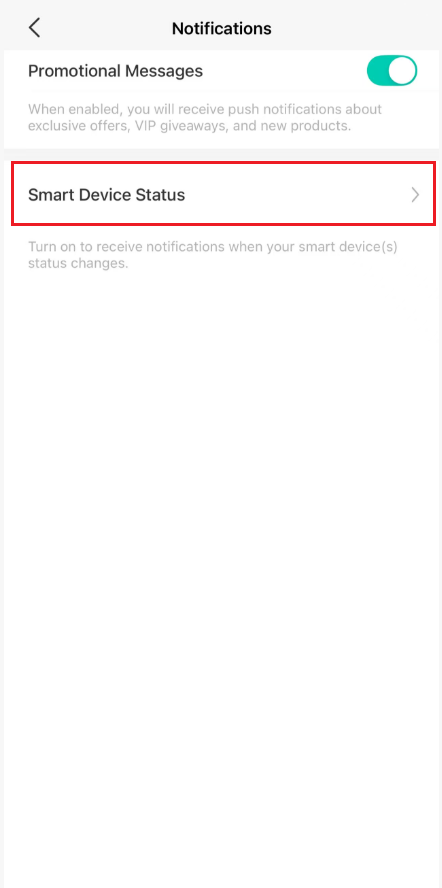
Step 2. Tap Smart Device Status, select Cameras, and toggle on the camera you want to receive notifications from.
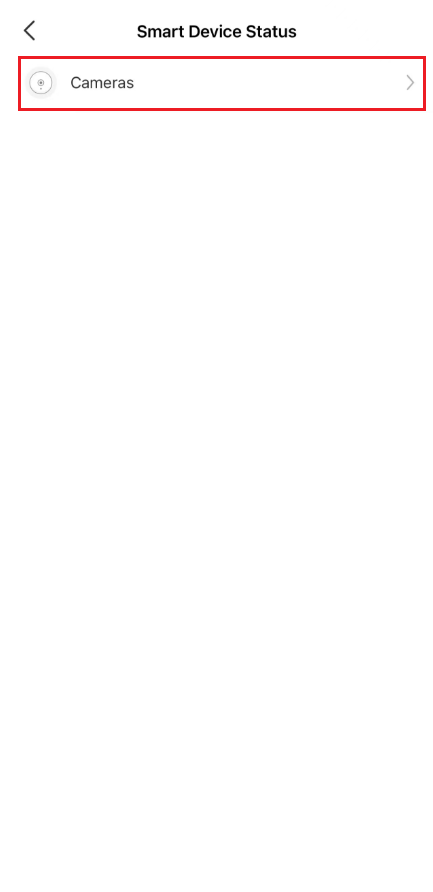
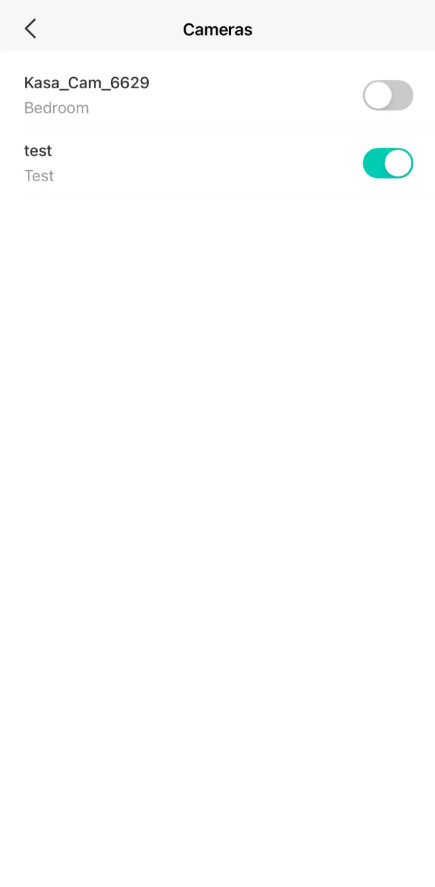
Step 3. Go to the live view page of your camera, then tap the icon in the top-right corner.
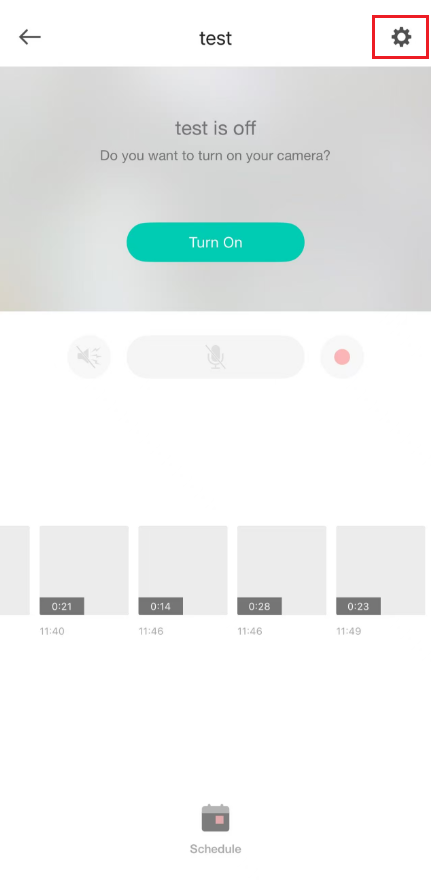
Step 4. Tap Notifications.
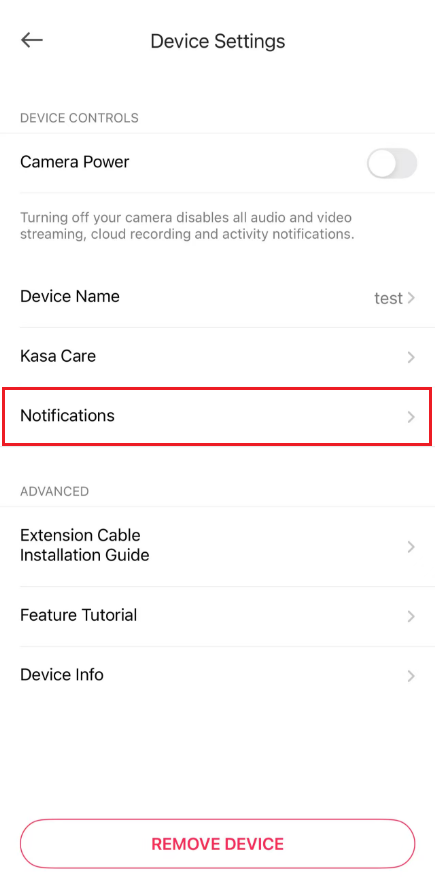
Step 5. Enable Activity Notifications, then select Always or Custom Time as desired.
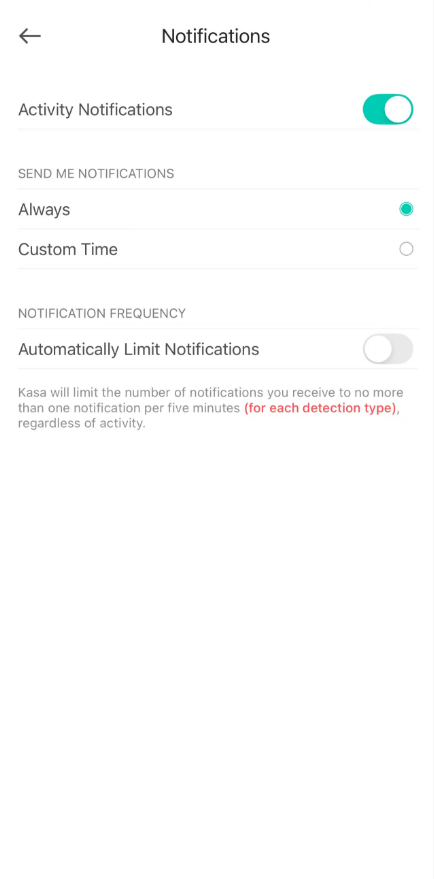
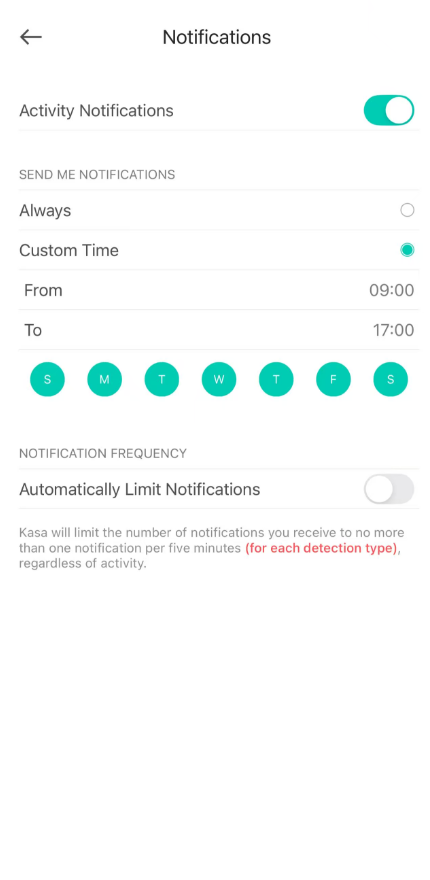
Note: If you enable “Automatically Limit Notifications”, the Kasa app will limit the frequency of notifications you receive to no more than one notification per five minutes, regardless of activity.
Step 6. Move in front of the camera to test whether notifications are working correctly.
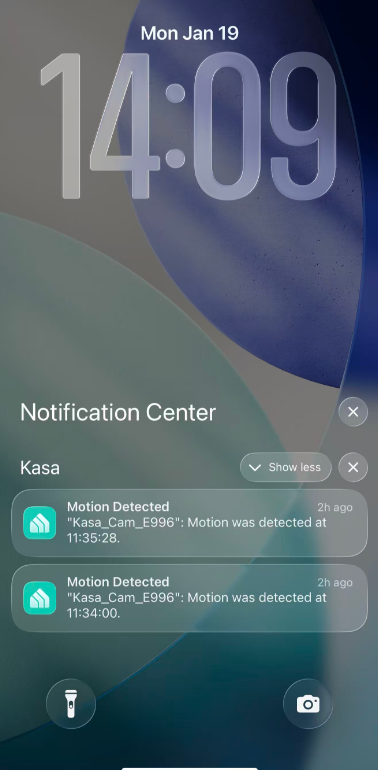
Tapping a notification takes you to the Activity tab in the Kasa app, where you can view recorded activity.
QA
Q1: What should I do if the camera notifications are delayed or not working?
A1: You may refer to this FAQ for troubleshooting suggestions: https://www.tp-link.com/support/faq/4853/
Q2: What does the Notification Frequency option do?
A2: This option allows you to reduce the number of notifications over a specific period. One notification for every 5 minutes of activity. This is useful when monitoring a particular busy area.
Q3: Why are there no clips or snapshots in the Activity Center when motion is detected?
A3: Without a Kasa Care Subscription, you will still receive motion notifications, but no recordings or snapshots will appear in the Activity Center.
If you have inserted an SD card into the camera, you can view the locally stored footage in the Kasa app by going to Camera tab > select your camera > 24/7 Recording page.
Q4: Does Kasa camera support email notification when it detects an activity?
A4: No, Kasa cameras only support Push Notifications.
Is this faq useful?
Your feedback helps improve this site.



TP-Link Community
Still need help? Search for answers, ask questions, and get help from TP-Link experts and other users around the world.