How to Use Manual Tracking
 174
174Contents
Introduction
The VIGI PTZ5425 offers a convenient and quick Manual Tracking feature, allowing users to rapidly track targets of interest when attended. This frees users from the difficulties of manual PTZ control, such as poor tracking smoothness and low operational accuracy.
Manual Tracking
Manual tracking supports two methods after being enabled: Auto Detection and Manual Selection.
Auto Detection:
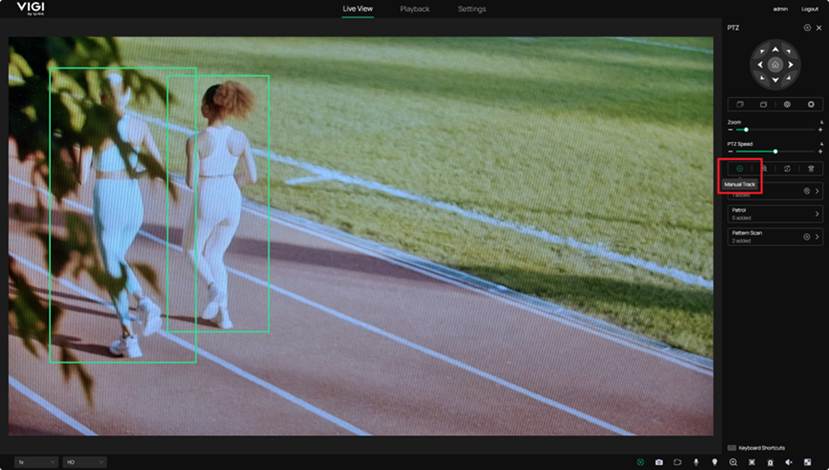
IPC would automatically recognize people and vehicles in the camera and mark them with Smart Boxes.
For target with a Smart Box, you can click the smart box or draw a box manually to select the target to start tracking.
Manual Selection:
You could also draw a box manually. If there is a person or vehicle within the box, the system will track the person or vehicle.
Requirements
- VIGI PTZ5425
Configuration
Auto Detection:
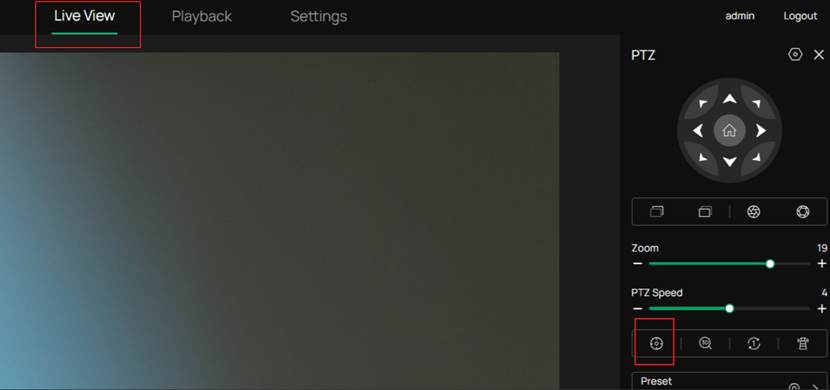
Step 1. Enable Manual Tracking
Click the Manual Track button on the control panel on the right side of Live view page to enable Manual Tracking function.
The icon would turn green when the function is enabled.
Step 2. Select Smart Box
Wait for IPC to recognize target people or vehicles and mark them by Smart Box and click on a desired target to track.
Note: If the target is lost, the camera will reset to the previous angle and zoom after 1 second. And Manual Tracking button would also reset to previous status, Manual Tracking ends. Clicking on a non-target area does nothing.
Step 3. Manually stop Manual Tracking
Click on the Manual Tracking button, Manual Tracking would stop, and the button would turn back to gray.
Manual Selection:
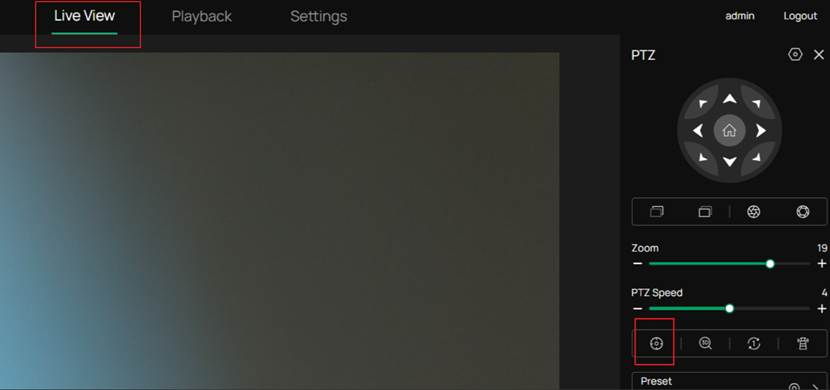
Step 1. Enable Manual Tracking
Click the Manual Track button on the control panel on the right side of Preview page to enable Manual Tracking function.
The icon will turn green when the function is enabled.
Step 2. Manually Draw a Box
Draw a Box around a people or vehicle to start tracking.
Note:
- If the target is lost, the camera will reset to the previous angle and zoom after 1 second.
- f there is no person or vehicle recognized within the selected box, one side of the box’s long or short edge will be expanded to fill the entire screen.Without a target detected in the area, the camera will reset to the previous angle and zoom after 5 seconds.
Step 3. Manually stop Manual Tracking
Click on the Manual Tracking button, Manual Tracking would stop, and the button would turn back to gray.
Conclusion
The Manual Tracking feature on the VIGI PTZ5425 provides a flexible and accurate way to track people and vehicles in attended scenarios.
By supporting both Auto Detection with Smart Boxes and Manual Selection through box drawing, users can quickly focus on targets of interest without the complexity of continuous manual PTZ control.
For unattended tracking scenarios, users are recommended to refer to the Smart Tracking function instead: How to Use Smart Tracking
Get to know more details of each function and configuration please go to Download Center to download the manual of your product.
Is this faq useful?
Your feedback helps improve this site.

TP-Link Community
Still need help? Search for answers, ask questions, and get help from TP-Link experts and other users around the world.