How to use Park function
 22
22Contents
Objective
This guide provides instructions for configuring and using Park function.
Requirements
- InSight PTZ5425
Introduction
The PTZ model supports the watchful mode. During idle periods (when no other PTZ control or tracking operations are in progress), the Park task can be automatically executed. There are three Park modes: Preset mode, Patrol mode and Pattern mode. This function can enhance the early warning capability for abnormal events by simulating regular inspection behaviors. It enables the camera to remain highly vigilant during "idle" times, significantly optimizing the allocation of security resources and is one of the core functions in building an automated and intelligent security system.
Configuration
Step 1. Set the preset position. Click ‘Preset’ on the right side of the Live View page.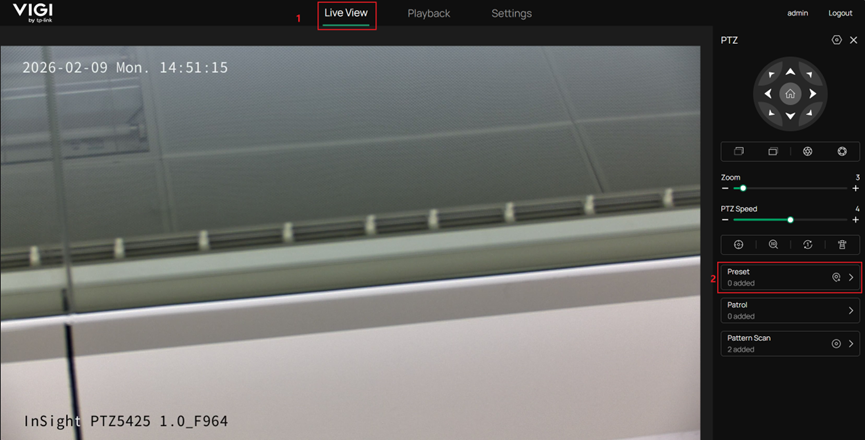
Step 2. After adjusting the camera to the target position, click "Save as Preset" to create a new preset position.
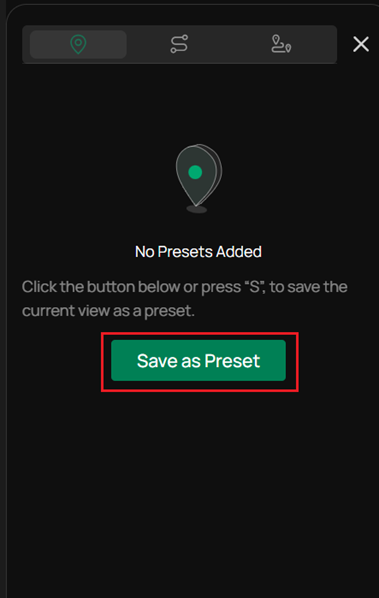
Step 3. Set the patrol mode. Click ‘Patrol’ on the right side of the Live View page.
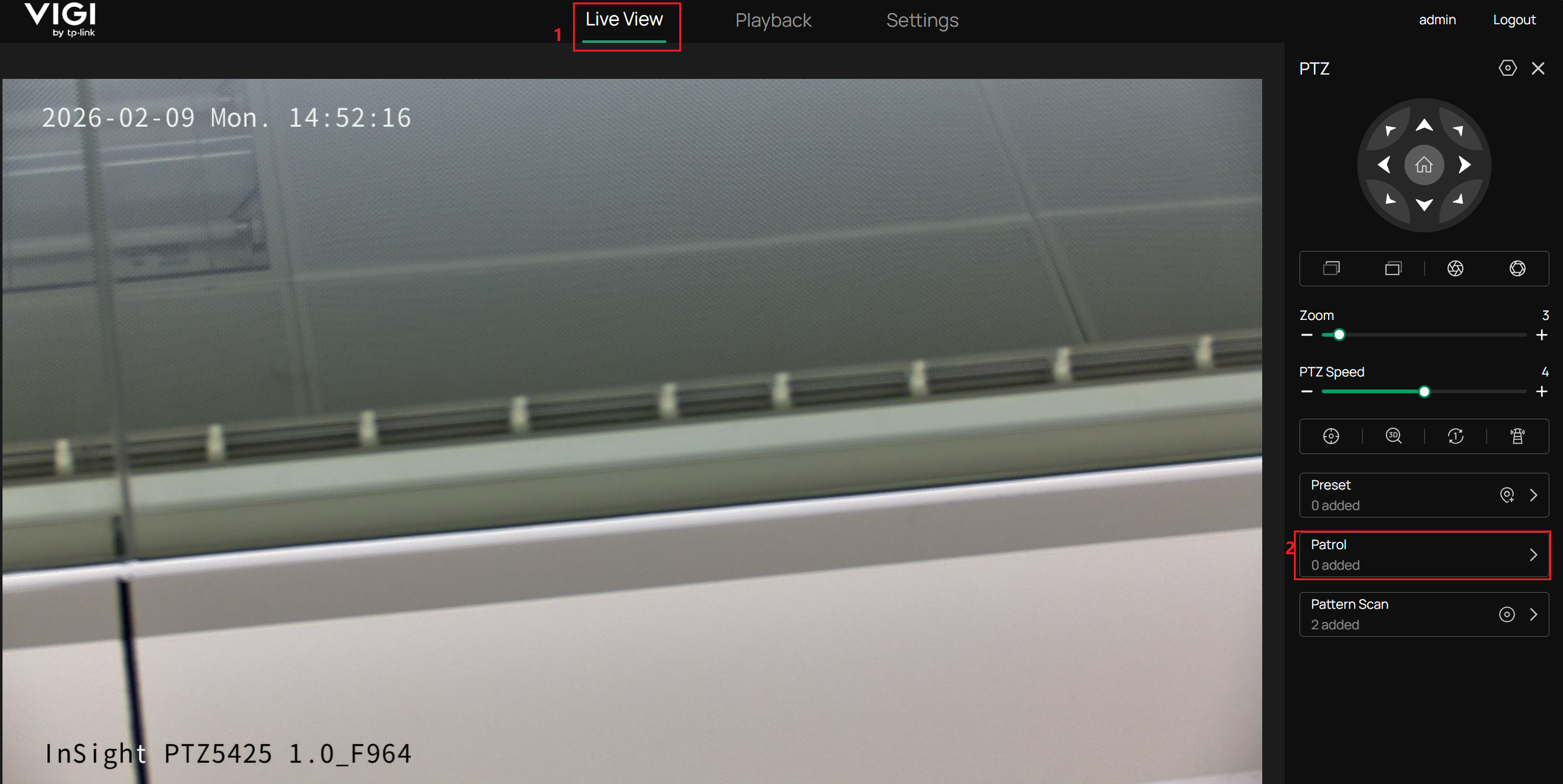
Step 4. Click ‘Add Patrol’ button to create a new patrol mode.
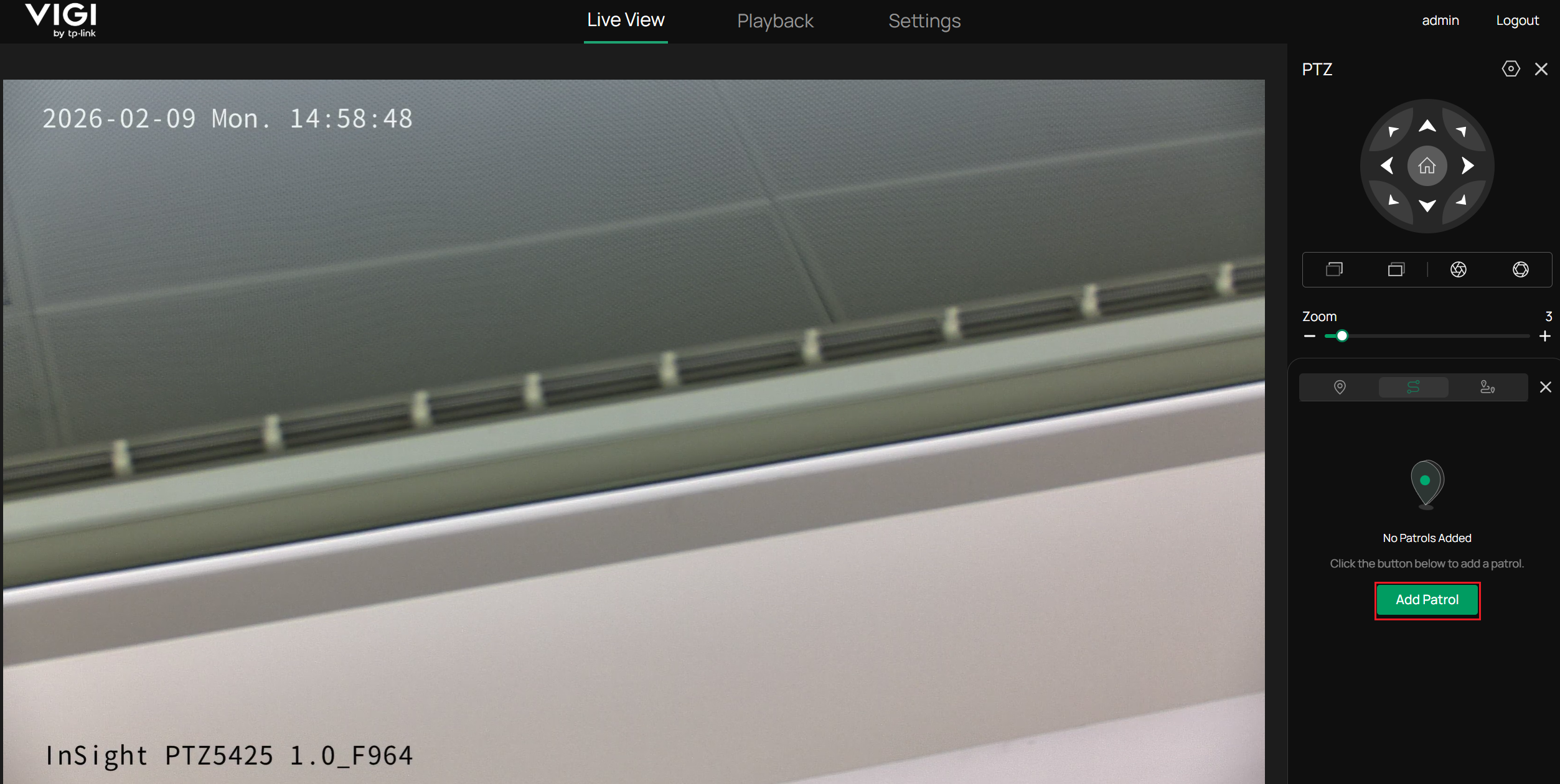
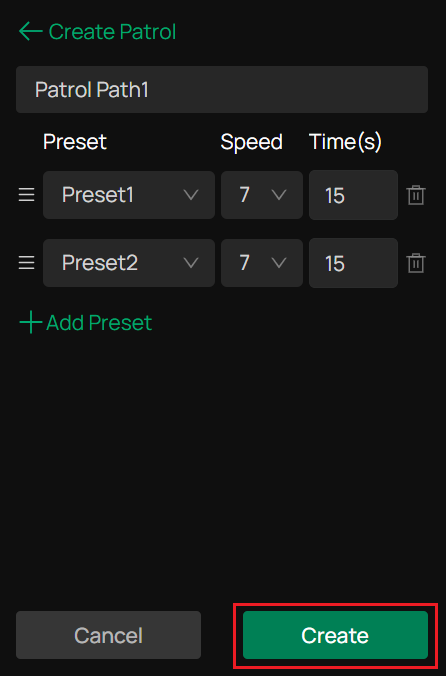
Step 5. Add the existing preset positions in the desired order, configure the Speed and Time, and then click "Create" to create a new patrol mode.
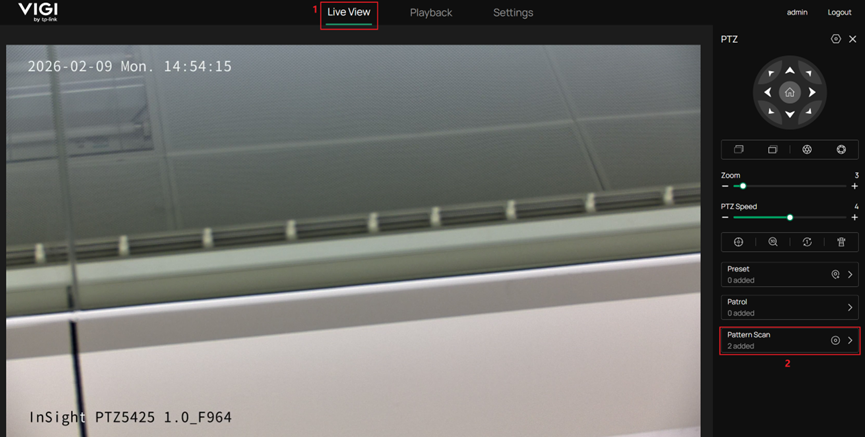
Step 6. Set the Pattern Scan. Click ‘Pattern Scan’ on the right side of the Live View page.
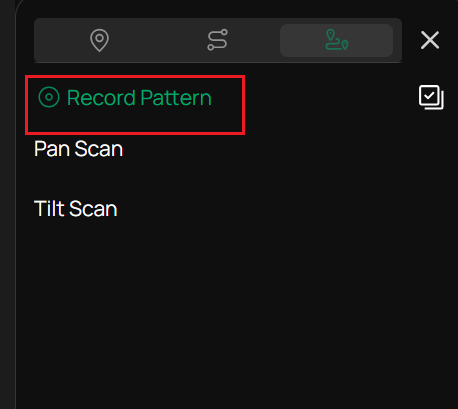
Step 7. There are two patterns by default (Pan/Tilt Scan). And you can click ‘Record Pattern’ to customize your pattern.
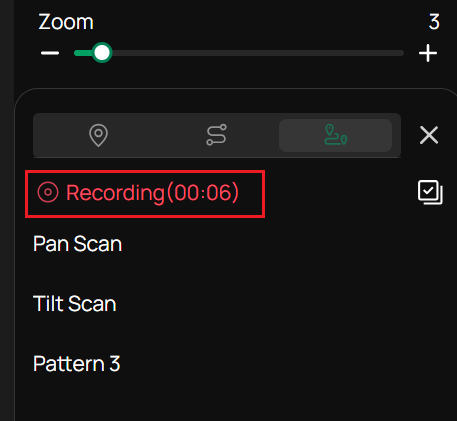
Step 8. After the movement path has been drawn, click ‘Recording’ to stop the recording and finish the Pattern.
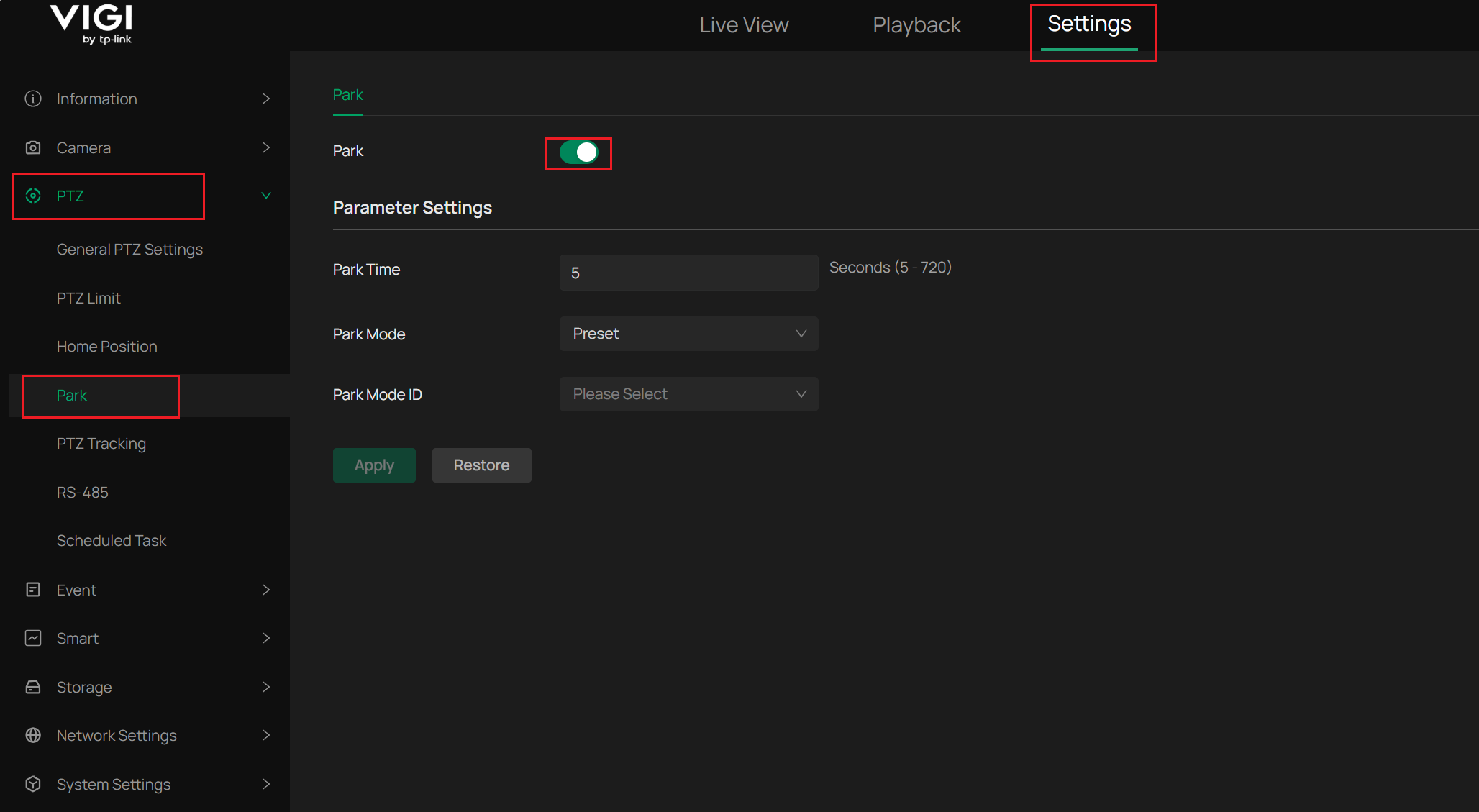
Step 9. Go to Settings > PTZ > Park and enable the Park function. Here, you can select the Park Mode, which includes three modes: Preset, Patrol Scan and Pattern Scan. And you can select the pre-set Park mode plan in the Park Mode ID. Park Time refers to the situation where, after the camera platform has been idle for a duration longer than the time you have set, the platform will execute this task.
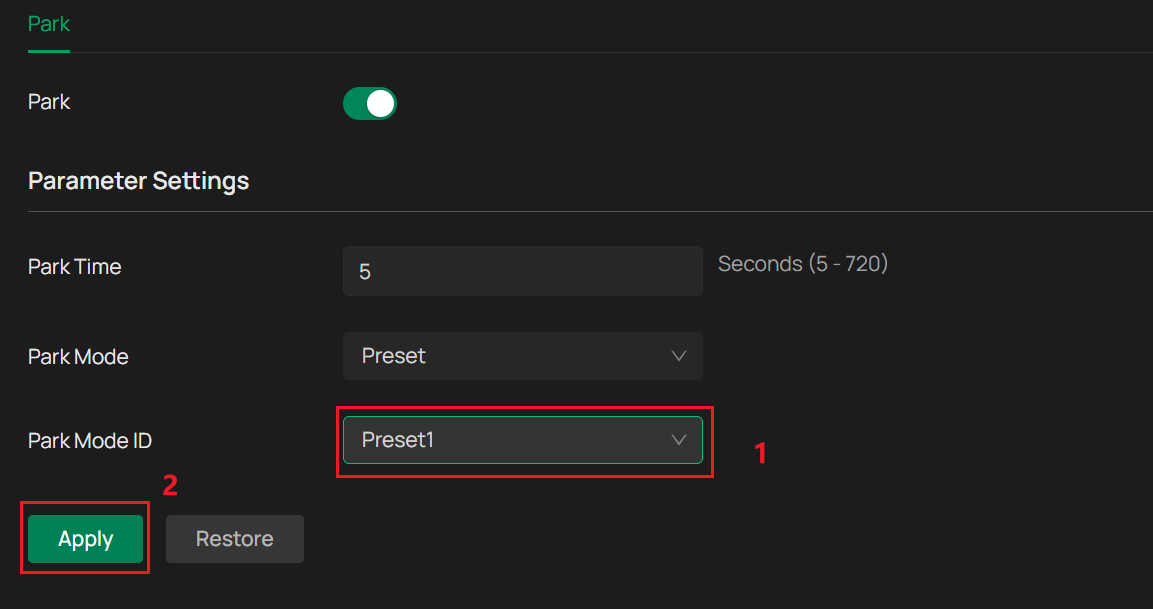
Step 10. You can set the Park Time and choose the Park Mode ID, then click Apply to activate the Preset mode.
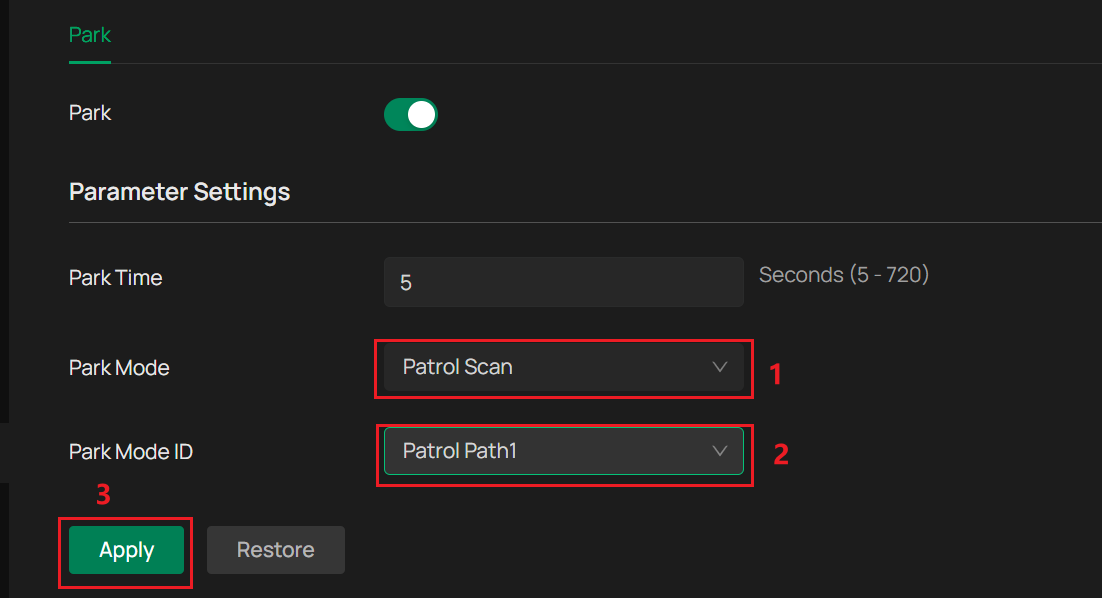
Step 11. If you need the Patrol mode, you can switch the Park Mode to Patrol Scan first, and choose the Park Mode ID, then click Apply to activate the Patrol mode.
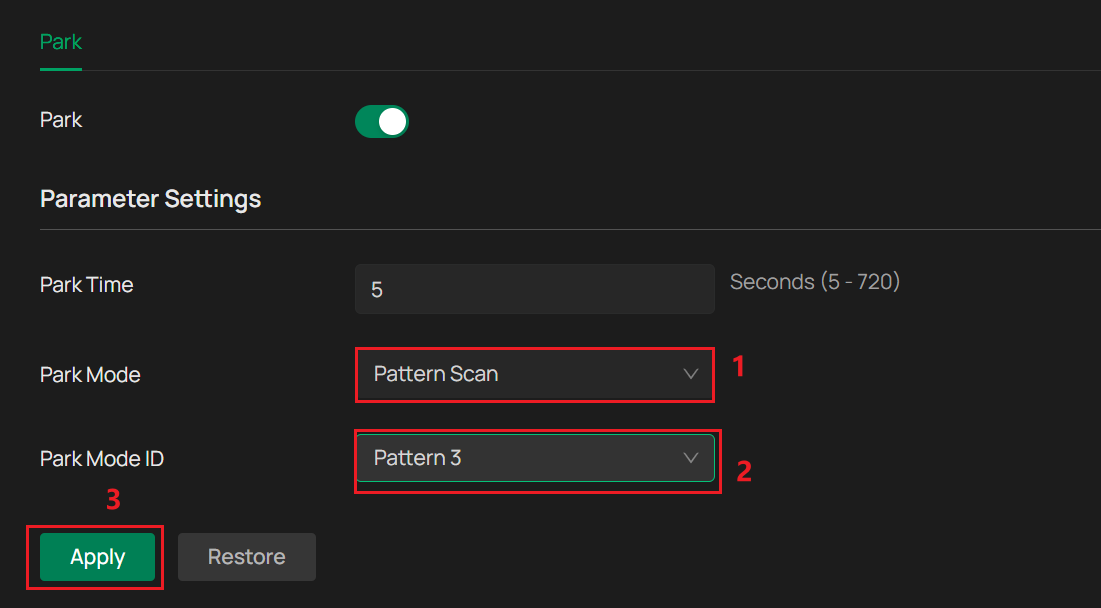
Step 12. If you need the Pattern mode, you can switch the Park Mode to Pattern Scan first, and choose the Park Mode ID, then click Apply to activate the Pattern mode.
Is this faq useful?
Your feedback helps improve this site.

TP-Link Community
Still need help? Search for answers, ask questions, and get help from TP-Link experts and other users around the world.