Setup Guide
Tapo C825 Indoor Video Call Camera
Welcome to the setup guide.
To ensure equal access for all users, we offer this accessible setup guide. This guide is designed to meet accessibility needs, enabling a successful setup. It will introduce the appearance of your camera, including its ports, buttons, and labels, and then guide you through the setup process.
Step 1. Know about your camera
In this section, we will describe the camera's appearance, including its ports, buttons, and labels.
1. You can find your camera, power cable, and power adapter in the package.
Power Cable: Both ends of the power cable are USB Type-C connectors. One end is for you to connect to the camera's power port; another end is for you to connect to the power adapter's power port.
Power Adapter: The power adapter is typically a rectangular or square block. After connecting the camera and power adapter with the power cable, plug the power adapter into a power outlet to power up your camera.
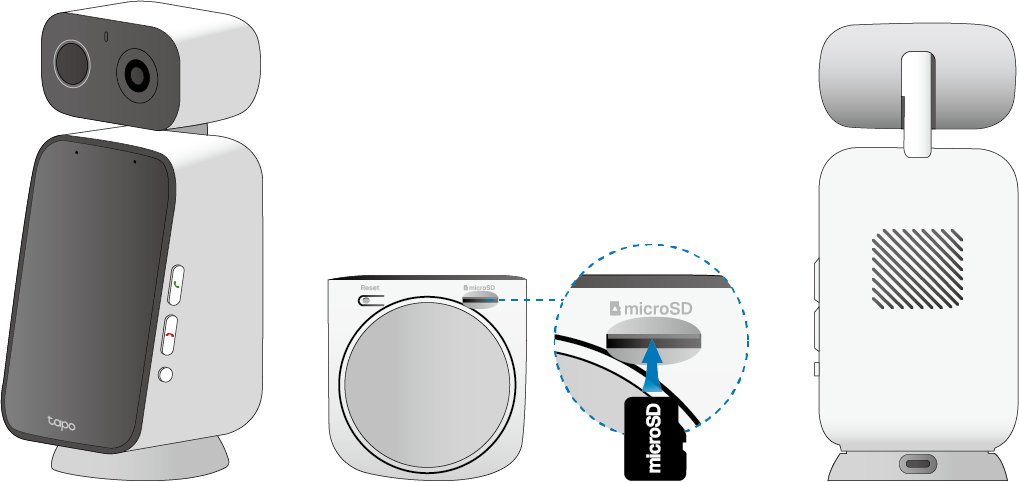
The camera is composed of two rectangular blocks and a round base. The small block is on top, the large block is in the middle, and the round base with a silicone non-slip mat is at the bottom.
2. Next, place the camera on a flat, stable surface. Keep the round base at the bottom, and the side that has a USB Type-C power port on the base should face backward.
To ensure the camera is placed correctly, you should position it with the camera lens facing forward.
3. After positioning your camera correctly, we will introduce the ports, buttons, and labels on your device in a certain order.
System LED: It is in the upper-middle of the small block's front side. It shows your camera status. You can check the camera status on the Tapo app.
IR LED: For creating black-and-white images at night. It is on the left of the System LED.
Lens: For capturing things within its view. It is on the right of the System LED.
Microphones: For better capturing your voice with two microphones. They are on the top of the large block's front side.
Touch Screen: For video calling and easy access to screen features. It is right below the microphones with a 3.97-inch screen size.
On the right side of the large block, you can find the Answer Button, End Button, and Privacy Button. You can set the Answer and End buttons as Quick Call buttons in the Tapo app. When no call is in progress, press either button to call its assigned contact instantly.
Answer Button: Press to answer an incoming call. It is a pill-shaped button, the topmost of the three buttons.
End Button: Press to reject an incoming call or to end an ongoing call. It is also a pill-shaped button, the middle of the three buttons.
Privacy Button: Press to turn Privacy Mode on or off when you are not on a call. When Privacy Mode is on, streaming and recording functions will be disabled to protect your privacy. It is a round button, the bottommost of the three buttons.
On the bottom of the large block, you can find the Reset Button and microSD Card Slot.
Reset Button: The reset button is a circular, raised button. While the camera is on, press and hold the Reset button to reset the camera.
Press and hold for 5 seconds: Reset Wi-Fi settings only.
Press and hold for 10 seconds: Reset to factory settings. You can also delete the device in the Tapo app to perform a factory reset.
microSD Card Slot: While facing the bottom of the large block, insert a microSD card with the notch on the right side, and gold contacts facing the slot.
Turn to the back side of the device to find the speaker, product label, and USB Type-C Power Port.
Speaker: For producing sound, allowing you to hear the audio.
Product Label: The product information is laser-engraved below the speaker.
USB Type-C Power Port: For connecting the camera to the power cable and power adapter to power it up.
Step 2. Set Up
1. Get the Tapo app from the App Store or Google Play, then log in.

2. Plug in the power adapter. Wait 30 seconds for the camera to start up. You can hear a clicking sound.
3. Tap the + button in the app and select your camera model. Follow the app instructions to complete the setup.
If you need help, please visit https://www.tapo.com/support/ for technical support, the user guide, FAQs, warranty, and more.
For details on Tapo app accessibility, please check Accessibility Support.
Safety Information
• Keep the device away from water, fire, humidity or hot environments.
• Do not use damaged power supplies or USB cable.
• Use only power supplies listed in the user instructions. Refer to the User Manual on the product support page. Do not use any other power supplies than those recommended.
• Do not use the device where wireless devices are not allowed.
• Adapter shall be installed near the equipment and shall be easily accessible.
• For indoor use only. Do not disassemble, repair or modify the product.
• Do not use the product if the casing has been broken. Danger of electric shock.
• Never touch the product with wet hands. Do not expose to heavy rain or any type of moisture.
• Do not place near automatically controlled devices such as fire alarms. Radio waves emitted from this product may cause such devices to malfunction resulting in an accident.
• Observe restrictions on using wireless products in fuel depots, chemical plants or when blasting operations are in progress.
• Do not use liquid to clean the product. Only use a dry cloth.
• Never put metal objects inside the product. If a metal object enters the product turn off the circuit breaker and contact an authorised electrician.
• This product is not intended to be used when providing medical care. Consult the manufacturer of any personal medical devices, such as pacemakers or hearing aids to determine if they are adequately shielded from external RF (radio frequency) energy.
• Do not use this product in health care facilities. Hospitals or health care facilities may be using equipment that could be sensitive to external RF energy.
• Do not use this product near water for example near a bath tub, wash bowl, kitchen sink or laundry tub, in a wet basement or near a swimming pool.
• The product should be kept free from excessive smoke, dust or high temperature and vibration.
• This product should not be exposed to direct sunlight
• Do not place heavy objects on top of the product.
• When you leave the product unused for a long time unplug the product from the power outlet.
• This product may interfere with other electronic products such as TV, radios, personal computers, phones or other wireless devices.
• Operating Temperature: 0 °C ~ 40 °C (32 °F ~ 104 °F)
Please read and follow the above safety information when operating the device. We cannot guarantee that no accidents or damage will occur due to improper use of the device. Please use this product with care and operate at your own risk.