How to Check Ethernet Speed on Windows and Mac
This guide explains how to check the Ethernet link speed on a wired connection on Windows and Mac OS. Knowing how to test Ethernet cable speed helps you verify whether your connection is running at the expected rate — for example, 100 Mbps versus 1 Gbps. The steps below cover both Windows and Mac OS.
Key Takeaways
- On a Windows PC, you can check the Ethernet link speed by pressing the Windows key + R, typing "ncpa.cpl," right-clicking the Local Area Connection or Ethernet adapter, and selecting Status.
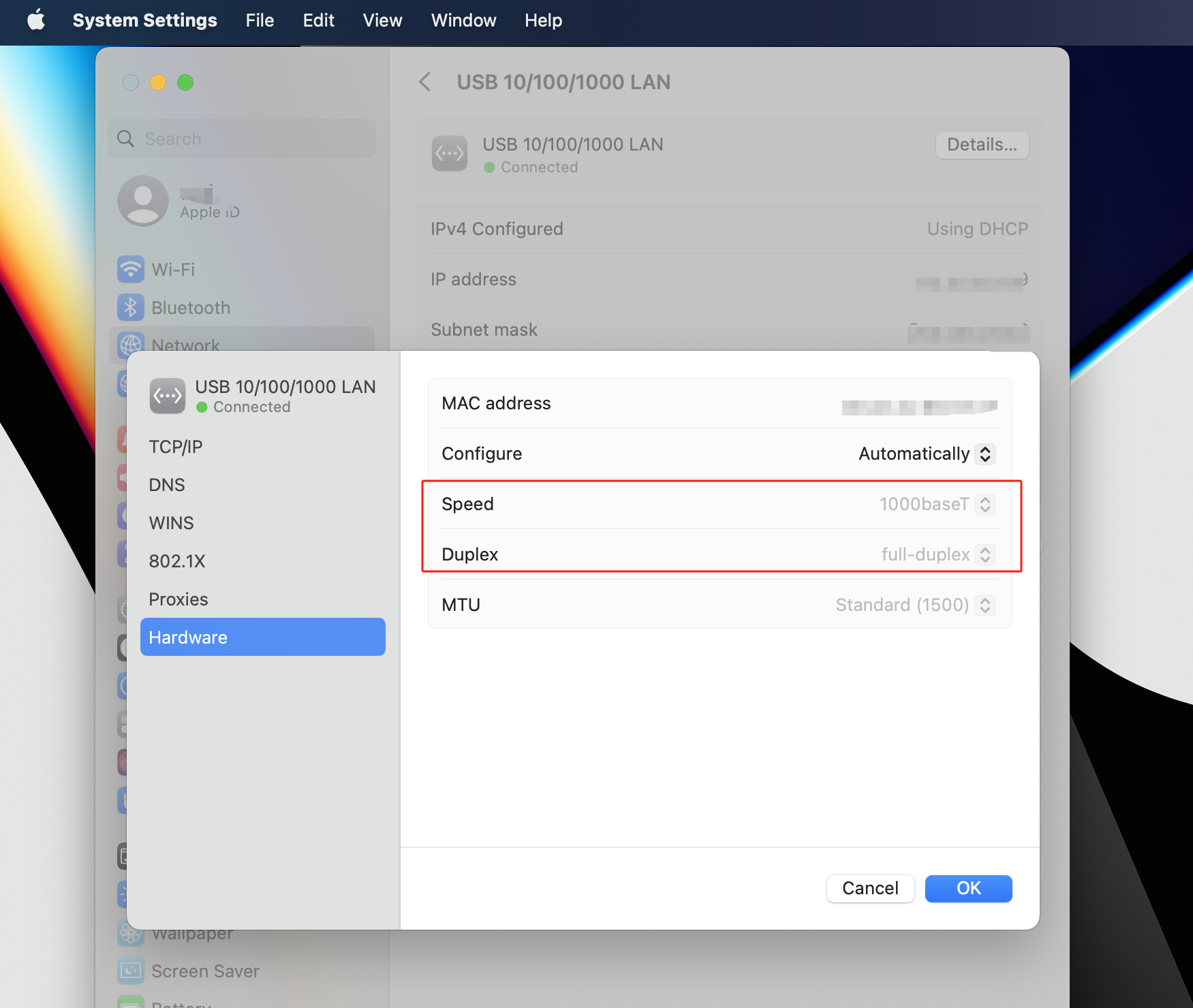
- On Mac OS, the Ethernet link speed is found under Apple menu > System Settings > Network > Ethernet > Details > Hardware.
- The link speed shown is the speed negotiated between your PC's network adapter and the router or switch port. It does not represent your Internet speed.
How to Check the Link Speed on a Wired Client
Step 1. Make sure your PC is connected to the LAN port of your router using an Ethernet cable.
Step 2. Follow the steps below for your operating system to check the Ethernet link speed.
Check Ethernet (Link) Speed on Windows
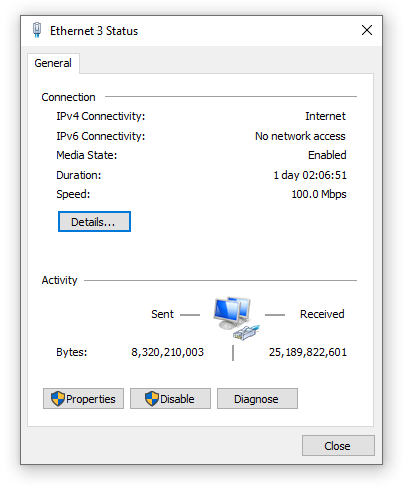
Press the Windows key + R, type ncpa.cpl, right-click Local Area Connection or Ethernet, then select Status.
The speed displayed is the Ethernet link speed on your Windows PC.
Check Ethernet (Link) Speed on Mac
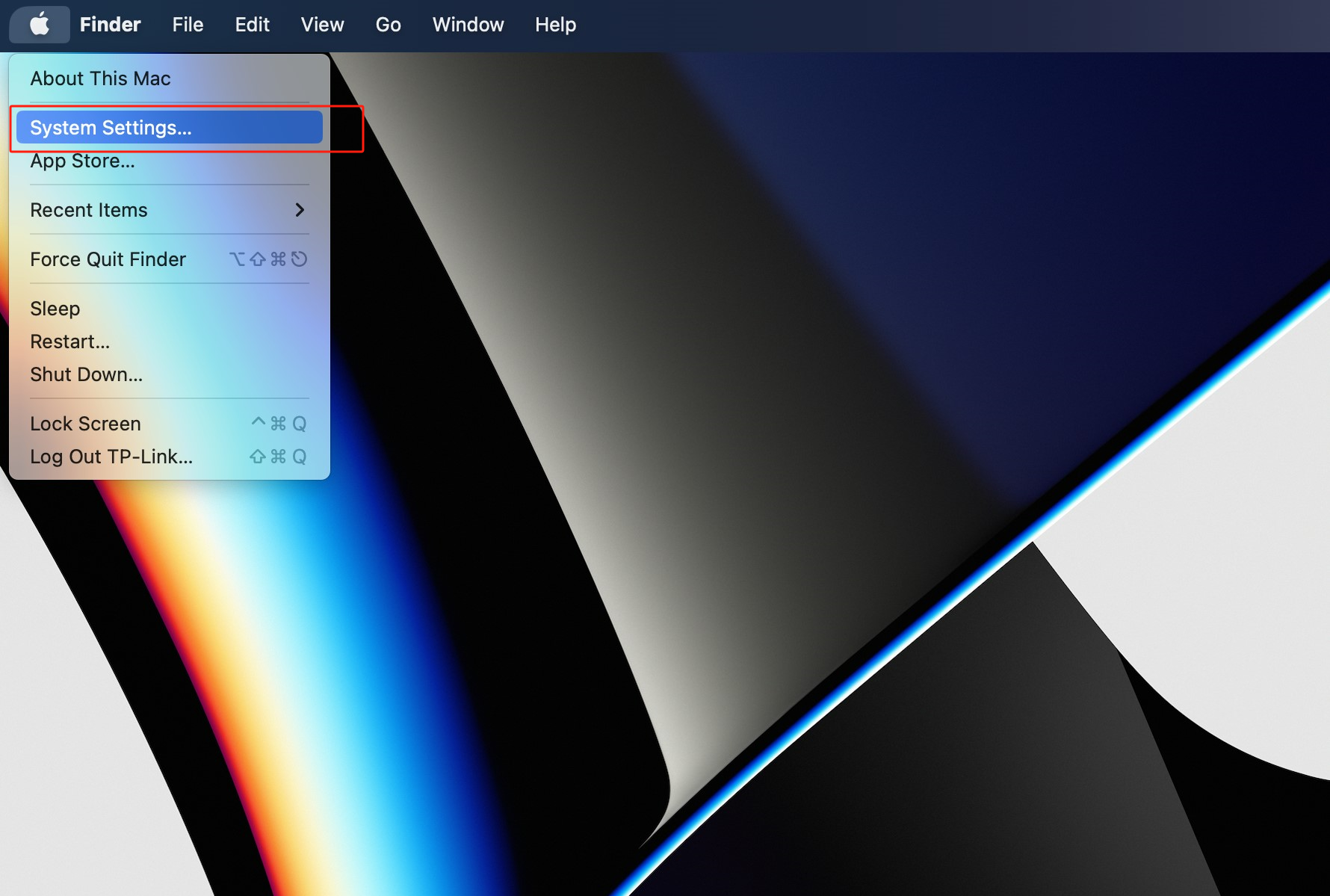
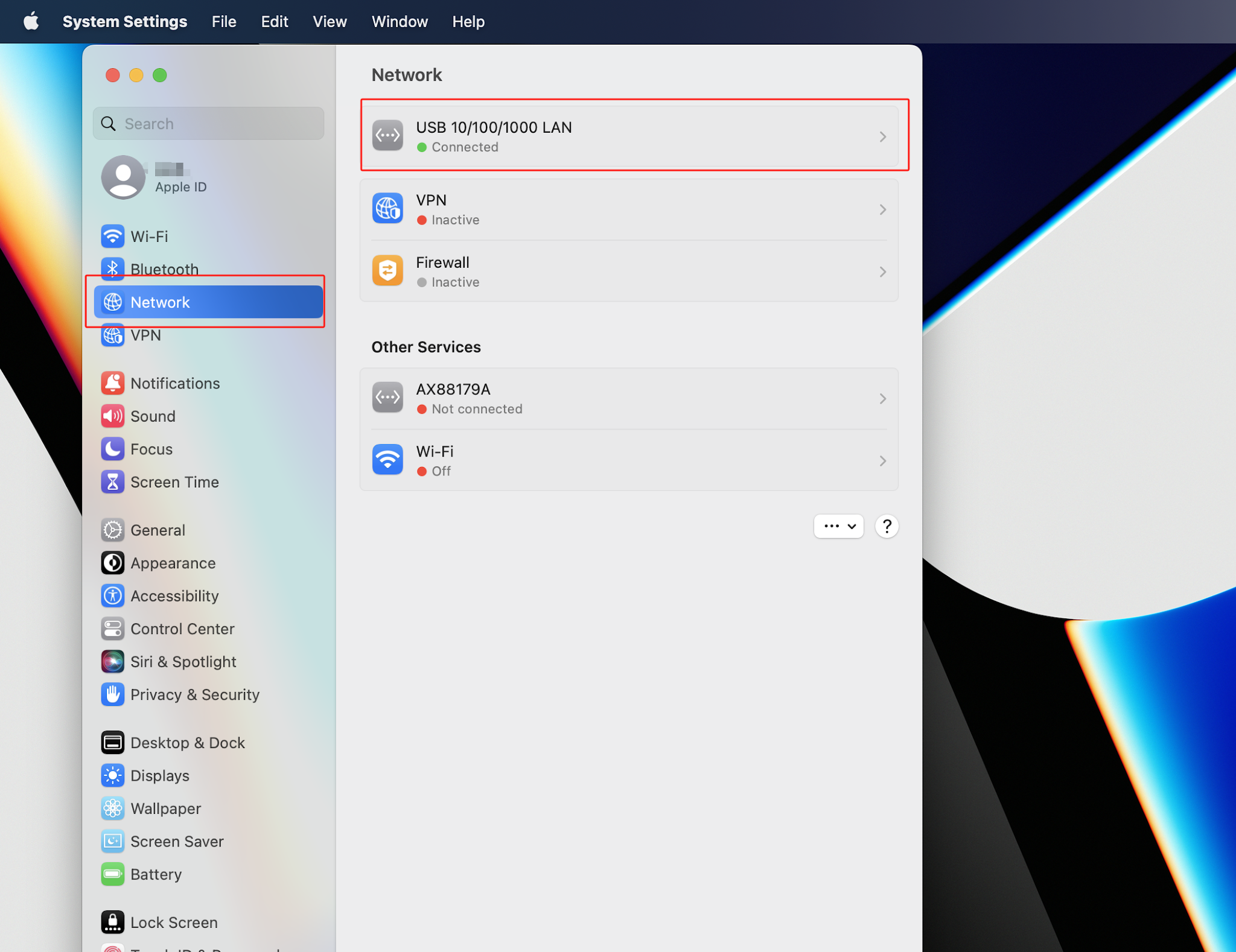
Step 1. On your Mac, choose Apple menu  > System Settings, then click Network
  in the sidebar. (You may need to scroll down.) On the right, click the Ethernet service
  , then click Details.
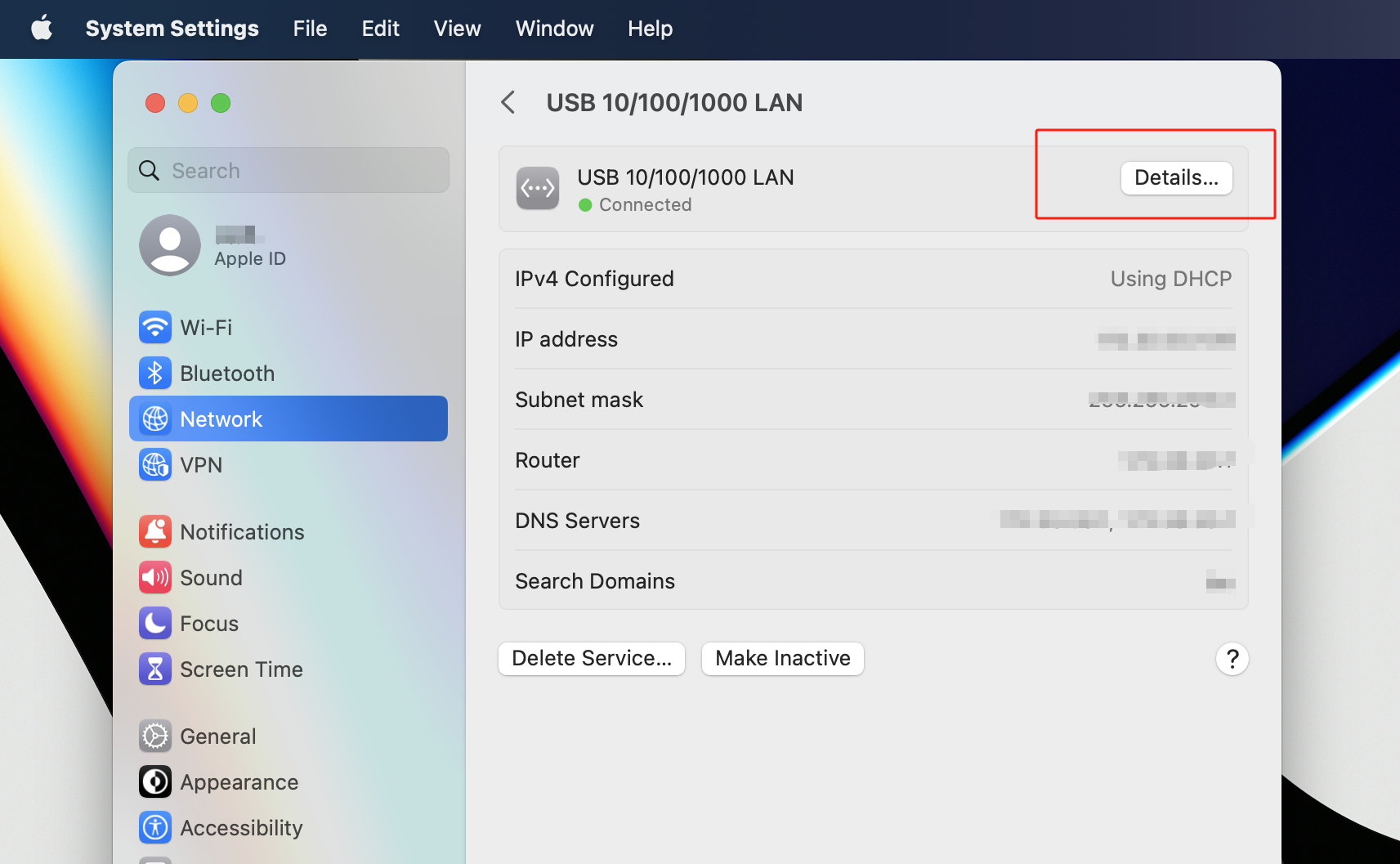
Step 2. Go to Hardware to find the Ethernet link speed.
Looking For More
Is this faq useful?
Your feedback helps improve this site.

TP-Link Community
Still need help? Search for answers, ask questions, and get help from TP-Link experts and other users around the world.