Table of Contents
xDSL Modem Router User Guide (For Web)
About This Guide
This guide introduces each function of your xDSL modem router and demonstrates how to configure them.
Note: Features of the router may vary slightly depending on the model and software version you have, and on your location, language, and internet service provider. All screenshots, images, parameters and descriptions documented in this guide are used for demonstration only.
Conventions
In this guide the following conventions are used:
|
Convention |
Description |
|
Underline |
Underlined words or phrases are hyperlinks. You can click to redirect to a website or a specific section. |
|
Bold |
Contents to be emphasized and texts on the web page are in bold, including the menus, items, buttons and so on. |
|
> |
The menu structures to show the path to load the corresponding page. For example, Settings > System Tools > Firmware Upgrade means the Firmware Upgrade page is under the System Tools menu that is located in the Settings tab. |
|
Note: |
Ignoring this type of note might result in a malfunction or damage to the device. |
|
Tips: |
Indicates important information that helps you make better use of your device. |
More Info
The latest software, management app and utility can be found at Download Center at https://www.tp-link.com/support/download/.
The Quick Installation Guide can be found where you find this guide or inside the package of the router.
Specifications can be found on the product page at https://www.tp-link.com.
TP-Link Community is provided for you to discuss our products and share knowledge at https://community.tp-link.com.
Our Technical Support contact information can be found at the Contact Technical Support page at https://www.tp-link.com/support/.
1. Log into the Router
This chapter guides you how to log in to your router via Tether app or the router’s web management page.
*Features available on the web management page may vary by model and software version.
1.1 Log In via Tether App
1. Launch the Apple App Store or Google Play Store and search TP-Link Tether or simply click the button below to download and install the app.

2. Launch the Tether app and log in with your TP-Link ID.
Note: If you don’t have a TP-Link ID, create one first.
3. Tap the + icon on the upper-right corner and select Add a Router. Follow app instructions to set up and connect to the internet.
Note: Due to Tether app updates, your actual user interface and pathway may differ from those depicted here.
1.2 Log in via the Web Management Page
With the web management page, it is easy to configure and manage the modem router. The web management page can be used on any Windows, Macintosh or UNIX OS with a Web browser, such as Microsoft Internet Explorer, Mozilla Firefox or Apple Safari.
Follow the steps below to log in to your modem router.
1. Make sure your computer is connected to the router (wired or wireless).
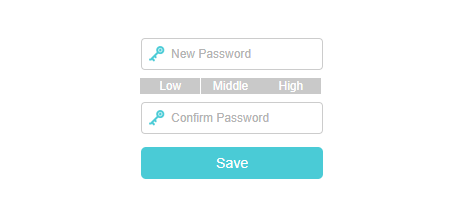
2. Launch a web browser and type in http://tplinkmodem.net or http://192.168.1.1. Create a new password for future logins.
Note: If the login page does not appear, please refer to Q1 of FAQ in this guide.
3. Follow the step-by-step instructions of the Quick Setup to complete the initial configuration.
Note: If you have registered a TP-Link ID and bind your cloud router to it, the login password you created here should be ineffective. Please log in to the cloud router using your TP-Link ID.
2. Set Up Internet Connection
This chapter introduces how to connect your router to the internet. The router is equipped with a web-based Quick Setup wizard. It has necessary ISP information built in, automates many of the steps and verifies that those steps have been successfully completed. Furthermore, you can also set up an IPv6 connection if your ISP provides IPv6 service.
*Features available on the web management page may vary by model and software version.
2.1 Use Quick Setup Wizard
Tips: If you need the IPv6 internet connection, please refer to the section of Set Up an IPv6 Internet Connection.
1. Visit http://tplinkmodem.net or http://192.168.1.1, and log in with your TP-Link ID or the password you set for the router.

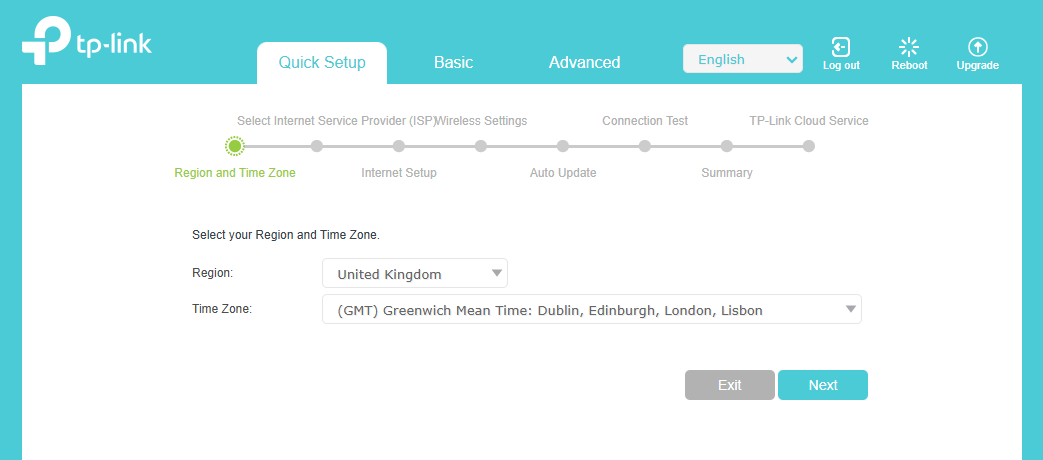
2. Follow the step-by-step instructions to complete Quick Setup configuration or go to Quick Setup for configuration to connect your router to the internet. Then follow the step-by-step instructions to connect your router to the internet.
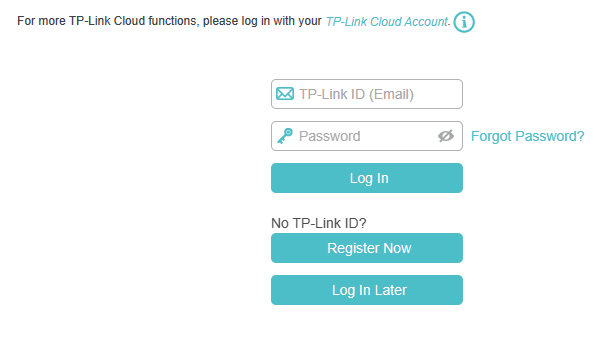
3. To enjoy a more complete service from TP-Link (remote management, TP-Link DDNS, and more.), log in with your TP-Link ID or click Register Now to get one. Then follow the instructions to bind the cloud router to your TP-Link ID.
Note:
-
To learn more about the TP-Link Cloud service, please refer to the TP-Link Cloud Service section.
-
If you do not want to register a TP-Link ID now, you may click Log In Later to proceed.
-
If you have changed the preset wireless network name (SSID) and wireless password during the Quick Setup process, all your wireless devices must use the new SSID and password to connect to the router.
2.2 Manually Set Up Your Internet Connection
2.2.1 Set Up an Internet Connection in DSL Modem Router Mode
1. Visit http://tplinkmodem.net or http://192.168.1.1, and log in with your TP-Link ID or the password you set for the router.
2. Go to Basic > Internet page, and select DSL.
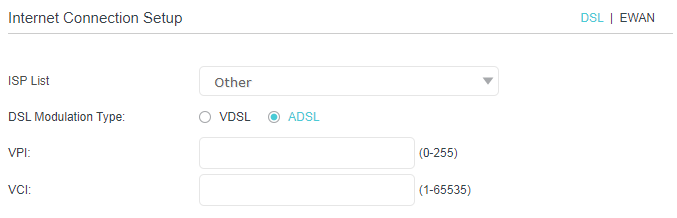
3. Select your ISP, and related information will be automatically filled in. For some ISPs, you may need to manually specify some information provided. If you can’t find your ISP in the ISP List, select Other and then enter the information provided by your ISP.
4. Select your DSL Modulation Type used for your DSL connection.
- If you select VDSL, enable VLAN ID(optional) and enter the value provided by your ISP.
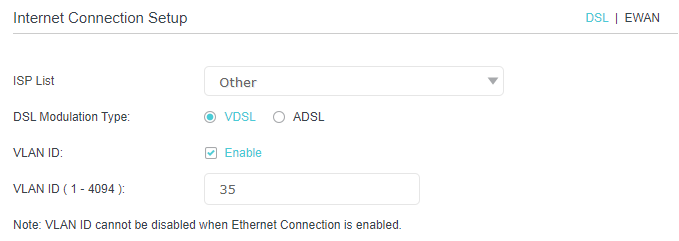
- If you select ADSL, enter the VPI and VCI assigned by your ISP.
-
ISP - Select your ISP (Internet Service Provider) from the drop-down list.
-
VLAN ID - Select the checkbox to enable the VLAN ID feature and enter the VLAN ID provided by your ISP.
-
DSL Modulation Type - Select the modulation type used for your DSL connection.
-
VPI - Enter the VPI assigned by your ISP to specify the virtual path between endpoints in an ATM network.
-
VCI - Enter the VCI assigned by your ISP to specify the virtual channel endpoints in an ATM network.
-
VLAN ID - Select the checkbox to enable the VLAN ID feature.
-
VLAN ID (1 - 4000) - Enter the VLAN ID provided by your ISP.
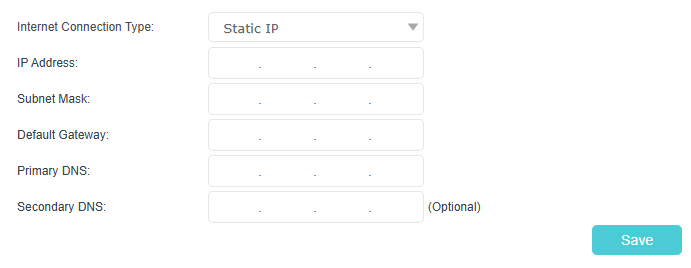
5. Select your internet connection type from the drop-down list. Then follow the instructions on the page to continue the configuration. Parameters on the figures are just used for demonstration.
1) If you choose Dynamic IP, you don’t need to enter any other information.

2) If you choose Static IP, enter the information provided by your ISP in the corresponding fields.
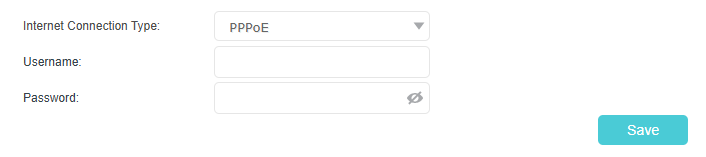
3) If you choose PPPoE, enter the Username and Password provided by your ISP.
-
Internet Connection Type - Select the connection type and enter corresponding parameters provided by your ISP.
-
Username/Password - Enter the username and password provided by the ISP. These fields are case-sensitive.
6. Click Save to make the settings effective, and you can refer to Test Internet Connectivity to test the internet connection.
Note: You can view and edit all internet connection settings on the Advanced > Network > DSL-WAN page.
2.2.2 Set Up an Internet Connection in EWAN Mode
1. Visit http://tplinkmodem.net or http://192.168.1.1, and log in with your TP-Link ID or the password you set for the router.
2. Go to Basic > Internet page, and select EWAN.
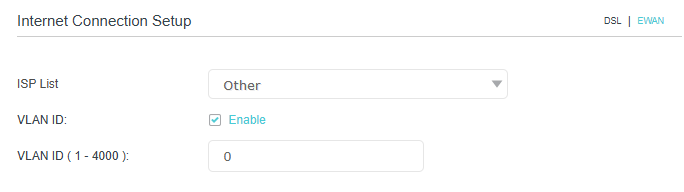
3. Select your ISP, and related information will be automatically filled in. For some ISPs, you may need to manually specify some information provided. If you can’t find your ISP in the ISP List, select Other and then enter the information provided by your ISP
4. Enable VLAN ID(optional) and enter the value provided by your ISP.
5. Select your internet connection type from the drop-down list. Then follow the instructions on the page to continue the configuration. Parameters on the figures are just used for demonstration.
1) If you choose Dynamic IP, you don’t need to enter any other information.
2) If you choose Static IP, enter the information provided by your ISP in the corresponding fields.
3) If you choose PPPoE, enter the Username and Password provided by your ISP.
6. Click Save to make the settings effective, and you can refer to Test Internet Connectivity to test the internet connection.
Note: You can view and edit all internet connection settings on the Advanced > Network > DSL-WAN page.
2.3 Test Internet Connectivity
After manually set up the internet connection, you need to know the internet connectivity. The router provides a diagnostic tool to help you locate the malfunction.
1. Visit http://tplinkmodem.net or http://192.168.1.1, and log in with your TP-Link ID or the password you set for the router.
2. Go to Advanced > System Tools > Diagnostics page.
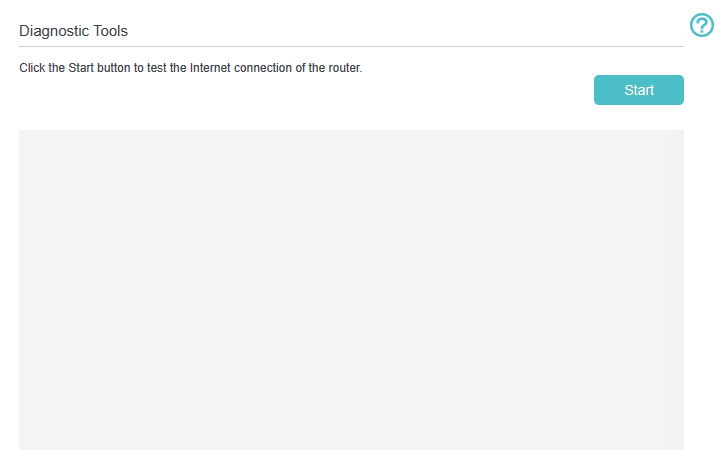
3. Click Start to test the internet connectivity and you will see the test result in the gray box.
2.4 Set Up an IPv6 Internet Connection
If your ISP has provided a DSL line that supports IPv6 connection as well as some detailed IPv6 parameters, you can manually set up an IPv6 connection.
If your ISP provides an IPv4-only connection or IPv6 tunnel service, permit IPv6 connection by referring to Set Up the IPv6 Tunnel.
Follow the steps below to set up an IPv6 connection:
1. Make sure you have set up an IPv4 connection either manually or by using the Quick Setup wizard before setting up an IPv6 connection.
2. Visit http://tplinkmodem.net or http://192.168.1.1, and log in with your TP-Link ID or the password you set for the router.
3. Go to Advanced > Network > DSL-WAN page.
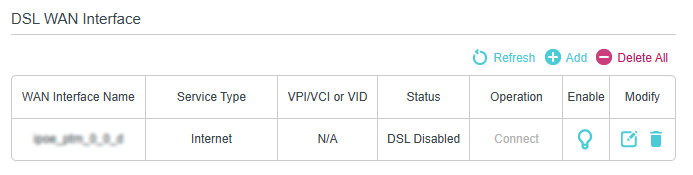
4. Select your WAN Interface Name (Status should be DSL Connected) and click the edit icon.
5. Scroll down the page, enable IPv6, and configure the IPv6 parameters.
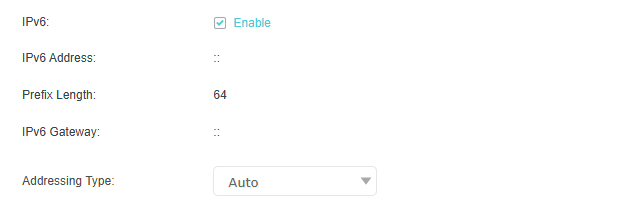
-
Addressing Type: Consult your ISP for the addressing type (DHCPv6 or SLAAC). SLAAC is the most commonly used addressing type.
Note: If your ISP has provided the IPv6 address, click Advanced to reveal more settings. Check to use IPv6 specified by ISP and enter the parameters provided by your ISP.
6. Click OK to make the settings effective. Now IPv6 service is available for your network.
2.5 Set Up the IPv6 Tunnel
The IPv6 Tunnel feature helps you obtain IPv6 resources based on an IPv4 WAN connection or vice versa.
IPv6 Tunnel is a transition mechanism that enables IPv6-only hosts to reach IPv4 services or vice versa and allows isolated IPv6 hosts and networks to reach each other over IPv4-only infrastructure before IPv6 completely supplants IPv4. It is a temporary solution for networks that do not support native dual-stack, where both IPv6 and IPv4 run independently.
1. Visit http://tplinkmodem.net or http://192.168.1.1, and log in with your TP-Link ID or the password you set for the router.
2. Go to Advanced > Network > DSL-WAN page.
3. Select your WAN Interface Name (Status should be DSL Connected) and click the edit icon.
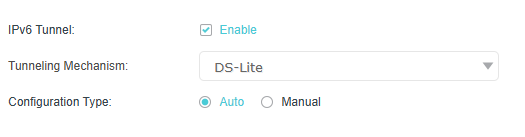
4. Enable IPv6 Tunnel.
5. Fill in information as required by different tunneling mechanisms.
1) DS-Lite: Fill in blanks and click OK. Select this tunneling mechanism if your ISP uses DS-Lite deployment for assigning address.
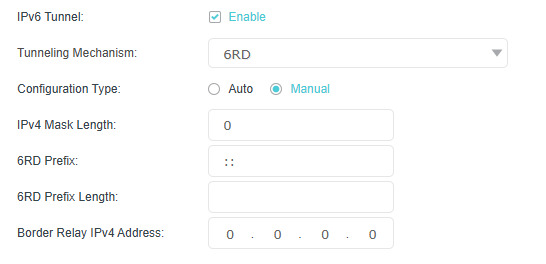
2) 6rd: Fill in blanks and click OK. Select this tunneling mechanism if your ISP uses 6rd deployment for assigning address.
-
IPv4 Mask Length - The IPv4 mask length of the selected WAN connection.
-
6rd Prefix - The prefix of the 6rd tunnel.
-
6rd Prefix Length - The length of the 6rd prefix.
-
Border Relay IPv4 Address - The IPv4 address of the 6rd Border Relay for a given 6rd domain, which is used to send packets to a Border Relay in order to reach IPv6 destinations outside of the 6rd domain.
3) 6to4: Fill in blanks and click OK. Select this tunneling mechanism if your ISP uses 6to4 deployment for assigning address.

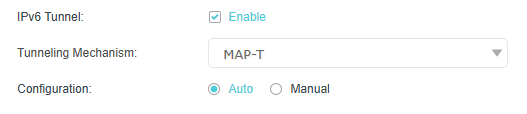
4) MAP-T/MAP-E: Fill in blanks and click OK. Select the type of Mapping of Address and Port (MAP): using Translation (T) or using Encapsulation (E).

3. TP-Link Cloud Service
TP-Link Cloud service provides a better way to manage your cloud devices. Log in to your router with a TP-Link ID, and you can easily monitor and manage your home network when you are out and about via the Tether app. To ensure that your router stays new and gets better over time, the TP-Link Cloud will notify you when an important firmware upgrade is available. Surely you can also manage multiple TP-Link Cloud devices with a single TP-Link ID.
This chapter introduces how to register a new TP-Link ID, bind or unbind TP-Link IDs to manage your router, and the Tether app with which you can manage your home network no matter where you may find yourself.
*Features available on the web management page may vary by model and software version.
3.1 Register a TP-Link ID
If you have skipped the registration during the Quick Setup process, you can:
1. Visit http://tplinkmodem.net or http://192.168.1.1, and log in with the password you set for the router.
2. Go to Basic > TP-Link Cloud.
3. Click Register Now and follow the instructions to register a TP-Link ID.
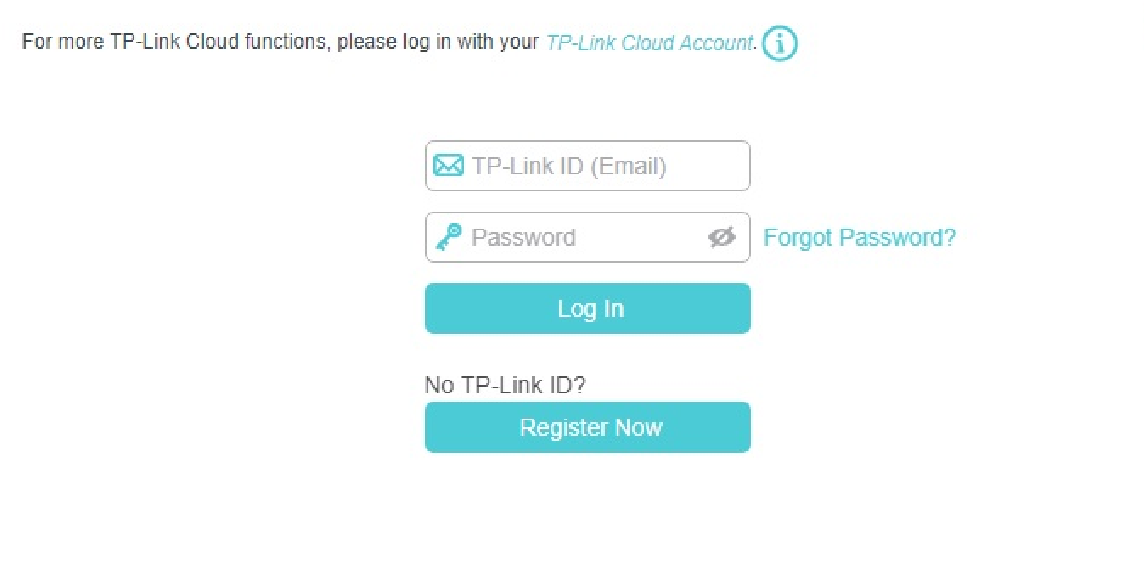
4. After activating your TP-Link ID, come back to the TP-Link Cloud page to log in. The TP-Link ID used to log in to the router for the first time will be automatically bound as an Admin.
Note:
• To learn more about the Admin and User TP-Link ID, refer to Manage the User TP-Link IDs.
• Once you have registered a TP-Link ID on the web management page, you can only register another TP-Link ID via the Tether APP. Please refer to Manage the Router via the TP-Link Tether App to install the app.
• If you want to unbind the admin TP-Link ID from your router, please go to Basic > TP-Link Cloud, and click Unbind in the Device Information section.
3.2 Change Your TP-Link ID Information
Follow the steps below to change your email address and password of your TP-Link ID as needed.
1. Visit http://tplinkmodem.net or http://192.168.1.1, and log in with your TP-Link ID.
2. Go to Basic > TP-Link Cloud, and focus on the Account Information section.
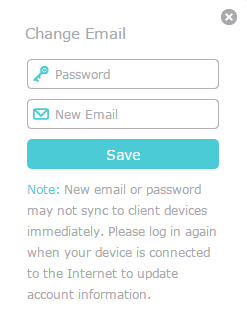
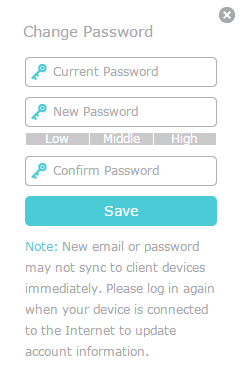
► To change your email address:
1. Click the edit button behind the Email.
2. Enter the password of your TP-Link ID, then a new email address. And click Save.
► To change your password:
1. Click the edit button behind the Password.
2. Enter the current password, then a new password twice. And click Save.
3.3 Manage the User TP-Link IDs
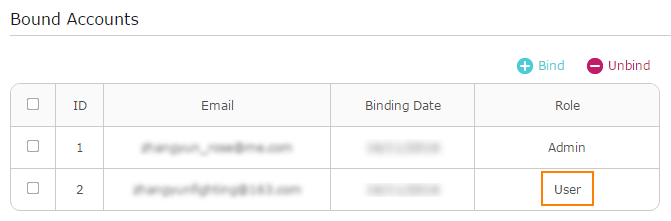
The TP-Link ID used to log in to the router for the first time will be automatically bound as the Admin account. An admin account can add or remove other TP-Link IDs to or from the same router as Users. All accounts can monitor and manage the router locally or remotely, but user accounts cannot:
-
Reset the router to its factory default settings either on the web management page or in the Tether app.
-
Add/remove other TP-Link IDs to/from the router.
3.3.1 Add TP-Link ID to Manage the Router
1. Visit http://tplinkmodem.net or http://192.168.1.1, and log in with your TP-Link ID.
2. Go to Basic > TP-Link Cloud, and focus on the Bound Accounts section.
3. Click Bind, enter another TP-Link ID as needed and click Save.
Note: If you need another TP-Link ID, please register a new one via the Tether app. Refer to Manage the Router via the TP-Link Tether App to install the app and register a new TP-Link ID.
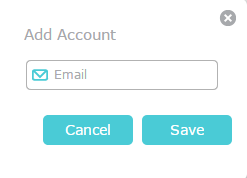
4. The new TP-Link ID will be displayed in the Bound Accounts table as a User.
3.3.2 Remove TP-Link ID(s) from Managing the Router
1. Visit http://tplinkmodem.net or http://192.168.1.1, and log in with your TP-Link ID.
2. Go to Basic > TP-Link Cloud, and focus on the Bound Accounts section.
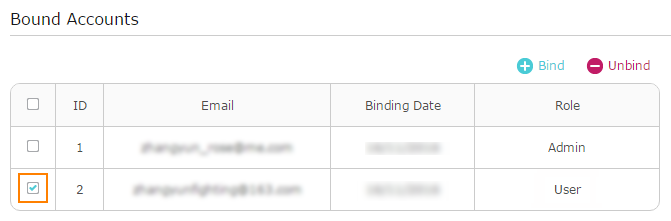
3. Tick the checkbox(es) of the TP-Link ID(s) you want to remove and click Unbind.
3.4 Manage the Router via the TP-Link Tether App
The Tether app runs on iOS and Android devices, such as smartphones and tablets.
1. Launch the Apple App Store or Google Play store and search “TP-Link Tether” or simply scan the QR code to download and install the app.

2. Launch the Tether app and log in with your TP-Link ID.
Note: If you don’t have a TP-Link ID, create one first.
3. Connect your device to the router’s wireless network.
4. Go back to the Tether app, select the model of your router and log in with the password you set for the router.
5. Manage your router as needed.
Note: If you need to remotely access your router from your smart devices, you need to:
• Log in with your TP-Link ID. If you don’t have one, refer to Register a TP-Link ID.
• Make sure your smartphone or tablet can access the internet with cellular data or a Wi-Fi network.
4. EasyMesh with Seamless Roaming
This chapter introduces the TP-Link EasyMesh feature.
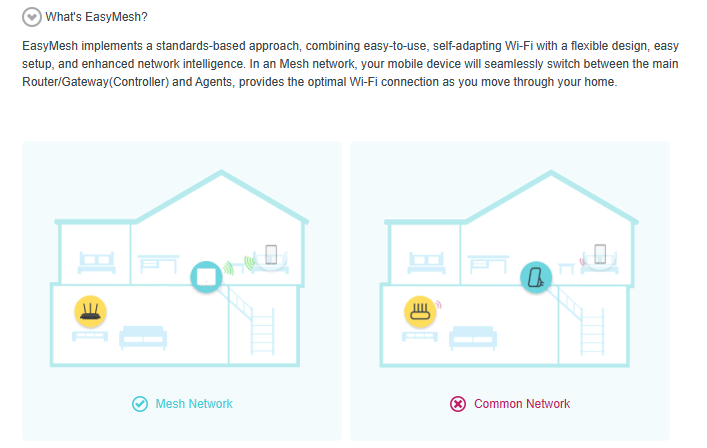
TP-Link EasyMesh Controller and TP-Link EasyMesh Agent work together to form one unified Wi-Fi network. Walk through your home and stay connected with the fastest possible speeds thanks to EasyMesh’s seamless coverage.
*Features available on the web management page may vary by model and software version.
- Unified Wi-Fi Network
Controller and agents share the same wireless settings, including network name, password, access control settings and more.
- Seamless Roaming
Devices automatically switch between your controller and agents as you move through your home for the fastest possible speeds.
- Easy Setup and Management
Set up an EasyMesh network with a push of WPS buttons. Manage all network devices on the Tether app or at your router’s web management page.
4.1 Set Up an EasyMesh Network
1. Visit http://tplinkmodem.net or http://192.168.1.1, and log in with your TP-Link ID or the password you set for the router.
2. Go to Basic > Mesh or Advanced > Wireless > Mesh.
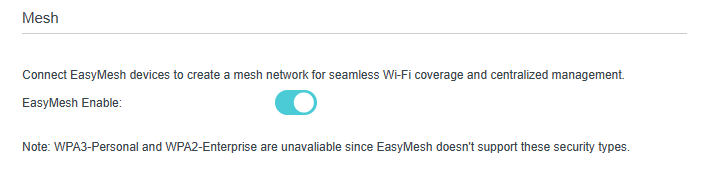
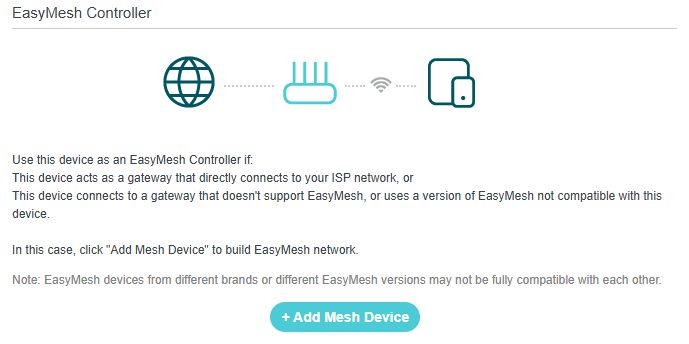
3. Click Add Mesh Device.
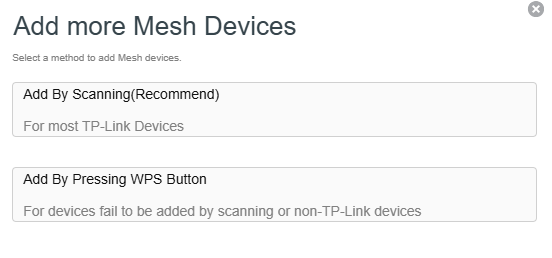
4. Select a method to add Mesh devices. You can add by scanning devices, or add by pressing the WPS button. Then follow instructions to complete the settings.
Note: To check full list of TP-Link EasyMesh devices, visit https://www.tp-link.com.
4.2 Manage Devices in the EasyMesh Network
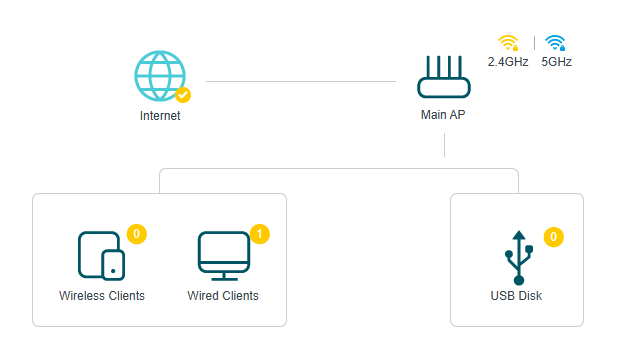
In an EasyMesh network, you can manage all mesh devices and connected clients on your router’s web page.
To view mesh devices and connected clients in the network:
1. Visit http://tplinkmodem.net or http://192.168.1.1, and log in with your TP-Link ID or the password you set for the router.
2. Go to Basic > Network Map.
3. Click the Main AP icon to view all mesh devices, and click Wireless Client icon and Wired Clients icon to view all connected clients.
To manage an EasyMesh device in the network:
1. Visit http://tplinkmodem.net or http://192.168.1.1, and log in with your TP-Link ID or the password you set for the router.
2. Go to Basic > Network Map.
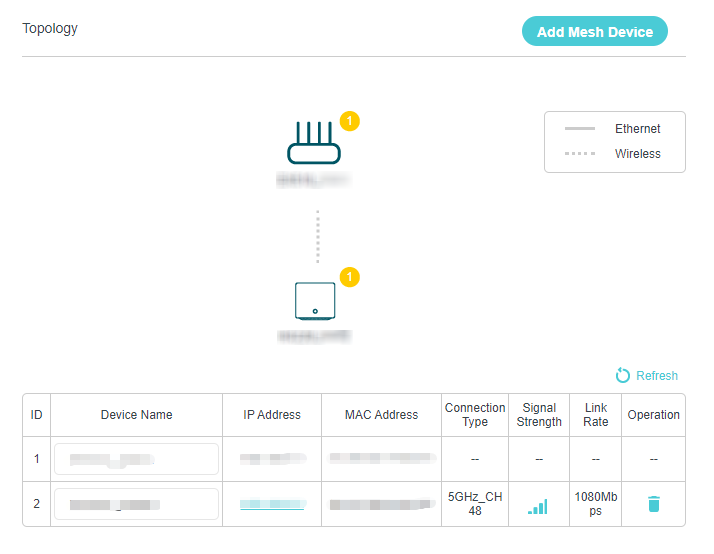
3. Click the Mesh device’s IP Address to redirect to the web management page of this device and view detailed information.

4. Manage the EasyMesh device as needed. You can:
-
Change device information.
-
Delete this device from the EasyMesh network.
5. Specify Your Network Settings
This chapter introduces how to change the default settings or adjust the basic configuration of the router using the web management page.
*Features available on the web management page may vary by model and software version.
5.1 Configure LAN Settings
5.1.1 Change the LAN IP Address
The router is preset with a default LAN IP 192.168.1.1, which you can use to log in to its web management page. The LAN IP address together with the Subnet Mask also defines the subnet that the connected devices are on. If the IP address conflicts with another device in your local network or your network requires a specific IP subnet, you can change it.
Follow the steps below to change your IP address.
1. Visit http://tplinkmodem.net or http://192.168.1.1, and log in with the password you set for the router.
2. Go to Advanced > Network > LAN Settings page and select IPv4.
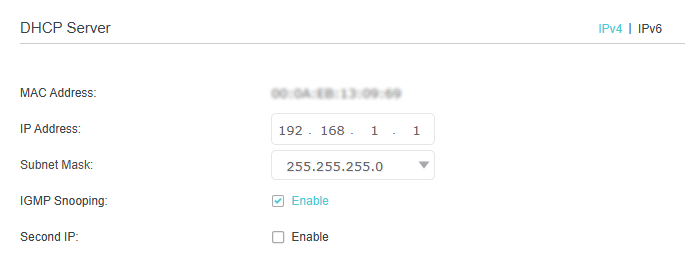
3. Enter a new IP Address appropriate to your needs.
4. Select the Subnet Mask from the drop-down list. The subnet mask together with the IP address identifies the local IP subnet.
5. Keep IGMP Snooping enabled by default. IGMP snooping is the process of listening to IGMP (Internet Group Management Protocol) network traffic. The function prevents hosts on a local network from receiving traffic for a multicast group they have not explicitly joined.
6. You can configure the router’s Second IP and Subnet Mask for LAN interface through which you can also access the web management page.
7. Keep the rest settings as the default settings.
8. Click Save to make the settings effective.
5.1.2 Use the Router as a DHCP Server
You can configure the router to act as a DHCP server to assign IP addresses to its clients. To use the DHCP server function of the router, you must configure all computers on the LAN to obtain an IP Address automatically.
Follow the steps below to configure DHCP server.
1. Visit http://tplinkmodem.net or http://192.168.1.1, and log in with the password you set for the router.
2. Go to Advanced > Network > LAN Settings page and select IPv4.
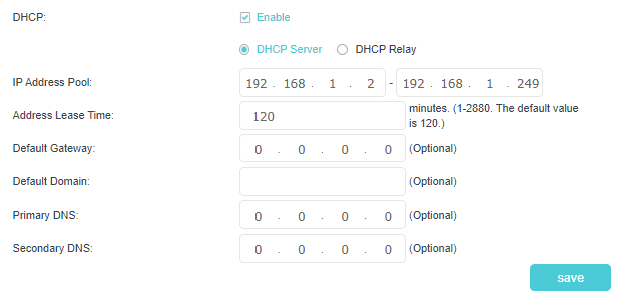
3. Enable DHCP function and select DHCP Server.
4. Specify the IP Address Pool, the start address and end address must be on the same subnet with LAN IP. The router will assign addresses within this specified range to its clients. It is from 192.168.1.2 to 192.168.1.249 by default.
5. Enter a time duration in the Address Lease Time field. The Address Lease Time is the amount of time in which a DHCP client can lease its current dynamic IP address assigned by the router. After the dynamic IP address expires, the user will be automatically assigned a new dynamic IP address.
6. Keep the rest settings as the default settings and click Save.
Note:
-
The router can be configured to work as a DHCP Relay. A DHCP relay is a computer that forwards DHCP data between computers that request IP addresses and the DHCP server that assigns the addresses. Each of the device’s interfaces can be configured as a DHCP relay. If it is enabled, the DHCP requests from local PCs will be forwarded to the DHCP server that runs on WAN side.
-
You can also appoint IP addresses within a specified range to devices of the same type by using Condition Pool feature. For example, you can assign IP addresses within the range (192.168.1.50 to 192.168.1.80) to Camera devices, thus facilitating the network management. Enable DHCP feature and configure the parameters according to your situation on the Advanced > Network > LAN Settings page.
5.1.3 Reserve LAN IP Addresses
You can view and add a reserved address for a client. When you specify an IP address for a device on the LAN, that device will always receive the same IP address each time when it accesses the DHCP server. If there are some devices in the LAN that require permanent IP addresses, please configure Address Reservation on the router for the purpose.
Follow the steps below to reserve an IP address for your devices.
1. Visit http://tplinkmodem.net or http://192.168.1.1, and log in with the password you set for the router.
2. Go to Advanced > Network > LAN Settings page, and select IPv4.
3. Scroll down to the Address Reservation section, and click Add to add an address reservation entry for your device.
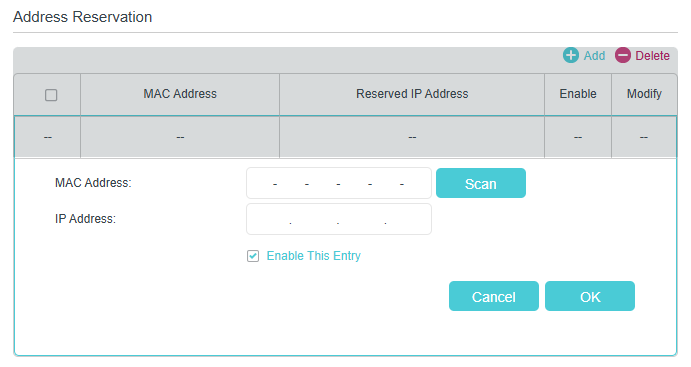
4. Click Scan and select the device for which you want to reserve IP address. Or enter the MAC Address manually.
5. Specify the IP address which will be reserved by the router.
6. Select the Enable This Entry check box and click OK to make the settings effective.
5.2 Configure IPv6 LAN Settings
Based on the IPv6 protocol, the router provides two ways to assign IPv6 LAN addresses:
-
Configure the RADVD (Router Advertisement Daemon) address type
-
Configure the DHCPv6 Server address type
5.2.1 Configure the RADVD Address Type
1. Visit http://tplinkmodem.net or http://192.168.1.1, and log in with the password you set for the router.
2. Go to Advanced > Network > LAN Settings.
3. Select IPv6 to configure IPv6 LAN parameters.
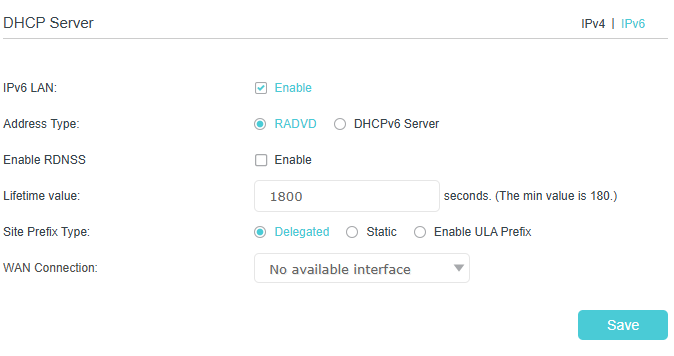
1) Select RADVD as the address type to make the router assign IPv6 address prefixes to hosts.
Note: Do not select the Enable RDNSS and Enable ULA Prefix check boxes unless required by your ISP. Otherwise you may not be able to access the IPv6 network. For more information about RDNSS and ULA Prefix, contact our technical support.
2) Keep Site Prefix Type as the default setting Delegated. If your ISP has provided a specific IPv6 site prefix, select Static and enter the prefix.
3) Keep WAN Connection as the default settings.
4. Click Save to make the settings effective.
5.2.2 Configure the DHCPv6 Server Address Type
1. Visit http://tplinkmodem.net or http://192.168.1.1, and log in with the password you set for the router.
2. Go to Advanced > Network > LAN Settings.
3. Select IPv6 to configure IPv6 LAN parameters.
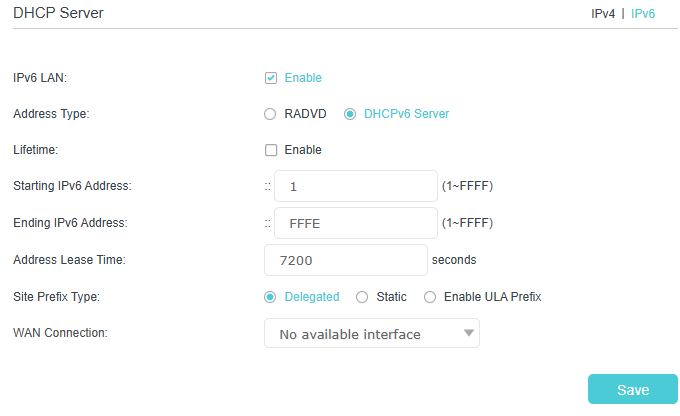
1) Select DHCPv6 Server as the address type to make the router assign IPv6 addresses to hosts.
2) Specify the Starting/Ending IPv6 Address for the IPv6 suffixes. The router will generate IPv6 addresses within the specified range.
3) Keep Address Lease Time as the default setting.
4) Keep Site Prefix Type as the default value Delegated. If your ISP has provided a specific IPv6 site prefix, select Static and enter the prefix.
5) Keep WAN Connection as the default setting.
4. Click Save to make the settings effective.
5.3 Configure DSL Settings
Follow the steps below to configure your DSL settings.
1. Visit http://tplinkmodem.net or http://192.168.1.1, and log in with the password you set for the modem router.
2. Go to Advanced > Network > DSL Settings page.
3. Select a DSL Modulation Type/Annex Type from the drop-down list. Do not change the default settings unless necessary.
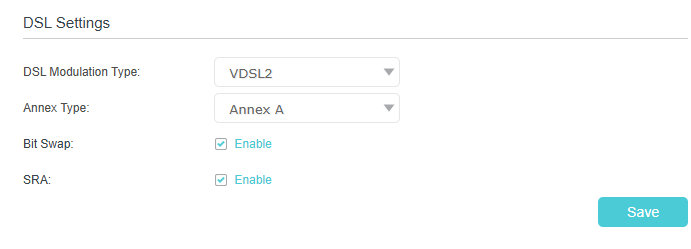
4. Enable the following functions as needed.
-
Bit Swap - Select this checkbox to enable the Bit Swap feature. With bit-swapping, the router can swap bits around different channels, allowing it to robustly adapt to changing telephone line conditions.
-
SRA - Select this checkbox to enable the SRA (Seamless Rate Adaptation) feature that prevents ADSL data rate interference caused by the cross-talk between telephone lines.
5.4 Set Up a Dynamic DNS Service Account
Most ISPs (Internet service providers) assign a dynamic IP address to the router and you can use this IP address to access your router remotely. However, the IP address can change any time and you don’t know when it changes. In this case, you might need the DDNS (Dynamic Domain Name Server) feature on the router to allow you and your friends to access your router and local servers (FTP, HTTP, etc.) using domain name, in no need of checking and remembering the IP address.
Note: DDNS does not work if the ISP assigns a private WAN IP address (such as 192.168.1.x) to the router.
To set up DDNS, please follow the instructions below:
1. Visit http://tplinkmodem.net or http://192.168.1.1, and log in with the password you set for the router.
2. Go to Advanced > Network > Dynamic DNS.
3. Select the Service Provider (TP-Link/Dyndns/NO-IP).
4. Log in with your DDNS account, select a service provider. Enter the username, password and domain name of the account (such as lisa.ddns.net).
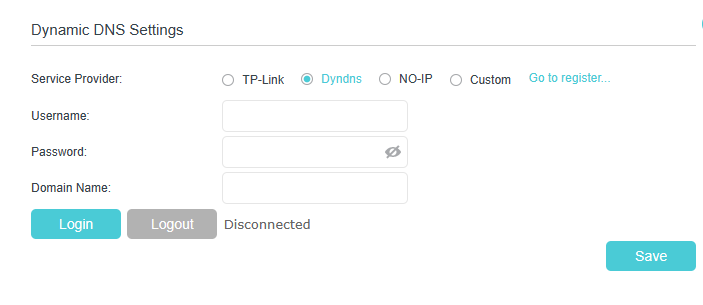
5. Click Login and Save.
Tips: If you want to use a new DDNS account, please log out first, then log in with the new account.
5.5 Create Static Routes
A static route is a pre-determined path that network information must travel to reach a specific host or network. Data from one point to another will always follow the same path regardless of other considerations. Normal internet usage does not require this setting to be configured.
I want to:
Visit multiple networks and multiple servers at the same time.
For example, in a small office, my PC can surf the internet through Router A, but I also want to visit my company’s network. Now I have a switch and another Router B. I connect the devices as shown in the following image so that the physical connection between my PC and my company’s server is established. To surf the internet and visit my company’s network at the same time, I need to configure the static routing.
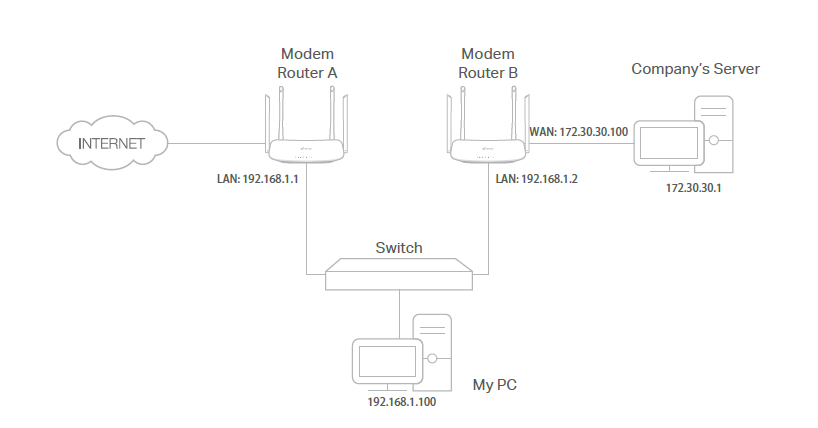
How can I do that?
1. Make sure the routers use different LAN IP addresses on the same subnet. Disable Router B’s DHCP function.
2. Visit http://tplinkmodem.net or http://192.168.1.1, and log in with the password you set for the Router A.
3. Go to Advanced > Network > Static Routing. Select your current WAN Interface and click Save.
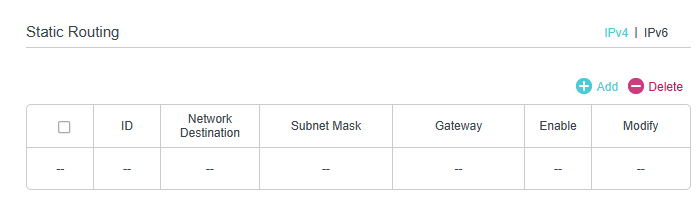
4. Click Add to add a new static routing entry. Finish the settings according to the following explanations:
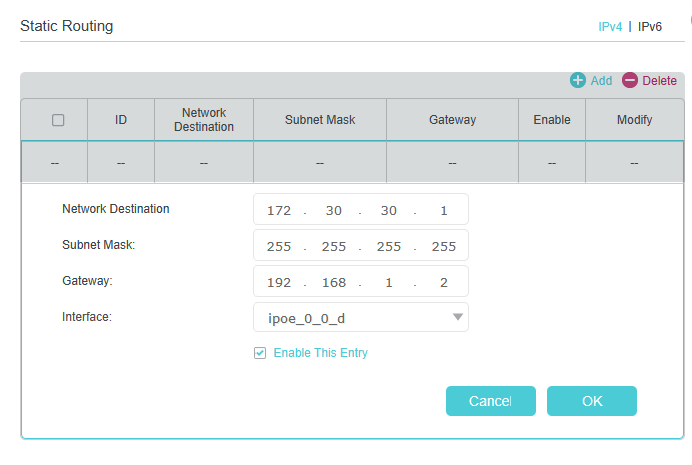
-
Network Destination: The destination IP address that you want to assign to a static route. This IP address cannot be on the same subnet with the WAN IP or LAN IP of the Router A. In the example, the IP address of the company network is the destination IP address, so here we enter 172.30.30.1.
-
Subnet Mask: Determines the destination network with the destination IP address. If the destination is a single IP address, enter 255.255.255.255; otherwise, enter the subnet mask of the corresponding network IP. In the example, the destination network is a single IP, so here we enter 255.255.255.255.
-
Gateway: The IP address of the gateway device to which the data packets will be sent. This IP address must be on the same subnet with the router’s IP which sends out the data. In the example, the data packets will be sent to the LAN port of Router B and then to the Server, so the default gateway should be 192.168.1.2.
-
Interface: Determined by the port (WAN/LAN) that sends out the data packets. In the example, the data is sent to the gateway through the LAN port of Router A, so LAN should be selected.
5. Select the Enable This Entry check box to enable this entry.
6. Click OK to make the settings effective.
Done!
Open a web browser on your PC. Enter the company server’s IP address to visit the company network.
5.6 RIP Settings
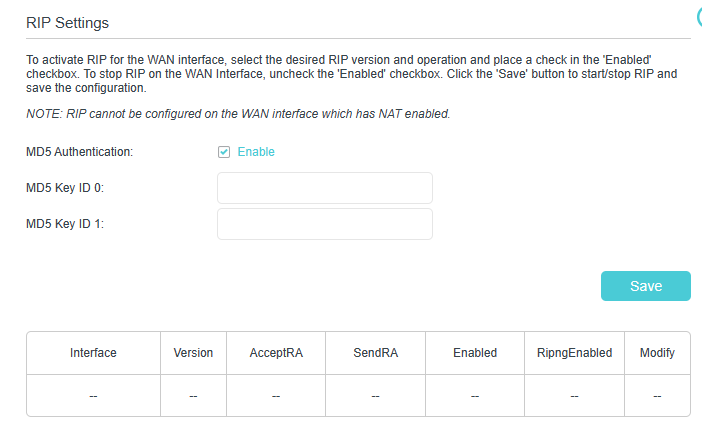
To activate RIP for the WAN interface, select the desired RIP version and operation and place a check in the ‘Enabled’ checkbox. To stop RIP on the WAN Interface, uncheck the ‘Enabled’ checkbox. Click the ‘Save’ button to start/stop RIP and save the configuration.
1. Visit http://tplinkmodem.net or http://192.168.1.1, and log in with your TP-Link ID or the password you set for the router.
2. Go to Advanced > Network > RIP Settings.
3. Configure RIP settings.
-
MD5 Authentication - Enable MD5 Authentication to enhance the rip RA packets security.
-
MD5 Key ID 0 - Setting the MD5 Key ID 0 value.
-
MD5 Key ID 1 - Setting the MD5 Key ID 1 value.
-
Interface - The WAN interface name of the RIP rule table’s entry used in.
-
Version - The RIP version (RIPv1/RIPv2) of the RIP rule table’s entry used.
-
AcceptRA - Enable it to make the RIP rule entry can accept the Router Advertisement.
-
SendRA - Enable it to make the RIP rule entry can send the Router Advertisement.
-
Enabled - Enable it to make the RIP rule entry active for IPv4.
-
RipngEnabled - Enable it to make the RIP rule entry active for IPv6, which is also known as Ripng.
-
Modify - Click here to modify the RIP rule entry.
5.7 Specify Wireless Settings
5.7.1 Change Basic Wireless Settings
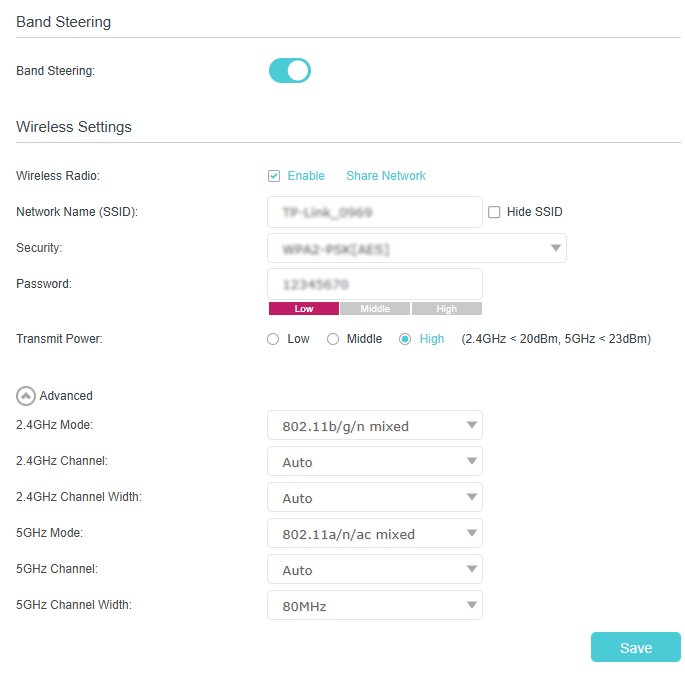
The router’s wireless network name (SSID) and password, and security option are preset in the factory. The preset SSID and password can be found on the product label. You can customize the wireless settings according to your needs.
Visit http://tplinkmodem.net or http://192.168.1.1, and log in with your TP-Link ID or the password you set for the router.
► To enable or disable the wireless function:
1. Go to Basic > Wireless or Advanced > Wireless > Wireless Settings.
2. The wireless radio is enabled by default. If you want to disable the wireless function of the router, just clear the Enable check boxes. In this case, all the wireless settings will be invalid.
► To change the wireless network name (SSID) and wireless password:
1. Go to Basic > Wireless or Advanced > Wireless > Wireless Settings.
2. Enter a new SSID (32 characters at most) in the Network Name (SSID) field and a new password in the Password field and click Save. The SSID and password are case-sensitive.
Note: If you use a wireless device to change the wireless settings, you will be disconnected after the new settings are effective. Please write down the new SSID and password for future use.
► To hide SSID:
1. Go to Basic > Wireless or Advanced > Wireless > Wireless Settings.
2. Select Hide SSID, and your SSID will not be broadcast. Your SSID won’t display on your wireless devices when you scan for local wireless networks and you need to manually join the network.
► To change the mode or channel:
1. Go to Advanced > Wireless > Wireless Settings.
2. Select the wireless network mode or channel and click Save to make the settings effective.
Mode: Select the desired transmission mode.
-
802.11b/g/n mixed: Select if you are using a mix of 802.11b, 11g, and 11n wireless clients.
-
802.11b/g/n/ax mixed: Select if you are using a mix of 802.11b, 11g, 11n and 11ax wireless clients.
-
802.11a/n/ac mixed: Select if you are using a mix of 802.11a, 11n, and 11ac wireless clients.
-
802.11a/n/ac/ax mixed: Select if you are using a mix of 802.11a, 11n, 11ac and 11ax wireless clients.
Channel: Select the channel you want to use from the drop-down list. This field determines which operating frequency will be used. It is not necessary to change the wireless channel unless you notice interference problems with another nearby access point.
Channel Width: Select the channel width from the drop-down list. The default setting is Auto, which can adjust the channel width for your clients automatically.
Transmit Power: Select Low, Middle, or High to specify the data transmit power. The default and recommended setting is High.
► To change the security option:
1. Go to Advanced > Wireless > Wireless Settings.
2. Select an option from the Security drop-down list and configure the related parameters. The router provides five options, No Security, WPA-PSK[TKIP]+WPA2-PSK[AES], WPA2-PSK[AES], WPA2-PSK[AES]+WPA3-Personal, WEP. WPA3 uses the newest standard and the security level is the highest. We recommend you don’t change the default settings unless necessary.
3. Click Save to make the settings effective.
► To enable network roaming:
Network roaming helps devices choose better AP based on actual conditions to balance network demands.
1. Go to Basic > Wireless or Advanced > Wireless > Wireless Settings.
2. Locate the Band Steering section, select the Enable check box to make the settings effective.
5.7.2 Advanced Wireless Settings
Advanced wireless settings are for those who want more network controls. You can follow the instructions below to configure your router.
1. Visit http://tplinkmodem.net or http://192.168.1.1, and log in with the password you set for the router.
2. Go to Advanced > Wireless > Advanced Settings.
► To change basic advanced settings:
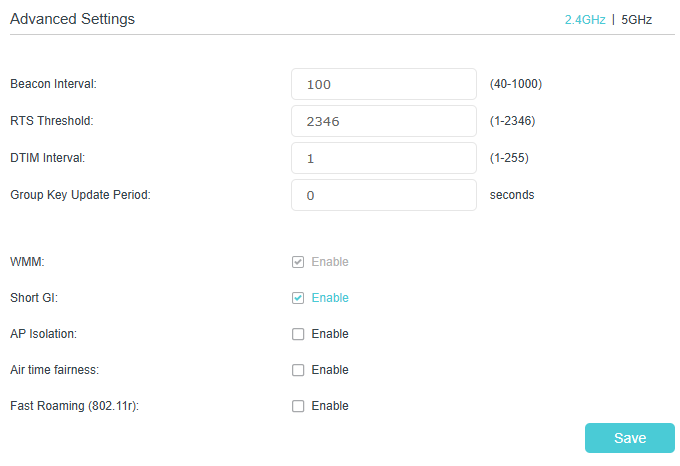
Locate the Advanced Settings section and configure the advanced settings according to the explanation below, and then click Save.
-
Beacon Interval: Enter a value between 40 and 1000 in milliseconds to determine the duration between which beacon packets are broadcast by the router to synchronize the wireless network. The default is 100 milliseconds.
-
RTS Threshold: Enter a value between 1 and 2346 to determine the packet size of data transmission through the router. By default, the RTS (Request to Send) Threshold size is 2347. If the packet size is greater than the preset threshold, the router sends Request to Send frames to a particular receiving station and negotiates the sending of a data frame, or else the packet will be sent immediately.
-
DTIM Interval: Enter a value between 1 and 255 to determine the interval of the Delivery Traffic Indication Message (DTIM). 1 indicates the DTIM Interval is the same as Beacon Interval.
-
Group Key Update Period: Enter the number of seconds to control the time interval for the encryption key automatic renewal. The default is 0, indicating no key renewal.
-
WMM: This feature guarantees the packets with high-priority messages being transmitted preferentially. WMM is enabled compulsively under 802.11n or 802.11ac mode.
-
Short GI: This feature is enabled by default and recommended to increase the data capacity by reducing the Guard Interval (GI) time.
-
AP Isolation: Select this check box to enable the AP Isolation feature that allows you to confine and restrict all wireless devices on your network from interacting with each other, but still able to access the internet.
-
Airtime fairness: Select this checkbox to enable the Airtime Fairness(ATF) feature that allows you to optimize the throughput of each flow. The ATF traffic scheduler uses the per-destination airtime targets to balance airtime usage across flow destinations.
-
Fast Roaming (802.11r): This feature allows a client device to roam quickly in environments implementing the WPA2 Enterprise security, by ensuring that the client device does not need to re-authenticate to the RADIUS server every time it roams from one access point to another. It’s recommended that you keep the feature enabled for better roaming experiences.
Note: If you are not familiar with the settings mentioned above, it’s strongly recommended that you keep the provided default settings; otherwise it may result in lower wireless network performance.
► To enable or disable WPS function:
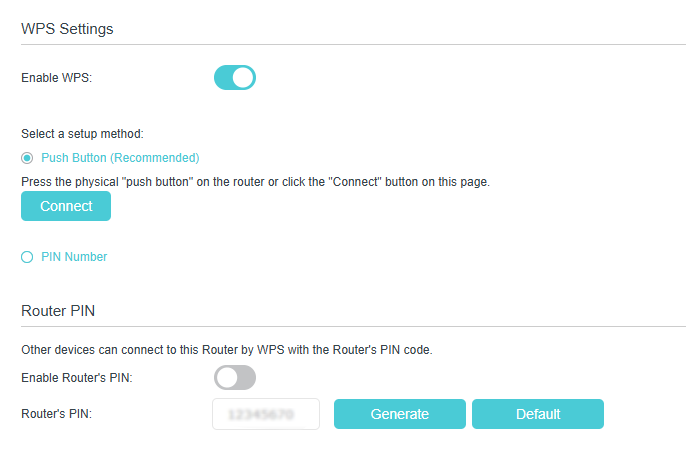
WPS (Wi-Fi Protected Setup) provides you with an easier approach to set up a security-protected Wi-Fi connection. This function is enabled by default, but if you do not need this function, clear the WPS Enable check box.
1. Visit http://tplinkmodem.net or http://192.168.1.1, and log in with the password you set for your router.
2. Go to Advanced > Wireless > WPS.
► To create multi-SSID network:
The router supports additional up to three multi-SSID wireless networks for client access in each wireless band. You can specify the access and security settings to ensure network security and privacy according to your situation.
Visit http://tplinkmodem.net or http://192.168.1.1, and log in with the password you set for your router.
Method 1: Advanced Settings
1. Go to Advanced > Wireless > Multi-SSID, create the multi-SSID network as needed.
1) Select the Enable MSSID 1 or 2 check box(es) to enable the corresponding multi-SSID network.
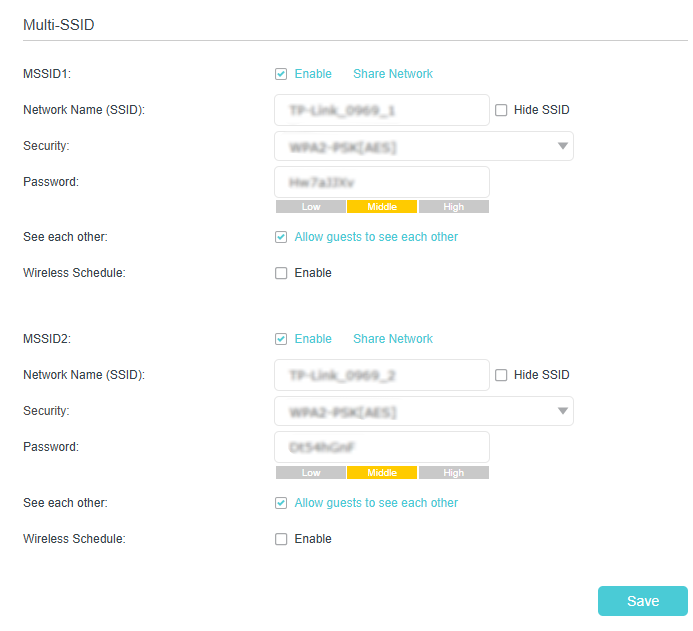
2) Enter a new Network Name (SSID) or use the default name, this field is case sensitive. Don‘t select Hide SSID unless you want your guests to manually input the SSID for Wi-Fi access.
3) Select the Security option for the multi-SSID network, WPA2-PSK[AES]+WPA3-Personal is recommended, and you can set a password for the network.
3) If you want to allow the clients in your Multi-SSID network to communicate with each other via methods such as Network Neighborhood and Ping, select the Allow Guests to See Each Other check box.
2. Repeat step 1) to step 2) to set other wireless networks if needed, and click Save to make the settings effective.
5.7.3 View Wireless Information
► To view the detailed wireless network settings:
1. Visit http://tplinkmodem.net or http://192.168.1.1, and log in with the password you set for the router.
2. Go to Advanced > Status page. You will find the Wireless panel.
3. Click 2.4GHz or 5GHz to view the wireless details.
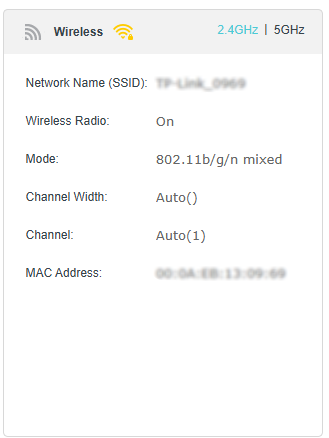
Tips: You can also see the wireless details by clicking the router icon on Basic> Network Map.
5.8 Schedule Your Wireless Function
You can automatically turn off your wireless networks when you do not need the wireless connection.
1. Visit http://tplinkmodem.net or http://192.168.1.1, and log in with the password you set for the router.
2. Go to Advanced > Wireless > Wireless Schedule.
3. Enable the Wireless Schedule function.
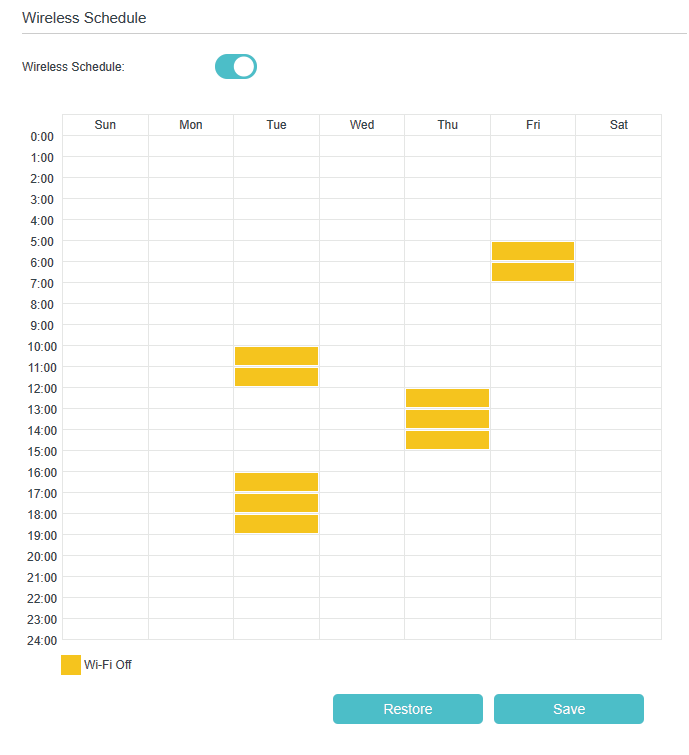
4. Click Add to set the Wireless Off Time, and click Save to make the settings effective.
Note:
-
Make sure that the time of the router is correct before using this function. For details, refer to Set System Time.
-
The wireless LED will turn off if the corresponding wireless network is disabled.
-
The wireless network will be automatically turned on after the time period you set.
5.9 Use WPS for Wireless Connection
You can use WPS (Wi-Fi Protected Setup) to add a new wireless device to your existing network quickly and easily.
Method 1: Use the WPS button
Use this method if your client device has a WPS button.
1. Press the WPS button of the router.
2. Press the WPS button of the client device directly.
3. The Wi-Fi LED flashes for about 2 minutes during the WPS process.
4. When the Wi-Fi LED is on, the client device has successfully connected to the router.
Method 2: Use the “Connect” button on the web management page
Use this method if your client device has a WPS button.
1. Visit http://tplinkmodem.net or http://192.168.1.1, and log in with the password you set for the router.
2. Go to Advanced > Wireless > WPS page.
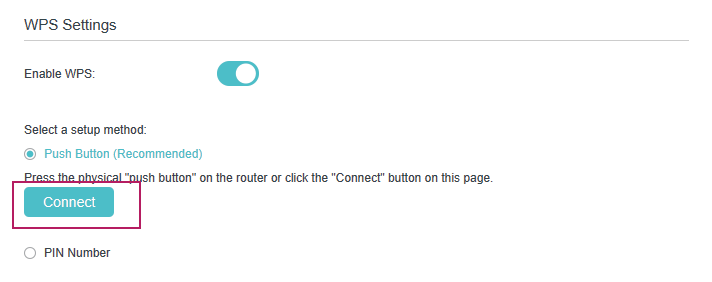
3. Click Connect on the page.
4. Press the WPS button of the client device directly.
5. The WPS LED of the router flashes for about 2 minutes during the WPS process.
6. When the WPS LED is on, the client device has successfully connected to the router.
Method 3: Enter the router’s PIN on your client device
Use this method if your client device asks for the router’s PIN.
1. Visit http://tplinkmodem.net or http://192.168.1.1, and log in with the password you set for the router.
2. Go to Advanced > Wireless > WPS, and enable Router’s PIN.
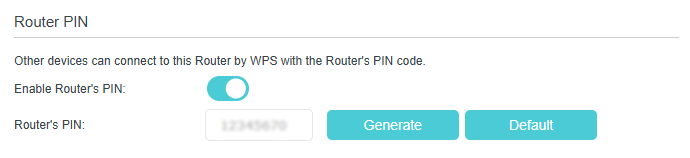
3. Take a note of the current PIN of the router. You can also click the Generate button to get a new PIN.
4. Enter the router’s PIN on the client device. (The default PIN is also printed on the label of the router.)
The WPS LED flashes for about 2 minutes during the WPS process.
When the WPS LED is on, the client device has successfully connected to the router.
Note:
-
The WPS LED on the router will light on for five minutes if the device has been successfully added to the network.
-
The WPS function cannot be configured if the wireless function of the router is disabled. Please make sure the wireless function is enabled before configuring WPS.
Method 4: Enter the client device’s PIN on the router
1. Visit http://tplinkmodem.net or http://192.168.1.1, and log in with the password you set for the router.
2. Go to Advanced > Wireless > WPS, and click PIN Number.
3. Enter the Client’s PIN.
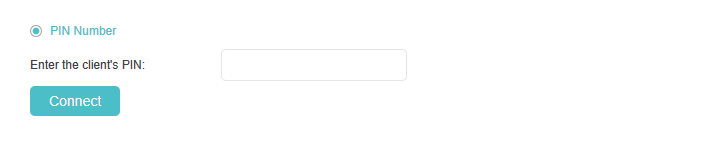
4. Then click the Connect button.
5. Device has been added successfully! or the similar information will appear on the web page, which means the client device has successfully connected to the router.
6. Guest Network
This function allows you to provide Wi-Fi access for guests without disclosing your main network. When you have guests in your house, apartment, or workplace, you can create a guest network for them. In addition, you can customize guest network options to ensure network security, privacy, and fluency.
*Features available on the web management page may vary by model and software version.
1. Visit http://tplinkmodem.net or http://192.168.1.1, and log in with your TP-Link ID or the password you set for the router.
2. Go to Basic > Guest Network or Advanced > Guest Network. Assign network authorities and bandwidth according to your needs.

-
Allow Guests to Access Each Other
Select this check box to allow the clients in your guest network to access each other’s files.
3. Locate the Wireless section.
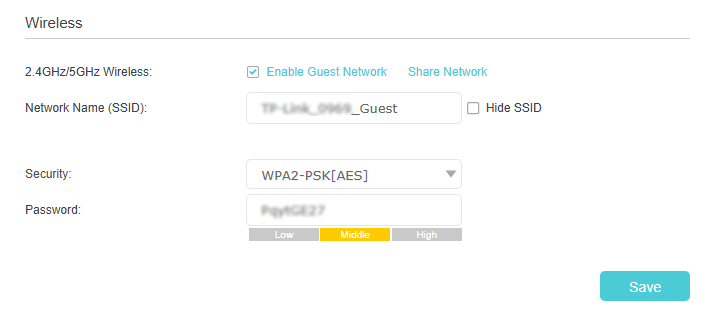
4. Create 2.4GHz/5GHz guest network according to your needs.
1) Enable 2.4GHz/5GHz Wireless or enable both according to your needs.
2) Set an easy-to-identify SSID. Don‘t select Hide SSID unless you want your guests and other people to manually input this SSID for Wi-Fi access.
3) Set Security to WPA2-PSK[AES]+WPA3-Personal, and set an easy-to-remember password. 2.4GHz/5GHz guest networks share the same password.
5. Click Save. Now your guests can access your guest network using the SSID and password you set!
Tips: To view guest network information, go to Advanced > Status and find the Guest Network section.
7. USB Settings
This chapter describes how to use the USB ports to share files, and media from the USB storage devices over your home network locally, or remotely through the internet.
The modem router supports USB external flash drives, and hard drives.
*Features available on the web management page may vary by model and software version.
7.1 Access the USB Storage Device
Insert your USB storage device into the modem router’s USB port and then access files stored there locally or remotely.
Tips:
-
If you use USB hubs, make sure no more than 4 devices are connected to the modem router.
-
If the USB storage device requires using bundled external power, make sure the external power has been connected.
-
If you use a USB hard drive, make sure its file system is FAT32 or NTFS. Some modem routers also support the HFS+ and exFAT file systems.
-
Before you physically disconnect a USB device from the modem router, safely remove it to avoid data damage: Go to Advanced > USB Sharing > USB Storage Device and click Remove.
Note: HFS+ format is only compatible with macOS.
7.1.1 Access the USB Device Locally
Insert your USB storage device into the modem router’s USB port and then refer to the following table to access files stored on your USB storage device.
| Windows computer |
• Method 1: Go to Computer > Network, then click the Network Server Name (Archer_model number by default) in the Computer section. Note: • Operations in different systems are similar. Here we take Windows 7 as an example. • Network Server Name can be customized on the web management page.
• Method 2: Open the Windows Explorer (or go to Computer) and type the server address \\tplinkmodem.net or ftp://tplinkmodem.net in the address bar, then press Enter.
|
|---|---|
| Mac |
1) Select Go > Connect to Server. 2) Type the server address smb://tplinkmodem.net. 3) Click Connect.
4) When prompted, select the Guest radio box. (If you have set up a username and a password to deny anonymous access to the USB disks, you should select the Registered User radio box. To learn how to set up an account for the access, refer to To Set Up Authentication for Data Security.) Tips: You can also use the FTP, http and SFTP methods to access the USB storage device. |
| Tablet | Use a third-party app for network files management. |
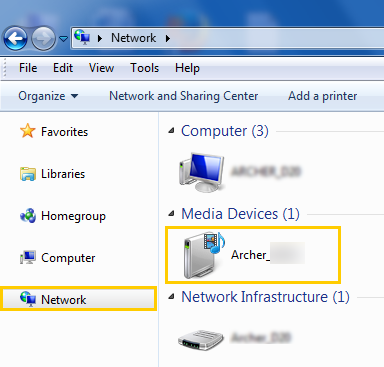
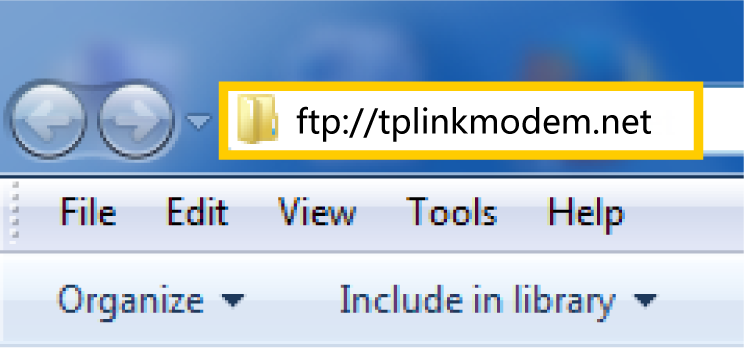
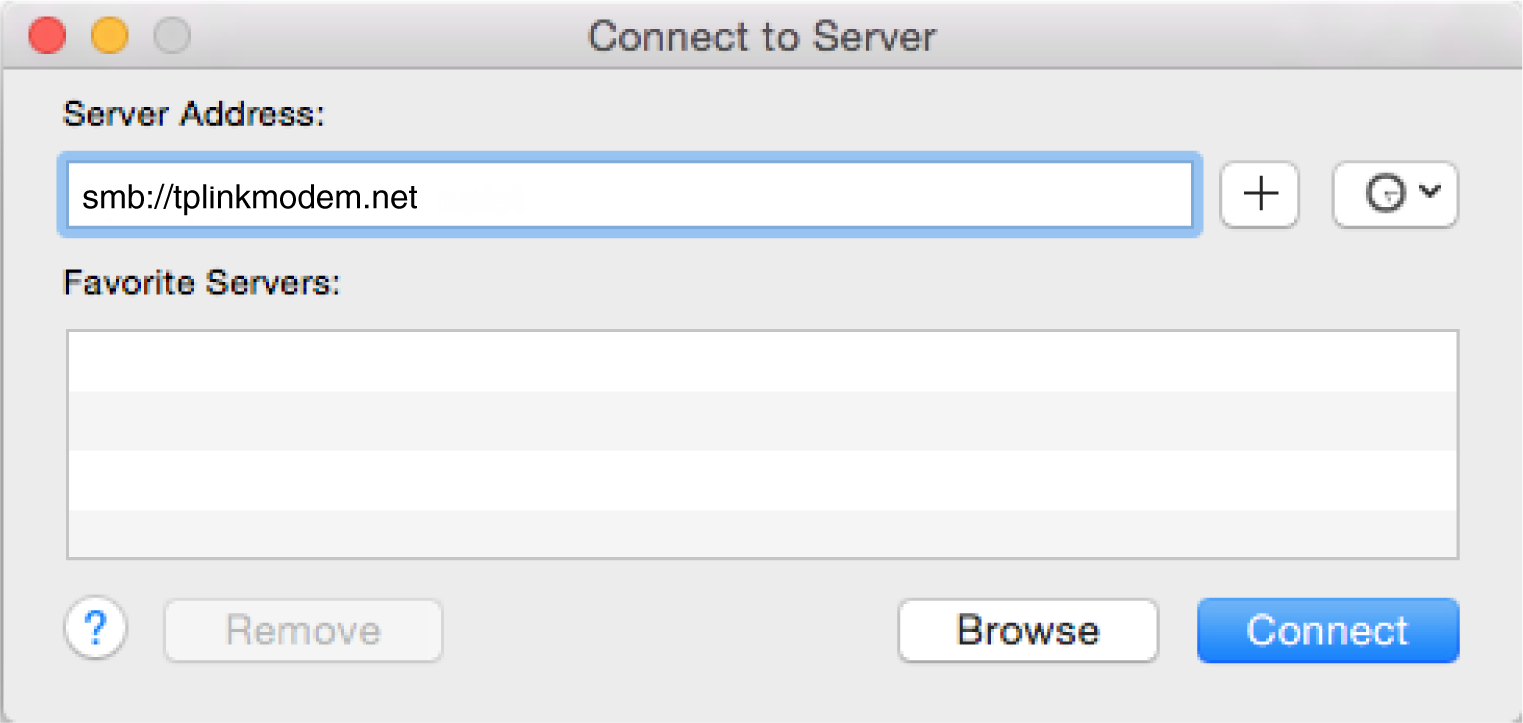
Tips: You can also access your USB storage device by using your Network/Media Server Name as the server address. Refer to To Customize the Address of the USB Storage Device to learn more.
7.1.2 Access the USB Device Remotely
You can access your USB disk outside the local area network. For example, you can:
-
Share photos and other large files with your friends without logging in to (and paying for) a photo-sharing site or email system.
-
Get a safe backup for the materials for a presentation.
-
Remove the files on your camera’s memory card from time to time during the journey.
Note: If your ISP assigns a private WAN IP address (such as 192.168.x.x or 10.x.x.x), you cannot use this feature because private addresses are not routed on the internet.
Follow the steps below to configure remote access settings.
1. Visit http://tplinkmodem.net or http://192.168.1.1, and log in with the default password printed on the product label or the password you set for the modem router.
2. Go to Advanced > USB Sharing > Sharing Access page and locate the Sharing Settings section.
3. Tick the FTP (via Internet) checkbox, and then click Save.
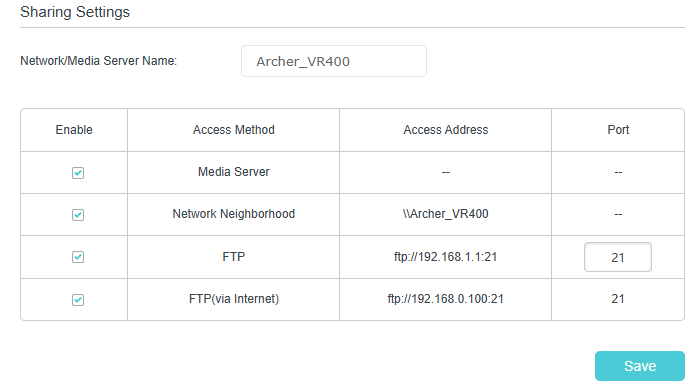
4. Refer to the following table to access your USB disk remotely.
| Computer |
1) Open the Windows Explorer (or go to Computer, only for Windows users) or open a web browser. 2) Type the server address in the address bar: Type in ftp://<WAN IP address of the router>:<port number> (such as ftp://59.40.2.243:21). If you have specified the domain name of the router, you can also type in ftp://<domain name>:<port number> (such as ftp://MyDomainName:21) 3) Press Enter on the keyboard. 4) Access with the username and password you set in To Set Up Authentication for Data Security.
Tips: You can also access the USB disk via a third-party app for network files management, which can resume broken file transfers. |
|---|---|
| Tablet | Use a third-party app for network files management. |
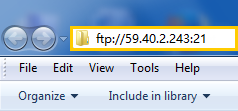
Tips: Click Set Up a Dynamic DNS Service Account to learn how to set up a domain name for your router.
7.1.3 Customize the Access Settings
By default, all the network clients can access all folders on your USB disk. You can customize your sharing settings by setting a sharing account, sharing specific contents and setting a new sharing address on the router’s web management page.
1. Visit http://tplinkmodem.net or http://192.168.1.1, and log in with the default password printed on the product label or the password you set for the modem router.
2. Go to Advanced > USB Devices > Sharing Access page.
► To Customize the Address of the USB Storage Device
You can customize the server name and use the name to access your USB storage device.
1. In the Sharing Settings section, make sure Network Neighborhood is ticked, and enter a Network/Media Server Name as you like, such as MyShare, then click Save.
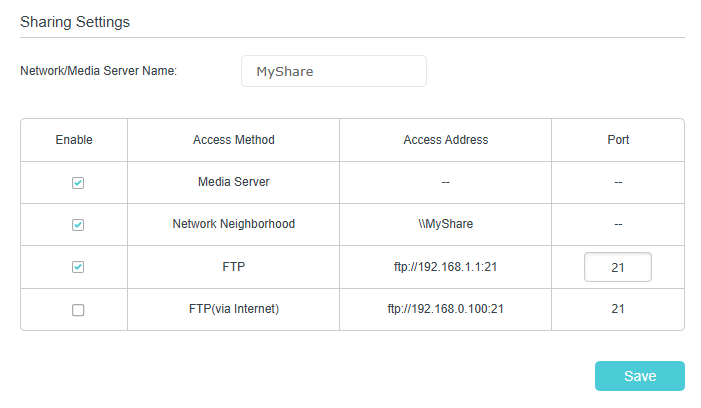
2. Now you can access the USB storage device by visiting \\MyShare (for Windows) or smb://MyShare (for Mac).
► To Only Share Specific Content
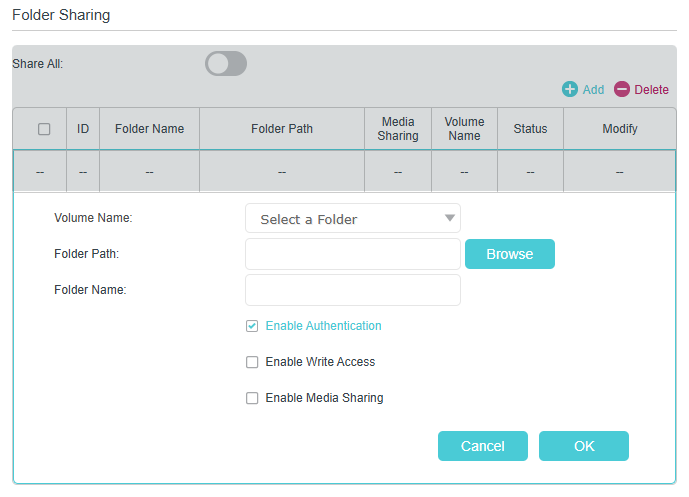
1. Focus on the Folder Sharing section. Click the button to disable Share All, then click Add to add a new sharing folder.
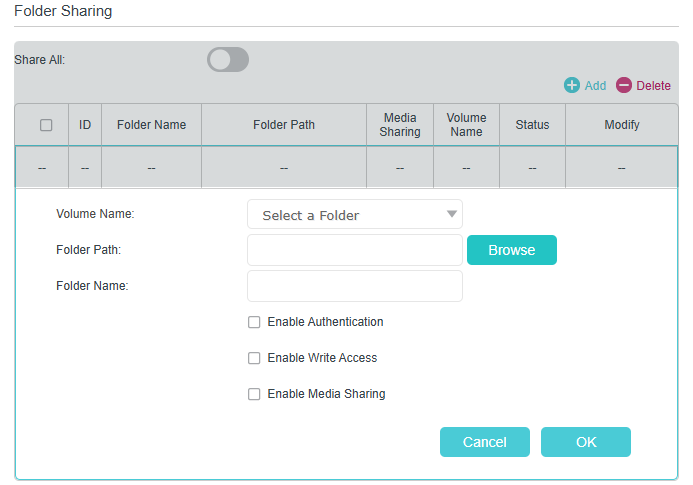
2. Select the Volume Name and Folder Path, then enter a Folder Name as you like.
3. Decide the way you share the folder:
-
Enable Authentication: Select to enable authentication for this folder sharing, and you will be required to log in to the Sharing Account to access the USB disk. Refer to To Set up Authentication for Data Security to learn more.
-
Enable Write Access: If you tick this check box, network clients can modify this folder.
-
Enable Media Sharing: Tick to enable media sharing for this folder, and you can view photos, play music and watch movies stored on the USB disk directly from DLNA-supported devices. Refer to Media Sharing to learn more.
4. Click Save.
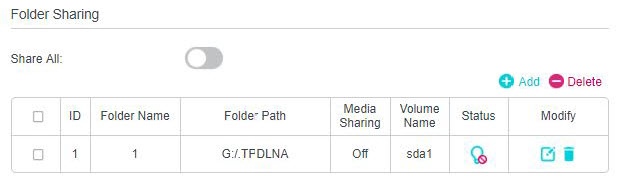
Tips: The modem router can share eight volumes at most. You can click the Bulb icon on the page to detach the corresponding volume you do not need to share.
► To Set Up Authentication for Data Security
You can set up authentication for your USB storage device so that network clients will be required to enter username and password when accessing the USB storage device.
1.Under Sharing Account, choose Use Default Account or Use New Account. The username and password are same as login account for the default account. If you choose Use New Account, you have to customize the username and a password.
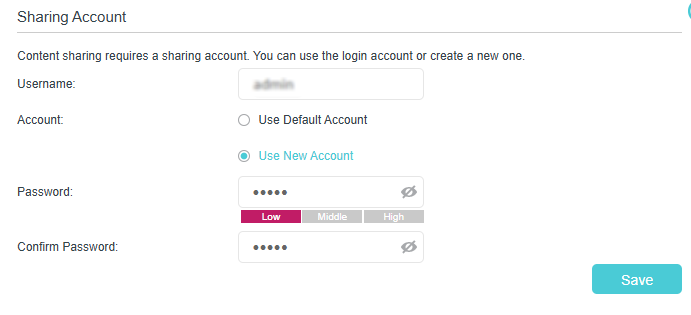
Note: For Windows users, do not set the sharing username the same as the Windows username. Otherwise, Windows credential mechanism may cause the following problems:
-
If the sharing password is also the same as the Windows password, authentication will not work since the Windows system will automatically use its account information for USB access.
-
If the sharing password is different from the Windows password, the Windows system will be unable to remember your credentials and you will always be required to enter the sharing password for USB access.
2. Specify the folder(s) to enable authentication.
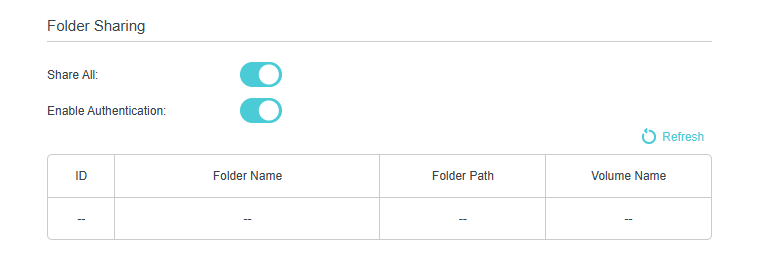
- If you want to enable authentication for all folders, leave Share All enabled, and toggle on Enable Authentication.
- If you want to enable authentication for specific folders, disable Share All and click Add to specify the folders, and select Enable Authentication.
Note: Due to Windows credential mechanism, you might be unable to access the USB disk after changing Authentication settings. Please log out from the Windows and try to access again. Or you can change the address of the USB disk by referring to To Customize the Address of the USB Storage Device.
7.2 Media Sharing
Media Sharing allows you to view photos, play music and watch movies stored on the USB disk directly from DLNA-supported devices, such as your computer, tablet or games console.
1. When your USB disk is inserted into the modem router, your DLNA-supported devices (such as your computer and tablet) connected to the modem router can detect and play the media files on the USB disks.
2. Refer to the following table for detailed instructions.
| Windows computer |
Go to Computer > Network, then click the Media Server Name (Archer_model number by default) in the Media Devices section. Note: Here we take Windows 7 as an example.
|
|---|---|
| Smart Device | Use a third-party DLNA-supported player. |
7.3 3G/4G Settings
The modem router can be used as a 3G/4G wireless router if you have a 3G/4G USB modem. You can use your 3G/4G network as a backup solution for the Internet access:
Using 3G/4G network as a backup solution for internet access, your modem router will be directly connected to the 3G/4G network when the original network service fails.
Follow the steps below to set your 3G/4G network as a backup for internet access:
1. Plug your USB modem into the USB port of your modem router.
2. Visit http://tplinkmodem.net or http://192.168.1.1, then log in with your TP-Link ID or the password you set for the modem router.
3. Go to Advanced > USB Sharing > 3G/4G Settings, and select the box of Enable 3G/4G as a backup solution for Internet access.
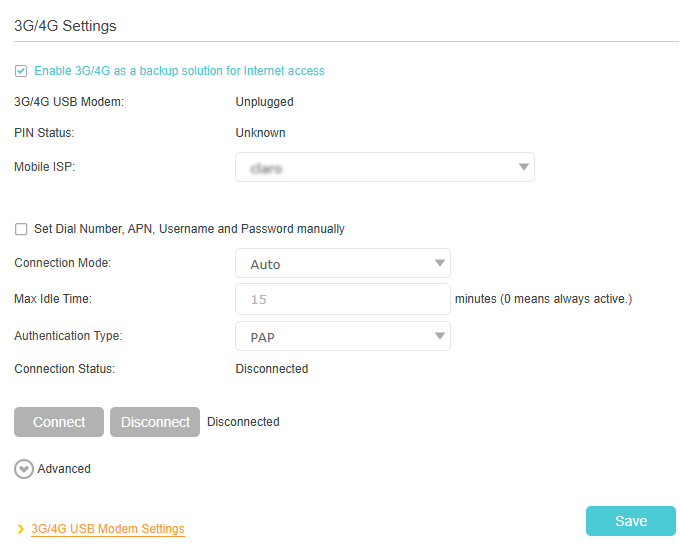
4. Verify that your 3G/4G USB Modem is successfully identified.
Note: The 3G/4G USB modem will not be identified if it is incompatible with the modem router. Find the 3G/4G Compatibility List on the web page: http://www.tp-link.com/en/comp-list.html. If your USB modem is incompatible, contact our technical support.
5. Verify that the modem router has correctly recognized your Mobile ISP. When your Mobile ISP is correct, you have successfully set 3G/4G network as a backup solution for internet access. Otherwise, select the box Set the Dial Number, APN, Username and Password manually and enter the information provided by your 3G/4G network service provider.
6. Click Advanced to have more configurations if needed.
7. Click Save to make the settings effective.
8. Parental Controls
This function allows you to block inappropriate, explicit and malicious websites, and control access to specified websites at specified time.
*Features available on the web management page may vary by model and software version.
I want to:
Control what types of websites my children or other home network users can visit and the time of day they are allowed to access the internet.
For example, I want to allow my children’s devices (e.g. a computer or a tablet) to access only www.tp-link.com and Wikipedia.org from 18:00 (6 PM) to 22:00 (10 PM) on the weekdays and not other time.
How can I do that?
1. Visit http://tplinkmodem.net or http://192.168.1.1, and log in with your TP-Link ID or the password you set for the router.
2. Go to Basic > Parental Controls or Advanced > Parental Controls.
3. Click Add to create a profile for a family member.
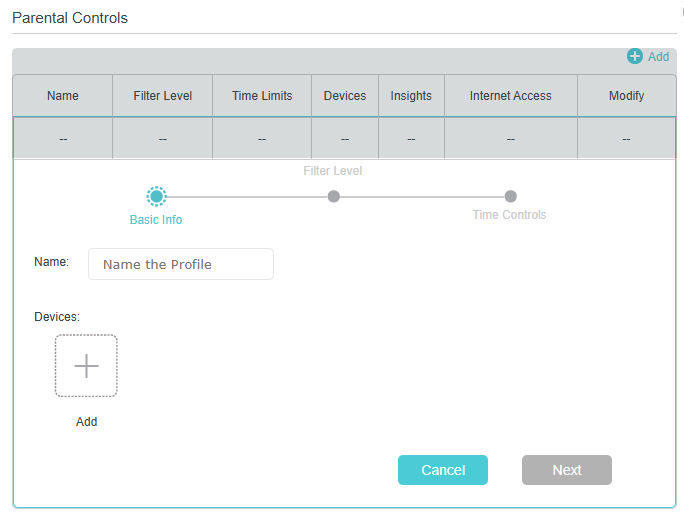
4. Name the profile and add devices that belong to this family member. Access restrictions will be applied to these devices.
Note: Only devices that have previously been connected to your router’s network are listed here. If you are unable to find the device you want to add, connect it to your network and then try again.
5. Block content for this profile.
1) Select a filter level based on the age of the family member this profile belongs to. Blocked content will then be displayed in the Category Filter list.
2) Choose which categories to be available for the profile or to be blocked from accessing.
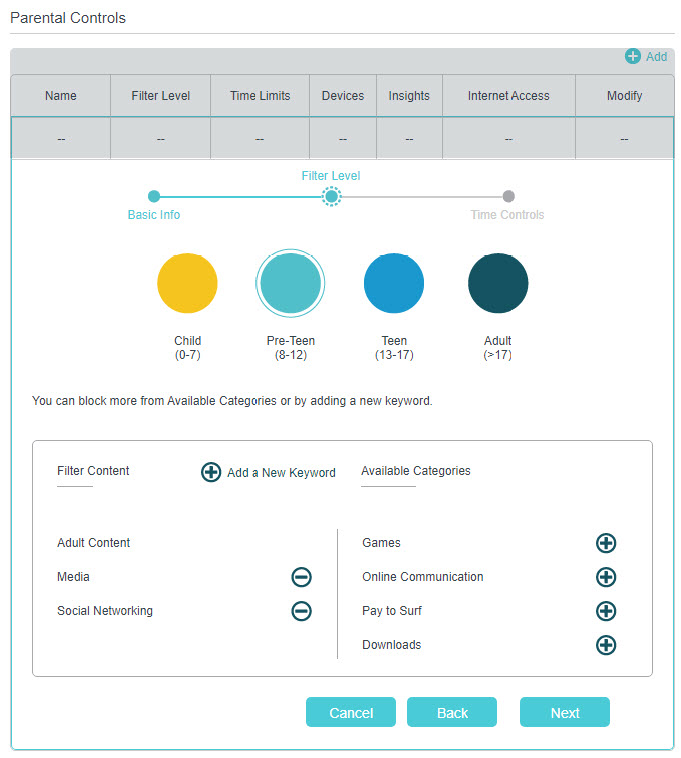
6. Set time restrictions on internet access.
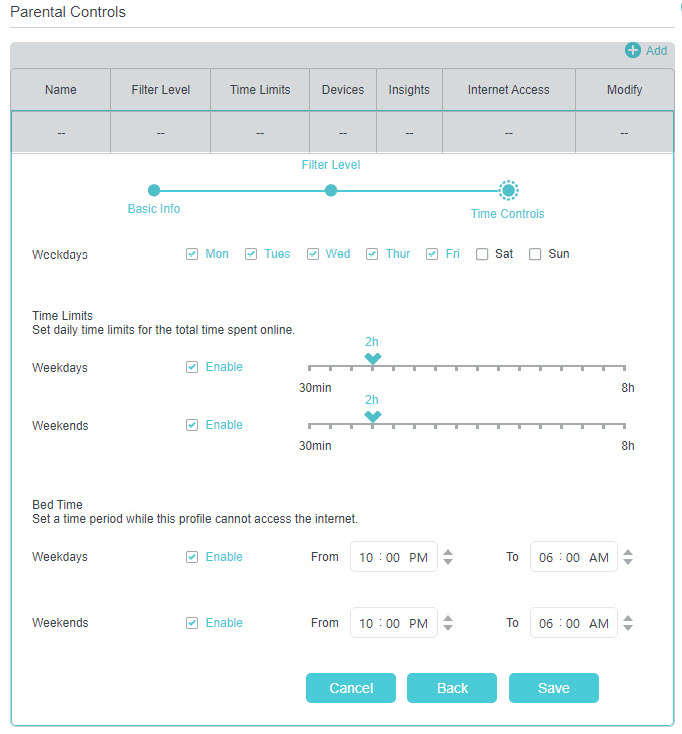
1) Enable Time Limits on Weekdays or Weekends then set the allowed online time each day.
2) Enable Bed Time on Weekdays or Weekends and select allowed online times in the fields. Devices under this profile will be unable to access the internet during this time period.
3) Click Save.
Done!
The amount of time your child spends online is controlled and inappropriate content is blocked on their devices.
9. Quality of Service
This chapter explains how to create a QoS (Quality of Service) rule to prioritize your online activities, which minimizes the impact caused by heavy internet traffic.
This function allows you to specify the priority of traffic and minimizes the impact of network congestion.
The router allows you to configure the quality of service (QoS) for optimal throughput and performance when handling differentiated wireless traffic, such as Voiceover-IP (VoIP), other types of audio, video, streaming media, and traditional IP data.
To configure QoS on the routers, you should set parameters on the transmission queues for different types of wireless traffic. In normal use, we recommend that you keep the default values for the routers.
*Features available on the web management page may vary by model and software version.
9.1 Set up QoS for the network
1. Visit http://tplinkmodem.net or http://192.168.1.1, and log in with the password you set for the router.
2. Go to Advanced > QoS.
3. Enable QoS.
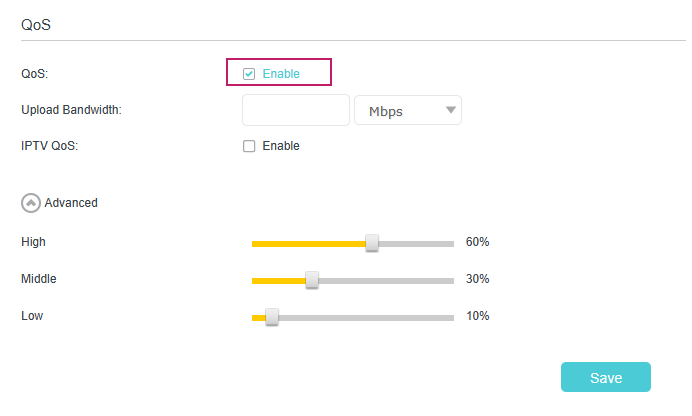
4. Enter the upload bandwidths provided by your ISP.
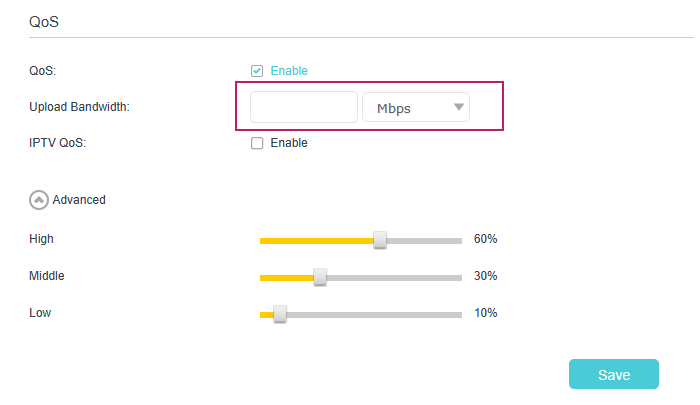
5. (Optional) Enable IPTV QoS, then set the priority and reserved bandwidth of IPTV traffic.
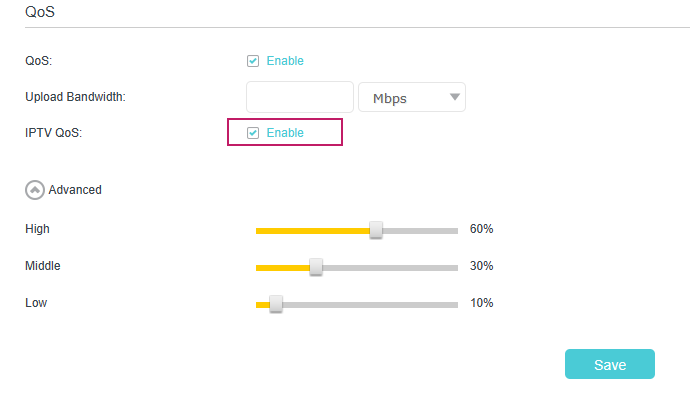
6. (Optional) Click Advanced and arrange the sliders to set the bandwidth percentage of each priority.
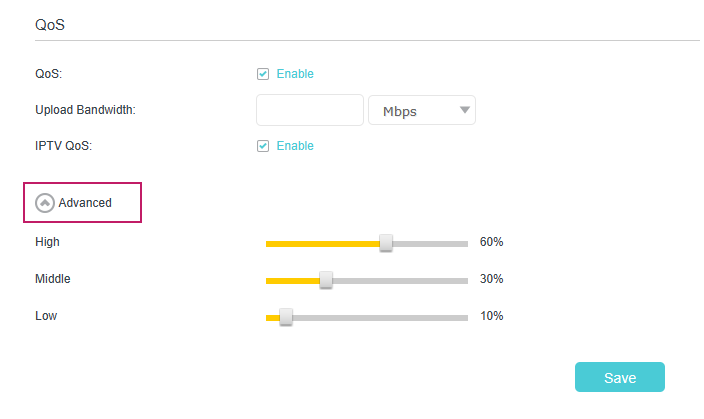
7. Click Save to make the settings effective.
9.2 Set up QoS for a specific device
1. Visit http://tplinkmodem.net or http://192.168.1.1, and log in with the password you set for the router.
2. Go to Advanced > QoS.
3. In the QoS Rule List table, choose a priority section and click Add.
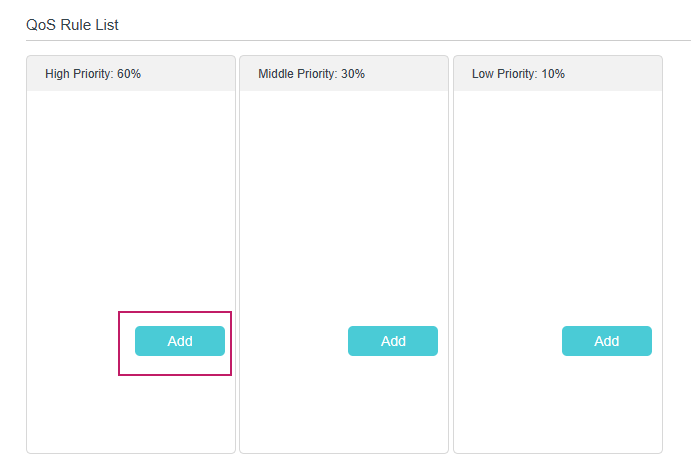
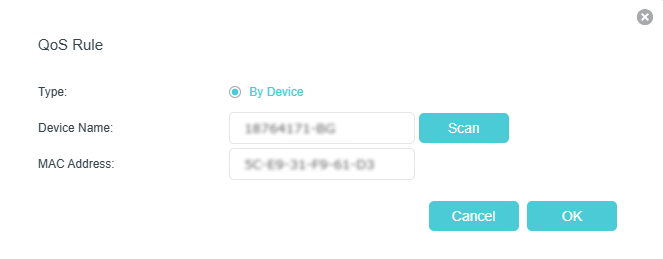
4. In the QoS Rule window, click scan and click the Add button to choose a device, then click OK to add it to the rule.
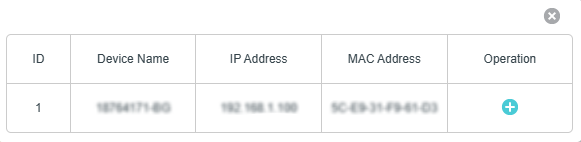
10. Network Security
This chapter guides you on how to protect your home network from unauthorized users by implementing network security functions. You can block or allow specific client devices to access your wireless network using MAC Filtering, or using Access Control for wired and wireless networks, or you can prevent ARP spoofing and ARP attacks by using IP & MAC Binding.
*Features available on the web management page may vary by model and software version.
10.1 Firewall & DoS Protection
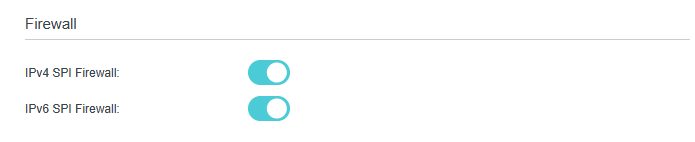
The SPI (Stateful Packet Inspection) Firewall and DoS (Denial of Service) Protection protect the router from cyber attacks.
The SPI Firewall can prevent cyber attacks and validate the traffic that is passing through the router based on the protocol. This function is enabled by default, and it is recommended to keep the default settings.
DoS Protection can protect your home network against DoS attacks from flooding your network with server requests. Follow the steps below to configure DoS Protection.
1. Visit http://tplinkmodem.net or http://192.168.1.1, and log in with the password you set for the router.
2. Go to Advanced > Security > Firewall & DoS Protection.
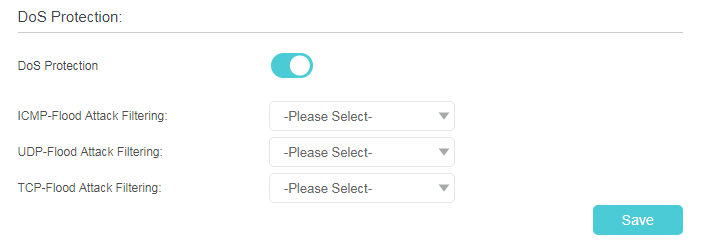
3. Enable DoS Protection.
4. Set the protection level (Low, Middle or High) for ICMP-Flood Attack Filtering, UDP-Flood Attack Filtering and TCP-Flood Attack Filtering.
-
ICMP-Flood Attack Filtering - Enable to prevent the ICMP (Internet Control Message Protocol) flood attack.
-
UDP-Flood Attack Filtering - Enable to prevent the UDP (User Datagram Protocol) flood attack.
-
TCP-Flood Attack Filtering - Enable to prevent the TCP (Transmission Control Protocol) flood attack.
5. Click Save.
Tips:
• The level of protection is based on the number of traffic packets. You can specify the level under DoS Protection Level Settings.
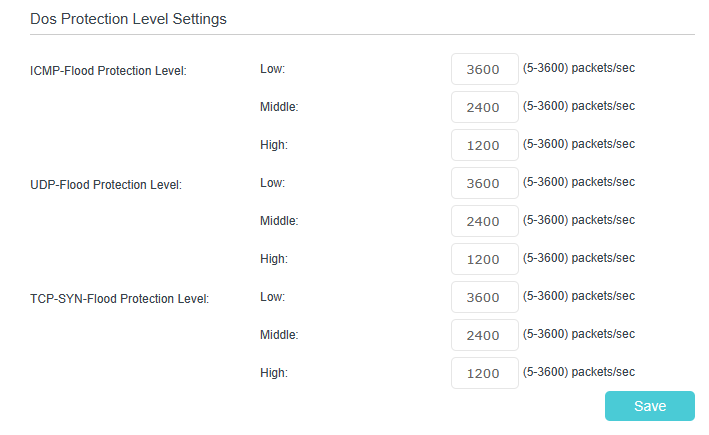
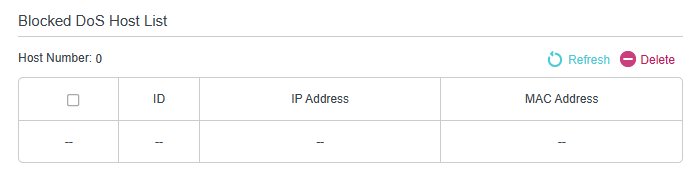
• The protection will be triggered immediately when the number of packets exceeds the preset threshold value, and the vicious host will be displayed in the Blocked DoS Host List.
10.2 Service Filtering
With Service Filtering, you can prevent certain users from accessing the specified service, and even block internet access completely.
1. Visit http://tplinkmodem.net or http://192.168.1.1, and log in with the password you set for the router.
2. Go to Advanced > Security > Service Filtering, and enable Service Filtering.

3. Click Add.
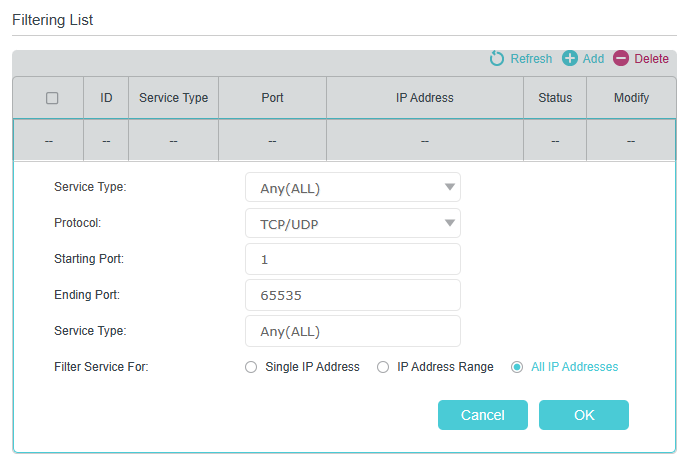
4. Select a Service Type from the drop-down list and the following four fields will be automatically filled in. Select Custom when your desired service type is not listed, and enter the information manually.
5. Specify the IP address(es) that this filtering rule will apply to.
6. Click Save to make the settings effective.
Note: If you want to disable an entry, click the Bulb icon.
10.3 Access Control
Access Control is used to block or allow specific client devices to access your network (via wired or wireless) based on a list of blocked devices (Blacklist) or a list of allowed devices (Whitelist).
I want to:
Block or allow specific client devices to access my network (via wired or wireless).
How can I do that?
1. Visit http://tplinkmodem.net or http://192.168.1.1, and log in with the password you set for the router.
2. Go to Advanced > Security > Access Control and enable Access Control.

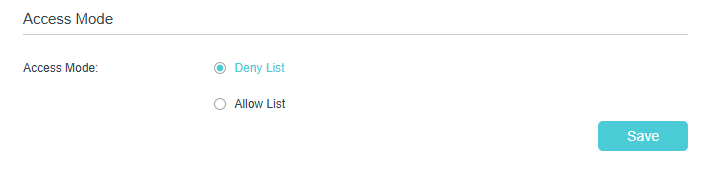
3. Select the access mode to either block (recommended) or allow the device(s) to access your network.
To block specific device(s):
1) Select Deny List and click Save.
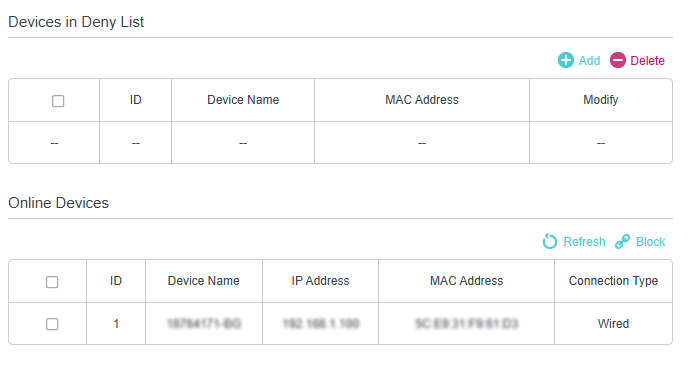
2) Select the device(s) to be blocked in the Online Devices table (or click the Add under the Devices in Deny List and enter the Device Name and MAC Address manually).
3) Click Block above the Online Devices table. The selected devices will be added to Devices in Deny List automatically.
To allow specific device(s):
1) Select Allow List and click Save.
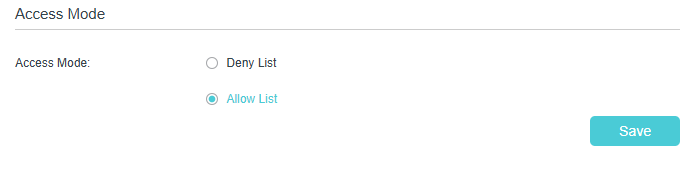
2) Click Add in the Devices in Allow List section.
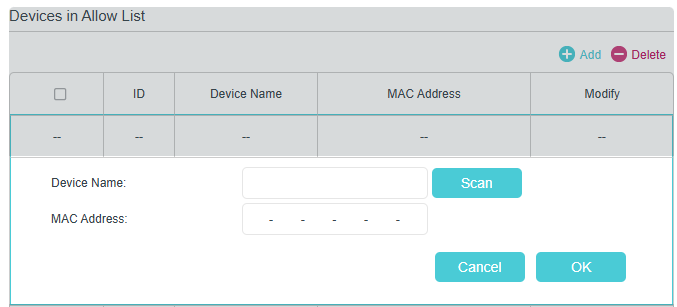
3) Enter the Device Name and MAC Address. (You can copy and paste the information from Online Devices table if the device is connected to your network.)
4) Click Save.
Done!
Now you can block or allow specific client devices to access your network (via wired or wireless) by Deny List or Allow List.
10.4 IP & MAC Binding
IP & MAC Binding, namely, ARP (Address Resolution Protocol) Binding, is used to bind a network device’s IP address to its MAC address. This will prevent ARP spoofing and other ARP attacks by denying network access to a device with a matching IP address in the Binding list, but an unrecognized MAC address.
I want to:
Prevent ARP spoofing and ARP attacks.
How can I do that?
1. Visit http://tplinkmodem.net or http://192.168.1.1, and log in with the password you set for the router.
2. Go to Advanced > Security > IP & MAC Binding, and enable IP & MAC Binding.
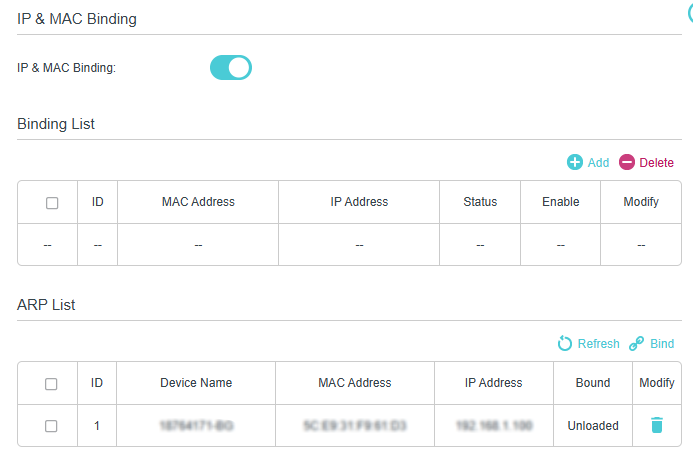
3. Bind your device(s) according to your needs.
To bind the connected device(s):
1) Select the device(s) to be bound in the ARP List.
2) Click Bind to add to the Binding List.
To bind the unconnected device:
1) Click Add in the Binding List section.
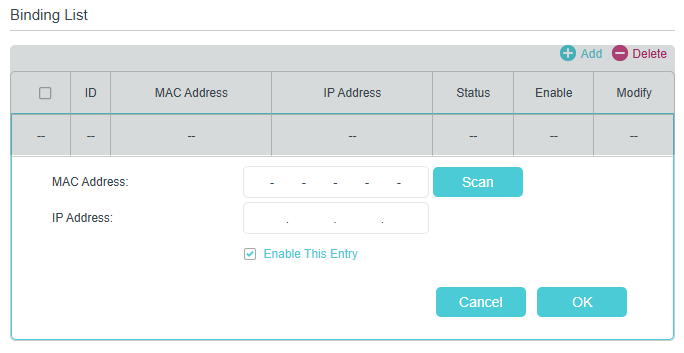
2) Enter the MAC address and IP address that you want to bind.
3) Select the Enable This Entry check box to enable the entry and click OK.
Done!
Enjoy the internet without worrying about ARP spoofing and ARP attacks.
10.5 IPv6 Firewall
IPv6 Firewall protects your IPv6 network by preventing access from the internet. However, when you are hosting a service, such as a file sharing server in your local network, you can choose to allow access to the server from the internet by adding entries on this page. This feature is available only when you’ve set up an IPv6 connection.
1. Visit http://tplinkmodem.net or http://192.168.1.1, and log in with the password you set for the router.
2. Go to Advanced > Security > IPv6 Firewall.
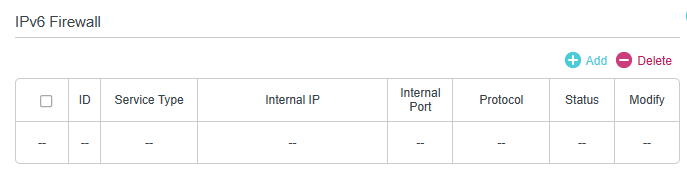
3. Click Add.
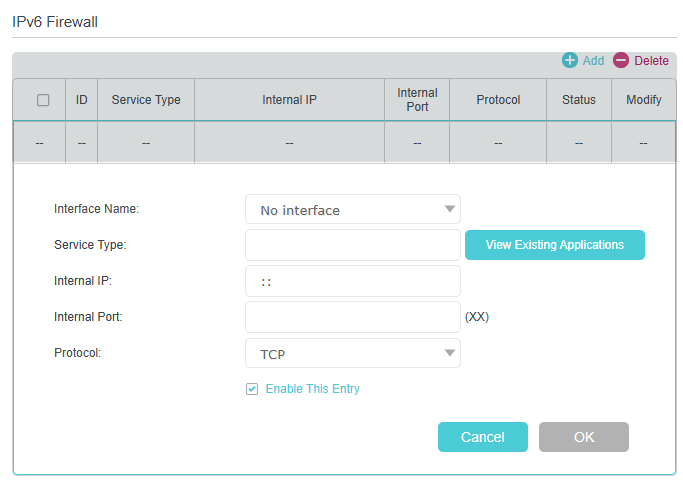
4. Select an interface name from the drop-down list. Interface names are names of the internet connections you have set up.
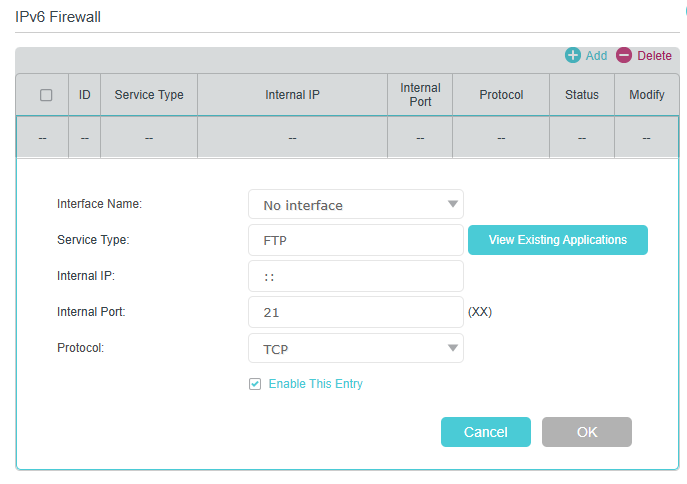
5. Click View Existing Applications to select a service from the list to automatically populate the Port field with an appropriate port number. It is recommended to keep the default Port if you are unsure about which one to use. If the service is not listed, manually enter the Service Type and the Port number (e.g., 21 or 21-25). The following picture takes application FTP as an example.
6. Select a protocol for the service from the drop-down list.
7. Select Enable This Entry.
8. Click OK.
Tips: If you want to disable this entry, click the Bulb icon.
11. NAT Forwarding
Modem router’s NAT (Network Address Translation) feature makes the devices in the LAN use the same public IP address to communicate in the internet, which protects the local network by hiding IP addresses of the devices. However, it also brings about the problem that external host cannot initiatively communicate with the specified device in the local network.
The modem router can use a forwarding feature to remove the isolation of NAT and allow external internet hosts to intuitively communicate with the devices in the local network, thus enabling some special features.
TP-Link modem router includes four forwarding rules. If two or more rules are set, the priority of implementation from high to low is Virtual Servers, Port Triggering, UPNP and DMZ.
*Features available on the web management page may vary by model and software version.
11.1 Translate Address and Port by ALG
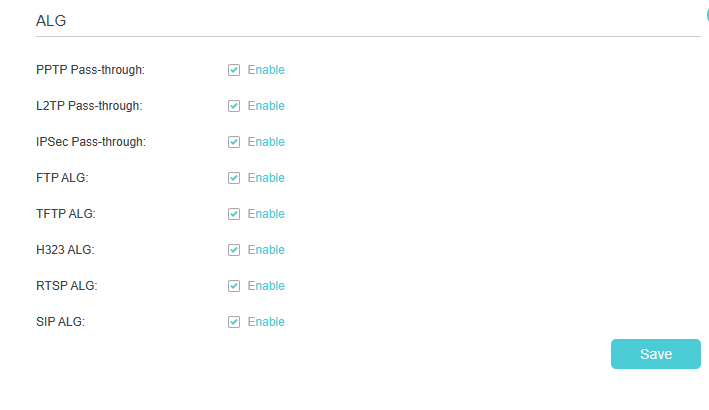
ALG allows customized Network Address Translation (NAT) traversal filters to be plugged into the gateway to support address and port translation for certain application layer “control/data” protocols such as FTP, TFTP, H323 etc. It is recommended to keep the default settings.
You may need to disable SIP ALG when you are using voice and video applications to create and accept a call through the router, since some voice and video communication applications do not work well with SIP ALG.
1. Visit http://tplinkmodem.net or http://192.168.1.1, and log in with your TP-Link ID or the password you set for the router.
2. Go to Advanced > NAT Forwarding > ALG.
-
PPTP Pass-through - If enabled, it allows Point-to-Point sessions to be tunneled through an IP network and passed through the router.
-
L2TP Pass-through - If enabled, it allows Layer 2 Point-to-Point sessions to be tunneled through an IP network and passed through the router.
-
IPSec Pass-through - If enabled, it allows IPSec (Internet Protocol Security) to be tunneled through an IP network and passed through the router. IPSec uses cryptographic security services to ensure private and secure communications over IP networks.
-
FTP ALG- If enabled, it allows FTP (File Transfer Protocol) clients and servers to transfer data via NAT.
-
TFTP ALG- If enabled, it allows TFTP (Trivial File Transfer Protocol) clients and servers to transfer data via NAT.
-
H323 ALG- If enabled, it allows Microsoft NetMeeting clients to communicate via NAT.
-
RTSP ALG- If enabled, it allows RTSP (Real-Time Stream Protocol) clients and servers to transfer data via NAT.
-
SIP ALG- If enabled, it allows clients communicate with SIP (Session Initiation Protocol) servers via NAT.
11.2 Share Local Resources over the Internet by Virtual Server
When you build up a server in the local network and want to share it on the internet, Virtual Server can realize the service and provide it to the internet users. At the same time virtual server can keep the local network safe as other services are still invisible from the internet.
Virtual server can be used for setting up public services in your local network, such as HTTP, FTP, DNS, POP3/SMTP and Telnet. Different service uses different service port. Port 80 is used in HTTP service, port 21 in FTP service, port 25 in SMTP service and port 110 in POP3 service. Please verify the service port number before the configuration.
I want to:
Share my personal website I’ve built in a local network with my friends through the internet.
For example, the personal website has been built on my home PC (192.168.1.100). I hope that my friends can visit my website. The PC is connected to the modem router with the WAN IP address 218.18.232.154.
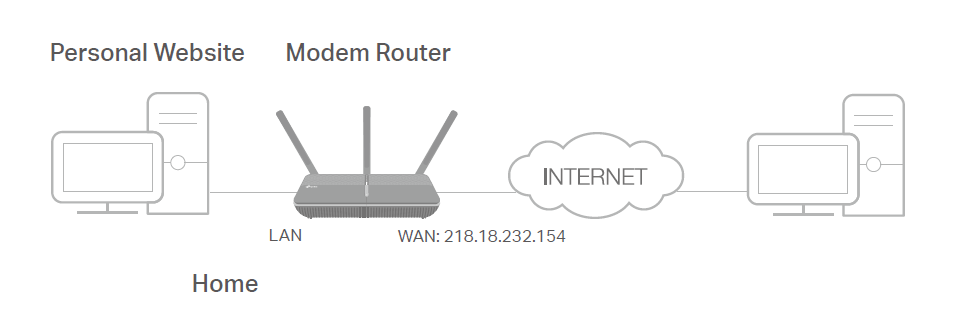
How can I do that?
1. Assign a static IP address to your PC, for example 192.168.1.100.
2. Visit http://tplinkmodem.net or http://192.168.1.1, and log in with your TP-Link ID or the password you set for the router.
3. Go to Advanced > NAT Forwarding > Virtual Servers, click Add.
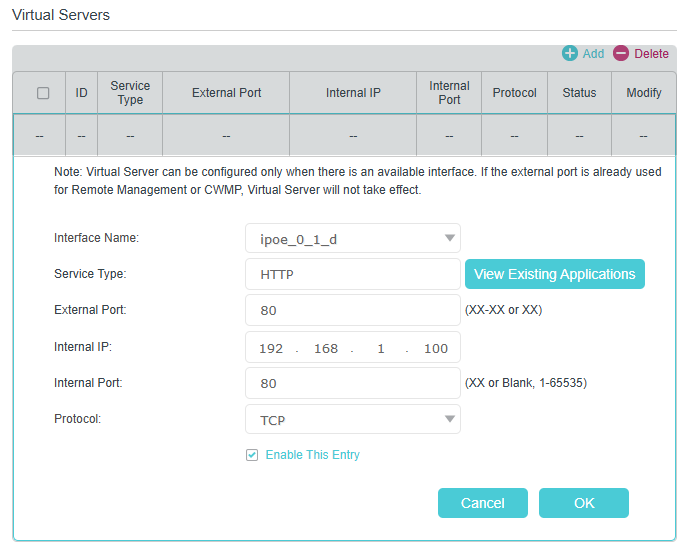
4. Click Scan, and choose HTTP. The external port, internal port and protocol will be automatically filled with contents. Enter the PC’s IP address 192.168.1.100 in the Internal IP field.
5. Click OK to save the settings.
Tips:
-
It is recommended to keep the default settings of Internal Port and Protocol if you are not clear about which port and protocol to use.
-
If the service you want to use is not in the Service Type, you can enter the corresponding parameters manually. You should verify the port number that the service needs.
-
You can add multiple virtual server rules if you want to provide several services from a modem router. Please note that the External Port cannot be overlapped.
Done!
Internet users can enter http://WAN IP (in this example: http://218.18.232.154) to visit your personal website.
Tips:
-
For a WAN IP that is assigned dynamically by ISP, it is recommended to apply and register a domain name for the WAN by DDNS, go to Set Up a Dynamic DNS Service Account for more information. Then you can use http://domain name to visit the website.
-
If you have changed the default External Port, you should use http://WAN IP: External Port or http://domain name: External Port to visit the website.
11.3 Open Ports Dynamically by Port Triggering
Port Triggering can specify a triggering port and its corresponding external ports. When a host on the local network initiates a connection to the triggering port, all the external ports will be opened for subsequent connections. The router can record the IP address of the host. When the data from the internet return to the external ports, the router can forward them to the corresponding host. Port Triggering is mainly applied to online games, VoIPs, video players and common applications including MSN Gaming Zone, Dialpad and Quick Time 4 players, etc.
Follow the steps below to configure the Port Triggering rules:
1. Visit http://tplinkmodem.net or http://192.168.1.1, and log in with your TP-Link ID or the password you set for the router.
2. Go to Advanced > NAT Forwarding > Port Triggering and click Add.
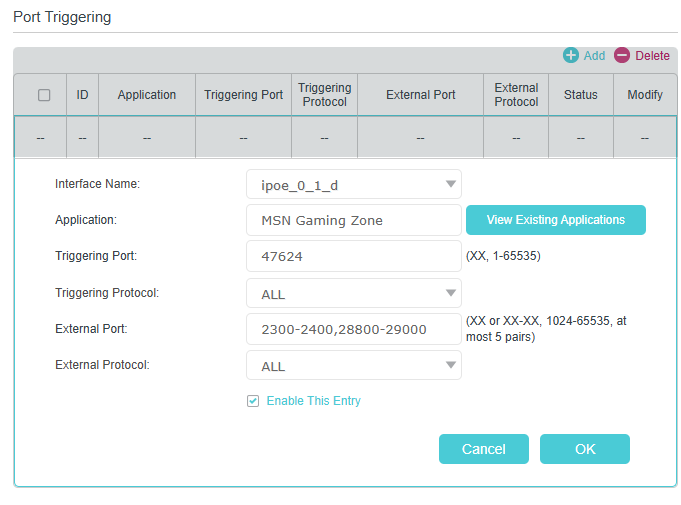
3. Click Scan, and select the desired application. The triggering port and protocol, the external port and protocol will be automatically filled with contents. Here we take MSN Gaming Zone as an example.
4. Click OK to save the settings.
Tips:
-
You can add multiple port triggering rules according to your network need.
-
The triggering ports can not be overlapped.
-
If the application you need is not listed in the Existing Applications list, please enter the parameters manually. You should verify the external ports the application uses first and enter them into External Port field according to the format the page displays.
11.4 Make Applications Free from Port Restriction by DMZ
When a PC is set to be a DMZ (Demilitarized Zone) host on the local network, it is totally exposed to the internet, which can realize the unlimited bidirectional communication between internal hosts and external hosts. The DMZ host becomes a virtual server with all ports opened. When you are not clear about which ports to open in some special applications, such as IP camera and database software, you can set the PC to be a DMZ host.
Note: When DMZ is enabled, the DMZ host is totally exposed to the internet, which may bring some potential safety hazards. If DMZ is not in use, please disable it in time.
I want to:
Make the home PC join the internet online game without port restriction.
For example, due to some port restriction, when playing the online games, you can log in normally but cannot join a team with other players. To solve this problem, set your PC as a DMZ host with all ports open.
How can I do that?
1. Assign a static IP address to your PC, for example 192.168.1.100.
2. Visit http://tplinkmodem.net or http://192.168.1.1, and log in with your TP-Link ID or the password you set for the router.
3. Go to Advanced > NAT Forwarding > DMZ and tick to enable DMZ.
4. Enter the PC’s IP address 192.168.1.100 manually in the DMZ Host IP Address field.
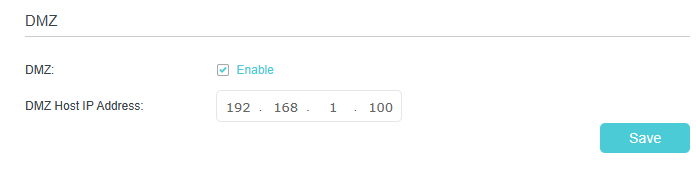
5. Click Save.
Done!
The configuration is completed. You’ve set your PC to a DMZ host and now you can make a team to game with other players.
11.5 Make Xbox Online Games Run Smoothly by UPnP
The UPnP (Universal Plug and Play) protocol allows applications or host devices to automatically find the front-end NAT device and send request to it to open the corresponding ports. With UPnP enabled, the applications or host devices on the local network and the internet can freely communicate with each other thus realizing the seamless connection of the network. You may need to enable the UPnP if you want to use applications for multiplayer gaming, peer-to-peer connections, real-time communication (such as VoIP or telephone conference) or remote assistance, etc.
Tips:
-
UPnP is enabled by default in this router.
-
Only the application supporting UPnP protocol can use this feature.
-
UPnP feature needs the support of operating system (e.g. Windows Vista/ Windows 7/ Windows 8, etc. Some of operating system need to install the UPnP components).
For example, when you connect your Xbox to the router which has connected to the internet to play online games, UPnP will send request to the router to open the corresponding ports allowing the following data penetrating the NAT to transmit. Therefore, you can play Xbox online games without a hitch.
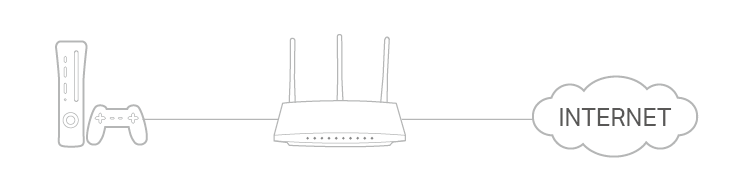
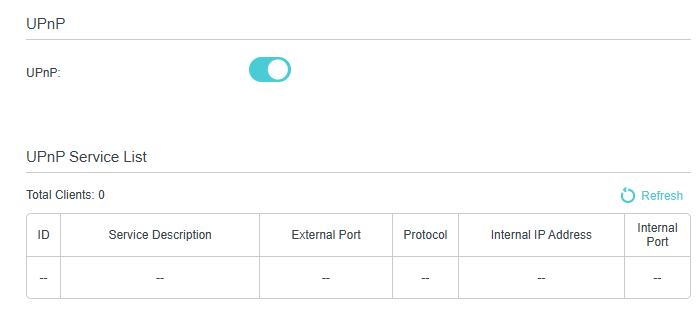
If necessary, you can follow the steps to change the status of UPnP.
1. Visit http://tplinkmodem.net or http://192.168.1.1, and log in with your TP-Link ID or the password you set for the router.
2. Go to Advanced > NAT Forwarding > UPnP and toggle on or off according to your needs.
12. VPN Server
The VPN (Virtual Private Networking) Server allows you to access your home network in a secured way through the internet when you are out of the house. The router offers several ways to set up VPN connections:
VPN Server allows remote devices to access your home network in a secured way through the internet. The router supports three types of VPN Server:
OpenVPN is somewhat complex but with higher security and more stability, suitable for restricted environments such as campus network and company intranet.
PPTP VPN is easy to use with the built-in VPN software of computers and mobile devices, but it is vulnerable and may be blocked by some ISPs.
IPSec VPN is more secure but slower than PPTP VPN, and may have trouble getting around firewalls.
VPN Client allows devices in your home network to access remote VPN servers, without the need to install VPN software on each device.
12.1 Use OpenVPN to Access Your Home Network
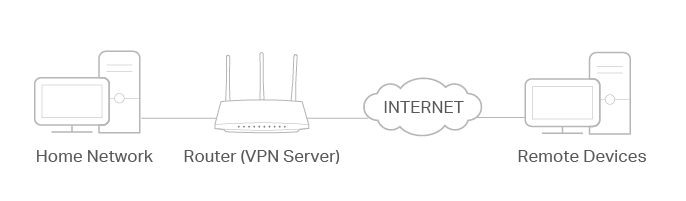
In an OpenVPN connection, the home network can act as a server, and the remote device can access the server through the router which acts as an OpenVPN Server gateway.
To use the VPN feature, you should enable OpenVPN Server on your router, and install and run VPN client software on the remote device. Please follow the steps below to set up an OpenVPN connection.
Step1. Set up OpenVPN Server on Your Router
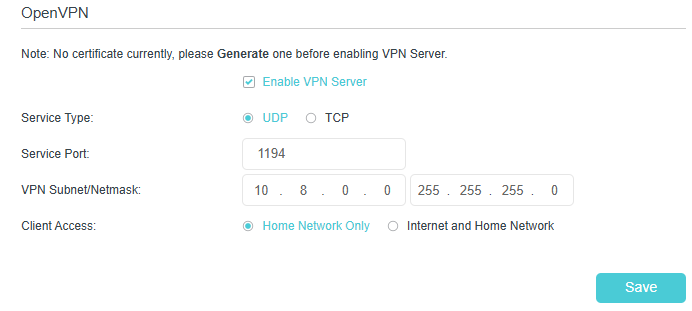
1. Visit http://tplinkmodem.net or http://192.168.1.1, and log in with your TP-Link ID or the password you set for the router.
2. Go to Advanced > VPN Server > OpenVPN, and tick the box of Enable VPN Server.
Note:
-
Before you enable VPN Server, we recommend you configure Dynamic DNS Service (recommended) or assign a static IP address for router’s WAN port and synchronize your System Time with internet.
-
The first time you configure the OpenVPN Server, you may need to Generate a certificate before you enable the VPN Server.
3. Select the Service Type (communication protocol) for OpenVPN Server: UDP, TCP.
4. Enter a VPN Service Port to which a VPN device connects, and the port number should be between 1024 and 65535.
5. In the VPN Subnet/Netmask fields, enter the range of IP addresses that can be leased to the device by the OpenVPN server.
6. Select your Client Access type. Select Home Network Only if you only want the remote device to access your home network; select Internet and Home Network if you also want the remote device to access internet through the VPN Server.
7. Click Save.
8. Click Generate to get a new certificate.

Note: If you have already generated one, please skip this step, or click Generate to update the certificate.
9. Click Export to save the OpenVPN configuration file which will be used by the remote device to access your router.

Step 2. Configure OpenVPN Connection on Your Remote Device
1. Visit http://openvpn.net/index.php/download/community-downloads.html to download the OpenVPN software, and install it on your device where you want to run the OpenVPN client utility.
Note: You need to install the OpenVPN client utility on each device that you plan to apply the VPN function to access your router. Mobile devices should download a third-party app from Google Play or Apple App Store.
2. After the installation, copy the file exported from your router to the OpenVPN client utility’s “config” folder (for example, C:\Program Files\OpenVPN\config on Windows). The path depends on where the OpenVPN client utility is installed.
3. Run the OpenVPN client utility and connect it to OpenVPN Server.
12.2 Use PPTP VPN to Access Your Home Network
PPTP VPN Server is used to create a PPTP VPN connection for remote devices to access your home network.
To use the VPN feature, you need to set up PPTP VPN Server on your router, and configure the PPTP connection on remote devices. Please follow the steps below to set up a PPTP VPN connection.
Step 1. Set up PPTP VPN Server on Your Router
1. Visit http://tplinkmodem.net or http://192.168.1.1, and log in with your TP-Link ID or the password you set for the router.
2. Go to Advanced > VPN Server > PPTP VPN, and tick the box of Enable VPN Server.
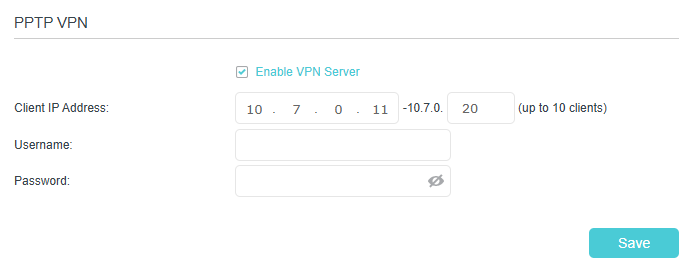
Note: Before you enable VPN Server, we recommend you configure Dynamic DNS Service (recommended) or assign a static IP address for router’s WAN port and synchronize your System Time with internet.
3. In the Client IP Address field, enter the range of IP addresses (up to 10) that can be leased to the devices by the PPTP VPN server.
4. Enter the Username and Password to authenticate clients to the PPTP VPN server.
5. Click Save.
6. On the client devices, create a PPTP VPN connection. The official supported platforms include Windows, Mac OSX, Linux, iOS, and Android.
7. Launch the PPTP VPN program, add a new connection and enter the domain name of the registered DDNS service or the static IP address that is assigned to the WAN port, to connect the client device to the PPTP VPN server.
Step 2. Configure PPTP VPN Connection on Your Remote Device
The remote device can use the Windows built-in PPTP software or a third-party PPTP software to connect to PPTP Server. Here we use the Windows built-in PPTP software as an example.
1. Go to Start > Control Panel > Network and Internet > Network and Sharing Center.
2. Select Set up a new connection or network.
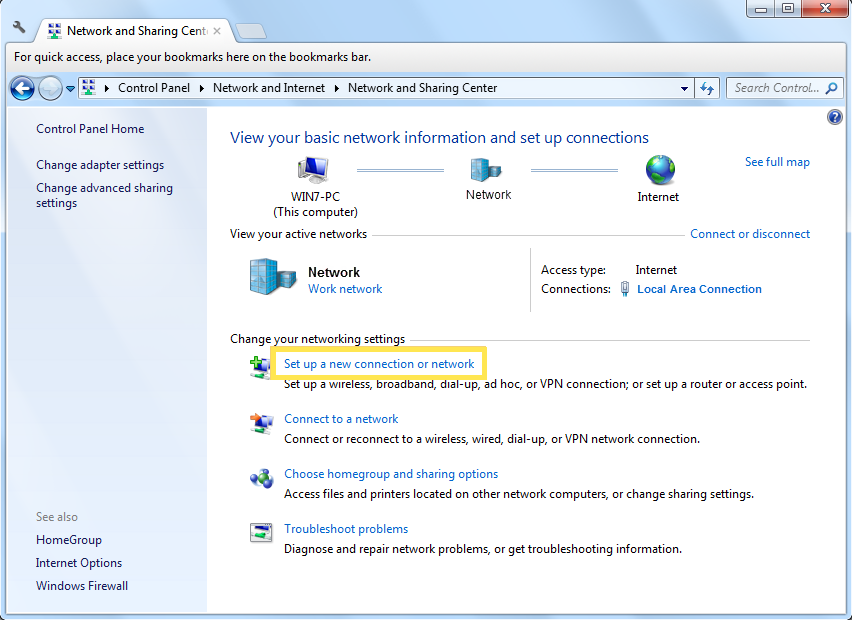
3. Select Connect to a workplace and click Next.
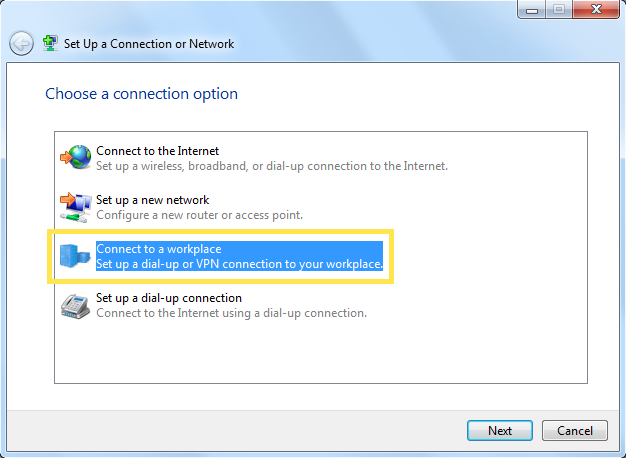
4. Select Use my Internet connection (VPN).
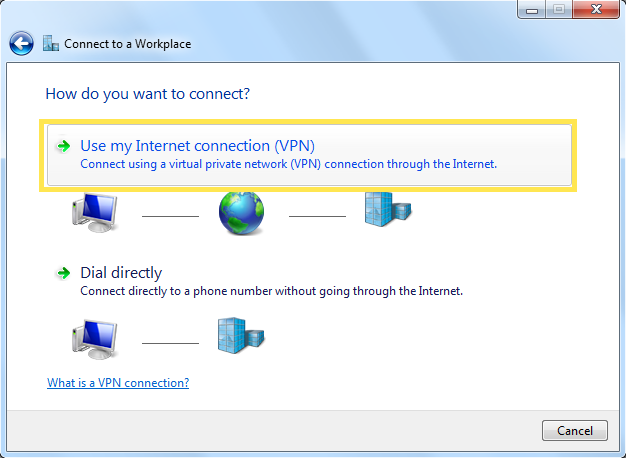
5. Enter the internet IP address of the router (for example: 218.18.1.73) in the Internet address field. Click Next.
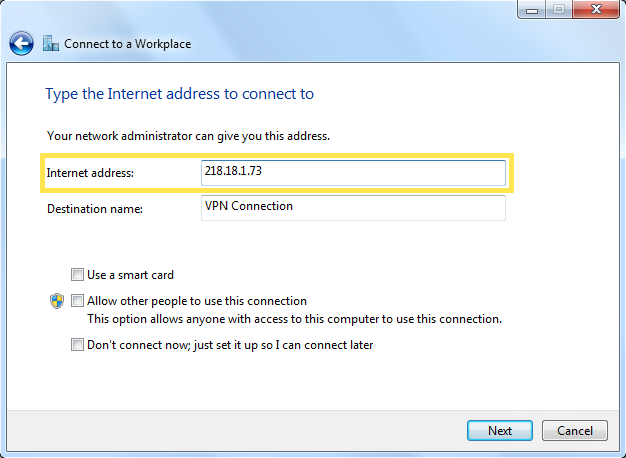
6. Enter the User name and Password you have set for the PPTP VPN server on your router, and click Connect.
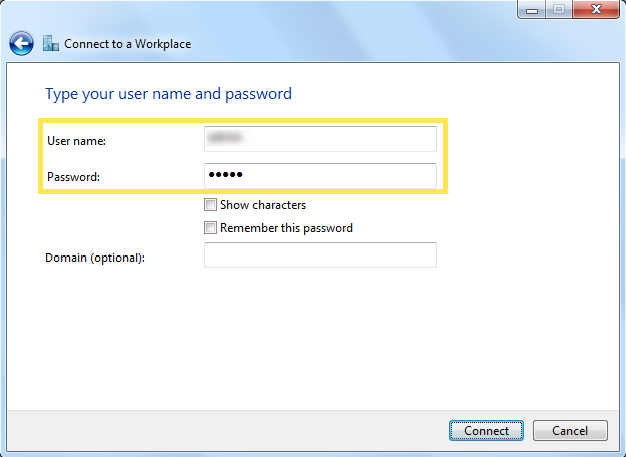
7. Click Connect Now when the VPN connection is ready to use.
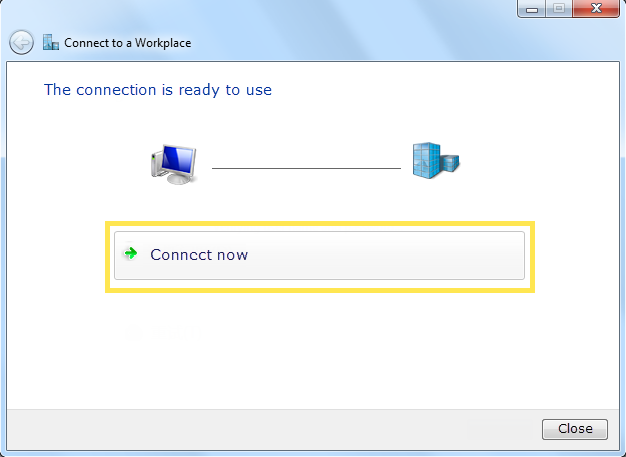
12.3 Use IPSec VPN to Access Your Home Network
IPSec VPN Server is used to create a IPSec VPN connection for remote devices to access your home network.
To use the VPN feature, you need to set up IPSec VPN Server on your router, and configure the IPSec connection on remote devices. Please follow the steps below to set up the IPSec VPN connection.
Step 1. Set up IPSec VPN Server on Your Router
1. Visit http://tplinkmodem.net or http://192.168.1.1, and log in with your TP-Link ID or the password you set for the router.
2. Go to Advanced > VPN Server > IPSec VPN, and enable Dead Peer Detection.
Note:
• Firmware update may be required to support IPSec VPN Server.
• Before you enable Dead Peer Detection, we recommend you configure Dynamic DNS Service (recommended) or assign a static IP address for router’s WAN port and synchronize your System Time with internet.
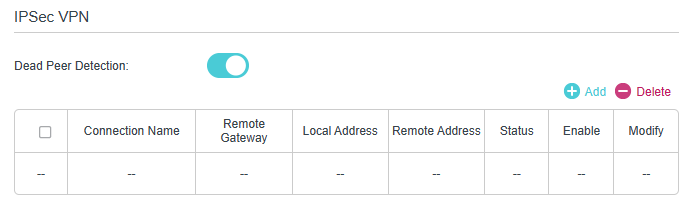
3. Click Add.
4. Configure the IPSec VPN server parameters.
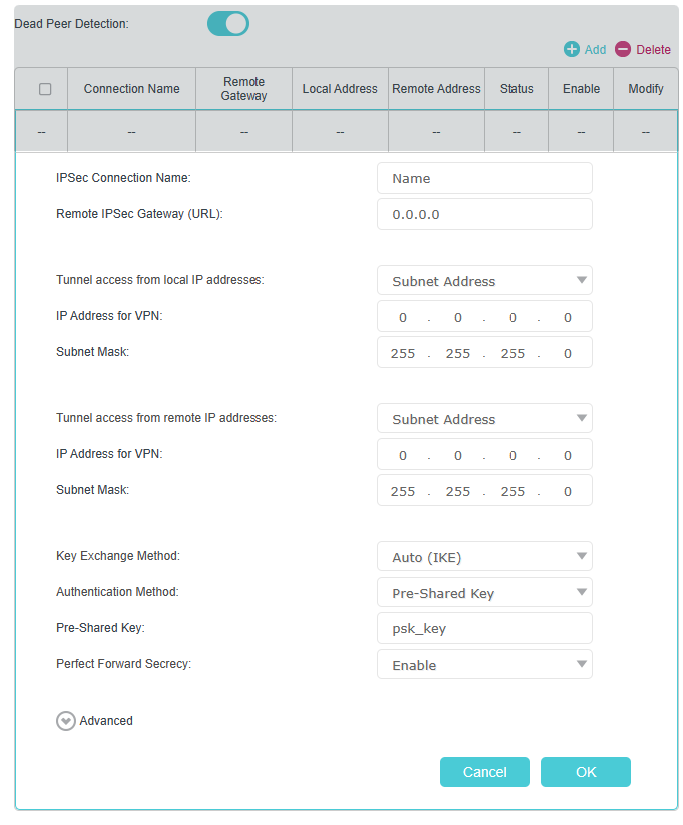
5. Configure the advanced settings according to the following explanation. We recommend that you keep the default settings. If you want to change these settings, make sure that both VPN server endpoints use the same Encryption Algorithm, Integrity Algorithm, Diffie-Hellman Group and Key Lifetime in both phase1 and phase2.
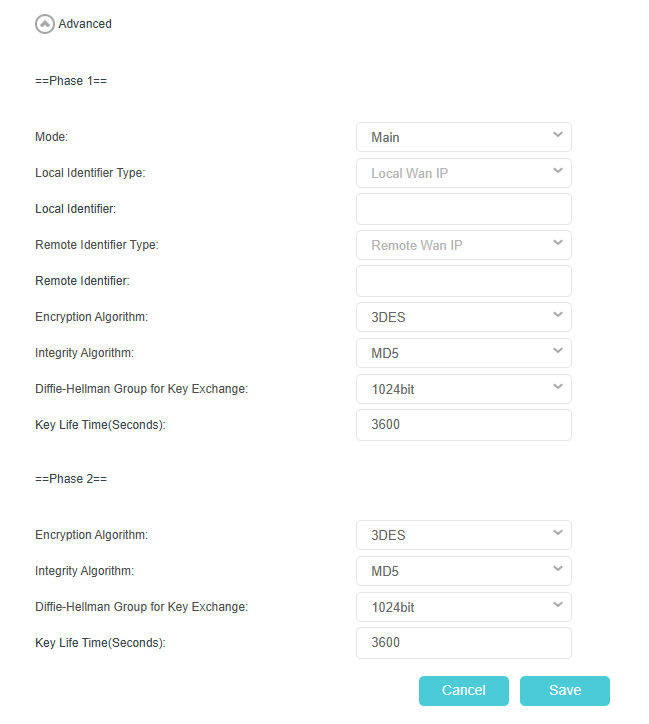
-
Mode - Select Main to configure the standard negotiation parameters for IKE phase1. Select Aggressive to configure IKE Phase 1 of the VPN Tunnel to carry out negotiation in a shorter amount of time. (Not Recommended as it is less secure.)
-
Local Identifier Type - Select the local Identifier type for IKE negotiation. Local WAN IP uses an IP address as the identifier in IKE negotiation. FQDN (Fully Qualified Domain Name) uses a username as the identifier.
-
Local Identifier - The local identifier will be auto-populated if Local WAN IP is selected. If FQDN is selected, enter a username of the local device to be used as the identifier for IKE negotiation.
-
Remote Identifier Type - Select the remote Identifier type for IKE negotiation. Remote WAN IP uses an IP address as the identifier in IKE negotiation. FQDN uses a username as the identifier.
-
Remote Identifier - The remote gateway IP address will be auto-populated if Remote WAN IP is selected. If FQDN is selected, enter a username of the remote peer to be used as the identifier for IKE negotiation.
-
Encryption Algorithm - Select one of the following encryption algorithm for IKE negotiation.
-
DES - DES (Data Encryption Standard) encrypts a 64-bit block of plain text with a 56-bit key.
-
3DES - Triple DES, encrypts a plain text with 168-bit key.
-
AES128 - Uses the AES algorithm and 128-bit key for encryption.
-
AES192 - Uses the AES algorithm and 192-bit key for encryption.
-
AES256 - Uses the AES algorithm and 256-bit key for encryption.
-
Integrity Algorithm - Select one of the following integrity algorithm for IKE negotiation.
-
MD5 - MD5 (Message Digest Algorithm) takes a message of arbitrary length and generates a 128-bit message digest.
-
SHA1 - SHA1 (Secure Hash Algorithm) takes a message less than 2^64 (2 to the power of 64) in bits and generates a 160-bit message digest.
-
Diffie-Hellman Group for Key Exchange - Select the Diffie-Hellman group to be used in key negotiation Phase 1. The Diffie-Hellman Group sets the strength of the algorithm in bits.
-
Key Lifetime - Enter the period of time (in seconds) to pass before establishing a new IPSec security association (SA) with the remote endpoint. The default value is 3600.
6. Click OK.
Note: For the comprehensive guide, please refer to the User Guide on the product’s support page.
Step 2. Configure IPSec VPN Connection on Your Remote Device
The remote device can use the Windows or Mac OS built-in IPSec software or a third-party IPSec software to connect to IPSec Server. Here we use the Windows built-in IPSec software as an example.
1. Go to Start > Control Panel > Network and Internet > Network and Sharing Center.
2. Select Set up a new connection or network.
3. Select Connect to a workplace and click Next.
4. Select Use my Internet connection (VPN).
5. Enter the internet IP address of the router (for example: 218.18.1.73) in the Internet address field, and select the checkbox Don’t connect now; just set it up so I can connect later. Click Next.
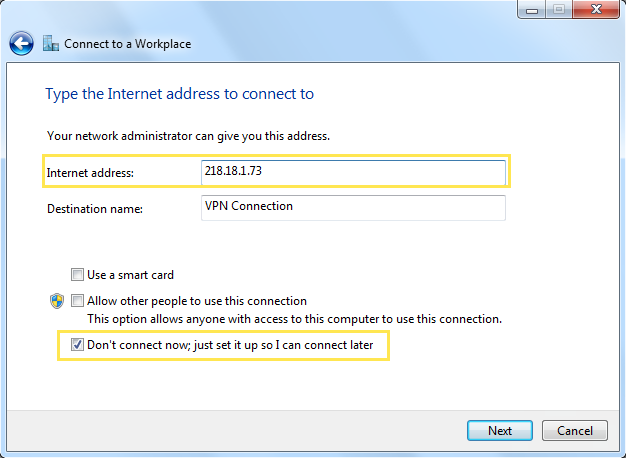
6. Enter the User name and Password you have set for the IPSec VPN server on your remote device, and click Connect.
7. Click Close when the VPN connection is ready to use.
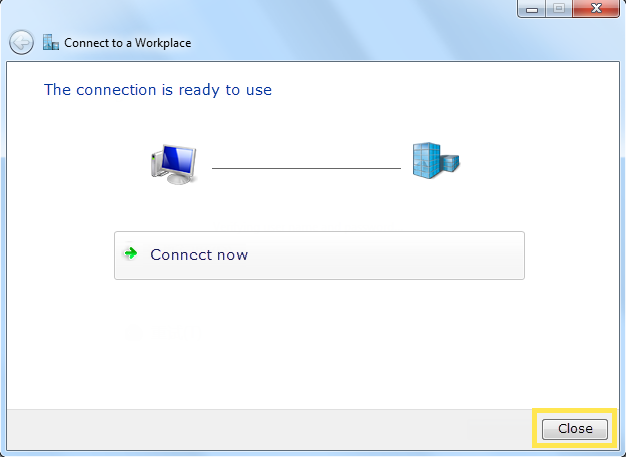
8. Go to Network and Sharing Center and click Change adapter settings.
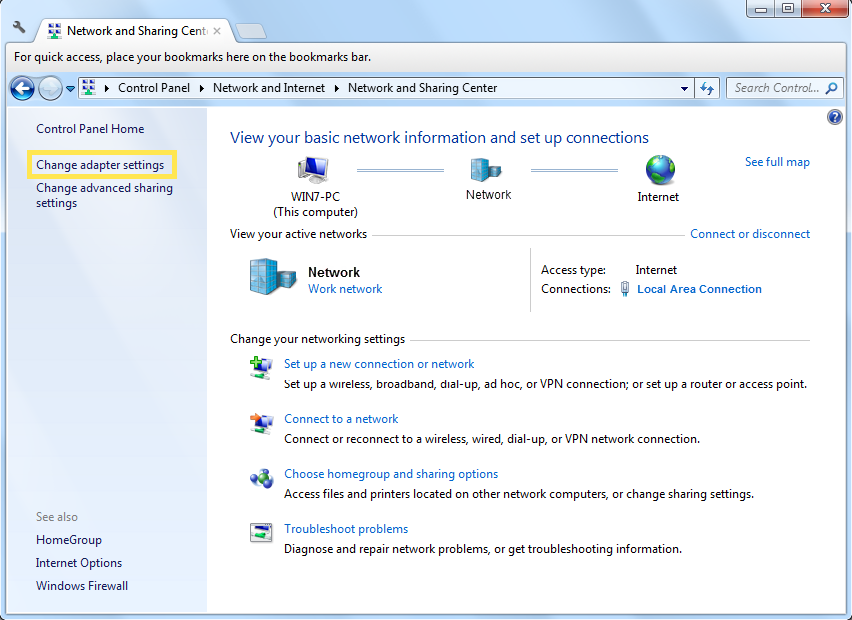
9. Find the VPN connection you created, then double-click it.
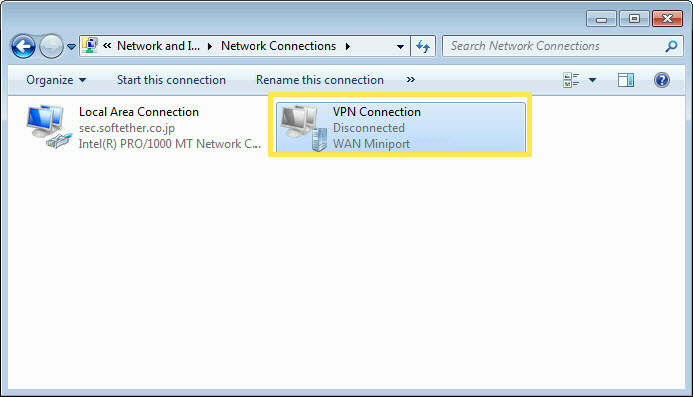
10. Enter the User name and Password you have set for the IPSec VPN server on your remote device, and click Properties.
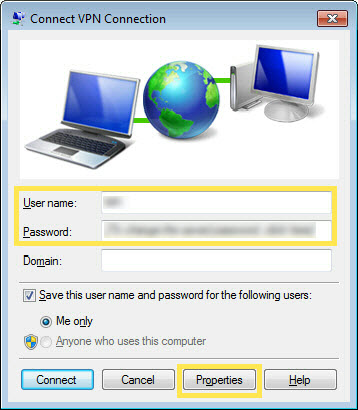
11. Switch to the Security tab, select Layer 2 Tunneling Protocol with IPsec (L2TP/IPSec) and click Advanced settings.
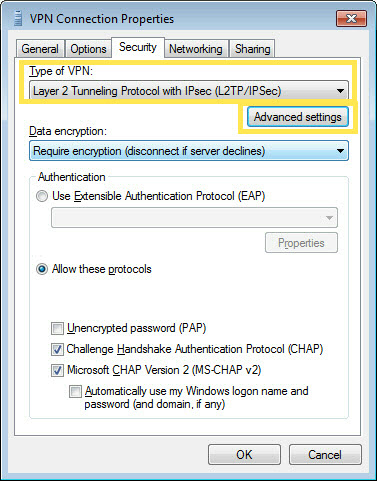
12. Select Use preshared key for authentication and enter the IPSec Pre-Shared Key you have set for the IPSec VPN server on your router. Then click OK.
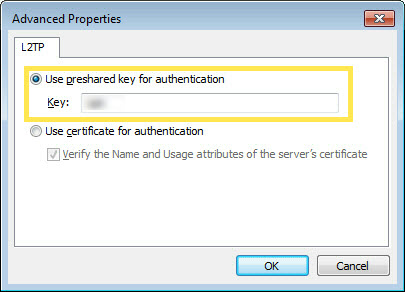
Done! Click Connect to start VPN connection.
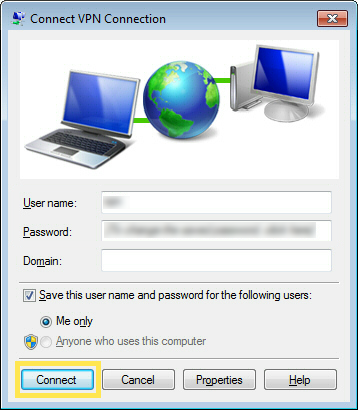
12.4 VPN Connections
VPN Connections page displays the clients that are currently connected to the OpenVPN servers, PPTP VPN servers and IPSec VPN hosted on the router.
1. Visit http://tplinkmodem.net or http://192.168.1.1, and log in with your TP-Link ID or the password you set for the router.
2. Go to Advanced > VPN Server > VPN connections.
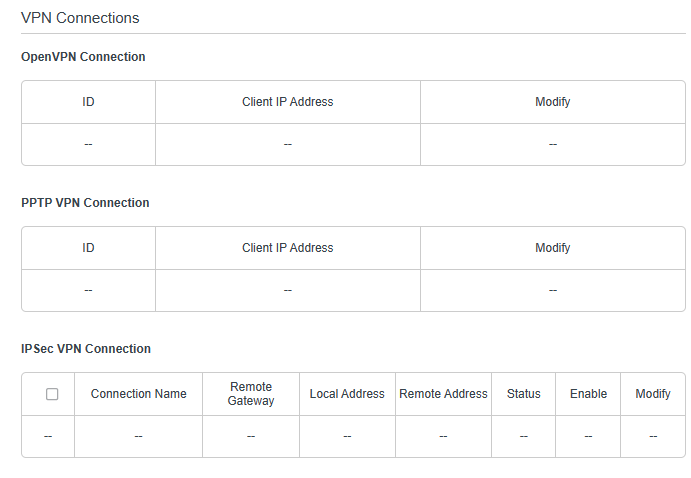
13. Administrate Your Network
This chapter introduces how to change the system settings and administrate your router’s network.
*Features available on the web management page may vary by model and software version.
13.1 Set System Time
System time is the time displayed while the router is running. The system time you configure here will be used for other time-based functions like Parental Controls and Wireless Schedule. You can manually set how to get the system time.
Follow the steps below to set your system time.
1. Visit http://tplinkmodem.net or http://192.168.1.1, and log in with the password you set for the router.
2. Go to Advanced > System Tools > Time Settings page.
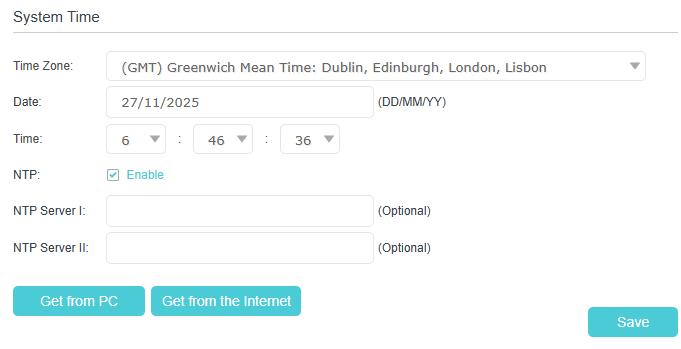
3. Configure the system time using the following methods:
-
Get from PC: Click this button if you want to use the current time of your PC.
-
Get from the Internet: Click this button if you want to get time from the internet. Make sure your router can access the internet before you select this way to get system time.
4. Click Save.
5. After setting the system time, you can set Daylight Saving Time according to your needs. Enable Daylight Saving Time, and set the start and end time and then click Save to make the settings effective.
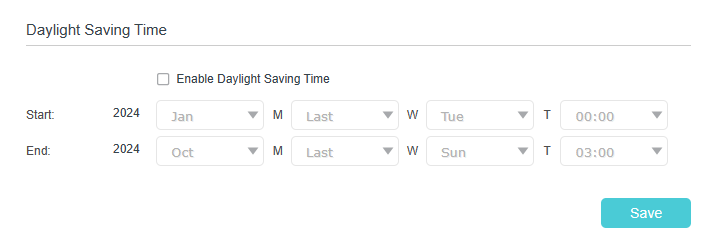
13.2 Control the LED
The LED of the router indicates its activities and status. You can enable the Night Mode feature to specify a time period during which the LED is off.
1. Visit http://tplinkmodem.net or http://192.168.1.1, and log in with your TP-Link ID or the password you set for the router.
2. Go to Advanced > System > LED Control.
3. Enable Night Mode.
4. Specify the LED off time, and the LED will be off during this period every day.
5. Click Save.
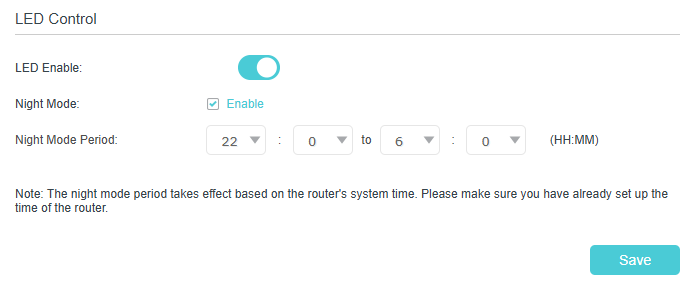
13.3 Test Internet Connectivity
Diagnostics function is used to test the connectivity between the router and the host or other network devices.
1. Visit http://tplinkmodem.net or http://192.168.1.1, and log in with your TP-Link ID or the password you set for the router.
2. Go to Advanced > System Tools > Diagnostics page.
► To test the internet connection of the router:
Locate the Diagnostic Tools section, and click the Start to test the internet connectivity and you will find the test results in the gray box.
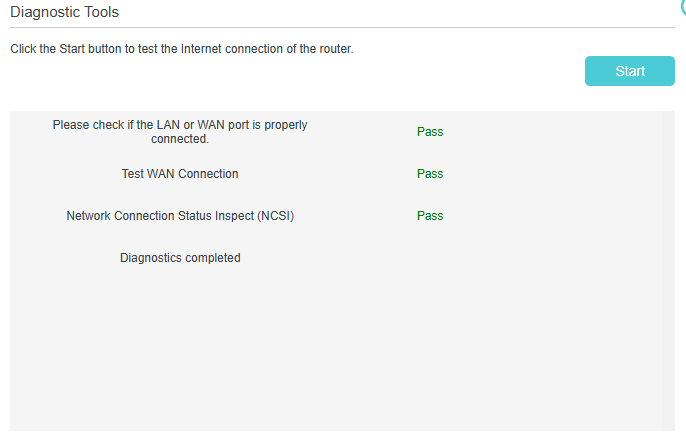
► To run ping and traceroute tools:
1) Locate the Diagnostic Tools section.
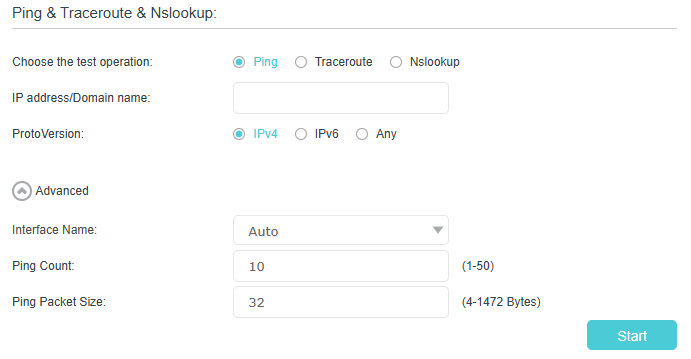
2) Select Ping or Traceroute or Nslookup as the diagnostic tool to test the connectivity.
-
Ping is used to test the connectivity between the router and the tested host, and measure the round-trip time.
-
Traceroute is used to display the route (path) your router has passed to reach the tested host, and measure transit delays of packets across an internet Protocol network.
-
Nslookup is used to queries the Domain Name System (DNS) to obtain the mapping between a domain name and IP address, or other DNS records.
3) Enter the target IP Address/Domain Name of the tested host. You can change the default test options if necessary.
4) (Optional) If you chose Ping, you can click Advanced to modify the settings below:
-
Ping Count - Specifies the number of ping requests. It’s recommended to keep the default value.
-
Ping Packet Size - Specifies the size of ping packets. It’s recommended to keep the default value.
If you chose Traceroute, you can click Advanced to modify the settings below:
-
Traceroute Max TTL - Specifies the maximum number of test packet hops toward a destination. It’s recommended to keep the default value.
5) Click Start to begin the diagnostics, and you will find the test results in the gray box.
13.4 Update the Firmware
TP-Link is dedicated to improving product features, giving you a better network experience.
We will inform you through the web management page if there’s any update firmware available for your router. The latest firmware can also be downloaded from the Support page of our website www.tp-link.com for free.
Note:
-
Make sure that you have a stable connection between the router and your computer. It is NOT recommended to upgrade the firmware wirelessly.
-
Make sure you remove any USB storage device connected to the router before the firmware upgrade to prevent data loss.
-
Back up your router configuration before upgrading the firmware.
-
DO NOT turn off the router during the firmware upgrade.
► Follow the steps below to upgrade the firmware automatically:
1. Visit http://tplinkmodem.net or http://192.168.1.1, and log in with your TP-Link ID or the password you set for the router.
2. Go to Advanced > System Tools > Firmware Upgrade, locate at the Auto Update section.
3. Toggle on to enable Auto Update, and set update time.
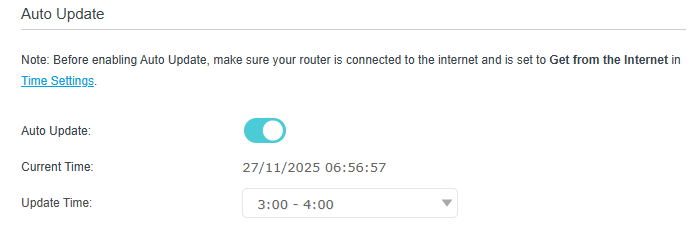
► Follow the steps below to upgrade the firmware online:
1. Visit http://tplinkmodem.net or http://192.168.1.1, and log in with your TP-Link ID or the password you set for the router.
2. Go to Advanced > System Tools > Firmware Upgrade.
3. Click Check for Upgrades.
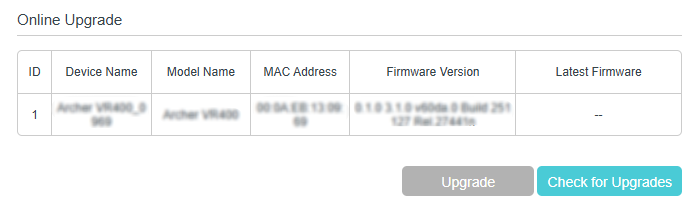
4. If a new firmware is displayed, click Upgrade and click Yes when prompted, then the router will automatically download the latest firmware file and upgrade.
► Follow the steps below to manually update the firmware:
1. Download the latest firmware file for the router from our website www.tp-link.com.
2. Visit http://tplinkmodem.net or http://192.168.1.1, and log in with your TP-Link ID or the password you set for the router.
3. Go to Advanced > System Tools > Firmware Upgrade.
4. Focus on the Device Information section. Make sure the downloaded firmware file matches with the Hardware Version.
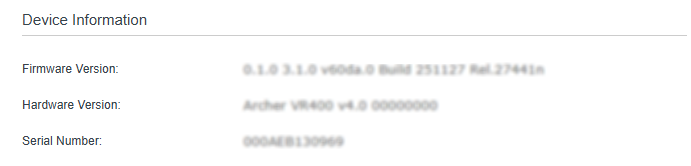
5. Focus on the Local Upgrade section. Click Browse to locate the downloaded new firmware file, and click Upgrade.
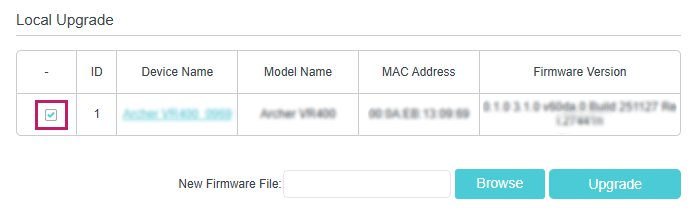
6. Wait a few minutes for the upgrading and rebooting.
13.5 Back Up and Restore Configuration Settings
The configuration settings are stored as a configuration file in the router. You can back up the configuration file to your computer for future use and restore the router to a previous settings from the backup file when needed. Moreover, if needed you can erase the current settings and reset the router to its default factory settings.
1. Visit http://tplinkmodem.net or http://192.168.1.1, and log in with your TP-Link ID or the password you set for the router.
2. Go to Advanced > System Tools > Backup & Restore.
► To back up configuration settings:
Click Backup to save a copy of the current settings to your local computer. A conf.bin file will be stored to your computer.

► To restore configuration settings:
1) Click Browse to locate the previous backup configuration file, and click Restore.
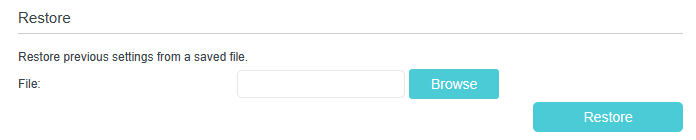
2) Wait a few seconds for the restoring and rebooting.
► To reset the router to factory default settings:
1) Locate the Factory Default Restore section, and click Factory Restore to reset the router.
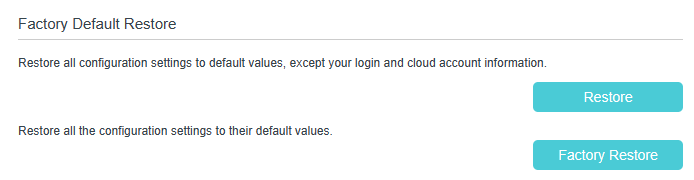
2) Wait a few minutes for the resetting and rebooting.
Note:
-
During the resetting process, do not turn off the router.
-
We strongly recommend you back up the current configuration settings before resetting the router.
13.6 Reboot the Router
The Reboot feature cleans the cache to enhance the running performance of the router. You can reboot the router manually or set it to reboot regularly.
1. Visit http://tplinkmodem.net or http://192.168.1.1, and log in with your TP-Link ID or the password you set for the router.
2. Go to Advanced > System Tools > Reboot Schedule, and you can restart your router.
► To reboot the router manually:
Click Reboot, and wait a few minutes for the router to rebooting.

► To schedule the router to reboot at a specific time:
1) Enable Reboot Schedule.
2) Specify the Time when the router reboots.
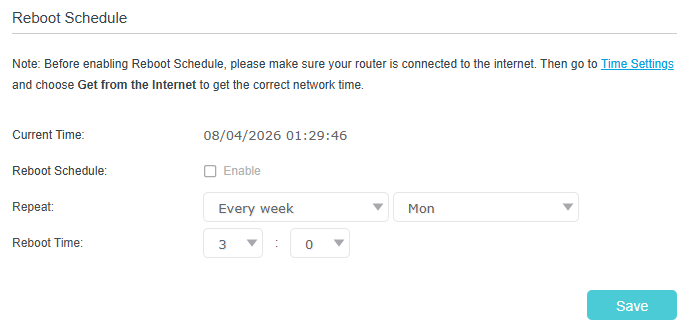
3) Click Save to make the settings effective.
Some settings of the router may take effect only after rebooting, including:
-
Change the LAN IP Address (system will reboot automatically).
-
Change the Operation Mode (system will reboot automatically).
-
Upgrade the firmware of the router (system will reboot automatically).
-
Restore the router to its factory defaults (system will reboot automatically).
-
Update the configuration with the file (system will reboot automatically).
Note: Before enabling Reboot Schedule, please make sure your router is connected to the internet, then go to Advanced > System Tools > Time Settings and choose Get from the Internet to get the correct network time.
13.7 Administration Management
13.7.1 Change the Login Password
A login password is required to log in to the router’s web management page. You are asked to set a login password at first login. You can change it with the account management feature.
1. Visit http://tplinkmodem.net or http://192.168.1.1, and log in with your TP-Link ID or the password you set for the router.
2. Go to Advanced > System Tools > Administration, and locate the Account Management section.
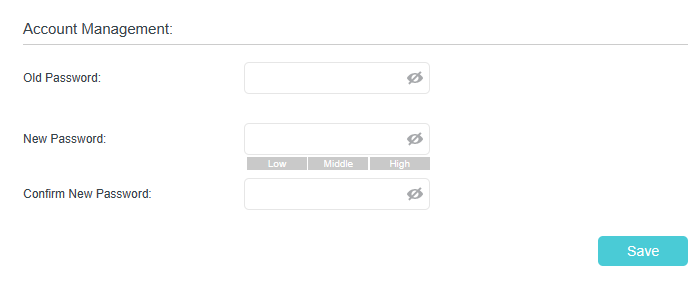
3. Enter the old password and a new password twice (both case-sensitive).
4. Click Save to make the settings effective.
13.7.2 Local Management
You can control the local devices’ authority to manage the router via Local Management feature. By default all local connected devices are allowed to manage the router. You can also specify one device to manage the router and enable local management over a more secure way, HTTPS.
Follow the steps below to allow only the specific device to manage the router via the local management over HTTPS.
1. Visit http://tplinkmodem.net or http://192.168.1.1, and log in with your TP-Link ID or the password you set for the router.
2. Go to Advanced > System Tools > Administration, and locate the Local Management section.
3. Enable Local Management over HTTPS and keep the Port for HTTP and Port for HTTPS as the default settings. Enter the IP address or MAC address of the local device to manage the router.
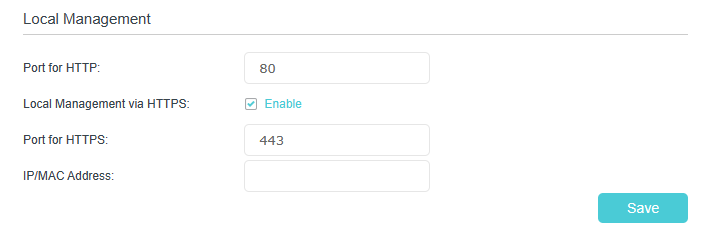
4. Click Save.
Now, you can manage the router over both HTTP (http://tplinkmodem.net) and HTTPS (https://tplinkmodem.net).
Note: If you want all local devices can manage the router, just leave the IP/MAC Address field blank.
13.7.3 Remote Management
By default, the remote devices are not allowed to manage the router from the internet. You can enable remote management over HTTP and/or HTTPS if needed. HTTPS is a more secure way to access the router.
Note: If your ISP assigns a private WAN IP address (such as 192.168.x.x or 10.x.x.x), you cannot use the remote management feature because private addresses are not routed on the internet.
Follow the steps below to allow remote devices to manage the router over HTTPS.
1. Visit http://tplinkmodem.net or http://192.168.1.1, and log in with your TP-Link ID or the password you set for the router.
2. Go to Advanced > System Tools > Administration, and locate the Remote Management section.
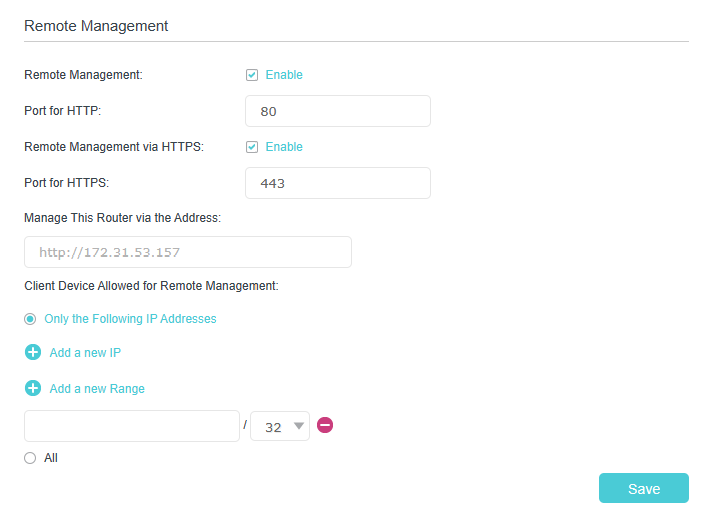
3. Enable Remote Management and Remote Management via HTTPS to allow for HTTPS connection. Keep the Port as the default setting.
4. Set the client device allowed for remote management. Select All to allow all remote devices to manage the router. If you just want to allow a specific device to manage the router, select Only the Following IP/MAC Address and enter the IP/MAC address of the remote device.
5. Click Save.
All devices or the specific device on the internet can log in to your router using the address displayed on the Manage This Router via the Address field to manage the router.
Tips:
1. If you were warned about the certificate when visiting the web management page remotely, click Trust (or a similar option) to continue. To avoid this warning, you can download and install the certificate on the router’s web management page at Advanced > System Tools > Administration.

2. The router’s WAN IP is usually a dynamic IP. Please refer to Set Up a Dynamic DNS Service Account if you want to log in to the router through a domain name.
13.7.4 HTTP Referer Head Check
HTTP referer header check function can protect your networks against CSRF attacks. This function is enabled by default. You can disable this function if needed.
1. Visit http://tplinkmodem.net or http://192.168.1.1, and log in with your TP-Link ID or the password you set for the router.
2. Go to Advanced > System Tools > Administration, and locate the HTTP Referer Head Check section.
3. Clear the Enable check box and click Save if you want to disable this function.

13.7.5 ICMP Ping
ICMP (Internet Control Message Protocol) Ping is used to diagnose the network by sending ICMP echo request packets to the target remote or local host and waiting for an ICMP response.
You can control the router’s replies to ICMP Ping requests.
1. Visit http://tplinkmodem.net or http://192.168.1.1, and log in with your TP-Link ID or the password you set for the router.
2. Go to Advanced > System Tools > Administration, and locate the ICMP Ping section.
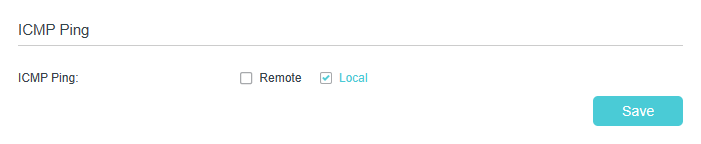
3. Specify the ICMP Ping reply options.
-
Remote: Select it if you want the computers on a public network to ping the router’s WAN IP address.
-
Local: Enabled by default, if enabled, the computers on a private network can ping the router’s LAN IP address.
4. Click Save to make the settings effective.
13.7.6 Session ID
When Session ID function is enabled, it will be saved into Flash every time the PPP connection is updated. This can prevent some problems of PPPoE/L2TP/PPTP connection being rejected to reconnect to servers when the device is powered off or the network disconnect accidentally.
1. Visit http://tplinkmodem.net or http://192.168.1.1, and log in with your TP-Link ID or the password you set for the router.
2. Go to Advanced > System Tools > Administration, and locate the Session ID section.

3. Enable the Update Session ID and Click Save to make the settings effective.
13.8 System Log
System Log can help you know what happened to your router, facilitating you to locate the malfunctions. For example when your router does not work properly, you may need to save the system log and send it to the technical support for troubleshooting.
1. Visit http://tplinkmodem.net or http://192.168.1.1, and log in with your TP-Link ID or the password you set for the router.
2. Go to Advanced > System Tools > System Log page.
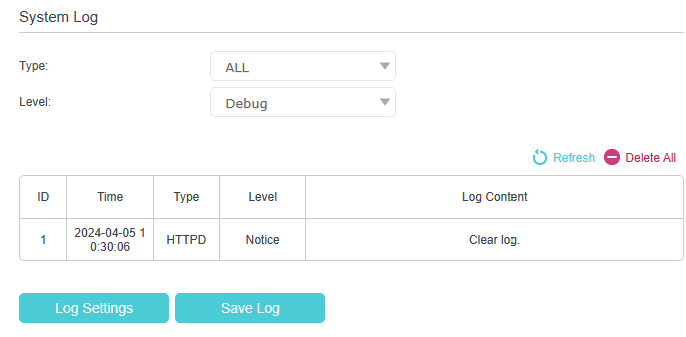
► To view the system logs:
You can view specific system logs by selecting the log type and level.
Click Refresh to refresh the log list.
► To save the system logs:
You can save the system logs to your local computer or a remote server.
Click Save Log to save the logs in a txt file to your computer.
Click Log Settings to set the storage path of logs.
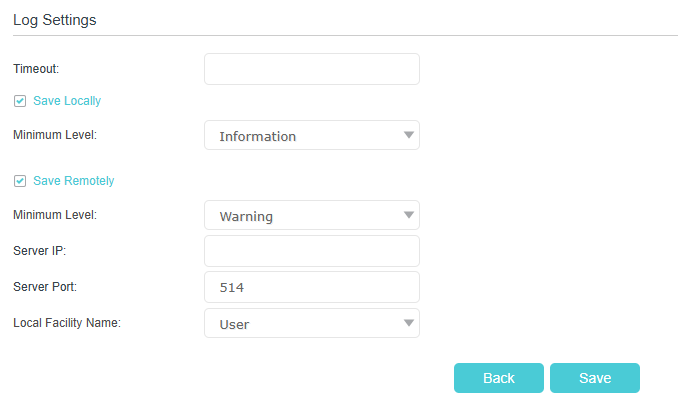
-
Save Locally: Select this option to cache the system log to the router’s local memory, select the minimum level of system log to be saved from the drop-down list. The logs will be shown in the table in descending order on the System Log page.
-
Save Remotely: Select this option to send the system log to a remote server, select the minimum level of system log to be saved from the drop-down list and enter the information of the remote server. If the remote server has a log viewer client or a sniffer tool implemented, you can view and analyze the system log remotely in real-time.
13.9 Monitor the Internet Traffic Statistics
The traffic statistics function allows you to monitor the volume of internet traffic statistics. You can view the network traffic of the LAN, WAN and WLAN sent and received packets.
1. Visit http://tplinkmodem.net or http://192.168.1.1, and log in with your TP-Link ID or the password you set for the router.
2. Go to Advanced > System Tools > Traffic Statistics.
3. Turn on Enable Traffic Statistics to enable traffic statistics function, you can view the total number of packets and bytes received and transmitted by the router within the selected Statistics Interval. This function is disabled by default.
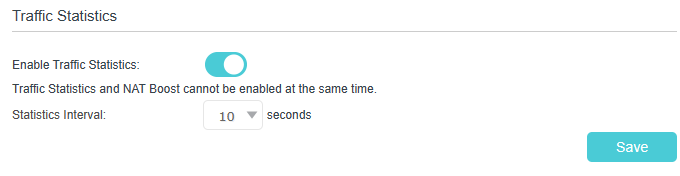
4. You can refer to Traffic Statistics List for the detailed information about the traffic usage of all devices.
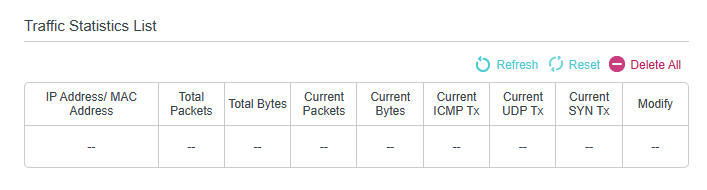
FAQ
Q1. How do I restore my router to its factory default settings?
Reset the router manually:
With the router powered on, press and hold the RESET button on the rear panel until the Power LED starts flashing.
Reset the router via web management page:
1. Visit http://tplinkmodem.net or http://192.168.1.1, and log in with the password you set for the router.
2. Click Advanced > System Tools > Backup & Restore page.
3. Click Factory Restore to reset the router.
4. Wait for the resetting and then the router will automatically reboot.
Note: Once the router is reset, the current configuration settings will be lost and you will need to re-configure the router.
Q2. What should I do if I forget my password?
Web management page password:
Restore the router to its factory default settings and then create a new password using 1-32 characters.
Wireless network password:
1. The default Wireless Password is printed on the product label of the router.
2. If the default wireless password has been changed, log in to the router’s web management page and go to Basic > Wireless to retrieve or reset your password.
TP-Link ID password:
Click Forgot password on the TP-Link ID login page and then follow the instructions to reset it.
Q3. What should I do if I cannot access the web management page?
This can happen for a variety of reasons. Please try the methods below to log in again.
-
Make sure your computer is connected to the router correctly and the corresponding LED indicator(s) light up.
-
Make sure the IP address of your computer is configured as Obtain an IP address automatically and Obtain DNS server address automatically.
-
Make sure http://tplinkmodem.net or http://192.168.1.1 is correctly entered.
-
Check your computer’s settings:
1) Go to Start > Control Panel > Network and Sharing Center.
2) Click Internet Options on the bottom left.
3) Click Connections and select Never dial a connection.
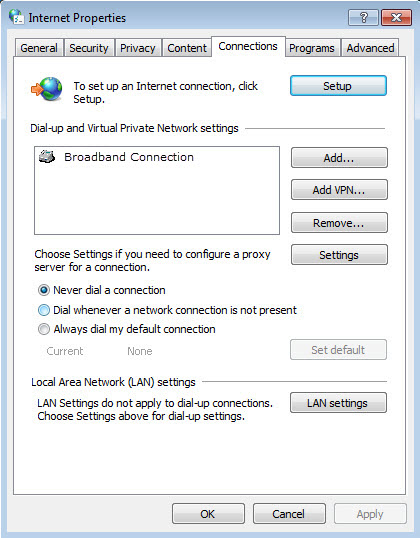
4) Click LAN settings and deselect the following three options and click OK.
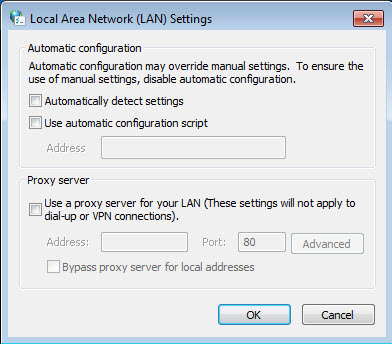
5) Go to Advanced > Restore advanced settings, click OK to save the settings.
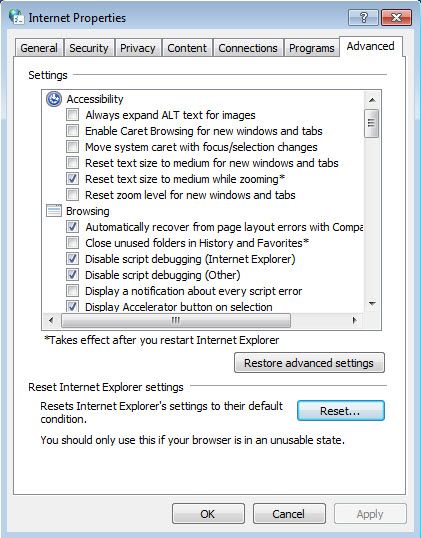
-
Use another web browser or computer to log in again.
-
Reset the router to factory default settings and try again. If login still fails, please contact the technical support.
Note: You’ll need to reconfigure the router to surf the internet once the router is reset.
Q4. What should I do if I can’t access the internet even though the configuration is finished?
1. Visit http://tplinkmodem.net or http://192.168.1.1, and log in with your TP-Link ID or the password you set for the router.
2. Go to Advanced> Status to check internet status:
If IP Address is a valid one, please try the methods below and try again:
-
Your computer might not recognize any DNS server addresses. Please manually configure the DNS server.
1) Go to Advanced > Network > LAN Settings > DHCP Server.
2) Enter 8.8.8.8 as Primary DNS, click Save.
Tips: 8.8.8.8 is a safe and public DNS server operated by Google.
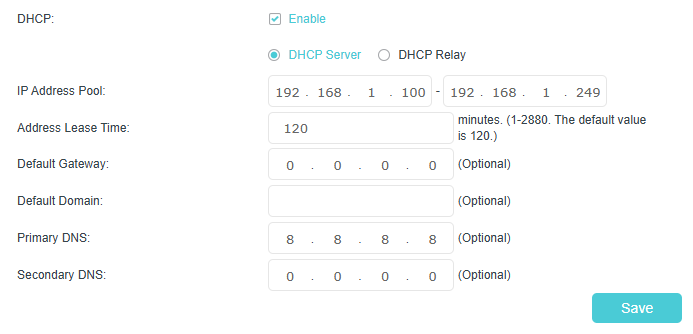
-
Restart the modem and the router.
1) Power off your modem and router, and leave them off for 1 minute.
2) Power on your modem first, and wait about 2 minutes until it gets a solid cable or Internet light.
3) Power on the router.
4) Wait another 1 or 2 minutes and check the internet access.
-
Reset the router to factory default settings and reconfigure the router.
-
Upgrade the firmware of the router.
-
Check the TCP/IP settings on the particular device if all other devices can get internet from the router.
As the picture below shows, if the IP Address is 0.0.0.0, please try the methods below and try again:
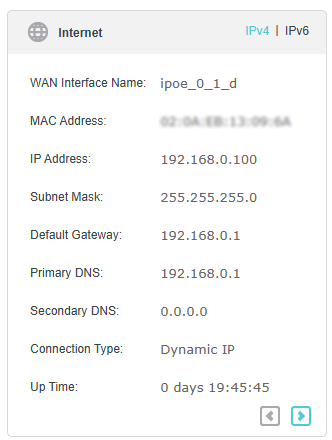
-
Make sure the physical connection between the router and the modem is proper.
-
Clone the MAC address of your computer.
1) Visit http://tplinkmodem.net or http://192.168.1.1, and log in with your TP-Link ID or the password you set for the router.
2) Go to Internet or Advanced > Network > Internet and focus on the MAC Clone section.
3) Choose an option as needed (enter the MAC address if Use Custom MAC Address is selected), and click OK.
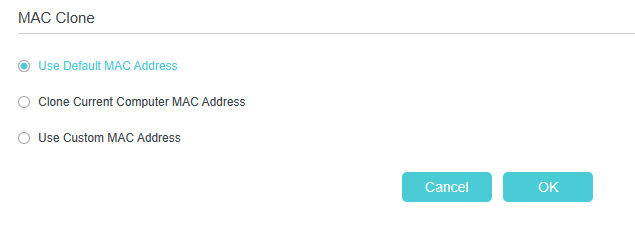
Tips:
• Some ISP will register the MAC address of your computer when you access the internet for the first time through their Cable modem, if you add a router into your network to share your internet connection, the ISP will not accept it as the MAC address is changed, so we need to clone your computer’s MAC address to the router.
• The MAC addresses of a computer in wired connection and wireless connection are different.
- Modify the LAN IP address of the router.
Note: Most TP-Link routers use 192.168.0.1/192.168.1.1 as their default LAN IP address, which may conflict with the IP range of your existing ADSL modem/router. If so, the router is not able to communicate with your modem and you can’t access the internet. To resolve this problem, we need to change the LAN IP address of the router to avoid such conflict, for example, 192.168.2.1.
1) Visit http://tplinkmodem.net or http://192.168.1.1, and log in with your TP-Link ID or the password you set for the router.
2) Go to Advanced > Network > LAN Settings.
3) Modify the LAN IP address as the follow picture shows. Here we take 192.168.2.1 as an example.
4) Click Save.
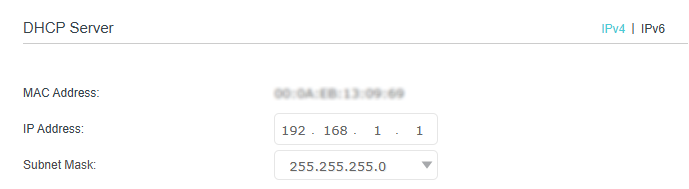
- Restart the modem and the router.
1) Power off your modem and router, and leave them off for 1 minute.
2) Power on your modem first, and wait about 2 minutes until it get a solid cable or Internet light.
3) Power on the router.
4) Wait another 1 or 2 minutes and check the internet access.
-
Double check the internet connection type.
1) Confirm your internet connection type, which can be learned from the ISP.
2) Visit http://tplinkmodem.net or http://192.168.1.1, and log in with your TP-Link ID or the password you set for the router.
3) Go to Advanced > Network > DSL-WAN.
4) Select your Internet Connection Type and fill in other parameters.
5) Click Save.
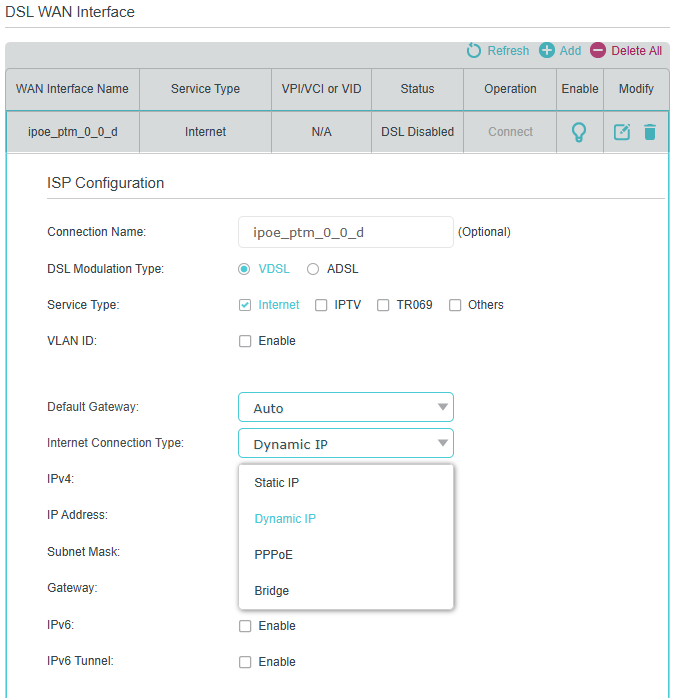
6) Restart the modem and the router again.
-
Please upgrade the firmware of the router.
If you’ve tried every method above but still cannot access the internet, please contact the technical support.
Q5. What should I do if I can’t find my wireless network or I cannot connect the wireless network?
If you fail to find any wireless network, please follow the steps below:
-
Make sure the wireless function of your device is enabled if you’re using a laptop with built-in wireless adapter. You can refer to the relevant document or contact the laptop manufacturer.
-
Make sure the wireless adapter driver is installed successfully and the wireless adapter is enabled.
- On Windows 7/8/10/11
1) If you see the message No connections are available, it is usually because the wireless function is disabled or blocked somehow.
2) Click Troubleshoot and windows might be able to fix the problem by itself.
-
On Windows XP
1) If you see the message Windows cannot configure this wireless connection, this is usually because windows configuration utility is disabled or you are running another wireless configuration tool to connect the wireless.
2) Exit the wireless configuration tool (the TP-Link Utility, for example).
3) Select and right click on My Computer on desktop, select Manage to open Computer Management window.
4) Expand Services and Applications > Services, find and locate Wireless Zero Configuration in the Services list on the right side.
5) Right click Wireless Zero Configuration, and then select Properties.
6) Change Startup type to Automatic, click on Start button and make sure the Service status is Started. And then click OK.
- On Windows 7/8/10/11
If you can find other wireless network except your own, please follow the steps below:
-
Check the Wi-Fi LED indicator on your wireless router/modem.
-
Make sure your computer/device is still in the range of your router/modem. Move it closer if it is currently too far away.
-
Go to Wireless or Advanced > Wireless > Wireless Settings, and check the wireless settings. Double check your wireless Network Name and SSID is not hidden.
If you can find your wireless network but fail to connect, please follow the steps below:
-
Authenticating problem/password mismatch:
1) Sometimes you will be asked to type in a PIN number when you connect to the wireless network for the first time. This PIN number is different from the Wireless Password/Network Security Key, usually you can only find it on the label of your router.
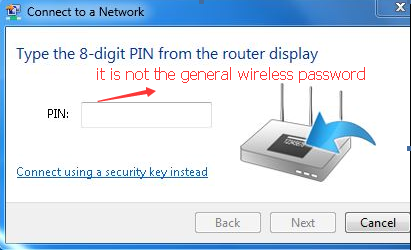
2) If you cannot find the PIN or PIN failed, you may choose Connecting using a security key instead, and then type in the Wireless Password/Network Security Key.
3) If it continues to show note of Network Security Key Mismatch, it is suggested to confirm the wireless password of your wireless router.
Note: Wireless Password/Network Security Key is case sensitive.
- Windows unable to connect to XXXX / Can not join this network / Taking longer than usual to connect to this network:
-
Check the wireless signal strength of your network. If it is weak (1~3 bars), please move the router closer and try again.
-
Change the wireless Channel of the router to reduce interference from other networks.
-
Re-install or update the driver for your wireless adapter of the computer.
-