What Should I Do if My VIGI Camera Detects Rain, Snow, Insects, or Other Unwanted Motion
Contents
Introduction
Motion Detection on VIGI cameras is designed to detect movement within the camera view. In outdoor environments, weather conditions such as rain and snow, as well as insects, vegetation, shadows, or other environmental factors, may trigger unwanted motion detection events. This article provides recommendations to help reduce false motion detections and unnecessary notifications.
Requirements
- VIGI Camera
- VIGI App
Troubleshooting
Follow the steps below to reduce unwanted motion detection events.
Step 1. Understand how Motion Detection works
Motion Detection detects changes between video frames.
When the camera identifies a significant difference between consecutive frames, it treats the change as motion and generates an event.
Because rain, snow, insects, moving leaves, shadows, and reflections can cause changes in the image, these objects may trigger motion detection events.
Step 2. Enable Object Classification
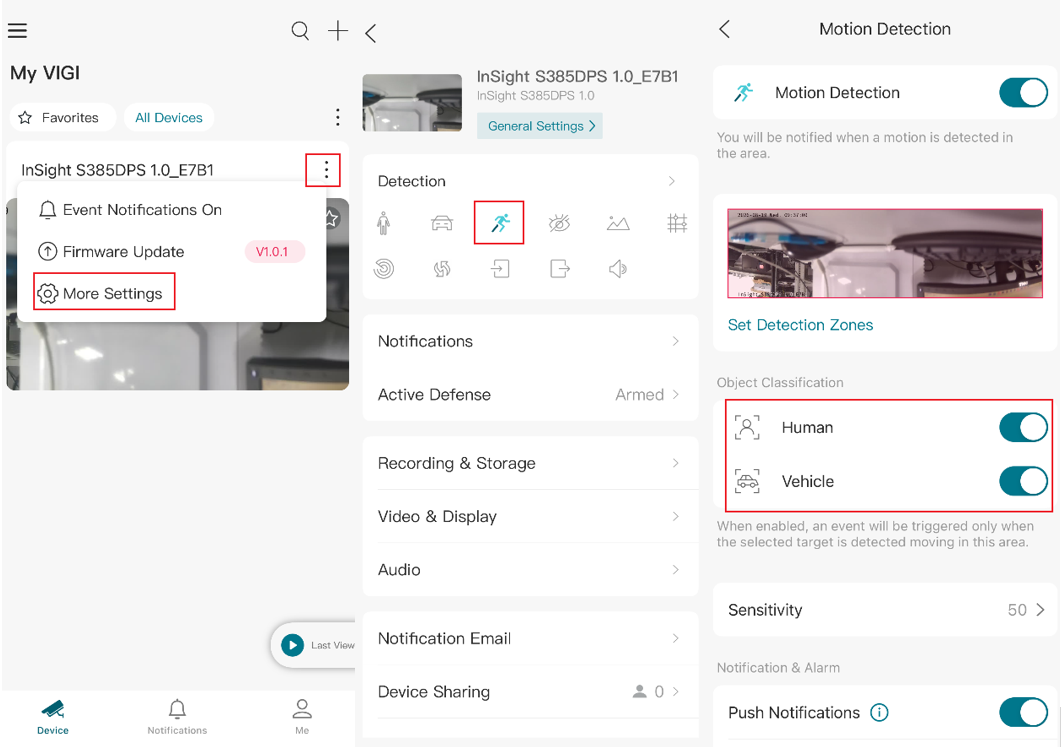
Here we take VIGI APP as an example. Navigate to Device > More Settings > Detection > Motion Detection > Object Classification. Enable Human and/or Vehicle detection according to your requirements.
Object Classification helps filter motion events and reduces notifications generated by non-target objects.
Note: When Human/Vehicle Filtering is enabled, push notifications will be sent to the VIGI App only for motion events triggered by detected humans or vehicles. Motion events caused by other objects will not generate push notifications.
Step 3. Set Detection Zones
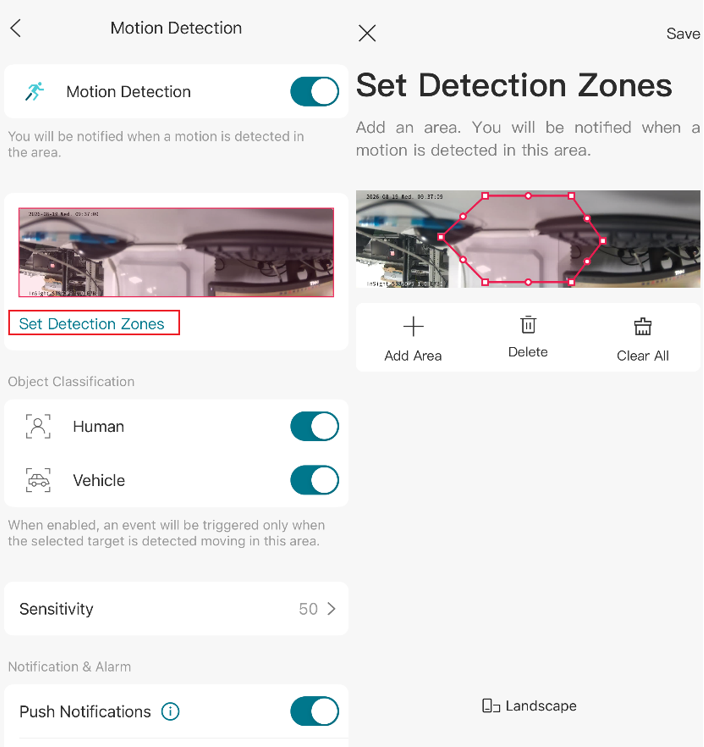
Configure a Detection Zone to limit the area monitored by Motion Detection.
Exclude areas that commonly generate false detections, such as:
- Trees and bushes moving in the wind
- Busy roads and sidewalks
- Reflections from glass or water
- Vehicle headlights
- Areas affected by sunrise or sunset lighting changes
Step 4. Adjust Motion Detection Sensitivity
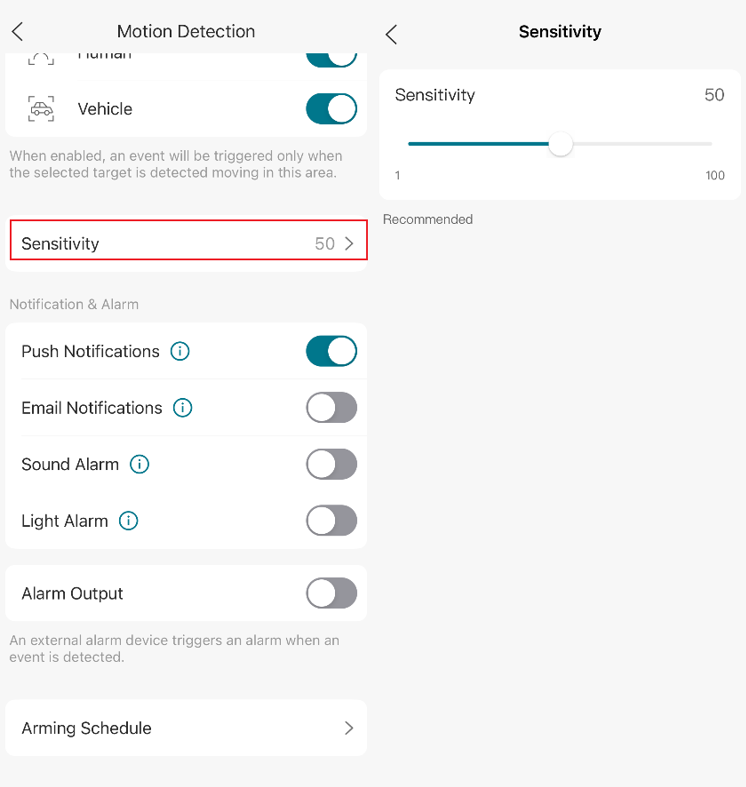
Reducing Motion Detection Sensitivity may help reduce detections caused by minor environmental changes such as rain, insects, or moving vegetation.
Adjust the sensitivity level according to the monitoring environment and security requirements.
Note: Lower sensitivity settings may also reduce the camera's ability to detect legitimate events.
Step 5. Adjust the camera installation angle
Review the camera installation location and viewing angle.
When possible:
- Avoid pointing the camera toward busy public areas
- Avoid direct exposure to frequent vehicle traffic
- Minimize the presence of vegetation within the monitored area
- Reduce direct exposure to reflective surfaces
- Avoid direct exposure to IR reflections from nearby surfaces
Optimizing the camera view can significantly reduce unwanted detections.
Conclusion
You have now completed the recommended steps to reduce unwanted motion detections on a VIGI camera. By using Object Classification, configuring Detection Zones, adjusting Sensitivity, and optimizing the camera installation angle, most detections caused by rain, snow, insects, and other environmental conditions can be reduced.
To learn more about each function and configuration, please visit Support Home to download or check the manual for your product.
Looking For More
Is this faq useful?
Your feedback helps improve this site.


TP-Link Community
Still need help? Search for answers, ask questions, and get help from TP-Link experts and other users around the world.