How to Check the Wi-Fi Signal Strength of Your Tapo and Kasa Device
A weak Wi‑Fi signal can lead to slow performance, delayed responses, and connectivity issues on Tapo and Kasa devices. This guide explains how to check the RSSI value in the Tapo or Kasa app, understand signal quality ratings, and assess the strength of your device's Wi‑Fi connection.
Key Takeaways
- RSSI indicates the strength of the Wi‑Fi signal received by your device.
- Signal strength above -50 dBm is considered strong, while values below -70 dBm indicate a poor connection.
- Most Tapo and Kasa devices provide RSSI information under Device Settings > Network Connection, or Device Settings > Device Info > Wi‑Fi Network page.
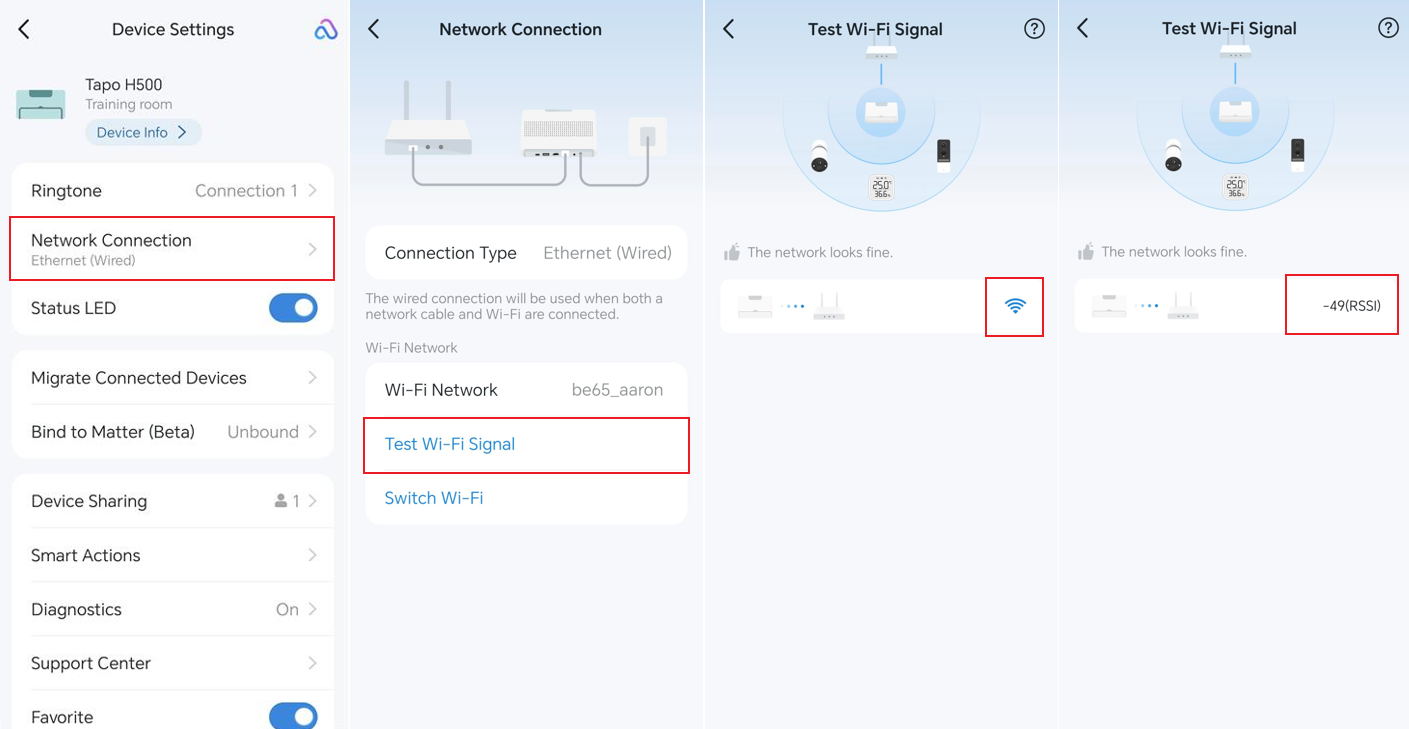
- Tapo H200 and H500 hubs include a dedicated Test Wi‑Fi Signal feature.
- Stronger Wi‑Fi signals help improve device stability, responsiveness, and overall performance.
Understanding RSSI Values
RSSI (Received Signal Strength Indicator) measures the strength of the Wi‑Fi signal received by your device. In general, a stronger signal provides better performance and a more stable connection.
- Strong: Higher than -50 dBm
- Good to Average: -50 dBm to -70 dBm
- Poor: Lower than -70 dBm
How to Check Wi-Fi Signal Strength
For Most Tapo and Kasa Devices (Except Tapo H200 and Tapo H500)
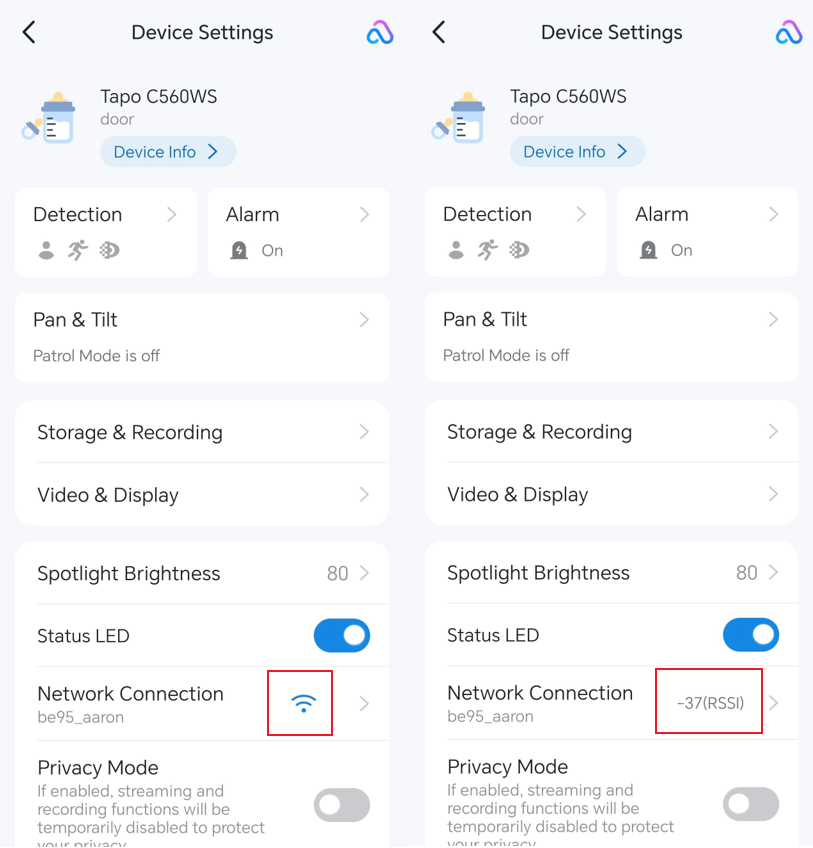
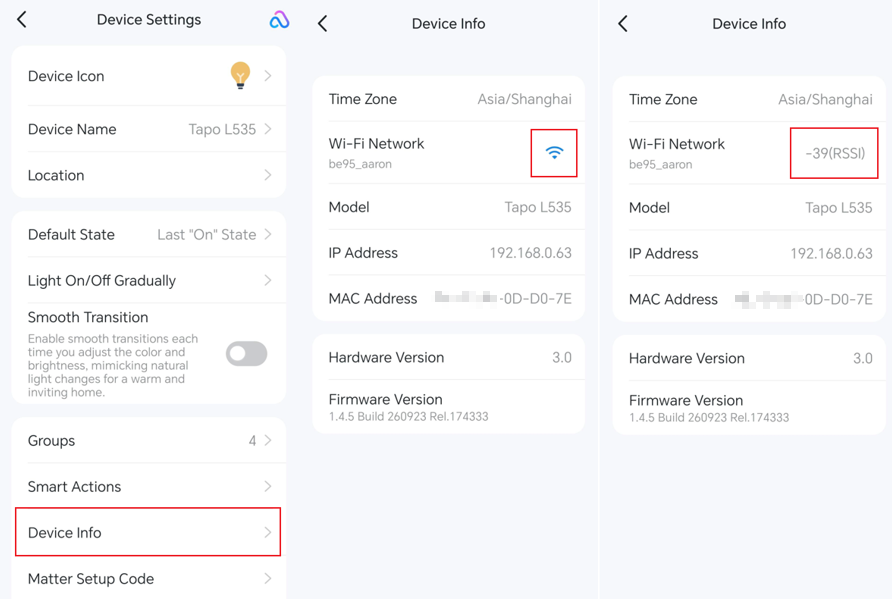
- Open the Tapo or Kasa app and tap the device card.
- Tap the Settings icon in the top-right corner to open Device Settings.
- Find Network Connection or Device Info > Wi-Fi Network/Wi-Fi Signal/Signal Strength.
- Tap the Wi-Fi icon to view the RSSI value.
Note: The exact menu path may vary depending on the device model.
- Open the Tapo app and tap the hub card.
- Tap the Settings icon in the top right corner to open Device Settings.
- Go to Network Connection > Test Wi-Fi Signal.
- Tap the Wi-Fi icon to view the RSSI value.
Looking For More
Is this faq useful?
Your feedback helps improve this site.


TP-Link Community
Still need help? Search for answers, ask questions, and get help from TP-Link experts and other users around the world.