사람 또는 차량이 포함된 영상 필터링 방법
 2966
2966목차
소개
현재 NVR에서는 재생 시 이벤트를 필터링할 수 있습니다. IP 카메라가 기록한 사람 및 차량 관련 이벤트를 필터링하여 VIGI PC 클라이언트 또는 NVR GUI에서 특정 시간대에 표시할 수 있습니다. 이를 통해 관련 기록을 더 빠르게 검색할 수 있습니다.
요구 사항
-
인물/차량 필터 기능이 탑재된 NVR
- VIGI PC 클라이언트
설정
필터링된 결과를 보기 전에 IP 카메라에서 사람 감지 및 차량 감지 기능이 활성화되어 있는지 확인하십시오. 해당 설정은 IP 카메라의 이벤트 > 스마트 이벤트에서 구성합니다.
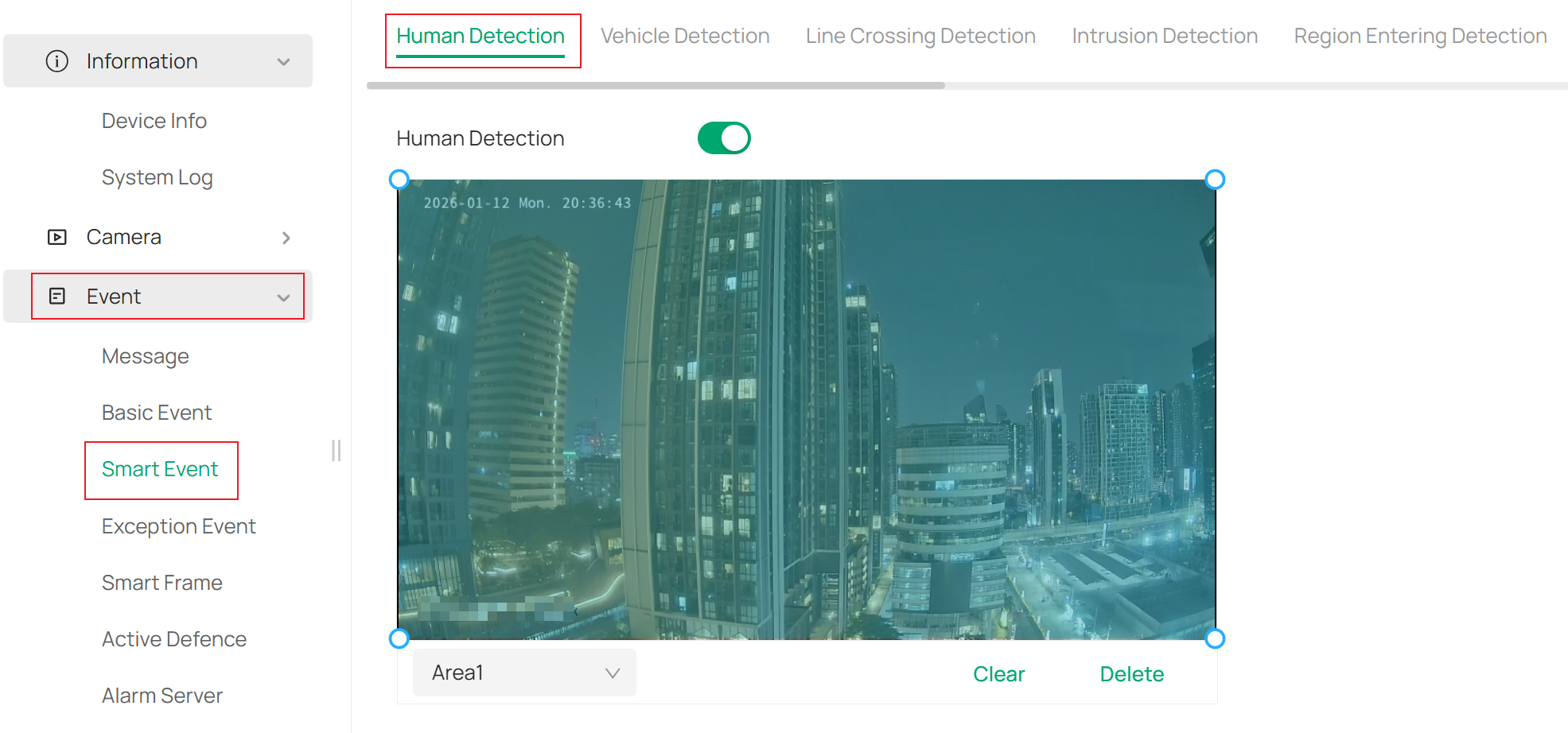
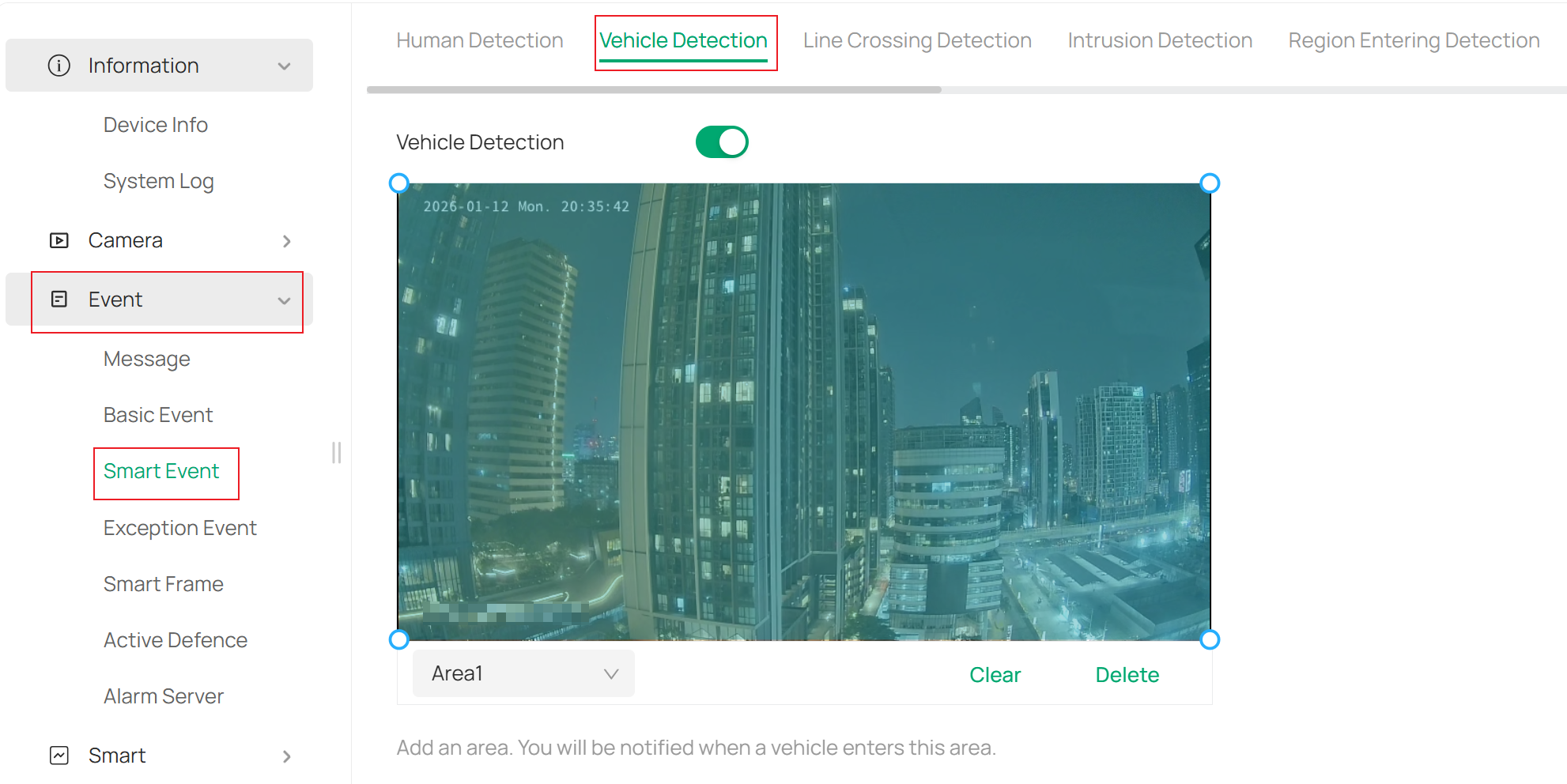
다음으로 재생 시 사람 및 차량 녹화 결과를 필터링하는 두 가지 방법(VIGI 클라이언트와 NVR GUI)을 각각 소개하겠습니다.
VIGI PC 클라이언트 사용 시
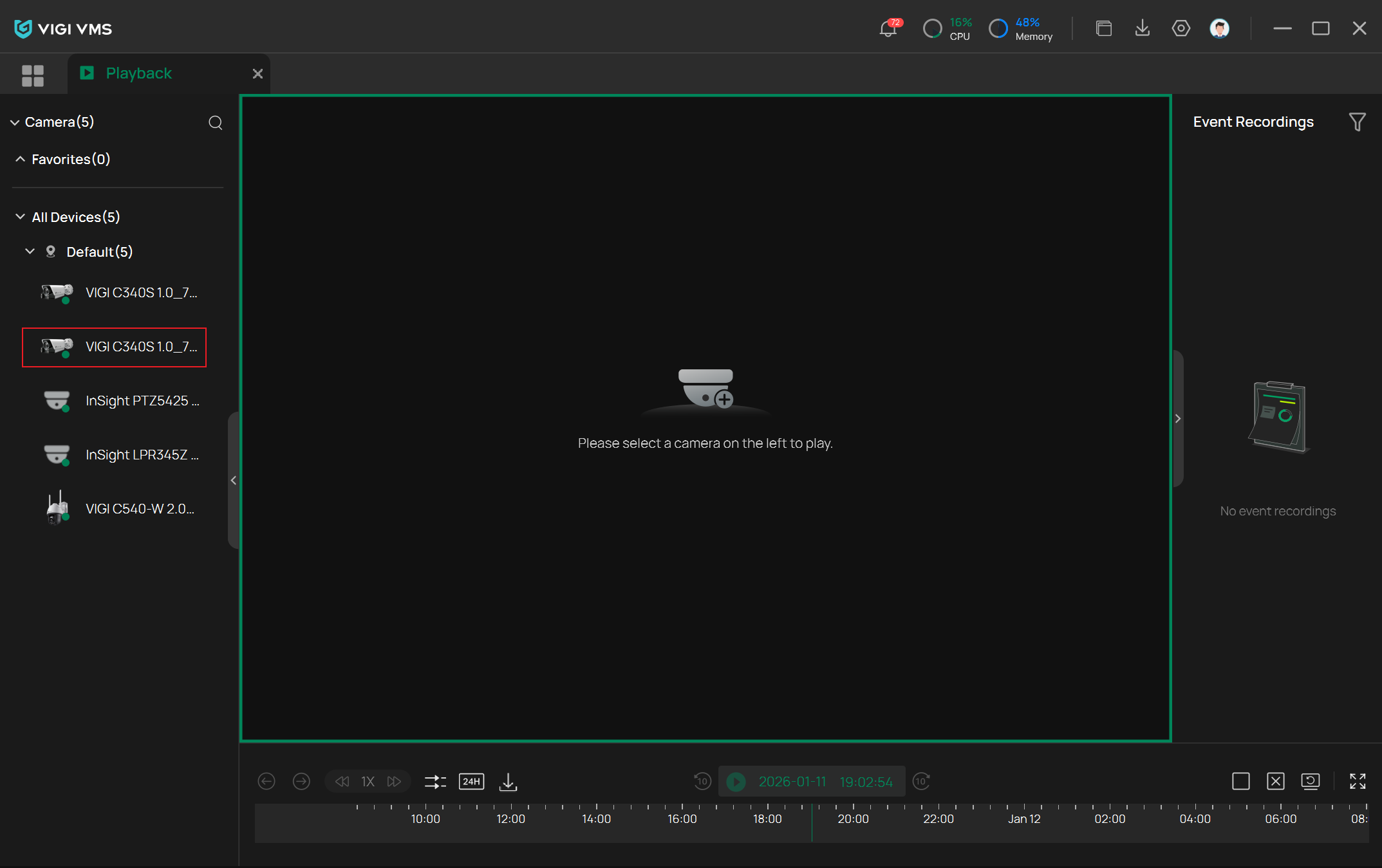
1단계. VIGI PC 클라이언트에 로그인하여 재생으로 이동합니다.
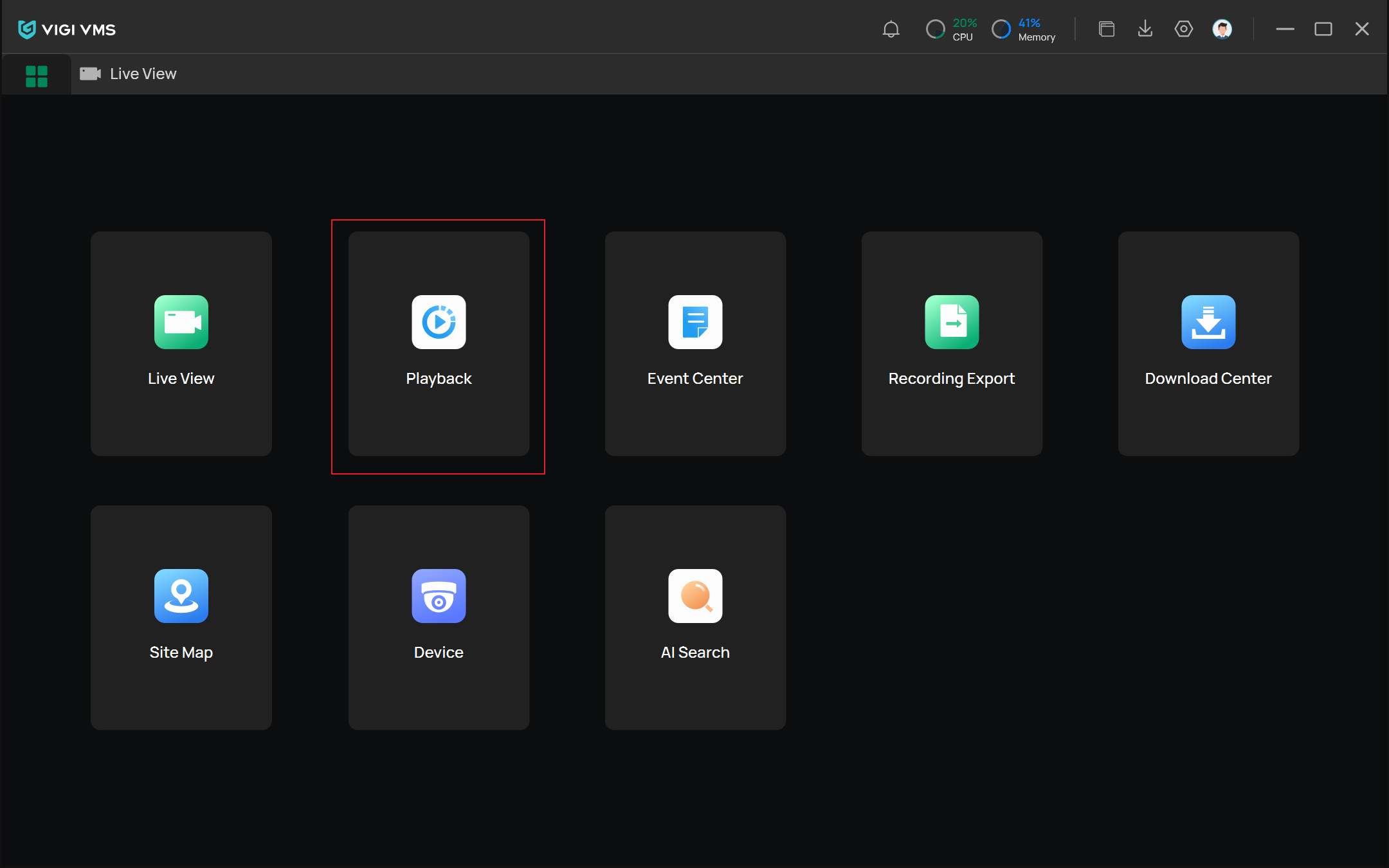
2단계. 녹화 보기( )에서 하나 이상의 IP 카메라를 선택합니다.
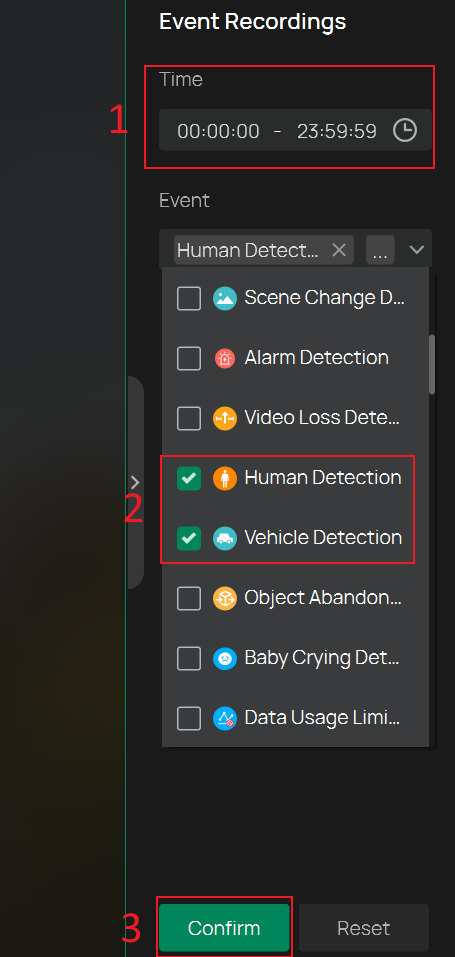
3단계. 재생에서 녹화된 사람 및 차량에 대한 결과를 필터합니다. 여기에서 원하는 시간 범위를 설정하여 볼 수도 있습니다.
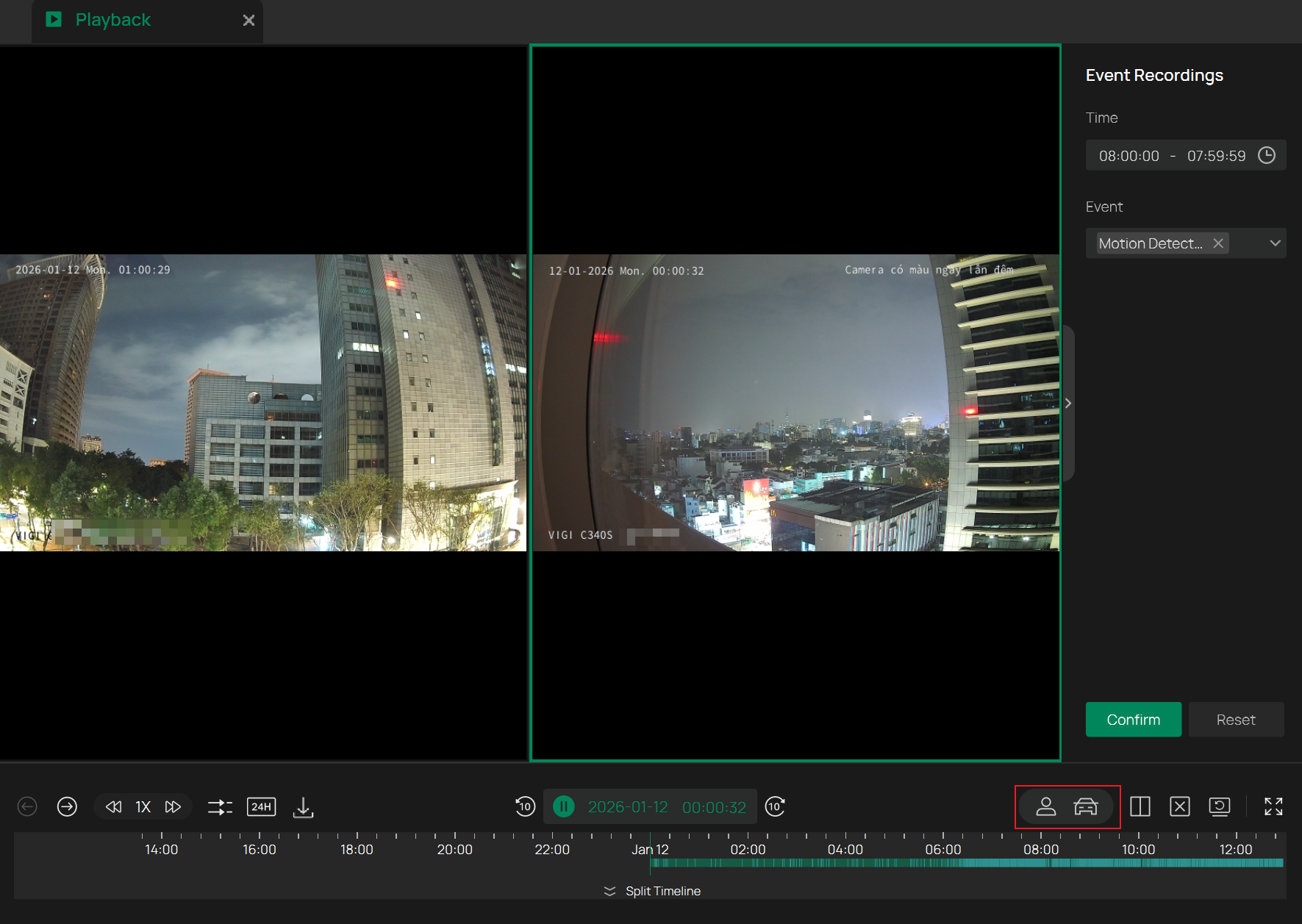
또는 IP 카메라를 선택한 후 하단의 사람 또는 차량 아이콘을 클릭하여 빠르게 필터링할 수 있습니다. 클릭하면 오른쪽에 필터링된 결과가 표시되며, 각 항목에는 이벤트 발생 시간이 표시됩니다.
NVR GUI를 사용한 보기
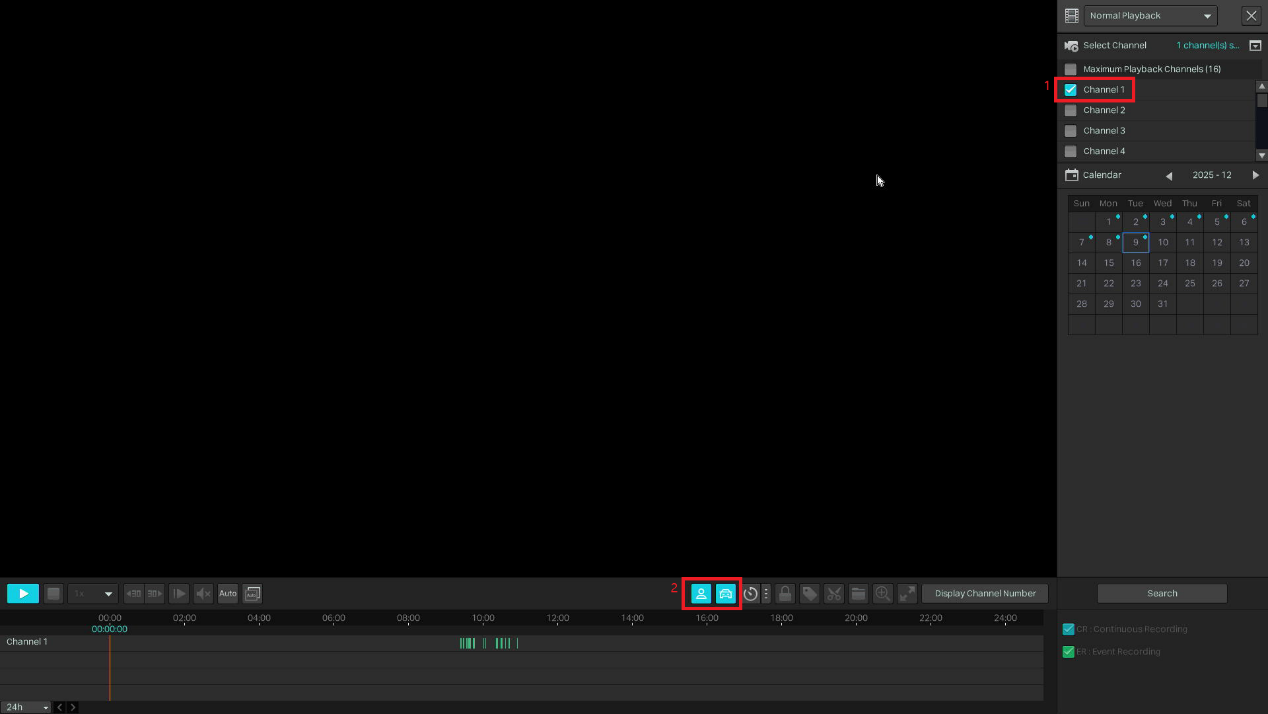
이 섹션에서는 NVR GUI를 사용하여 사람 및 차량 녹화 영상을 필터링하는 방법을 설명합니다. GUI 설정은 비교적 간단하며, 주로 다음 두 단계로 이루어집니다:
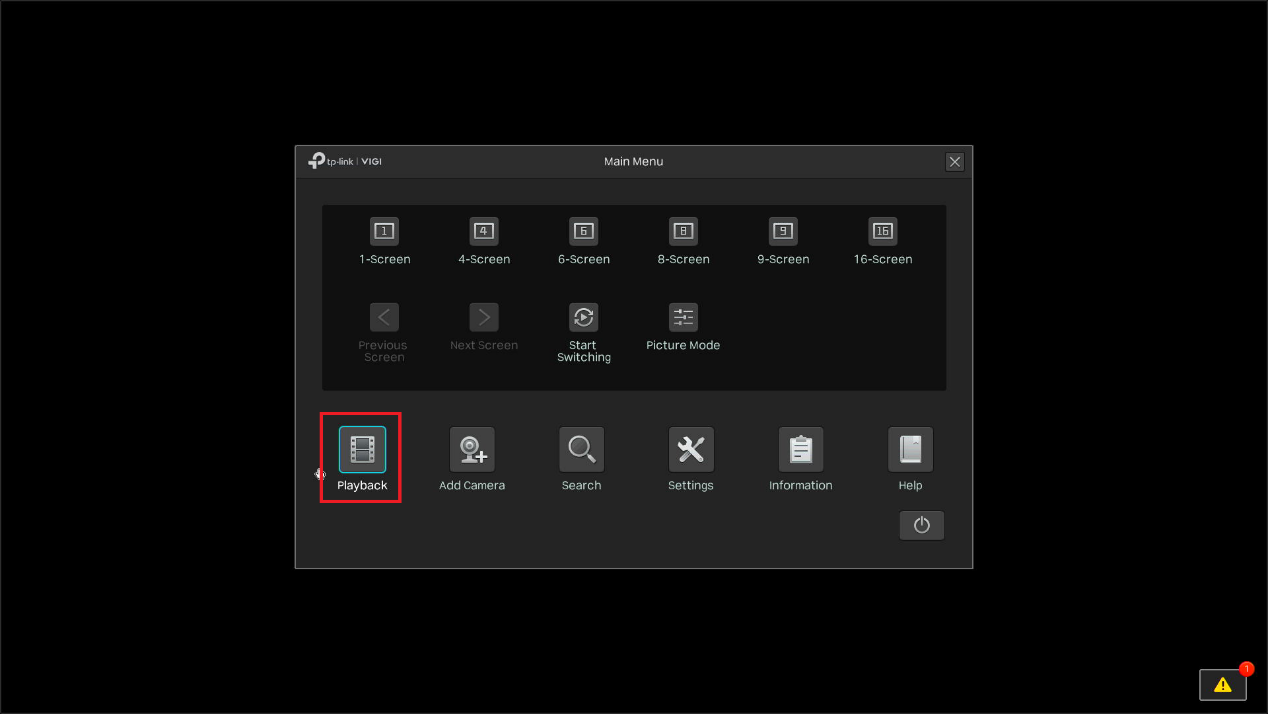
1단계. 마우스 오른쪽 버튼을 클릭하여 팝업 메뉴를 열고 '재생'을 클릭합니다.
단계 2. 채널 선택 후 하단의 사람 또는 차량 아이콘을 클릭하여 사람 및 차량 데이터를 필터합니다.
결론
본 문서에서는 VIGI 클라이언트와 NVR GUI를 모두 사용하여 재생 시 녹화된 사람 및 차량을 필터링하는 방법을 설명합니다.
각 기능 및 설정의 자세한 내용은 다운로드 센터에서 해당 제품 매뉴얼을 다운로드하여 확인하시기 바랍니다.
이 문서에는 기계 번역이 적용되었으며, 정확한 내용을 확인하려면 원본 영문 문서를 참고하시기 바랍니다.
해당 FAQ가 유용했나요?
여러분의 의견은 사이트 개선을 위해 소중하게 사용됩니다.