How to add Kasa devices to Tapo app
 163075
Introduction
This article explains how to add and manage Kasa devices in the Tapo app. With Tapo app version 3.0 or later, selected Kasa devices can be linked to or added directly to Tapo, allowing you to control both product lines from a single app. This guide outlines the basic requirements, supported scenarios, and step-by-step instructions to help you successfully integrate your Kasa devices into the Tapo app.
Requirements
Ensure that Tapo app version 3.0 or later is installed on your mobile device.
Configuration
Note: KE100 and KE110 are currently not compatible with Tapo.
Method 1: Link Tapo with Kasa
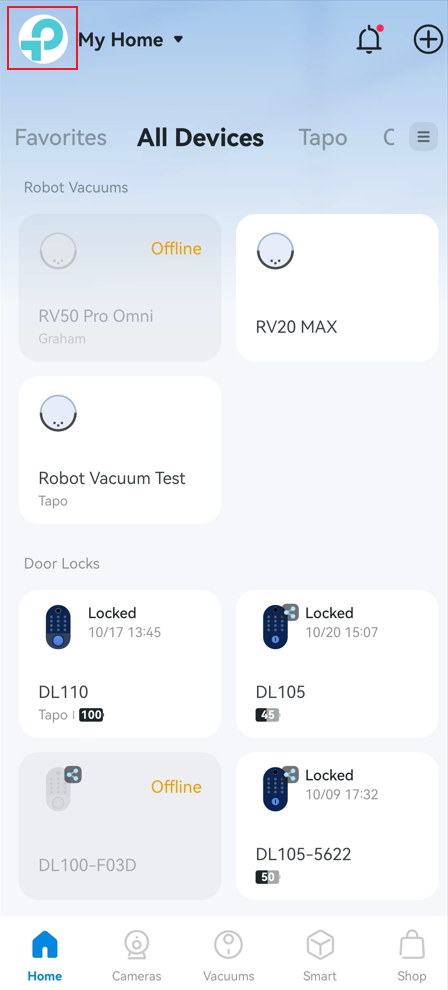
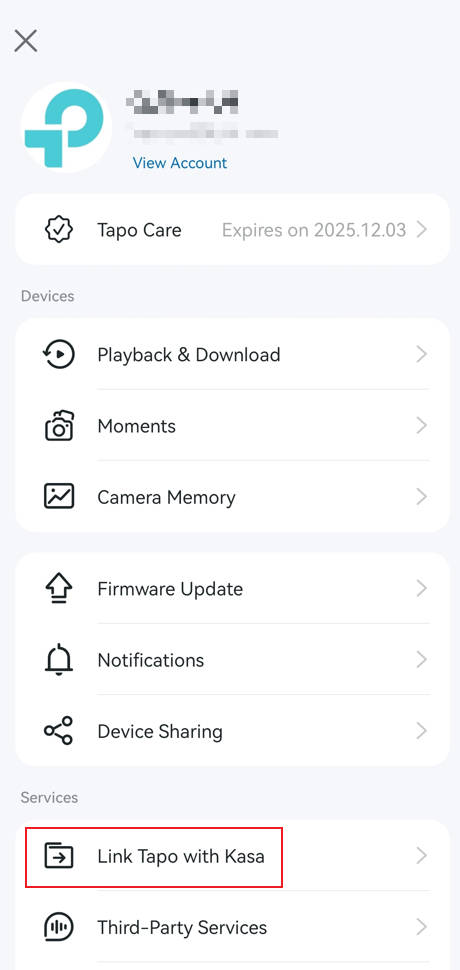
Step 1. Go to Tapo app > Me page, tap Link Tapo with Kasa. The location of Me button may vary by app version. It is located either in the bottom-right corner or the top-left corner of the app.
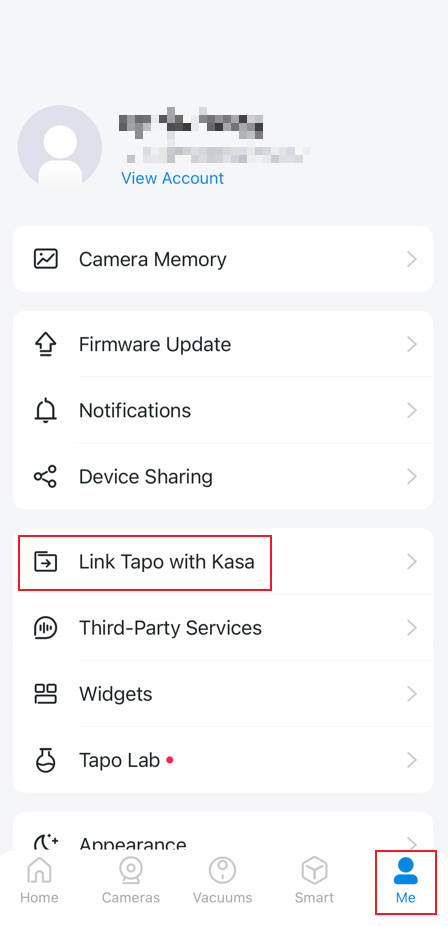
Or
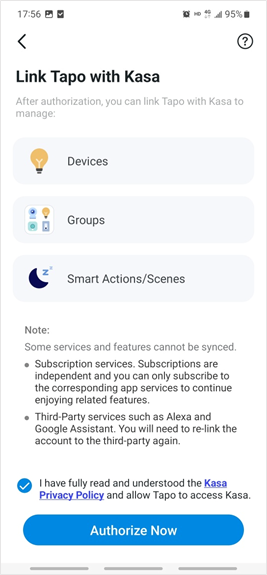
Step 2. Tick the checkbox of Privacy Policy below. Then tap Authorize Now to allow Tapo to access Kasa. After authorization, your Kasa devices will be shown in the Tapo app.
Method 2: Add Kasa Devices to Tapo
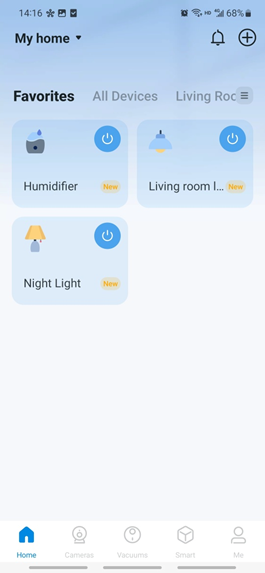
Step 1. Open Tapo app. Tap + button in the top right corner to add device and select the Kasa brand.
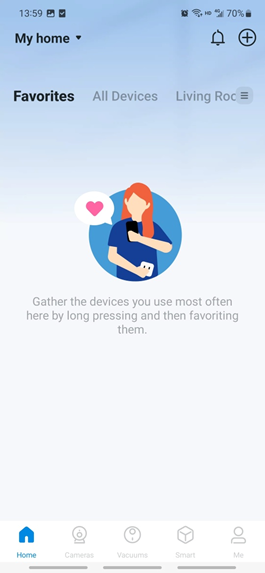
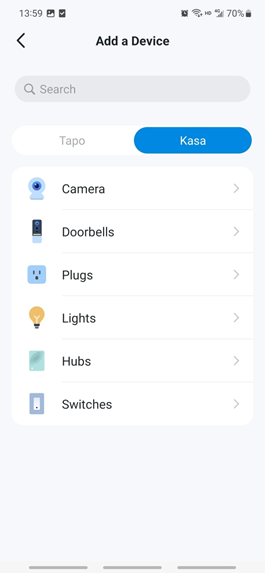
Step 2. Select the device category and then the model number. Here we use KP303 Smart Wi-Fi Power Strip as an example.
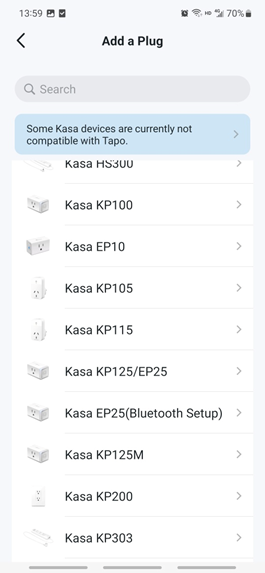
Step 3. Power up your device and connect your phone to the device.
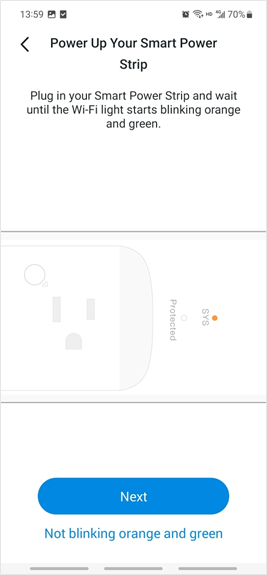
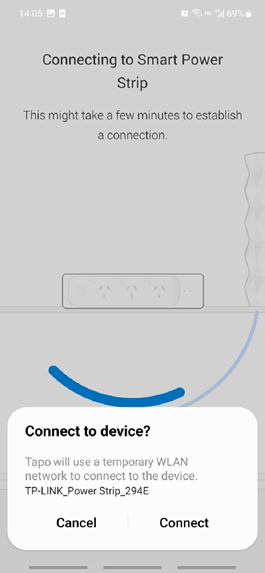
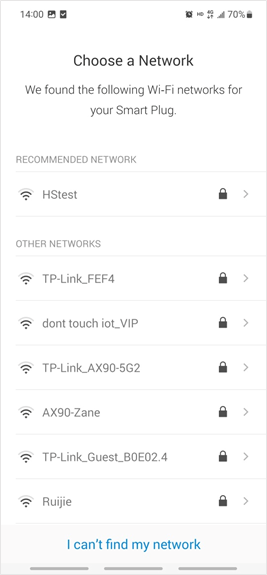
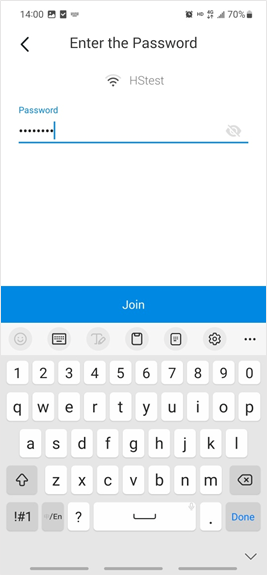
Step 4. Connect your device to your 2.4 GHz Wi-Fi network.
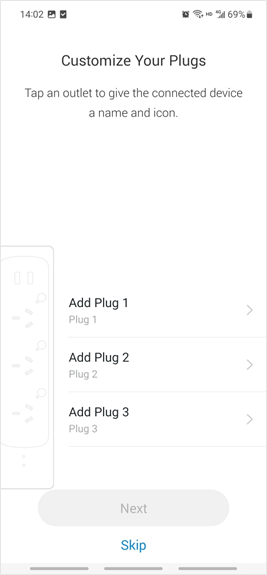
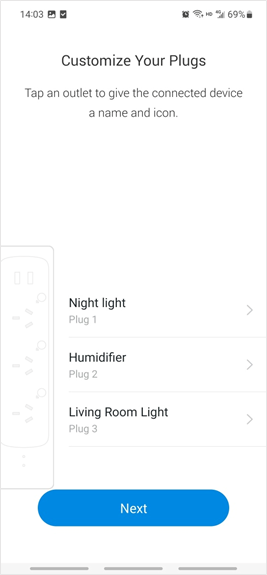
Step 5. (Optional) Name each outlet of the power strip and select an icon for it.
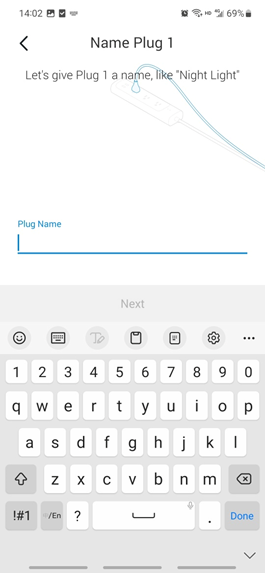
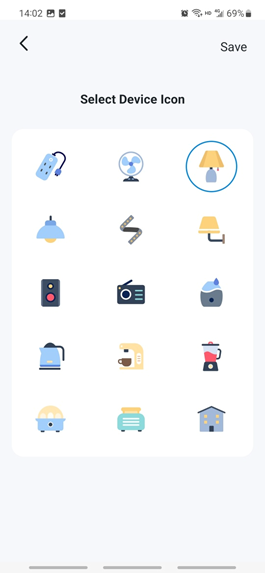
Step 6. Tap Next. Then select a location for your device.
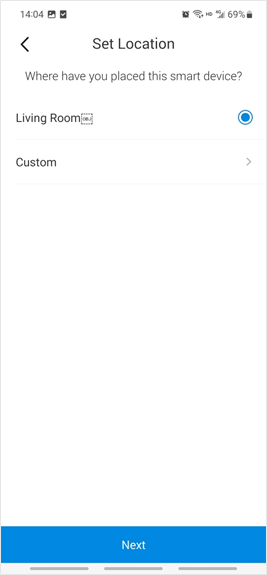
Step 7. Your Kasa device has been successfully added to the Tapo app. You can see them on the Device List.
QA
Q1: Why can’t I find my device model when adding a new Kasa device in the Tapo app?
A1:
- Make sure both the Kasa device firmware and the Tapo app are updated to the latest version.
- Confirm that the Tapo app supports your device model. Currently, KE100 and KE110 are not supported.
- Make sure you select the Kasa brand when adding a device.
- Try searching for your Kasa device by manually entering the model number.
Q2: Why can’t I find my existing Kasa devices after linking Tapo with Kasa?
A2: Verify if the Kasa account in use is the same as Tapo’s. Kasa devices won't sync with the Tapo app if they're bound to a different TP-Link ID.
Is this faq useful?
Your feedback helps improve this site.