How to Connect Tapo Cameras and Doorbells to a Tapo Hub
This guide covers how to connect compatible Tapo cameras and doorbells to a Tapo Hub. There are two reasons to do this: Wi-Fi Backup, which lets cameras/doorbells automatically switch to the device with the strongest signal, and Hub Storage, which stores footage locally on the hub. Connected Devices is a section in the hub settings where you can configure both features in one place. Before setup, make sure your cameras and doorbells have the latest firmware installed.
Key Takeaways
- The Tapo H200 and H500 support Wi-Fi Backup and Hub Storage for Tapo cameras and doorbells.
- Wi-Fi Backup lets the hub act as a Wi-Fi access point, so cameras/doorbells automatically switch to whichever device — hub or router — has the strongest signal.
- Hub Storage lets cameras and doorbells save video footage directly to the hub, keeping recordings accessible even if the camera is stolen or disconnected.
- The Connected Devices in Hub Status page allows configuring both Wi-Fi Backup and Hub Storage in one place.
- Sub-G cameras and doorbells connect to the hub for network access only and do not support Wi-Fi Backup.
Tapo Hub Wi-Fi Backup
With the Wi-Fi Backup feature, Tapo Hub can now work as a Wi-Fi extender/Access Point, providing Wi-Fi Backup functionality for Tapo Cameras and doorbells. Once enabled, the Tapo Camera and doorbells will automatically connect to the device (hub/router) with the strongest signal and seamlessly switch to another device if the Wi-Fi connection is interrupted.
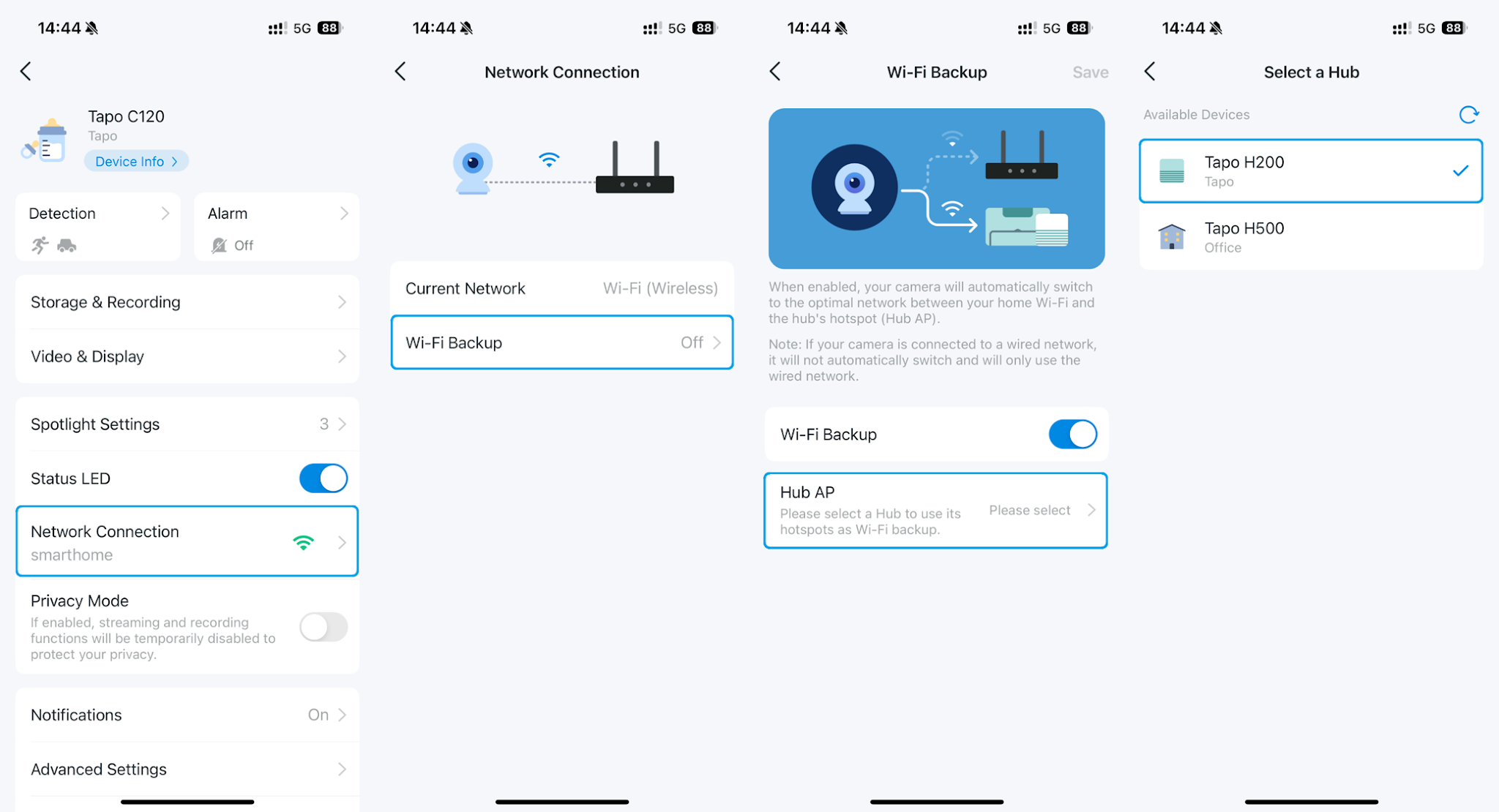
Here are the steps to configure Wi-Fi Backup:
Step 1. Connect your hub to the same Local Area Network as the camera/doorbell (the simplest way is to connect to the same router).
Step 2. Navigate to Tapo app > camera/doorbell Device Settings > Network Connection > Wi-Fi Backup to turn on the Wi-Fi Backup feature.
Step 3. Tap Hub AP and click the appropriate Hub for your Tapo Camera/Doorbell.
Step 4. Once setup is complete, the camera will automatically connect to whichever device — hub or router — has the strongest signal.
Note: Sub-G cameras and doorbells connect to the hub for network access only and don’t support Wi-Fi Backup.
Tapo Hub Storage
With the Hub Storage feature, you can now store videos from your camera/doorbell directly on a Tapo Hub with extended storage, all within the same local network. This feature ensures that even if the camera is stolen, video footage can still be accessed from the hub’s storage.
Note: There is a limit to the number of cameras that can connect to Hub Storage; refer to the following article for details: How many devices can connect to a Tapo Hub at the same time?
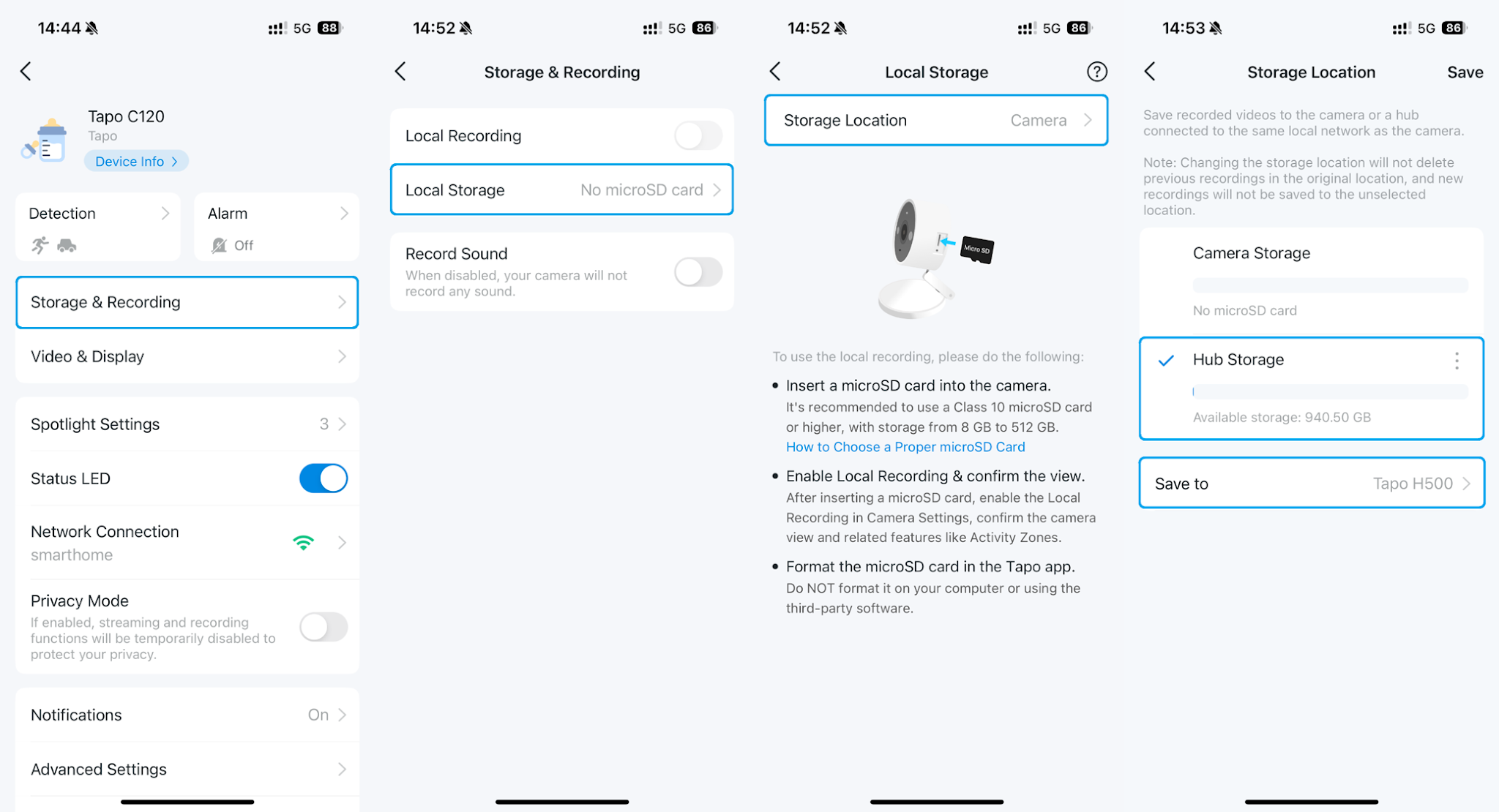
Here are the steps to configure Hub Storage:
Step 1. Ensure your camera/doorbell's connected router and your hub are within the same local area network.
Step 2. Go to Tapo app > camera/doorbell Device Settings > Storage & Recording > Local Storage > Storage Location, then select the hub where you want the videos to be stored.
Step 3. Tap Save in the top right corner to complete the configuration.
Note: When Hub Storage is selected, the video is stored on the hub. If the connection to the hub is interrupted, footage is temporarily saved to the SD card (if installed) until the connection is restored.
Connected Devices
With the Connected Devices feature, you can configure both Wi-Fi Backup and Hub Storage in one place. You can not only set up a new device but also connect existing Wi-Fi devices.
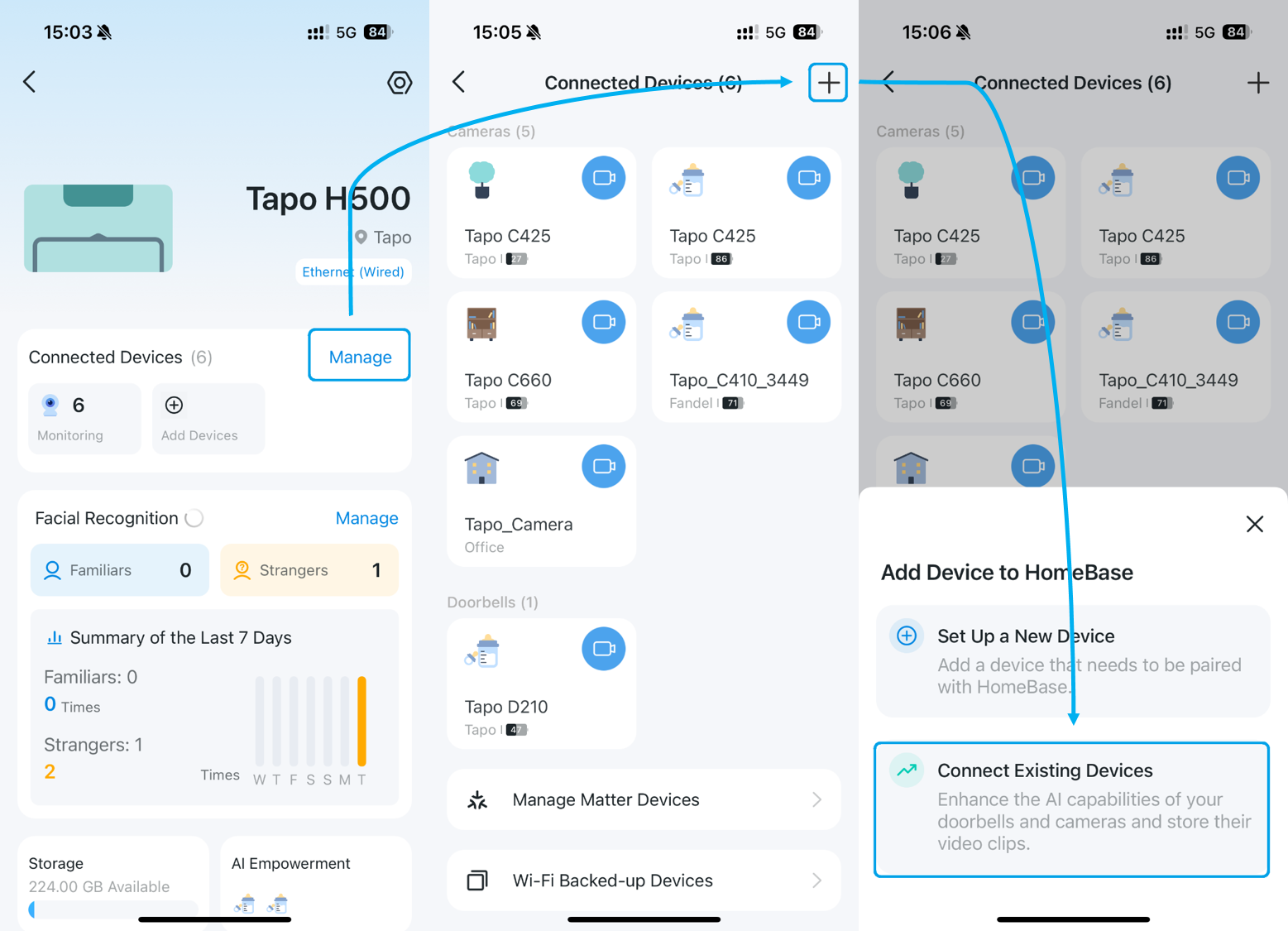
Step 1. Ensure the Camera/Doorbell and Hub are connected to the same local area network.
Step 2. Go to the Tapo app Home page, tap the Hub device card, then tap Connected Devices. Tap plus icon in the top right corner and select Connect Existing Devices.
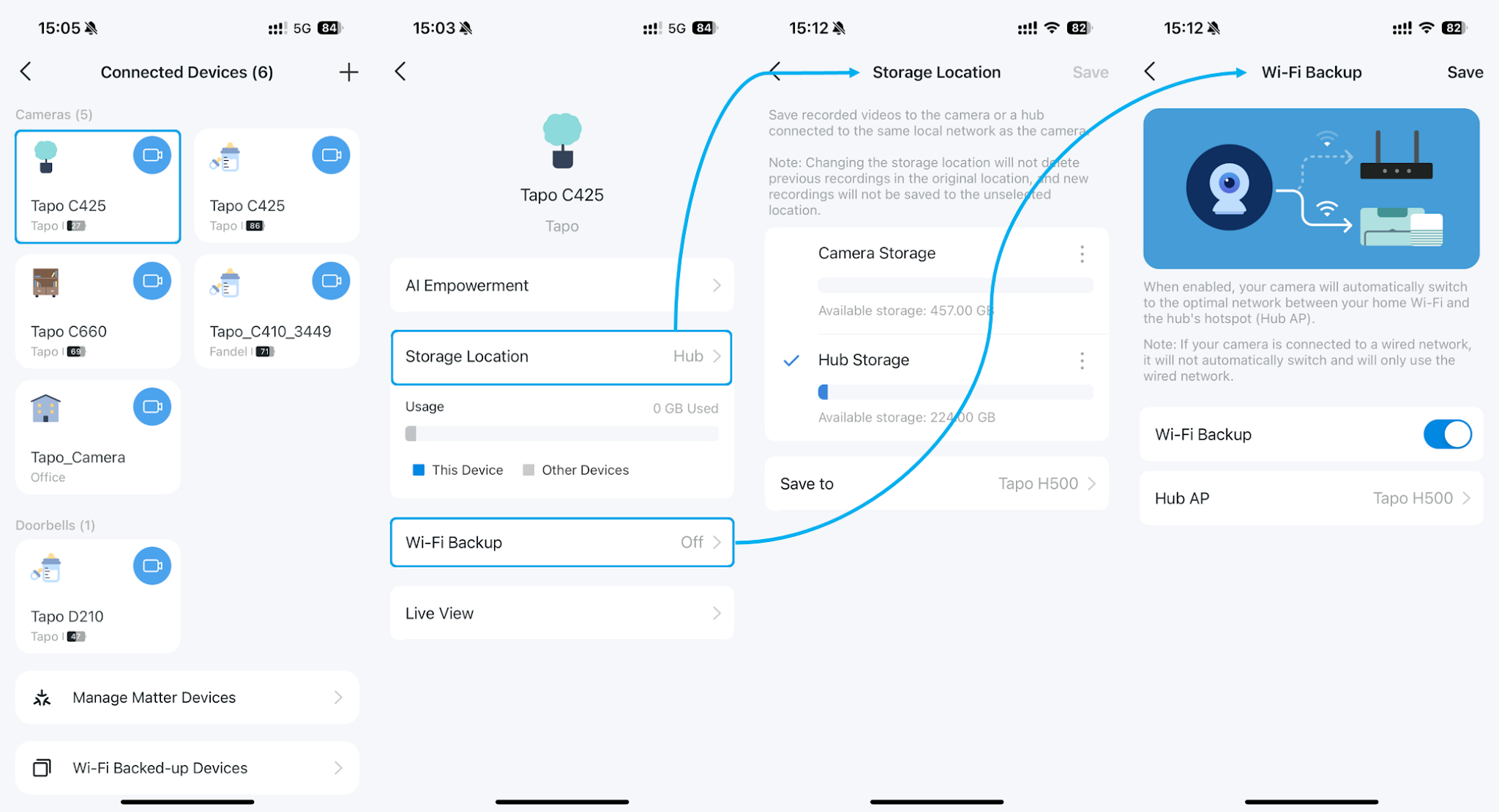
Step 3. After adding the device, tap it to manage Wi-Fi Backup and Storage Location settings.
To learn more about each function and configuration, please visit the Download Center to download the manual for your product.
Looking For More
Is this faq useful?
Your feedback helps improve this site.



TP-Link Community
Still need help? Search for answers, ask questions, and get help from TP-Link experts and other users around the world.