How to Find the Matter Pairing Code on Your TP-Link Device: 3 Methods
The Matter pairing code is a unique code required to add a Matter-certified device to a smart home platform such as Alexa, Google Home, or Apple Home. You may need the Matter setup code when setting up a new device or adding an existing device to an additional smart home platform.
This guide covers three ways to find it: on the device casing, on a backup sticker inside the product box, and using the Tapo or Kasa app.
Key Takeaways
- The Matter setup code is a unique number required to pair a TP-Link Matter-certified device with a third-party smart home platform such as Alexa, Google Home, or Apple Home.
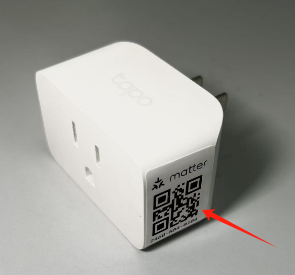
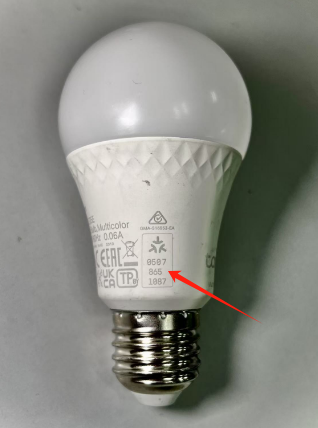
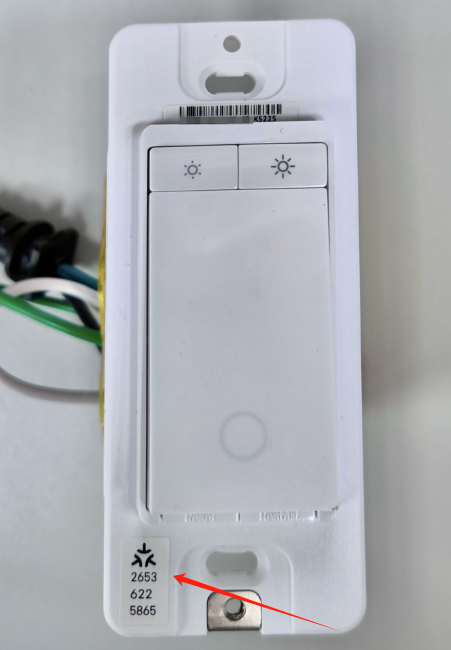
- Method 1: The code is printed on the device casing — on the side for plugs, in the middle below the light sphere for bulbs, and on the side near the button for switches.
- Method 2: A backup code sticker is included inside the product box in case the code on the device becomes damaged or unreadable.
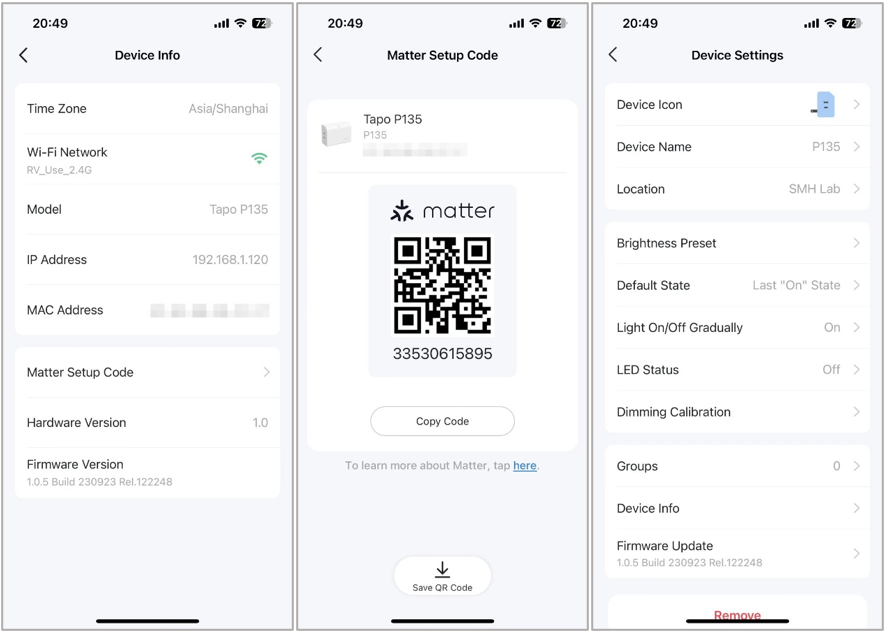
- Method 3: If the device is already added in the Tapo or Kasa app, the electronic code can be generated via Device Settings > Device Info > Matter Setup Code.
Method 1. Printed/Sticker Code on the Device
The Matter setup code is printed on the device casing. The exact location varies by device type:
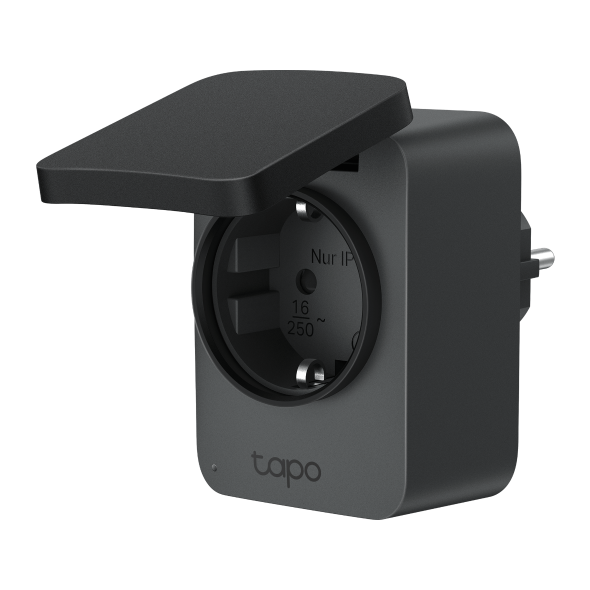
Plug: The code is located on the side of the device casing
Bulb: The code is located in the middle of the casing, just below the light sphere and above the bulb base.
Switch: The code is located on the side of the casing near the button.
Method 2. Backup Code Sticker in the Product Box
A backup Matter code sticker is included inside the product box in case the code on the device becomes damaged or unreadable.
Method 3. Electronic Code from the Tapo/Kasa App
Step 1: Set up your Matter-certified devices to Tapo/Kasa app first.
Step 2: Tap your Matter device finished setup in Tapo/Kasa app Home page > Tap the gear icon in the top right corner to enter the Device Settings page > Tap Device Info > Tap Matter Setup Code. Then you can find the electronic Matter setup code. It's suggested to save it to the album of your phone.
To learn more about each function and configuration, please visit the Download Center to download the manual for your product.
Looking For More
Is this faq useful?
Your feedback helps improve this site.


TP-Link Community
Still need help? Search for answers, ask questions, and get help from TP-Link experts and other users around the world.