What if I fail to configure the Tapo Smart Plug?
 163098
Introduction
The Tapo app will guide you step by step during the initial configuration, but you may not be able to complete all the steps due to interference. This FAQ will tell you what to do if you have trouble with a specific step.
Requirements
- Download the Tapo app by visiting the Google Play Store, App Store, or by scanning the QR code.

- Ensure the Tapo app is updated. Reboot both your router and the smart device.
Troubleshooting
Scenario 1: Unable to find this Tapo device
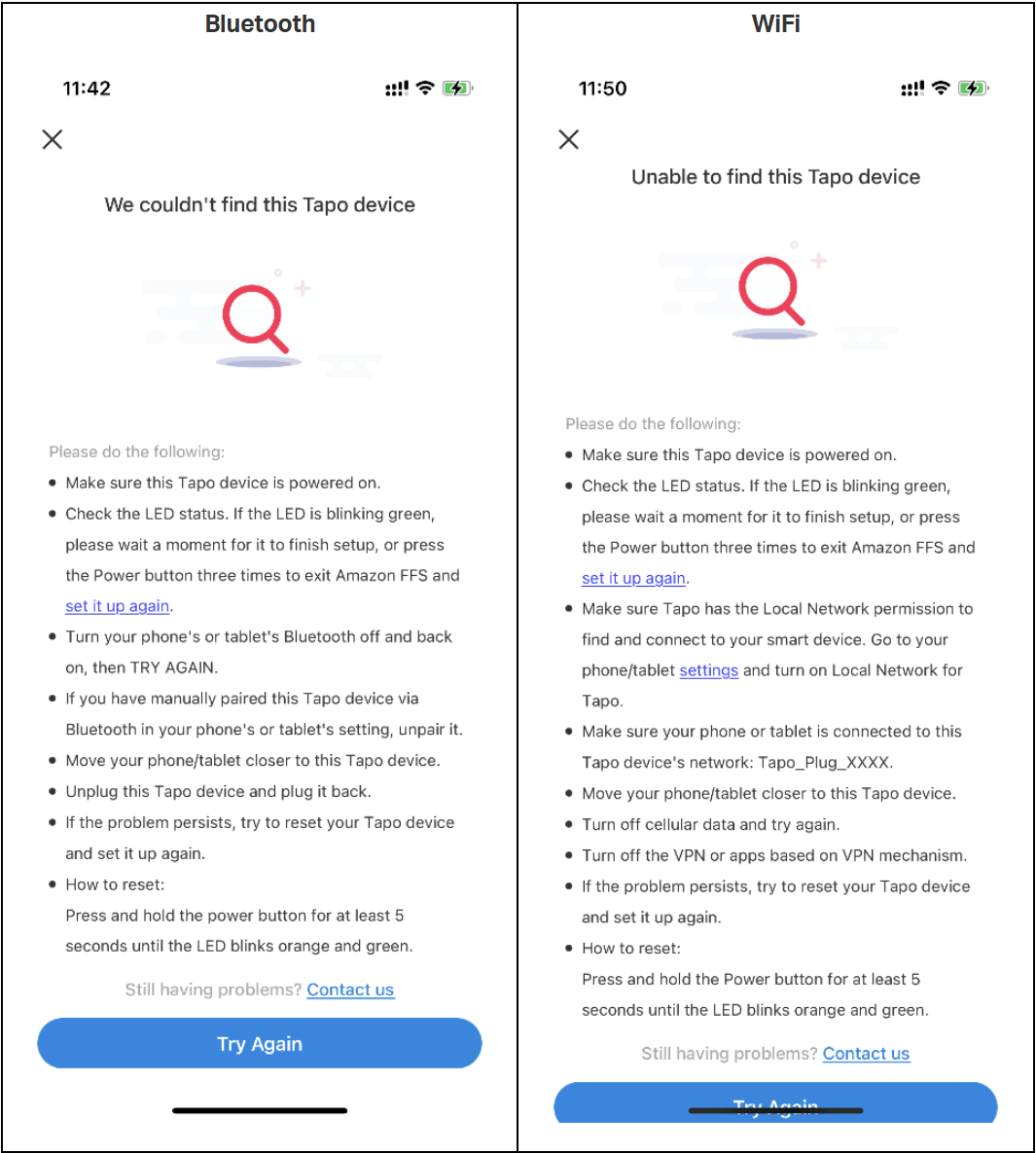
Step 1. Refer to the troubleshooting guidance in the APP (check above)
Step 2. Make sure the model number of the product selected during configuration is correct. Check the box or the device label. If the product's model number is Tapo P110/Tapo P115/EP25, please select “Bluetooth Setup” for Tapo P110 (US), Tapo P115 (US), EP25 V2.6, and select “Wi-Fi Setup” for other versions.
Step 3. Update Tapo App, phone's OS, and Router's firmware to the latest version.
Step 4. If you need to configure multiple devices, power on one device at a time to avoid setup failure.
Step 5. Check the LED status and ensure the device is ready for setup. Try to factory reset the device if the LED is abnormal.
Step 6. Use a different phone/tablet to reconfigure.
Scenario 2: Unable to find your home Wi-Fi network
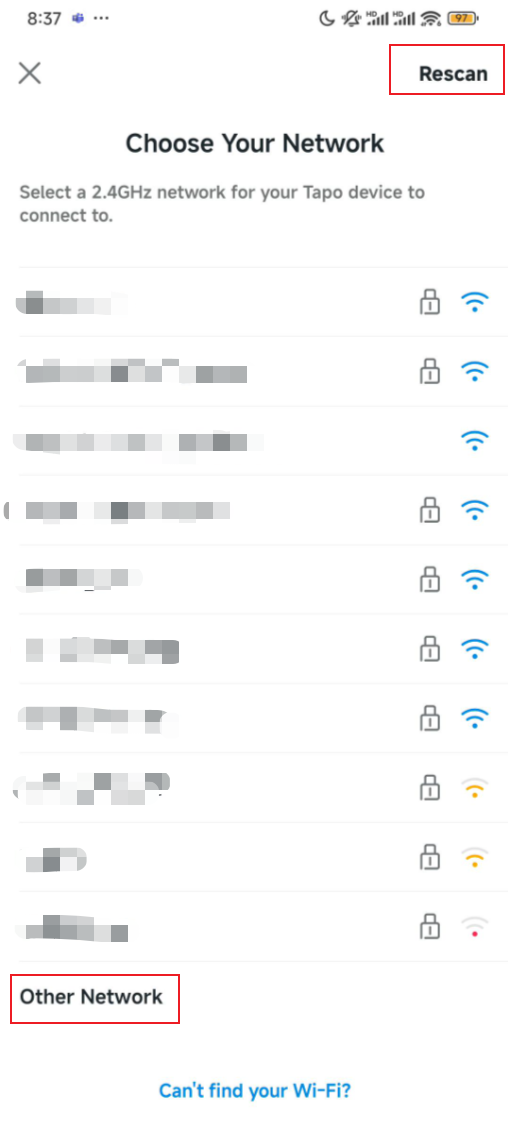
Step 1. Move the smart device closer to your router to ensure a strong signal strength.
Step 2. Ensure your home Wi‑Fi network is on 2.4 GHz; the Tapo device does not support 5 GHz.
Step 3. Click Rescan in the upper right corner of the app to refresh the Wi-Fi list.
Step 4. Choose “Other Network” to input the SSID and password manually.
Step 5. Change the router's 2.4GHz Wi-Fi settings: set channel to 1, 6, or 11; bandwidth to 20 MHz; and encryption method to WPA2.
Step 6. Check the LED status and ensure the device is ready for setup. Try to factory reset the device if the LED is abnormal.
Scenario 3: Unable to Connect to Your Network
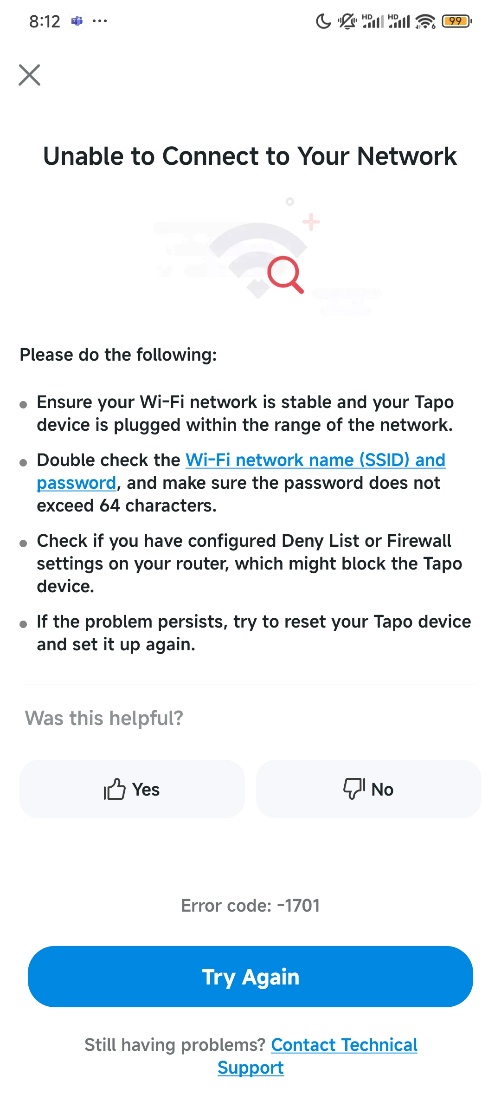
Step 1. Ensure the home Wi-Fi password is correct. We recommend "forgetting" the network on your phone and rejoining it to confirm the password works.
Step 2. Reboot your router and the smart device, then try setting it up again.
Step 3. Move the smart device closer to your router to ensure a strong signal strength.
Step 4. Ensure your router is up to date with the latest firmware version.
Step 5. Ensure the router has not reached its maximum device limit. Check your router (especially Guest Network settings) to see if you need to disconnect unused devices or increase the client limit.
Scenario 4: Pairing Failed
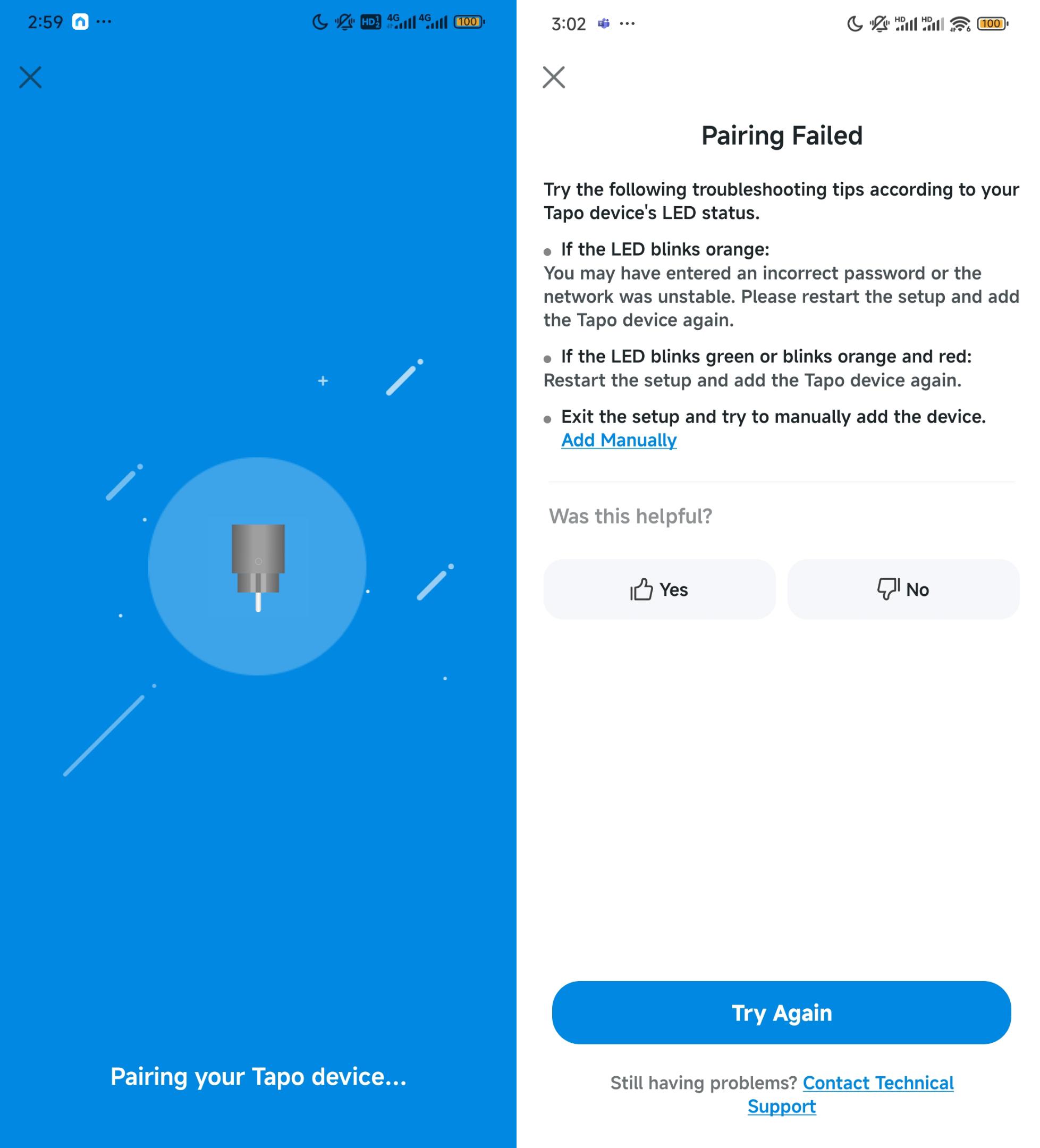
Step 1. Ensure the home Wi-Fi password is correct. We recommend "forgetting" the network on your phone and rejoining it to confirm the password works.
Step 2. Move the smart device closer to your router to ensure a strong signal strength.
Step 3. Change the router's 2.4GHz Wi-Fi settings: set channel to 1, 6, or 11; bandwidth to 20 MHz; and encryption method to WPA2.
Step 4. Check the LED status and ensure the device is ready for setup. Try to factory reset the device if the LED is abnormal.
Step 5. Attempt to connect the device to a mobile hotspot. If successful, update the device's firmware within the App, then reset it and try connecting to the router again.
Step 6. Disable the router firewalls temporarily.
Step 7. If the device connects to Wi-Fi but displays “Local Only”, change the router's DNS settings to 8.8.8.8 and 8.8.4.4.
¿Es útil esta pregunta frecuente?
Sus comentarios nos ayudan a mejorar este sitio.


