Getting Started with VIGI Cameras
Contents
Configuration via Web Management Interface
Configuration via VIGI Config Tool
Introduction
VIGI cameras can be initialized and configured using different methods depending on your deployment needs. You can use the web management interface for individual camera setup, the VIGI App for convenient setup from a mobile device, or the VIGI Config Tool to initialize multiple cameras in batches. This article introduces these three methods and provides step-by-step instructions for each.
Requirements
- VIGI camera
- PC / mobile phone
- VIGI App / VIGI Config Tool
Configuration
To initialize a VIGI Camera, you need to ensure the camera and the device used for configuration are on the same subnet. You can then set up your VIGI camera in one of the following methods.
Configuration via Web Management Interface
Step 1. Power on the camera and connect it to the network. Ensure that the PC is connected to the same network and then access the camera's web management interface using its IP address.
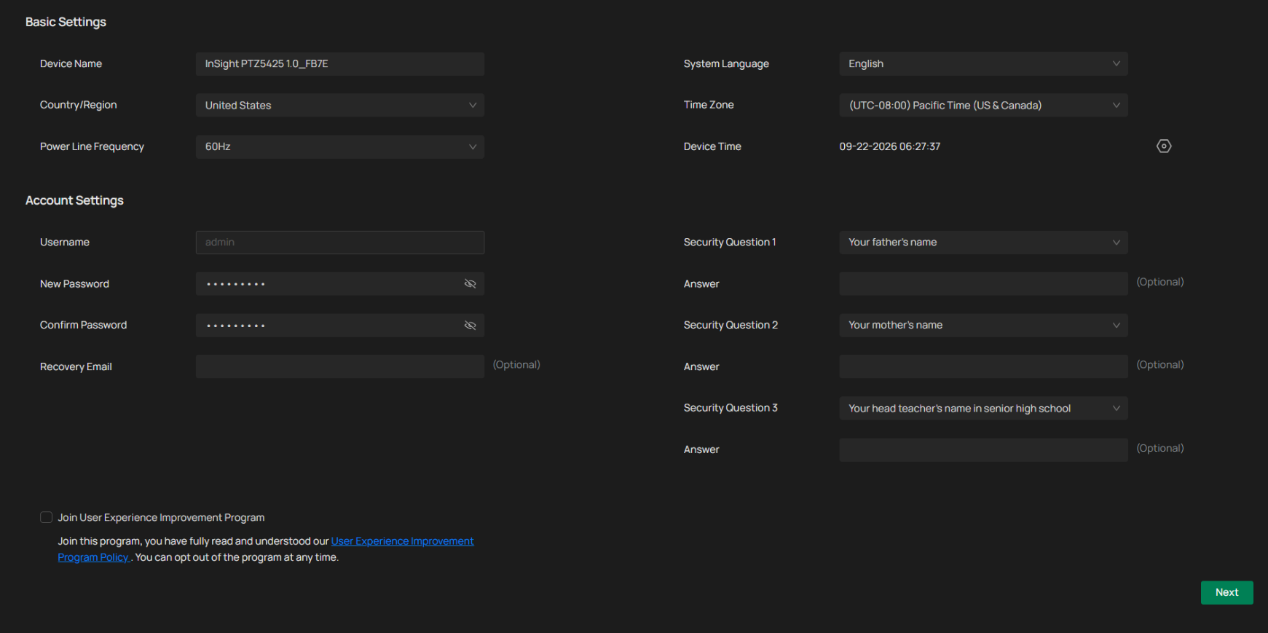
Step 2. Configure the device name, language, country/region, time zone, and account information. We recommend setting up a recovery email and security questions to help ensure continued access to your device. If you don't need a password recovery email or security questions, you may skip this setting. Click Next.
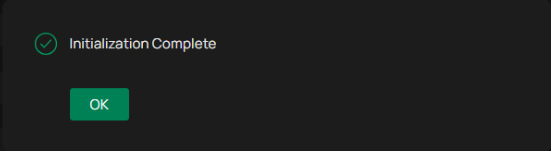
Step 3. Initialization is complete.
Configuration via VIGI App
If a PC is unavailable, you can quickly set up the camera via the VIGI App. After logging in with your TP-Link ID and connecting your mobile device to the network, you can add the camera to your TP-Link ID in the VIGI App.
Step 1. Log in to the VIGI App. For optimal connection, it is recommended to connect both the mobile phone and the VIGI Camera to the same network.
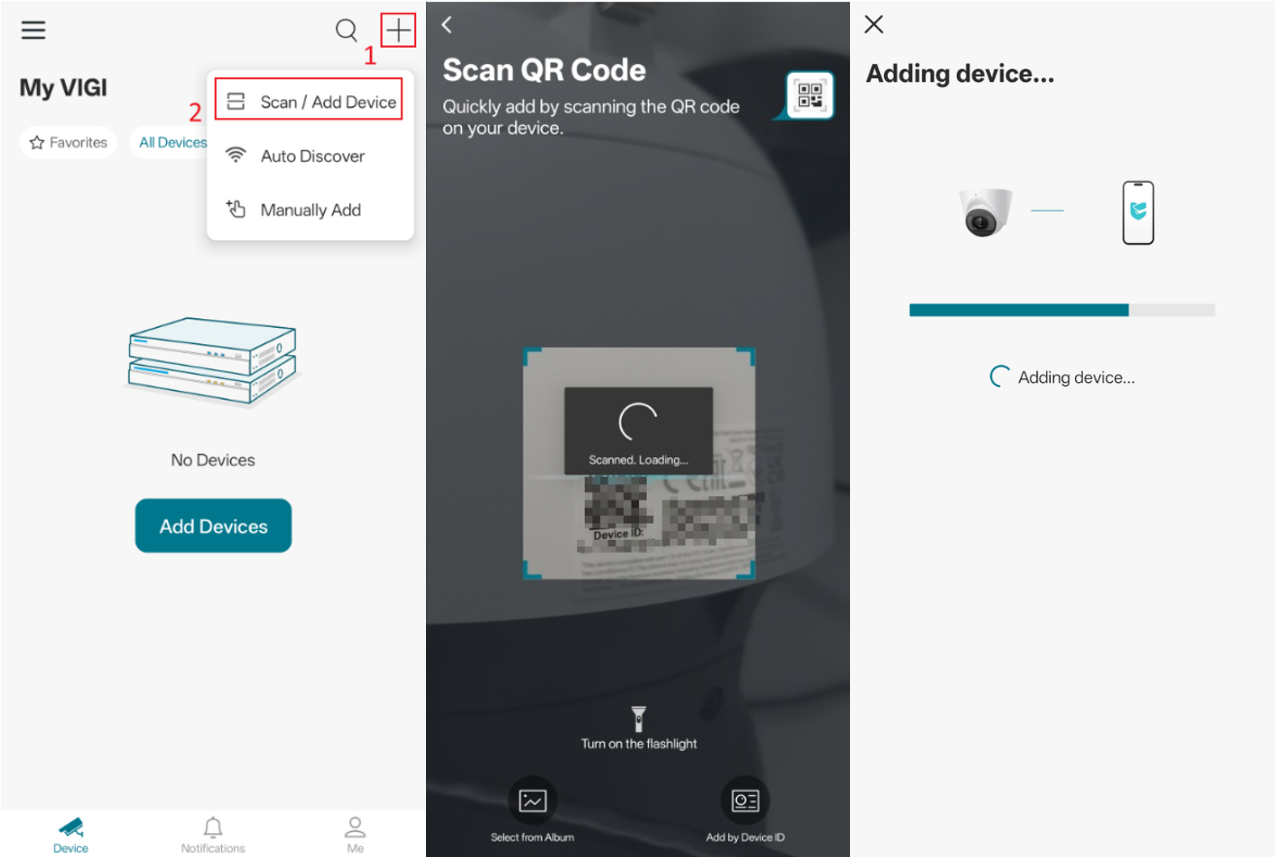
Step 2. If you only need to add specific devices, tap + in the upper right corner and select Scan / Add Device. Scan the QR code on the label of the device.
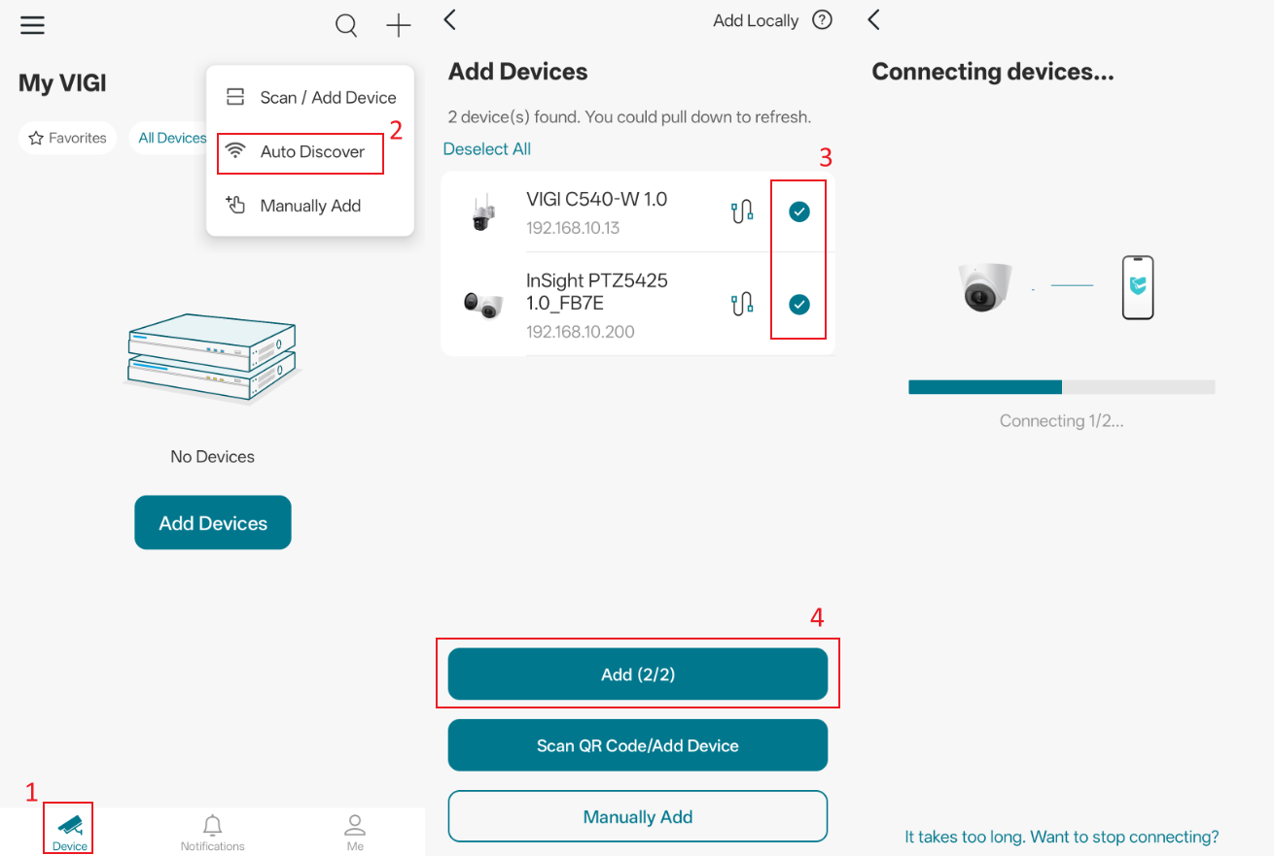
To add all VIGI cameras in the same network, you may select Auto Discover to scan and add all of them.
 Step 3. Set the camera's password, time zone, and name.
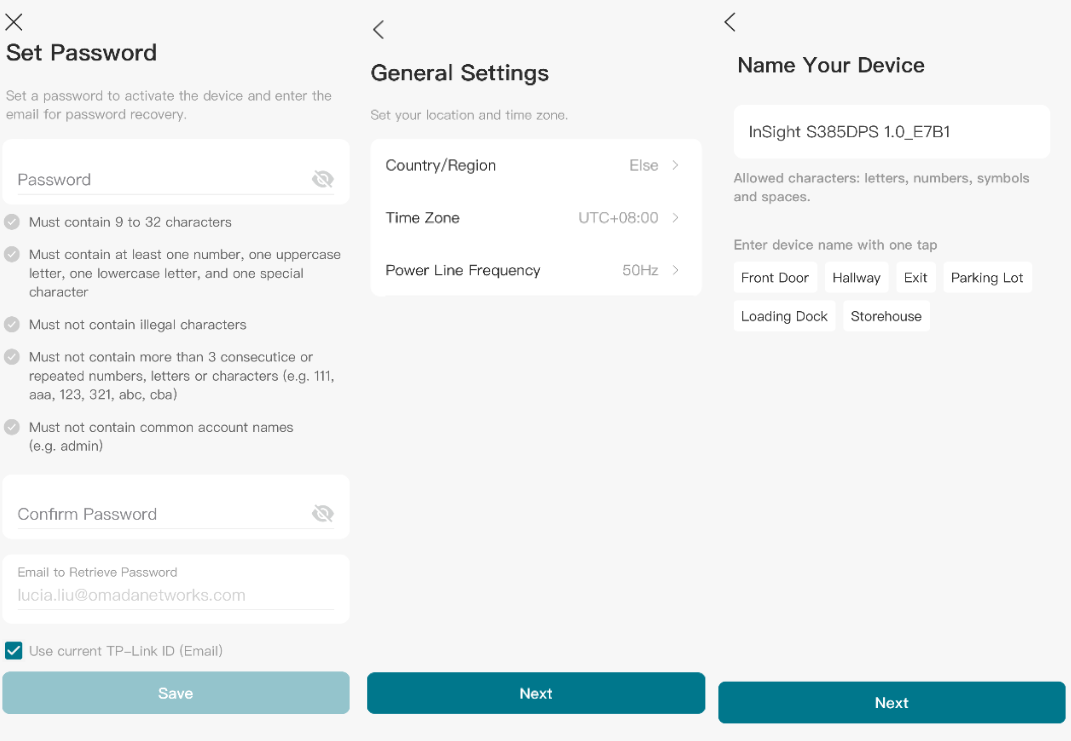
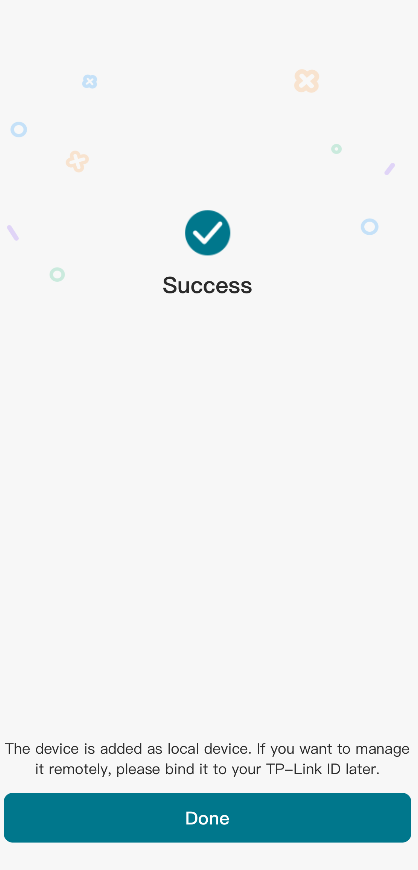
Step 4. Click Next to complete the initialization.
Configuration via VIGI Config Tool
If you have multiple VIGI cameras to set up, you can use the VIGI Config Tool to quickly and conveniently configure them in batches.
Step 1. Visit the TP-Link official website to download the VIGI Config Tool.
Step 2. Install the VIGI Config Tool on a Windows PC and ensure that the PC and VIGI cameras are connected to the same subnet.
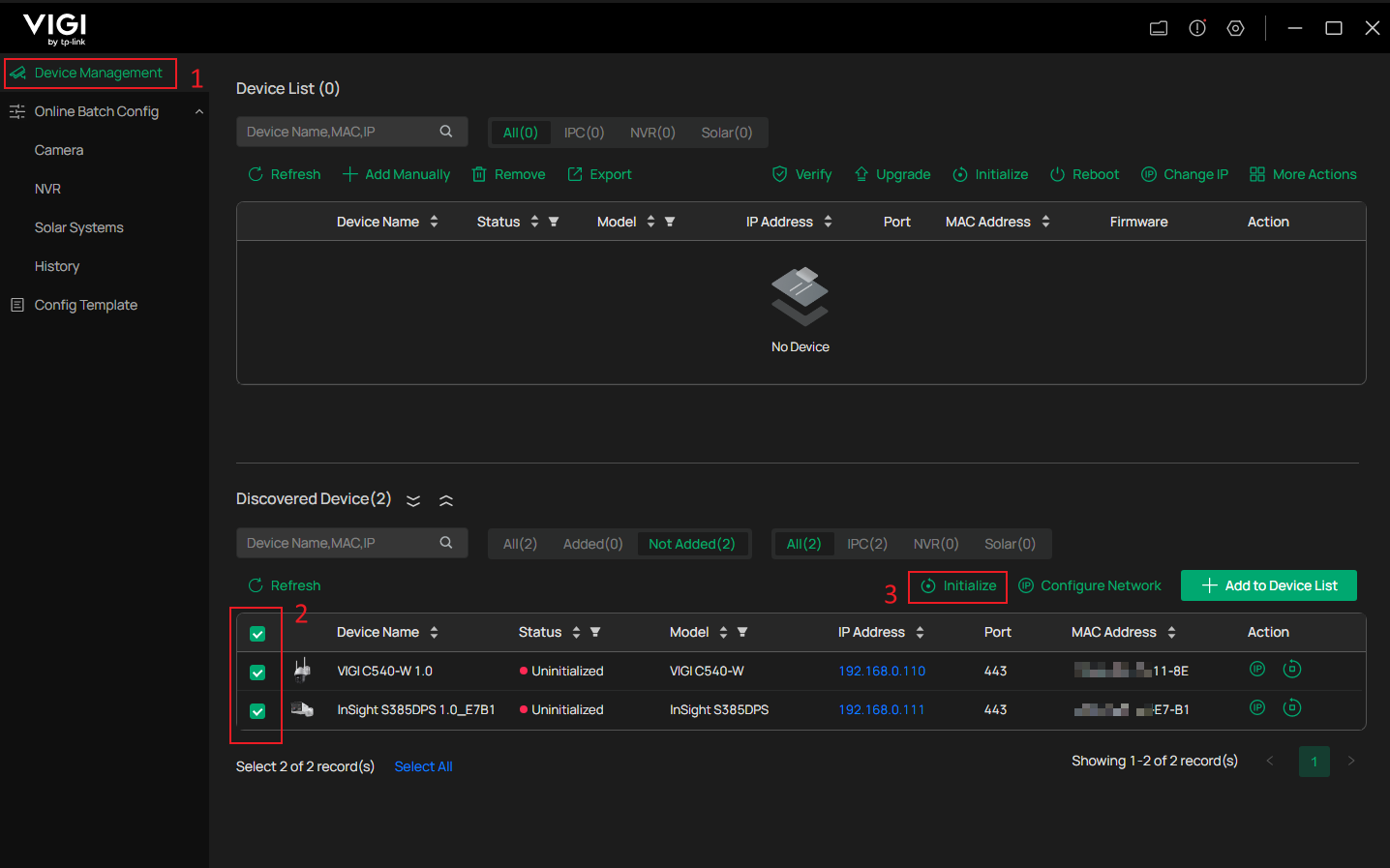
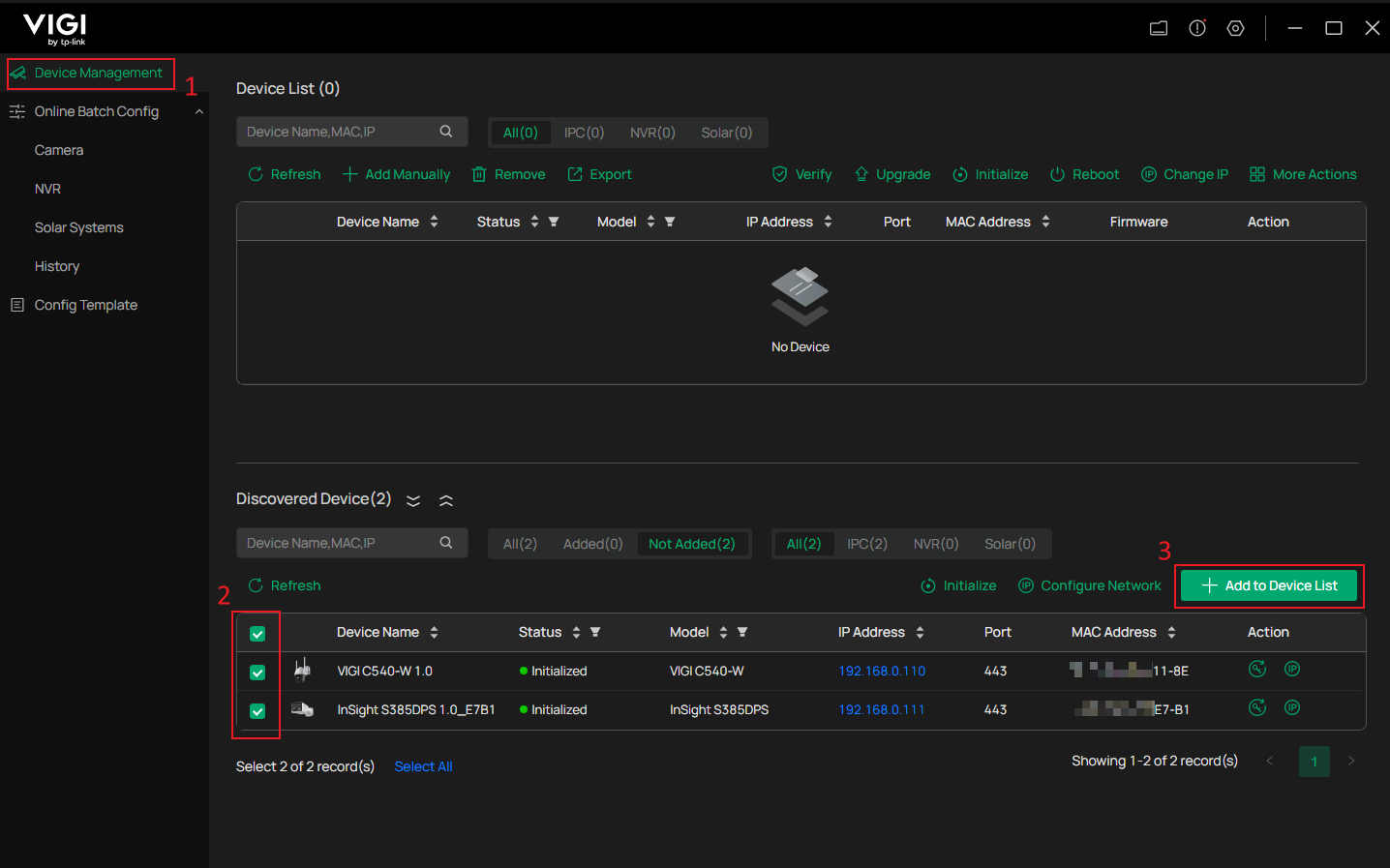
Step 3. Open the VIGI Config Tool. Go to Device Management > Discovered Device, select the uninitialized devices you want to configure, and click Initialize.
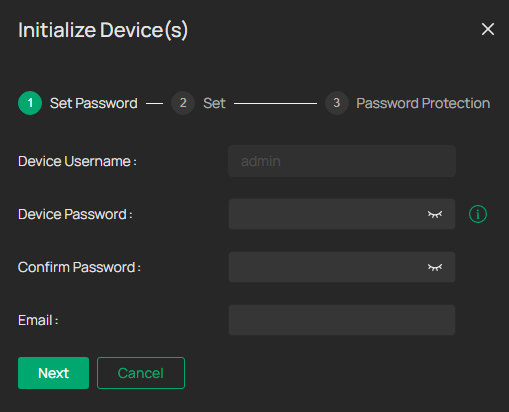
Step 4. Set the camera password and the recovery email.
Step 5. Set the Country/Region, Time Zone, Language, and Power Line Frequency.
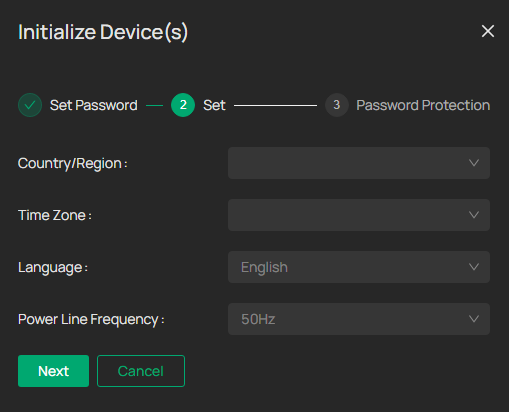
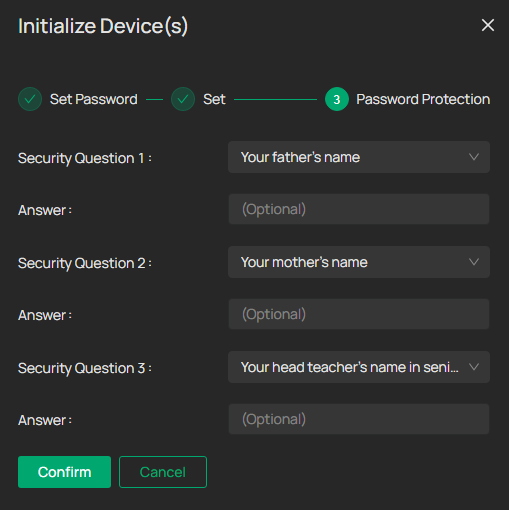
Step 6. Set the Security Question. We recommend setting up the security questions to help ensure continued access to your device. If you do not want to set them up at this time, you may skip this setting. Click Confirm to finish the initialization.

Step 7. The camera will now appear under Discovered Device with the status Initialized. To add and manage the camera in the VIGI Config Tool, select the camera and click Add to Device List.
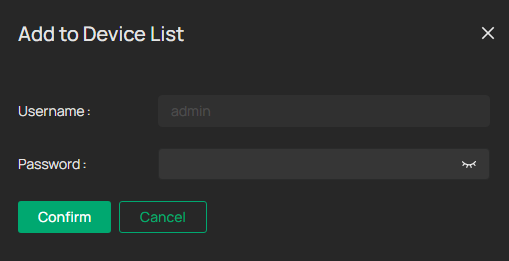
Step 8. Enter the camera's username and password to complete adding the camera.
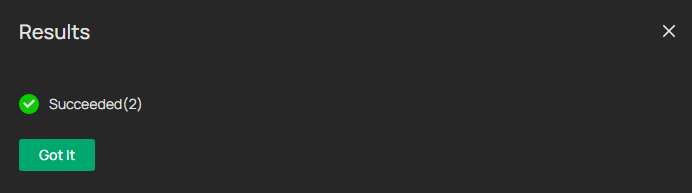
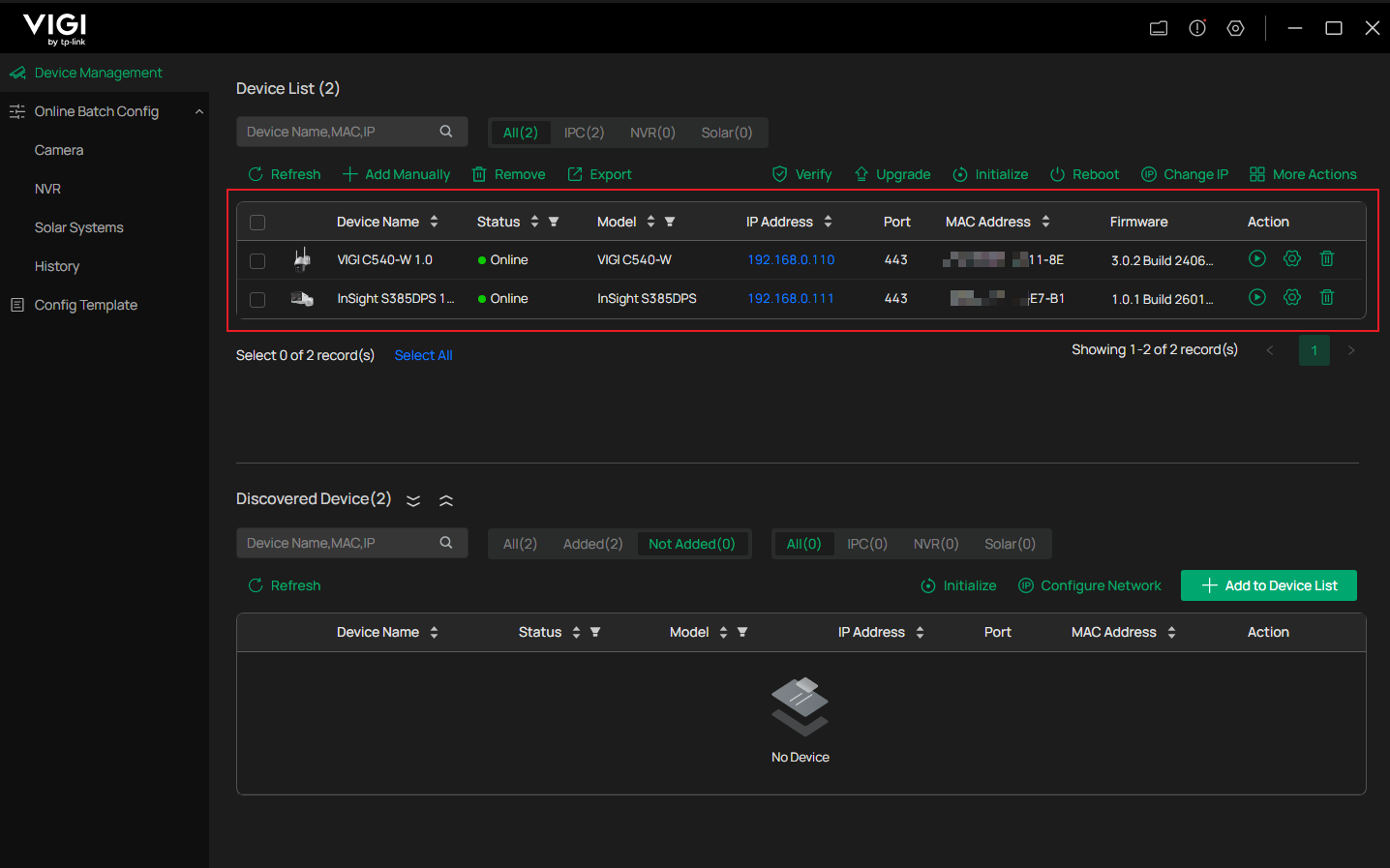
Step 9. Once added, the camera will appear in the Device List.
Conclusion
You have now learned three methods to initialize and configure VIGI cameras. Choose the appropriate method based on your deployment needs to complete the setup.
To learn more about each function and configuration, please visit Support Home to download or check the manual for your product.
QA
Q1: Can I change the username of my VIGI camera?
A1: The default administrator username is "admin" and cannot be changed during the initialization process. After the initialization is complete, you can go to System Settings > User Management to create a new user and assign a different username to that account.
Looking For More
¿Es útil esta pregunta frecuente?
Sus comentarios nos ayudan a mejorar este sitio.



TP-Link Community
Still need help? Search for answers, ask questions, and get help from TP-Link experts and other users around the world.