How to Upgrade VIGI NVR Firmware
Contents
Configuration for the NVR Local Web UI
Configuration for the VIGI Config Tool
Configuration for VIGI Local VMS
Configuration for VIGI Cloud VMS
Introduction
Keeping your VIGI NVR firmware up to date provides access to the latest features, performance improvements, security enhancements, and issue fixes. This guide explains how to upgrade the firmware of a VIGI NVR via the NVR GUI, NVR Web Interface, VIGI App, VIGI Config Tool, VIGI Local VMS, or VIGI Cloud VMS, using either the available online or local upgrade method.
Requirements
- VIGI NVR
Configuration
The firmware of a VIGI NVR can be upgraded using several management platforms. Select the appropriate method based on how the NVR is currently managed and whether you want to perform an online or local upgrade.
NVR GUI: Online or local upgrade
NVR Web Interface: Online or local upgrade
VIGI Config Tool: Online or local upgrade
VIGI Local VMS: Online or local upgrade
VIGI Cloud VMS: Online or local upgrade
VIGI App: Online upgrade
For a local upgrade, download the firmware corresponding to the NVR’s exact model and hardware version from the TP-Link Download Center. Do not power off or disconnect the NVR during the upgrade.
Configuration for the NVR GUI
Note: Before upgrading the firmware locally via the NVR GUI, please download the corresponding firmware based on your VIGI NVRs model and hardware version from the TP-Link official website Download Center.
After downloading, extract the firmware package to obtain the .bin file required for the upgrade. Copy the .bin file to a USB drive, then plug the USB drive into the VIGI NVR's USB port to proceed with the upgrade.
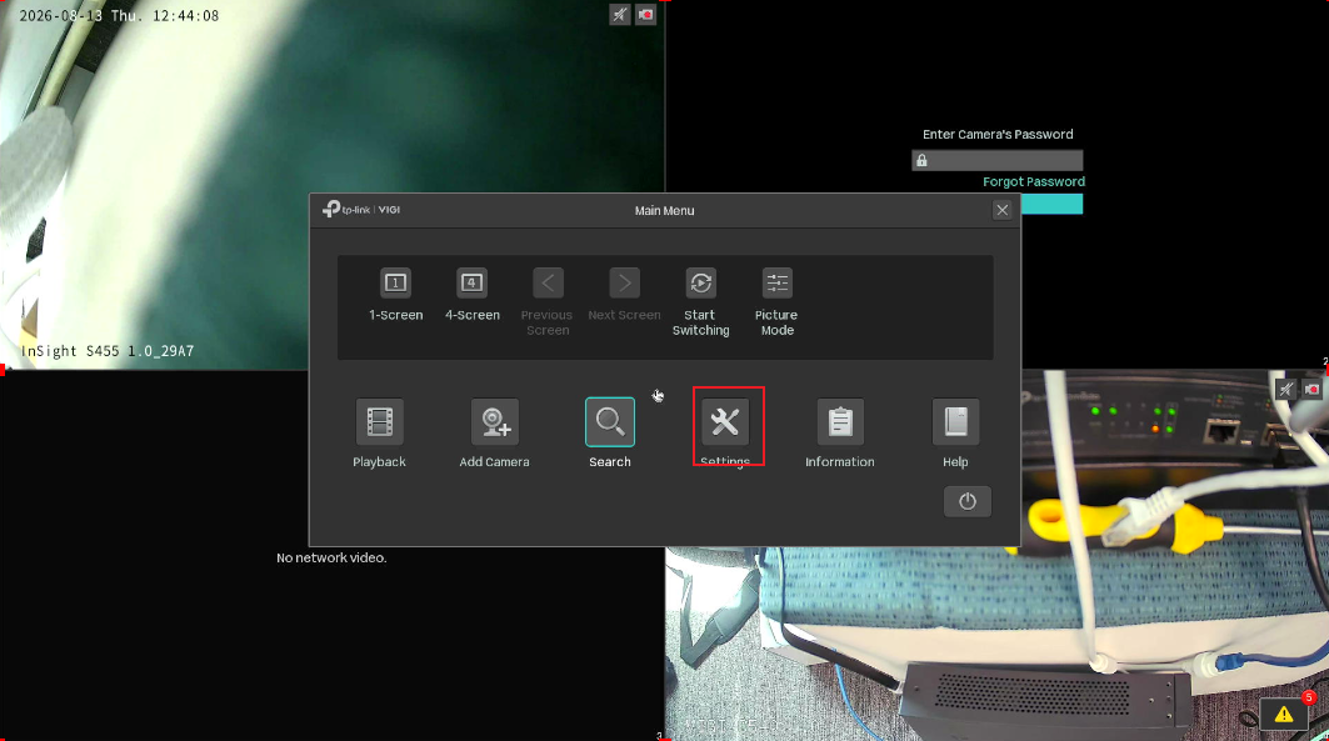
Step 1. Log in to the VIGI NVR and go to Settings.
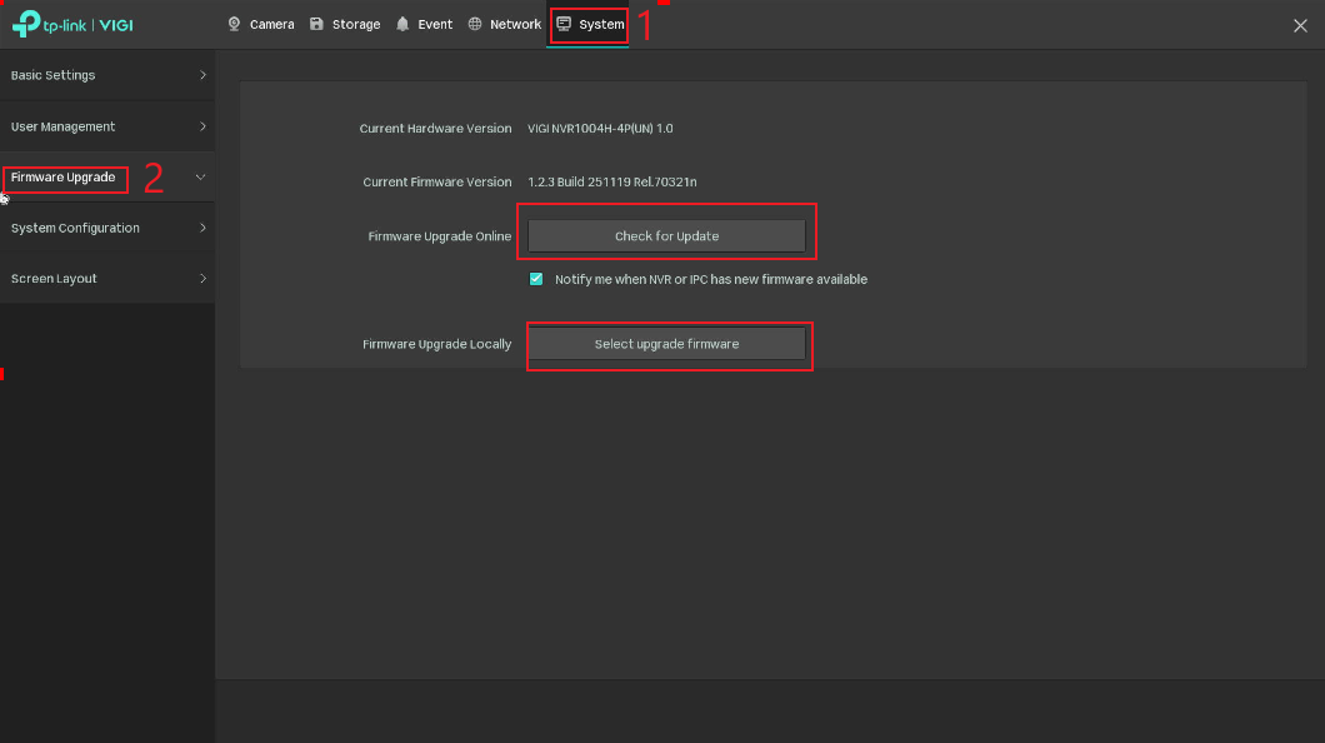
Step 2. Go to System > Firmware Upgrade > then select the upgrade type for the NVR.
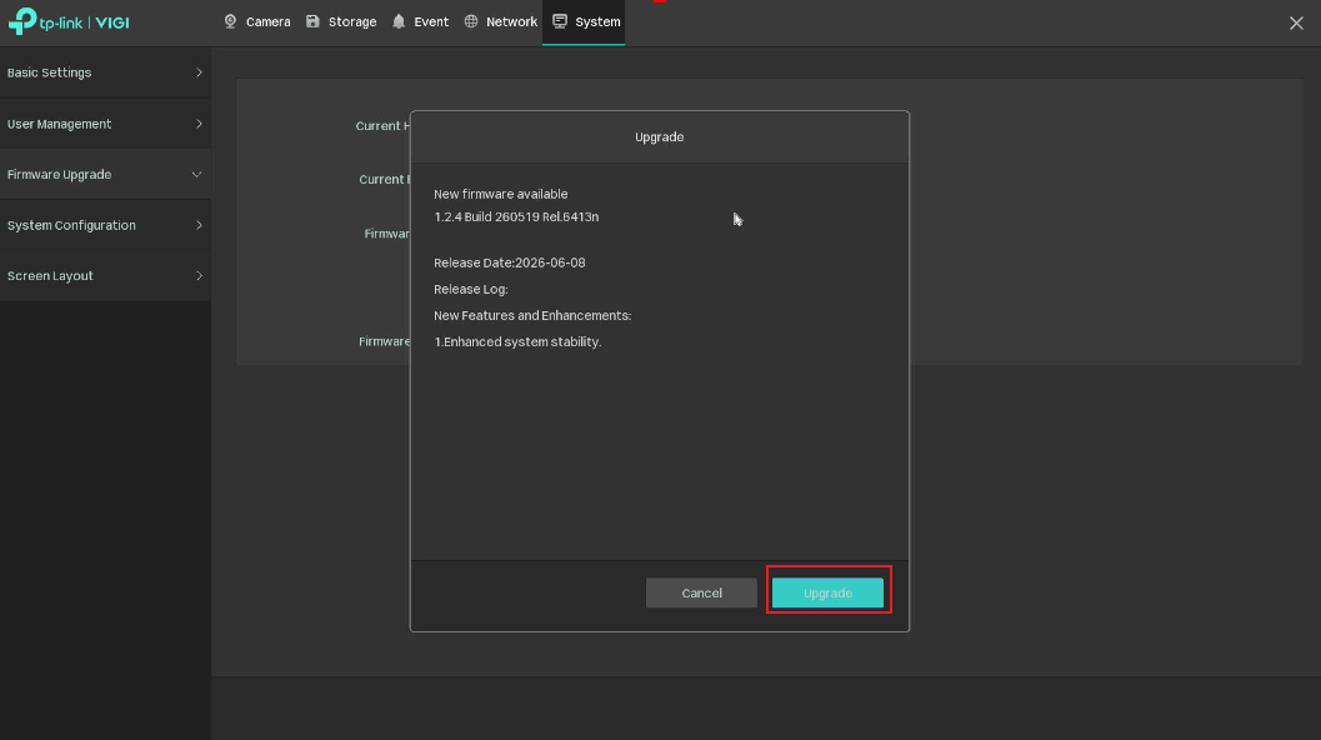
If the NVR is online and has an upgrade available the firmware upgrade prompt will look like the attached image:
Configuration for the NVR Local Web UI
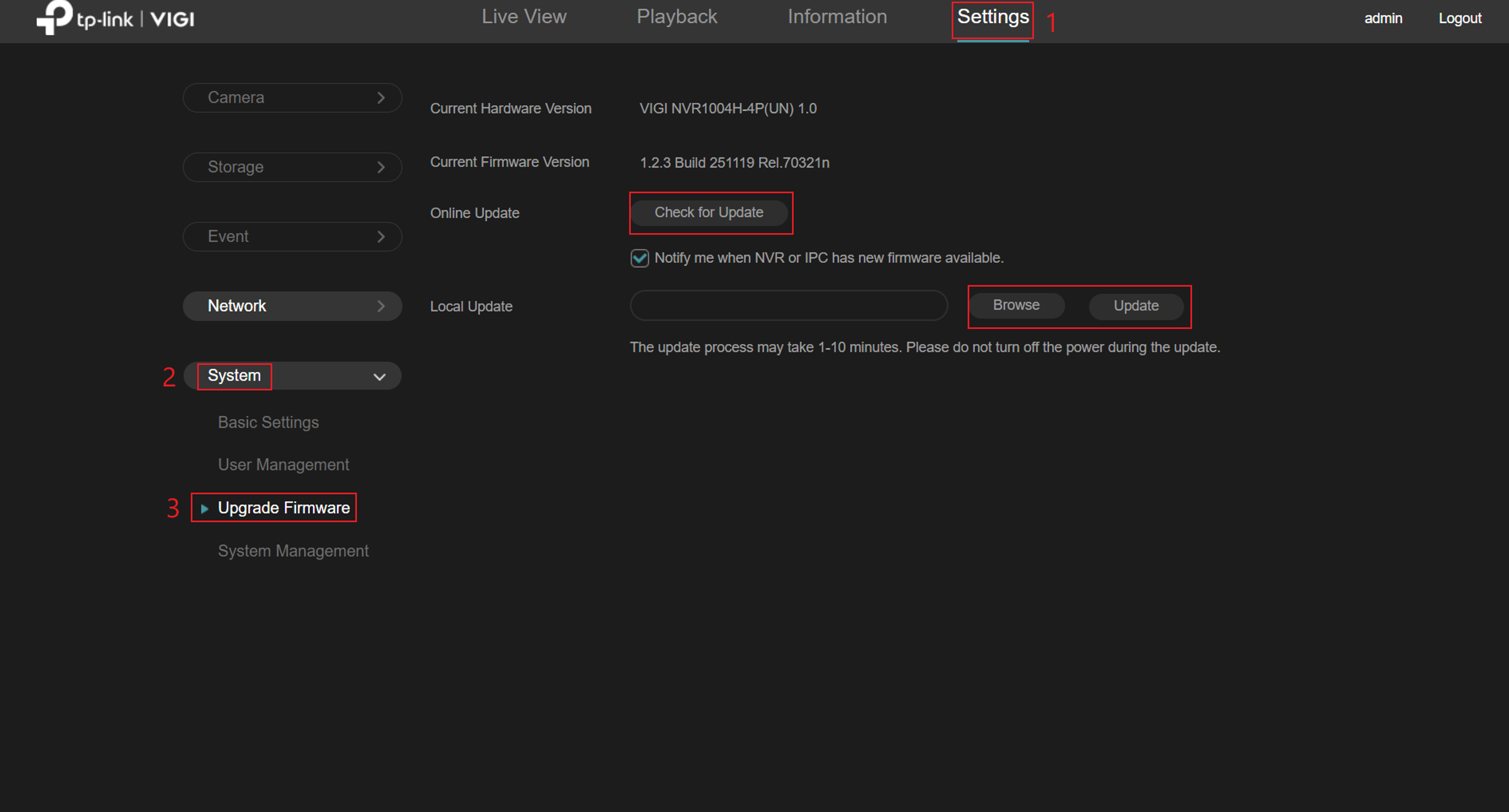
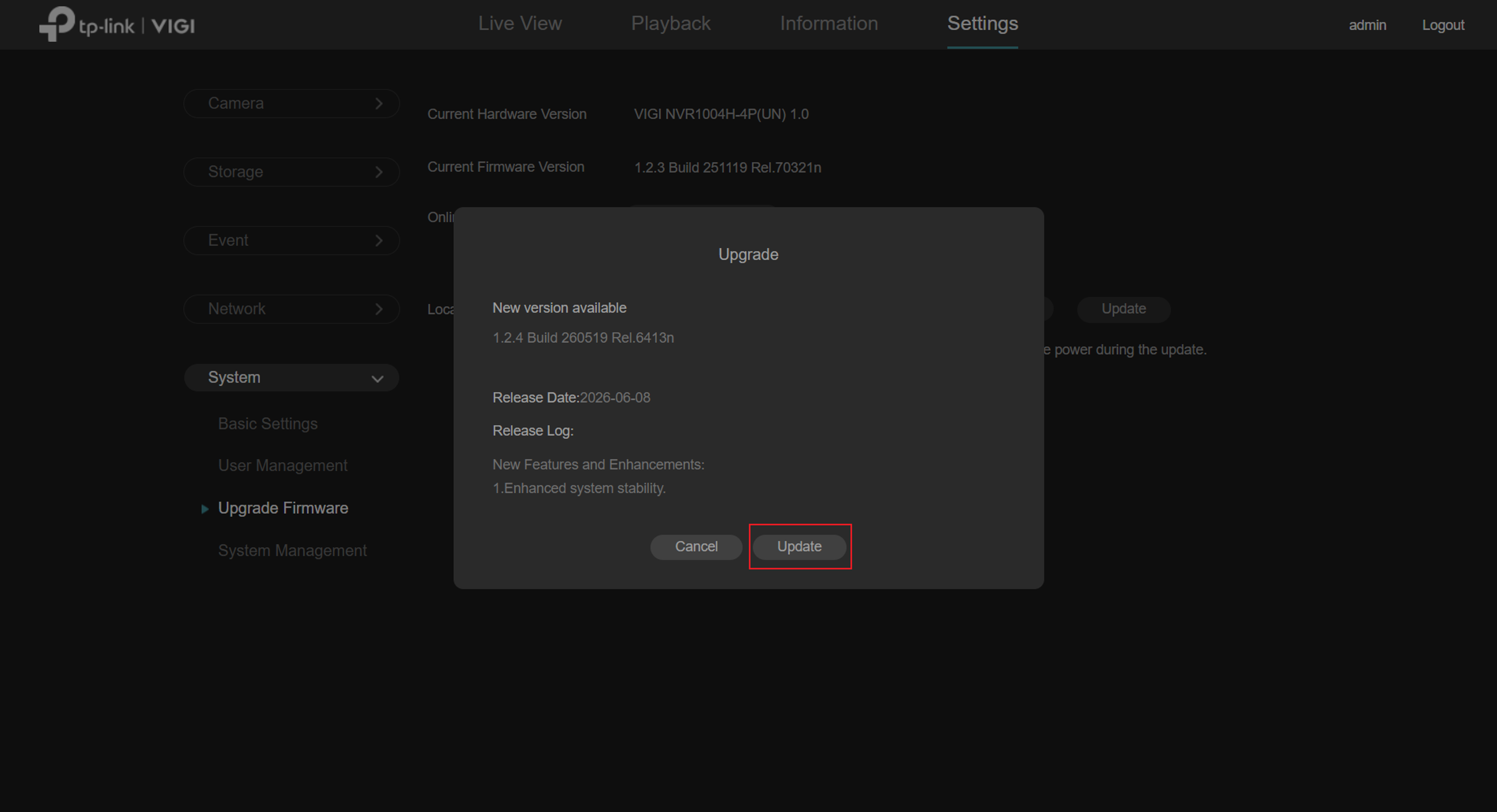
Step 1. Log in to the NVR, navigate to Settings > System > Upgrade Firmware > and select your firmware upgrade method, whether Online or Local.
If the NVR is online and has an upgrade available the firmware upgrade prompt will look like the attached image:
Configuration for the VIGI Config Tool
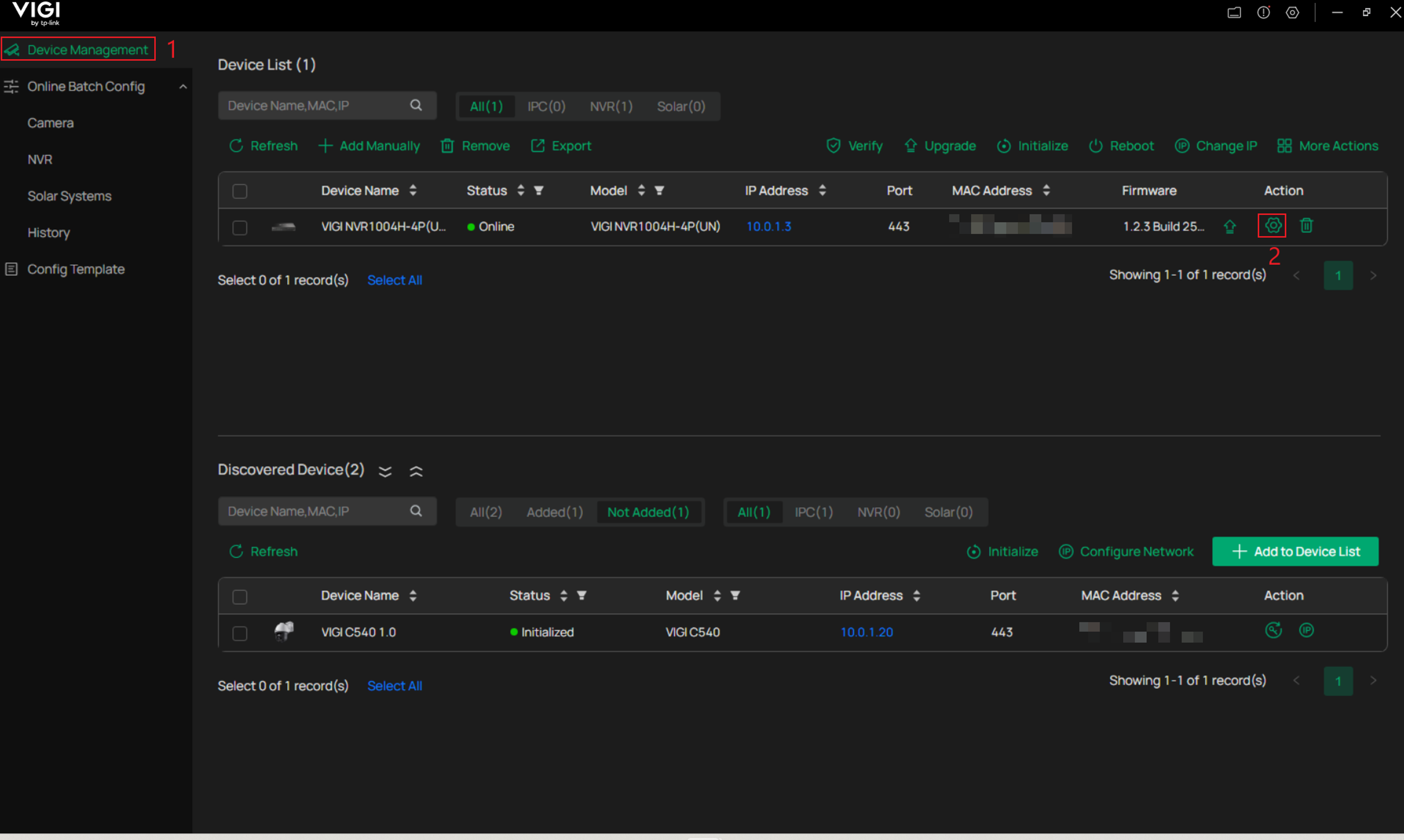
Step 1. Start VIGI Config Tool and navigate to Device Management > and click Edit for the VIGI NVR needing a firmware update.
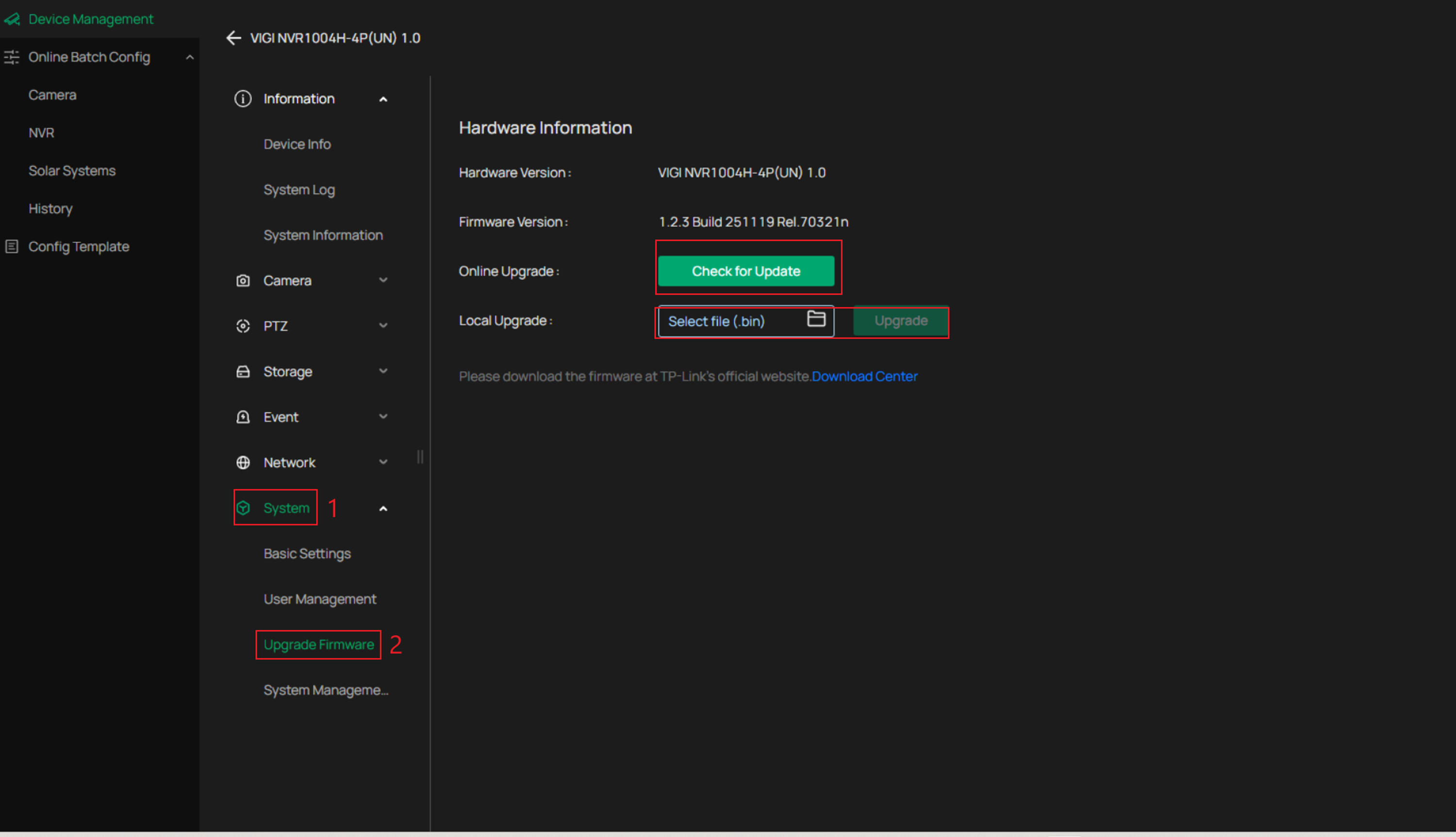
Step 2. Go to System > Upgrade Firmware > and select the upgrade type.
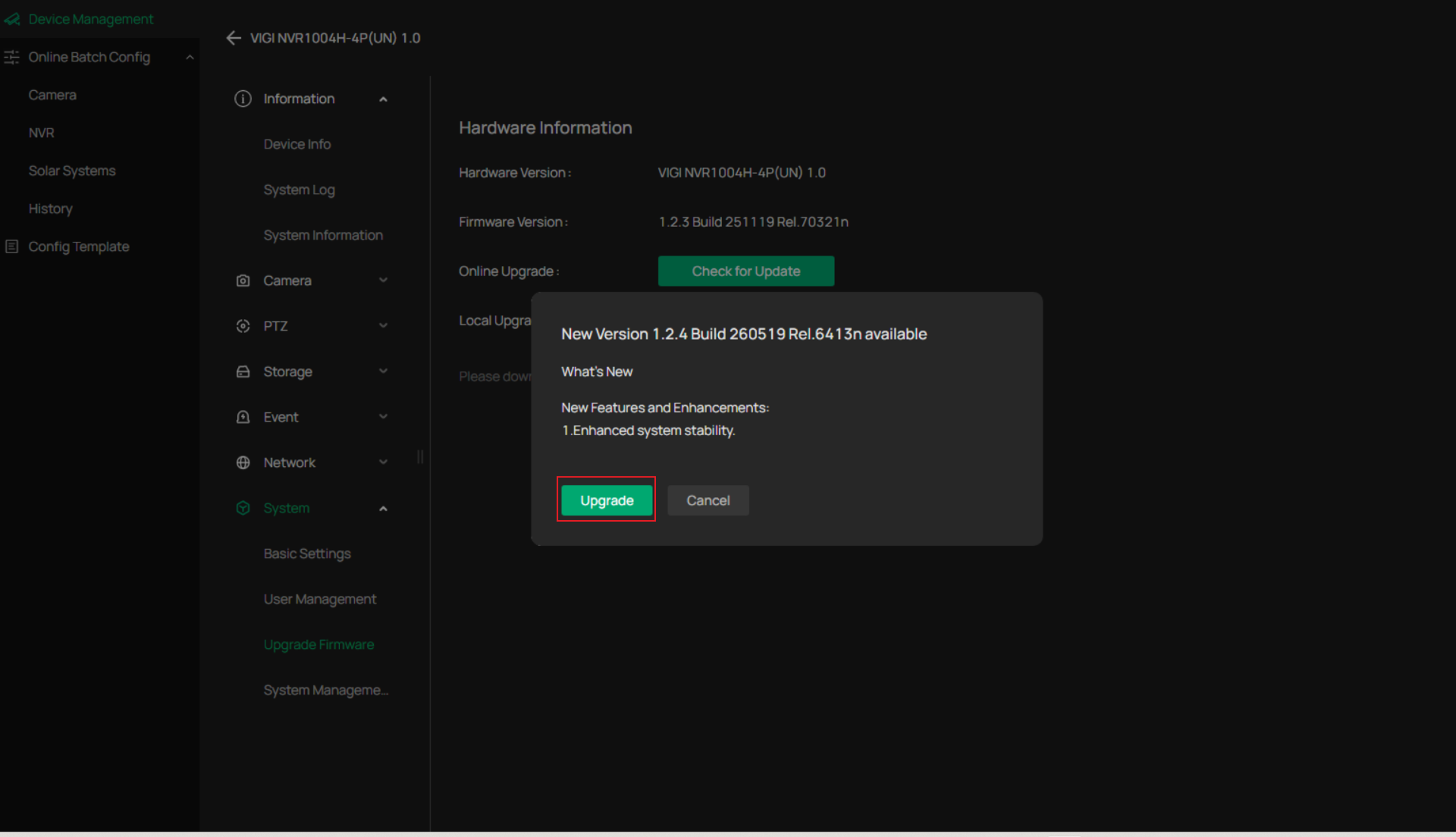
If the NVR is online and has an upgrade available, the firmware upgrade prompt will look like the attached image:
Configuration for VIGI Local VMS
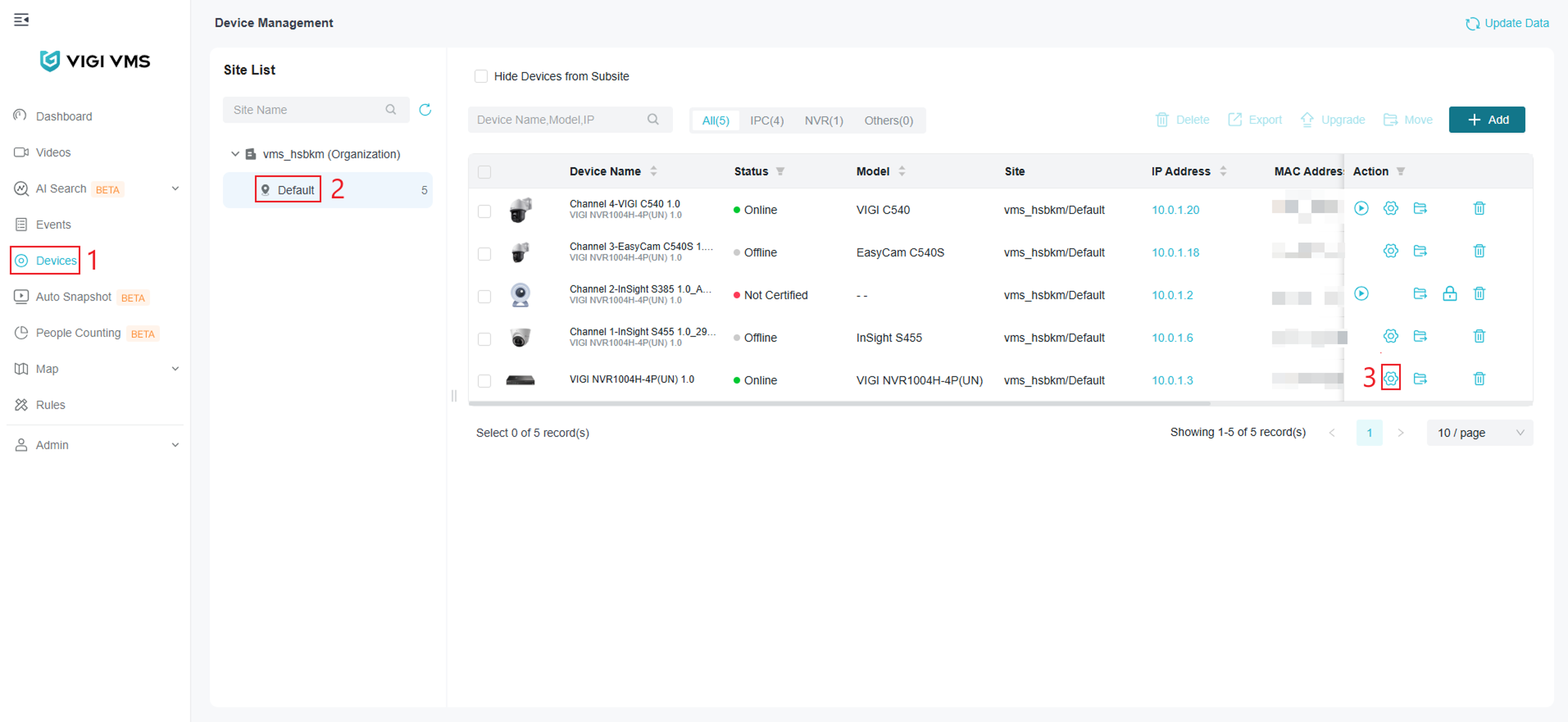
Step 1. Log into the Local VMS and navigate to Devices > select the Site the NVR resides on > and click Edit.
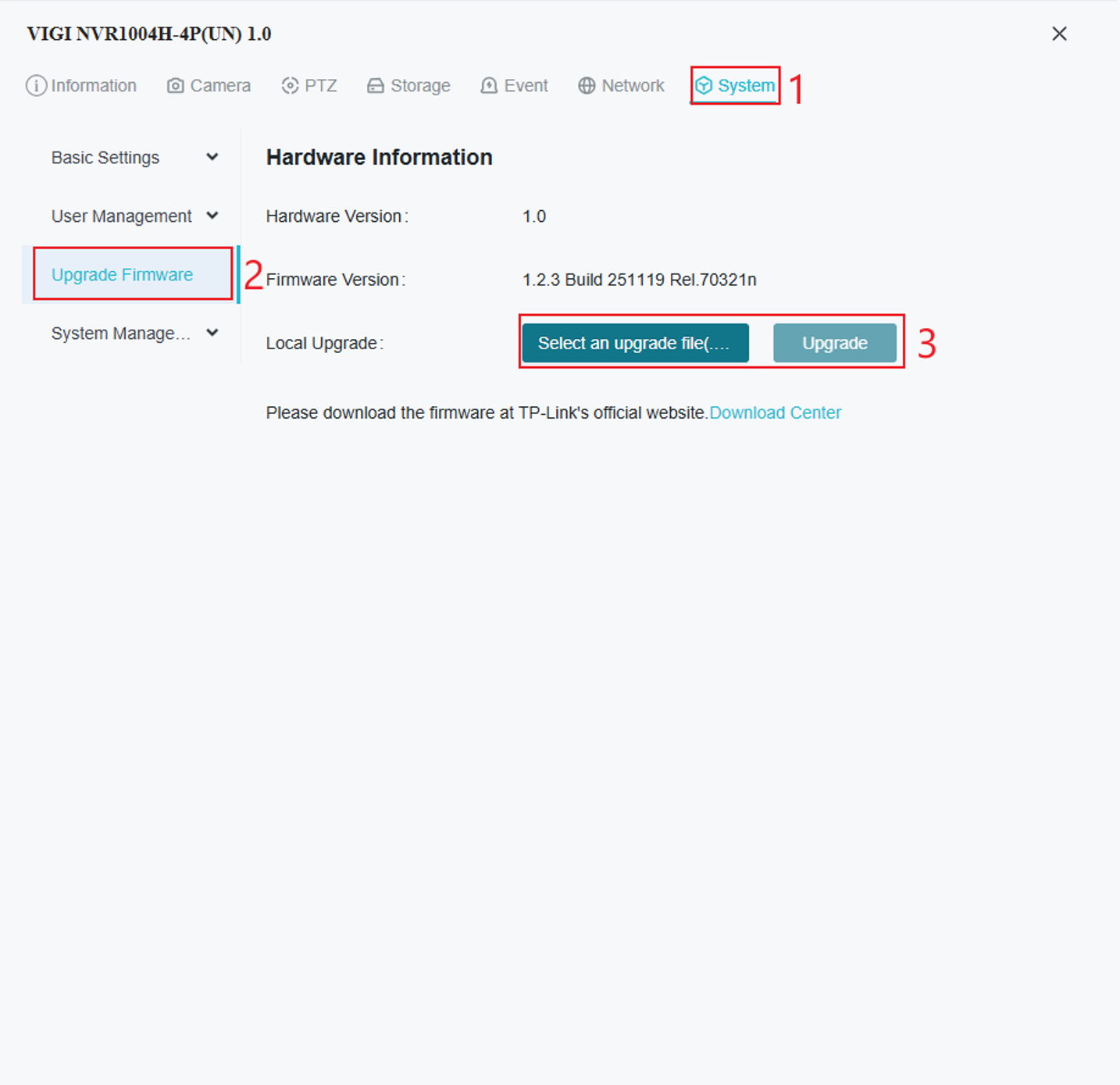
Step 2. Go to System > Upgrade Firmware > and Upgrade by importing the firmware file.
Configuration for VIGI Cloud VMS
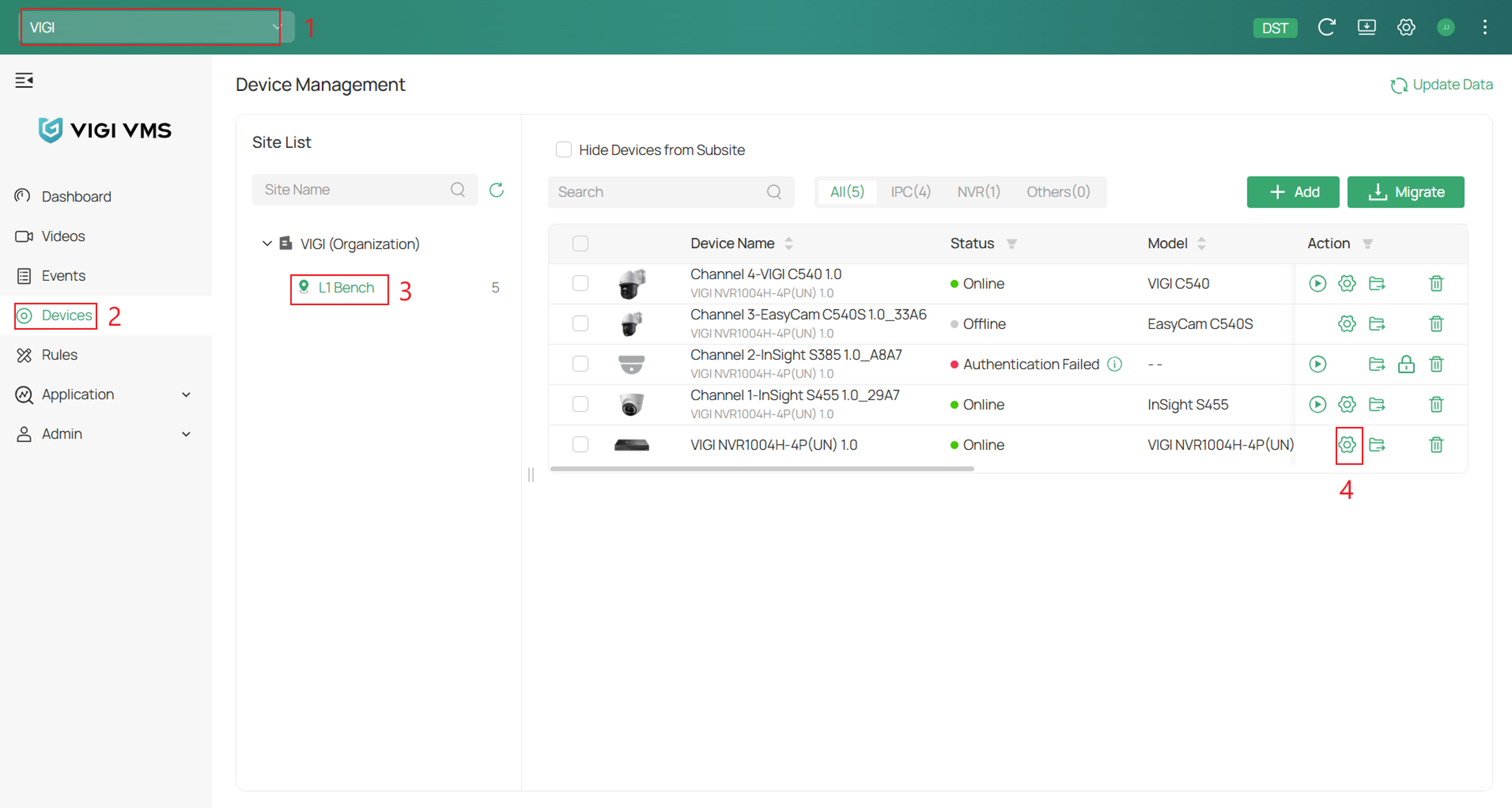
Step 1. Log into VMS Cloud and navigate to your Organization > Devices > Site > and click the Edit icon on the NVR
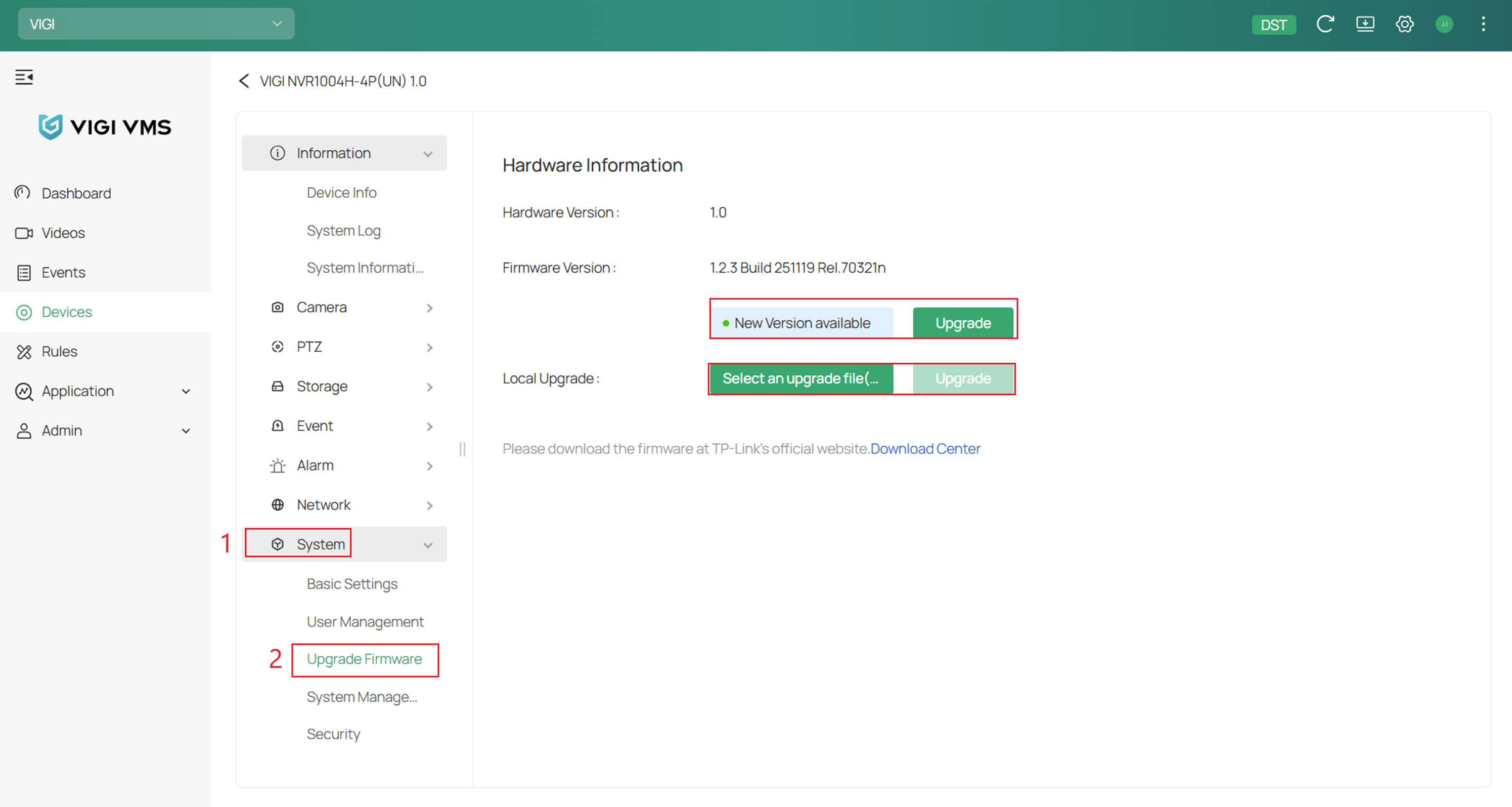
Step 2. Go to System > Upgrade Firmware > select the firmware upgrade type.
Configuration for VIGI App
Step 1. Open the VIGI App and go to Edit > Settings.
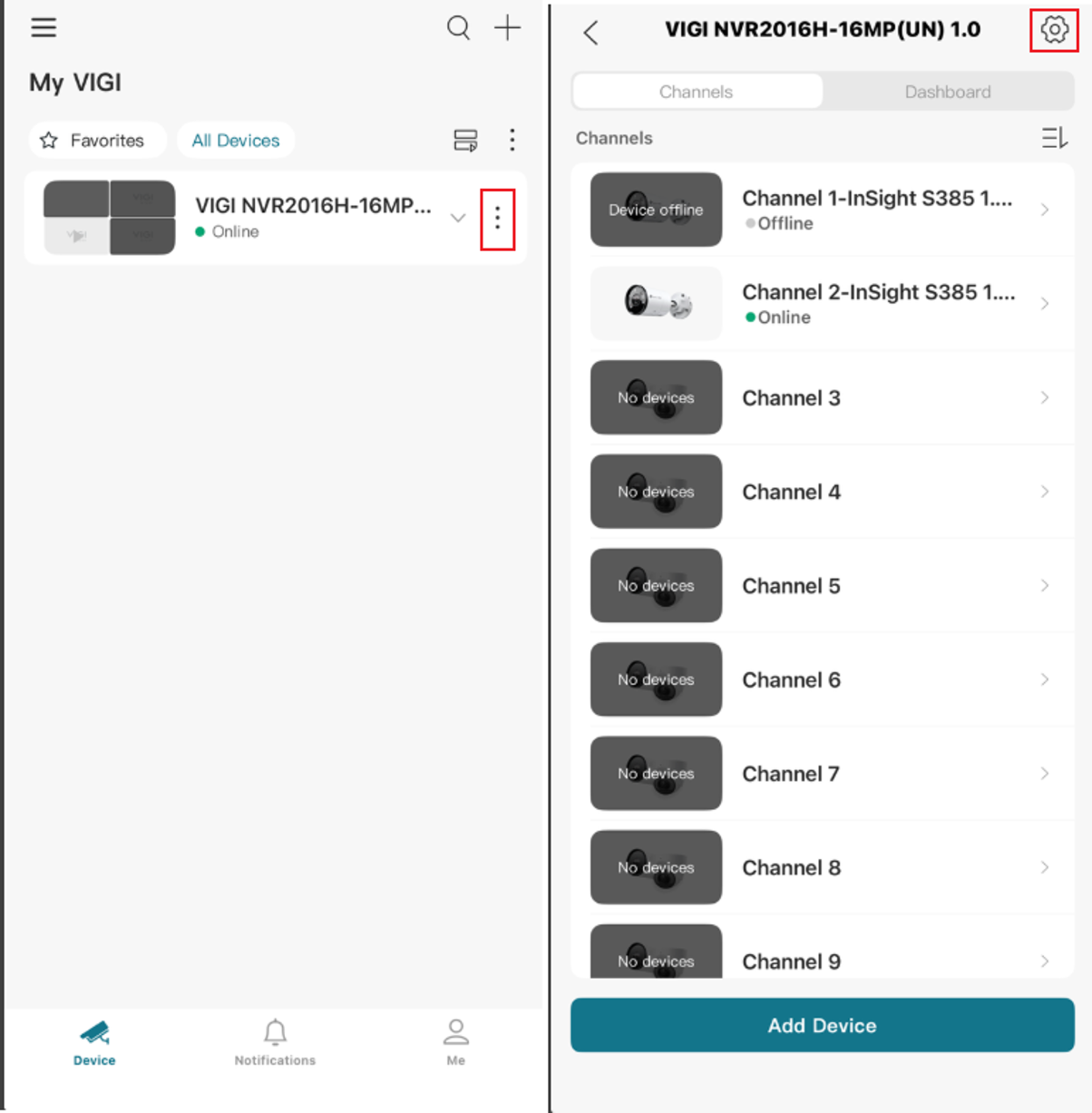
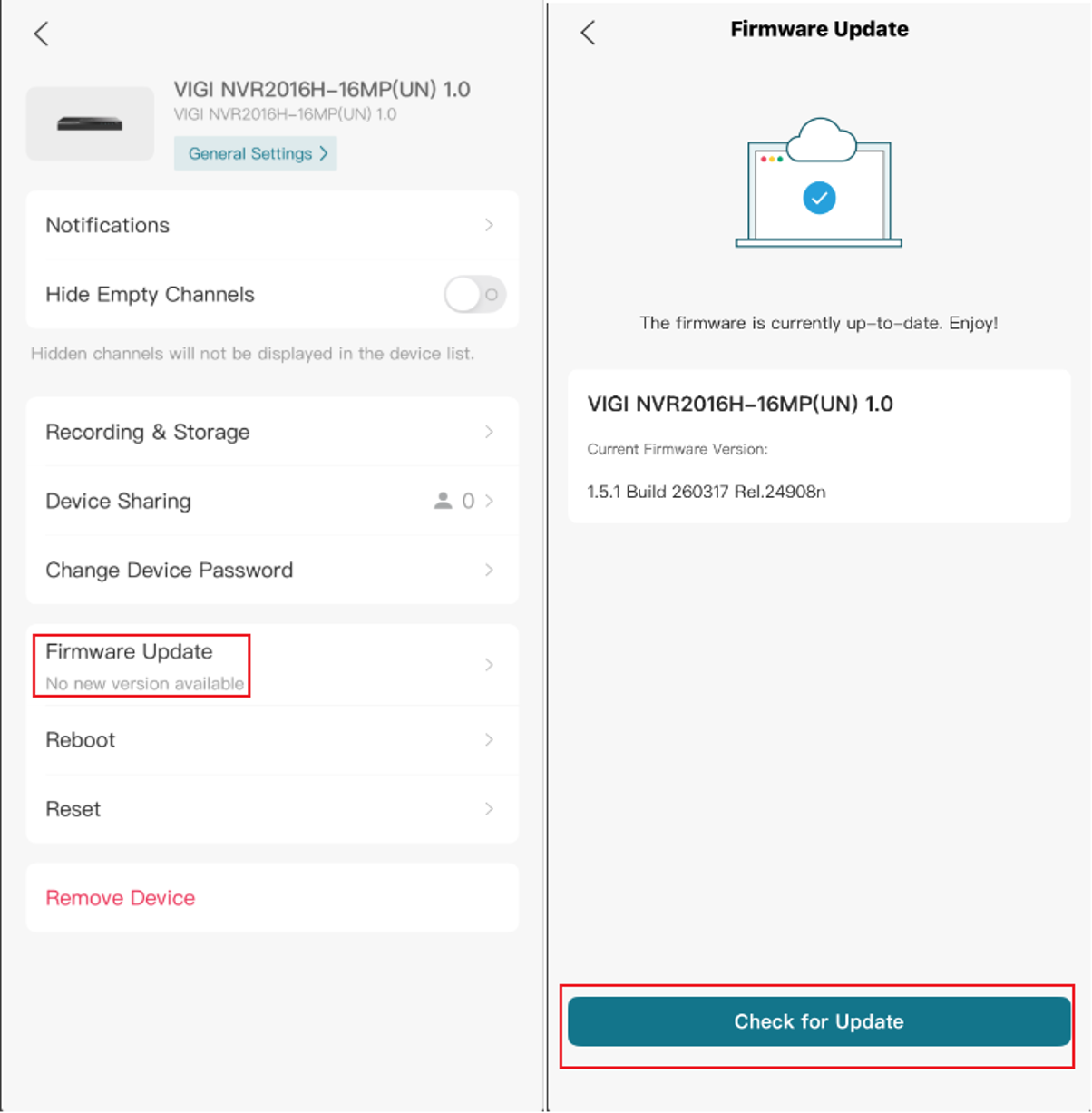
Step 2. Select Firmware Update > Check for Update.
Conclusion
You have successfully upgraded the firmware of your VIGI NVR using the available management method. Keeping the NVR firmware up to date helps maintain system stability, security, and access to the latest features. Do not power off or disconnect the NVR during the upgrade process.
To learn more about each function and configuration, please visit Support Home to download or check the manual for your product.
QA
Q1: What should I do if the VIGI NVR firmware upgrade fails?
A1: Verify that the firmware file matches the NVR’s exact model and hardware version. If performing an online upgrade, confirm that the NVR has a stable internet connection. For a local upgrade, download the firmware file again and retry. Do not power off or disconnect the NVR during the upgrade.
Looking For More
¿Es útil esta pregunta frecuente?
Sus comentarios nos ayudan a mejorar este sitio.

TP-Link Community
Still need help? Search for answers, ask questions, and get help from TP-Link experts and other users around the world.