How to troubleshoot Windows fails to load the required drivers for TP-Link Bluetooth adapter with Code 31 error
 13438
13438Introduction
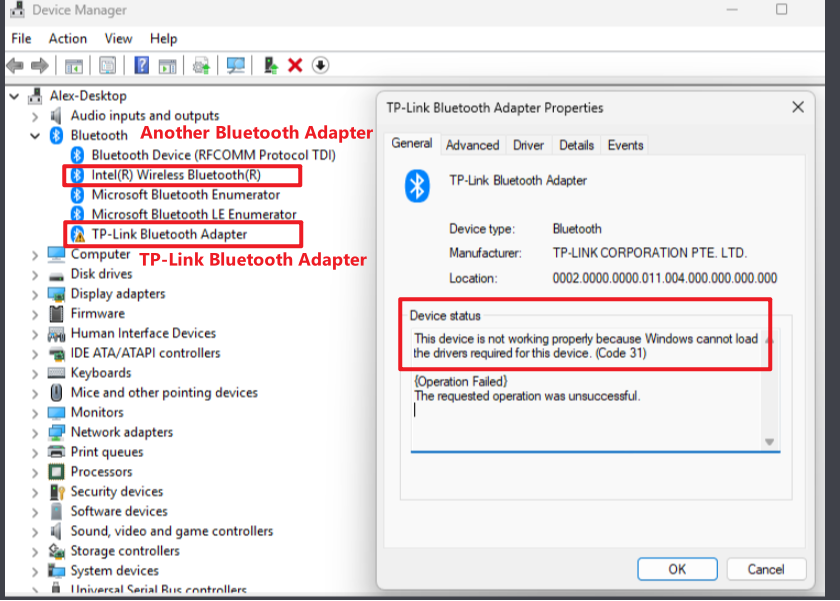
This FAQ helps troubleshoot the issue that Windows fails to load the required drivers for a TP-Link Bluetooth adapter and shows a Code 31 error: “This device is not working properly because Windows cannot load the drivers required for this device. (Code 31)” in Device Manager.
Requirements
- Windows PC
- TP-Link Bluetooth adapter, or wireless network adapter with a Bluetooth module
- Access to Device Manager (administrator permission recommended)
Troubleshooting
Step 1. Press Win + X, then select Device Manager.
Step 2. Expand Bluetooth to view all Bluetooth-related devices.
Step 3. Find TP-Link Bluetooth Adapter and make sure it remains enabled (do not disable it).
Step 4. Disable any other third-party Bluetooth adapters (e.g., Intel, Realtek, Broadcom): right-click the device > Disable device > confirm.
Step 5. Do not disable any Microsoft system components, especially Microsoft Bluetooth Enumerator or Microsoft Bluetooth LE Enumerator.
Step 6. Confirm that only the TP-Link Bluetooth Adapter is enabled, and the disabled devices show a down-arrow icon.
Step 7. Restart the PC: Start > Power > Restart and wait for the reboot to complete.
Câu hỏi thường gặp này có hữu ích không?
Phản hồi của bạn giúp cải thiện trang web này.